













12 FAQs About FTP Hosting

Laura Bernheim
Contributing Expert
Given the alphabet soup of FTP acronyms and variations, finding the best FTP hosting can be fraught with questions.
FTP technology has been around for about 50 years, making it a fundamental yet complex system. An FTP server enhances business communication and collaboration, improving your experience as a website owner.
You can usually find FTP (or SFTP, FTPS, FTPES, TFTP… you get the idea) included in your hosting service at no extra cost. Use your preferred FTP program to organize files, archive data, and manage storage.
Let’s walk through some tips that will help you integrate FTP into your hosting adventures like a pro.
1. What Is FTP Hosting?
FTP stands for File Transfer Protocol. This technology, which originated in the early 1970s, was created by Abhay Bhushan, who also played a role in developing early email protocols.
FTP is a key component of digital information sharing, essential for uploading and downloading files to and from your website’s server. This includes templates, images, PDFs, and other documents or code.
Although FTP is closely integrated with web hosting, many other industries and users leverage the technology for file hosting, sharing, organizing, and storing.
FTP is particularly helpful for reliably moving several files at once and transmitting large amounts of data.
FTP has been around for a long time, making it a well-known and popular tool for file transfers. However, the original format isn’t very secure. That’s where SFTP, FTPS, and FTPES come into play:
- SFTP (secure file transfer protocol): Establishes a secure connection and sends files through the secure shell or SSH file transfer protocol instead of TCP/IP connections.
- FTPS (FTP SSL): Secures data transfer with TLS/SSL certificates, encrypting your files as they move between devices.
- FTPES (FTP over Explicit SSL): More explicitly connects to your specific hosting account via TLS/SSL, providing even greater protection.
Data exchange between a client and an FTP server happens along two communication channels: The command channel for authenticating the FTP account and directing files and the data channel for actually moving the information.
With the original FTP, both channels are unencrypted, leaving information vulnerable to interception, viewing, or manipulation. Basic standards for secure web hosting, along with industry requirements like PCI and HIPAA, require encrypted and managed file transfer.
While you’ll commonly encounter the acronym FTP, it’s likely that you’ll be utilizing one of the more advanced versions of this protocol that we’ve discussed.
2. Why Should I Use an FTP Server?
An FTP server makes it simple to upload files to your website server or share groups of files with others. It’s built to feel familiar, so you can manage files much like you would on your own computer.
With web hosting, you will often engage a secure FTP server as the midpoint between you and your site’s visitors. (The files you upload to your hosting server will be retrieved and downloaded by your visitors’ web browsers.)
An FTP server provides a few major advantages over SSH access and other file hosting options.
Here’s a list of perks you can enjoy with a strong and secure FTP hosting provider.
- Large file transfers: FTP can easily handle transfers of hundreds of gigabytes of data at once, all at a relatively quick pace.
- Complete directory transfers: Sending files one at a time can be a very time-consuming and annoying process. Sending full directories, or folders, in one swoop can significantly impact your workflow effectiveness.
- Data protection: With automatic backups, and even full backup servers, you never have to worry about losing your hard work.
- Continuous work: Your transfers can happen in the background while you continue working elsewhere simultaneously.
- Handles interruptions: If your transfer is disrupted, you can pick up where you left off; you won’t lose progress.
- Intuitive organization: FTP servers rely on the same familiar organizational structure with folders and files that computer users engage with every day.
- Access controls: Team leaders can give FTP accounts various levels of access and control depending on their roles.
As with most things in life, FTP does have a couple of downsides:
- Security: Regular ol’ FTP is not inherently secure. You’ll need to use a client that offers SFTP to make sure your files are protected.
- Compliance: Because standard FTP isn’t encrypted, organizations that need to follow HIPAA, GDPR, or PCI compliance may find themselves in hot water if they don’t opt for a more secure version.
FTP is so embedded in web hosting services that it might not even appear on the list of essential features. You’ll see it included in nearly every hosting plan.
Whether you’re building a new site or making updates, moving your website files with the File Transfer Protocol is an essential skill for a site manager.
Your host will help you connect to your FTP server, either through the administrative control panel or instructions for connecting with separate FTP client software you can install on your computer (more on that later).
3. How Do I Choose the Best FTP Host?
Wouldn’t it be awesome if this question had a simple answer? It would save you from all the research and stress of making a choice. But let’s face it, it’s rarely that straightforward.
The ideal FTP hosting service for you depends on your specific needs, such as the amount of data you plan to store, the types of files you’re handling, the expected traffic, and how many users will access the information.
When choosing a web host, ask yourself a few questions to help narrow down the options:
- What’s your budget?
- How much total storage do you need?
- How much data will you be transferring?
- How many people will need access to the server?
- How important is customer support?
- What growth needs do you anticipate?
- What are your data backup needs?
You’ll probably want to look beyond FTP alone to get the full picture. Does your web host include domain privacy? What about optimized WordPress hosting? Those details can make a real difference.
An excellent FTP host pairs perfectly with a dependable FTP client to ensure file transfers are smooth and efficient. The best providers will even walk you through setting up remote access for both Linux and Windows hosting.
Companies that offer cPanel hosting provide access to a File Manager that operates similarly to the third-party client software. Those on a Windows server will find similar software on most accounts.
Be sure to search the hosts’ knowledge base for advice on connecting to your FTP server, creating an FTP user, and configuring client software.
Once you’ve answered all of these questions, take a look around our reviews and you’ll be well on your way to narrowing down the best FTP host to fit your exact specifications and setting up your new hosting account.
4. How Much Does an FTP Service Cost?
As with most things in life, the cost of an FTP service can vary greatly. You’ll find everything from consumer-grade free vs. paid hosting options to premium enterprise packages with prices that will make your jaw drop.
Services with advanced features, including additional security measures, automatic backups, or automation, may increase the cost of your FTP package.
Here’s how web hosting prices generally compare across different configurations:
| Shared Hosting | VPS Hosting/Cloud Hosting | Dedicated Server |
|---|---|---|
| $2 to $6 per month | $5 to $20 per month | $75 to $150 per month |
Website builders and cheap WordPress hosting typically fall in the shared hosting price range, while eCommerce packages and managed services could increase the price of your FTP package to the range of VPS, cloud, and dedicated server hosting.
Many users with secure FTP hosting service needs will likely fit comfortably in a plan for about $10 or less per month.
5. Does All Shared Hosting Come With FTP?
The vast majority of hosting plans come with FTP — or, at least, the more modern and secure protocols like SFTP and FTPS.
Many hosts will include a file manager with an administrative control panel, along with the ability to add unlimited FTP accounts and connect via client software.
Popular hosts that include FTP with shared web hosting:
| Host Name | Price |
|---|---|
| Hosting.com | $1.99/month |
| Hostinger | $2.69/month |
| SiteGround | $2.99/month |
| HostGator | $2.29/month |
| IONOS | $1.00/month |
| Bluehost | $1.99/month |
Although traditional hosting plans typically come with FTP services, fewer customers rely on the technology for transferring files.
Popular content management systems, like WordPress, Joomla, and Drupal, offer built-in ways to add content and upload images that don’t rely on FTP.
The ever-popular one-click installations for these and other programs further bypass the need for FTP solutions — although it’s still available for those who want it.
However, steer clear from hosted website builders and eCommerce platforms if you require access to an FTP server.
These user-friendly solutions, including Wix and Shopify, offer less server access than traditional FTP hosting providers. In fact, you can’t access your website’s individual server files or codebase.
Some services may make limited files available via API, but don’t count on FTP availability if you’re using a website builder or other design service package.
6. What Is an FTP Client?
We’ve discussed FTP servers in detail, but what exactly is an FTP client? Basically, you and any other FTP account holders are the clients accessing files on the server.
In the digital scene, an FTP client is a software program that facilitates the upload, download, and file management associated with the File Transfer Protocol.
A file transfer occurs between an off-site FTP server and a computer that is equipped with an FTP client software program like FileZilla that can establish a connection with the server and support the data transmission.
You don’t always need an FTP client to access FTP. You can also connect in other ways, such as through a web browser, to establish an FTP connection and transfer a website file.
However, these alternatives can often struggle with speed, reliability, or ease of use. FTP programs streamline and unify the entire process.
FileZilla is one of the most well-known FTP clients and often comes standard with web hosting plans. Users across the internet give it positive reviews, making it a great free option in the FTP world. People appreciate its cost-free, user-friendly interface, especially if you’re just starting out.
Among popular FTP clients are CuteFTP, WinSCP, and Free FTP. When you purchase a web hosting plan, your provider will likely have one of these clients ready to go on your cPanel.
Check out DriveHQ and Unreal Commander to take a deeper dive into a few software companies with FTP clients that we’ve had some intimate conversations with.
7. Where Do I Find My FTP Credentials?
Most hosts will promptly send you an email with all the crucial login details, including your FTP account information, right after you sign up for your plan.
If you can’t find that email, you should be able to find your cPanel username and password in the administrative portal that helps you manage your server space.
In fact, your FTP username and password are often the same as your cPanel credentials.
Three places to find your FTP login information:
- Introductory email: Those early messages from your host contain a lot of important information. Dig through your inbox to see if you still have them.
- cPanel: In the Files section (where you’ll also find File Manager), click on the icon for FTP accounts. This is where you can create new accounts, change passwords, and often configure FTP client software.
- Knowledge base or support: When in doubt, reach out to your host! Most companies have 24/7 support channels, along with helpful articles and tutorials.
Your FTP login details usually include at least three pieces: a username, a password, and your host name or FTP server address (which may be your IP address or domain name). You’ll usually find add-on domain files inside a folder under your main account.
If you access your FTP account information via cPanel, you may even be able to download a configuration file that automatically configures your client software with the relevant credentials to connect to your FTP server.
If you can’t locate your login details or have tried logging in multiple times unsuccessfully, it might be time to contact the support team to reset your FTP user password.
This is one of those situations where investing in a provider with excellent customer service will come in handy. Don’t worry; we have recommendations for those providers too.
8. How Do I Create an FTP Account?
You’ll usually get an administrative FTP account when your hosting service begins, and creating separate accounts for other team members is usually fast and easy.
Here’s another example of why hosts with strong training materials and responsive support offer real value and can be well worth the money.
Hosts with a large number of customers and lively communities are more likely to offer user-generated tutorials or videos that cover everything about FTP settings, like creating a new account.
Follow these steps to create and manage FTP logins:
- Log into your cPanel
- Go to the Files section and click on FTP Accounts
- You should see a blank form to create an account. Enter the username, password, directory (usually public_html), and quota (the amount of data the user can store)
- Click the Create FTP Account button.
Once you’ve learned how to create an FTP account and obtained FTP access with a provider that uses cPanel, you’ll easily be able to replicate the process for creating multiple FTP user logins whenever you move your website to another host.
If you’re looking to allow anonymous access to your FTP server, you’ll need to search a bit to find a hosting provider that supports this option.
Anonymous users receive limited access to website files without needing to identify themselves to the server.
9. How Do I Use FileZilla?
FileZilla, one of the most popular FTP client software options, began as a computer science class project back in 2001. The students chose to offer the program for free since there were already plenty of commercial alternatives.
Now, the open-source program is one of the most popular options for uploading and downloading files.
FileZilla comes in three flavors:
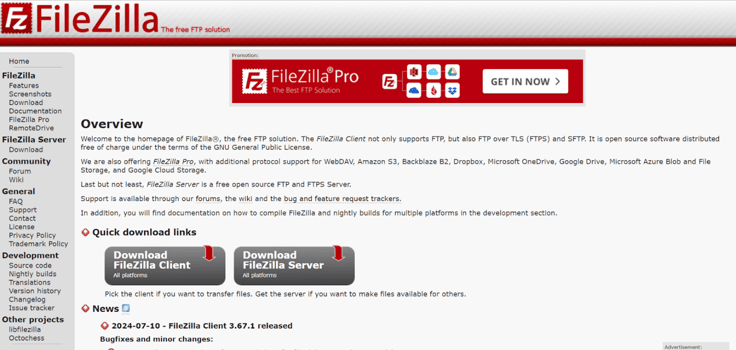
- FileZilla Client runs on all operating systems and will enable you to connect with your web hosting server via FTP, FTPS, and SFTP.
- FileZilla Pro offers additional support for Amazon S3, Dropbox, Microsoft OneDrive, Microsoft Azure, Google Drive, Google Cloud Storage, WebDAV, and other online storage. Learn more here.
- FileZilla Server is a Windows-only program that allows you to operate an FTP server that others can connect to.
Most likely, you’ll want to use FileZilla Client. Here’s how to get started:
- Head to the FileZilla website to download the program for free.
- At the top of the screen, enter your login credentials (or use the configuration file from your host)
- Click the Quickconnect button.
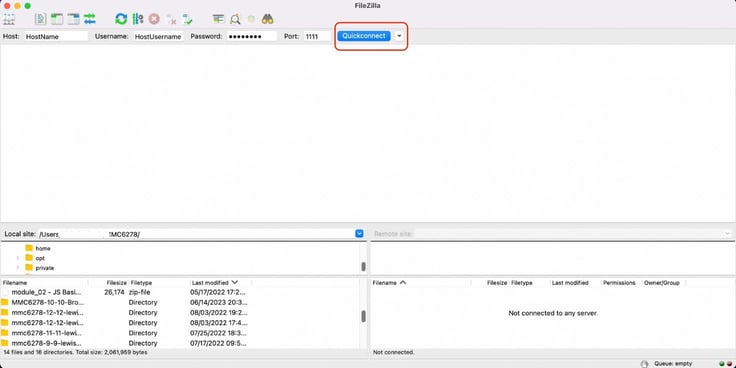
- The status area below your login info will let you know when you’ve connected successfully.
- The files and folders on your computer will appear on the Local Site pane on the left; the files and folders on your website hosting account will appear on the Remote Site pane on the right.
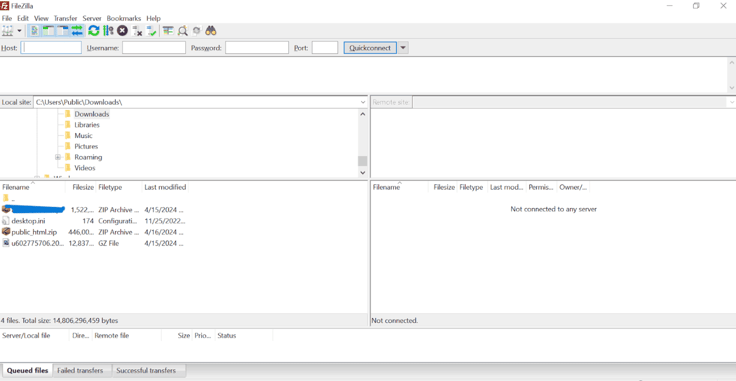
- Simply drag and drop files between the two panes to complete transfers. Downloading entails dragging a file from the Remote Site to the Local Site. Move files the other way to upload.
- The bottom of your screen will track the progress and outcomes of your data transfers.
When in doubt, FileZilla has its own wiki with information on seemingly anything you can think of to inquire about. Support is available in English, French, German, Spanish, and other languages.
Not sure what you don’t know? Interestingly, the wiki has a Random Page link that takes you on a tour through the inner workings of this popular FTP client.
Most FTP hosting providers will also have specific how-to guides in the knowledge base to facilitate the connection with various clients like FileZilla, CyberDuck, and CoreFTP.
10. Can I Use an FTP Folder for File Sharing?
The basic purpose of FTP hosting is file sharing. Or, perhaps more accurately, file sending, storing, and retrieving.
Whether you’re moving files between local computers, swapping folders between a desktop and an onsite FTP server, or browsing online software archives, you’re still transferring materials from one place, physical or virtual, to another.
Rather than sharing your data one file at a time, you can upload multiple files with one simple action.
Using a shared folder to keep your data organized makes everything easier to manage and helps you move larger batches at once, which can save you a lot of time.
If we’re splitting hairs, an FTP server and a file server are slightly different. File sharing may be more effective for certain businesses using a local solution that acts as a shared hard drive on approved devices or only available on an internal network.
FTP services store data at remote locations, accessible from anywhere globally, underscoring the critical role of server hosting in the FTP hosting process.
11. What is the Difference Between Active and Passive FTP?
Unlike the various security protocols and encryption methods of SFTP, FTPS, and other connections, active and passive FTP describe how that connection initiates.
- Active FTP: The client (you) establishes the command channel, and the server is responsible for creating the data channel.
- Passive FTP: The client sets up both channels and instructs the server which port an IP address to connect to.
While active modes typically seem more appealing, active FTP has actually become less popular over time.
Many firewalls and routers won’t allow an external server to connect to the client’s protected device. If the FTP server can’t connect to the client because of the Windows firewall, for example, the data transfer can’t take place.
With passive FTP enabled, the client initiates the FTP connection and specifies the port through which it would like to transfer data, ensuring more reliable communication.
12. How Should I Get Started With FTP Hosting?
You’ve come to the right place. We have excellent resources to help you get started with all varieties of FTP hosting — including exclusive coupons and discounts to unlock the best deals.
You will find a wealth of expert reviews and how-to guides that can help you work through the basic questions you may have. Of course, you’ll want to pay attention to your project’s budget and computing needs. These factors will ultimately lead you to your decision.
After you’ve picked a web host and set up your account, the FTP hosting provider will send you an email with your login details and basic guidance on how to connect. If you don’t receive it, don’t hesitate to contact customer support or visit the host’s knowledge base for instructions on setting up your FTP service.
Many of our favorite hosts (listed above) will even enable you to download a file that will automatically configure several popular FTP clients with your account’s information.
Once connected, be sure to save the information to save time in the future.
Time to start moving some files.