
Writer: Jack Wallen


Editor: Britain Simons


Reviewer: Cristian Lopez

When you start a business (or strive to be taken more seriously), you might not have considered the idea that a business-branded email address is important, or even a vital next step.
Think about it: you have a business called “Cat Jammy Time” (maybe you sell cat-themed pajamas), but you’re using your free Gmail address. Something like catjammytime@gmail.com to conduct business. So, when potential customers receive an email from that “gmail.com” address, they might miss it in their junk folder, or worse, they won’t take it seriously.
It might seem unimportant, but it’s actually significant. There are also security red flags for users, as scammers tend to also use free Gmail accounts. On top of that, some integrated professional services, like automated email marketing, don’t accept basic Gmail addresses for business accounts.
To that end, you need an email address that clearly indicates that you’re communicating from your business account. The creation of a domain-based email address isn’t all that challenging, and Bluehost does a great job of simplifying the process.
We’ll go over how to create, access, and manage your email addresses using cPanel in your Bluehost account. Are you ready to upgrade your email experience? Let’s go!
-
Navigate This Article:
Step 1: Log in to Your Bluehost Account and Access cPanel
The first step in this process is logging into your Bluehost account. Point your browser to bluehost.com, and you’ll see Login near the top right.

Click Login and then, when prompted, type your login name and password. If you have 2-factor authentication enabled, you’ll be sent the six-digit code that is to be used to complete the login process. If it’s not enabled, now’s the time.
If you’re new to Bluehost, they’re offering some great deals on WordPress Hosting!
Once you’ve logged in, you should see Hosting listed in the left sidebar.
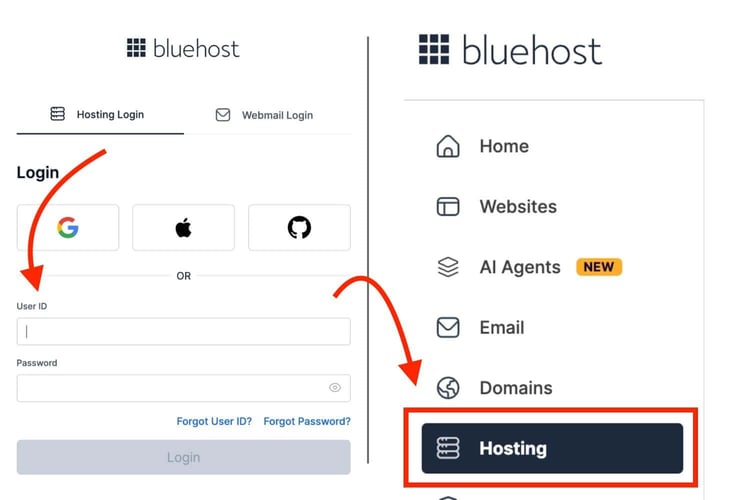
Click on the Hosting entry, and you’ll find yourself on the Hosting dashboard. This is where you gain access to cPanel, websites, and the file manager. However, Bluehost makes this even easier for you by adding a cPanel Email option, where managing email accounts takes place.
If you click cPanel email, you’ll find yourself in a special section of cPanel that is dedicated to, you guessed it, email account management.
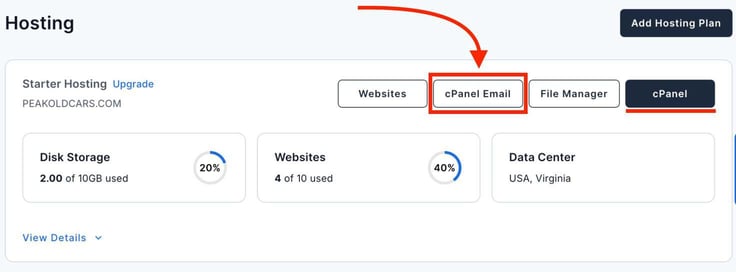
If you click on cPanel, you can access email account management, along with several other tools (such as WordPress management, etc).
Step 2: Locate the Email Accounts Section in cPanel
To avoid confusion, I want to show you how to access email account management from the standard cPanel option. To do that, click cPanel under Hosting. Here, you’ll find the email section right at the top.
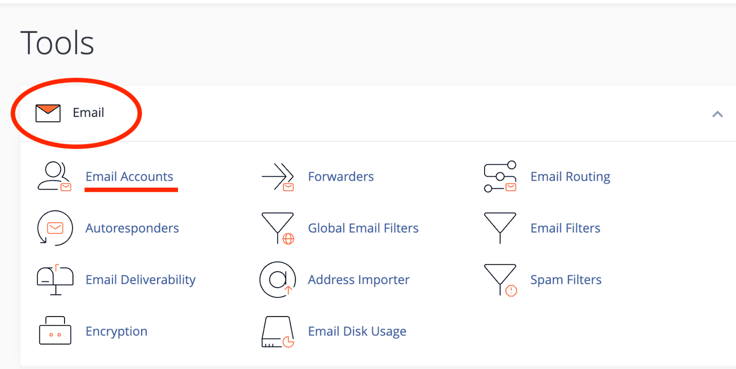
cPanel certainly makes things easy.
On this page, you can manage various aspects of email accounts, such as autoresponders, encryption, forwarders, global filters, email disk usage, spam filters, and more.
Before you click “Email Accounts”, however, you want to make sure that you’re working with the right domain (such as catjammytime.com).
If you look at the image of the Hosting page above, you’ll see the domain name listed on top of Disk Storage. If that is not the correct domain, you’ll need to switch. If you only have one domain associated with your account, there’ll be no need to bother.
Step 3: Create a New Email Address
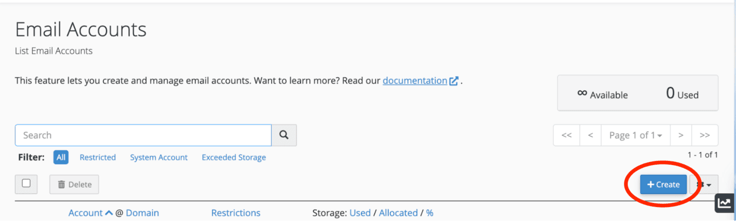
It’s now time to create your first new email address for your business. On the Email Accounts page, if there are already accounts created, they’ll be listed here; otherwise, you’ll see no accounts.
To create your first email account, click “+ Create”.
On the resulting page, you need to fill out the necessary information for the new account. You can also ensure you’re using the correct domain here by clicking the Domain drop-down and selecting the correct option. It’s an easy way to avoid a simple mistake.
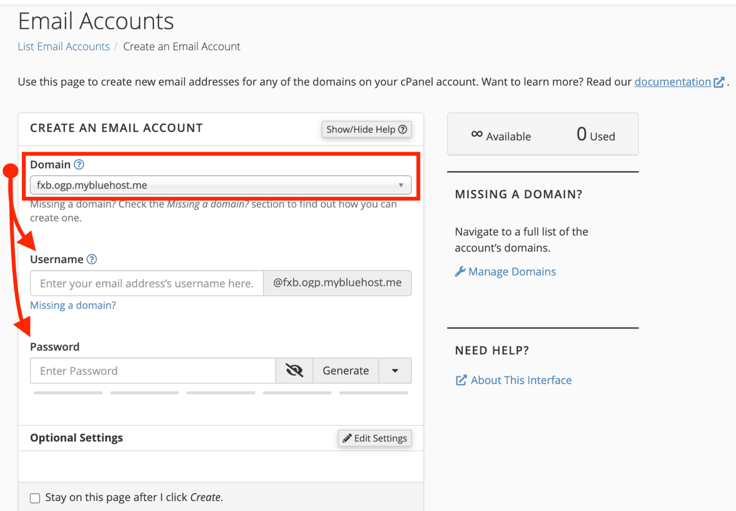
In the Username section, make sure to type the first part of the email address to be used. For example, you could create email addresses for info, support, appointments, sales, your name, or the name of one of your employees.
Make sure you use clear naming conventions for these accounts. Remember, sometimes customers or clients might assume that the support email account is simply support@catjammytime.com. If you create a non-standard account, your customers may have trouble locating it on your website.
You want to make everything as easy and intuitive as possible.
The next thing you must do is create a password for the account. It is crucial that you use a very strong and unique password here. I would suggest using a reputable password manager, like NordPass, for this step, or utilizing the built-in generator. Then ensure the password is saved to your password manager, so you don’t have to write it down or memorize it.
Next, you can (optionally) click Edit Settings to access the disk quota for the account. By default, the quota is 100 MB, which is somewhat low.
The size of the quota you set will depend on your account and how much storage space you are given. If you have to create several accounts, you might want to keep the quota over 100MB; otherwise, you could run out of storage space. A small business may need around 10 GB of storage, with room to grow.
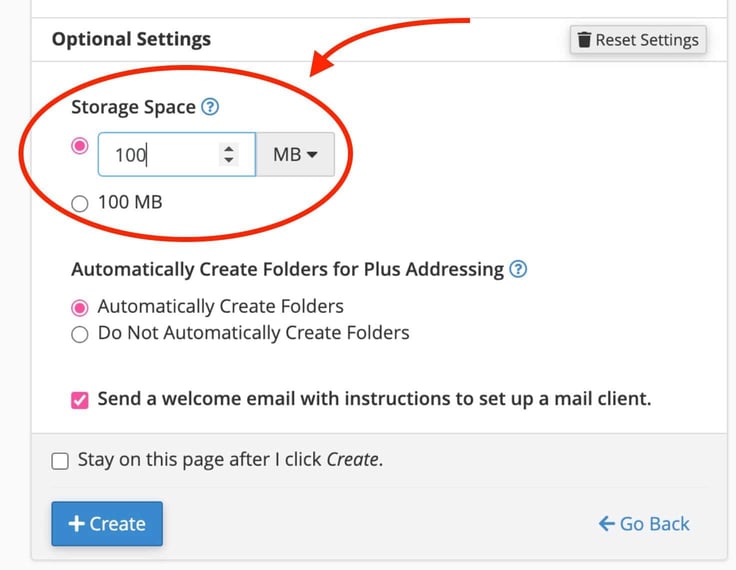
Leave the rest of the options as they are, and click “+ Create”.
Step 4: Configure Mailbox Storage and Settings
As a reminder, when you’re creating any/all email accounts for your business, make sure to consider storage limits.
Storage limits are not only consumed by email text, but also by any weighty attachments, received and sent. If your business depends heavily on visuals (design, images, and even video clips), those attachments can very quickly gobble up storage space.
Because of this, you might want to keep those storage limits lower and implement link-sharing best practices. Temporary cloud-sharing options (with free tiers) like Smash and WeTransfer may be useful in the short term, but consider services like Google Drive, iDrive, or Dropbox if you need to regularly access files between employees or on the go.
The one caveat with storage limits is that it means your employees will have to regularly empty their inboxes of unnecessary emails, which means they’ll need to save attachments (if applicable and possible) to their local machines or a company cloud drive, like we’ve mentioned.
Also, make sure to review the account settings before you click Create. If you don’t, and you make a mistake, you’ll have to delete the account and re-add it.
Step 5: Access Your Email Inbox (Webmail)
Once the email account is created, you’ll need to check the account to make sure everything is working as expected. When you create that first account, the best way to access it is via Webmail.
When you create the email account, you will be automatically taken back to the Email Accounts page. On that page, click Check Email associated with the new account.
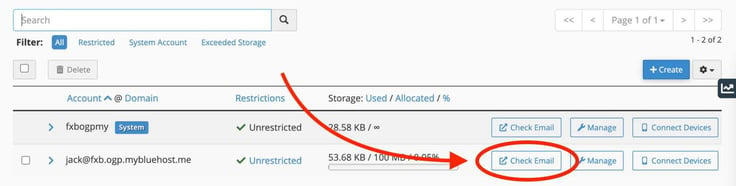
This will take you to the built-in webmail tool. A pop-up will appear, where you’ll need to select if the account is for an individual or a business.
If you get stuck here, make sure your browser is not blocking pop-up windows:
(in the browser settings menu)
- For Chrome: Settings > Privacy and Security > Content > Pop-ups and Redirects
- For Safari: Settings > Websites > Pop-up Windows
- Microsoft Edge and Firefox have a similar process
Back to the webmail tool, click the drop-down and select the proper option.
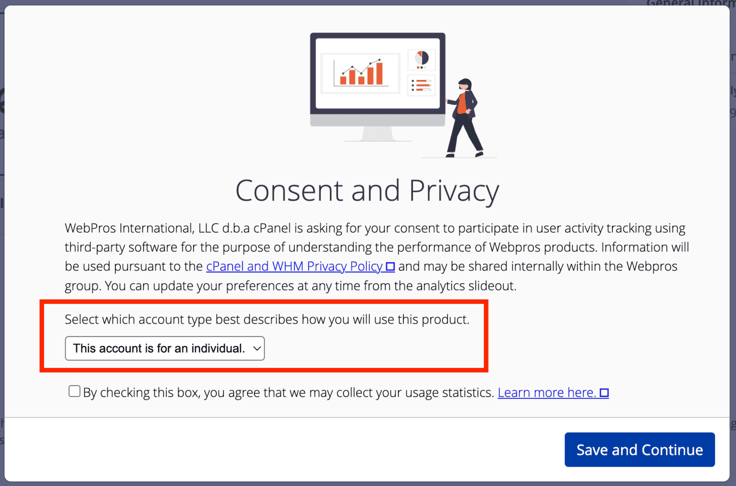
Click “Save and Continue”, and you’ll be taken to the default Bluehost Webmail tool, Roundcube.
On the Roundcube dashboard, you can configure your email account similar to what you could also do in the cPanel email Tools page you saw earlier; the only difference being that the changes only apply to your Roundcube account.
To view your email, click “Open” under the Roundcube logo. If you want to automatically be taken to your email every time you log in, make sure to check the box for “Open my inbox when I log in.”
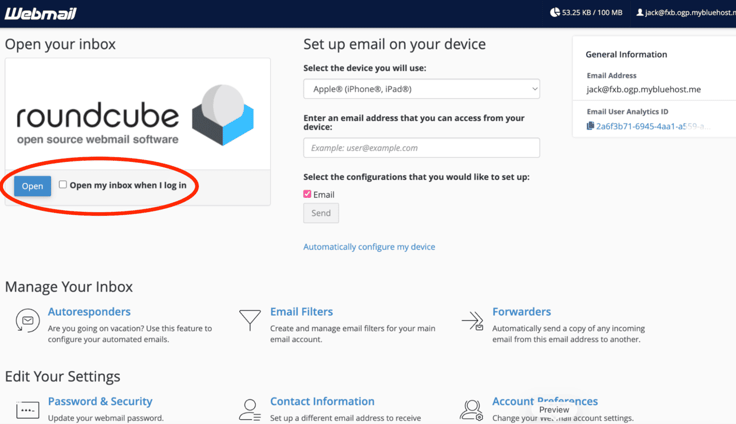
If you’ve ever used a webmail client, such as Gmail, the Roundcube interface should look instantly familiar. Here, you can manage your email, send emails, create folders, and much more.
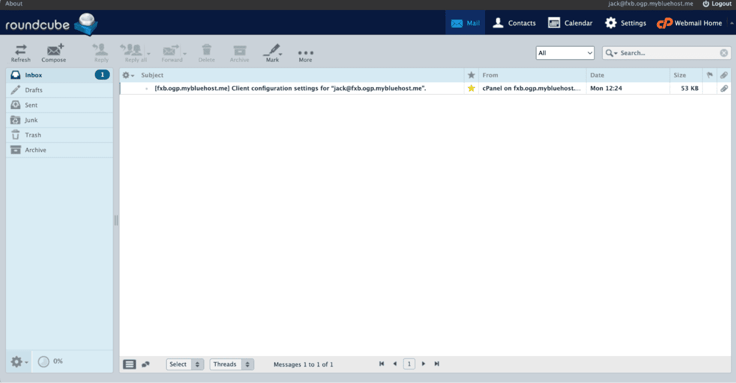
Essentially, Roundcube is your desktop email client… only on the web.
Although you can set up your desktop PC and phone to work with your Bluehost email account, webmail is the fastest method for now.
Note: Using webmail means you can access your email immediately, without having to go through further steps (setting it up on your email client of choice), but we’ll talk about why you may want to use external apps.
Step 6: Connect Your Email to External Apps (Optional)
Even though webmail is easily accessible, it’s not always the right option for you. For example, if you send and receive the majority of your email via your phone, you’re not going to want to access it via the web interface. A web interface is not optimized for mobile and will be too small to read (without constantly using pinch-to-zoom).
If that sounds like you, you’ll find that Bluehost does give you the integrated tools to make this work:
- From your Bluehost email dashboard, you’ll notice a drop-down near the top center. Click that drop-down.
- Select the device type that will connect to your email account
- Then type an email address that is accessible from your device
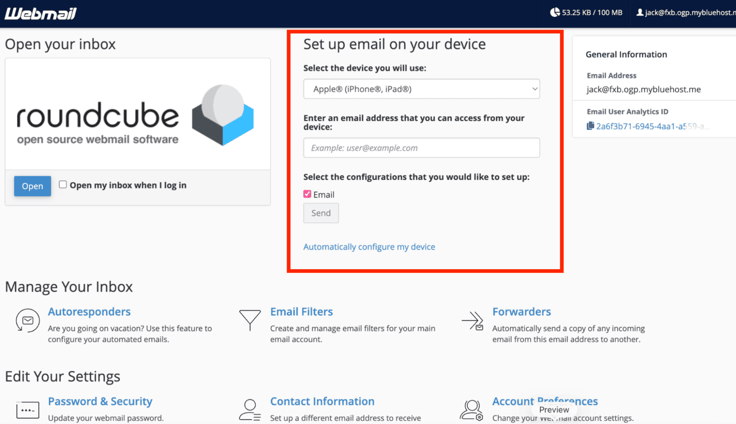
You’ll be sent the necessary instructions to make that connection. You can also click “Automatically configure my device,” which gives you access to configuration scripts for the Apple Mail app, Mozilla Thunderbird, KDE Mail, MS Outlook, and MS Live Mail.
If you need to ensure your email stays in sync across all devices, set your Bluetooth account for “IMAP/SMTP” on connected devices.
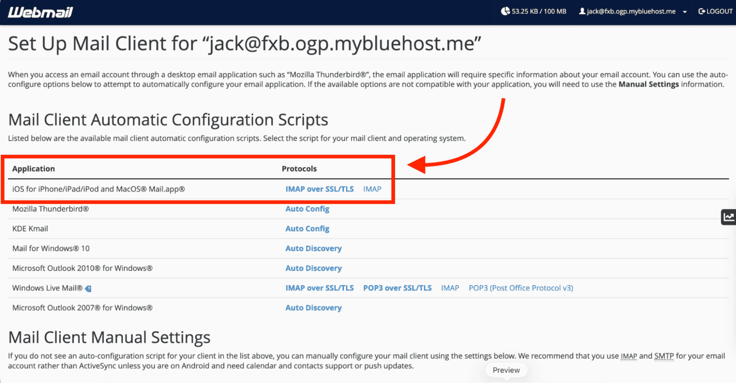
If your device cannot access your email, make sure you’ve typed everything correctly, as incorrect settings are often the main cause of the problem.
Step 7: Send and Receive a Test Email
The next step is to run a test on your new email account. For this, go back to Roundcube, click Compose (near the upper-left corner), type out the email, subject line, and click Send.
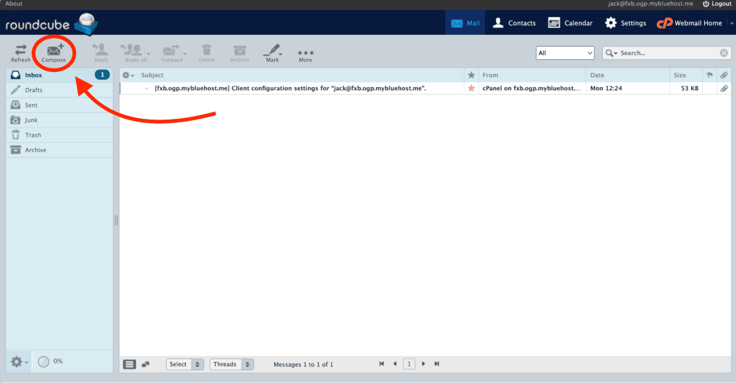
Note: Make sure to send the test email to a different email account (like a personal email that you have access to), refresh the mailbox, and check the junk or spam folder if it doesn’t appear within a few minutes.
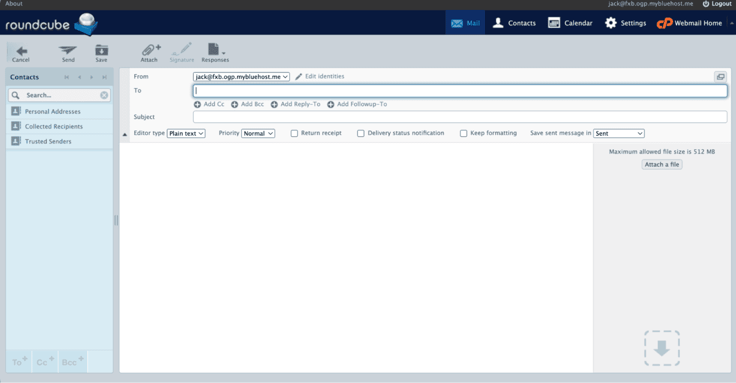
Once you receive the email, make sure to reply to it, so you know that your new Bluemail account is successfully receiving email.
Step 8: Manage and Organize Your Email Accounts
You might run into a situation where you have to manage email accounts in order to reset passwords, delete unused accounts, and monitor storage usage.
This is all done from either the Bluemail dashboard or the cPanel Tools page.
Let’s say that you need to reset a password for an email account. To do this:
- Go back to the cPanel Tools page
- Click Email Accounts
- Click the Manage button (associated with the account that needs the password changed)
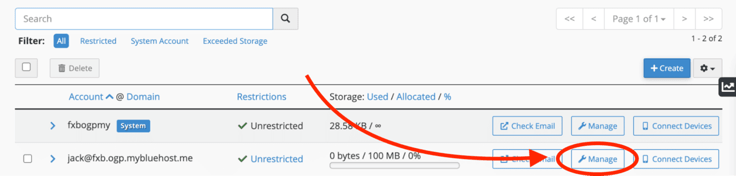
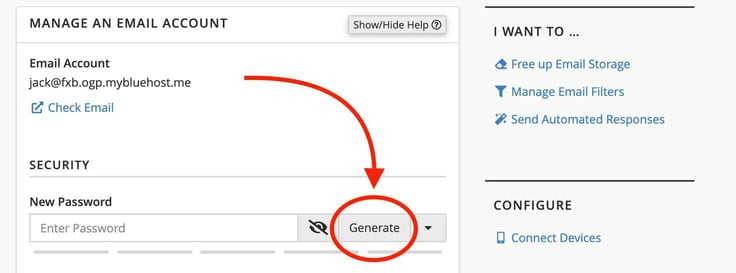
On the resulting page, type a new password for the account, or “Generate” (for a more secure password). Be sure to save your password separately in a password manager, or however you choose. Scroll down, and click “Update Email Settings”.
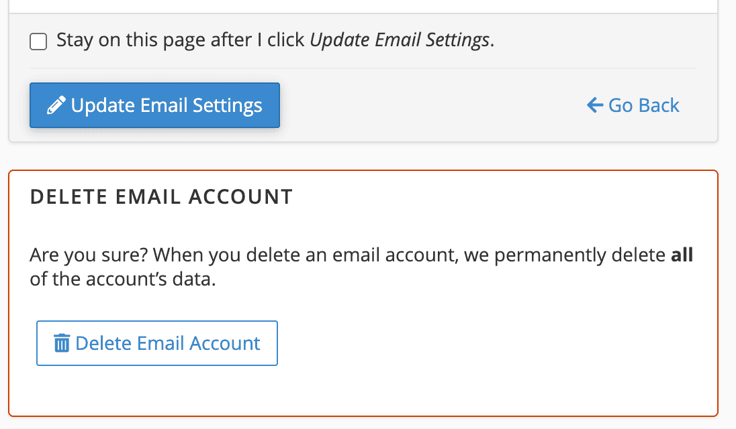
If you need to delete an account, scroll to the bottom of that page and click “Delete Email Account”.
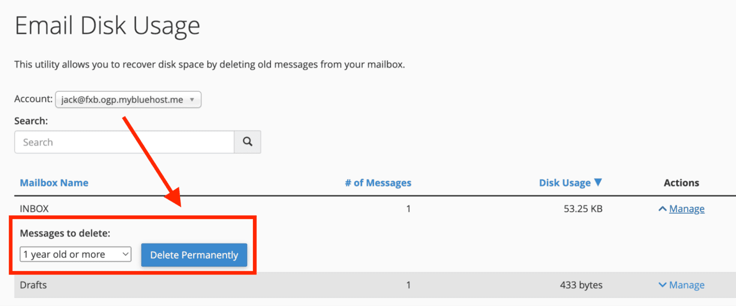
From the same page, you can click “Free Up Email Storage” under the “I want to…” section. On the next page, click “Manage” associated with the account. Then, on the resulting page, you can click Manage for the inbox.
Here, you can instruct cPanel what to do (such as “Delete email older than [X]” — where X is one year or more, 30 MB in size or more, previously viewed, all messages, or even a custom query).
It’s also very important to keep your email account organized to avoid clutter, confusion, and space limitations.
You should consider creating folders for better organization and deleting older or unwanted emails. It’s best to avoid clutter and keep yourself from hitting your mailbox limitations, well before you get a “mailbox full” notification. They like to spring up at the worst time, right when things get busy.
Troubleshoot Common Email Setup Issues
If you run into problems, they can commonly come down to three different areas:
- Cannot send or receive — this is usually resolved by correcting incorrect email settings. Check for outdated/ incorrect password credentials, if you’ve hit your mail storage limit, or look for outgoing server settings.
- Email going to users’ spam — this is typically an authentication error and can often be resolved by updating DNS settings with TXT (SPF) and CNAME (DKIM) records from your email host and ensuring the “From” domain aligns with your email address. It’s also not uncommon for your emails to be flagged as spam by email providers if you schedule mass newsletters to send all at once.
- Login issues — this is typically caused by an incorrect username or password. Check for sneaky spaces or periods.
As I mentioned, make sure to double-check that you’ve configured your settings correctly and that you’ve saved your password in a proper password manager, so all you have to do is copy/paste it into your email settings.
Your Bluehost Email Is Ready to Use
Creating email accounts in Bluehost is a painless, simple process… once you know where to look in cPanel. Keep in mind that this isn’t a “set it and forget it” situation. You will need to regularly manage those email accounts, making sure to clear up space and reset passwords regularly.
Connecting a domain-based email will build trust and confidence with customers. Instituting best practices, such as sharing file links (instead of attachments), creating strong passwords, and utilizing a separate cloud storage service, will help to save stress in the early stages of your business.
Also, be sure to enable email addresses like “support@[yourdomain].com”, “info@[yourdomain].com”, and personalized “[firstname]@[yourdomain].com” employee options. It will help keep your business communications organized and professional.
To find out more about how Roundcube works, make sure to view the official documentation. If you run into any trouble with your website, we’re here to help. Check out our new HostHelperTM tool!
Be sure to follow us on social media below and let us know how it went on the video above! We’ll see you on the next how-to article!
HostingAdvice.com is a free online resource that offers valuable content and comparison services to users. To keep this resource 100% free, we receive compensation from many of the offers listed on the site. Along with key review factors, this compensation may impact how and where products appear across the site (including, for example, the order in which they appear). HostingAdvice.com does not include the entire universe of available offers. Editorial opinions expressed on the site are strictly our own and are not provided, endorsed, or approved by advertisers.
Our site is committed to publishing independent, accurate content guided by strict editorial guidelines. Before articles and reviews are published on our site, they undergo a thorough review process performed by a team of independent editors and subject-matter experts to ensure the content’s accuracy, timeliness, and impartiality. Our editorial team is separate and independent of our site’s advertisers, and the opinions they express on our site are their own. To read more about our team members and their editorial backgrounds, please visit our site’s About page.