
Writer: Alexandra Anderson


Editor: Lillian Castro


Reviewer: Christina Lewis

Key Takeaways
-
Self-hosting is ultimately not practical for any serious project.
-
Hosting your own website requires time, money, and technical skill beyond the scope of most people.
-
Most users are best suited by purchasing a third-party web hosting plan — it's cheaper and way easier to set up.
Hosting your own website might seem daunting at first, whether you’re just starting or have some experience. The great news is that there are plenty of options available as you build your online presence.
Just as your choices for making a website range from using a super-simple site builder to hand coding, hosting a website can be as easy — or as difficult — as you wish. We much prefer coupling performance and security upgrades with peace of mind by finding a respected web hosting provider, but the more adventurous may opt to run a server from home.
Hosting your own website comes with challenges like handling dynamic IP addresses, bandwidth limits, and electricity costs. Don’t worry, though! We’re here to guide you through setting up servers for both Windows and Linux-based sites. Let’s explore how to host your own server, or if you’d prefer, jump ahead to third-party hosting options using the links below:Third-Party Hosting OptionsSetting Up a Windows ServerSetting Up a Linux ServerNote: Jumping ahead is perfectly fine if you’re eager to explore other options first. Let’s get started with your hosting adventure! Whether you choose to host locally or go with a third party, we’re excited to guide you through the process.Back to TopNext StepsContact Us for SupportRemember, our aim is to make hosting your website as smooth and enjoyable as possible. Let’s dive in and get you set up!
-
Navigate This Article:
How to Host Your Own Server
If you’re a daring tech enthusiastand we mean that in the best wayyou’ll probably find the idea of hosting your own website incredibly enticing. By following these steps, you can break free from third-party hosting providers altogether.
Windows: How to Host Your Own Website Using Your PC as a WAMP Server
Let’s start by hosting a website on your personal computer using the Windows operating system. About 71.7% of all desktop computers run Windows, meaning your hosting options might be slightly more limited compared to those available to Linux developers. But if ASP.NET and C are your coding languages of choice, then Windows is the way to go.
Step 1: Get Started With WAMP
To make this super easy, we’ll use a WAMP installation program (of which there are several) called WampServer. This will cover your Windows, Apache, MySQL, and PHP. You could also opt to install each package manually, but this process requires much more work and is error-prone.
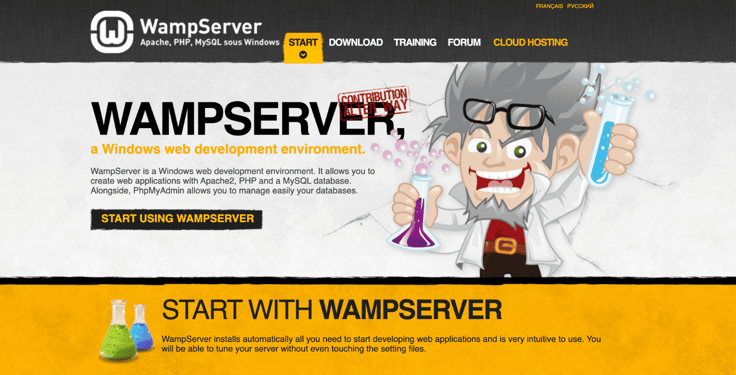
First, download the 32-bit or 64-bit WAMP-binary here, follow the on-screen instructions, and launch WampServer when it’s done. (Note: There may be a port 80 conflict with your Skype software, but there’s a fix for that.)
Upon installation, a www directory will be created automatically. You’ll likely find it here: c:wampwww
From that directory, you can set up subdirectories (known as “projects” in WampServer) and place any HTML or PHP files inside them. If you click on the localhost link in the WampServer menu or open your web browser with the URL http://localhost, you’ll see the main screen of WampServer.
Step 2: Create an HTML Page and Configure MySQL
You can test your WampServer by placing an example file named “info.php” into your www-directory. Navigate to this directory by clicking “www directory” in the WampServer menu. Once there, create a new file with the sample code provided below and save it.

Now, you can navigate to http://localhost/info.php to view the details of your PHP installation. Feel free to create any HTML and PHP file structure that meets your needs.
If you click on the phpMyAdmin menu option, you can start configuring your MySQL databases (which may be needed for a CMS like WordPress). The phpMyAdmin login screen will open in a new browser window. By default, the admin username will be root, and you can leave the password field blank.
From there, you can create new MySQL databases and alter existing ones. Most software, like WordPress, will automatically set up a new database for you, though.
Step 3: Make the Site Public
By default, the Apache configuration file is set to deny any incoming HTTP connections, except in the case of someone coming from the localhost. To make your site publicly accessible, you need to change the Apache configuration file (httpd.conf). You can find and edit this file by going to the WampServer menu, clicking Apache, and selecting httpd.conf. Find these few lines of code:
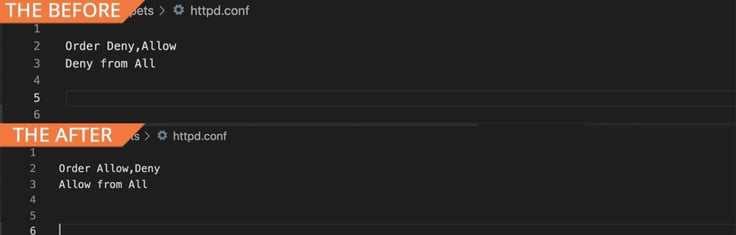
In the screenshot above, you would replace line 2 with “Order Allow,Deny” and change line 3 to “Allow from all.”
Restart all WampServer services by clicking “Restart All Services” in the menu. The site should now be accessible from beyond your localhost. Confirm there isn’t a PC firewall blocking web requests. You may need to set up port-forwarding on your internet router as well.
Step 4: Using a Domain Name
To use a domain name with your WAMP installation, we’ll need to configure some files first. Let’s assume that our example.com domain has an A record in your DNS with the IP address 100.100.100.100.
First, we need to add the following line to the C:Windowssystem32driversetchosts file:
100.100.100.100 exampleNext, we need to edit the httpd.conf file again (accessible via the WampServer menu) to add a virtual host. Once that file is open, look for “Virtual hosts,” and uncomment the line after it, which should be this:
# Virtual hosts
Include conf/extra/httpd-vhosts.conf
Now, we need to manually add a file in “C:wampbinapacheApache-VERSIONconfextra” (VERSION is your Apache version). Create a file in Notepad, or your text editor of choice. Add the following code, and save the file in that Apache directory.
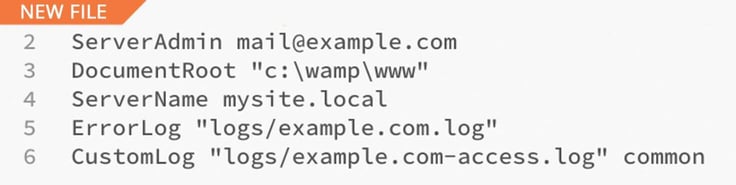
In the WampServer menu, click “Restart All Services” to put these changes into effect. Ensure your site is accessible through its domain name. And there you have it!
Linux: How to Host Your Own Website on a Linux Machine
Let’s dive into setting up Apache, MySQL, and PHP on a Linux system. LAMP stacks are the go-to for Linux hosting, but if you’re feeling adventurous, you might want to explore NGINX or LiteSpeed webservers.
Step 1: Install Your Software Using the Terminal
To start our LAMP software install, type the following in the terminal:
sudo apt install apache2 mysql-server php libapache2-mod-php7.0As you go through the installation, you’ll be asked to set (and confirm) a password for the MySQL root user. Although it’s technically redundant (since it should’ve been set during installation), we’ll restart the Apache webserver just to cover all bases.
sudo /etc/init.d/apache2 restartAny time you change the global configuration of Apache, you need to execute the command below, unless you do the configuration using local .htaccess files.
Step 2: Check PHP
To verify your PHP server is operating correctly and to see what PHP modules are available, place a test PHP file in the webserver root directory (/var/www/html/):
sudo echo "" > /var/www/html/info.phpWe can now visit that PHP page by browsing to http://localhost/info.php.
You should see the currently running PHP version, current configuration, and currently installed modules. Note that you can later install other PHP modules using the Ubuntu package manager, as some PHP applications might require that. To determine which extra modules are available, search within the graphical package manager, or simply use the command line:
apt search php | grep moduleStep 3: Check MySQL
Since popular content management systems like WordPress, Joomla, and Drupal rely on MySQL databases, it’s crucial to ensure our installation is operating smoothly and fully updated. To check your MySQL installation, type “service mysql status” into the terminal. If the MySQL Community Server hasn’t started, you can enter “sudo service mysql restart” to get it running. From here, you’re ready to use the MySQL command-line client to manage your databases.
To move forward, you’ll need the admin credentials you set up earlier during MySQL installation. Access the login prompt by entering this command:
$ mysql -u root -pThe CMS will often automatically create the database for you, but sometimes you need to do something to the database manually. PHPMyAdmin is a friendly database management tool most web experts will recommend.
Finally, configure the /etc/phpmyadmin/config.inc.php file using the steps described here.
Step 4: Configure DNS
If you want to use your own domain with your local web server, you’ll need to configure Apache to accept requests for it. Begin by ensuring your domain’s DNS has an A record pointing to a specific IP address, like www.example.com. Your DNS provider offers online tools to help you set these records up correctly.
Once that is done, we’ll use the dig tool. To request the A record for www.example.com, type:
$ dig www.example.com A
;; ANSWER SECTION:
www.example.com. 86400 IN A 100.100.100.100
AUTHORITY SECTION:
example.com. 86398 IN NS a.iana-servers.net.
example.com. 86398 IN NS b.iana-servers.net.
You can use this tool to direct a URL, such as http://www.example.com, to the server with an IP address you specify.
Step 5: Configure Apache
Now, we need to tell Apache to accept web requests for our name www.example.com and from what directory to serve content when we get those requests. To do that, we’ll set up a directory for our example.com domain.
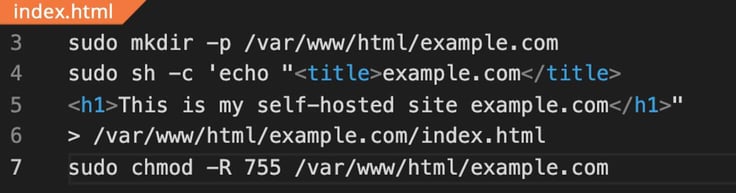
Create an example index.html file before setting some filesystem permissions using the code above.
To see the page, the last step is to set up a Virtual Host file for Apache for our domain.
sudo cp /etc/apache2/sites-available/000-default.conf /etc/apache2/sites-available/example.com.conf

sudo nano /etc/apache2/sites-available/example.com.conf
Now edit the file to look like this (the optional comments are not shown here):
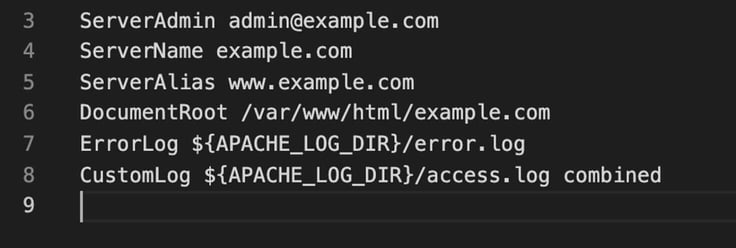
Next, reload Apache for the changes to take effect:
sudo a2ensite example.com.conf

sudo service apache2 reload
Edit your local /etc/hosts file by adding a line with your IP address and domain name. Be sure to change the “100.100.100.100” to match the IP address of your domain:
100.100.100.100 example.com
We can now visit your self-hosted site by going to http://www.example.com.
Pros and Cons of Self-Hosting
Now that we’ve discussed the nitty-gritty of self-hosting, let’s take a look at the pros and cons:
Pros
- A highly educational and fun experience for those who enjoy tech
- Control over your resources and data
- Flexibility and no restrictions on uploads
- No contracts
- Your choice of hardware and software
As illustrated by the table above, self-hosting isn’t all smooth sailing. Though it can be a challenging but rewarding experience for tech hobbyists, the adventures of self-hosting come with traversing some tough terrain, including high costs. Weighing the pros and the cons will be key in making your final decision.
No matter which path you take, we’ve got the details to guide you through each step, leading you to your final destination: your website. Dive into our recommendations for top web hosts and learn how to get started with self-hosting from home.
Why You Should Buy Web Hosting
Instead of trying to host a website locally, you can go through a web hosting provider and still have the same control of server management with more support and peace of mind. A shared hosting plan is the best for beginners and those who need affordable solutions, while virtual and dedicated hosting options allocate more server resources and fine-grain control.
When you purchase a web hosting plan from a hosting service, you get oodles of features. Common perks may include unlimited bandwidth, a free website builder, 24/7 customer support, and an intuitive control panel to accomplish site administration tasks.
Web hosting packages offer everything you need all in one place, including customer support, so you won’t have to hunt for solutions to server issues or additional resources. Below, we’ll explore some of our favorite web hosts to help you decide if third-party web hosting is the right choice for you.
Best Cheap (Shared) Hosting
If you’re searching for the simplest way to host your own website, the affordable shared hosting providers listed below are perfect for you. Don’t be misled by the low prices—shared hosting companies still deliver top-notch services with friendly customer support available around the clock.
Shared computing resources mean you sacrifice a little bit of flexibility, but you should find all your software needs met with easy one-click installations, free domain registration, and automatic SSL certificates.
Take a look at our reviews of the best shared hosting plans:
1. Hostinger.com

Monthly Starting Price $2.69
- Best overall value: Nothing at this price comes close feature-for-feature.
- AI builds your site in minutes — no technical skills needed
- Up to 3 websites with free SSL
- Weekly backups and managed WordPress
- 2 business mailboxes free for 1 year
- Get started on Hostinger now.


Sead Fadilpasic

| Money Back Guarantee | Disk Space | Domain Name | Setup Time |
|---|---|---|---|
| 30 days | 20 GB SSD | FREE (1 year) | 3 minutes |
2. IONOS.com

Monthly Starting Price $1.00
- Most affordable option: Pay just $12 at checkout
- 1-click WordPress install gets you online in minutes
- Unlimited websites, storage, and databases
- Daily backups, free SSL, and 24/7 support
- Free professional email included
- Get started on IONOS now.


Christina Lewis
| Money Back Guarantee | Disk Space | Domain Name | Setup Time |
|---|---|---|---|
| 30 days | 10 GB SSD | FREE (1 year) | 4 minutes |
For beginner website owners, a shared hosting plan is a great choice, offering significant value for its price. These accounts are also easy to manage. Unlike unmanaged VPS or dedicated servers, every shared host provides a user-friendly control panel for website management. While its low cost is unbeatable, keep in mind that shared hosting doesn’t offer as many resources or control as VPS or dedicated servers.
More shared hosting providers »
Best VPS Hosting
The biggest perk of a VPS, or virtual private server, is its scalability—you can increase resources only when you need them, keeping it cost-effective. Whether you choose a managed service or handle configurations yourself, you gain maximum flexibility and control.
Check out reviews of the VPS providers we recommend if this alternative sounds up your alley:
3. Hostinger.com
Monthly Starting Price $5.84
- Best overall value: The most complete AI-managed KVM VPS at this price
- AMD EPYC processors, NVMe SSD, and 1 Gbps network
- Kodee AI manages your server — no command line needed
- One-click deployment of 100+ apps including Docker and n8n
- Free weekly backups, DDoS protection, and full root access
- Get started on Hostinger now.
Sead Fadilpasic
| Setup Time | Disk Space | CPU | RAM |
|---|---|---|---|
| 6 minutes | 50 GB NVMe – 400 GB NVMe | 1 – 8 cores | 4 GB – 32 GB |
4. IONOS.com
Monthly Starting Price $2.00
- Lowest entry price for VPS: no hidden fees, unlimited traffic, from $2/mo
- NVMe SSD storage, 1 Gbps connection, and 99.99% uptime
- Full root access with Linux or Windows — deploy in minutes
- Personal consultant assigned to every account after signup
- 30-day money-back guarantee and award-winning support
- Get started on IONOS now.
Christina Lewis
| Setup Time | Disk Space | CPU | RAM |
|---|---|---|---|
| 6 minutes | 10 GB NVMe – 720 GB NVMe | 1 – 12 cores | 1 GB – 24 GB |
When your website outgrows the limitations of a shared server, it’s time to consider upgrading to a VPS. The best part is that many entry-level VPS plans are priced similarly to shared servers, giving you options to spend as little or as much as you like.
Best Dedicated Servers
The benefits of dedicated hosting include as much RAM and processing power as you need, complete isolation—so if a neighboring website goes down, yours won’t—and the best uptime and performance stats available. And here’s the kicker—it doesn’t have to cost you a fortune.
While dedicated servers are the priciest of the server types, they’re a dream when compared to the costs and headaches of hosting a website yourself. Below are a few top-recommended dedicated server plans:
5. InMotionHosting.com

Monthly Starting Price $35.00
- Best for businesses needing enterprise hardware with managed support
- Bare-metal or fully managed dedicated servers from $35/mo
- Intel Xeon to AMD EPYC, up to 16 cores and 192 GB DDR5 RAM
- Monarx security & 500 GB backup storage with Premier Care
- 24/7 Advanced Product Support from senior sysadmins
- 99.99% uptime SLA, up to 10 Gbps unmetered bandwidth
- Get started on InMotion now.


Dave McQuilling

| Setup Time | Disk Space | CPU | RAM |
|---|---|---|---|
| 7 minutes | 960 GB SSD – 7.68 TB NVMe | 4 – 16 cores | 16 GB – 192 GB DDR5 |
6. LiquidWeb.com

Monthly Starting Price $55.50
- Best for mission-critical sites needing fully managed dedicated hardware
- Save up to 50% for 2 months with this HostingAdvice offer
- Fully managed or self-managed — Linux or Windows
- PCI-ready environments with 99.99% uptime SLA
- cPanel, Plesk, or InterWorx — 24/7 Heroic Support® included
- Get started on Liquid Web now.
Christina Lewis
| Setup Time | Disk Space | CPU | RAM |
|---|---|---|---|
| 8 minutes | 383 GB SSD – 3.2 TB SSD | 4 – 32 cores | 12 GB – 192 GB |
7. IONOS.com
Monthly Starting Price $41.00
- Best for teams wanting enterprise dedicated hardware at affordable prices
- AMD EPYC, Ryzen, and Intel Xeon — GPU servers also available
- Unlimited bandwidth, RAID included, up to 80 TB storage
- 99.995% server availability across 6 global data centers
- Every plan includes a dedicated personal consultant
- Get started on IONOS now.
Christina Lewis
| Setup Time | Disk Space | CPU | RAM |
|---|---|---|---|
| 7 minutes | 480 GB SSD – 4 TB SATA HDD | 4 – 32 cores | 16 GB – 256 GB |
Even though dedicated servers are the priciest of the bunch, the amount of money you’ll save compared to hosting your own server is astounding. You will also enjoy the same control and flexibility while having the capable support and technical assistance of your web hosting provider on your side the entire time.
More dedicated server providers »
Learning How to Host a Website From Home Is Fun But Impractical
We’ve shown you how to set up a reliable website hosting system on both Windows and Linux. But let’s be honest—self-hosting isn’t really feasible for any large-scale project right now. While it’s nice to hope this might change in the future, that’s simply not the case at the moment.
Owning your website is akin to building your own PC or taking apart an engine. While these tasks are certainly achievable for experienced experts and highly motivated beginners, over time, they may not quite match up to professionally crafted alternatives.
The hosting providers we talked about earlier are industry veterans, having spent decades perfecting the art of large-scale website hosting.
Fun fact: There are folks working on distributed content-serving ideas. Projects like IPFS could allow people to create decentralized content hosting networks — eventually. The internet keeps surprising us, so who knows what the future of hosting holds! Follow us to stay up to date with the industry and all its twists and turns.
HostingAdvice.com is a free online resource that offers valuable content and comparison services to users. To keep this resource 100% free, we receive compensation from many of the offers listed on the site. Along with key review factors, this compensation may impact how and where products appear across the site (including, for example, the order in which they appear). HostingAdvice.com does not include the entire universe of available offers. Editorial opinions expressed on the site are strictly our own and are not provided, endorsed, or approved by advertisers.
Our site is committed to publishing independent, accurate content guided by strict editorial guidelines. Before articles and reviews are published on our site, they undergo a thorough review process performed by a team of independent editors and subject-matter experts to ensure the content’s accuracy, timeliness, and impartiality. Our editorial team is separate and independent of our site’s advertisers, and the opinions they express on our site are their own. To read more about our team members and their editorial backgrounds, please visit our site’s About page.