
Writer: Jack Wallen


Editor: Britain Simons


Reviewer: Cristian Lopez

Imagine you’ve been invited to a party. The problem?
You don’t have the address. It’s at a house you’ve never seen before, and all you were given was the name of the street. You have no idea what the number of the house is, but you can get close. If that street happens to be very busy (and long), you’re going to have a rough time finding it. Now, if you had the house number, the maps app would take you exactly where you need to go.
That’s what nameservers do for you.
Nameservers (also known as DNS servers) translate URLs into IP addresses that show your web browser exactly where it needs to go.
Without nameservers, instead of typing google.com, you’d have to type something like 142.250.9.138. No one wants to have to memorize a bunch of IP addresses. If you own a website, you must ensure your hosting provider knows which nameservers to use.
Without nameservers set up, your website won’t be reachable (at least via a domain name).
To that end, you need to know how to change the nameserver in GoDaddy. Don’t worry, it’s not hard… once you know what you’re doing. Below, we’ll walk through the steps required to change your nameservers, as well as when and how to avoid common mistakes.
-
Navigate This Article:
Step 1: Know When You Should Change Nameservers
First of all, whenever you switch hosting providers or connect a domain to a new hosting platform, you must update the nameservers.
Think about it this way: switching hosting providers is like moving from one house to another. When you do that, you have to let the post office know your new address; otherwise, your mail won’t reach you.
But changing nameservers isn’t limited to switching hosting providers. You could be using the same hosting provider, but have recently deployed a new WordPress, Shopify, or any number of platforms. When you do that, your hosting provider needs to know the nameservers to use, so those new sites can be viewed.
Here’s another example: You might have purchased your domain from one company (such as register.com) and have your new site hosted on a different site (such as godaddy.com). When that happens, you have to make sure to use the nameservers for your new domain on the new site. Without making that change, your website will have moved “houses” without telling anyone the new “address.”
Note: You shouldn’t mistake changing nameservers for editing DNS records. Changing nameservers delegates total DNS control to a new provider, whereas editing DNS records (such as an A or CNAME) keeps the current provider but changes specific routing instructions.
Think of editing DNS records as moving from one apartment to another in the same building, while changing nameservers is like moving across town into your first home.
Now that you know the why and what, let’s take a look at the how.
Step 2: Gather the Correct Nameserver Information
This is where things can get a bit confusing. The important bit here is that the nameservers must come from your new hosting provider or domain registrar. You might be hosting your site on GoDaddy, but you registered your domain with Register.com.
For this instance, you’ll need the nameservers associated with your domain on Register.com and add them to your site hosted on GoDaddy.
Here’s the information that you need to gather:
- You have to know the primary and secondary nameserver addresses. You want both in case one of them goes down. A lot of the time, the nameserver addresses will look like ns1.host.com and ns2.host.com (or something like that). Every nameserver provider will use a different naming scheme, but the important bit is that you have two different nameserver addresses.
- You want to confirm the accuracy of these nameserver addresses. The reason I say that is because after you configure your nameserver address, it can take 24-48 hours for those addresses to propagate across the internet (so your site is reachable via domain name). If you enter the wrong nameserver addresses, you’re looking at even more downtime, so your customers/clients won’t be able to reach your site.
- Make sure to verify the provider-specific instructions. Here are some example instructions:
- Cloudflare: Add your site, review the DNS records, and replace registrar nameservers with the two unique Cloudflare nameservers provided.
- Namecheap: In “Domain List,” click “Manage” > “Advanced DNS.” Select “Custom DNS” to enter new nameservers, or select “Namecheap Web Hosting DNS” for the official Namecheap hosting.
- Squarespace: Use “DNS Connect” rather than “Nameserver Connect” to prevent losing existing custom records (like email).
Every provider will have a different set of instructions, so make sure to verify them before you move on.
Step 3: Log In to Your GoDaddy Account and Locate Your Domain
Now that you’ve gathered your information, it’s time to locate your domain. The first thing to do is log into your GoDaddy account. More than likely, you’ll have two-factor authentication set up (if not, you should), so make sure you have your phone handy to receive the 6-digit code.
Once logged in, click your profile icon in the top right corner, and then select “My Products” from the resulting drop-down menu.
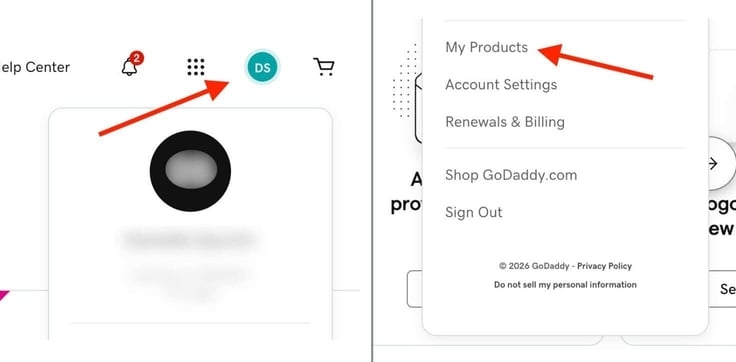
On the resulting page, you should see your domain(s) listed.
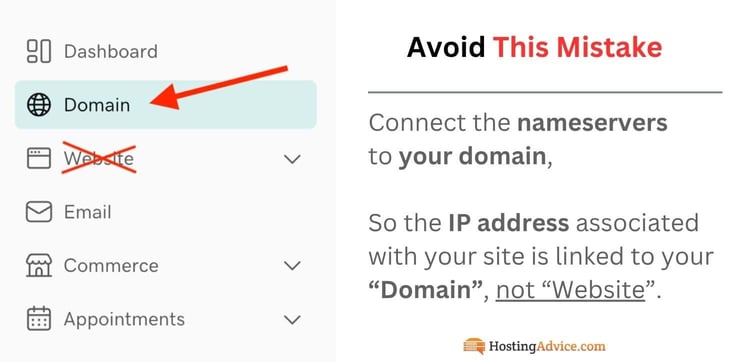
Click the domain for which you want to change the nameservers and then click “Domain” in the left sidebar.
Note: This is where some users might get tripped up. Because you’re trying to connect nameservers to your website, you might assume that you need to go to the Website section. However, you want to connect the nameservers to your domain, so the IP address associated with your site is linked to your “Domain,” not “Website”.
Step 4: Open Nameserver Settings in GoDaddy
On the resulting page, click the DNS tab and then click the Nameservers sub-tab. This is where the configuration happens.
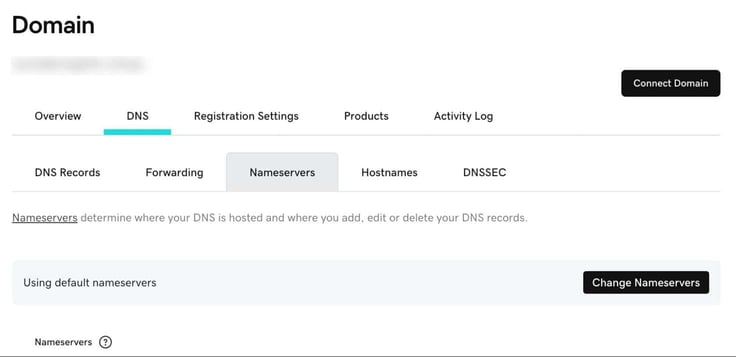
If you’re just now setting up a new site or transferring a site, you won’t see any name servers listed.
Here’s another area that might trip you up. There may be default nameservers configured. What that means is that your site is using the nameservers provided by GoDaddy. If you purchased your domain from GoDaddy, those default nameservers should work fine.
If, however, you purchased your domain from a different registrar, the default name servers will not work. If that’s the case, you’ll need the nameservers from the service that provided you with the domain.
GoDaddy might also inform you that there are specific nameservers you should use (instead of the defaults). If you receive information from GoDaddy that you should use specific nameservers, you’ll need that information.
This page that you’re looking at is the only place you’ll need to go to make this change.
Important: Hostname and nameservers are not the same thing. The hostname is the name of the server like “www” and, in this case, has no bearing on the nameserver configuration — the address. If you already see the default nameservers listed, and you can reach your site via the domain name (think URL), then you won’t have to change anything.
If you see nameservers, but you still can’t reach your domain, those nameservers have to be changed. For example, on my GoDaddy test site, the default nameservers are listed as ns39.domaincontrol.com and ns40.domaincontrol.com.
If you see no nameservers listed, they have to be added.
Step 5: Replace Existing Nameservers with New Ones
Let’s say you have either no nameservers added or your site is using the default options, and you still cannot reach your site. You’ve purchased your domain from another service, and you have the primary and secondary nameservers in hand.
Let’s add them.
Click “Change Nameservers”. In the pop-up window, you’ll probably see the default nameservers listed. If that’s the case, and you still can’t reach your site (because you purchased your domain from a third party), now is the time to add your own.
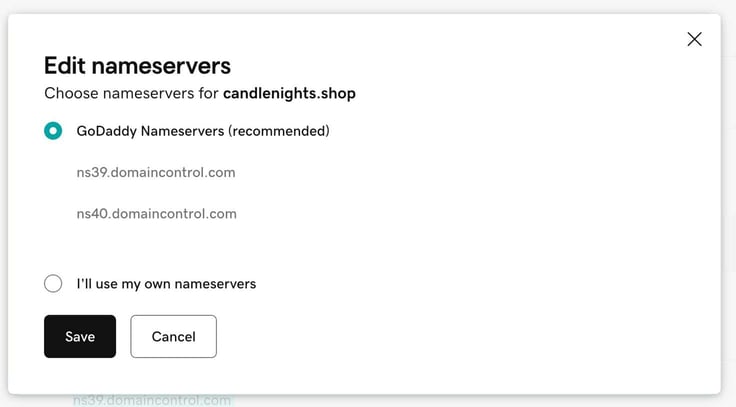
Select “I’ll use my own nameservers” and the pop-up will change such that you can enter your new primary and secondary nameservers (also be sure your browser is not blocking pop-ups).
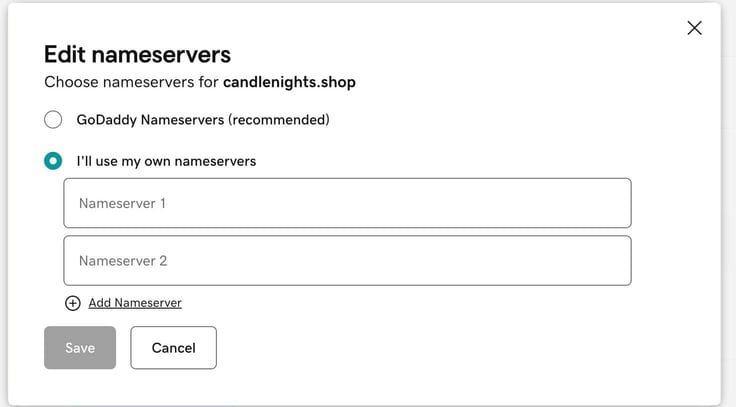
Enter both new nameservers (one per line), but before you click Save, make sure to verify that you typed both nameservers correctly.
Remember, if you save incorrect nameservers, you’ll still be able to correct them immediately — but you’ll then have to wait another 24-48 hours for the corrected nameservers to propagate, meaning even more downtime for your website.
Step 6: DNS Propagation and What Happens Next
After clicking Save, the magic happens during the next 24-48 hours. DNS propagation begins.
DNS propagation is the time it takes for the updated DNS records (such as new nameservers) to update across all servers worldwide. Although computers (especially servers) are very fast, DNS propagation has to work through recursive DNS server caches across thousands and thousands of machines. And because DNS relies on caching to improve speed, those records don’t update instantly.
During this time, the old nameserver records will persist until they expire. Once those caches expire, traffic will start to route to the new location of your site.
Because of the way caches expire (not all at the same time), you might find that your site is reachable in some areas faster than others. Fret not; your site will be reachable by everyone before that 48-hour period elapses. During that time, some users might see your old site or see an error informing them that the site is unreachable.
If you’re working from a site that’s been up for some time, you might want to make sure your users, clients, and/or customers are aware that the site may be down for a while.
Step 7: Verify Your Domain Is Pointing to the New Host
During the 24-48 hour period, you might randomly check to see if your site is reachable via your web browser. However, try to periodically check, don’t just keep hitting refresh.
You can also use DNS checker tools, such as DNSChecker. To use this tool, type your domain in the field and click “Search”. Hopefully, you’ll see nothing but green checks, indicating that your nameservers have propagated and all is well.
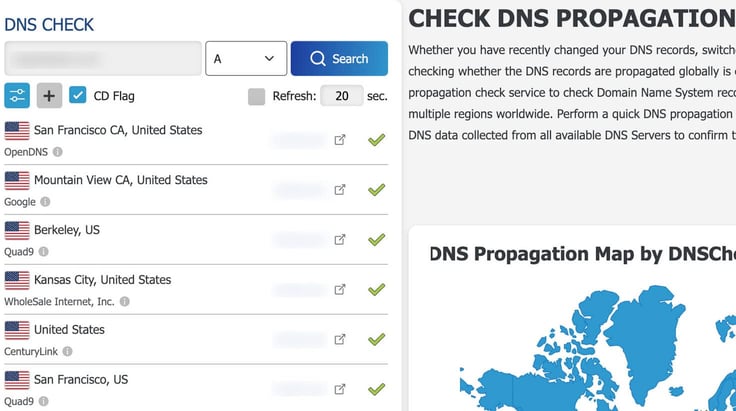
Another step you should consider is checking to make sure your website is accessible from a different computer. You could call someone in a different area of the country (or a different country altogether), have them go to the site address, and let you know if the site loads.
If so, congratulations, you’ve done it.
But don’t stop at the site loading. You want to make sure that all images load, every page is available, and all links work. Essentially, you want to make sure that everything on your site functions as expected.
Troubleshoot Common Mistakes When Changing Nameservers in GoDaddy
Let’s talk about some refreshers and other common mistakes that can get you into trouble.
I’ve already mentioned making sure you type the nameservers correctly. This is crucial. Check!
Next, be patient. I’ve seen DNS propagation take as little as an hour and as much as 48 hours. Give yourself set timers to check and walk away: 5, 12, 24, and 48 hours.
Make sure you do not confuse DNS records with nameservers. Remember, nameservers are what map a URL to an IP address. On the other hand, DNS records are the specific entries, such as IP addresses, MX, or TXT records, that tell browsers where to find your website or email.
For example, MX (Mail Exchange) records are those DNS records in charge of directing email to a specific mail server to define where a domain receives the messages. TXT (Text) records are DNS records that store arbitrary text to help verify security and prevent things like spam.
Last, make sure not to unintentionally overwrite nameserver addresses. Remember, if you do that, you can correct it immediately, but the clock resets — you’ll have to wait another full 48 hours for the changes to propagate.
A Simple Change That Controls Where Your Website Lives
Changing your nameservers is an absolutely critical step in connecting your domain to the hosting provider. With the proper nameservers added, everyone around the globe should be able to access your website.
Thank you for trusting the process and reading this guide. We’ve made finding hosting answers even easier with our new handy HostHelperTM smart tool, and be sure to follow us on social media! We’re here to help you.