
Writer: Andrew Wandola


Editor: Britain Simons


Reviewer: Cristian Lopez

I grew up in Kenya and migrated to America about a decade ago. While in America, I had a hard time eating at buffets. Don’t get me wrong — I love the food here. But in the first couple of months, I just didn’t know what side went with what main course and when. Even worse, I was too afraid, or rather embarrassed to ask.
That’s what cPanel (the control panel on hosting) reminds me of — an entire software buffet right on my screen: databases, email routing, DNS records, and security tools. Even backups, so where do I begin? And in what order?
I don’t feel that way anymore, especially when installing WordPress. Softaculous is the knight in shining armor I didn’t know I needed. The name alone sounds like something that just escaped from a cage at Jurassic Park. I know.
Sofaculous is basically an auto-installer software — it automates the installation of web applications.
In this guide, I’ll show you how to install WordPress on cPanel using Softaculous.
-
Navigate This Article:
Step 1: Navigating the cPanel Software Maze
My first stop is the cPanel dashboard that your hosting company provides. I’ll use Namecheap because…uhm…I’m cheap (just kidding). Namecheap is actually a great cPanel hosting provider and the world’s second-largest domain registrar.
Inside cPanel, you should see Softaculous. Mine shows Softaculous Apps Installer (it’s the same thing). If you can’t locate it, just type “Softaculous” or “WordPress” into the search bar.
Here’s our guy:
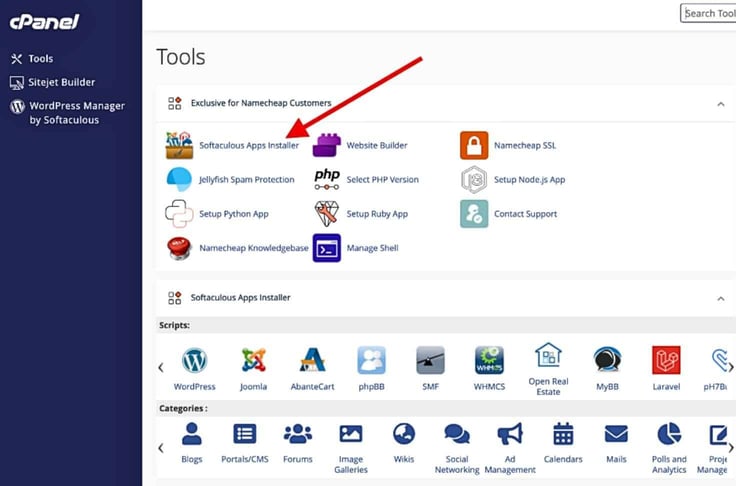
Open Softaculous. You’ll see a catalog of one-click applications: WordPress, Joomla, Magento, and many others. Then click WordPress. It usually has a main character energy (and rightfully so). You can’t miss it.
I found it chilling right at the top of the first column:
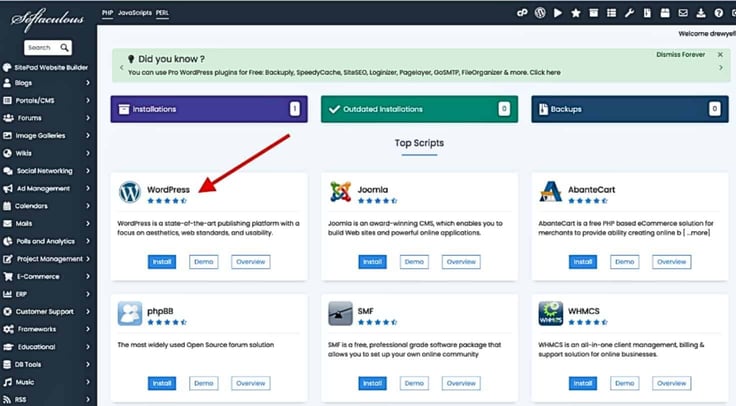
Click Install, then let’s meet in the next step.
Step 2: Choose Your Protocol and Domain Architecture
Once you click the Install inside Softaculous, you’ll land on the WordPress installation screen.
I know it’s tempting to click Quick Install to get it done quickly. Please don’t.
As you follow my lead, you’ll begin to realize why every step matters. Plus, we don’t learn anything by skipping through stuff. Again, clicking Quick Install is right up there with taking a bite off the forbidden fruit.
Sure, WordPress will install just fine if you try to take the shortcut, but ignoring certain settings will come to haunt you later on, when the site is live.
All you need is maybe 30 extra seconds at most to do it right. Let’s start with the first setting.
Select the HTTPS Protocol
Right under the Software Setup section, I’m going to select:
https://
That’s because Namecheap gave me a free SSL certificate when I purchased the domain. Can’t beat free!
HTTPS encrypts the connection between your website and its visitors. That way, sensitive data stays protected, and browsers begin to trust your website.
If you don’t update your SSL, every browser will give users a giant “Warning” before they can access your site, and it will be unsecured.
Choose the Correct Domain
Next, I’ll go ahead and assign a domain to my WordPress website by clicking on the dropdown menu under Choose Domain and selecting:
[yourdomain].com (for me — drewebdev.com)
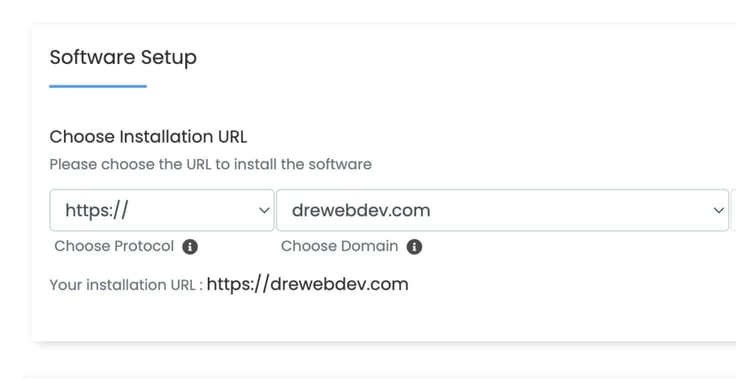
That’s the domain I want my WordPress site to live in.
Leave the “In Directory” Field Blank
I’ll leave the In Directory field blank. Doing so basically tells WordPress to install directly on my domain.
As a result, I’m expecting my site to load as:
drewebdev.com
But if I type something like:
wp
Softaculous will assume I want to install WordPress inside a folder. That means my site will end up living at:
drewebdev.com/wp
That begs the question: will my website still load if I type wp or any other word in the In Directory field? Yes, it will. But the homepage will look like a subfolder instead of the main site.
As a matter of fact, I’ll type in wp just to show you what I mean. See what happens to my installation URL? Again, for you, just leave it blank.
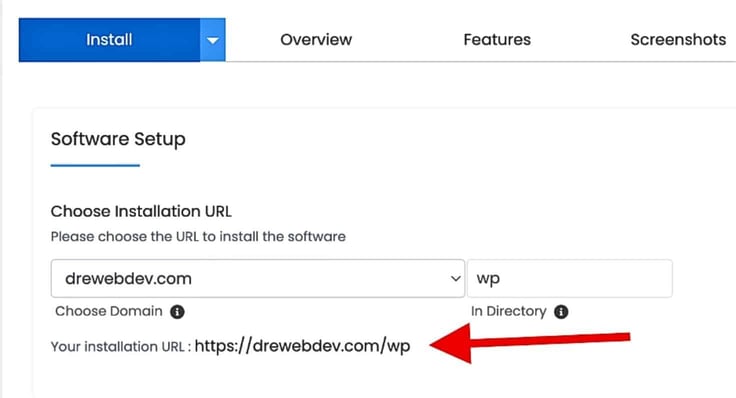
At this point, I’m pretty confident that:
• SSL is certified: My site will run on HTTPS (no browser trust warnings)
• URL is active: WordPress will install on the correct domain and permalinks
• The Directory is set: The site will be at the root URL, not inside a folder
But (in Kobe Bryant’s voice) “job’s not finished.”
Step 3: Harden Site Identity and Cloak the Admin URL
Now, I need you to lock in. I’m in the Site Settings section. I’m going to set the Site Name to “Riverside Web Development Agency”. I just made that name up, so please don’t come for me unless you’re comfortable winning $1 in a battle of wits.
Why do you think I got the name “Wan-dola”? Haha
Then set the Site Description (or tagline): like “Professional Web Development In Riverside” and that’s because I don’t want WordPress to give my website a default name, like: “Just Another WordPress Site.”
Even worse, you don’t want the default tagline showing up in search engine previews and browser tabs. That’s SEO 101 right there, as explained by our expert Joe Warnimont.
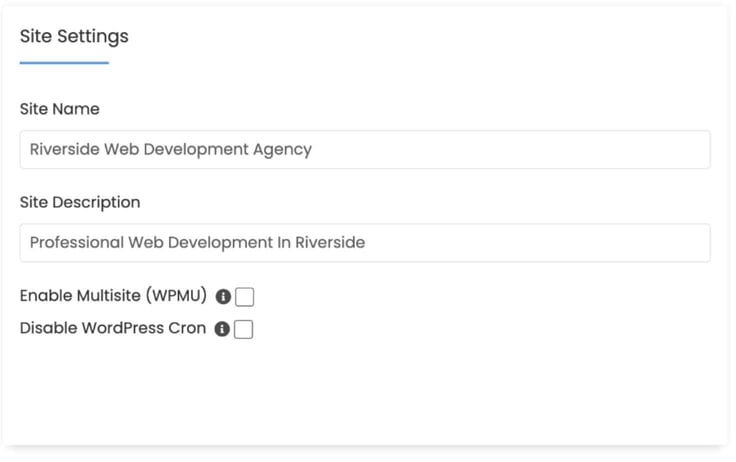
Don’t worry about choosing the perfect title and description right now. You can always adjust it later inside the WordPress dashboard by heading over to Settings > General.
Never Use the Username “admin”
Next comes the Admin Account section. Please ignore the temptation to use admin as your username. That’s usually the first username automated bots try when attempting to access a website.
For this demo, and for no particular reason, I chose: q9fee
You only need to remember this login yourself; there’s no reason to make it user-friendly.
Add a Real Recovery Email
Under Admin Email, Softaculous will assume that I have an admin@drewebdev.com email set up already. You can make an “admin” email account, but it’s not necessary. Because I don’t have such an email, I’m going to change this to one I already have access to.
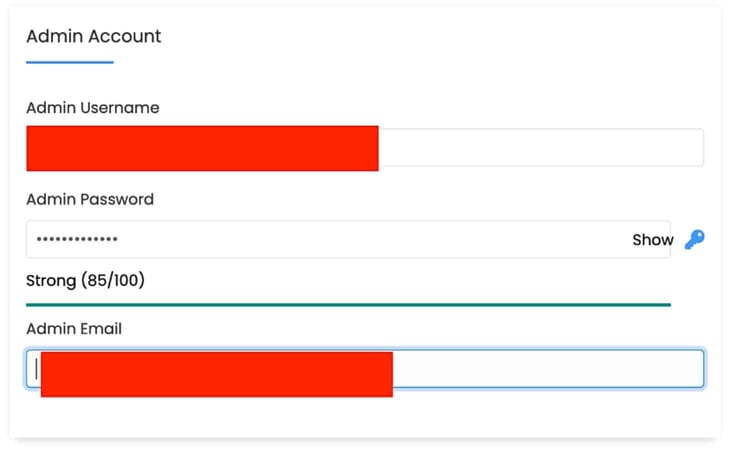
If I don’t do that and request my login credentials or a password reset, WordPress will send them to an admin@drewebdev.com email, which doesn’t even exist. Makes sense?
Generate a Strong Password
I use Bitwarden to generate and store secure passwords. Apple devices also do a great job at generating passwords through iCloud Keychain. If you plan on sharing access with a business team, a simple and strong password is best.
If you decide to do it manually, just make sure the strong password you choose has: uppercase letters, lowercase letters, numbers, special characters, and a minimum of 14 characters. Most operating systems, like MacOS Keychain, will auto-generate strong passwords, so that may be the best route.
Strong passwords can (and should) look ridiculous. I know! Something like: Q7!pLx9#rT4@kW2
But realistically, such a password is way more difficult to hack than an admin123 password. Using admin as the username and admin123 as the password (or anything along those lines) is like using a toilet paper roll as handcuffs.
You don’t need to worry about anything in the Advanced Options section. But if you see fit, you can enable notifications for WordPress core, themes, and plugins. I’ll also enter my email address in the space next to Email installation details.
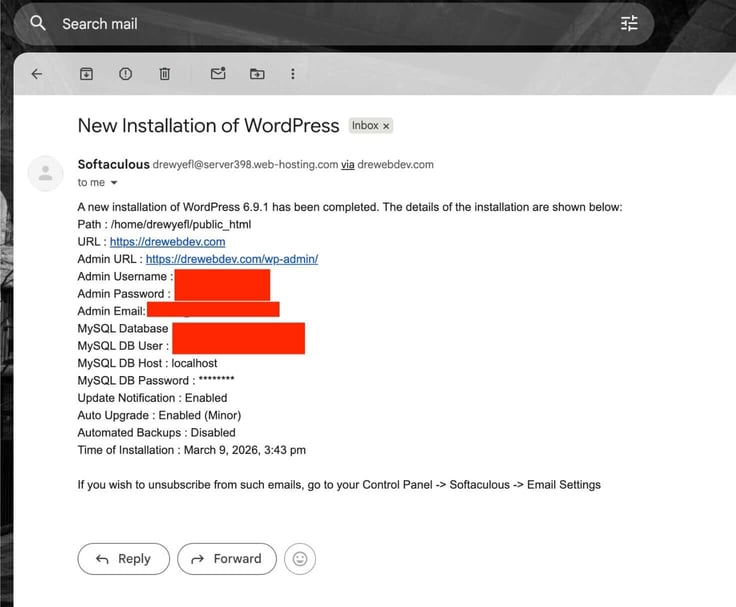
That tells Softaculous to email me the following info:
- Website URL
- Admin login link
- Admin username
- Database information
Don’t forget! Click Install before moving on to the next step.
Step 4: Theme Selection and Final Execution
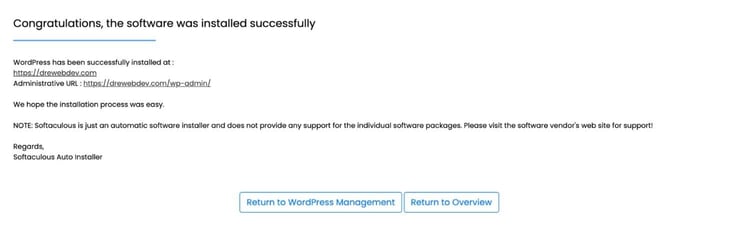
I’m seeing the page below because everything worked. You should see something similar.
And guess what just arrived in my email? My login info!
Back to WordPress, I’ll choose the default WordPress theme over the pre-bundled themes Softaculous is offering.
Mine says Twenty Twenty-Five; yours could be different.
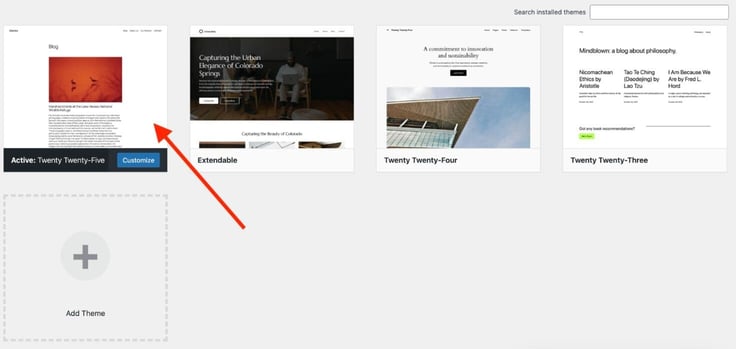
Why the default theme? Good question!
- It’s lightweight – loads fast for users
- It’s maintained directly by the WordPress team
- It avoids unnecessary design clutter
- It gives me a neutral starting point (I can always choose the final theme later)
You don’t need too many plugins at this point, so just ignore what Softaculous says you need, and also delete all default plugins. If you insist on keeping them, I recommend taking a screenshot. Then, deleting them. You can always research later and add them back.
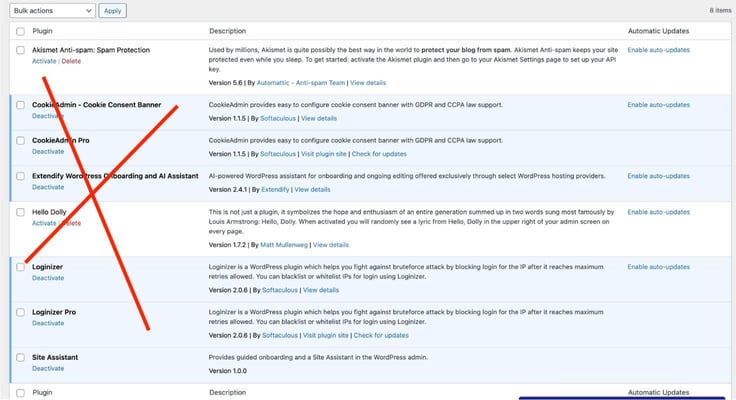
Start simple, without crowded dashboards. Secondly, that’s how you end up with a slow website.
Step 5: Verify Deployment and Go Live
There are two important links on the success screen:
(You only get to see them once the installation is complete)
- Website URL (Frontend) – the public version of the site
- Administrative URL – the login page to manage WordPress
This is the confirmation that WordPress exists and is ready to use. Let’s test it out.
First, I’ll click the frontend URL. It should show a default WordPress page, with your website title. In this example, “Riverside Web Development Agency” will show at the top.
Everything’s looking good so far.
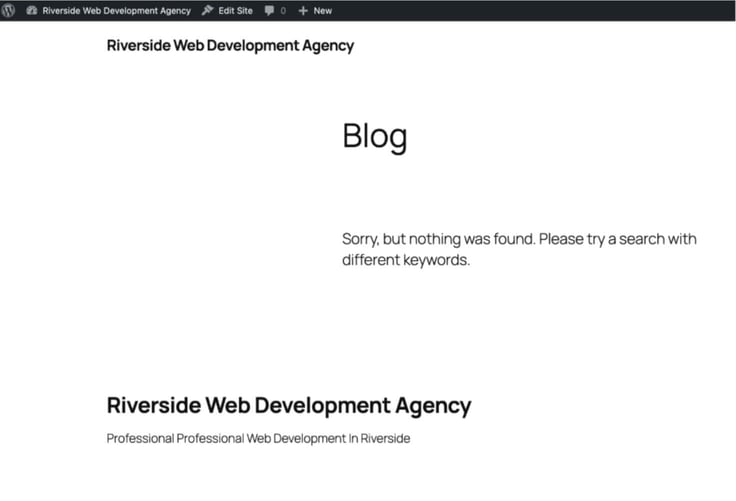
Don’t worry if the page looks extremely minimal. That’s expected after everything we’ve done up to this point.
Next, I’ll open the Administrative URL. By default, that login page lives at:
yourdomain.com/wp-admin
So in my case, I’ll access it at: drewebdev.com/wp-admin
Lo and behold, the WordPress login page is upon us.
![WP admin login URL: https://[yoursite].com/wp-admin](https://www.hostingadvice.com/images/uploads/2026/03/HA-How-to-install-WordPress-on-cPanel_4.jpg?width=736&height=491 "WP admin login URL: https://[yoursite].com/wp-admin")
Next, I’ll use the login credentials I set in Step 3 to access the admin dashboard. And here we are!
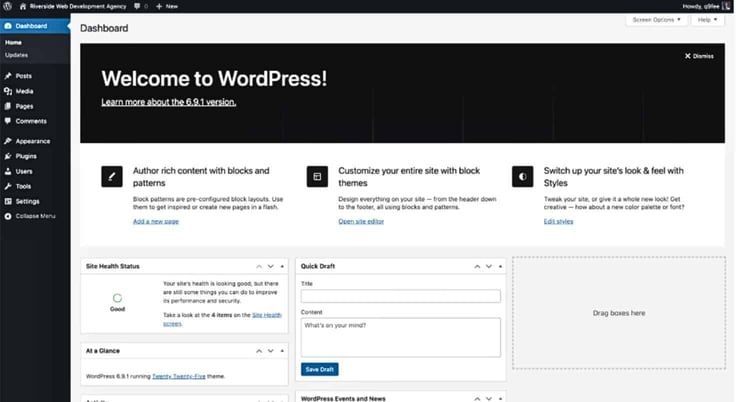
Then, I’m going to check if my site is secure. You see that toggle icon next to the site’s URL? Let’s click on that bad boy and see what happens.
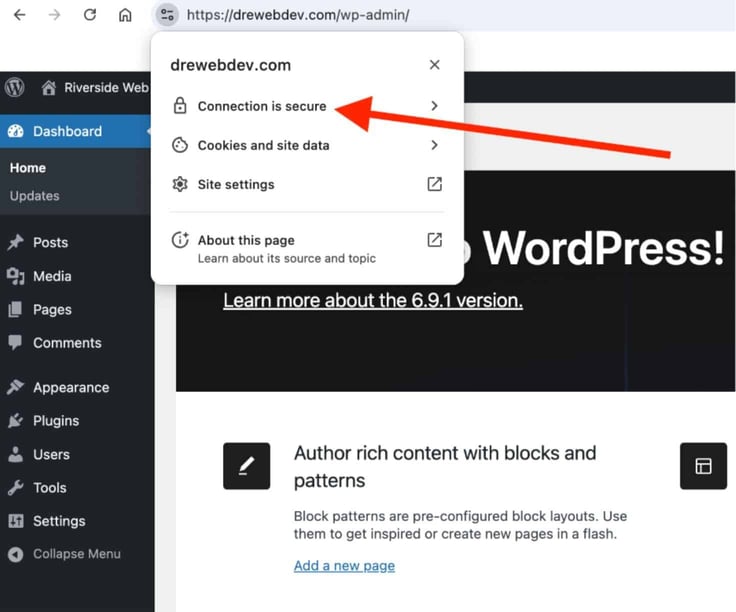
The padlock icon next to my domain name is the confirmation I need that the website is running over HTTPS. In other words, the SSL certificate is active. Let’s avoid browsers giving site visitors warnings that your site is “not private” or “not secure.” So, don’t skip activating your SSL certificate.
Note: Namecheap took a few minutes to activate the AutoSSL certificate after installation. That’s totally normal. Try refreshing the webpage if you don’t see the padlock icon after a couple of minutes.
My next goal is to fix the site’s URL structure. Right now, it works, but it looks kind of messy. Follow me to Settings and then a little further down to Permalinks.
WordPress has a default URL structure that looks like this:
yourdomain.com/?p=123
But it’s not exactly helpful for visitors or search engines. Instead, I’ll choose Post name, or familiarize yourself with Custom Structure, which looks like this: /%postname%/.
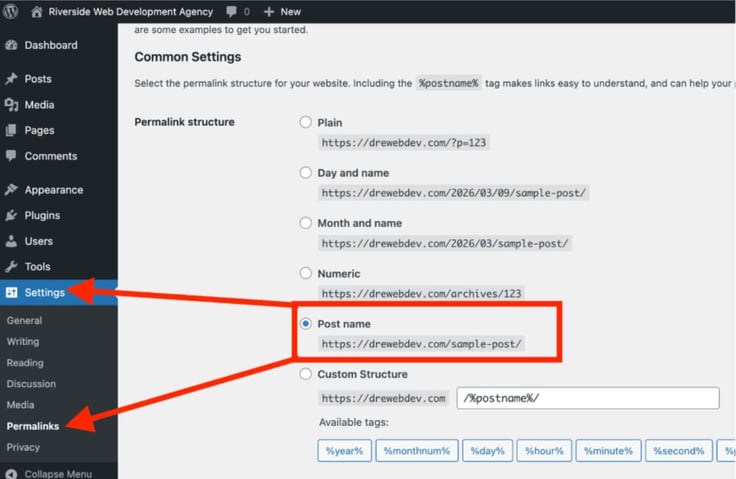
That’ll make my URLs look like this:
drewebdev.com/post-name
Now, when I go ahead and publish a blog about “How to Reset WordPress Password”, for example, the URL path will look like:
drewebdev.com/how-to-reset-wordpress-password
I like this structure better because it’s easier to read and share. Even better, search engines can understand it.
Troubleshooting Common Script Conflicts
I think we both agree that Softaculous isn’t anything close to the mysterious Jurassic Park creature it sounds like — insert obligatory T. Rex roar. It’s actually meant to make WordPress installation easier than it usually is when done manually.
But like any other software, it may throw you some errors here and there. Let’s discuss the most common WordPress errors and how to solve them.
“The Following Files Already Exist” Error
This happened when I attempted to install WordPress in a directory that already contained files. It’s like knocking on a bathroom door, and someone yells from inside:
“Hey, I’m in here. You can’t come in!”
Here are your options:
- Remove the existing files manually using cPanel File Manager
- Check the “Overwrite Files” box during installation
I’ll just go ahead and overwrite the files. And no, I’m not being lazy.
Overwriting files is usually the fastest solution. But you don’t want to go this route if the directory contains an existing website. It’s always good practice to have site backups as well (more later).
I only overwrite files I’m comfortable losing.
Database Prefix Limitations on Some Hosts
WordPress automatically generates a database prefix during installation. It looks something like:
wp_
Some WordPress hosting providers modify this prefix automatically. That creates something longer like:
cp123_wp_
If you’re getting such an error, it’s probably because your web host has imposed character limits on database names or prefixes.
Here’s how to fix it:
- Return to the installation screen
- Shorten the database prefix
- Reinstall WordPress
That should be enough to clear the error.
“Connection Not Private” After Installation
This error mostly happens when the SSL certificate hasn’t fully propagated yet.
Here’s what to do:
- Wait a few minutes
- Clear your browser cache
- Refresh the page
The SSL certificate should finish activating shortly afterward. If successful, you’ll now see the padlock icon.
PHP Version Not Supported
Softaculous may throw you this error if the PHP version is too old. Fortunately, cPanel makes it easy to update.
Inside cPanel, locate MultiPHP Manager or PHP Selector.
From there, you can choose a newer version of PHP. It’s usually something like:
PHP 8.1
PHP 8.2
Those exact versions may be different depending on when you’re reading this. Choose the latest version. WordPress should run without any issues once the PHP version is updated.
Installation Stops at 95%
Ugh! This is the kind of error that makes me want to pull out my dreadlocks strand by strand. And it’s usually caused by one of two things:
- Server timeout limits
- Low disk space or inode limits
And it’s pretty common in shared hosting. That’s because shared hosting environments usually have a limit on how many files your account can store.
Keep in mind that WordPress installs thousands of small files, so if your account is near its limit, the installation can pause near the end.
Do this:
- Check Disk Usage inside cPanel
- Remove unnecessary files or old backups
- Retry the installation
Softaculous should complete the installation without further issues.
Recovering a Lost Admin Login URL
Growing up, my siblings used to joke that they couldn’t send me to buy breakfast for the family. It’d be dinner by the time I came back.
Truthfully, I was bad at directions.
I still am, but not that bad, thanks to a delivery job I took. The bright side is that I was able to work on my navigational skills. Talk about self-improvement.
In the web space, I sometimes just can’t figure out the admin login path after setting up WordPress. This happens mostly when I customize the path, partly because it’s good practice, and partly because the client requested it.
But I don’t panic because Softaculous keeps a record of my installation details.
All I need to do is go inside cPanel:
- Open Softaculous Apps Installer
- Click All Installations
- Select the pencil icon next to the WordPress installation
From there, I can view or reset the login URL along with other configuration settings.
Post-Install Optimization Strategies
We’ve installed WordPress, and it’s working. But hold off on jumping straight into page design or installing themes just yet.
Instead, we’ll spend a few minutes cleaning up the fresh installation. The more you work with web applications and software, the more you begin to realize that cleaning up as you go is actually good practice.
I just realized that I’m beginning to sound like my partner. I’m a messy cook (like every man I know), and every time I step into the kitchen, she’s always trailing me like, “Honey, you gotta clean up after yourself as you cook. That way, you won’t need to do a lot of cleaning when we’re trying to eat and the food’s getting cold.”
I hate to admit it, but she’s right (but not always, lol).
WordPress ships with a handful of default files and placeholder content. Technically, they work. But they also don’t add much value to a real website.
So let’s do the clean-up together.
Configure Automated Backups in Softaculous
Let’s rewind the tape back to Softaculous Apps Installer and click on Install next to WordPress.
I’ll then expand Advanced Options and select the backup schedule under Automated backups.
As you can see, I have the option to choose daily, weekly, or monthly backups. Heck, I can even choose no backups at all, but I’ve learned my lesson.
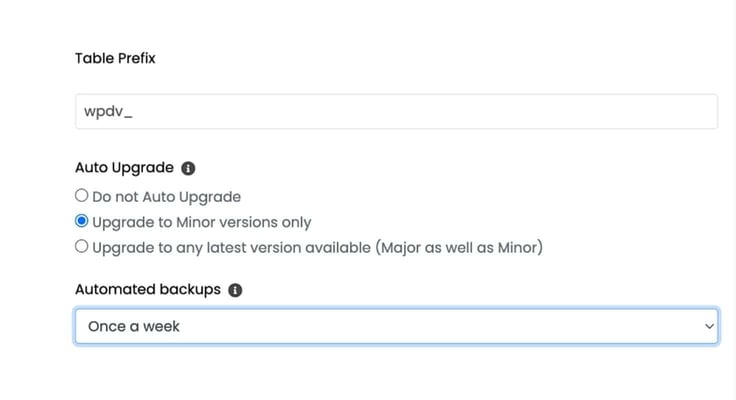
I know daily backups seem like the most obvious choice here, but they could quickly fill my storage with clutter. That’s the last thing I want.
Monthly backups swing too far in the other direction and leave too much time between recovery points. Imagine losing a month’s worth of site updates.
Weekly backup is the sweet spot for me; I like that it’s frequent enough to protect against problems without creating unnecessary storage clutter.
Delete the Default “Hello World” Content
Every fresh WordPress installation includes a placeholder blog post titled:
“Hello World”
You’ll also find a default comment and sometimes a sample page included in the installation.
The only reason they exist is to demonstrate how WordPress posts and comments work. But I won’t be needing them, so off they go.
Inside the WordPress dashboard, go to Posts and select All Posts. Delete the “Hello World” post along with its sample comment.
You’ll find the Comments section on the left side of the WordPress dashboard.
Remove the WordPress readme.html File
This file sits in the root of your WordPress installation and contains version information about the WordPress software running on your site.
You can access it directly by visiting:
yourdomain.com/readme.html
While it’s harmless, it does reveal information about your WordPress version. And that’s one of the things security-conscious site owners need to keep private.
You can safely delete the file using cPanel File Manager or an FTP client.
This isn’t a massive security improvement on its own, but it’s a small best practice that many developers (myself included) follow as part of their post-install routine.
Update Any Pre-Installed Plugins
There aren’t any plugins to update on my WordPress dashboard at the moment. Remember, we wanted to start everything from scratch.
For the Plugins section, I’ll let you be the judge. Some plugins might be useful, others not that much.
It all boils down to the kind of website you want to build. For example, I designed my web design agency’s website with Elementor. And I’m constantly updating this plugin and many others.
Here’s a simple rule I like to follow: If I don’t need it, I delete it.
If I need it, I update it. Constantly.
Most plugins also have an auto-update feature. Activating it will make your work easier.
Launching Your New Digital Home
See? Installing WordPress on cPanel using Softaculous is not that difficult.
In fact, many of the problems people bump into don’t usually come from WordPress itself. Rushing through setup screens. Skipping small settings. Not updating plugins. That’s what breaks things nine times out of ten.
So how do you avoid that?
Practice good habits from day one (or rather, minute one). And thanks to Softaculous with cPanel, that’s easier done than said.
I hope you enjoyed reading this article. We work hard to bring you the best hosting guides on the internet. Don’t forget to follow us on social and use our simple Smart Search Tool to answer any questions you may have!