
Writer: Sead Fadilpasic


Editor: Britain Simons


Reviewer: Cristian Lopez

Ah, WordPress — the origami of the hosting world. It turns the complex and technical parts of server management into an easily accessible website. It takes a few “simple folds” to add the right structure.
And, if you have a provider with a managed option like Hostinger, it’s even easier to get it up and running. A trusted host takes care of all the highly technical stuff happening behind the scenes.
I’ve been hanging out with this web host for quite some time, so I know for a fact that all you need is the bare minimum of technical skill and some goodwill. Using WordPress on Hostinger is the perfect balance of cheap hosting, reliability, and user-friendly features, like AI integration, hPanel, and 24/7 support.
In the next 10 or 15 minutes, I’ll walk you through the steps (even if you’re a slower reader- like me). We will install WordPress on Hostinger together and set up the basics for a smooth website build with fast performance.
-
Navigate This Article:
What You Need Before You Start
There are a few boxes you’ll need to check before you roll up your sleeves and get down to business. I’m saying this solely because the setup is far smoother when a few things are ready ahead of time. We’ll walk through these first steps together.
First Steps:
• Hostinger plan: ideally a shared hosting plan (with a managed WordPress option)
• Domain name: purchase through Hostinger or connect later
• Secure Access: login email and Hostinger account
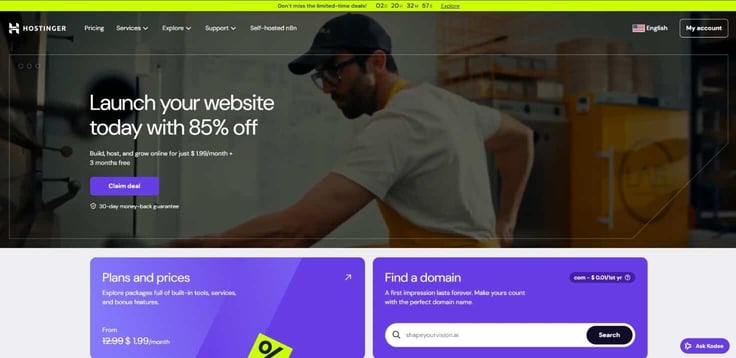
Once we get all of that in order, you’ll be that much closer to your very own WordPress site! Even better, because it’s fully managed by Hostinger, you’ll have optimized performance and full security operations.
Speaking from experience: Hostinger is one of the most user-friendly hosts out there, doing a great job of holding your hand throughout the setup. You can rest easy knowing everything will be A-OK in case there is a slight hiccup or you don’t have all the details set yet.
Step 1: Log In to Your Hostinger Account
We’ll start by clicking the “My Account” button in the upper-right corner of the Hostinger homepage. A simple login page will greet you:
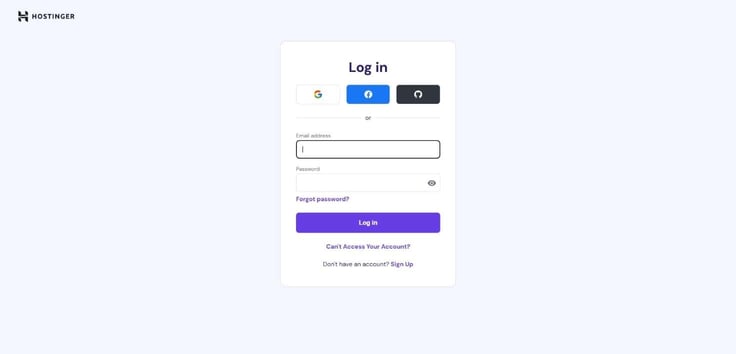
Since you don’t have an account yet, you’ll need to sign up. Add your email and create a strong password, then click the Register button. The next sight will be Hostinger’s hPanel dashboard, a custom-developed control panel designed specifically by the hosting provider to manage its services.
Here’s a quick overview of what you’ll see, just so it’s less intimidating or confusing the first time:
As you can see, it’s a pretty clean interface that relies on the left sidebar for much of the main navigation. This is the central hub where you’ll find the Websites section (which we’ll get to in a minute), your domain portfolio, and everything else you need to manage your site(s).
The central area of the dashboard displays hosting and plan selection, domains, and a to-do list where various useful notifications will pop up. Once you subscribe to a service, it will also show your active websites, widgets, and any other hosting services you may buy, like a VPS (virtual private server). I’m a big fan of hPanel, so there will likely be more compliments thrown its way as you read this article.
Quick disclaimer: there may be some variance between your account and my screenshots and screencasts, since I’m operating from an established account with existing sites and whatnot.
Now that you’re logged in, we can proceed to plan selection.
Step 2: Choose The Right Hosting Plan For WordPress
If you step out of hPanel and go to Hostinger’s pricing page, you’ll notice there are lots of hosting options. Without going into details, let’s just say most may complicate things for novices. Right now, your best choice here is web hosting, also known as shared hosting.
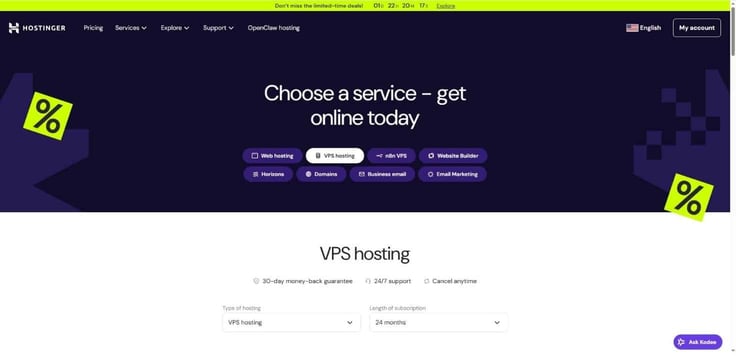
Shared hosting is the entry-level service where a single physical server hosts multiple websites, sharing resources (hence the name) like CPU, RAM, and bandwidth. As such, it’s a highly cost-effective solution and well-suited for beginners, small businesses, and low-traffic blogs, due to the low upfront investment and shared server maintenance costs.
It’s considered easier for hosting newcomers, since its design removes many of the technical hurdles that come along with setting up and maintaining a website. Yet, the underlying “math” is the same as with shared hosting: a site’s files are stored on a server designed for general use.
Here’s where it gets a tiny bit confusing: Hostinger offers managed hosting for WordPress. It’s a tailored service as opposed to a generalized, one-size-fits-all hosting package, catering to WordPress’s unique requirements to deliver the best possible ease of use and performance.
The good news is that Hostinger makes the choice between shared and WordPress hosting easy, since its managed WordPress hosting package comes with its cheap web hosting. So, in a way, you get the best of both worlds at a low price.
With that settled, you have three plans on offer:
Hostinger Bundled Features and Pricing
You can also score the Single plan through the ‘Websites’ section in hPanel, but you can create only one website and need to pay for a domain. I recommend Premium, as it provides more flexibility and features for the same price as Single (renewal rates differ). I should know, because that’s the plan I have.
Step 3: How To Install WordPress On Hostinger Using Auto Installer
This is the meat on the bone of our little get-together, where I actually show you how to install WordPress on Hostinger.
From hPanel, go to ‘Websites’ in the left sidebar, click on the pleasingly purple ‘Add website’ button under your respective plan (in my case, Premium), and select WordPress from the five options. I want to stress that this option already uses the auto‑installer in the background, so you don’t need to manually run it. I told you Hostinger is user-friendly, didn’t I?
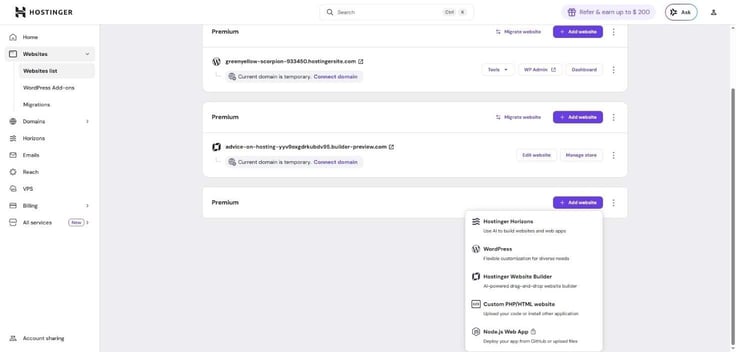
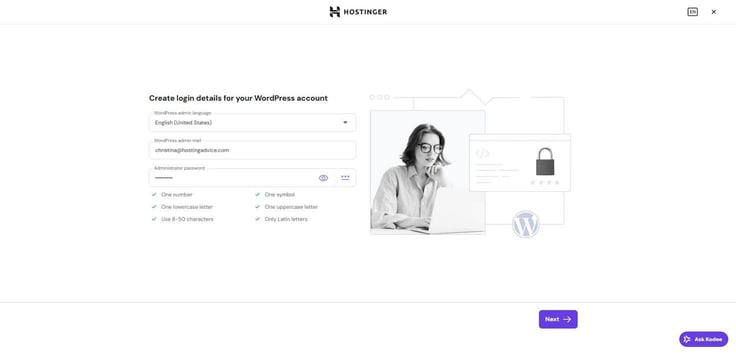
Next, enter your would-be WordPress admin email (it can be the same one you used to sign up for Hostinger) and create a corresponding password. Hostinger provides specific guidelines for a decent password, so its strength shouldn’t be a problem. Since these will be your WordPress login credentials, be sure to write them down in a separate document or save them to your device’s passwords.
Next, you have three website creation options. The first is to pick a pre-built website, which is ready to go out of the box and allows you to quickly customize it. You can also apply a starter WordPress theme or create a site from scratch.
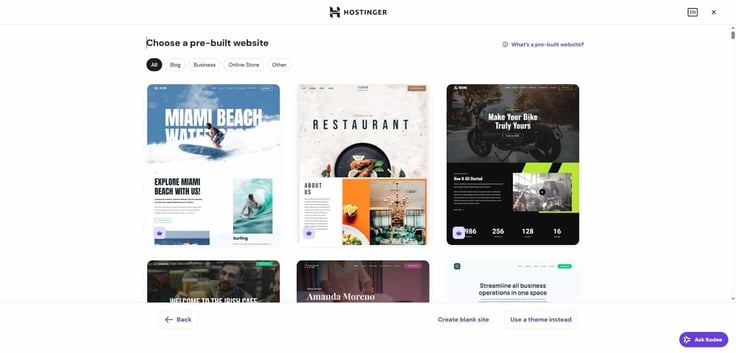
For this exercise, I’ll go with a prebuilt, freelance portfolio website that closely matches your needs (at least I think so). It looks like this:
This David Williams dude sure knows his stuff, but depending on your needs, some tweaking will be necessary. If you generally like what you see, press the ‘Continue’ button. If not, feel free to browse until you find a template you like. When you do, your next step will be to enrich your future site with some plugins.
About Plugins: They solve problems, automate redundant tasks, add features, and save time, so it’s worth it to invest a little energy in this phase of setup. Hostinger recommends a few plugins, though you can skip this part and browse the plugin library later, where you’ll find more of them.
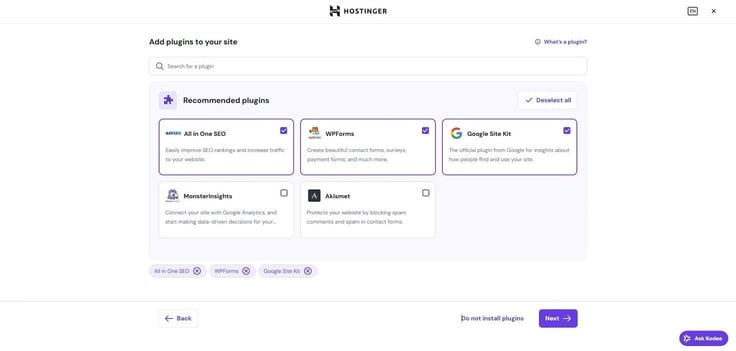
I’ll select a few and press Next. It’s domain name picking time!
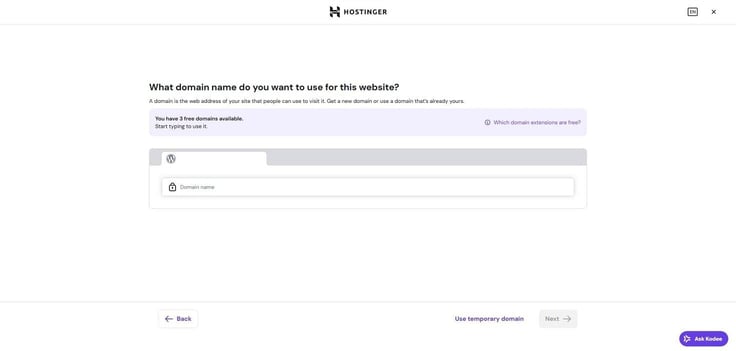
If you subscribe to Premium, you’ll have three free domains available for a year – one for every website you can make. The cool thing here is that you can use a temporary domain, just so you can test the Hostinger waters. That’s what I’ll do for this show-and-tell.
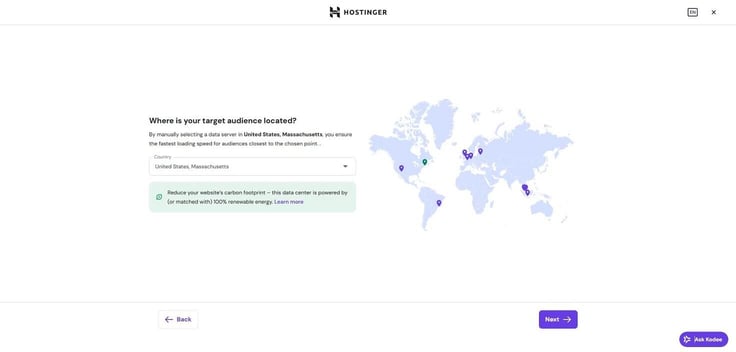
Next, select the data server closest to your audience. Even in a virtual world, data signals take time to travel over a physical distance.
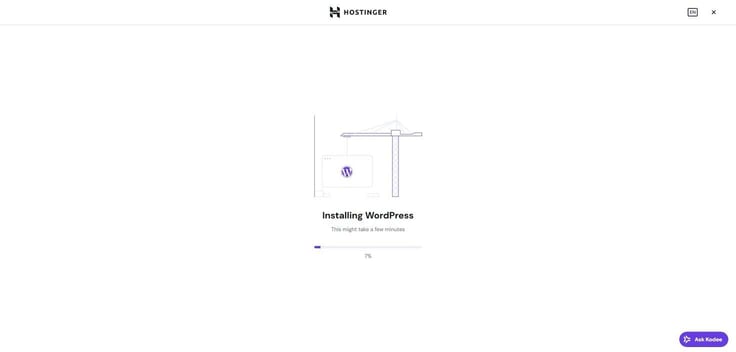
Hostinger will take a couple of minutes to install WordPress and plugins, add your domain, and prepare your account.
Once all that is done, you’ll be logged in to your WordPress dashboard with your new site ready for customization and new content.
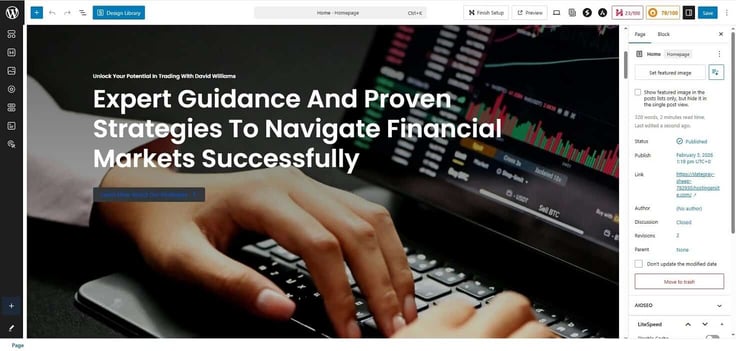
See? It doesn’t take much to install WordPress on Hostinger. Piece of cake.
Step 4: Log In to Your New WordPress Dashboard
There are three ways to access your WordPress dashboard.
The first two are easier and more direct. They are basically the same thing. You can either go to the “Websites” section in hPanel and click on the WP Admin button for your site, or go to hPanel’s homepage and hit the WordPress Admin button for your site, under the Your Business section.
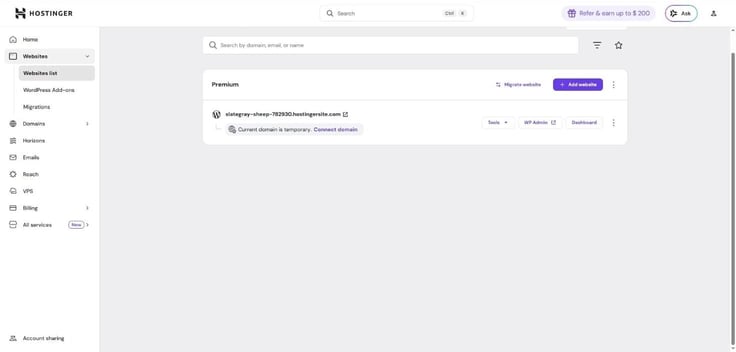
In both cases, it will automatically transfer you to your site’s editing area. There, you can tinker with it as you please.
That’s not to say that the third, more traditional way is hard. It just takes a few more steps since you’ll be accessing via a direct URL.
Open your browser of choice and go to: https://yourdomain.com/wp-admin, where you’ll replace yourdomain.com with your actual domain or subdomain. Then, enter the email and password you set during the WordPress installation. You’ll be transferred to the general WordPress admin dashboard.
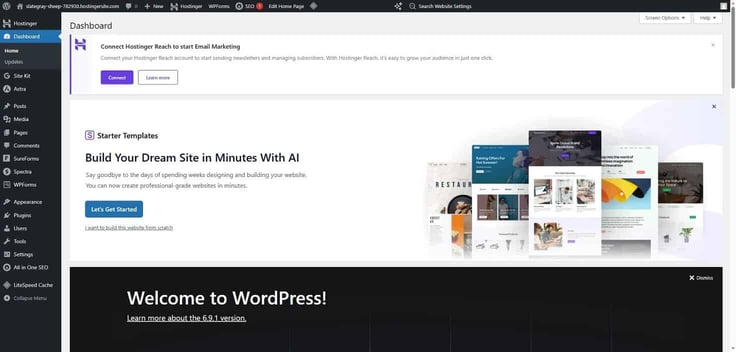
If you’re thinking “That’s a lot of buttons” right now, I had the exact same thought when I first ventured into the WordPress land. But as you’ll soon find out, everything has a specific purpose.
The layout is pretty straightforward, with the real magic happening in the main menu sidebar on the left. You’ll likely spend most of your time at Posts, which is where blog posts or news updates will be, and Appearance, which is arguably the fun part. It’s here you can change how the site looks and feels (colors, fonts, layout, the whole nine yards).
Again, a reminder that plugins let you add extra features through app-like software. Trust me, the dashboard is much less intimidating once you start clicking around.
Step 5: Basic WordPress Settings You Should Change Right Away
We’re about to set foot into some technical territory because a default installation is just that — default.
Note: Customizing basic settings will tailor your website to both your liking and that of your target audience, which is our goal here.
I’ll focus on the beginner-friendly, yet high-impact settings, starting with defining your site’s identity. In the left sidebar, go to Settings > General to tweak your site’s title (its name) and tagline, which is a sort of elevator pitch about your site.
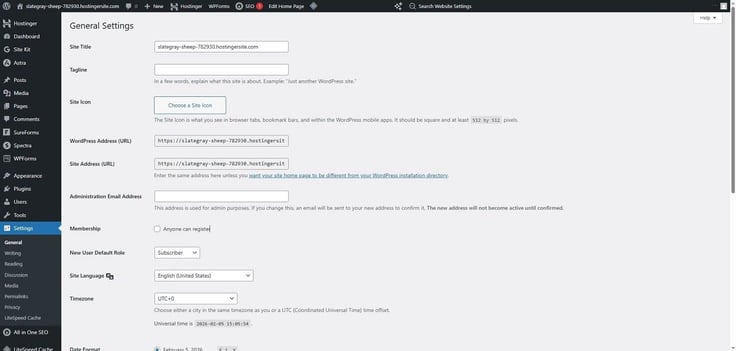
These are important because they appear in browser tabs and search results. By default, WordPress leaves your tagline blank, so having something of your own makes your site look professional and unique. These are baby steps into SEO (search engine optimization).
Next, in the same window further below, select your preferred language and UTC timezone. This makes sure that if you schedule a post to go live at 10:00 AM sharp, it actually goes live at that precise time, not some random hours in another part of the world.
Let’s move on to Permalinks under Settings. This is how we edit a clean URL.
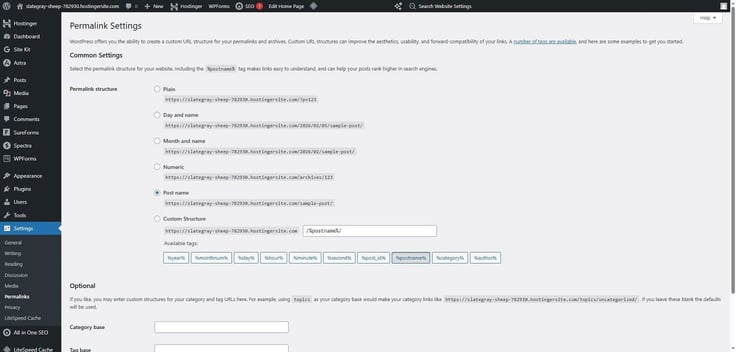
By default, WordPress creates post URLs with the date and name or title of the post, like https://yourdomain.com/2026/01/03/great-blog-post.
That’s not the worst thing in the world, but for most sites, it’s better to make the change to ‘Post name’ so that the URL is https://yourdomain.com/great-blog-post. Doing so creates short and descriptive URLs that improve user experience and help search engines understand the content (gotta make Google happy).
For the final tweak, we’ll return to hPanel. You can do so by hovering over the Hostinger tab in the top menu and clicking on hPanel > Websites. Then, click the “Dashboard” button for your WordPress site.
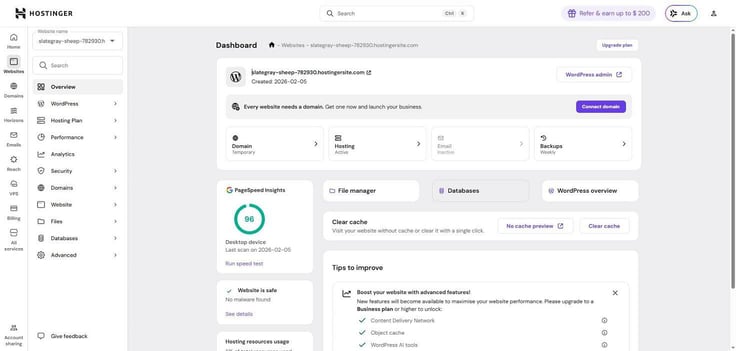
Go to WordPress overview, then press Change in the ‘WordPress Updates’ section.
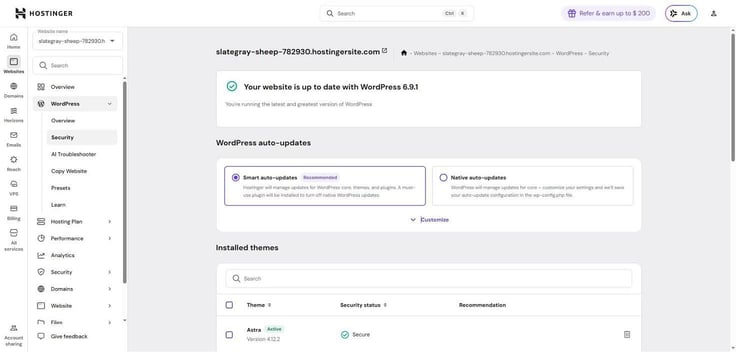
Ideally, you want to toggle to ‘All updates’ for core WordPress, themes, and plugins, instead of the default ‘Security updates only’ setting (Websites > WordPress > Security).
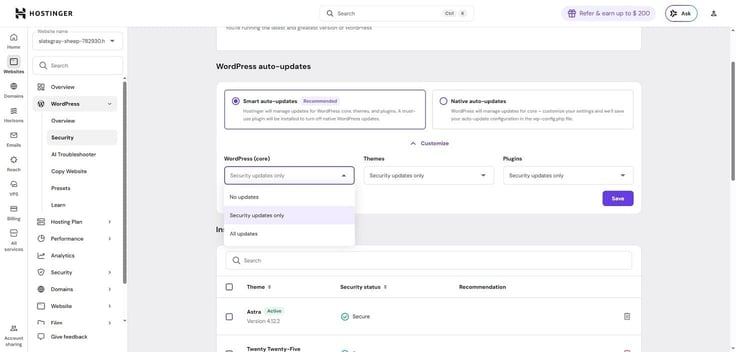
Applying only security patches risks compatibility issues and all sorts of trouble. This way, the constantly updated themes and plugins (the main culprits for errors) will work seamlessly with the latest version of the WordPress core.
Step 6: Recommended Plugins For New WordPress Sites On Hostinger
I can’t explain how to install WordPress on Hostinger without talking about plugins. These are essentially apps for your website. I’d go as far as to say they are the lifeblood of countless WordPress sites due to their modular nature, as they can turn a basic blog into a specialized website, without any coding whatsoever.
It’s a calculated investment, but the small cost of adding premade plugins is far less than paying a developer $10,000 to make your own. Not to mention the value benefit they provide. So, it stands to reason you’d want a few of those for yourself.
Here are my plugin recommendations:
- Robust Security: Akismet, Jetpack
- Targeted SEO: All in One SEO or Yoast SEO
- Fast Performance: LiteSpeed Cache, Google Site Kit
- Automated Backups: UpdraftPlus
Installation is rather simple. The easiest way is directly through your WordPress dashboard. Go to Plugins, then Add Plugin, and search at the top right for the ones you want.
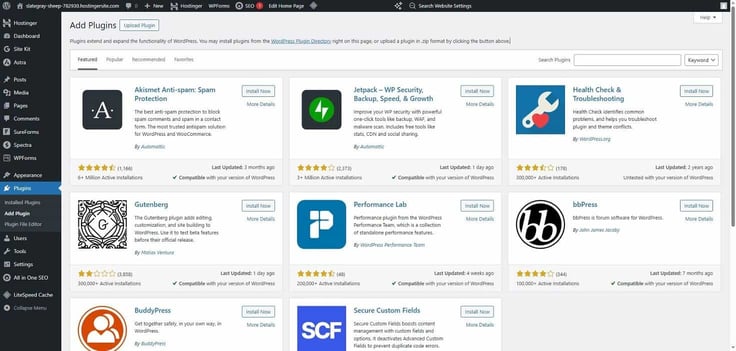
For a quick demonstration, I’ll install Akismet (I hate spam). I’ll click on the obvious ‘Install Now’ button in the bottom right corner. A few seconds later, that button will turn to ‘Activate’.
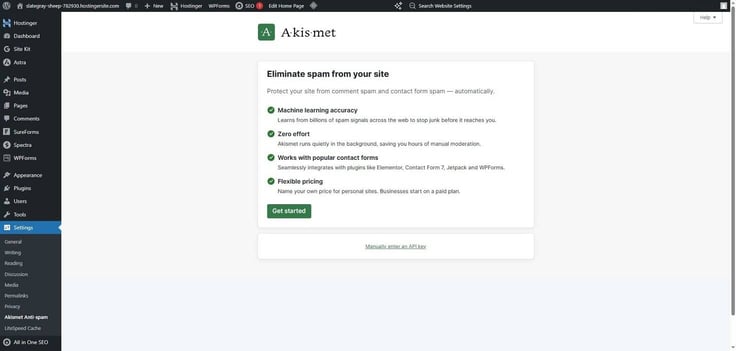
This is the most important part: you have to click “Activate”, otherwise, a plugin won’t do anything, so bear that in mind. After that, there’s a quick onboarding, and off you go.
One more thing: My recommendation list could very well be longer, but the adage “too many cooks” is at play here. It is possible to have too much of a good thing. Plugins can slow down the site or, far worse, cause a brain-melting who’s who of technical glitches.
So, try to avoid installing two that do the same thing. Also, look at the time of last update and the star rating for different options. If a plugin hasn’t been updated in some time or isn’t all that highly rated, chances are it’s going to cause a headache later.
Step 7: Connect Your Domain (If You Haven’t Already)
If you remember, I opted for a temporary domain when creating a WordPress site. This time, we’ll go for the real thing.
First, a quick refresher. A domain is the memory-friendly address for a website – a “human” substitute for IP addresses that computers use to find each other on the internet. Thanks to the Domain Name System (DNS), domain names are translated to a series of numbers, or IP addresses, thus allowing a computer to find the correct web server.
Once more, it’s hPanel > Websites, where you’ll click on the prominently purple link ‘Connect domain’. A familiar window will open up:
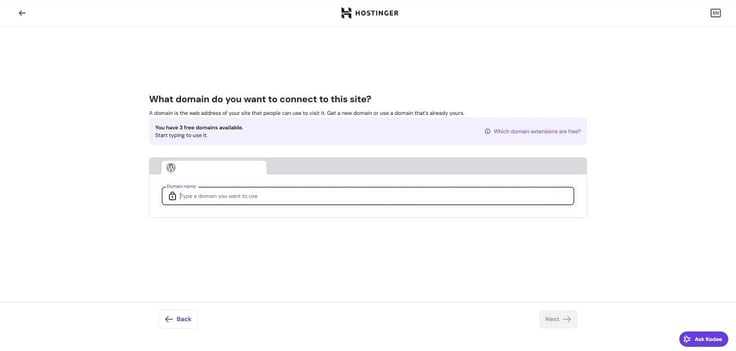
This is where you flex your thinking muscles (unless you came prepared) and come up with a name for your site. I’m going with groovyblogposts.io. Short, memorable, and specific is best like hostingadvice.com!
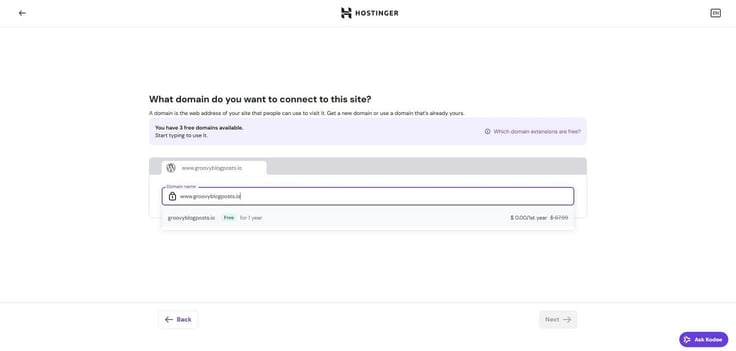
You’ll have to select your “country of residence”, choose between a “personal” or “company entity”, and enter your contact details. Once that’s done, click the “Finish Registration”, and you’ll be a proud owner of a domain.
If you bought a domain elsewhere, you’ll need to point it to Hostinger’s nameservers. You can find these in the Hosting Plan page for your site (hPanel > Websites > Dashboard).
There you’ll see the Nameservers (NS) section with something like “ns1.dns-parking.com” and “ns2.dns-parking.com”. Copy those addresses and paste them at your domain registrar, replacing the current ones.
If the site doesn’t show immediately, don’t worry. Your domain may need a little bit of time to point to your website (called DNS propagation), usually up to 24 hours. If it’s still a no-show after that, contact the customer support for assistance.
Side Note: If you need to take a break while you wait, bookmark this page, follow us on social, and pour yourself a well-earned drink (or mocktail)!
Troubleshoot: Solutions to Common Problems Installing WordPress On Hostinger
Now that your website is live, there may be some bumps on the road, but you can easily navigate these common beginner mistakes.
My quick fix guide:
- Forgot login credentials: You can usually bypass the WordPress login screen entirely by clicking the “WP Admin” button directly from hPanel. If you want to reset credentials, you can always use the “Forgot password?” link on the login page. Check your setup email (and junk folder) for confirmation.
- Slow loading or site errors: Installing too many plugins is the likely culprit. In the event that your site starts acting sluggish or glitchy, you’ve likely overdone it. The fix is to head on over to your Plugins list and start deactivating them one by one. Test for the problem. If the problem disappears, you’ve found the culprit. Remember to keep only what you absolutely need for the site to function — it (and your visitors) will thank you.
- Skipping basic settings: This stuff can feel like a chore, but think of this like laying the foundation for your site. Take half an hour (or however long you need) to sweep through the General settings. Do it once and do it right, so you won’t have to worry about it later.
- Panicking over perfection: Building a site is a process. Many things won’t look perfect or even great when you start out. Just relax, there will be plenty of time for refinement. Keep in mind that clicking the wrong button, as you explore features, is not a big deal. Experiment and use the Undo button as much as you need.
And if I may add one more thing: keep it simple. Less is literally more with WordPress.
Final Thoughts on Building Your WordPress Site
There, you have it! You’ve officially laid the groundwork for your new online home. If I did a decent job explaining how to install WordPress on Hostinger, then you should be set.
The breadth and versatility of the world’s most popular CMS (content management system) can be daunting at times, but so far, you’ve done all the “technical” heavy lifting.
From here, it’s time for the fun stuff. Give your site some personality. Start by playing around with a few themes to see what best fits your vibe, then pick relevant plugins to add even more selective functionality. Once that’s done, adding content is the next step, and where your site starts to really tell its story.
As you get more comfortable, you can start dipping your toes into the world of SEO to help people find you online. But for today, pat yourself on the back. You’ve built a solid foundation, and the rest of the journey is all about growth and experimentation.
Don’t forget to follow us on social media, and if you need any more inspirational guides, you know where to look. Happy building!
HostingAdvice.com is a free online resource that offers valuable content and comparison services to users. To keep this resource 100% free, we receive compensation from many of the offers listed on the site. Along with key review factors, this compensation may impact how and where products appear across the site (including, for example, the order in which they appear). HostingAdvice.com does not include the entire universe of available offers. Editorial opinions expressed on the site are strictly our own and are not provided, endorsed, or approved by advertisers.
Our site is committed to publishing independent, accurate content guided by strict editorial guidelines. Before articles and reviews are published on our site, they undergo a thorough review process performed by a team of independent editors and subject-matter experts to ensure the content’s accuracy, timeliness, and impartiality. Our editorial team is separate and independent of our site’s advertisers, and the opinions they express on our site are their own. To read more about our team members and their editorial backgrounds, please visit our site’s About page.