

Writer: Sead Fadilpasic


Editor: Britain Simons


Reviewer: Cristian Lopez

Ever wanted to gain the technical capabilities of a system administrator without the years of training? Well, PHP coding with ChatGPT sure comes close. It does a great job of bridging the gap between site and server management by generating efficient and time-saving code structures.
My point is that knowing this new and improved way of coding can help you maintain a secure, high-performance hosting environment with technical precision you previously only dreamt of (at least I did). So, if you’re keen on giving it a try, I have just the thing to get you started.
-
Navigate This Article:
What PHP Code Is And Why It’s Still One Of The Most Useful Website Tools
A PHP code is a set of written instructions that tell a computer how to perform specific tasks. Since PHP is a server-side scripting language, it’s used to build and run websites by working behind the scenes on a web server.
So, when you visit a website that uses PHP, the server runs the PHP code to process form submissions and logins, fetch data from a MySQL database, do redirects, conditional content, and all sorts of everyday website features. It then sends the finished webpage to your browser in HTML as its final result.
Here’s an example of the simplest working PHP script:
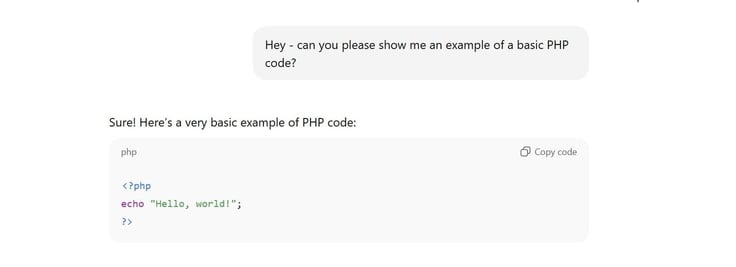
And with HTML being a universally accepted standard for the Internet, PHP coding remains highly useful in creating websites that all standard browsers can natively understand and render. It’s what makes these sites dynamic and interactive.
Another thing worth factoring in here is that most cPanel hosting environments are designed around PHP. It comes pre-installed, easy to configure, and works smoothly with standard server tools like Apache and MySQL. It’s also the engine for WordPress, which is almost half the internet.
Historically speaking, PHP was tricky if you didn’t have a developer background. ChatGPT is a game-changer in the sense that, by the time you finish reading this article, you’ll know how to use ChatGPT to generate PHP code, run it on real hosting, and apply it to practical site features.
As a cherry on top, you’ll have working PHP scripts you can reuse and expand any way you’d like. Sweet, eh?
Step 1: What You Need Before Generating and Running PHP Code
Just like setting up a gaming account, there are minimal system requirements before we get to coding. Don’t worry, we’ll go through these together.
First Steps:
- cPanel hosting with PHP enabled: most cPanel hosting providers enable PHP by default, making it easy to run .php files immediately
- A domain or subdomain: you’ll need one of these to access your PHP files through a browser
- Access to ChatGPT: obviously, since we’ll be requesting ready-made codes
- File Manager access in cPanel: allows you to upload, create, delete, and edit PHP files directly in a browser without FTP or some other tool
Using cPanel means no local development tools will be necessary, as its File Manager will be our development environment, essentially.
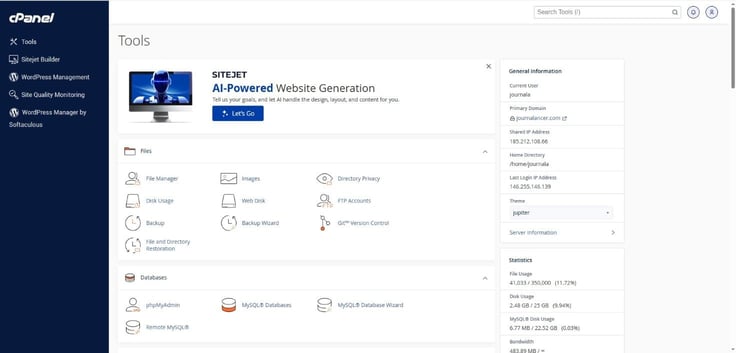
You won’t need a formal programming education or prior experience with PHP, though basic code literacy and logical thinking are more than welcome. The process works great on shared hosting environments, so we won’t need to delve into a complex hosting-related rabbit hole.
Step 2: How PHP Runs On cPanel Hosting (And Why That Matters)
I mentioned in the intro that PHP is a server-side language, which means that the computer hosting your website (the server) must interpret the code (the language) before any data is sent to your screen. Let’s simplify the process.
First, your browser sends a request to the web server to perform a function. The latter (the server) recognizes the .php extension and instantly realizes it needs to hand the file over to the PHP Interpreter. This is a program that (in case the name didn’t give it away) processes and executes PHP code.
It reads the code line-by-line, and the server performs the intended action, like a to-do list for the program. Once the logic is processed, the interpreter generates the HTML, standard website code. Then, the server sends only that HTML back to your browser.
So why is cPanel hosting mandatory? Because you can’t run PHP just by double-clicking a file on your computer. It doesn’t have the PHP engine installed, nor the web server software needed to process the code and show it as a website. cPanel does.
It’s the same logic as to why the browser URL is essential. Let’s say you open a PHP file directly from your hard drive. Your browser of choice will treat it as a plain text file since there is no request to a server, no interpreter, so no processing happens. Using a URL tells the server to actually run your code, turning it into a working website.
Step 3: Use ChatGPT To Generate PHP Code For Real Website Tasks
To have ChatGPT generate PHP code that solves specific problems, you have to clearly define the request and write as many details as you can. That means describing the exact result you want and what information is involved.
How about some proverbial target practice?
I’ll start with a basic contact form processor, with a redirect, based on a specific condition (contact.php). Contact fields collect leads, so your business can communicate directly with users and customers. Why pay a premium to a website builder when ChatGPT can generate PHP?
Here’s the prompt I’d write:
“Please write a PHP code for a basic contact form that includes the name, email, and message fields. When submitted successfully, redirect the user to a thank-you page. Give me a single, complete PHP file that I can paste into cPanel File Manager.”
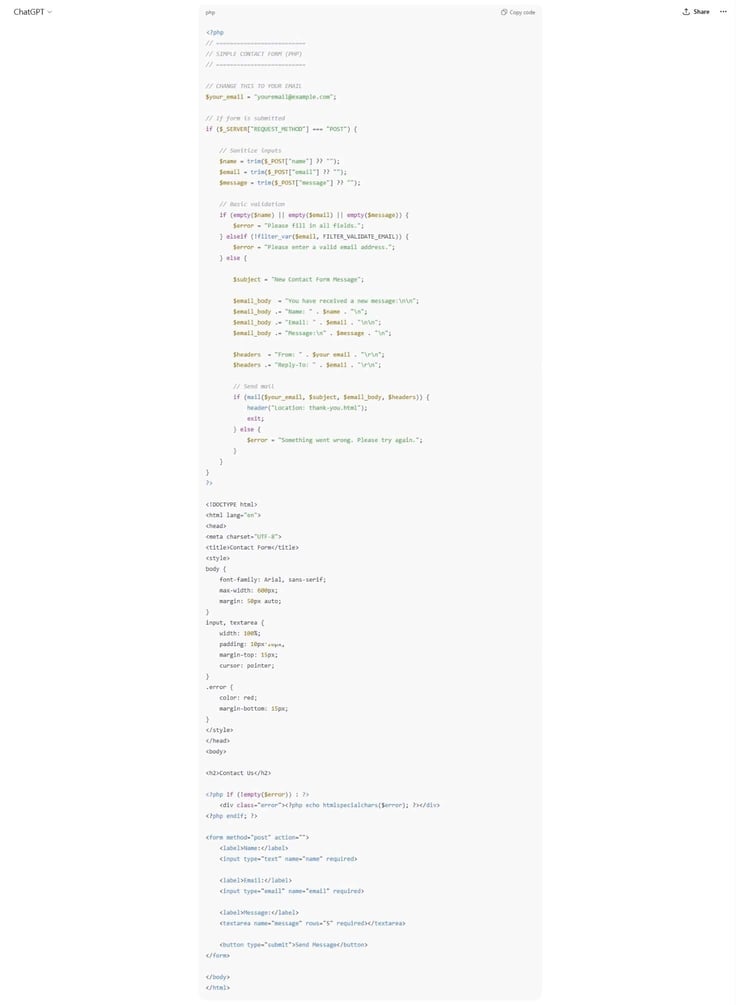
And here’s the generated code:
I use ‘please’ because I’m a polite dude and have a (un)healthy fear of our potential AI overlords.
Jokes aside, I purposefully specified the word ‘successfully’ so that the redirect doesn’t happen after an incomplete submission, regardless of whether the email was sent. Adding that one word introduces a condition of checking the result of the mail function. Always keep in mind that even the smallest wording can affect code logic.
If you look at the code more closely, you’ll notice the grey text starting with //. Each such line is a comment, which is a note written for us humans. They help explain what the code does, though PHP skips them when running the script.
ChatGPT includes comments automatically, which is great. They can be removed without breaking the code, but considering the entire point of this exercise is getting clarity of intent (good prompts) over technical phrasing, they help us understand what’s going on.
Hot tip! You can also ask for detailed comments explaining every key part.
I also requested a single, complete PHP file. Otherwise, you’d get three separate parts of a code: HTML form, PHP processing script, and the thank-you page.
The amazing thing about ChatGPT is that it provides additional notes. In this case, it reminded me to add my real email in place of youremail@example.com, create a thank-you.html file in the same folder as the contact form code, and upload the file to my domain via cPanel.
Now, let’s try displaying dynamic messages and/or content. Here is the prompt I’ll be using:
“Please generate a PHP page that shows a personalized greeting based on the user’s name entered via a form and a thumbnail for the latest post. If the user doesn’t enter a name, show a default greeting. Keep the code beginner-friendly and simple, and include comments explaining each step.”
I got this:
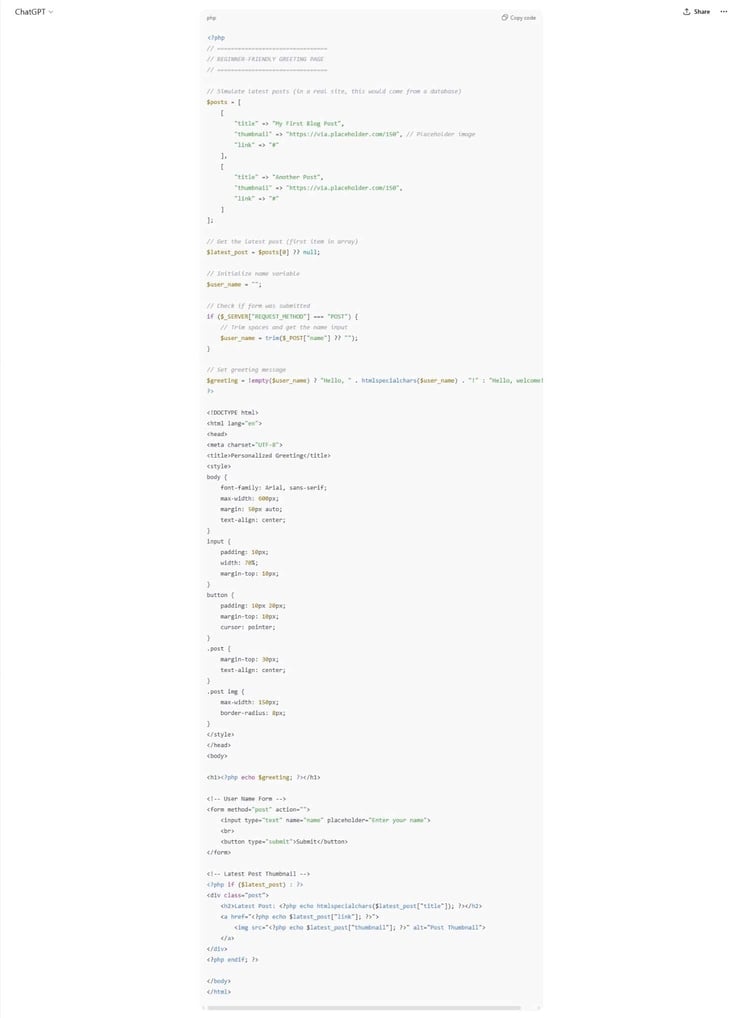
This time, I emphasized keeping the code beginner-friendly due to it being a more advanced script. ChatGPT obliged, simulating the latest post with an array. It also suggested making a version that dynamically fetches the latest post from WordPress or a database, so it updates automatically. Neat!
Step 4: Understand and Verify PHP Code Before Uploading It
Luckily, being fluent in PHP is not a requirement. You just need to know where to look. If any of this gets overwhelming, remember ChatGPT can help with that, too. But let’s cover the basics, so it doesn’t look like gibberish. You can bookmark this page as a reference!
Inputs like $_POST, $_GET, or $_SESSION
Start by understanding where information enters and leaves the script — your inputs and outputs. Look for variables starting with $_POST, $_GET, or $_SESSION as inputs. For example, we have $_POST[’email’] in our contact form code, which indicates the script is grabbing an email address from a form.

Outputs like echo or print
On the other hand, words like echo or print represent outputs for variables, numbers, and HTML content.
Decision aka Logic blocks like if (…) { … }
Then, it’s on to recognizing key logic blocks. PHP logic usually lives inside segments, like the if statements. If you see if (…) { … }, it means the script is making a decision. There are also loop blocks, where words such as foreach or while signify that the script is repeating an action for repetitive tasks, normally because it’s handling a list of data.
Information flow like $
From there on, you follow the data flow. In most cases, it moves from top to bottom through variables, which are words that start with a dollar sign $. They carry data throughout the script by passing it along, holding temporary results, or collecting user input. Like an assembly line.
Data input like mysqli_connect(…) or PDO(…)
In cPanel hosting, you might see mysqli_connect(…) or PDO(…). These database connections are the links between your PHP script and data stored in a database, allowing the script to read, write, or update data on the server.
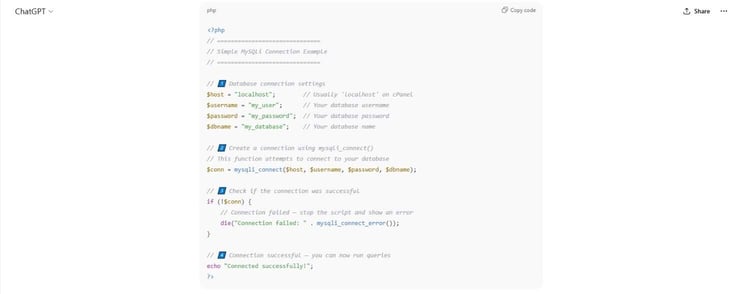
When you can identify these parts, your troubleshooting (which will come later on) becomes far more precise. It can make solving simple syntax less frustrating. Perhaps more importantly, reading the code before running it gives you the confidence that you are the one in control of your server, not the AI.
Step 5: Access cPanel and Prepare to Run PHP Scripts
You have three options to access cPanel:
- The most common is to type /cpanel at the end of your domain name, something like yourdomain.com/cpanel.
- Similarly, you can add port 2083 to your domain, which looks like yourdomain.com:2083.
- Give your hosting provider’s dashboard a go. Keep an eye out for ‘Go to cPanel’, ‘Tools’, or ‘Manage Hosting’ buttons — in some cases, you’ll automatically be signed in.
When accessing via your domain, you’ll come to a login screen:
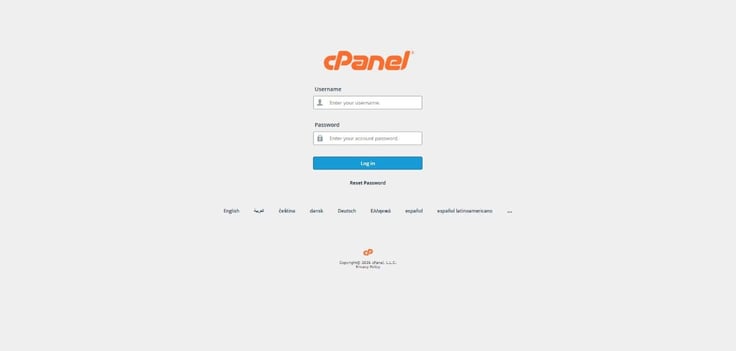
Enter your credentials. Once you’re in, you’ll come upon the cPanel dashboard:
Next, you’ll need to locate the File Manager. As you can see in the screenshot above, it’s the first icon in the Files section.
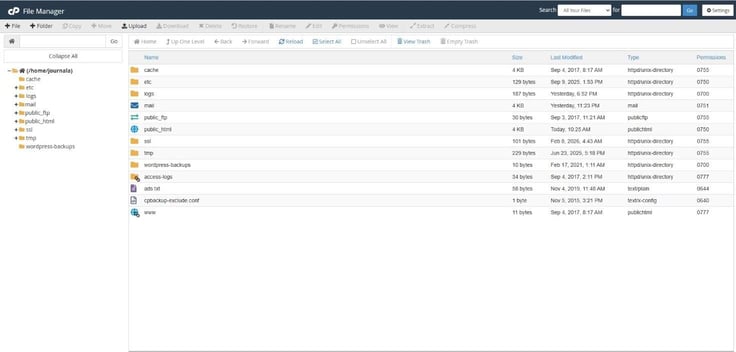
This is a screenshot from my website, so there may be more files and folders in the server’s directory tree than usual. In any case, this is where your PHP files should live, so to speak. It depends on whether they are public or utility scripts.
Note: The rule of thumb is that anything your visitors need to interact with goes in the /public_html folder or a subfolder inside it. For utility scripts containing sensitive information (e.g., database passwords), keep them outside the public_html directory.
Step 6: Upload PHP Files to cPanel and Connect Them To Your Site
I recommend creating a test folder to keep your main site clean while you fiddle around with AI code.
So, click the ‘+ Folder’ button at the top left in the File Manager, name the folder, and pick its location (public_html/).
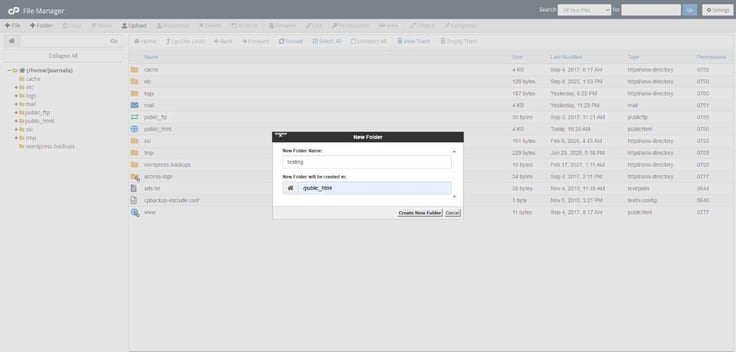
Double-click to open the folder and click the ‘+ File’ button at the top left. When naming files, keep it simple and avoid using spaces. If you have to mix it up a little, use hyphens or underscores. Also, the extension must be .php.
Since we already created a contact form, let’s go with contact.php. You don’t want to name it project1.php and come back later having no idea what it does.
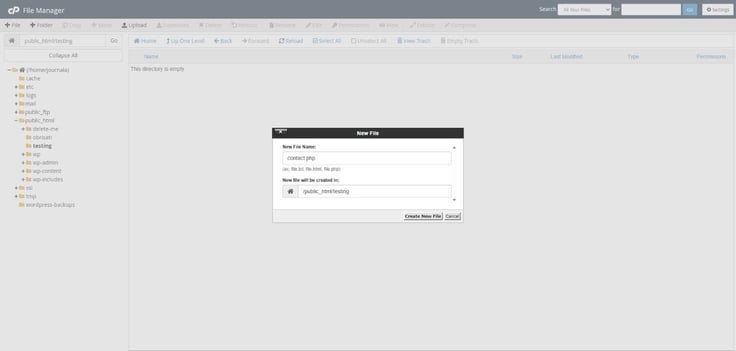
Once the file is created, right-click on it and select Edit. A text editor will pop up.
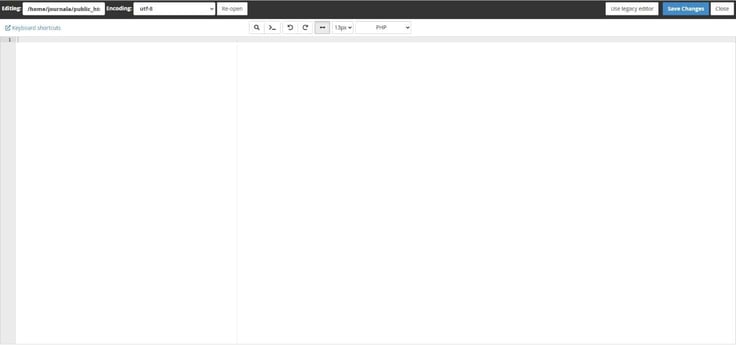
I’ll go back to ChatGPT, copy the PHP code it has given me by clicking on ‘Copy code’ in the top right corner, and paste it into the editor.
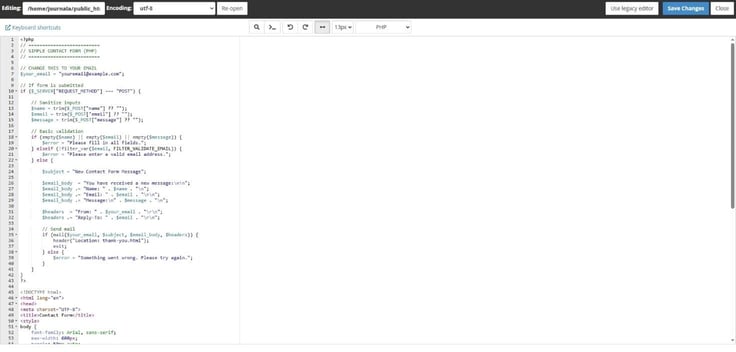
Click Save Changes in the top right corner of the editor — there will be a brief “Success!” message in the bottom right corner.
Step 7: Run PHP Code And See the Results On Your Live Site
The final step is validating the code, which we’ll do by opening a new browser tab and typing in the URL of the contact page. It should be something like yourdomain.com/testing/contact.php if you used the same file name and path as I did.
Here is the output I got:
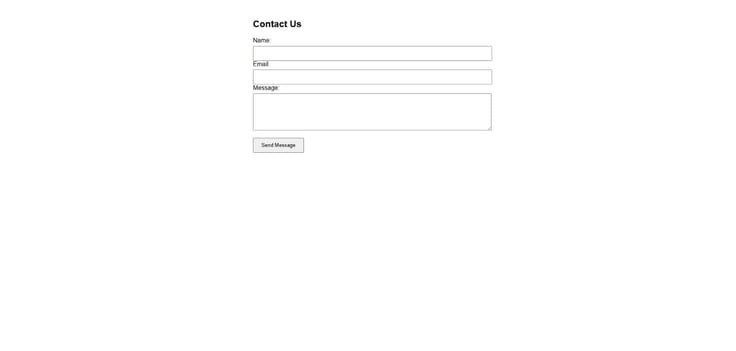
That’s a brand new contact form in all its basic glory. Now that you better understand the PHP code and ChatGPT output, you can add your own design to it.
I asked our trusty sidekick to create some PHP code for a rudimentary thank-you page and check if the redirect works. Following the procedure I outlined before, the redirect worked like a charm, opening an equally uneventful (but functional, which is all that matters) thank you page.

That’s all there is to it. The entire process is the same when you have ChatGPT generate PHP code of any kind: site visitors, member login, web forums, a calendar, and more!
Since I probed ChatGPT about various PHP-related aspects at this point, I asked it to do me a favor and generate a tiny validation script. I envisioned it as “a simple piece of code designed to test if my server can successfully talk to a folder and write a test file.”
It did, and I got the all-clear after visiting the corresponding URL (yourdomain.com/writetest.php):
The idea is to prove that the engine can interact with the hosting space by performing a task (creating a file), which is what you’ll need for contact forms, image uploads, or databases. If it works, your PHP engine is running, and your folder permissions are correct.
Step 8: Fix Errors And Improve Scripts Using ChatGPT
Let’s dial down the excitement about your newfound tool a bit, because chances are, there will be hiccups.
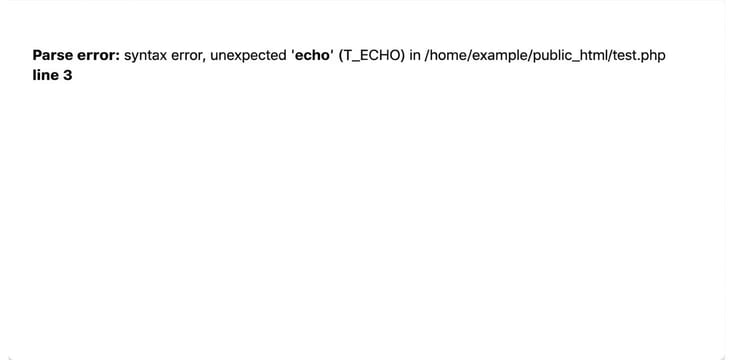
Fix: “Parse error”
Syntax errors will likely be the worst offender, as it’s easy to forget semicolons, brackets, or quotes. So, if you leave a quote mark open, you’ll often get “Parse error: syntax error, unexpected…” output, followed by a specific line number. Go to that line in your cPanel File Manager and look for the missing punctuation.
Fix: “mysqli_connect” or a “Fatal error”
Database connection errors happen when your PHP is unable to reach the database, typically due to an incorrect password or username. There will be either a specific “mysqli_connect” error or a “Fatal error: Maximum execution time exceeded” message in your browser. The fix is straightforward – check your user credentials in MySQL Databases under the Databases section in cPanel.
Fix: “White Screen”
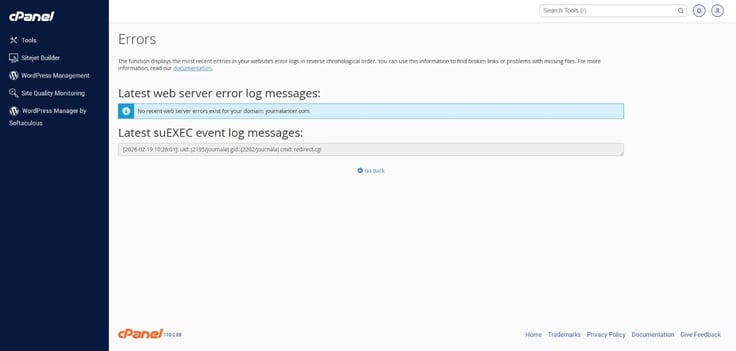
The ominous-sounding “White Screen of Death” (a blank page) usually means that a fatal error occurred, so the script stopped working before producing any output. Such an error happens all the time on shared hosting, and the remedy is to go to cPanel > Metrics > Errors and see the web server error log.
Fix: “Notice: Undefined variable: name”
I’d be remiss not to mention undefined variables, which are PHP’s way of telling you that it doesn’t understand what you’re trying to accomplish. For instance, if you never assign a value to $name, PHP will display “Notice: Undefined variable: name” because the script is trying to use data that doesn’t exist yet.
Misspelling another variable, accessing form data that was never submitted, or using $_POST[’email’] without verifying if it exists also constitute undefined variable errors. Be sure to spell properly, initialize your spelling, and check before using form data.
These are just some examples. Fortunately, you can use ChatGPT for both diagnostics and triage, since you can copy error messages back into it so that our little helper can refine and fix scripts.
To figure out the problem using ChatGPT, you can copy/paste:
- full error text
- relevant code lines of your PHP file
- most recent lines from the error_log in the folder where your script lives
Including ChatGPT in every step of the way (e.g., generating, testing, and improving) is the most efficient way for the two of you to work together.
Step 9: Expanding Example PHP Projects To Add More Functionality
Remember when I made the contact form mini-project and specified the word ‘successfully’ in the code? That’s an example of how a script can be expanded by adding a condition.
Now, let’s try adding a validation to my form so that the submitted data is acceptable, functions properly, and there are no empty or incorrect inputs. This validation script will detect one-letter names, improper email formats, root errors, and so on.
Remember, anything we want our website to do, we have to instruct it to do. I asked ChatGPT to “expand my contact form and add validation to it”, and it duly obliged:
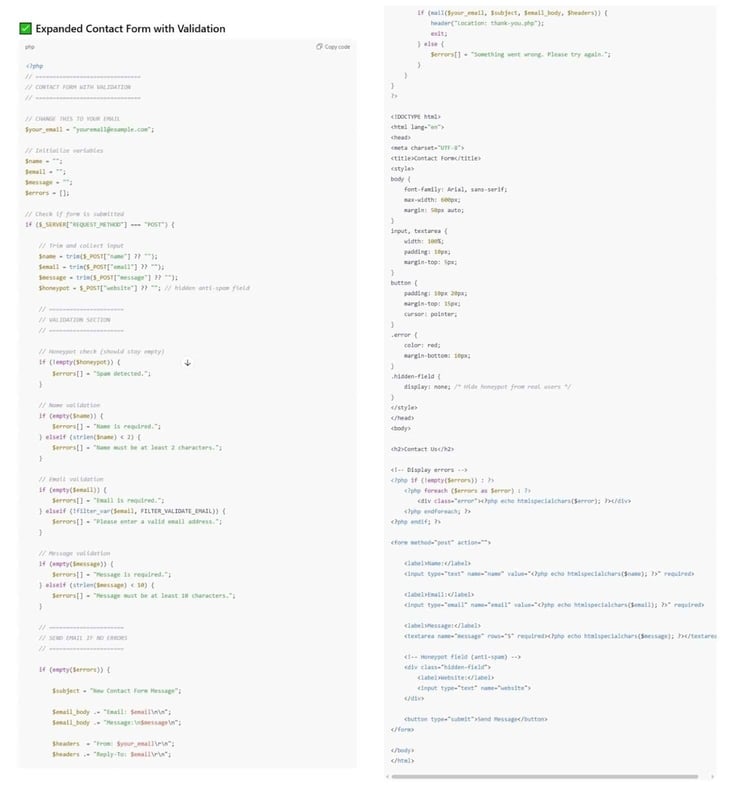
The // VALIDATION SECTION is the major change, though ChatGPT also made minor tweaks, like inserting a honeypot field for bots, and adding the $errors = []; array to collect errors instead of stopping the script.
Next, I wanted to improve the usability of my PHP page that displays dynamic messaging and content. I already had the notion to add time-based personalization based on the server’s clock, so that the greeting feels more intentional.
I asked ChatGPT for ideas: It came up with a good one. To improve the interaction flow by having the page scroll automatically to the greeting section, as opposed to reloading when the user submits the form. A subtle, but satisfying improvement.
So, I kindly asked for those exact tweaks, and here’s the result:
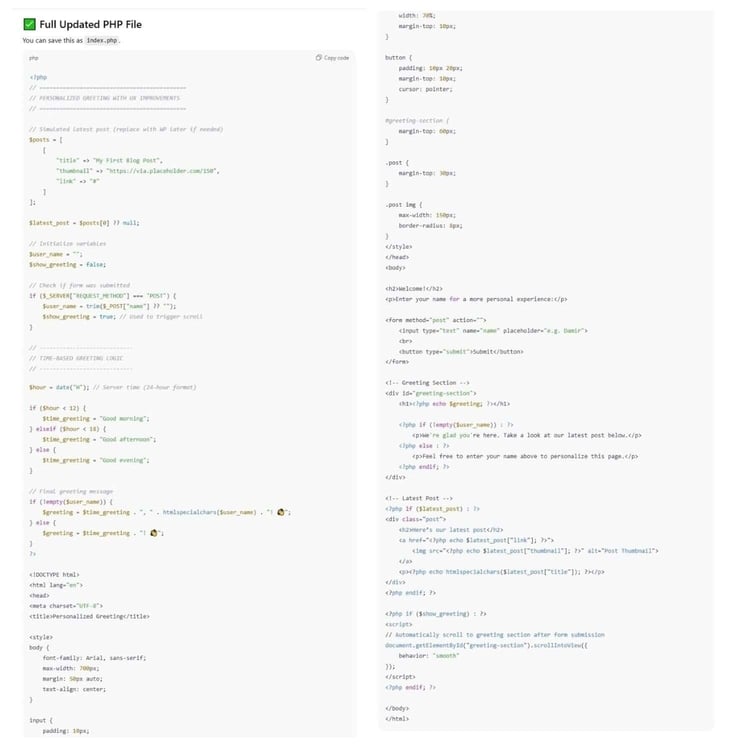
So, now there’s a “Good morning/afternoon/evening” thrown in there, as well as a smoother transition to the greeting section.
At least for the time being, your goal should be to improve little by little, rather than quickly level up your coding skills.
Common Mistakes When Running PHP Code on cPanel Hosting
The following part refers to workflow mistakes that happen when dealing with PHP in general, as opposed to during coding. Speaking from experience, these can turn into a major pain in the butt.
File Extensions (.php)
For starters, watch those file extensions. PHP only runs if the file ends in .php. If you save it as .html or .txt, the server just displays the raw code like an uber-boring text document instead of executing it. Always double-check your filenames before saving them.
Folder Placement
Another frequent headache is wrong folder placement. In case you drop your script anywhere outside the public_html folder, the internet can’t see it. Again, it’s an easily preventable issue — just check your location.
Skipping Validation
Then, there is skipping testing, or at least the temptation to avoid the process. I know how easy it is to get excited, but running a script blindly on a live site is risky because it can crash your entire website for every visitor, as well as potentially create a security backdoor for hackers.
This is a big problem, especially if you’re not a seasoned coder, able to spot these problems. Remember to use a staging folder or a subdomain first.
AI Over-Confidence
This goes hand in hand with trusting AI-generated code too much, which is a big one for me. Never assume AI code is production-ready without a quick review. AI can hallucinate code, drop important syntax, or maybe there’s a miscommunication in the prompt. You may just need to refine parameters. Either way, always double-check the final result.
Final Thoughts: Build Practical PHP Features Without Becoming a Developer
I’m 100% positive that tools like ChatGPT and cPanel allow site owners (and anyone else, really) to build actual functionality in minutes. They dramatically lower the barrier of entry into the world of coding, and I’ll definitely keep up experimenting with small, utility-based projects. I suggest you do the same, before even thinking about more complex systems.
In the meantime, if you have any questions, feel free to reach out to me via X and scour through HostingAdvice’s extensive array of articles — I’m sure you’ll find tons of useful stuff — and don’t forget to follow us on social!