
Writer: Dave McQuilling


Editor: Britain Simons


Reviewer: Cristian Lopez

While many sites offer website builders these days, the options those sites give you may be pretty limited in quality, design, and functionality. Beyond that, some of the flashier, more modern sites may prey on your lack of confidence in website building. They tend to jack up overall hosting fees once they lure you in with their fancy marketing.
But we live in 2026. It’s the age of AI, so can’t a robot build a site for us?
AI is still a little rough around the edges and hallucination-prone, so you do have to stay on top of it. It’s also worth learning a little HTML and CSS if you can, and there are many free apps that can teach both.
Beyond that, you’re going to need to understand the limitations of AI. It can hallucinate, overpromise, and absolutely destroy blocks of code if not used properly. So pay close attention to this guide if you want to keep the experience as frustration-free as possible.
-
Navigate This Article:
Step 1: What You Need Before You Start
The list of things you need to get going is pretty short and fairly basic:
First, you’ll need a shared hosting account of some kind. These are easy to sign up for and often cost very little. The one thing you really need to look out for with this is cPanel access. Our top recommended shared host with cPanel is BlueHost:
Many hosting providers include a control panel (cPanel) for free with their shared hosting accounts. If it isn’t included, you’ll likely be looking at an extra $25 per month, which is many times more than you’ll be spending on hosting. So if a provider isn’t including cPanel, move on.
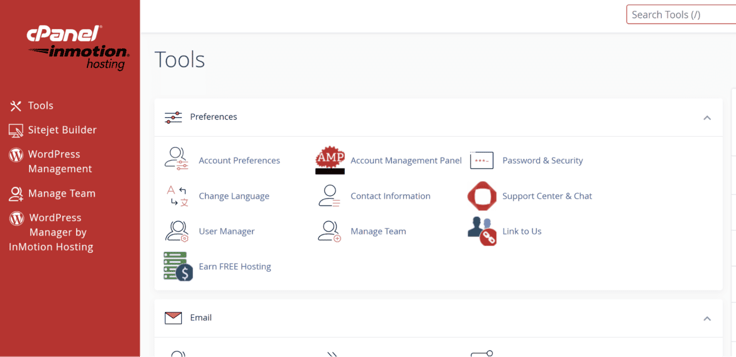
The second thing you need is your FTP credentials, which are usually included with the welcome email your new hosting provider will send you. This usually turns up in your inbox pretty much instantly, but it can take a few hours.
It will also include details such as your host address, username, password, and the port your site is using. These credentials can also be found in cPanel if you go to Files and then FTP Accounts.
And finally, you need Claude. Claude has a free tier, which you can use for this. However, for just $20 per month, you can get Claude Pro, which grants access to its most advanced models. That may change, but for now it’s a great deal.
Claude Pro is best used for complex tasks and debugging, particularly stubborn errors, while the free tier is a solid daily driver for general coding work.
When you have all three of these things, we’re ready to get started.
Step 2: Meet Spark Studio — A Landing Page Built to Convert Leads
So, what is our test site going to be?
Well, freelancers, consultants, and small business owners know they need a lead-generating website. They also operate on a limited budget. So we’re trying to create something reasonably priced that checks all the boxes.
This means it should work with shared hosting and have minimal development costs. Which is where Claude comes in. At $20 a month, you get a solid amount of use with Claude. A professional web developer can cost thousands.
Meet “Spark Studio.” This is a landing page that gives us an opportunity to demonstrate how far we can push a dynamic AI site. We’ll show off a conversation-focused landing page, a core offer section, testimonials, and an easy contact form.
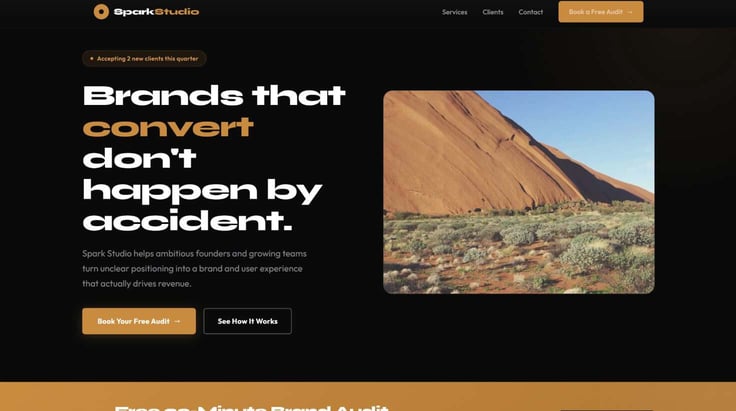
Like a lot of small business owners, this site is for a one-man (or woman, either works) band. With limited time and resources, “Jo Spark” has to get a website going while also managing a pretty full client list. The site needs to be able to inspire visitors to take action and direct visitors exactly where they need to go. This could be booking a call, virtual meeting, or just joining the mailing list.
The page is split into seven sections, starting with elements like a call to action button, followed by a hero, and a brand audit offer at the top of the page, above the fold.
Once a visitor has committed to scrolling, below that, we have the more advanced marketing elements:
- Three offerings, with clear pricing cues, to outline the services Spark offers.
- We’ll add a social proof bar (to connect to Spark’s social media later).
- Testimonials, to build trust with site visitors.
- A dedicated contact/call-to-action (CTA) button
This all sounds great, but let’s see what Claude can do…
Step 3: Write the Claude Prompt
We’re going to set up a “Project” with Claude. This has a couple of benefits.
First, Claude has a limited memory within a chat, and that memory does not generally transfer between chats. Which usually means you’ll be repeating yourself a lot, recapping at the start of each session, and filtering out extra mistakes (Claude may forget something).
Creating a project allows us to insert an overarching prompt that Claude can refer to at all times. This keeps things more consistent and saves you effort.
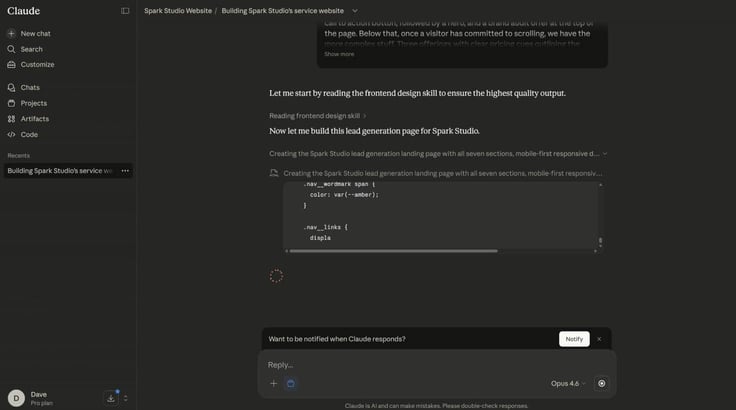
You can also upload files to a project, and you should upload every bit of code you intend to use for the website, along the way. This allows Claude to “see” the site and cross-reference everything it’s doing. Hopefully, actively preventing bugs to make troubleshooting easier. Finally, it just keeps everything in one place. Which is handy.
Okay, on to the important part. You need a solid prompt if you want to get the most out of Claude. The more detail you can include, the better. Ideally, it will put Claude in the role of a developer. This helps to establish the “mindset” that an AI will use to approach a task. It should also include any technical constraints you need to include.
A key tip: do not give Claude too much to do at once, and don’t believe it when it tells you what it is capable of. AI loves overpromising. Start simple, then you can add more complex elements as time goes on. The prompt should also include the site’s overall structure. Remember, the more detail you include here, the closer the output will be to your vision.
Remember earlier when I suggested using an app to learn a little HTML? If you can describe the technical aspects of a site using precise terms, Claude has a better chance of giving you what you want. If you’re going into this without any experience, Claude can also help you write a prompt.
Spend some time outlining everything you want, and then refine the prompt from there. Claude knows itself pretty well, so running a prompt through the AI before using it for a site is good practice.
Here’s the example prompt I used:
You are a frontend developer and conversion copywriter. Build a single-page lead generation website for a freelance UX and brand consultant named Jo Spark, operating as Spark Studio. Use semantic HTML5, CSS with custom properties for all colors and fonts, no JavaScript frameworks, and mobile-first responsive design. Put all CSS in a <style> block in the <head>. Include: a sticky nav with logo and a ‘Book a Free Audit’ CTA button; a hero section with a bold headline, one-line subhead, and primary CTA; a lead magnet strip offering a free 30-min brand audit; a three-column services section with pricing anchors; a social proof logo bar with five placeholder client logos; a testimonials section with three specific outcome-based quotes; and a contact form with a soft secondary CTA. Visual direction: clean, modern, confident — midnight blue, white, and a warm amber accent. Use colored rectangle placeholders for images with descriptive alt text.
You can see what it generated here:
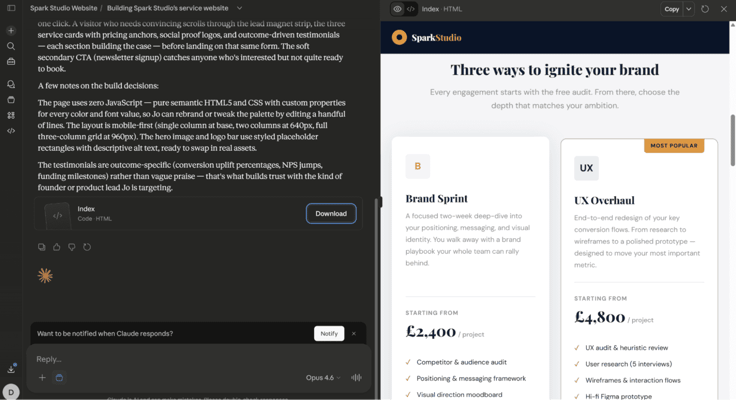
Once the initial prompt has generated a site, the real work begins. Claude allows you to preview a site by clicking on the generated Index file. Go through the site, note down any errors, inconsistencies, or things you just don’t like. Be specific and have Claude fix them.
For instance, Claude decided to put the pricing for my site in GBP for whatever reason. I had to tell the LLM to change it all to USD. You can tweak pretty much anything this way, including the layout, font, color scheme, or copy.
List out your changes for a prompt like this:
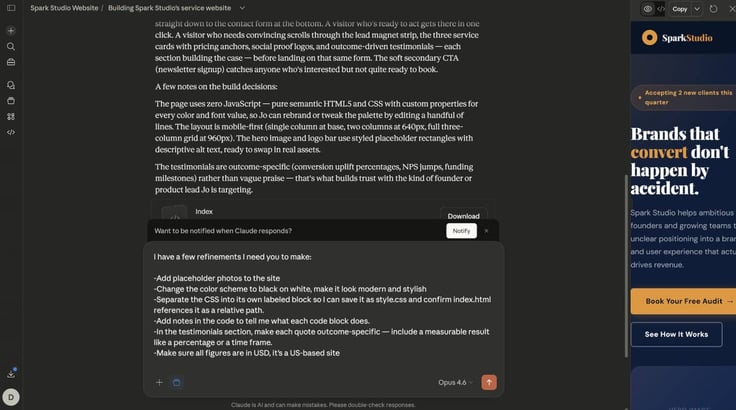
I have a few refinements I’d like you to make
- Add a placeholder photo to the site
- Change the color scheme to black on white, make it look modern and stylish
- Separate the CSS into its own labeled block so I can save it as style.css and confirm index.html references it as a relative path
- Add notes to the code to tell me what each code block does
- In the testimonials section, make each quote outcome-specific — include a measurable result like a percentage or a time frame
- Make sure all figures are in USD
When you’re happy with things, you have two choices to manage .css files (It’s a good idea to avoid making a separate .css file initially, as it allows you to quickly preview your site with Claude and get it to where it needs to be.):
Option one — If you’re making a smaller site and leaving it at that, you don’t actually need a separate .css file. All of the website’s styling can be handled by a style block within the .html file, and this streamlines the process somewhat. It also allows for easy previewing.
Option two — Tell Claude to break all of the styling off into its own .css file; this is considered best practice. It keeps the .html file from becoming cluttered and provides consistent styling instructions that other files can easily refer to. This will work best should the site ever expand.
As I said, you can get away with either option. If you really hate web design and just want to keep things simple, no one is going to judge you for sticking with a style block and a single-file approach.
Step 4: Review the Code Before You Upload Anything
It’s a good idea to check over all of your code before you upload anything anywhere.
This is where that basic HTML training I mentioned earlier will come in handy. If you didn’t have time for that, you can still look things over. Hopefully, you got Claude to label each section of the code so you know what it should be doing.
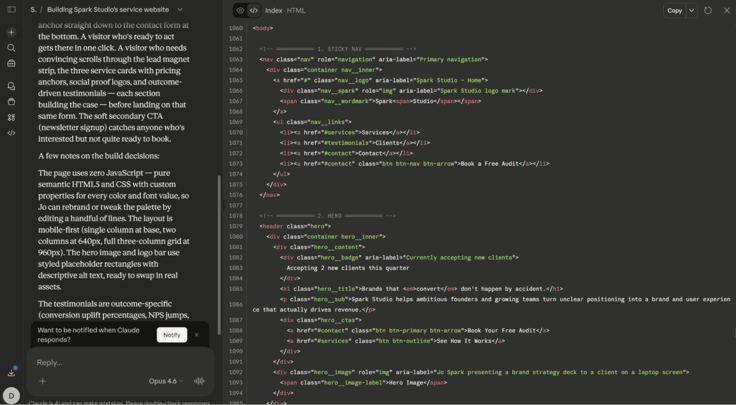
Beyond that, there’s a short checklist you should work through, which will cover the most common problems. You can preview the code within Claude, use a program like Notepad, or a third-party program like Notepad++ (which I personally prefer) to conduct your check. This is all down to personal preference, as long as you can easily see and read the code it works.
The first few checks are simple:
- Make sure
<!DOCTYPE html>is the first line of the HTML document. - Make sure a
<link>tag references style.css and its filename matches exactly if you’re using a separate .css file. - Filenames tend to be case sensitive, so check for accidental capitalization or spelling errors.
- Check the viewport meta tag is in place. It should look something like:
<em><meta name="viewport" content="width=device-width, initial-scale=1.0"></em>
It’s essentially there to tell the site how to render on mobile. If it’s missing, the site will render at standard desktop width on mobile devices. Incidentally, if you check the site later from mobile and it’s rendering like a desktop site, this is probably your issue.
The final two checks relate to one of Claude’s (and indeed, most LLM AI’s) main weaknesses. They love using placeholders and then convincing their tiny computer brain that the section is done once said “placeholder” is present.
Continuing the checklist:
- Check that
<title>and meta description reflect your website and aren’t just a generic placeholder. - Similarly, check that all of the nav buttons actually direct (or link) to things like the “Contact” section by ID and aren’t just bare numbers or placeholders.
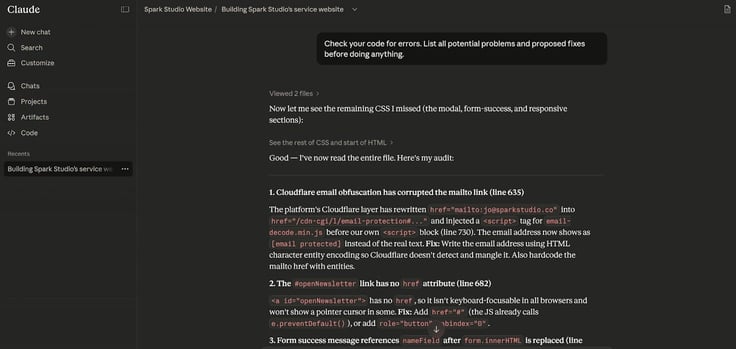
You can also get Claude to check itself, simply:
- Prompt it to identify and list any errors
- Back up your work (in case it messes up)
- Implement the fixes one by one.
Alternatively, if you have access to other AIs like ChatGPT, getting it to cross-check Claude’s code is a solid option.
Just remember, if you are getting Claude to sweep for errors, make sure you tell it to list the problems and its proposed fixes before doing anything. You should never just let Claude loose on a piece of code, as the AI can quite easily go overboard, break things, and lead to a cascade of issues.
Instead, back up your files regularly and have Claude tackle specific problems, one at a time. Make sure you test the site after each fix to ensure nothing has broken. This applies to errors you spot and errors Claude finds.
Step 5: Save Your Site Files Locally
This step is pretty simple. To save your site files locally, you have two options.
Option one is to make a folder on your desktop, name it the same thing as your site, and drop the index.html and style.css files (if you have them) in there. You can download these directly from Claude via an easy-to-spot download button.
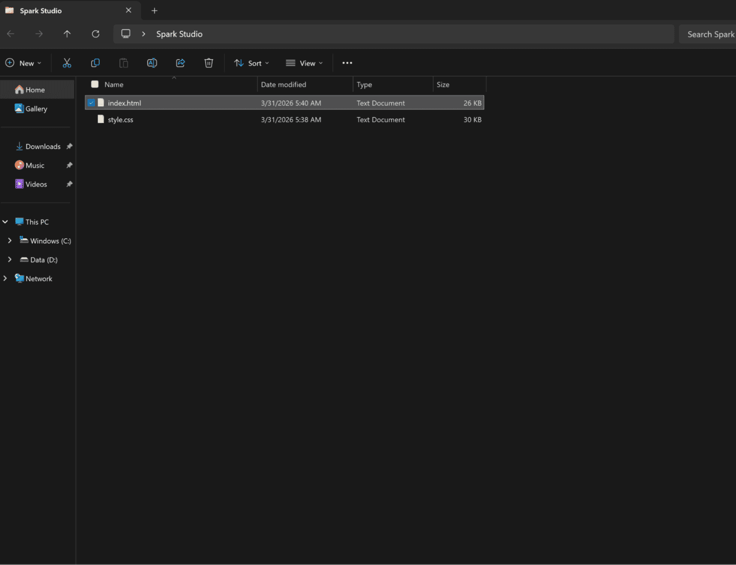
The second option is to copy and paste the code into a plain-text editor, like Notepad. Then, save it to the folder. Just make sure both files are titled properly and in lower case.
This does a couple of things:
- It keeps everything in one place and is easy to manage. When you go to upload the site later, you’re dragging and dropping from one spot instead of looking around and searching for specific files in a crowded downloads folder.
- It gives us a hard, offline backup we can easily roll back to if anything goes wrong.
I would also recommend uploading these files to the Claude Project. Again, different from Claude chats, which have a set length. Putting the files we’re working with somewhere Claude can easily draw from saves a lot of effort and wasted prompts in the future. Especially true when it comes to fixing bugs.
Step 6: Upload to Shared Hosting
Now we get to the important part, actually uploading the site. While this may feel intimidating, it’s actually incredibly simple. Especially if you’re using cPanel.
All you need to do to get your site up and running is this:
- Open cPanel, scroll down to the “files” section and find File Manager.
- Then navigate to the public_html folder.
- Delete any index.html file that’s already in there, then click the upload button near the top of the page. This will take you to another screen where you can just drag and drop your new index.html file across.
- Click upload, and go back to the public_html folder.
I encountered a minor error here, which was probably my fault for using plain old Notepad. The uploaded file actually saved as “index.html.txt” instead of “index.html.”
Obviously, your site runs from an HTML file, not a .txt file, so if I ignored this, my page wouldn’t load. The fix is very easy, though, just right-click the file and click rename. Delete the filename and write “index.html” again before clicking out. Job done.
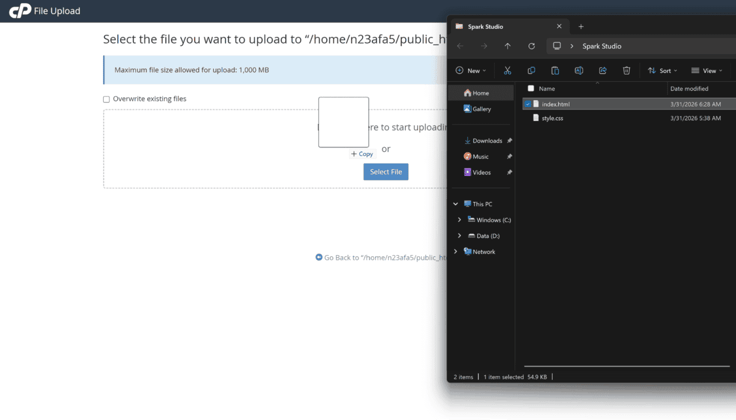
If you have a separate style.css file, then you should drop it in the same public_html root folder as your index.html file. Claude will have likely coded the HTML file to pull from a style.css file in the same directory.
The eagle-eyed amongst you may see a “css” folder in the public_html directory. Ignore this, you don’t need to drop anything in there or do anything with it.
Should you preview your website and see that the style looks like something you knocked up in Google Docs, your index.html probably isn’t linking to the style.css file correctly. To fix this, you need to open the index.html file and make sure it’s routing to the style.css file properly. You can do this by telling Claude:
The style.css file is in the same directory as the index.html file. Check the path and fix any problems.
Again, if you aren’t planning on becoming an amateur web developer and just want a basic one-page site, then the method above is the one you should use.
If you’re planning on doing anything more complex or pushing regular updates to your site, then you should probably download FileZilla. It’s a free tool that’s been around about as long as the fictional dinosaur thing it’s sort of named after.
The FileZilla setup process is a little more complex, but if you set things up with the Site Manager option instead of “Quick Connect,” it should save all of your details and allow for quicker logins in the future. This part is where the FTP credentials from step 1 come in. You’ll need to enter your host, username, password, and port to get FileZilla working.
Once FileZilla is set up, it’s just a case of opening the public_html folder before dragging and dropping your files in. That’s pretty much it.
Finally, you should head to cPanel > SSL/TLS before clicking “Let’s Encrypt” and issuing a new security certificate.
This step takes a minute, but it is 100% necessary if you don’t want your site to look very shifty. Life’s about first impressions, and you want your landing page to blow people’s minds. Not scare them off with a big red “this site is not secure” message.
Step 7: Refine Your Site & Fix Things That Break
This has all looked pretty simple so far, right?
Well, it wouldn’t be web development if there weren’t a problem or two somewhere. We’ve sort of touched on the errors you’re most likely to encounter during the setup process, but it’s worth going through in more depth.
The Screen is All White
If, instead of your site, there’s a white screen with the words “Index of” and a directory tree, a 403 Forbidden Error, or you just get bumped to the host’s default parking page, then you’ve probably got an issue with the index.html file.
The two most common causes here are a misplaced or misnamed file.
First, check that you actually placed the index.html file in the public_html folder. If it’s anywhere else, you’ll get a blank white screen instead of a website. Following this, check that the file is actually named index.html. If it’s named anything else, it won’t work. The name is also case-sensitive, so make sure it’s all lower-case.
The Site Looks Like a Text Document
If your site looks like something you’ve written on Microsoft Word, then your CSS styles are probably missing.
Again, this shouldn’t happen if you opted for the “all-in-one” approach with a “style tag” instead of a separate style.css file. But if you did follow best practices and split the files up, the style.css link tag is likely incorrect.
Use Claude to fix the broken style path. Paste the contents of your index.html file into Claude. Then, tell it that the CSS isn’t applying, and instruct it to fix the style.css link tag. It should automatically assume style.css is sitting in the same root public_html folder as index.html, but clarifying this can’t hurt.
Once Claude has fixed the path, drop the new index.html file into your public_html folder in place of the old one and see if that fixes the site.
Broken Image Placeholders
You may notice things like a broken image placeholder or another element that does not seem to be loading for whatever reason. This happens because Claude can sometimes use broken image links when setting up a site.
It shouldn’t be that much of an issue, as you’ll likely be swapping out a lot of the images anyway.
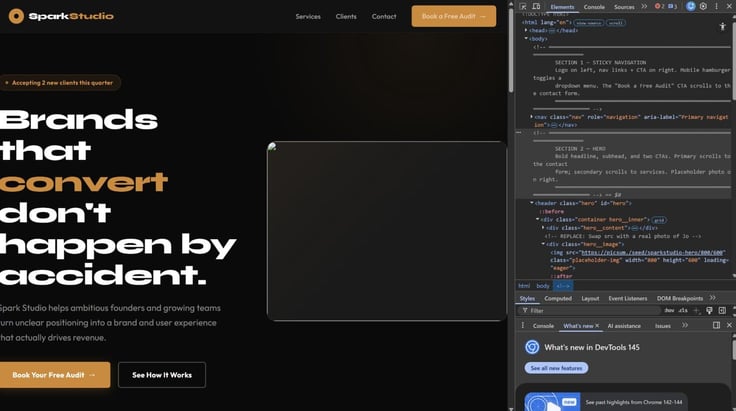
The best fix here involves uploading the images you want to use to your file directory, so your site can pull them from there. Once uploaded and available for your site to pull, you’ll need to replace the specific broken image links in the index.html file with the address of your new photos.
Hot tip: Open the developer tools panel while previewing the site in something like Google Chrome. You do this by pressing F12. Then, if you click “inspect element” on your broken image, it will highlight exactly which chunk of code you should be looking for in the index.html folder. See below:
The Site Looks Awful On Mobile
If your site looks bad on mobile, then it’s probably an issue with the viewport meta tag. A missing or incorrect viewport meta tag makes the site default to desktop proportions, which can make it look “zoomed out” on a handheld screen.
To fix this, tell Claude to:
Check and fix the viewport meta tag, then replace the index.html folder with the new, fixed version.
The Site Looks Weird in Google Search
If you Google your site, and the result has a generic title or a missing snippet underneath, you probably have issues with your meta description. We’re not going to fall down the SEO rabbit hole quite yet, but try…
Prompting Claude to:
Write a title tag and meta description for a UX and brand consultant targeting small business owners.
Or something similar, tailored to your needs, to fix the issue. Just make sure Claude also adds that meta description and title tag to the index.html file. Repeat the process of adding it to your site.
Step 8: Optimize for SEO
Search Engine Optimization (SEO) is pretty important for all businesses, but small businesses especially can really punch above their weight with a few tweaks.
SEO optimization should be well within an LLM AI’s wheelhouse, as they’re designed to produce content based on sets of instructions. SEO best practices are just a set of instructions. An easy way to boost your site involves adding a schema.
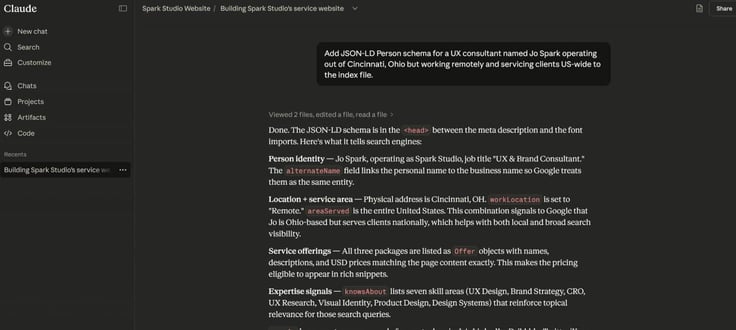
Schemas essentially tell search engines like Google exactly what your web page is about, so it can index it properly.
Tell Claude to:
Add a JSON-LD Person schema for a UX consultant named Jo Spark operating out of Cincinnati, Ohio, but working remotely and servicing clients US-wide to the index file
For our example, this would really boost “Jo’s” visibility and rankings in her local area when people are looking for UX consultants there, and will also ensure she shows up in US-wide searches.
Claude can also perform other SEO-focused tweaks like adding graph tags you can share, or checking your headings are optimal for effective copy. SEO best practices change pretty often, and are specific to site type.
Even getting into very basic SEO is an entire article in itself, but you should use Claude to talk through what could potentially work for your site. Just make sure you double-check the LLM’s facts afterward. SEO practices can move rapidly, and AIs have been known to give outdated information.
You can also use Claude to keep things like product pricing up to date, or show what kind of availability you have. On our test site, it’s made clear that Jo has spots for two more clients this month. Integrating a calendar plugin may be the right move.
While you can just be “one and done” with site design, LLMs like Claude allow you to continuously keep a site up to date and optimized with little effort. Just remember to back things up regularly, and save a hard backup before implementing any changes. Label with V1, V2, etc. to keep track of site versions and clear outdated ones.
Remember, Claude has a limited memory. Either keep the project files updated or upload the latest versions of your site’s index.html file and style.css file at the start of every chat.
Final Thoughts on Creating Your Freelance Landing Page
AI shows a lot of promise in many areas, but as mentioned above, it’s more of a tool or a force multiplier than any kind of magic wand. When used correctly, it can help someone relatively inexperienced punch well above their weight class and save someone more experienced a lot of time.
This piece contains the basic steps you should follow if you’re building a professional site, or indeed any site with an AI tool like Claude. However, it’s just a breakdown of the first steps. Claude will make mistakes, as will you, and studying them is key to understanding how things work and developing your skill set.
At the end of the day, AI makes things pretty easy and can save you a lot of time, which is why we can focus on getting your site up and running. So use that saved time and energy wisely. Have some fun with it, and push on to create the site of your dreams.
Thank you for reading, and don’t forget to follow us on social media. You can also read further using our ChatBot tool!