
Writer: Jack Wallen


Editor: Britain Simons


Reviewer: Cristian Lopez

If you’re a developer of web apps, chances are pretty good you’ve either used or heard of Laravel. If you’ve never used it, know that it’s a very popular, open-source, PHP-based web application framework.
Laravel is designed for developers who need a simple toolkit to help them create full-featured web-based applications. This toolkit follows the MVC (Model-View-Controller) pattern and includes features such as database management, authentication, and built-in security to help expedite development.
When I ponder the choice between straight-up PHP and Laravel, that choice is actually quite simple. PHP is a programming language, whereas Laravel is a PHP-based framework. Laravel is a “batteries included” library that is built on top of PHP. Thanks to Laravel, PHP development is accelerated because it automates repetitive tasks, such as logins, routing, sessions, and caching.
Because Laravel includes built-in security for the likes of SQL injection, cross-site request forgery (CSRF), and cross-site scripting (XSS), you won’t have to spend too much time locking down every single aspect of your web app.
This guide walks you through the installation of Laravel in the Hostinger hosting platform, including environment setup, deployment, and common hosting limitations. Let’s get to it.
-
Navigate This Article:
Step 1: Confirm Your Hostinger Plan Supports Laravel
The first thing you want to do is ensure that your Hostinger plan supports the installation and usage of Laravel.
As far as the Laravel requirements, they are:
The Hostinger Shared Hosting account will work fine to build small apps and test with Laravel. If you need to be able to scale your web apps, you’d want to consider a more robust plan (such as the VPS or Cloud Hosting plans).
Pick Your Hostinger Plan
It’s important to keep those requirements in mind because not all shared hosting plans support Laravel. As well, it’s important to know that we’ll be installing Laravel on a Linux distribution (I’ll choose Ubuntu Server), so you’ll need to be comfortable using the Command Line Interface (CLI).
Once you have your plan set up, you’ll need to use Secure Shell (SSH) to access your server, at which point you can begin the installation of Laravel. Keep in mind that the Linux distribution you choose must support PHP 8 or newer. The good news is that most distributions do.
Step 2: Set Up Your Domain and Hosting Environment
After you’ve procured your Hostinger account and your login credentials, go ahead and log in to your account. From the main page, you’ll find a list of to-dos. Click on the second option, “Set up” associated with “Your KVM2 – setup isn’t finished.”
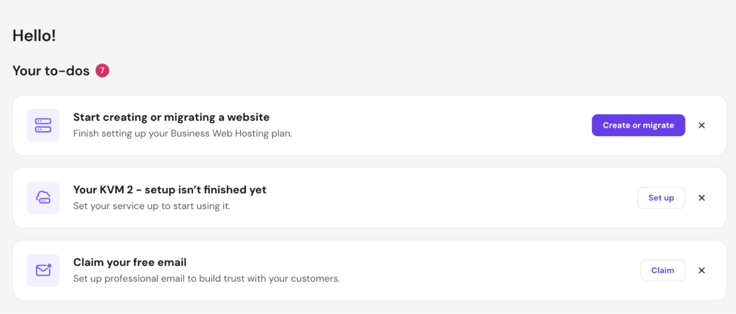
Note: You can create a new website or migrate a current site from here, but we’re going a different route because we’re not building a website, but a web app.
On the next page, you’ll choose your location. Make sure to select a location that is nearest to you; otherwise, you could wind up with a slower site.
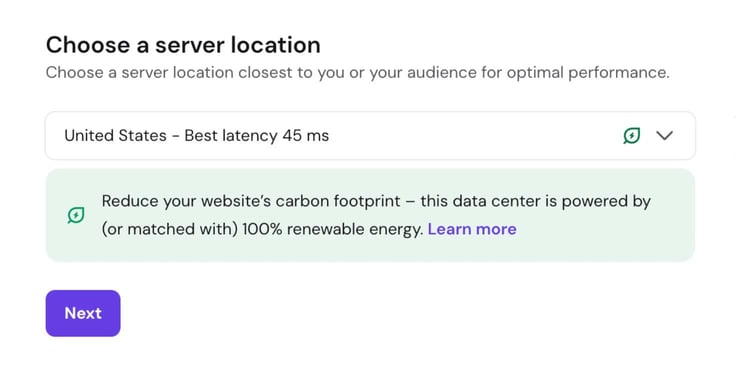
Again, make sure to select a nearby server location.
Click Next, and on the resulting page, you get to select the OS you want to use for the Larval installation and web app development. As I mentioned earlier, I’ll be choosing Ubuntu Server.
Click Ubuntu to continue.
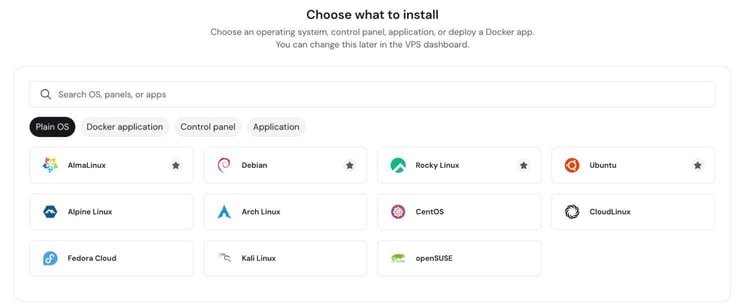
If you prefer a different distribution, select that, knowing that you’ll need to alter the installation steps outlined below.
You will then have to select the release of your chosen distribution. For Ubuntu, make sure to select an LTS (Long Term Support) release, such as Ubuntu 24.04 LTS (which is what I’ll use).
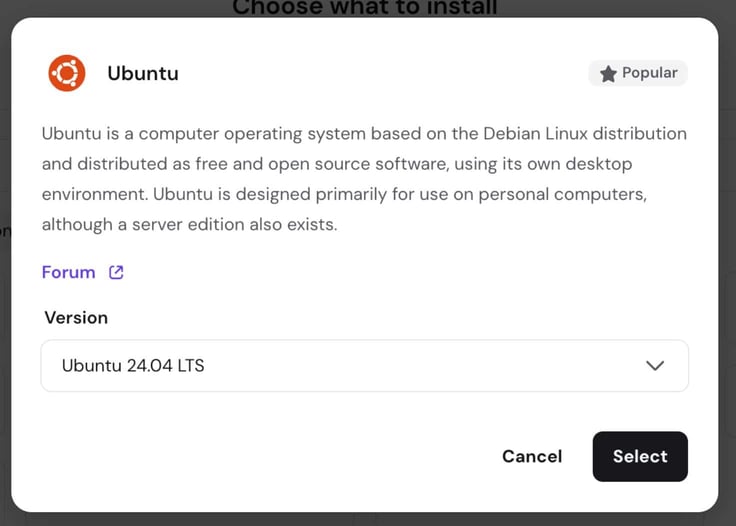
Note: You can select a newer version of Ubuntu, but the LTS version is what I would recommend.
Next comes your root password and SSH key creation. You must create a root password, which will be used for both SSH authentication and sudo (admin permissions) access.
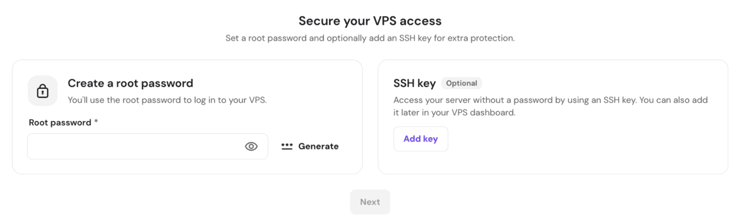
Keep in mind that SSH key authentication is much stronger than standard username/password authentication. If you’re concerned about security, I would highly recommend going with SSH key authentication.
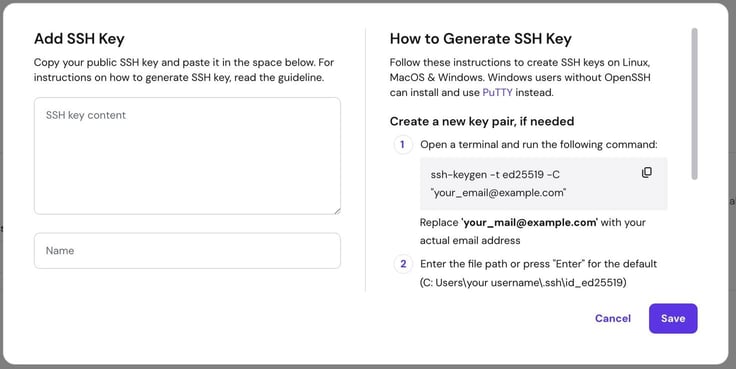
To use SSH key authentication, you must first create an SSH key pair on the machine that you’ll use to log into your instance.
Creating an SSH key pair can be done with the command:
ssh-keygen -t ed25519 -C “your_email@example.com”
Where your_email@example.com is the email address you want associated with your key.
Once the above command is completed (you have to answer a few simple questions), you’ll find the public key file in ~/.ssh. Look for the file with the .pub extension. You’ll want to open that file and then copy the contents.
After copying the contents of the file, click Add Key and then paste the contents of your key in the Key field. Give the key a name and click “Save”.
When creating your root password, make sure that it is both strong and unique. Click “Next”.
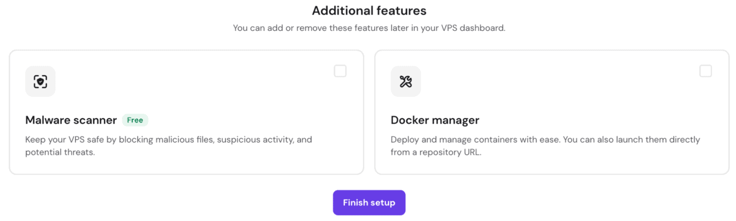
The next page allows for the addition of optional features (Docker and Malware Scanner) if you want, or you can simply click Finish Setup to complete the process.
You now have to wait until your server becomes available (roughly 3 minutes). When the process finishes, you can either click to access your dashboard or copy the command to log in via SSH. Go with the latter.
You’re almost ready to start the installation.
Step 3: Choose Your Installation Method (Composer vs Manual Upload)
There are two methods of installing Laravel: using Composer or manually.
The Laravel developers make it very clear that the best method of installing the app is via Composer, and there are several reasons for this, such as automatic dependency management, built-in autoloading, environment consistency, effortless updates, and access to the PHP ecosystem.
Although it is possible to install Laravel via other methods, I’m going to demonstrate using Composer.
Log into your server with a command like:
ssh root@2.24.220.152
You will be prompted to type yes to accept the remote server’s fingerprint, and then to type your root user password. You should now be logged into your server.
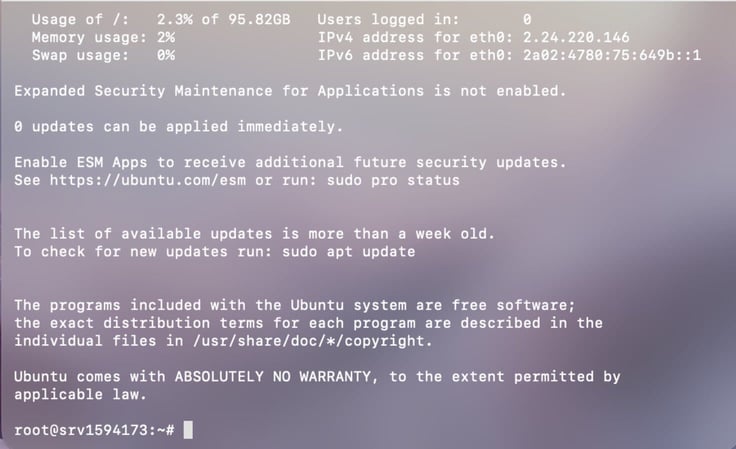
Once logged in, the first thing you’ll want to do is update the server. On your Ubuntu Server instance, you can update apt.
Then run the upgrade command with:
sudo apt-get update && sudo apt-get upgrade -y
Do note: if the kernel is upgraded in the process, you should reboot the server with the command:
reboot
Step 4: Install Laravel Using Composer (Best Method)
I’m going to walk you through the installation of Laravel via Composer, because it results in a cleaner installation. On top of that, it is the easier method.
To install Laravel via Composer, make sure you’ve logged into your server via SSH. Once you log in, you’ll be in your home directory.
Install Composer and all of the necessary components with the command:
sudo apt-get install apache2 mariadb-server php php-curl php-bcmath php-json php-mysql php-mbstring php-xml php-tokenizer php-zip composer git -y
To verify if Composer was installed, issue the command:
composer -v
You should be warned not to run Composer as root. If so, Composer is ready.
Now, you can install Laravel with Composer like so:
composer global require laravel/installer
You now have to locate the Laravel executable binary file, which can be done with the following command:
composer global config bin-dir –absolute
We’ll now place the output of that command in our .bashrc file, so Linux knows where to find the command.
This is done by opening your .bashrc file with:
nano ~/.bashrc
At the bottom of that file, add the following:
export PATH=”$PATH:$HOME/.config/composer/vendor/bin”
Make sure to change everything after $HOME/ to the directory you added in the .bashrc file.
Log out and log back in for the changes to take effect, or issue the command:
source ~/.bashrc
One more thing on this section. You might want to consider adding a new user to avoid running Composer as root.
For this, you would run the command:
adduser NAME
Where NAME is the username to be added. You’ll be required to type/verify a password and answer a few simple questions (like name, office number, phone number, etc.).
Once you’ve done that, you can change to that user with the command:
su USER
Where USER is the new username.
You can now go back and run the Laravel installation commands.
Important note: I did run into an issue that I’d never before experienced. After installing Laravel, whenever I attempted to run the command, I received a command not found error. This was even after I’d added the Laravel path in my .bashrc file.
Turns out, I’d lost all of the default directories that were in my path, which meant all commands would have to be run using their explicit directories. So instead of running the ls command, I had to use /usr/bin/ls. To get around that, I created an alias in .bashrc that would associate the Laravel command with the full path.
To do that, open the .bashrc file again with:
nano ~/.bashrc
Search for the “More aliases” section and add the following line:
alias laravel=’/root/.config/composer/vendor/bin/laravel’
Save and close the file. Source the .bashrc file again with:
source .bashrc
Now, the Laravel commands should work just fine.
Step 5: Run Your Laravel Server
What we’re going to do is run a simple “Hello, World!” app with Laravel.
To do that, issue the following command:
composer create-project laravel/laravel hello-world
Change into the newly-created directory with:
cd hello-world
Run the server with:
php artisan serve –host=0.0.0.0
With the server running, you can go to http://SERVER:8000 (where SERVER is the IP address of your Hostinger server). You should see the Laravel Get Started page.

Don’t bother clicking Deploy now, because that just takes you to the Laravel site. The good news is that you’ve just deployed your first Laravel site.
Step 6: Using a Database with Laravel
If your site requires a database, you’ll have to configure it within your site’s directory (such as the hello-world directory above). I’ll show you how to configure Laravel for a MySQL/MariaDB database. I’ll assume your Laravel app has already been developed; you just need to connect it to the DB.
The first thing you’ll need to do is create your database and database user in either MySQL or MariaDB.
We’ll use MariaDB as an example.
Change to the MariaDB console with:
mariadb
Create the database with:
CREATE DATABASE laravel;
Next, create the user with:
CREATE USER ‘laravel_user’@’%’ IDENTIFIED BY ‘PWORD’;
Where PWORD is a strong/unique password.
Now, grant the user the necessary permissions with:
GRANT ALL PRIVILEGES ON laravel.* TO ‘laravel_user’@’%’;
Flush the privileges with:
FLUSH PRIVILEGES;
Exit from the database console with:
exit
Now that you’ve created the database Laravel and the database user Laravel_user, you need to configure Laravel.
In your Laravel app, there are two files to configure: .env and config/database.php.
First, open the .env file with the command:
(from within your app directory)
nano .env
In that file, look for the following section:
DB_CONNECTION=sqlite
# DB_HOST=127.0.0.1
# DB_PORT=3306
# DB_DATABASE=laravel
# DB_USERNAME=root
# DB_PASSWORD=
You’ll need to change that to:
DB_CONNECTION=mysql
DB_HOST=0.0.0.0
DB_PORT=3306
DB_DATABASE=laravel
DB_USERNAME=laravel_user
DB_PASSWORD=PWORD
Where PWORD is the password you created for your database user. Save and close the file.
Next, you need to configure the database.php file. Open that with:
nano config/database.php
In that file, you’ll see the following section:
‘mysql’ => [
‘driver’ => ‘mysql’,
‘url’ => env(‘DB_URL’),
‘host’ => env(‘DB_HOST’, ‘127.0.0.1’),
‘port’ => env(‘DB_PORT’, ‘3306’),
‘database’ => env(‘DB_DATABASE’, ‘laravel’),
‘username’ => env(‘DB_USERNAME’, ‘root’),
‘password’ => env(‘DB_PASSWORD’, ”),
‘unix_socket’ => env(‘DB_SOCKET’, ”),
‘charset’ => env(‘DB_CHARSET’, ‘utf8mb4’),
‘collation’ => env(‘DB_COLLATION’, ‘utf8mb4_unicode_ci’),
‘prefix’ => ”,
‘prefix_indexes’ => true,
‘strict’ => true,
‘engine’ => null,
‘options’ => extension_loaded(‘pdo_mysql’) ? array_filter([
(PHP_VERSION_ID >= 80500 ? Mysql::ATTR_SSL_CA : PDO::MYSQL_ATTR>
]) : [],
],
Plug in the same configuration options as you did before (for DB_DATABASE, DB_USERNAME, and DB_PASSWORD). Once you’ve done that, save and close the file.
Step 7: Getting the Server to Run Automatically
What I’ve described above requires that you start the Laravel server manually. What if you wanted that server to start automatically (such as when the server is rebooted)? After all, you don’t want to have to remember to log back in and start the server by hand.
What we’re going to do first is create a bash script that will start the Laravel server and then use a systemd service file to run the script.
Create the script with the command:
nano laravel-start.sh
In that file, add the following contents:
#!/bin/bash
cd /path/to/your/project
php artisan serve –host=0.0.0.0 &
Where /path/to/your/project is the path to the directory housing your project (such as /root/hello-world or /var/www/html/hello-world.
Save and close the file.
You then need to give the file executable privileges with the command:
chmod u+x laravel-start.sh
You can place the script wherever you want it. For example, you might create a new folder /scripts.
Now, we’ll create the systemd init file with:
sudo nano /etc/systemd/system/laravel-server.service
In that file, we’ll add the following:
[Unit]
Description=Laravel Start Script
After=network.target
[Service]
Type=simple
ExecStart=/bin/bash /path/to/your/script.sh
Restart=on-failure
User=root
[Install]
WantedBy=multi-user.target
Where /path/to/your/project is the path to the directory housing your project (such as /root/hello-world or /var/www/html/hello-world).
Reload the systemd daemon with:
sudo systemctl daemon-reload
Start and enable the service with:
systemctl enable –now laravel-server
That’s it, your server is running.
Common Hosting Limitations
While starting this process with your hosting service, you might run into some problems. Here are some things to look out for.
Plan suitability
Hostinger’s Shared Hosting accounts can work for small and testing Laravel apps, but you will quickly find that they are not sufficient for applications that must run at scale. Should that be the case, you should consider a VPS or cloud hosting plan from the onset.
Environment requirements
Remember, Laravel has specific requirements that must be met before it can function properly. Those requirements include PHP v8+, SSH access, Composer support, FTP support, and the ability to manage environment variables.
Familiarity with the Command Line Interface (CLI)
There’s no way around this: you need to feel comfortable using the command line to work with Laravel. Not only do you have to use SSH to access your account, but you’re going to have to use several Linux commands to successfully complete the project.
Linux distribution support
You must have some familiarity with Linux; otherwise, you will struggle to get Laravel installed and your app running.
SSH key authentication
Yes, you can use standard username/password authentication for SSH, but you really should employ SSH key authentication for a heightened level of security. For this, you must generate an SSH key pair on your local machine and then add the public key to your Hostinger account (as outlined above).
Composer Installation and Path Issues
As you read above, you might run into issues with your Linux user’s PATH. I’ve explained above how to resolve that issue, but you could run into other path issues, so make sure you can troubleshoot that level of problem.
Database Configuration
If your app requires a database, you not only have to create a database/user/permissions, but you also have to configure Laravel to interact with your database. Although several documents point to Laravel having an option in the hPanel for databases, I found my plan did not include that option, so I had to create the database manually.
Your Laravel Application Is Live and Ready to Build On
Laravel gives you quite a bit of flexibility for creating and serving web apps, and Hosting delivers the performance you need for those apps. You can build on the instructions above to create simple or very complex apps that will serve your business well.
Make sure to check out the in-depth documentation created by the Laravel team to learn more. Thank you for reading. Be sure to give our new smart hosting tool, HostHelper™, a try to answer further questions and discover more articles!
Give us a follow on social media for exclusive tips, and we’ll see you on the next how-to deep dive!
HostingAdvice.com is a free online resource that offers valuable content and comparison services to users. To keep this resource 100% free, we receive compensation from many of the offers listed on the site. Along with key review factors, this compensation may impact how and where products appear across the site (including, for example, the order in which they appear). HostingAdvice.com does not include the entire universe of available offers. Editorial opinions expressed on the site are strictly our own and are not provided, endorsed, or approved by advertisers.
Our site is committed to publishing independent, accurate content guided by strict editorial guidelines. Before articles and reviews are published on our site, they undergo a thorough review process performed by a team of independent editors and subject-matter experts to ensure the content’s accuracy, timeliness, and impartiality. Our editorial team is separate and independent of our site’s advertisers, and the opinions they express on our site are their own. To read more about our team members and their editorial backgrounds, please visit our site’s About page.