
Guides

Studies 
Studies
Our studies cover a range of trending topics and deliver original, reliable data you can't get anywhere else on the web.
I tested every InterServer plan to help you choose your next web host — here's why the performance and value won me over.

By: Sead Fadilpasic

Editor: Lillian Castro

Reviewer: Christian de Looper
Disclosure: When you sign up through links on our site, we often earn referral fees from partners. For more information, see our ad disclosure and review policy.
The short and sweet version is that InterServer offers one of the better long-term values in the hosting industry, particularly with the starting price of $2.50 per month that includes unlimited storage, transfer, and email. It’s packed with features and is speedy enough, more so on higher-tier packages.
On the other hand, the most glaring drawback is the user dashboard, which is outdated and far less intuitive compared to competitors’ and their streamlined apps. I’m not sure if I can tolerate that for the overall performance and reliability InterServer brings to the table, which is why I hesitate to recommend the web host en masse.
InterServer delivers exceptional value for its array of hosting services, thanks to competitive pricing.
The optimized infrastructure prevents server overcrowding and boosts performance, which means I had a fast and stable experience throughout my testing.
The hosting provider is not as beginner-friendly with its outdated and often convoluted platform.
My initial thought was that a package with a proprietary security suite, a cleanup and restoration service, and a highly optimized infrastructure was simply too good to be true for the low price of $2.50. I’m glad to report I was wrong.
Ultimately, I uncovered that InterServer is a hosting provider offering extraordinary value for small- to medium-sized websites. It’s not ideal as there are a few catches here and there, but I can’t deny it’s a well-rounded package with a strong appeal.
I’ve documented my testing in detail below, so take a look.
I began my InterServer journey on the company’s shared hosting page. To my surprise, it wasn’t as salesy as with most other hosting providers that flaunt various pricing tiers. Here, there was the large-fonted “All In $2.50 /Per Month!” offer and a barrage of features that come with the price.
A single shared hosting plan? Unusual, but not a drawback in any sense. To be fair, InterServer offers ‘Boost Web Hosting’ with amped up resources, ‘ASP.NET’ for running .NET and Microsoft SQL applications, and ‘Reseller Hosting’ (should be self-explanatory) as other shared hosting categories.
On paper, the choice is there, it’s just not in-your-face as I had expected. In reality, none of the aforementioned hosting options are that cheap for my testing purposes, with the starting prices of $8 for ASP.NET web hosting and $9.95 for boosted packages.
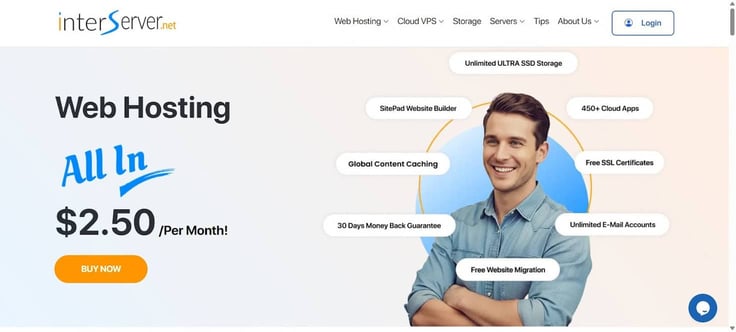
Anyhoo, $2.50 for shared hosting is a favorable price, so the lack of a proper pricing variety didn’t bother me, unusual as it is. And it’s not like I’d be getting only the basic stuff. On the contrary, InterServer is rather generous in terms of features, with a few surprises.
For example, the web host offers unlimited storage and data transfer for its customers, without it affecting speed and performance. Then, servers operate only at 50% capacity to avoid overcrowding and deliver faster and more reliable site performance.
The company’s internally developed security solution, called InterShield Security, is also part of the package. It’s quite comprehensive, as it includes a machine learning firewall, an automatic virus scanner, an in-house malware database, and DDoS protection, among other things.
Here is a quick overview of the essentials and pricing:
| Standard Web Hosting | Price | Renewal price |
|---|---|---|
| 1 CPU 2GB of RAM Unlimited storage Unlimited data transfer | $2.50 for 1 month | $7 for 1 month |
| $15 for 6 months | $42 for 6 months | |
| $30 for 12 months | $84 for 12 months | |
| $60 for 24 months | $168 for 24 months |
There is also a proprietary set of caching mechanisms labeled Inter-Proxy. It runs both on the hardware and software level, and comes paired with a free Cloudflare CDN.
The default control panel is DirectAdmin, but if you specifically want the popular cPanel, there are separate hosting plans with that option.
In case someone breaches your site, InterServer will clean up compromised, hacked, or exploited accounts. This includes investigation, restoration, and prevention of future issues, and is also offered to new customers during migration (which is free, btw).
Without going too much into detail, let’s just say there are more goodies, such as unlimited email accounts, 400+ cloud apps, weekly backups, and so on. Not bad for $2.50, eh?
Liking very, very much what I saw, I clicked on the orange ‘BUY NOW’ button in the image above. The next step was to pick a domain.
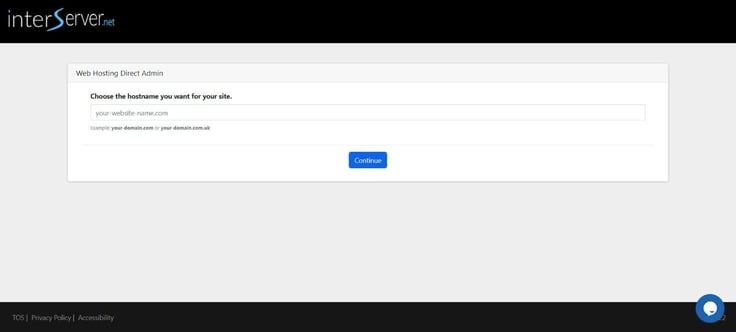
Unfortunately, this part wasn’t intuitive, because you don’t get immediate feedback on whether the domain is available or not. It’s only in the middle of the next page, following your contact details, that a message pops up saying whether a name for your little online corner is taken.
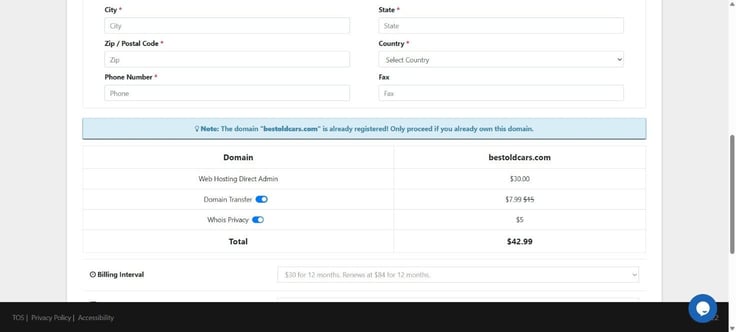
My advice is to first check the intended domain’s availability before filling out your details because, naturally, there was a bit of back and forth until I found the right domain. I chose a car-themed one, since I did the same when reviewing Bluehost, and thought it would be a nice reference point.
Speaking of a domain, registering it will set you back $7.99 at a discounted price. There is also an optional Whois Privacy service to mask your personal contact information in the public WHOIS database.
After settling on the billing interval and agreeing on the offer terms, I clicked on the ‘Create Account & Place Order’ button at the bottom of the page.
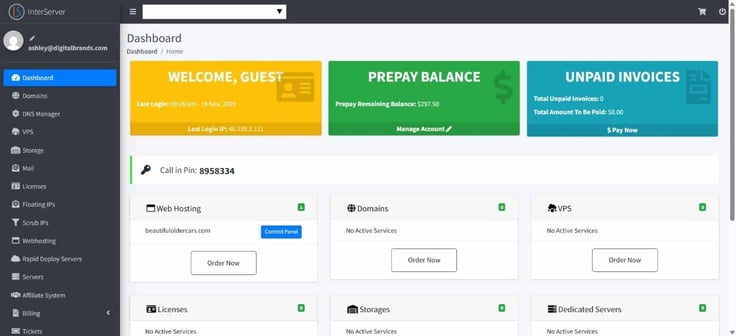
There was a quick pop-up saying that the account was created, after which I was logged into the InterServer dashboard to finalize the payment.
As you can see, there were plenty of payment options, including crypto, which isn’t something the majority of hosting providers do. For that, being a crypto fan, InterServer scored extra points with me.
I finished my order and was greeted with a message saying that the payment was completed successfully.
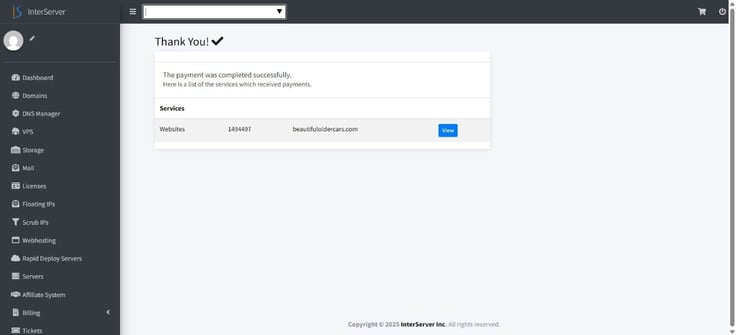
I was ready to roll up my sleeves and get to hosting.
InterServer provides a website builder called SitePad, which is included with the standard web hosting plan. It’s a third-party solution, largely designed for non-technical users and small business owners in mind.
So, if you belong to those groups, you’ll be able to create a professional-looking website in minutes.
I’m providing you this overview now since I’ll be showing the fruits of my site-building labor in the website builder section and not here, simply to avoid repeating myself. Don’t forget to scroll down for the final result!
You can find the performance test I ran via GTmetrix here. Once again, I don’t want to retread the same steps.
As for how the platform generally handled, I had no issues whatsoever. The way internal systems are designed contributes to speed, including the use of SSD Caching and a policy of running servers at only half capacity to prevent overcrowding and slowdowns during traffic spikes.
And, some independent monitoring confirmed an average uptime as high as 99.96%, which demonstrates strong reliability, fulfilling InterServer’s 99.9% guarantee.
Wholeheartedly. Despite its peculiar approach to shared hosting pricing, InterServer offers a well-rounded and finely-tuned package that made my hosting experience feel like a breeze.
I particularly liked the breadth of features that come out of the box, like the advanced (for the price and hosting type) security measures to keep my data safe from threats.
Speed and stability came in abundance, and besides the somewhat dated and convoluted dashboard, I really can’t pinpoint any aspect of InterServer’s shared hosting offering that wasn’t up to scratch.
It was largely a no-frills affair that didn’t differentiate itself much from its cheap hosting cousin. Not that it was a bad thing, mind you, especially since InterServer took care of fundamental management and security tasks.
At the same time, it was noticeable to me that the company is arguably less specialized in WordPress than some of its competitors. Though the core service was on par in that regard, it may just come down to personal preferences.
I concluded my review with a performance test, so be sure to check that out too.
As is usually the custom with hosting providers, WordPress hosting largely refers to optimized shared hosting for the world’s dominant CMS. Such is the case here, where InterServer, in a surprisingly shy manner, supplies the option.
I say this because, unlike its shared hosting version, the hosting provider advertises more prominently the VPS variant of WordPress hosting. So, if you need more power and a dedicated slice of resources, know that you have that as an option.
Back to the task at hand, the WordPress hosting and web/shared hosting are one and the same, which meant I was ready to test WordPress-specific features. Among those advertised were 30 daily backup copies and automatic updates of WordPress core and plugins to keep my site protected.
Seeing as I already bought WordPress hosting when opting for its shared counterpart, I have nothing to write or show you here. And in case you’re wondering — yes, it’s a pretty common practice with web hosts to market two aspects of the same hosting. Enough of that, let’s move on to building a WordPress site.
You’ll find my in-depth site-building experience in the website builder section, so forgive me if I skip a detail or two here. In the next few minutes, I’ll focus exclusively on crafting a WordPress site and related features.
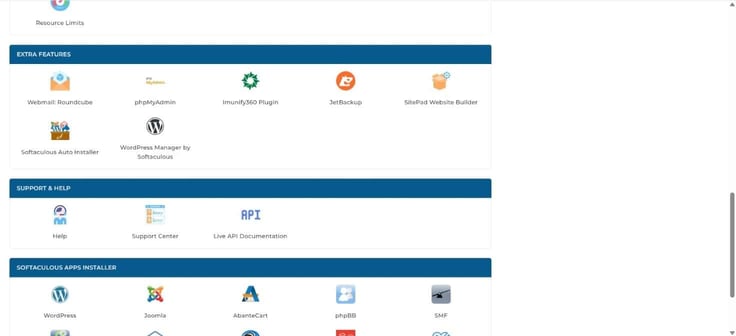
Softaculous, a popular auto-installer, was my primary partner in crime, as I had to install WordPress through it. In DirectAdmin, I scrolled all the way down to the SOFTACULOUS APP INSTALLER section (I’m not yelling!) and selected WordPress.
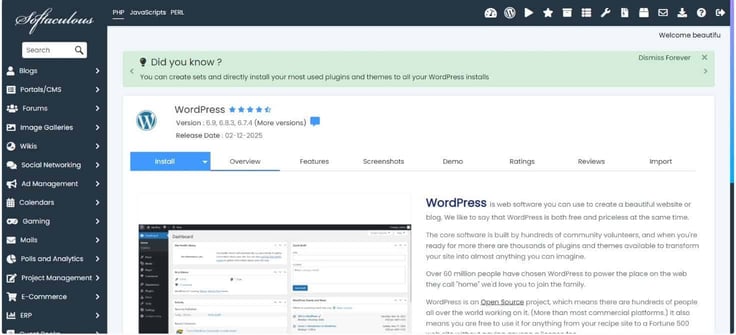
I clicked on the ‘Install Now’ button, which opened a bunch of options. These included the installation URL, WordPress version, site name and description, administrator username and password, plugin selection, and some advanced options such as auto-upgrades and backup frequency, to name a couple.
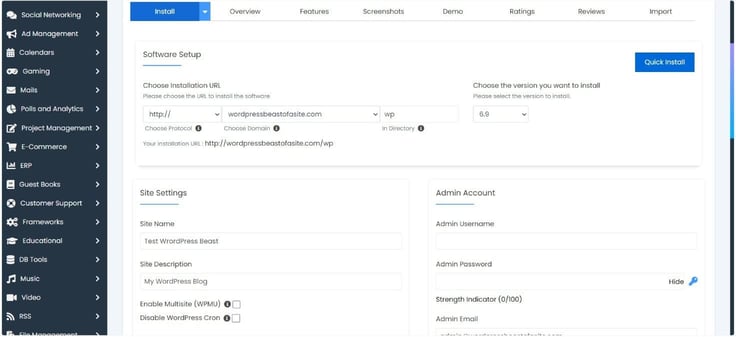
After sorting those out, I proceeded to install the CMS, which wrapped up in just under a minute.
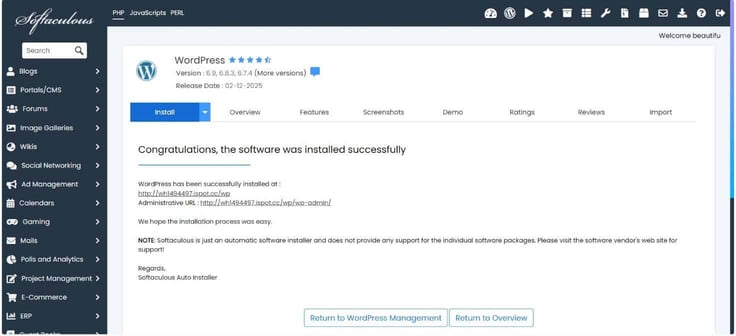
I clicked on the installation folder link, which opened the onboarding process with Softaculous.
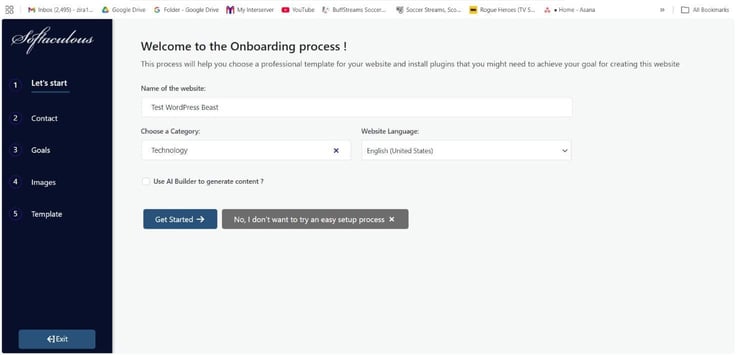
Here, I had to pick a website’s name and category. I was curious about the ‘No, I don’t want to try an easy setup process’ button, so I tried that first. I was redirected to the SoftWP assistant dashboard, a WordPress plugin built by Softaculous that improves the WordPress experience with AI, onboarding, and other features.
There are a bunch of useful tips and options here, so I highly recommend you install the plugin prior to the WordPress installation. That said, keep in mind that the plugin and this method of site building are primarily geared toward those who want to build a site from the ground up or modify an existing framework (which I didn’t have).
At this point, my site was barely an HTML page, so I opted to go back and continue with the onboarding via the simple route.
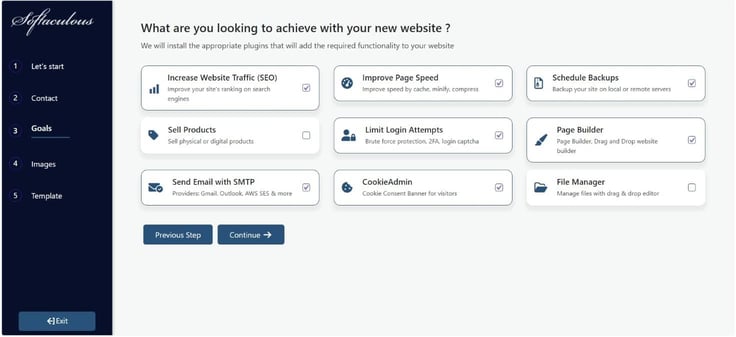
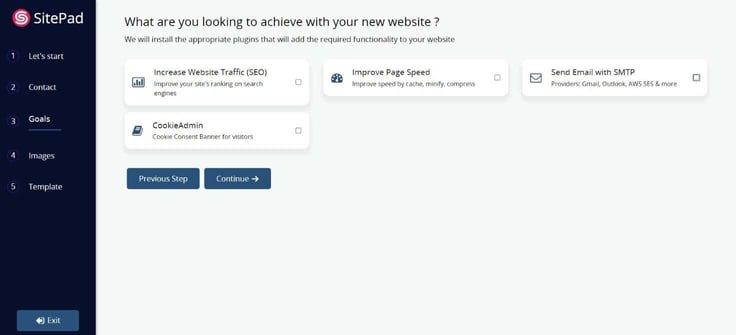
Clicking on the ‘Get Started’ button, the next step was to add contact details — email, phone, address, and social media links. I pressed ‘Continue’ and proceeded to the Goals page, where I was offered the choice of several plugins that would boost the functionality of my site (not goals, really).
After that, I had to select a theme. Structura was really nice:
I clicked the ‘Import Theme Content’ button, and in some 20 seconds, the site was ready. Of course, it needed finishing touches, which is where I feel the SoftWP plugin would come in handy as an InterServer-supplied option.
As for the WordPress editor, it’s the same for all. Whatever I did or didn’t do wasn’t related to the hosting provider’s service, so I’ll bring to a close my WordPress website building.
What you get out of your WordPress site will depend on the plugins you install and how well you optimize it. I’m saying this because I imported a visually rich, full-page template that included fancy visual effects like sliders and animations, along with a few unoptimized images.
As such, I wasn’t surprised that the GTmetrix test showed a subpar Performance score, an almost-good LCP score, and a high CLS.
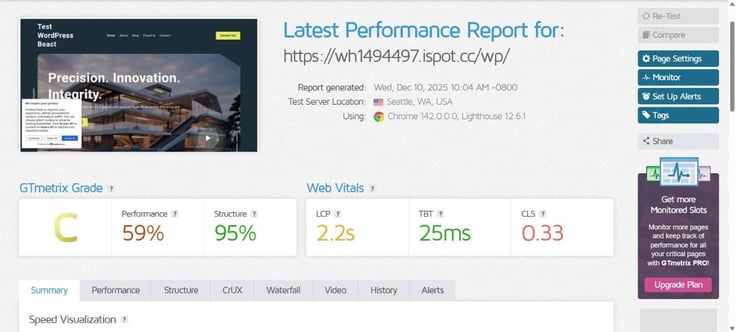
Considering that the Structure score primarily measures whether the server is configured correctly, the 95% rating (and a low TBT) tells me that the underlying server environment and its core settings are efficient and properly configured.
Also, do note that InterServer’s data centers are in the US, which may lead to slower performance for non-North American audiences.
For the most part.
It’s a decent offering that perhaps isn’t as beefed up with WordPress-centric stuff as elsewhere, since you won’t find advanced developer and performance tools like staging environments or specialized WordPress-only caching.
Nonetheless, it’s streamlined enough and handles the essentials of a reliable managed service (updates and backups), which just might be enough for budget-conscious users.
This part was the first where I experienced notable drawbacks with InterServer. One major qualm was the way website building works, since the majority of the process was below industry standards and largely unintuitive.
This is one area where a major overhaul is in order, as you’ll soon see for yourself.
As I mentioned before, InterServer relies on a third-party platform called SitePad for all website building. That in itself isn’t necessarily a bad thing, especially when the product in question simplifies the site creation for users who are not quite technical and want to build a website quickly without coding.
Such was the case here, and that is perfectly fine. The problem is how the builder is integrated.
I had to do a little bit of digging inside InterServer’s dashboard to kickstart the operation. I even asked the customer support to verify I’m not being an idiot and missing something that should be, by all accounts, obvious.
The support agent confirmed what I previously found out, which was that the builder is accessed via a control panel (DirectAdmin). I’ll go into details in the next section – let’s just say that SitePad is included in the standard web hosting plan, but you wouldn’t know it from the looks of it.
I already have access to the website builder, so there was no need to sign up for anything. To that extent, the transition from InterServer to SitePad via plugin was smooth, even if it was poorly implemented (more on that later).
It took me a couple of minutes to figure out the location of the website builder, because I was expecting a dedicated ‘Websites’ section or a link. Alas, from the dashboard’s homepage (which was, ironically, called Dashboard), I had to click the blue ‘Control Panel’ button next to my site’s domain name in the Web Hosting section.
The alternative route is to go to Webhosting in the left sidebar from the homepage, press the gears icon on the right for your hostname, then ‘Click Here’ under Links in the Web Hosting Direct Admin Login Section. Not much of an alternative, I know, which just goes to show how needlessly complicated this is.
Anyway, I was now in the DirectAdmin dashboard, thoroughly enjoying its Windows XP-like aesthetics.
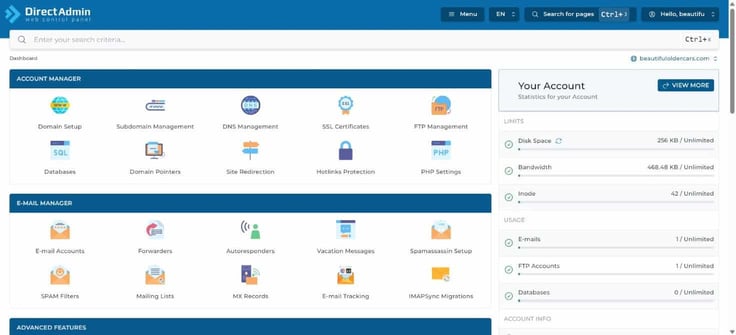
I had to scroll down to the extra features part, where the icon for SitePad Website Builder was situated.
Finally, I was inside SitePad!
With the builder open, I set aside some time to explore it before getting to work. Confident that I had done enough exploration, I began to build by clicking the ‘Add New Site’ link in the left sidebar.
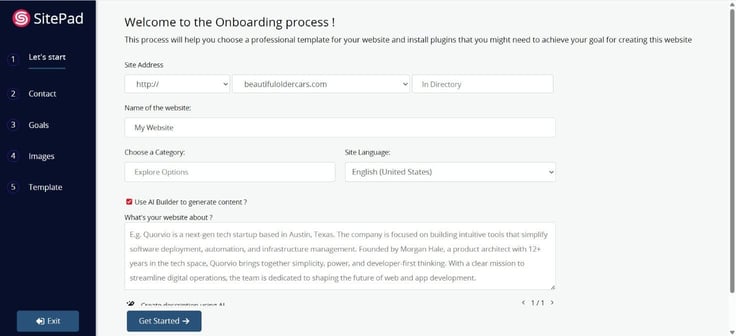
It was virtually the same onboarding as the one with Softaculous, only it’s under the SitePad umbrella (which is also made by Softaculous, so that’s why the copy-paste design).
I had to provide a name for my website, category, and its description. I also opted to have AI create the site because it’s the cool, hip thing to do. To that note, I have to applaud the AI, as it expanded on my words and added a few details just as I hoped it would.
Fun fact: when choosing a category for my website, there was a ‘Pizza’ category!
The rest was already familiar to me: fill in contact details and check the useful plugins at the Goals page.
Moving on, the builder provided a gallery of copyright-free images from Pexels to choose from, with the option to add my own. This was arguably the most important part so far, since the website is about old cars and the photos simply had to be spot on. And they were, much to my satisfaction.

I picked about a dozen or so images and clicked ‘Continue’ once more to get to the template selection based on the images I chose.
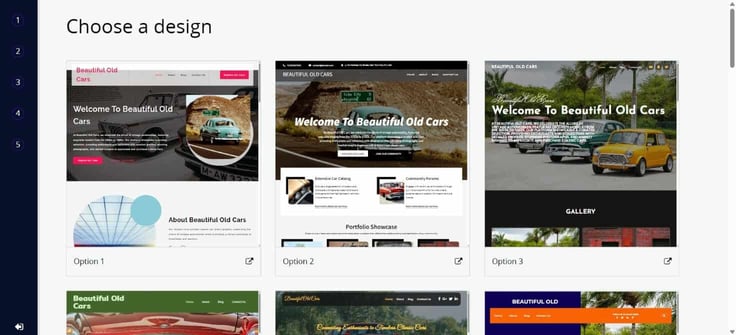
To my surprise, I was given more than 30 options, with possibly more as themes appear after the previous ones are loaded. I stopped scrolling/loading themes because one quickly caught my eye. This was the theme that suited me the most:
A click on ‘Import Theme Content’ in the bottom right corner meant I had everything in place for a functioning website. After half a minute, the site was created, but by no means done.
Before I get to editing, I want to show you another website.
I have wildly varying experiences with AI-powered competitors, so the option to bypass AI prompts if needed was a nice touch. In fact, I think I much prefer the “old way” where you’re in full control of realizing your idea, which is where SitePad supposedly is good at.
So, from SitePad’s dashboard, I clicked ‘Add New Site’ to jumpstart the site creation.
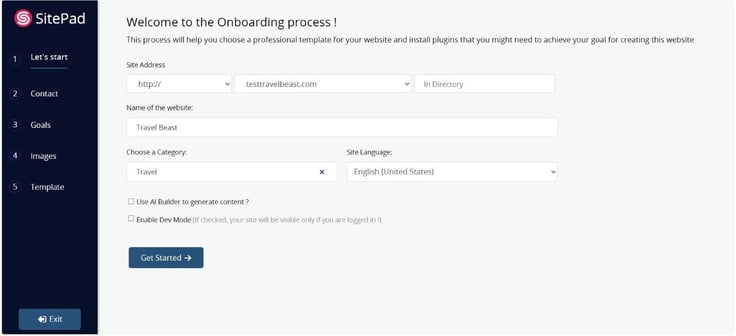
However, I had to take a little detour. Because I already had a website created, I had to create a new domain in DirectAdmin because the SitePad plugin doesn’t support it.
So, a reminder that the address you see in the image above was selected after I went back to the control panel, then selected Domain Setup and ‘ADD NEW’ to create a domain.
The lack of an in-house builder just may be why almost everything associated with website building was a chore. These kinds of workarounds shouldn’t be the norm these days, but…
Back in SitePad, I continued with the site creation process. I gave my website a name and chose a category. The next step was to provide the contact information to be displayed on the website. After that, I ticked the recommended plugins for better functionality of my website.
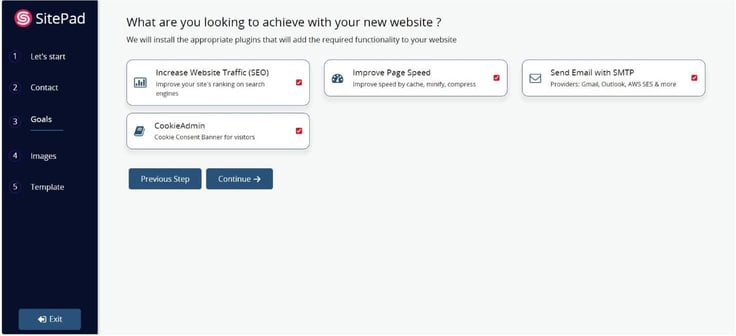
The last step was the most interesting one, as this is where I got to choose a theme. If we’re to trust InterServer, there are more than 300 of them, along with 40-something widgets for adding things like image galleries, videos, and Google Maps.

After a few minutes of browsing, I picked Travellux as it was closely related to what I had in mind. Here’s what it looks like:
I imported the theme with the related content (stock images, text), and after 20-ish seconds, it was ready for my perusal.
If you don’t buy a domain straightaway when signing up for the service, InterServer offers a temporary one. It’s found in DirectAdmin under Account Manager >> Domain Setup, or in the Host Info area for that particular website (you need to click on the gear icon) in the Webhosting section.
The idea is to upload the website files under that domain root to check my website and make alterations. It was, by far, the most frustrating thing I did in this review because it took me almost an entire workday and numerous back and forths with both day and night shifts at the customer center to make it happen.
Once that ordeal (in every sense of the word) was over, I proceeded to the editing part of the process from the SitePad dashboard. Unfortunately, it wasn’t as pleasant an experience as I had hoped.
For starters, here were the available editing options when I clicked on the ‘Edit’ icon that appears on the site’s thumbnail:
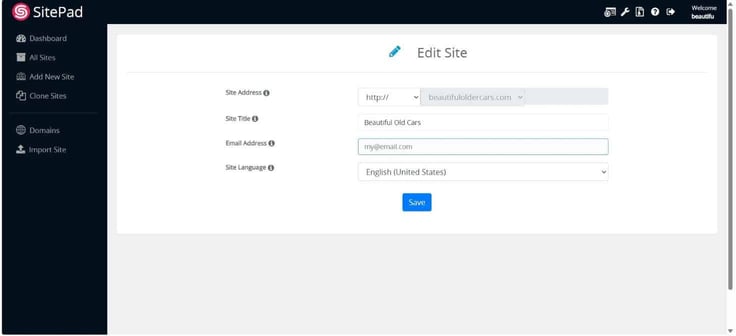
That’s not what I’d call editing, but I might be looking in the wrong place. I tried the ‘Login to the site’ option, and that was it.
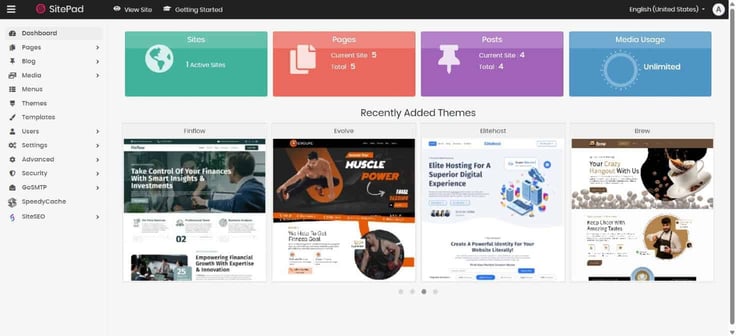
First, I added a page for all the “services” my site was offering, employing ChatGPT to come up with placeholder content. In the left sidebar, I clicked the Pages tab, then ‘Add New’, and ended up with this:
I spent the next hour or so trying to figure out how to delete or modify the upper part of the default service page. Turns out, it’s not possible because it’s static. I couldn’t remove it or edit it at all, sans the cosmetic stuff like changing fonts, colors, and icon placements.
In fact, every page from the main menu was like that — an upper static element with a customizable, below-the-fold part.
My best guess is that because the AI created the site, it didn’t form a customizable layout that I could tweak however I wanted. Needless to say, that was hugely disappointing.
And honestly, after another hour or so of giving SitePad the benefit of the doubt and going through countless settings and minor adjustments, I gave up. The static part didn’t suit my vision, and there was no point in creating a site that I wouldn’t be fundamentally happy with.
It didn’t help that the website builder’s navigation is clunky as hell, which just made me want to get the entire thing over with as soon as possible.
If you’re more patient and willing than me to craft a website to your liking, you’ll be glad to know that InterServer is speedy per GTmetrix’s evaluation.
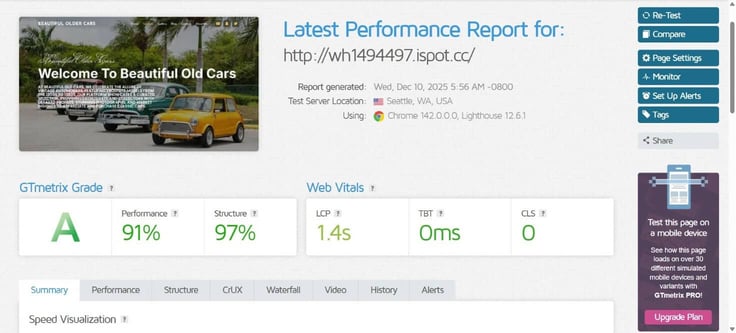
The site seems to be performing rather well across all key metrics and is offering a fast and smooth user experience. Even the LCP score, which is 1.4s (well under the “Good” rating), means that the main content (like the hero image of those four cars) is loading in time.
Because of the underlying infrastructure, it’s my belief that my site wouldn’t have an issue with handling moderate to high traffic.
No.
At the absolute very best, it’s a mixed bag, and I’d be really stretching it. Changing AI-made layouts and designs is heavily restricted (and by proxy, incredibly maddening), and I can’t explain why that is.
Maybe it’s because SitePad is technically not InterServer’s per se, as you can get it on its own, but I still wouldn’t recommend it on its own. I especially don’t recommend relying on the web host’s implementation of it.
Heck, just getting to the builder is a small challenge, since there is no apparent path to it. I feel that in itself says a great deal about how bad this segment was.
Having set up a few VPSs in the past year or so, I knew manual configuration through the command line was awaiting me. And having gone through the vendor’s other hosting services, I also knew there would be little to no hand-holding.
There were fewer built-in, beginner-friendly graphical management tools, and I had to configure the server primarily through SSH. At the same time, full root access was a boon, and I much appreciated the option to start small and eventually add resources one by one without having to jump to a more expensive solution.
I can’t remember the last time (if at all) I saw 32 VPS plans on offer. The extremely scalable price structure made it easy to find a package that suited my needs down to a T. Plus, I could always add more whenever.
And if that wasn’t enough, InterServer offers storage VPS subscriptions that use SATA hard disk drives to increase the amount of storage space. So, instead of SSDs with RAID 10 arrays, you get slower but roomier storage at the same price tag and with the exact same CPU, RAM, and bandwidth allocation.
For Windows fans, there are also 32 options to choose from, albeit at a heftier price.
Back to the Linux VPS offerings. While the plans are named Slice 1, Slice 2, and so on, the increase in resources is not slice-based. Slice is, in case you’re not familiar, a bundle of system resources that includes a specific amount of CPU, memory, disk space, and bandwidth that varies between providers.
Since a full table of available plans would take roughly one quarter of space in this article, I’ll create a partial one and explain the progression of resources.
| 1 Slice | 2 Slices | 3 Slices | 4 Slices | 5 Slices | 6 Slices | |
|---|---|---|---|---|---|---|
| Price | $3.00/month | $6.00/month | $9.00/month | $12.00/month | $15.00/month | $18.00/month |
| CPU | 1 core | 1 core | 2 cores | 2 cores | 3 cores | 3 cores |
| RAM | 2GB | 4GB | 6GB | 8GB | 10GB | 12GB |
| Storage | 40GB SSD | 80GB SSD | 120GB SSD | 160GB SSD | 200GB SSD | 240GB SSD |
| Bandwidth | 2TB | 4TB | 6TB | 8TB | 10TB | 12TB |
Sans the CPU, the resources automatically grow for one slice with each package. The number of cores increases by one with every next group of two plans. For example, 23 Slices and 24 Slices have 12 cores, while Slices 31 and 32 have 16. Hopefully that’s clear.
All billing is month-to-month, meaning I could cancel anytime, which is good because InterServer doesn’t offer a trial period or money-back guarantee on VPS plans.
When it comes to features, some of the more notable ones were AI-powered self-healing hardware (where an AI system automatically redirects a workload to another node to prevent downtime in case of a glitch), free DDoS protection, and an integrated firewall.
One more thing: InterServer offers managed support when you purchase 8 slices or more. That offer didn’t pertain to me, but it’s good to know I could get assistance with security patches, diagnostics, and control panel issues for my money’s worth if need be.
In the end, I went for the Slices 2 package as it felt adequate for my testing purposes. My reasoning was that if at any point I needed more resources, I could easily scale up.
From the VPS homepage, I opted for the Slices 2 plan and clicked the ‘BUY NOW’ button. Since I was already a customer, I was logged into the InterServer dashboard, where I had to sort out the details.
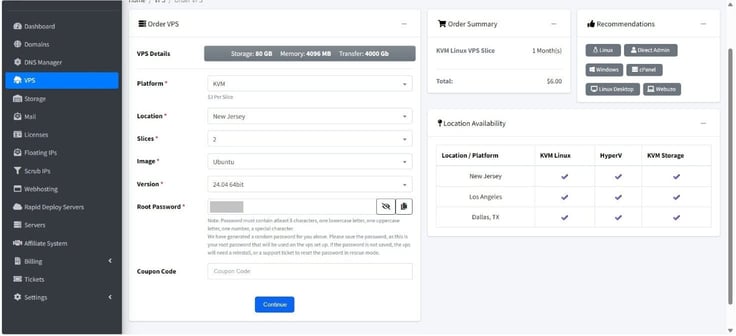
These included selecting the virtualization platform, server location, OS and its version, and creating the root password, which InterServer was kind enough to do for me.
I noticed in the upper right corner the Recommendations section, which automatically adjusted the VPS plan according to the provided options. It was a nice touch, but I largely settled on the default configuration and pressed ‘Continue’.
Next was the order summary page, where I agreed to the offer terms and placed my order.
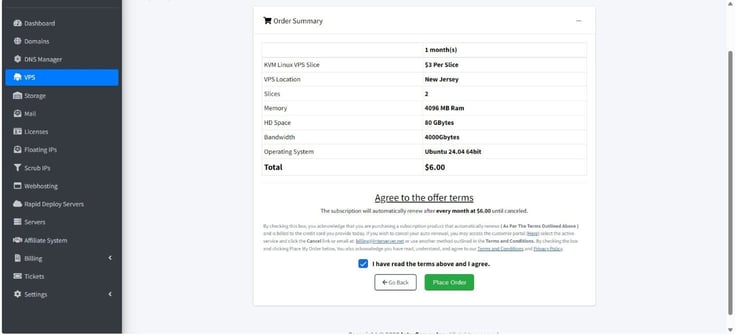
All that was left to do was to check my billing details and choose a payment method to finish the purchase. I got an all-clear:
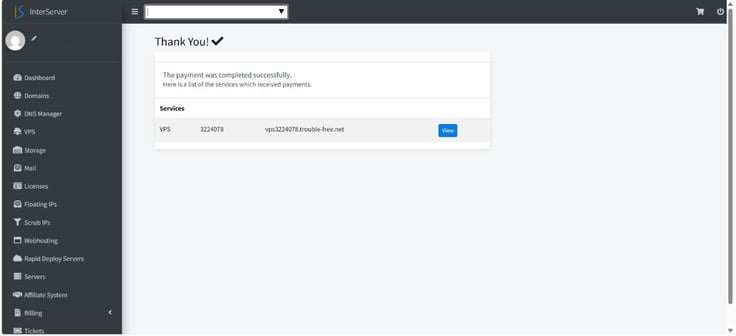
It was time to roll up my sleeves and start working on my VPS.
InterServer doesn’t have a terminal in its backend, so I opened my own (Windows PowerShell on my computer) and logged into my VPS via the ssh username@serverIP command.
The initial username provided by InterServer was ‘root’ (it usually is), and I supplied the password that was generated when signing up for the plan. I was now logged in:
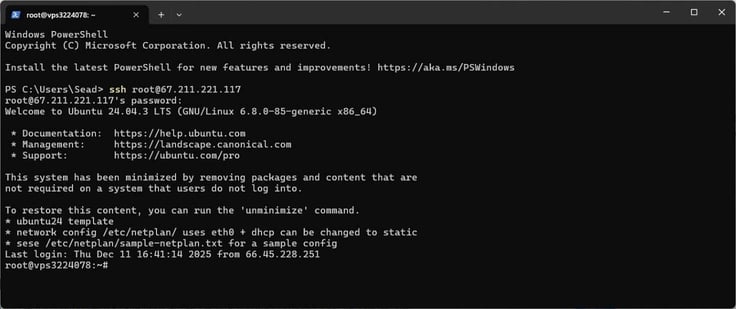
From there, I first wanted to make sure that my server’s software is up-to-date to eliminate the possibility of a security vulnerability. With sudo apt update and sudo apt upgrade -y, I managed to do just that.
Nevertheless, the root user in itself is a major security risk since it’s an obvious target for attackers. So, I created a new user with sudo (short for “superuser do”) privileges to prevent direct SSH login.
For this, I used the sudo adduser username command to add the user (obviously, the username part is a placeholder), then sudo usermod -aG sudo username to add privileges.
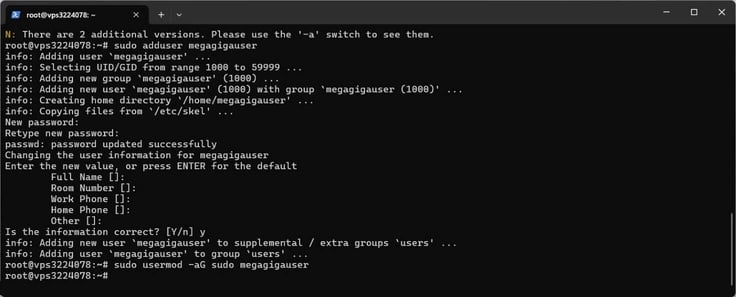
With a non-root user fully functional, I logged out as root for security purposes, then logged back in as a new, sudo-powered user.
From there, I spent some time setting up SSH keys as the most secure method and configuring the firewall. The latter is important because Ubuntu allows all outgoing and incoming connections by default, so I allowed traffic only on the ports that my server needs.
I also installed the LAMP stack (well, AMP actually, since I already had the L) to have the option of running all sorts of web applications.
The VPS section in InterServer’s client was fairly skimpy on the options, without the simplification of more complex features, pre-configured options, and direct one-click installers I saw elsewhere. It was a bit of a let-down, but I got used to it with InterServer at this point.
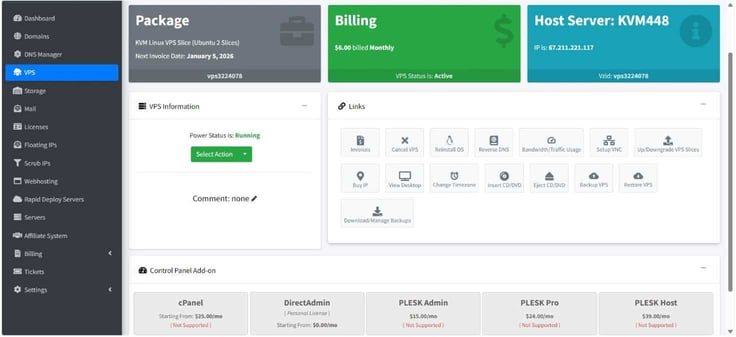
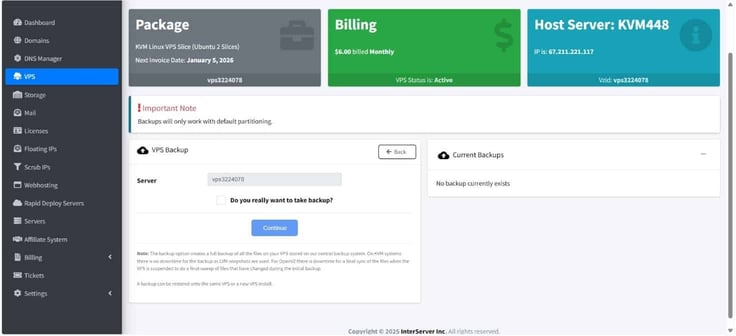
Still, the essentials were there, including creating a full-image backup. I clicked on the ‘Backup VPS’ icon and checked off the box asking if I was sure (like it was some big deal), and pressed ‘Continue’.
It takes up to 50 minutes for the backup to be created, which can be downloaded or deleted by clicking the ‘Download/Manage Backups’ button.
There was also a neat bandwidth and traffic usage page, displaying total, hourly, and daily usage, along with a historical overview.
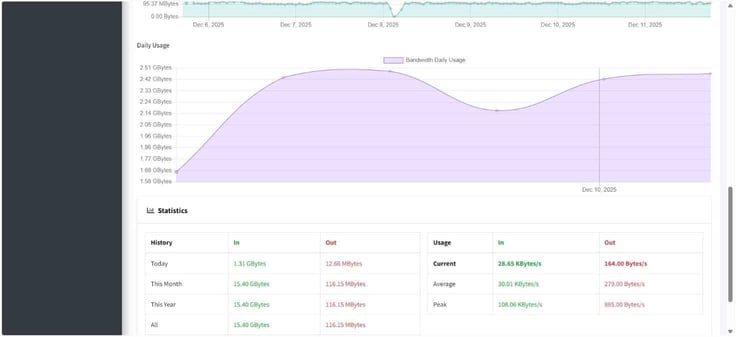
I could also buy additional IPs for $3, reinstall the operating system, and reverse DNS, as well as add a control panel for a fee (DirectAdmin personal license was free of charge).
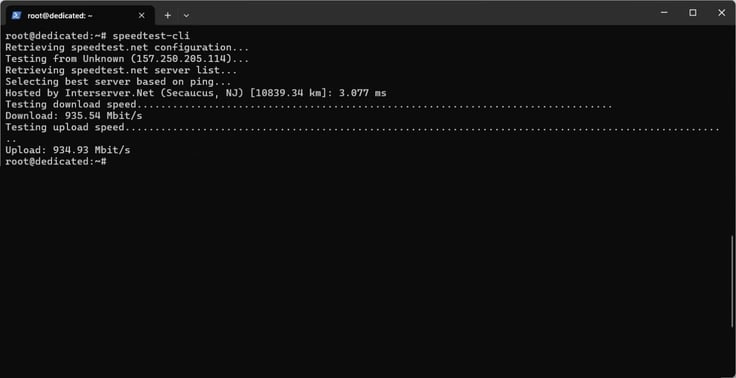
Since I made no websites on the server, I chose to test its performance via speedtest-cli, the command-line version of the Speedtest service. It provides accurate information on download and upload speeds, and latency (ping).
I first had to install the package via sudo apt-get install speedtest-cli, then run the test with the speedtest-cli command. Here are the results:
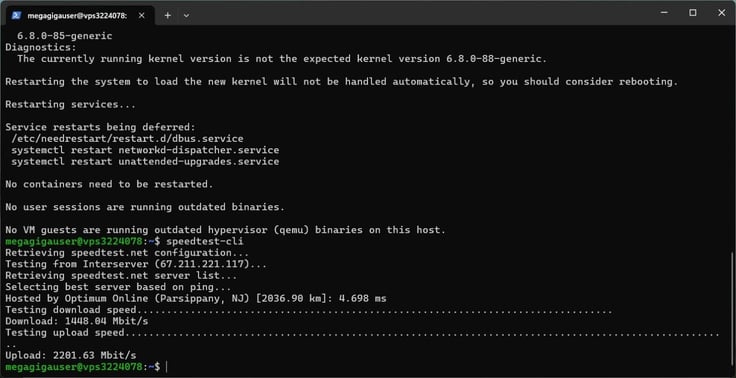
Under 5ms latency and excellent download and upload meant my server had a great connection and sufficient bandwidth to handle high traffic loads and application deployment.
Yes, for those who prioritize raw power and control over simplicity.
InterServer makes a solid case for why I should choose their offering instead of someone else’s. Its VPS packages have highly competitive pricing and excellent hardware, and the ability to scale in small increments is great for managing costs. Plus, it’s fast.
I get a distinct sense that the interface will be the biggest point of contention. It’s functional, but focused more on billing, support, and resource monitoring. For those who appreciate (or are specifically looking for) a modern, graphical-based UI that is designed to minimize the need for SSH access, this won’t be the optimal fit.
From a user experience perspective, the configuration and day-to-day management were extremely similar to those of a VPS, providing me with a familiar path. Hence, the core day-to-day administration process was nearly identical.
I can vouch that the transition was smooth because InterServer keeps the approach centered on full root access and the command line for both services.
Whether that will appeal to a broad(er) spectrum of users is debatable, but the few differences I encountered didn’t change the experience much, which was overall positive.
InterServer offers three categories of dedicated servers, differentiated by price, setup time, and customization level.
The first one is labeled ‘Buy It Now’ servers, which are pre-configured machines available in limited batches at discounted prices. They are ready to deploy almost instantly, thus making them the fastest and most budget-friendly option for my needs.
Here’s the funny thing: I counted 83 plans on offer. This begs the question: if this is a limited batch, what is a regular one per InterServer’s standards?
In all seriousness, the amount of choice is beyond impressive.
But in the unlikely case the above wasn’t enough, I could customize a dedicated server by changing the RAM size, adding storage drives (HDD, SSD, or NVMe), and selecting network requirements. They are for users with specific or complex hardware requirements.
To top it all off, InterServer also offers Rapid Deploy Servers, described as “single tenant virtual machines” or bare-metal servers designed for virtualization power. Their key feature is immediate provisioning (ready in 15 minutes), combining the performance of a dedicated server with the rapid setup of a virtual machine.
The hosting provider’s dedicated servers utilize modern CPUs (various versions of AMD Ryzen, AMD EPYC, and Intel Xeon processors) and fast storage (SSD and NVMe). A 1 Gbps unmetered port comes by default, with options to scale up to 10 Gbps, 40 Gbps, or even 100 Gbps for high-throughput needs.
All servers include free DDOS Protection and an integrated firewall. Upon subscribing, I’d also receive full administrative access through Remote KVM (or Remote Reboots) and IPMI/iLo access, allowing for remote control and out-of-band management.
Managed support is included, meaning InterServer will assist with core server issues, remote OS re-installs, and firewall rules. Though I’m not sure how these dated guidelines still hold up.
Eventually, my chosen configuration was the AMD Ryzen 5600X with 64GB of memory and a 2TB SSD.
There were slightly more clicks involved here than with a VPS purchase. First, I had to select ‘DEDICATED HOME’ from the Servers category on InterServer’s homepage.
Then, I had to find my plan in the ‘Buy It Now Servers’ list and click on the ‘MORE INFO’ button. (Please note the prices shown below have increased since we tested this plan.)
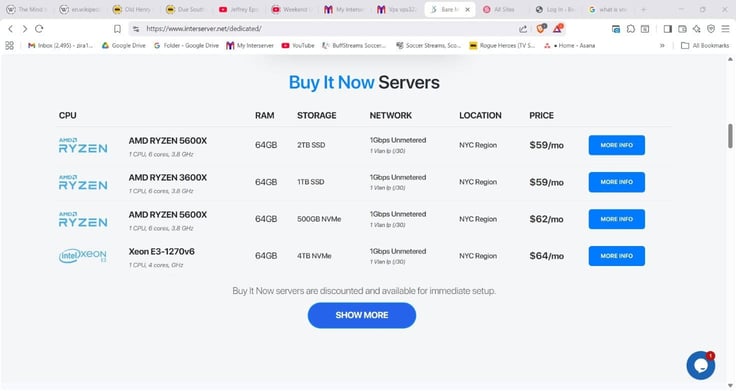
On this page, I could tweak my original configuration and spice it up more, if I wanted. This included stuff such as OS, bandwidth, VLAN IP addresses, and server region. There was also a quick overview of other, similar plans that InterServer believed might tickle my fancy.
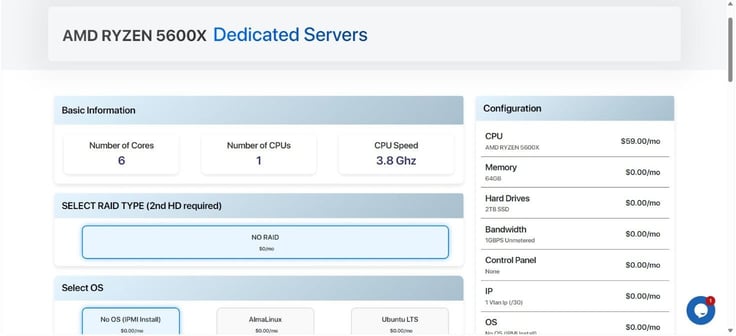
Upon making sure the configuration was all sorted out, I clicked the ‘CONTINUE’ button in the Configuration section. Interestingly, it sold out as I was about to buy it, so I quickly switched to the Ryzen 3600X, 1TB SSD version.
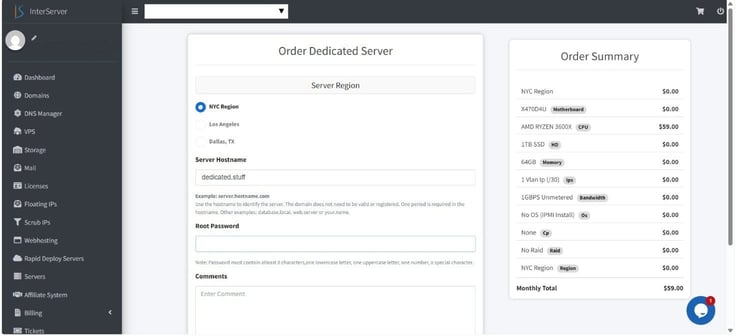
Next up was the order summary page, where I chose the server hostname and set up the root password (which InterServer automatically provided). I added the plan to the cart and paid for it with my prepaid funds.
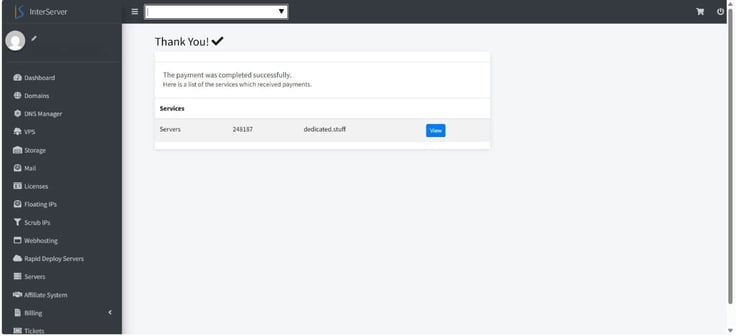
It took a little longer for the service activation to be completed, but everything was in order, and I was free to start tinkering in a few minutes.
One objectively amazing thing about having the same OS on both VPS and dedicated server is that the commands will work exactly the same way. Both were running Ubuntu, thus I could easily apply the same OS-level security and maintenance tasks I did with VPS.
And I did. There was no control panel included, so I fired up the terminal from my computer again and went through the motions. But I wanted to do something else.
So, I installed Nginx, if only to try a new thing myself, since LAMP is my go-to configuration “move”. I used the sudo apt install nginx -y to perform the installation, then sudo ufw allow ‘Nginx Full’ to adjust the UFW and open the necessary ports for web traffic.
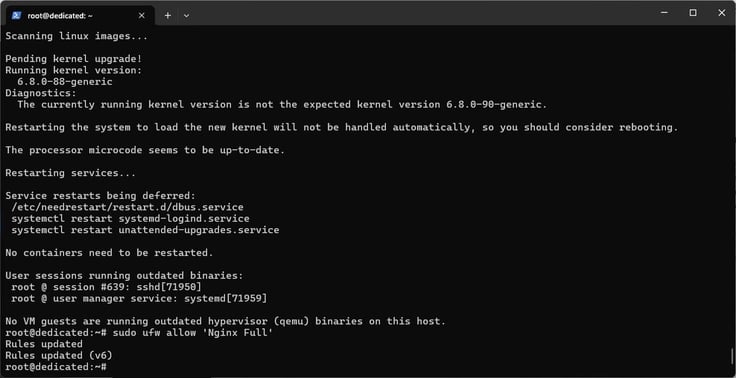
All in all, everything felt like a standard affair when it comes to dedicated hosting.
It was the same story as with VPS management, focusing on the DIY approach to management.
One key distinction here is managed support that comes right out of the box. That meant InterServer had things like server diagnosis, security patches, network/boot issues, and control panel installation or troubleshooting covered for me.
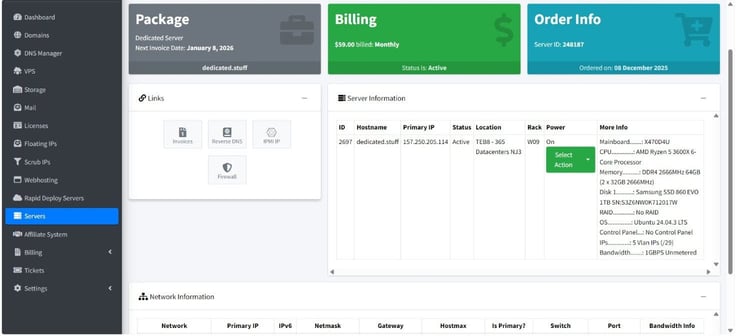
It also meant I had even fewer options at my disposal. What I could do was add rules to the inbound firewall and mess with the IPMI IP address settings, a remote, out-of-band management interface for my server.
In theory, I could diagnose and reboot the server even if the operating system crashed completely, which was the only real advantage of this particular dedicated server management.
I fired up GTmetrix once more to evaluate my server and got extremely favorable scores:
Sure, my site was far from a proper, fully built one, but the results do indicate the sheer power of InterServer’s dedicated hosting, even at its entry-level plans.
Other than a basic dashboard, I see no other reason not to.
I got basic management, a generous 1Gbps unmetered port included, and performant hardware at competitive introductory pricing. If you don’t mind doing the configuration all by yourself and are in the market for bare-metal power, this is a great value proposition.
InterServer’s homepage says that its dedicated support team is “available around the clock” via phone, live chat, or ticket system, though its agents are quick to point out 24/7 availability via email and chat support.
In any case, reaching someone was never a problem. I had a few interactions with the customer support, and the first thing I noticed was the speed at which I was connected to a human agent. On average, it took a minute to get to a real person and share my questions.
Significantly more time passed to get answers, especially on technical issues. Time-wise, responses could have been much faster, even if the accuracy and relevancy of the answers provided were satisfactory most of the time.
I don’t know if the blame falls on InterServer’s seemingly outdated knowledge base (the company refers to articles from 6-7 years ago for some of its features) or not-so-knowledgeable staff, but there were a couple of instances where I was left to my own devices. Granted, these situations were rare, but still.
The point is that I shouldn’t have to figure out by myself how to transfer server files or make a basic server configuration. There should be a tutorial with screenshots or, better yet, a video, or a detailed step-by-step outline that I could follow from an AI chatbot. Anything, really.
It just makes zero sense to me to assume customers know these things and are willing to make an effort to figure them out on their own instead of simply moving to another vendor.
Then something else occurred to me — there is no chat button or help section or link or whatever to reach customer support once logged to InterServer’s client!
Every time I chatted with support, I did so via the chat on its website. And before you think it’s a glitch or my browser is blocking the chatbox widget, I’ve checked:
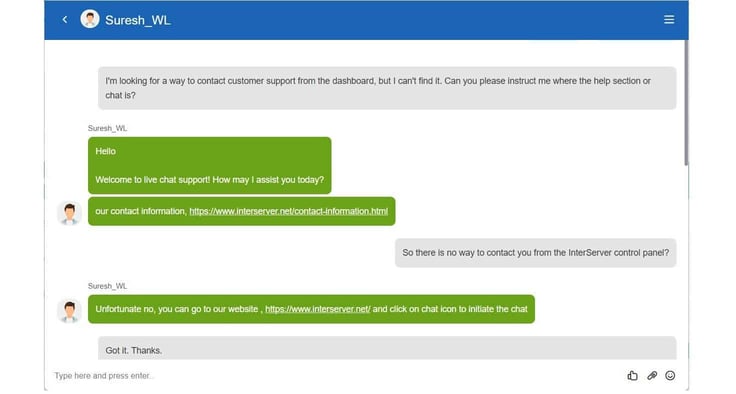
I don’t know about you, but that’s a weird (dare I say inexcusable) omission, especially taking into account that InterServer offers a few one-click installable cloud applications for adding a chatbox to your website. I guess irony can be pretty ironic sometimes — here’s hoping the company fixes this soon.
There is no doubt that InterServer offers great value for the price, with a solid and thoroughly consistent performance. The combination of optimized infrastructure and sound practices, like loading the servers beyond 50% of available resources, ensures great speed and reliability, as well as room for growth.
A lot of that can be attributed to the company owning its datacenters and network, which gives InterServer superior control over routing and latency.
Yet, there are a few obvious drawbacks. The dashboard is by far the weakest link in the InterServer chain. I don’t mind much the looks and design (that could use a freshening up), but I abhor the way functionalities are buried beneath layers and layers of links.
The best example of this ineffectiveness is when trying to build a website, for which you first need to open a third-party control panel, then use a website builder plugin. And generally speaking, there is very little user-centric stuff in and around the platform to make users feel appreciated.
Another notable con is customer service (in)accessibility. In this day and age, I really shouldn’t have to open up a new tab or window to talk to someone about their platform, but that’s where we are with InterServer.
I’d say that InterServer is a very good choice for a specific type of customer: one who is careful about their budget, wants high-value resources, and isn’t afraid to roll up their sleeves on more advanced hosting plans.
I’m sure there are enough of those users, though I’m also positive that the lack of beginner polish due to a dated and less intuitive dashboard will repel a fair share, too.
For those, the likes of IONOS and Hostinger might be more appealing, as they heavily invested in their custom control panels and make an effort to be highly intuitive in terms of integrating setup and security features — something that, sadly, InterServer does not.

HostingAdvice.com is a free online resource that offers valuable content and comparison services to users. To keep this resource 100% free for users, we receive advertising compensation from the hosts listed on this page. Along with key review factors, this compensation may impact how and where hosts appear on the page (including, for example, the order in which they appear). HostingAdvice.com does not include listings for all web hosts.
Our site is committed to publishing independent, accurate content guided by strict editorial guidelines. Before articles and reviews are published on our site, they undergo a thorough review process performed by a team of independent editors and subject-matter experts to ensure the content’s accuracy, timeliness, and impartiality. Our editorial team is separate and independent of our site’s advertisers, and the opinions they express on our site are their own. To read more about our team members and their editorial backgrounds, please visit our site’s About page.


