
Guides

Studies 
Studies
Our studies cover a range of trending topics and deliver original, reliable data you can't get anywhere else on the web.
From cheap shared plans to managed WordPress and VPS hosting, I put every feature to the test to see if it’s really worth your money.

By: Christina Lewis

Editor: Lillian Castro

Reviewer: Cristian Lopez
Disclosure: When you sign up through links on our site, we often earn referral fees from partners. For more information, see our ad disclosure and review policy.
I spent two weeks testing and reviewing hosting.com’s cheap, WordPress, VPS, and website builder plans. Its dashboard design is one of the best I’ve seen, and its customer support was incredibly responsive. I never waited more than a few seconds for a reply.
If that’s not enough, the range of plans and levels of managed support it offers makes it an awesome choice for people of all skill levels. Developers, business owners, and individuals can all find something that works for them.
I documented my entire experience as I tested each hosting service, including screenshots and recordings of my favorite parts. Read on for the highlights.
Hosting.com has one of the nicest, cleanest hosting dashboards I’ve seen, which makes managing your plan extremely easy and enjoyable.
Its managed VPS and WordPress plans offer a level of support and convenience that’s hard to find. The hands-on support means that even if you have no experience, you can take advantage of its higher-powered plans.
The AI site builder functions exactly as it should. There’s virtually no learning curve, and the AI features are extremely helpful, saving you a ton of time.
I like to start every web host review with its cheap hosting service. It’s the most natural place to begin, since nearly everyone’s first type of hosting plan falls in this category. Cheap (i.e., shared) hosting plans should be affordable, beginner-friendly, and fast.
I took one of hosting.com’s cheap plans for a spin to find out if it could meet my requirements. Here’s a look at my experience:
I started my review of hosting.com by exploring its shared hosting page, which says “Fast, reliable web hosting,” — exactly what I want from a hosting plan.
Its plans start at just $2.99 if you sign up for a long-term contract, which is a deal I personally wouldn’t pass up. I know that locking in my price for at least a year can save me hundreds of dollars in the long run.
Hosting.com gives you four different plans to choose from, each with varying levels of RAM, disk space, websites, and email accounts. The higher the plan, the more you pay and the more you get.
I thought the plans were very easy to understand, which isn’t the case with every host. They’re named Starter, Plus, Pro, and Max. Each one very clearly highlights the introductory discount and renewal price, which is a level of transparency I really appreciate (no hidden rates here!).
With every hosting plan, hosting.com includes:
As you upgrade, you unlock more resources and features. I took a deeper look at the differences between each plan to see what else I could get if I paid more, and found that with each upgrade I got:
Based on the extra features, it’s clear that the Starter plan is geared toward individuals with smaller budgets, and the Max plan is more for businesses. Plus and Pro fall somewhere in between and both have a nice balance of affordability and features.
The standout for me was the Plus plan. Hosting.com highlights it as the most popular, and it has the same introductory rate as the cheapest plan. If you want a little more power than the Starter plan and want to keep first-year hosting costs low, this should be your go-to option.
Speaking of keeping costs low, it can be hard to know if you’re really getting a good deal on your web hosting plan. Introductory rates are always appealing, but I strongly recommend checking out renewal pricing and comparing it to other web hosts.
This time, I did the work for you and compared hosting.com’s Plus plan to a few comparable competitors:
| Host | Plan | Introductory Pricing | Renewal Pricing |
|---|---|---|---|
| hosting.com | Plus | $2.99/month | $14.99/month |
| Dreamhost | Shared Starter | $2.95/month | $6.99/month |
| IONOS | Starter | $1.00/month | $8/month |
| Hostinger | Premium | $2.69/month | $10.99/month |
| Scalahosting | Start | $5.95/month | $13.95/month |
Hosting.com has the best intro pricing, hands down. But it’s the most expensive when it comes to renewal pricing. I wouldn’t call that a deal breaker, per se. Every hosting plan is unique, and there are a lot of factors that go into pricing (such as extra features, better infrastructure, and higher-quality support).
Hostinger costs less and gives you more websites, but offers less storage and fewer mailboxes. IONOS has a significantly cheaper renewal rate and offers more websites and storage, but doesn’t have unlimited databases. As you can see, there are benefits and drawbacks to each host, so that’s something to keep in mind.
With my hosting.com Plus plan in tow, I was ready to check out.
Most budget web hosting providers make the signup process super easy, and hosting.com was like that too. It only took me a few minutes to check out and start building my site. First, I clicked on the “Buy Now” button under the Plus plan.
The next page showed me my product configuration and let me choose my data center and domain name. Hosting.com has a decent number of data center locations, particularly for a shared web hosting plan. It’s nice to see a range of global options, too.
I could choose from data center locations in:
Since I’m on the East Coast, I chose Dallas as my data center.
Next, I chose my domain name. Hosting.com does things a little differently from its competitors. Instead of offering a free domain name with your purchase of a one-year hosting plan, you have to buy two years of domain registration to get the first year free.
Domain renewal is a little pricier, too ($21.99 per year instead of the usual $15 to $20). If you already have a domain name, you can always just transfer it instead of buying a new one.
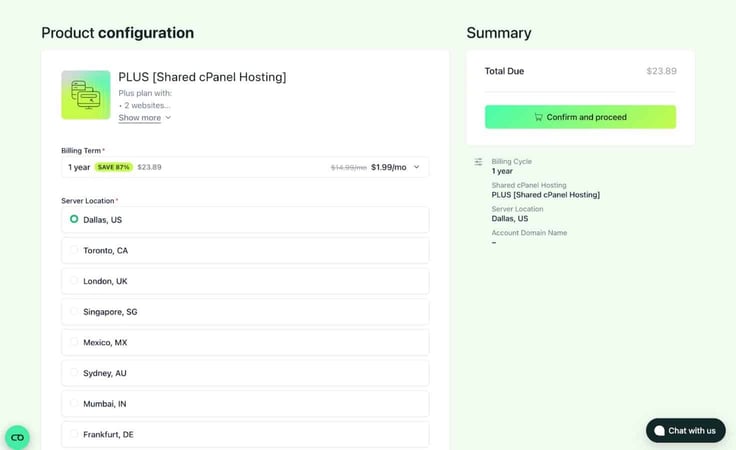
Next, I clicked “Confirm and proceed.” This is where I ran into a couple of upsells — no big deal. Most web hosts offer additional services during checkout. Hosting.com gave me the option to add professional email for $1 a month or WP Rocket for $3.99. It’s worth noting that you have to pay for the whole year upfront.
These add-ons would be ideal for a business with a WordPress site (what business doesn’t need more WordPress optimizations and better email tools?) But for my needs, I passed this time.
I clicked “Continue” and confirmed everything that was in my cart.
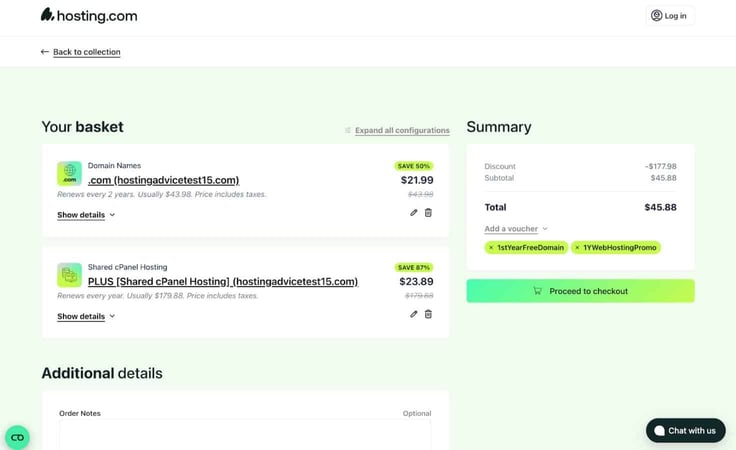
For one year of hosting and two years of .com domain registration, my total came to $45.88. It’s not the absolute cheapest you can get, but I still think it’s worth it for the value.
Next, I moved on to the site building part of my experience. Right after I made my purchase, hosting.com sent me an email with all the information I needed to get started, including my cPanel login, nameservers, email setup information, and client portal.
I decided to start with the client portal. Immediately I noticed how modern and sleek its design was. Some hosts have outdated interfaces that can be more challenging to navigate, but hosting.com’s is one of the nicest designs I’ve seen in recent years.
I could easily view all my hosting plans in one place. I clicked on my recently purchased Plus plan to log into my cPanel account. On the left-hand menu, I clicked “Websites.” This took me to a page where I could manage my first site, HostingAdviceTest5.com.
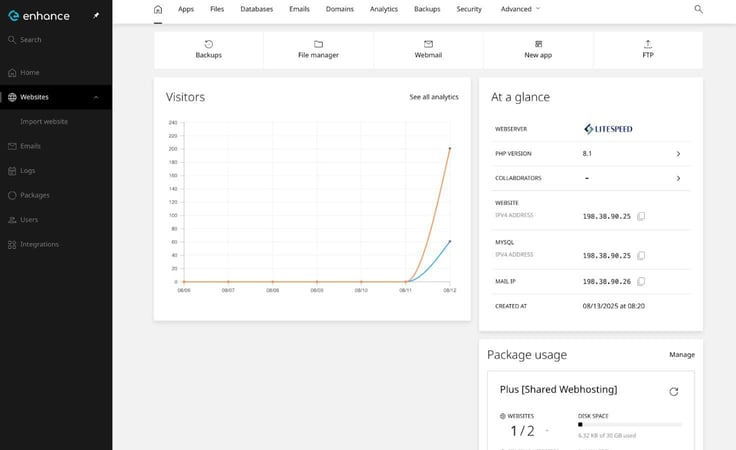
It was easy to see what my options were for building my site. I could either upload site files through FTP or use the “New app” button to install a CMS, like WordPress. I chose to install WordPress, which was quick and easy — all I had to do was click a few buttons.
Installation took no more than 15 seconds, and I was on my way. Now, I won’t dive too deep into how I built my site, since I want to focus on hosting.com and not WordPress. However, I will say I found the whole process really easy and seamless.
I never questioned what to do next or how to manage my site from within the client area. To me, that’s worth its weight in gold.
I ended up creating a website for my local arts market (shoutout to the Riverside Arts Market).
To round out my hosting.com review, I ran a performance test with GTmetrix.
The main thing I look at when running a performance test is the Largest Contentful Paint (LCP), which tells me how long it takes for the biggest piece of content to load. The results were pretty impressive — my site’s LCP was a speedy 579 milliseconds (less than half the recommended time).
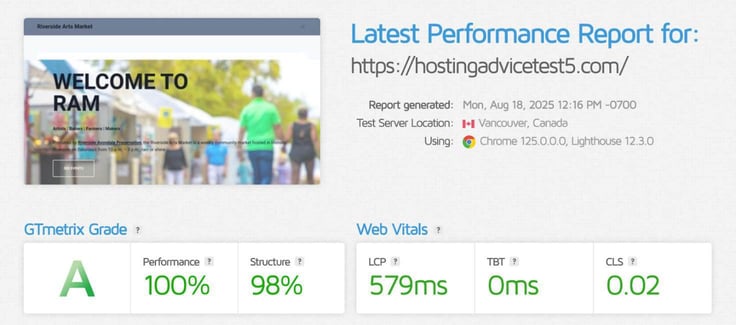
Having a stellar performance report was the cherry on top of a solid hosting experience.
Hosting.com’s renewal rates and domain names may be pricier than competitors’, but you’re also getting better performance thanks to the LiteSpeed/Turbo servers and NVMe storage. Combine that with the unlimited databases and free staging tool, and you’ve got a pretty powerful shared hosting plan for developers.
I picture the ideal hosting.com customer as someone who wants advanced hardware and developer-friendly features and doesn’t mind paying a little extra for them. If that’s you, then I can definitely recommend hosting.com’s cheap hosting service.
Hosting.com says its WordPress plans are made for beginners and developers who want stability, increased speed, and performance.
I’d say those are equally important features of any hosting plan, but even more so for WordPress, which is often used for high-traffic blogs and eCommerce sites.
To see if these claims were true, I tested hosting.com’s WordPress hosting service myself. Here’s what I found out:
I started by checking out the hosting plans on its managed WordPress hosting page. Similar to its shared web hosting plans, hosting.com offers four managed WordPress plans to choose from, including Starter, Pro, Business, and Expert.
I should also mention that hosting.com has unmanaged versions of these plans, which run a little cheaper and are great for anyone with smaller budgets and self-management experience.
What makes hosting.com’s managed WordPress plans unique is the WordPress-specific performance enhancements that come with it. A lot of hosts just slap a WordPress label on shared hosting and call it a day, but not hosting.com.
These plans include WordPress pre-installation (no waiting time!), pre-installed performance plugins, and automatic core updates.
I took a deeper dive into the features included with each plan, and found that they also included:
If Turbo servers caught your eye, I should mention that’s a unique hosting.com perk. It means you’ll get more resources, advanced caching, SSD storage, and fewer customers on your server.
When it comes to pricing, you should expect to pay more for a managed WordPress host than you would for an unmanaged one. That’s just the cost of having that level of dedicated support.
However, I was a little surprised to see just how much more its managed plans cost than those of its competitors. For reference, here’s what managed WordPress hosting will run you from other top web hosts.
| Host | Plan | Introductory Price | Renewal Price |
|---|---|---|---|
| hosting.com | Managed WordPress Pro Plan | $11.99/month | $34.99/month |
| Siteground | Grow Big | $4.99/month | $29.99/month |
| Hostinger | Premium | $2.99/month | $10.99/month |
| Bluehost | Business | $3.99/month | $14.99/month |
| HostGator | Business Plan | $4.59/month | $21.99/month |
It’s worth noting that hosting.com gives you better hands-on support and pretty slick performance (thanks to its performance stack with Turbo infrastructure, caching, autoscaling, and custom acceleration tools).
My takeaway here is that hosting.com is pricier because it gives you a truly premium managed hosting experience. Hosts like Hostinger, Bluehost, and HostGator only offer a lighter, less hands-on version of managed WordPress hosting.
Ultimately, hosting.com’s managed plans may be overkill for some folks, but they may be just right for people with bigger budgets who don’t mind paying extra for something luxurious.
Now, I can’t ignore the unmanaged WordPress plans.
In a surprising move, hosting.com’s WordPress plans are actually a few dollars a month cheaper than its shared plans. I say “surprising” because WordPress plans often cost more, given the extra performance features that tend to be included. But hey, I won’t question it. A lower price is a win.
The Plus plan starts at just $2.99 a month for one year and renews at $10.99. For a middle-tier WordPress plan, that’s a pretty good price. You can check out these competitor prices for comparison.
| Host | Plan | Introductory Price | Renewal Price |
|---|---|---|---|
| hosting.com | Plus | $2.99/month | $10.99/month |
| Hostinger | Premium | $2.69/month | $10.99/month |
| SiteGround | StartUp | $2.99/month | $17.99/month |
| DreamHost | Shared Starter | $2.89/month | $5.99/month |
| Bluehost | Business | $1.99/month | $14.99/month |
The only WordPress host that was cheaper was DreamHost. The rest were the same price or more, which could be pretty appealing to you if budget is an important factor.
After reviewing both managed and unmanaged plans, I decided the managed Plus WordPress plan was the right one for me.
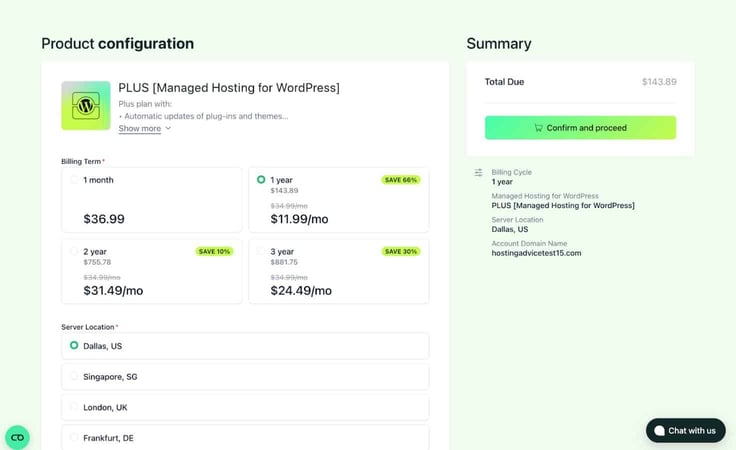
Signup was super easy. I clicked on the “Buy Now” button below the plan I wanted. The next page had me look over my product configuration — plan name, duration, data center location, and domain name.
I noticed there were fewer data center locations to choose from than the shared hosting plan (but still more options than most hosts give you). I could choose a data center in:
Again, Dallas was the closest to me, so that’s the location I chose. I added my domain name to my basket, and then clicked “Confirm and proceed” to move to the next screen.
Hosting.com gave me the option to upgrade to business email and WP Rocket, which would make a lot of sense for a small business. Since I planned to build a blog on my WordPress site, I skipped these for now. If my site grows enough to warrant more tools, I can always add them later.
On the final checkout page, my total came to $143.89 for an entire year of WordPress hosting (with a free domain name!). In total, I saved 66% by choosing a one-year hosting plan.
The difference between a typical WordPress plan and hosting.com’s managed WordPress plan was immediately obvious — both in convenience and how easy it was to get started. I logged in to my hosting dashboard, scrolled down to my plan, and clicked “Login to control panel.”
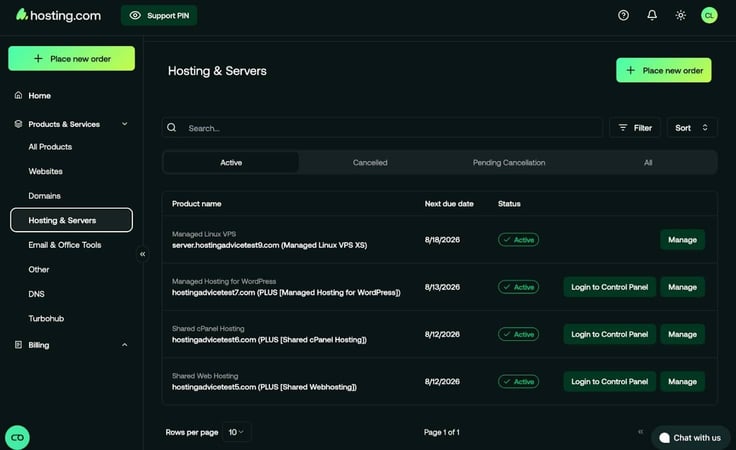
WordPress comes preinstalled, which means you have one less step to get set up. Unlike most WordPress hosting plans, hosting.com gives you a WordPress website builder. This was a game-changing feature for me.
It started by asking me what type of website I was creating (I chose “Business”), then it asked for a little more info, like my site title, description, and tone. Inspiration struck me, and I chose a website named Hats for Cats. I think the title probably gives away what I wrote for the description.
I set my tone to “Inspirational” and asked for a single-page site. It spent a minute or so loading designs, then presented me with the results. By no means was it a completely finished site (you still need to edit the content to personalize it), but it was a really professional-looking start.
Even the details were impressive, like the hat logo with cat ears. Adorable.
I’d also like to give credit to the hilarious hero image on the homepage. It couldn’t have been better if I chose it myself.

After checking out my site, I was eager to start customizing it. Hosting.com includes a ton of AI features that make it really easy to add content. I started with the AI page generator, which was a similar experience to the site builder. All I had to do was tell it what page to add, and AI did all the heavy lifting for me.
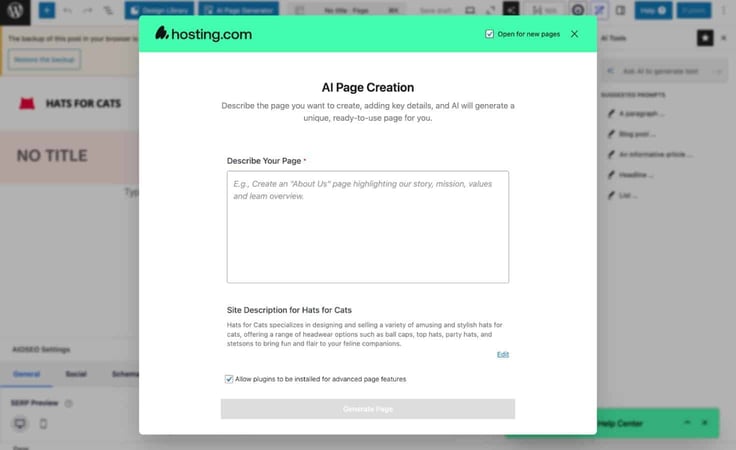
I also learned that you can use the AI writing assistant to create blog posts from right within WordPress. I gave the writing assistant a simple prompt, and it wrote a 500-word blog post about the different types of hats for cats.
If I were to build this site in WordPress from scratch, it could have easily taken me weeks. But the AI site builder was able to make everything instantly with whatever prompt I gave it.
Next, I moved on to editing the images on my site. If you were wondering if hosting.com has an AI feature for that as well, it does. I told it to generate a picture of a tabby cat wearing a top hat, and it delivered.

I explored some other fun features, like the Design Library which had dozens of premade blocks for every content type (think galleries, headers, hero images, contact forms, etc.).
When I was happy with the final edits to my site, I clicked “Publish.”
The AI site builder made everything extremely easy. WordPress can be a little tricky at times, but at no point in the site building process did I feel confused or frustrated. Even as a seasoned WordPress user, that’s a rare feeling.
Hosting.com offers a really impressive managed WordPress experience, but my review wouldn’t be complete without testing its performance. I headed over to the GTmetrix website to run a performance test.
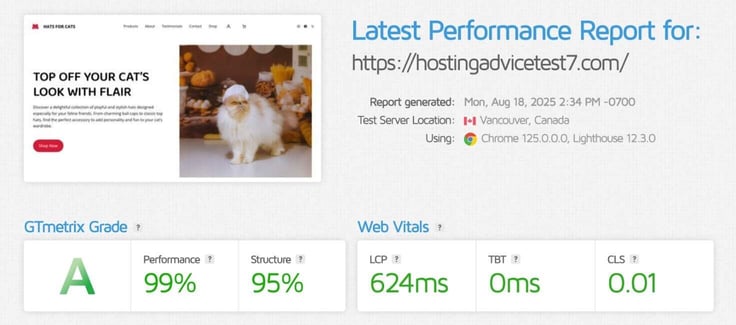
Unsurprisingly, it scored an “A” for performance and structure. The Largest Contentful Paint came in at just over half a second, which is well below the recommended time.
The web host’s Turbo Servers really put in the work here. The combination of more resources, advanced caching, SSD storage, and fewer customers on the server lead to pretty great load times.
Hosting.com has one of the best managed WordPress hosting services I’ve tested. I don’t often see this level of support and performance from shared hosting plans, but hosting.com has managed to create something that’s both performant and easy to use.
I’d recommend its managed WordPress plans if you’re a more serious user who wants to build a site for your business. You’ll need a bit of a bigger budget, but I whole-heartedly believe the extra cost is worth it for what you get.
AI site builders are the new thing in web hosting. They’ve been around for a few years but have really taken off recently, as hosts are constantly adding new AI features like logo and content generators.
I got to test hosting.com’s very own AI site builder, and I was very impressed with all the features and customizations it came with. Here’s what I liked the most.
Hosting.com says you can get your site up and running within minutes, which is months faster than it took me to build my first site from scratch. These tools are nothing short of miraculous for people who can’t code or make the time for it.
I checked out the different AI site builder plans — there were four for me to choose from. I could go with Plus, Pro, Store Plus, and Store Pro. As you could probably guess, the difference between the normal and store plans was the added eCommerce functionality for online stores.
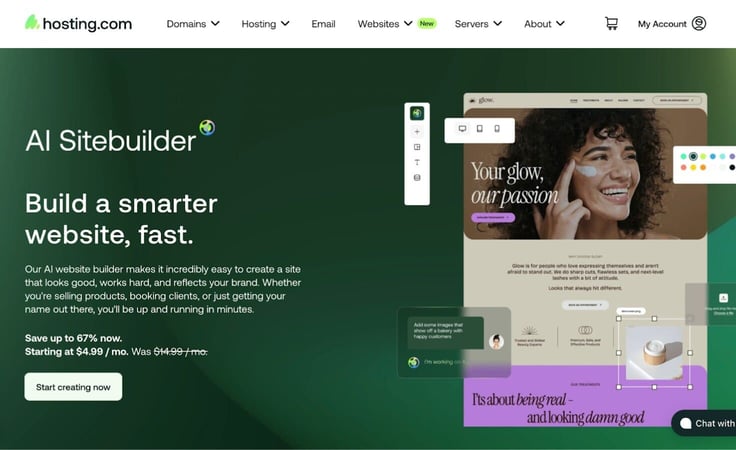
I liked the way hosting.com showcased the AI sitebuilder’s most useful features. Scrolling through the site builder page, I learned that its plans came with:
What was even more enticing was that I could build my site in three easy steps with “No faffing around,” as the site says.
To me, these plans seemed a lot more professional and high-quality than a lot of the other site builders I’ve tested.
I dove further into the pricing to see how it compared to others, and while it was more expensive than some, it was clearly a higher quality product. With my purchase of the Pro plan I would get a whopping 20 websites, all customizable through hosting.com’s templates, themes, and widgets.
| Host | Plan | Introductory Price | Renewal Price |
|---|---|---|---|
| hosting.com | Pro | $4.99/month | $14.99/month |
| Hostinger | Premium Website Builder | $2.69/month | $10.99/month |
| IONOS | Starter | $1.00/month | $12/month |
| Network Solutions | Website | $4.99/month | $16.99/month |
| Wix | Lite | $17.00/month | $17/month |
I was really eager to get my hands on it to test out the claim that I could build a site in three easy steps. After making my mind up about choosing the Pro plan, I was ready to check out.
I clicked “Get Started” and was presented with a familiar screen on the next page: Product configuration.
By this time I was a pro at the hosting.com checkout process. I chose a one-year billing term, which saved me 67%.
Note: If you sign up for a two- or three-year plan, you can save 10% or 30%, respectively. Monthly plans don’t come with any discounts.
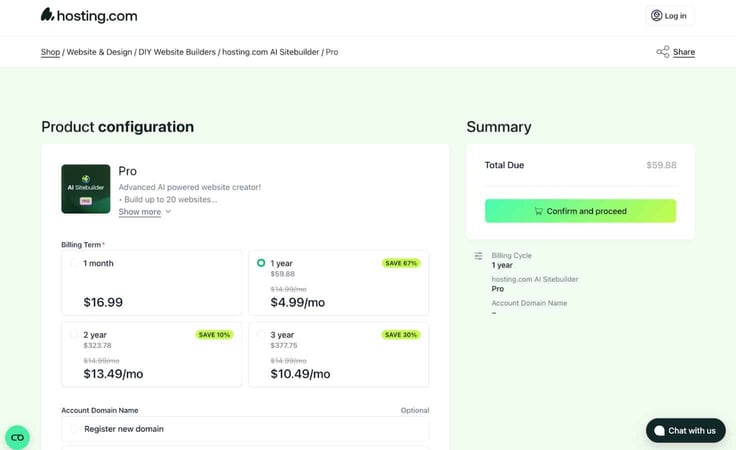
I confirmed my billing term and chose a domain name. However, I also had the option of transferring a domain or using an existing one. Like its cheap and WordPress plans, hosting.com included one year of free domain registration when I purchased two years upfront, essentially giving me 50% off.
I selected “Confirm and proceed” to move to the next page where I reviewed everything in my basket.
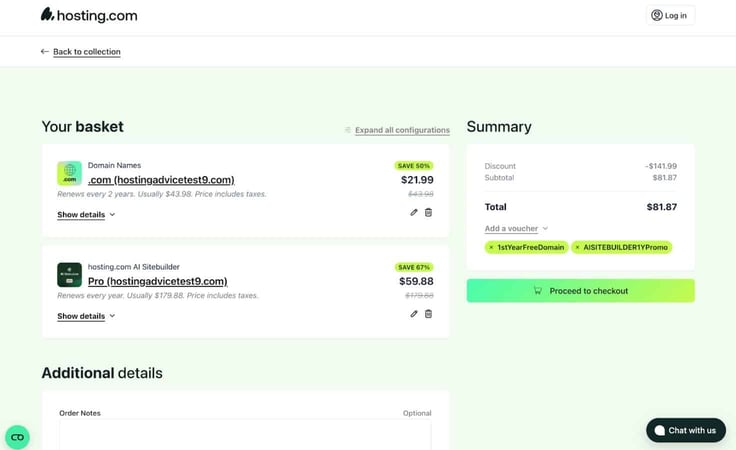
My total for a year of the Pro site builder plan and two years of domain registration came to a little over $80 — not too bad considering the length of time it covers. While my renewal price was going to be a little over $140, I didn’t think that was too much to ask for all the features the AI site builder came with.
Happy with my basket, I clicked “Proceed to checkout,” where I entered all my information and payment details (for privacy’s sake, I skipped the screenshots for that part).
Hosting.com sent me an email to start building my site. I clicked the link to sign into my hosting account and scrolled down to the “Websites” section, where I clicked on “Manage Website.”
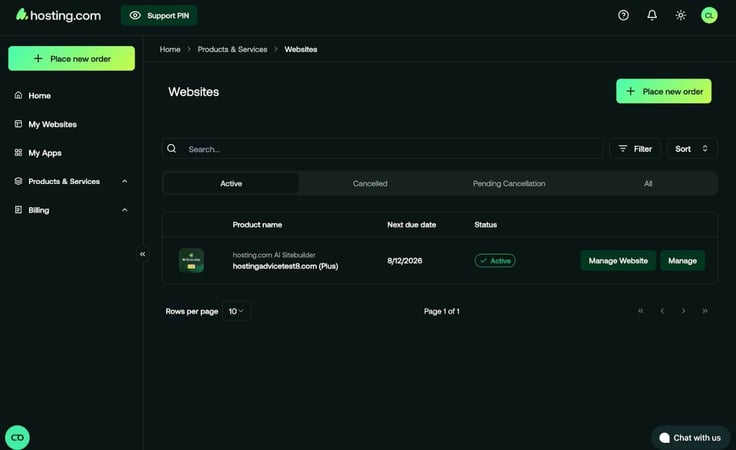
A new window opened up that took me to the AI site builder.
I started by answering a couple of questions:
I was feeling inspired by last night’s dinner and went with a cool, vintage sushi restaurant called My Sushi Spot. I could also upload a logo, but I didn’t have one yet, so I skipped that step for now.
The next page asked me for additional preferences and info, where I was able to fill in a description of my business, language, and preferred tone. “Humorous” was an option, and I was intrigued to find out what sense of humor AI had.
I chose a theme that included fonts and brand colors, then clicked “Generate Site.” Like magic, the site builder loaded a bright, well-designed site for my new vintage-inspired sushi restaurant. And honestly? It looked pretty great.
The homepage featured a big hero image with the heading “Fresh Rolls, Cool Vibes” and a button that said “Roll with it” — there’s that sense of humor.
Apart from a few minor design issues (like low contrast text on a colorful background), the design was seriously professional and well-made.
What’s even better is that it was really easy to figure out how to make changes to the layout. All I had to do was use the left-hand menu to select sections of the page and swap or regenerate them. This changed the overall layout of the area I selected.
Once I was happy with the general look, I could move on to more granular edits.

On the left I had a menu where I could make site-wide changes. The menu included:
By clicking on each of these menu items I could edit whatever that category was. Under “Theme” I could change my brand’s fonts, colors, buttons, margins, images, and backgrounds. The level of customization I had was extremely granular, so I could build my site exactly as I wanted.

My favorite feature was the widgets, though. I could drag and drop them into my site to add menus, click-to-call buttons, and icons.
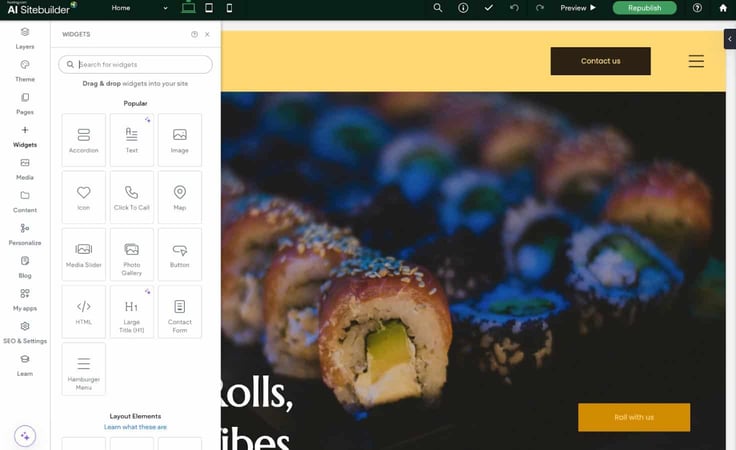
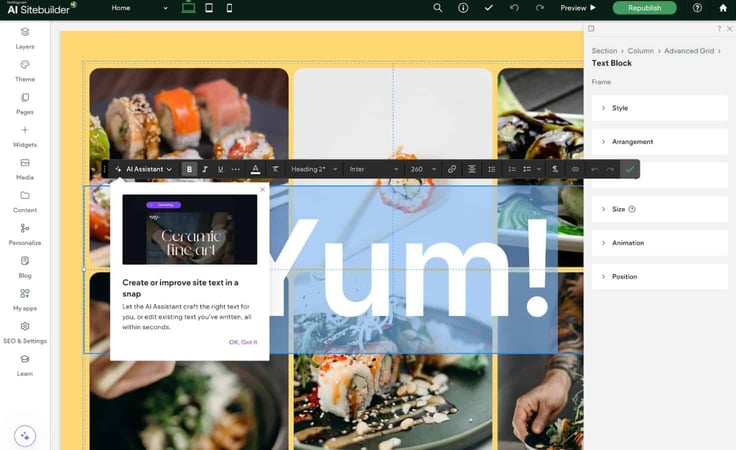
The site editor was very intuitive — it didn’t take me hardly any time at all to figure it out. To edit text, I clicked on the words I wanted to change. It was the same for editing images, menus, and buttons.
After some additional tweaking I was ready to preview my site. Hosting.com gives you a preview tool so you can see how your site looks on different device sizes, and I’m happy to say the design was super responsive.
The last step was to publish, and I was all set.
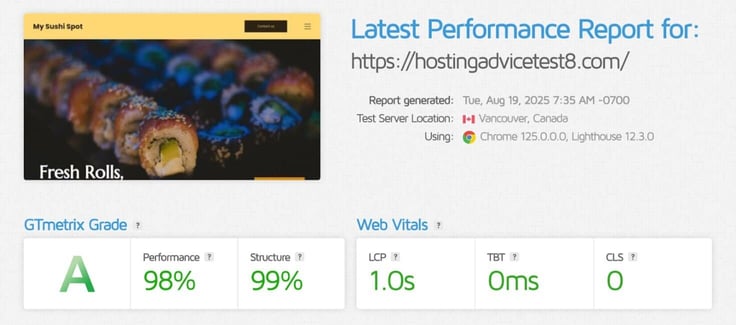
I can’t talk about a web host’s performance without actually testing it. Any company can claim it has high-performance servers and quick loading speeds, but unless you test it, you can’t know for sure.
To see if hosting.com’s AI site builder was as fast as it said, I ran my published site through GTmetrix. I can confidently say they weren’t bluffing.
The results were about as good as you can get. Despite having a lot of large images on my homepage, my site’s main content loaded quickly and got an “A” in performance and structure.
The whole point of using an AI site builder is to get a site online fast without any code, and I’d definitely say hosting.com helps you accomplish that.
I loved how customizable everything was, too. Being able to edit every aspect of my site’s design gave it that coded-from-scratch feel, but without the time and effort.
I can enthusiastically recommend the AI site builder if you’re in the market for something beautifully made and easy to set up.
I’ve been in the hosting industry for several years now, and I’ve always heard that hosting.com has a reputation for being popular with developers. If there’s one thing I know about devs, it’s that they like their VPSes.
I signed up for hosting.com’s managed VPS hosting service to see what the hype was all about. Here’s what I learned.
Ready to begin my evaluation of hosting.com’s virtual private servers, I hopped over to its VPS landing page.
The company has both managed and unmanaged virtual private servers, which is a win-win for everyone. Devs get the budget-friendly control and root access of unmanaged hosting, while businesses with bigger budgets can enjoy the convenience of managed support.
I was curious about its managed services, so I wanted to explore those.
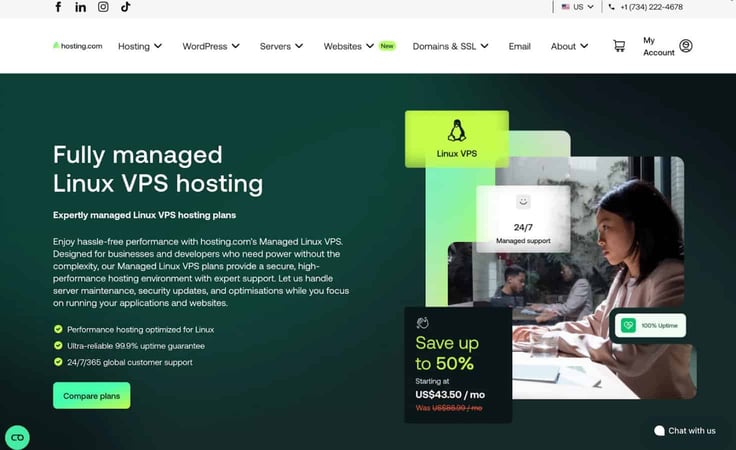
Hosting.com describes its managed VPSes as “hassle free,” which I’ll admit has a certain appeal to me. Letting my host take care of server maintenance, security updates, and optimizations gives me more time to focus on my website.
Its plans are laid out very clearly, each listing the core features they come with. The plans go from XS, S, M, to L. Depending on the plan you choose, you’ll get:
The Managed Linux VPS XS plan (now called the Managed cPanel 4GB plan) caught my eye — it’s a great entry-level VPS with enough resources for a smaller site and awesome performance perks.
One thing I also noticed is that I could get 50% off if I paid for a one-year term up front. Lots of VPS hosting services don’t offer discounts for yearlong contracts (you typically just get a discount on the first month). I love that I can save even more by committing to a year up front.
I compared hosting.com to other top competitors, and I found it to be on the more expensive side of the spectrum. Looking closer at each host:
Depending on your wants and needs, a bit higher price may not be an issue if you care more about better performance and hands-on support.
To sign up for the Managed VPS XS plan, I scrolled down to where the plans were laid out and I clicked “Buy Now.”
The next page I went to was “Product configuration.” That’s where I was able to confirm my plan’s duration and purchase any add-ons I wanted. I could pay for extra:
Not every host lets you customize your plan on this level, so I really appreciated how I could configure it exactly how I wanted.
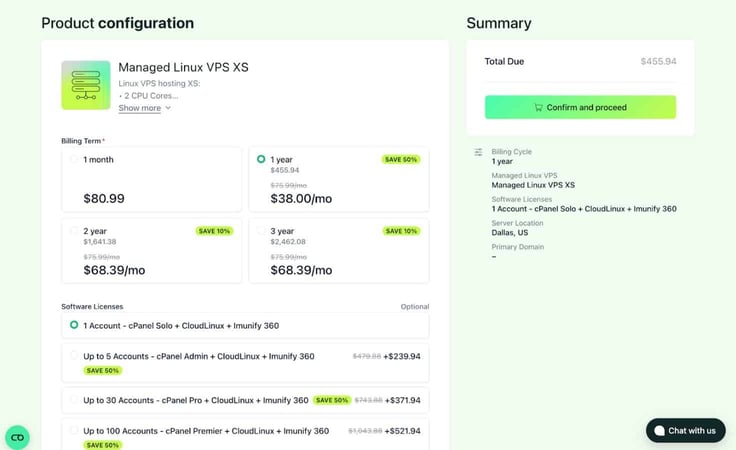
On the same page, I was able to choose my data center location. I had eight choices, with servers in:
Once everything was configured how I wanted it, I clicked the Confirm and Proceed button on the right.
The next page displayed my basket with my total on the right hand side. My discount was automatically applied, showing me that I was saving more than $450 on my order. Everything looked good, so I clicked “Proceed to checkout.”
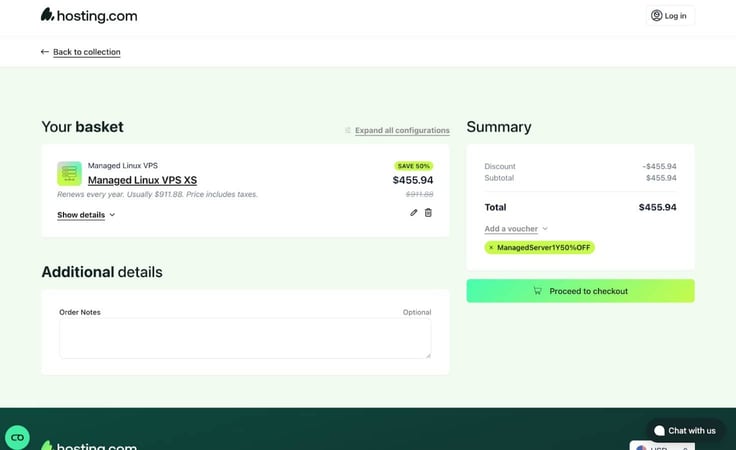
On the next page, I was asked to sign in to my account (if you don’t have one yet, you’ll have to create one here).
The rest of the checkout process involved confirming my payment details and finalizing my purchase. In total, it took me no more than a few minutes to sign up.
Unlike unmanaged VPS hosting, a managed VPS doesn’t require a whole lot of setup. You don’t have to use the command line to install software manually, which is a nice time saver.
Once I made my purchase, hosting.com sent me an email to sign in to my hosting account. I found my hosting plan and clicked the Manage button.
From there I could log in to WHM or cPanel. I’m more familiar with cPanel, so that’s what I chose.
I had a little trouble finding my cPanel login, so I reached out to customer support. Turns out, you can find your credentials under “Products secrets.” That should save you the time of looking for your password like I did.
Immediately after logging in, I was presented with three options for getting started.
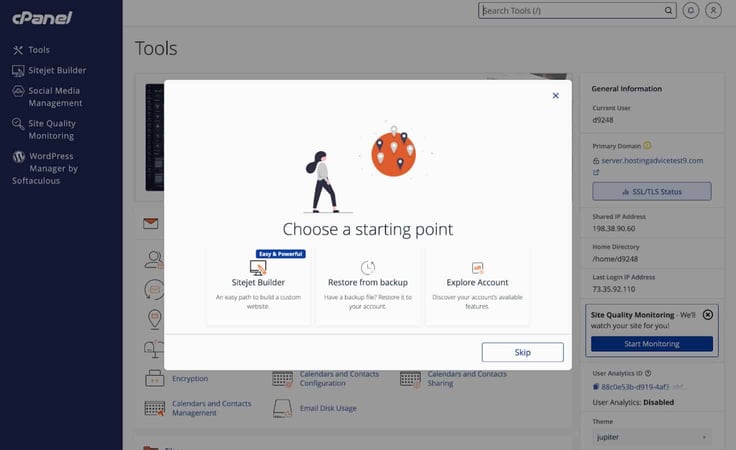
The best option for me was to use the Sitejet Builder — I didn’t have a site to restore from backup and I wanted to dive right in.
This was my first experience with the Sitejet Builder, and right off the bat, I thought it was simple to use. It’s a little more basic, but it gets the job done.
I started by choosing a template. I named my last site Hats for Cats, so this time I went with Clogs for Dogs. You can see I’m going with a certain theme.
The menu on the left showed me all the different template categories, from business and health to travel and Art & Design.
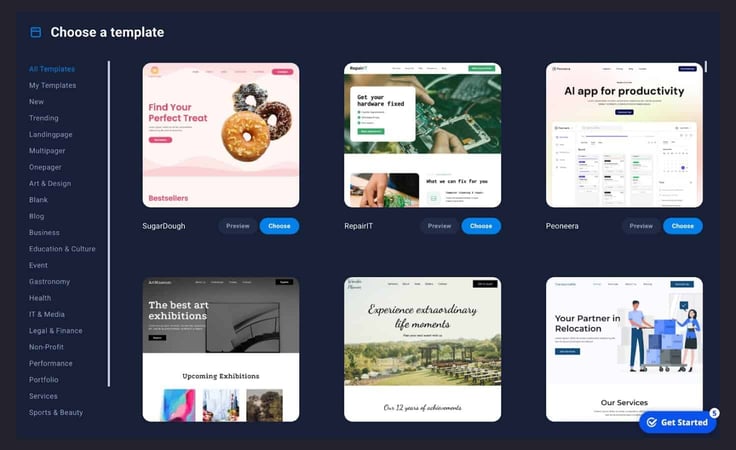
Once I found one I liked I clicked “Choose.” Then it was time to edit all my site’s elements, like images, text, and buttons.
I also discovered an incredibly useful, but unexpected feature. I downloaded an icon from Shutterstock to upload as my logo, and the site builder automatically detected my new logo’s colors and asked if I wanted to update my brand’s color palette.
I spent some more time tweaking content and design elements. Everything was super simple. To edit an element, I just had to click on it:
Once I was happy with the look and feel of my site, I clicked on the blue rocket icon in the top right corner to publish it.
Before, I mentioned how managed VPS hosting means you don’t have to use the command line to install software or perform manual updates. In terms of managing your plan, there’s a lot less you need to do.
However, hosting.com still gives you access to manage some of the basics. I scrolled through the hosting dashboard to see what I had control over. I logged into cPanel and saw that I could manage my email accounts, databases, domains, and one-click software installations (like WordPress, Redis, and Memcached).
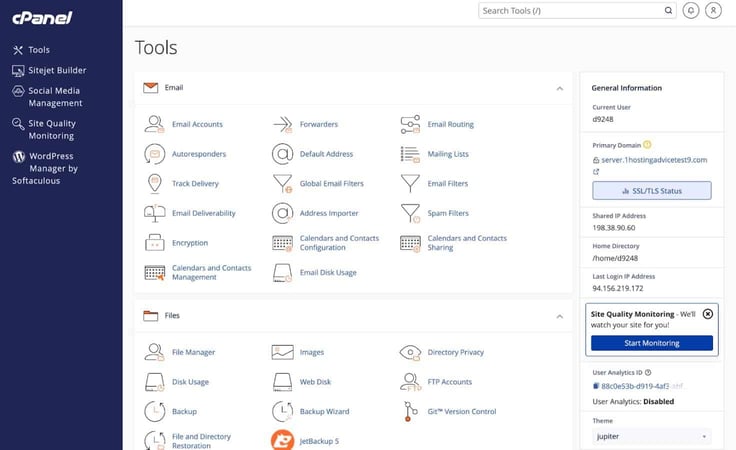
The only downside I noticed to this setup is that hosting.com doesn’t give you root access. Other hosts like HostArmada, for example, let you keep root access with managed hosting plans, which I appreciate. It gives you a little more flexibility and control.
All things considered, I thought the site management tools were really straightforward and easy to use. There are few VPS hosting plans that are that beginner friendly.
I’d only consider a VPS hosting service to be top notch if it’s fast and performant. GTmetrix is my go-to online tool, so my very last step in reviewing hosting.com’s managed VPS hosting was to run it through the performance test.
So far, hosting.com has earned really high marks across all its hosting services, and the managed VPS plans were no exception.
VPSes are inherently more performant than shared hosting, which undoubtedly contributes to quicker load times. Hosting.com takes it a step further with its Turbo features, which give you advanced caching, SSD storage, and fewer users on the same machine. All of these things contribute to pretty quick load times.
Hosting.com’s managed VPS service is so easy to use that even someone with zero experience could do it. If you don’t have the know-how to manage your own VPS, this is the perfect solution.
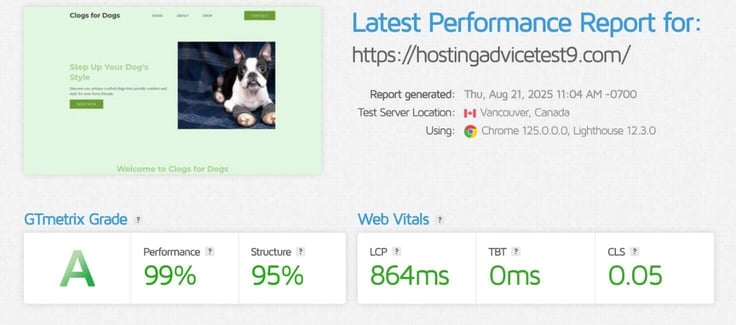
It feels more like a shared hosting plan in terms of the site-building tools and cPanel access, but it has the performance of a virtual private server. I’d consider that the best of both worlds.
During my review of hosting.com, I learned that it doesn’t currently offer out-of-the-box dedicated servers. If you want to buy one, you’ll have to contact their sales team directly to have one provisioned from scratch — and stock is limited.
If that doesn’t work for you, you can also purchase a virtual dedicated server. Hosting.com’s VDSes are essentially virtual versions of dedicated servers. You can check them out here.
I contacted Liquid Web’s support team a few times during my review, mostly to help me with account setup and activation. I’m not exaggerating when I say they responded immediately each and every time.
I didn’t have to jump through hoops to talk to a real person, either.
During one conversation, Jansen P. responded in less than 15 seconds with instructions to activate my domain name, which was quick and painless. He also took the time to review my other accounts and discovered an issue before I was even aware of it.
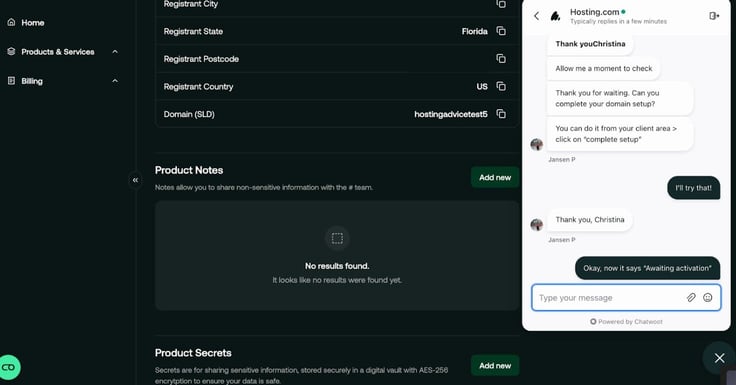
Every person I chatted with was responsive, helpful, and quick to resolve my issues. Hosting.com gets major props from me for how stellar its customer support was. If you want to contact them, you can reach them by phone, chat, email, or support ticket.
Hosting.com showed me a lot of strengths during my review. First off, there were plenty of global data centers to choose from, meaning you’ll have fast load times no matter where your users are located.
I loved how clean and organized the dashboard was. Hosting.com’s rebrand was 100% worth the wait for this new, sleek design.
Its managed WordPress plans were packed with a ton of AI features that were actually useful (no awkward beta phases to be found). And finally, its customer support was one of the best, most helpful I’ve encountered. They solved my issues quickly and without any hassle.
Given all these awesome perks, it’s only natural to have a couple of downsides. The main con I noticed is that hosting.com’s renewal and domain pricing is higher than competitors, which does make sense — great performance, responsive support, and sleek design aren’t cheap.
The second downside is that hosting.com doesn’t have out-of-the-box dedicated servers anymore. If you want a dedicated server, you have to contact sales to get something custom configured.
I liked each of hosting.com’s plans, but the real star of the show was its managed WordPress and VPS plans. I immediately understood the hype — it’s tough to beat the level of performance and support you get.
I also like how hosting.com includes something for developers in each of its plans, whether it’s Turbo servers or full root access with its unmanaged VPS plans. It’s achieved this perfect balance of control and expert support.
For the price you pay, there are very few hosts that do it better.

HostingAdvice.com is a free online resource that offers valuable content and comparison services to users. To keep this resource 100% free for users, we receive advertising compensation from the hosts listed on this page. Along with key review factors, this compensation may impact how and where hosts appear on the page (including, for example, the order in which they appear). HostingAdvice.com does not include listings for all web hosts.
Our site is committed to publishing independent, accurate content guided by strict editorial guidelines. Before articles and reviews are published on our site, they undergo a thorough review process performed by a team of independent editors and subject-matter experts to ensure the content’s accuracy, timeliness, and impartiality. Our editorial team is separate and independent of our site’s advertisers, and the opinions they express on our site are their own. To read more about our team members and their editorial backgrounds, please visit our site’s About page.


