
Guides

Studies 
Studies
Our studies cover a range of trending topics and deliver original, reliable data you can't get anywhere else on the web.
Bluehost delivers a smooth on-ramp to hosting and WordPress, but its underwhelming AI site builder, inconsistent customer support, and data-hungry marketing practices may push more demanding users elsewhere.

By: Sead Fadilpasic

Editor: Lillian Castro

Reviewer: Christian de Looper
Disclosure: When you sign up through links on our site, we often earn referral fees from partners. For more information, see our ad disclosure and review policy.
Bluehost is one of those web hosts that’s easy to get started with, more so if you’re new to web hosting. It’s user-friendly, works seamlessly with WordPress, and performs well enough for most small to medium sites.
That said, it’s not perfect. The AI tools lag behind some competitors, and my experience with customer support swung between helpful and… not so much. Still, if you want a stress-free setup and don’t mind a few quirks, Bluehost is a perfectly comfortable place to start.
Excellent WordPress compatibility meant I got an optimized server environment and one-click installations that made managing my site incredibly simple.
The user- and newbie-friendly platform effectively removes the intimidation barrier for beginners.
While functional, AI features currently lag behind those of other hosting providers, and I’ve received better customer support elsewhere.
It was pretty much effortless to tinker with the hosting provider’s most affordable offering.
The sign-up process was quick and simple enough, allowing me to jump in with ease. For $4 a month, I got a basic package of features that included managed WordPress updates, rudimentary malware protection as one of the very few tangible security features, and freebies like a domain for the first year, CDN, and SSL certificate, to name a few.
But the real win for me has been the custom dashboard that is clean and well-organized, giving me a complete overview and immediate access to essentials. For core site management, it handled the grunt work perfectly.
Here’s how it all went.
While getting acquainted with the gamut of Bluehost’s plans, I identified Starter and Business plans as the most qualified candidates. There was also the eCommerce Essentials plan, but at almost $15 a month, it didn’t fall in the cheap category (you could say it was overqualified).
A closer look at the features revealed that the Starter plan acts as a foundational tier, great for single-site users who are generally self-sufficient and need basic hosting for a blog or simple personal site.
On the other hand, the Business plan is much more interesting, since it’s a major upgrade for anyone needing to grow, rely on the site for income, or manage multiple projects — and for a negligible price uptick too. Granted, it’s a heavily discounted promotional rate, but its price-to-value ratio is top tier.
Besides the amount of websites, storage, and traffic, the difference between the two prospective plans lies in a number of things. These include malware detection and removal, a web application firewall, DDoS protection, and free Domain Privacy (a service that conceals your WHOIS information from public view) for the first year, among others.
The Starter plan also has no phone support, so if that’s something you want to have, you should consider the Business plan. But since I wanted to test the absolute cheapest offer, the former it was.
It’s worth noting that Bluehost hands away a free domain for one year with the purchase of a web hosting plan under 12-month or 36-month terms.
Here are the main differences between each plan:
| Personal | Starter | Business | |
|---|---|---|---|
| Intro Price | $1.99/mo (36-month term) | $3.79/mo (36-month term) | $6.79/mo (36-month term) |
| Renewal Price | $8.99/mo | $9.99/mo | $13.99/mo |
| Sites | 1 | 10 | 50 |
| Disk Space | 1 GB NVMe | 10 GB NVMe | 50 GB NVMe |
| Traffic | Up to 10k visits per month | Up to 40k visits per month | Up to 200k visits per month |
| Uses | Personal portfolios, simple blogs, websites with low traffic | Growing small businesses, web developers managing a few clients | Selling products or services online |
In the image above, you’ll notice the ‘Advanced’ tab next to the ‘Standard’. I’ve briefly checked out these plans, which are intended for those who need more resources to handle more traffic, such as media-heavy sites, fast-growing brands, enterprise-level projects, etc.
They are very similar in features, differing only in their increased CPU power and NVMe storage (and, of course, price). Considering these start at close to $10 a month, they weren’t exactly the inexpensive options for my testing.
The process was as simple as can be. From the homepage, I navigated to the Hosting section at the top menu and selected ‘Web Hosting’ under Websites & Hosting. I could have also clicked the big blue ‘Plans and Pricing’ button to end up in the same place.
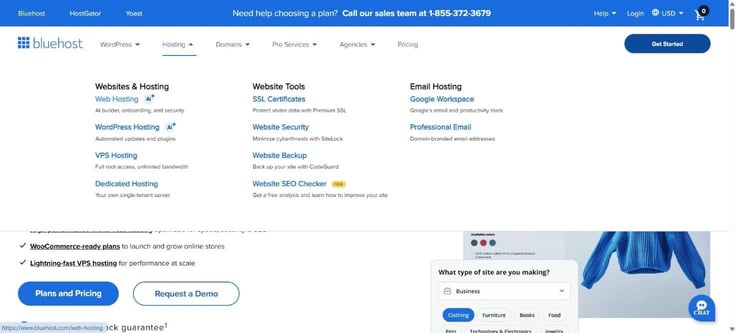
Once there, I clicked on ‘Choose Plan’ for the Starter subscription and was quickly transferred to a page asking me to pick my free domain.
There was an option to choose it later, but since I already had a good idea in mind (at least, I thought so), I entered my site address for a quick search to make sure it wasn’t taken.
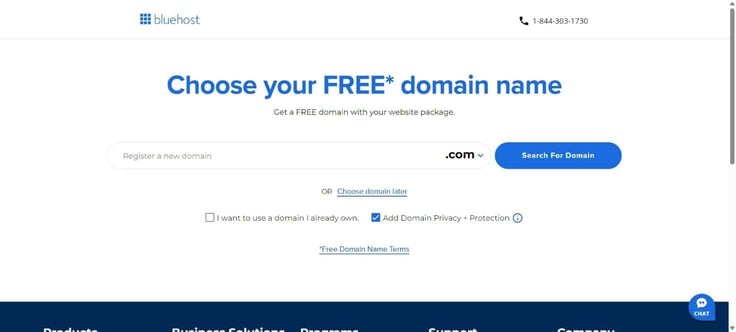
If your desired domain name is taken, Bluehost recommends the same address on a different top-level domain, like .net instead of .com.
Next up was the cart overview. Here, I had a bit more stuff to choose from, starting with a data center closest to me. For $15 a year, I could boost my domain and account security with SMS alerts and malware scanning, as well as a professional email that came with a free one-month trial. A quick scroll down revealed I could also throw in a few add-ons, such as Yoast and premium SSL.
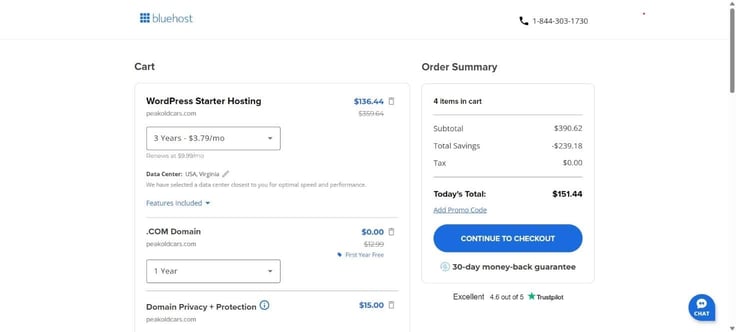
After sorting out these details and staying under budget, I proceeded to the checkout page to finalize my order. This was also where I set the password for my account.
It took a minute or so to fill in my contact and billing information (just be sure to check the ‘I do not want to hear…’ box — I’ll explain why later), and I was greeted with a welcome message saying everything was good to go.
Now, the true test was about to begin.
At least, the test was supposed to begin. For the moment, I’ll have to leave you hanging just a tiny bit, since we at HostingAdvice treat the site builder as a separate, review-worthy product. So, I’m afraid you’ll have to scroll to its section to get the scoop on how it performs.
Here, I’ll briefly focus on Bluehost’s custom interface that does a great job streamlining core management tasks.
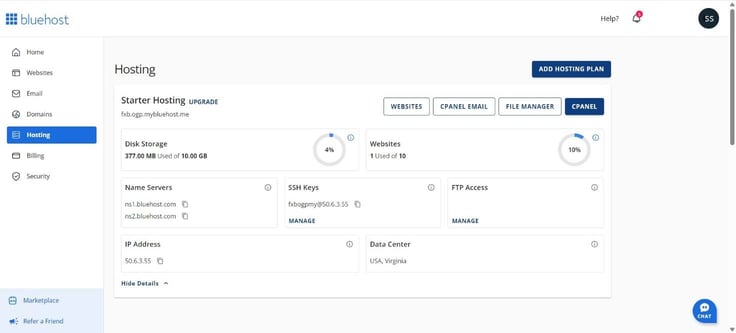
It also provides access to the traditional cPanel environment, where I could manage databases, adjust PHP versions, and play with the file manager for granular control. Not that I needed it, but it’s nice to have the option.
Do note that the shared hosting and website builder run hand in hand, so you can find the performance test I ran through GTmetrix here.
Otherwise, the entry-level plan performed admirably, undoubtedly driven by the fast load times of NVMe storage and the inclusion of a CDN (Content Delivery Network) at no extra charge. I’m guessing it’s the main “culprit” for boosting performance and dramatically reducing latency.
You’ll find these in the ‘Performance’ tab, where you can also revise caching options.
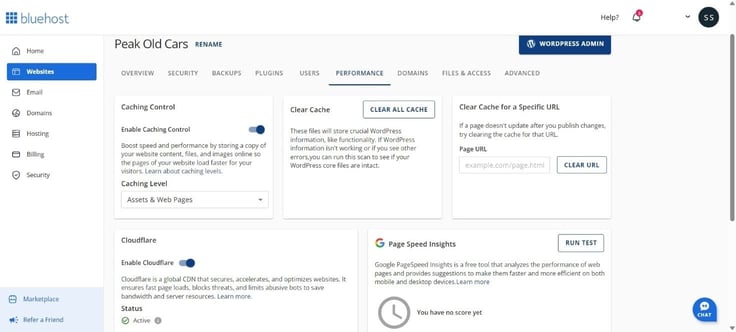
I’d be remiss not to mention that Bluehost stands by its service with a 99.99% Uptime SLA (Service Level Agreement). This tells me, at least theoretically, that the company has a high degree of confidence in the stability and consistency of the underlying architecture, even if my plan has limited resources and is capped for lower traffic volumes.
I would. There are cheaper and better-equipped options from the likes of IONOS and Hostinger (off the top of my mind), but that’s not saying Bluehost’s hat isn’t in the ring. Overall, it’s a very low-stress and efficient process, from setup to site management.
The dashboard is one of the better ones I’ve seen in the hosting biz, and the package is speedy enough to see you through some busier times. So, if you’re launching your first site(s) or managing low-traffic projects, you won’t go wrong with Bluehost — especially if you keep an eye on Business plan discounts.
Next in line were the WordPress plans. I knew from before that Bluehost is WordPress.org’s recommended web host (and consistently so throughout the years), which meant my expectations were high.
The first thing that I noticed and interested me most was the fact that all of Bluehost’s plans are managed WordPress hosting plans. This meant I didn’t have to lift a finger to update the core WordPress software and make sure my site was running the latest, most secure version.
With someone else handling the routine and necessary maintenance, keeping my site secure and up to date took minimal hassle.
As usual, I made plenty of screenshots to provide you with a better picture (pun intended).
Much like its competitors, Bluehost offers specific WordPress hosting packages. They are the same products as the provider’s shared hosting plans, incorporating WordPress-specific optimizations and management features.
Hence, if you already signed up for shared hosting, you signed up for its WP equivalent too. It’s a marketing shtick, and as much as it annoys me sometimes, it’s not a big deal.
I’ll just quickly reiterate the WordPress-friendly features I had at my disposal. These include a free domain for the first year, an equally free SSL certificate for security, and a CDN for faster global loading speeds, along with a staging area that, for some reason, isn’t listed in the features list on the pricing page.
Crucially, I was privy to weekly backups (basic as they were) and automatic updates for the WordPress core, themes, and plugins.
Since I’ll be writing about WordPress exclusively in the next 10 minutes or so, be sure to check out the eCommerce Essentials plan if you’re planning on selling items online.
I’m saying this for one simple reason. Due to its flexibility, extensive customization through themes and plugins, and built-in SEO capabilities, WordPress is ideal for online stores of all sizes, and it’d be a shame to overlook a great, eCommerce-centric plan for under $7 a month.
Because I already signed up for Starter, that meant I already made my pick, so we’ll skip this section shortly.
Please refer to the “My Experience Using Bluehost’s Cheap Hosting Plan” section for a refresher on sign-up details.
I clicked on the Websites section in the main dashboard window and selected the ‘Install WordPress’ option. I could have also transferred an existing WP site or created a blank one for FTP and app use, but that wasn’t as fun or relevant to my goal.
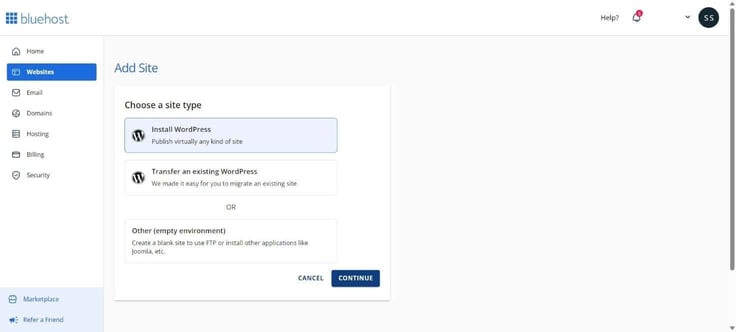
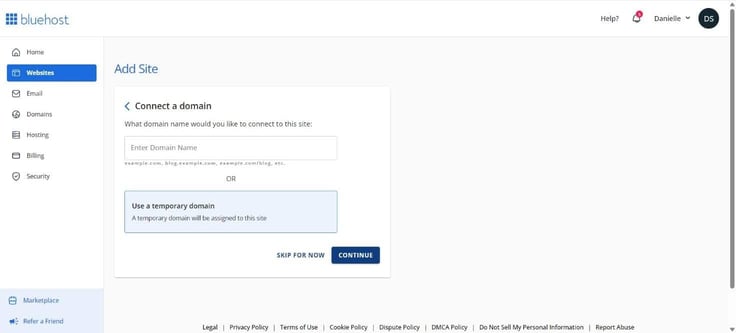
After picking a name for my digital real estate, I had to connect a domain as the next step. I opted for a temporary one, if only to see how that works.
While my site was being crafted, I had the option of adding SEO and eCommerce tools for a price. I wasn’t interested, so I clicked ‘Continue’ on two prompts and moved along to a confirmation window that WordPress was installed and my site was created.
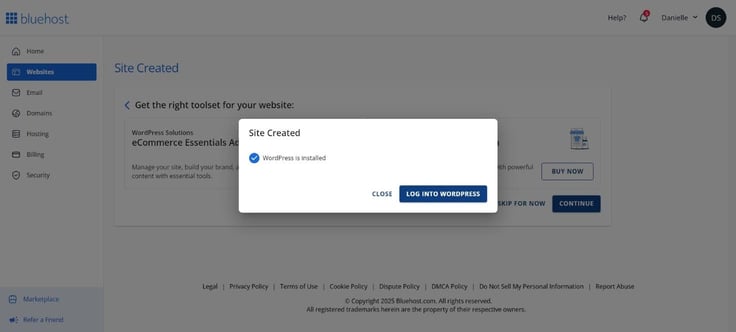
The last part of that sentence is a lie (I’m just the messenger, don’t blame me), since at this point, only the CMS was installed. The website itself was about to be generated once I logged into WordPress.
Once more, I’ll refer you to the Website Builder section to see it in action. It uses a modified version of WordPress, essentially combining the simplicity of a builder with the full WordPress platform. This means I could access the standard WordPress dashboard at any time and install builder plugins if needed.
I’ve created two sites — one when testing shared hosting and another one being fully WordPress-centric.
I have no real qualms in this area. It felt like there were enough performance enhancements available, like caching and speed improvements, to keep things lively.
My guess as to why I had no discernible slowdowns centers on Bluehost optimizing WordPress through a combo of HTTP/3, PHP 8+, and built-in object caching paired with SSD storage.
Equally relevant, it also helps that real-time resource monitoring allocates extra CPU and RAM in the event of traffic spikes. This way, my WordPress hosting could meet Google’s Core Web Vitals standards at any point, provided it’s within the allocated traffic bandwidth.
As for how my site performed speed-wise, you’ll find all the details here.
I would, especially since the troublesome website creation part can be navigated around with a free migration of an existing site or by a professional designer (or better yet, another builder).
There is no denying that Bluehost offers strong compatibility and support for the platform, making the setup and management seamless for the most part.
Now, I have a dozen years of experience with WordPress, so I know my way around it. As such, I may look at the almighty CMS through a different lens, but I get the feeling even those who are just beginning to dabble with web hosting would find it a great value for simple(r) sites.
From a user-friendliness perspective, I was pleased with how the initial building process went. In a few minutes (depending on how thorough you are with the AI prompt), I received a functioning website that largely aligned with what I had in mind.
However, the AI part is rather brief and basic, as its role was done after I described my intended website. I expected it to be more involved, much like how some web hosts offer a no-code visual builder, auto-generated text and images, and so forth.
As a beginner-friendly option for creating a website, I’d say Bluehost’s solution will be enough. For anything more, there is the power and flexibility of the full WordPress platform to leverage, though the section-based editor will primarily appeal to more advanced users – at least, that’s my impression.
Unlike the case with most other hosting providers, Bluehost doesn’t offer its website builder (called WonderSuite) as a standalone product. It comes included with Bluehost hosting plans, which I always thought was a more sensible option than offering it separately.
Because I previously decided on the Starter package, I thought I had to endure certain limitations, but that wasn’t the case. The builder is the same regardless of the plan, so I wasn’t about to miss out on the good stuff.
Also, it’s worth noting that Bluehost only provides support for WordPress sites, so if you’re looking for other options, you should try elsewhere.
Bluehost markets Wondersuite as an “all-in-one solution that makes WordPress website creation simple, fast, and stress-free.” I think the web host should adopt a more on-the-nose approach with its builder, since the “all-in-one” part wasn’t immediately clear to me.
There are several aspects to Bluehost’s offering, from the onboarding part during the initial setup (which you saw when I signed up for shared hosting) to the eCommerce feature that enables cross-selling and upselling.
A few prompts pointing to these features as I went about my business would have cleared up a few things, I feel. In any case, I managed to get the job done.
From the Bluehost control panel, I clicked on the Websites section in the left sidebar, where I had an overview of my website-to-be.
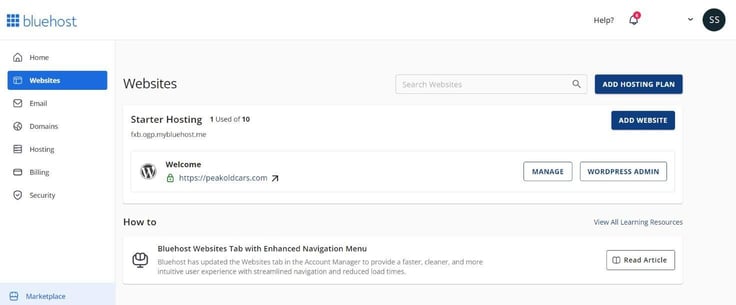
Since I already had a domain name for peakoldcars.com, I clicked the ‘Manage’ button that opened the ‘Welcome to WordPress’ page.
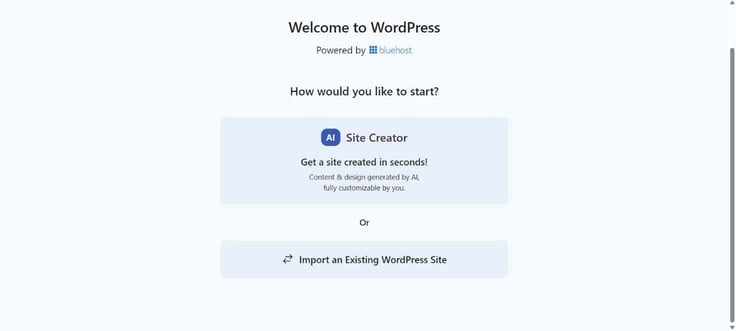
To host a new website, I could either import one or build it via an AI Site Creator. As I was starting from scratch, the latter was the logical (and fun) route of the two, though it meant I had to bring my A game for site description.
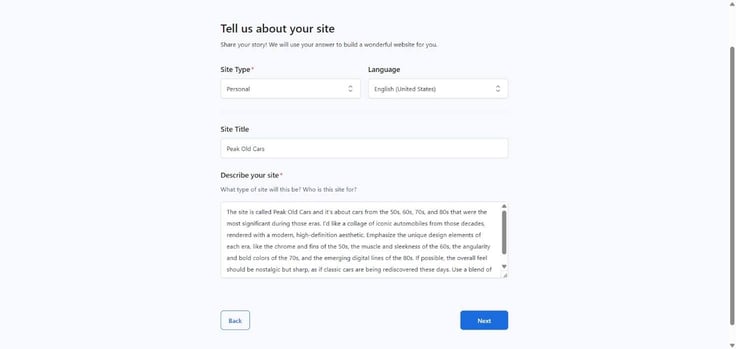
My site was about cars from the ’50s, ’60s, ’70s, and ’80s, so I came up with a prompt that basically mixed old aesthetics with a modern feel. After a minute or so, I was presented with three options, none of which were particularly exciting or good, to be honest.
But I had to choose something, so I went with this one:
I hit the ‘Select & Customize’ button and proceeded to fiddle around in the WordPress block editor, aka the go-to tool for editing a site in this instance.
That said, I haven’t dabbled much in website creation because I don’t like the Guttenberg editor. I think it’s bulky and far less user-friendly than it can/should be, so I’m not on a first-name basis with it. If you’re like me, there will be some learning curve, though there are plenty of resources online to aid you.
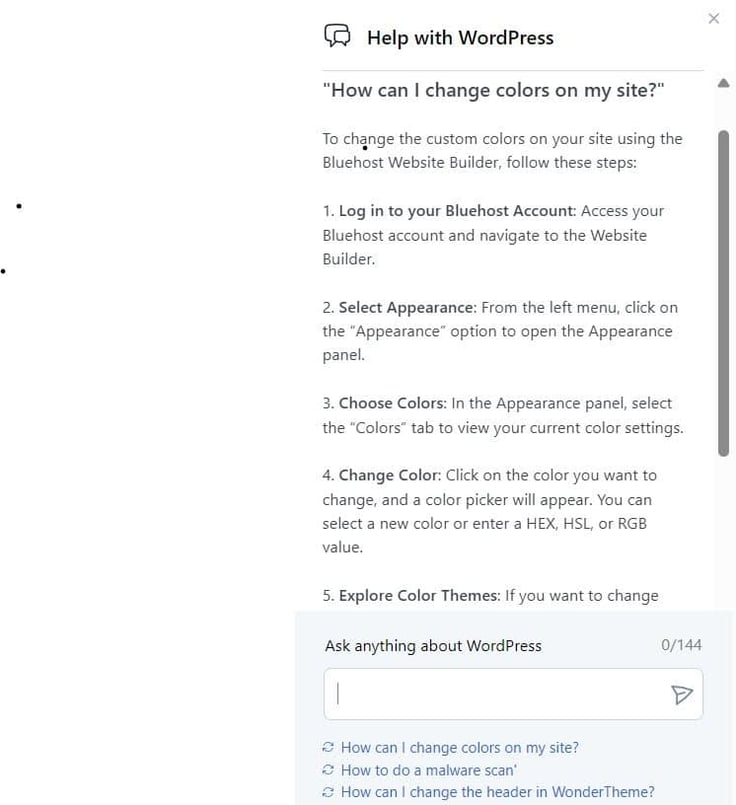
Better yet, Bluehost also equipped me with an AI-powered guide called WonderHelp. It’s built within the site builder in the upper right corner, making assistance just one short mouse movement away at all times.
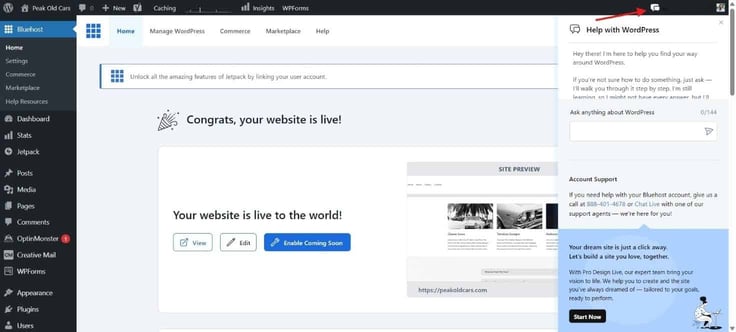
It worked pretty well, too. I asked a few questions and got instant step-by-step answers that proved to be helpful. Here is what one such answer looks like:
The hosting provider recognizes WordPress website creation might be a tall order for some, which is why it presumably crafted WonderBlocks. It’s a feature within the site builder that makes it easier to build what you want with pre-designed block patterns and templates.
In case you’re wondering what the difference is, give me half a minute to explain. Though both can amp up the visually appealing aspects of the site, they serve different purposes for website design. Patterns represent pre-designed content blocks for designing specific sections without starting from scratch.
On the other hand, Templates are complete page layouts that provide a structured design for entire pages. If you want to make sure your design is consistent across your website while not dropping out of fourth gear when designing, this is what you want.
WonderBlock’s library includes images and suggested text, which allowed me to further tweak and get closer to my specific preferences. Still, the fact that certain elements (e.g., the header) of the AI-assisted layout can’t be directly customized doesn’t help, making the entire process fairly frustrating at times.
Nevertheless, elements that you can modify via pre-designed blocks make it very easy to switch up the look and feel of the site. There are plenty of ready-made blocks for headers, footers, and other parts. For instance, here’s a video section I added with minimal fuss:
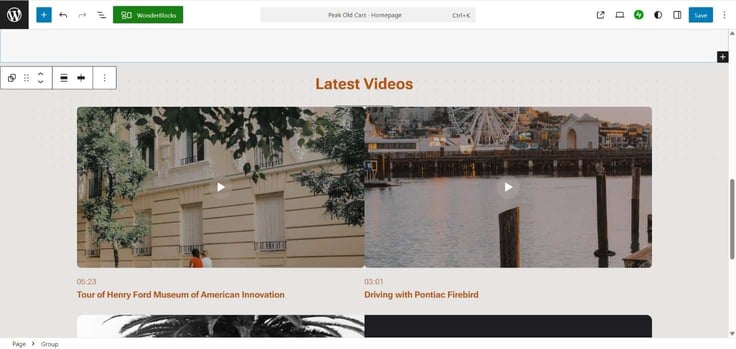
I suspect these possibilities will be enough for most novice users and those who aren’t looking for a fancy online representation. For my liking, the builder fell short of what it advertised.
Then, it occurred to me that perhaps the Personal type of website (the option you click when creating a site) wasn’t the best example of what WonderSuite could do. So, I gave it another shot by creating a business site (this is where the money’s at, or will be).
This time, I added more details to the site description for a more accurate design.

I was presented with three versions. Taking into account that I specifically asked for a dark mode theme in the description, there was only one viable option in that regard, which was kinda disappointing.
And it wasn’t even good – just look at the sort-of hero image on the right:
What’s more, all three of the supposedly unique designs were basically the same. They had virtually identical structures and, at best, half of the elements I so kindly requested to be included.
All I could do at this point is pick the least troublesome of the available options, if I may be so blunt. Here is how it looked:
As the video shows, I had my work cut out for me. At this point, it made more sense to wipe the slate clean and create the website from the ground up than to modify it. Unfortunately, that just confirmed my diagnosis that Bluehost’s AI website builder is not quite up to the task beyond the mere fundamentals.
After loading up my car site with more content, I decided to give it a stress test via GTmetrix.
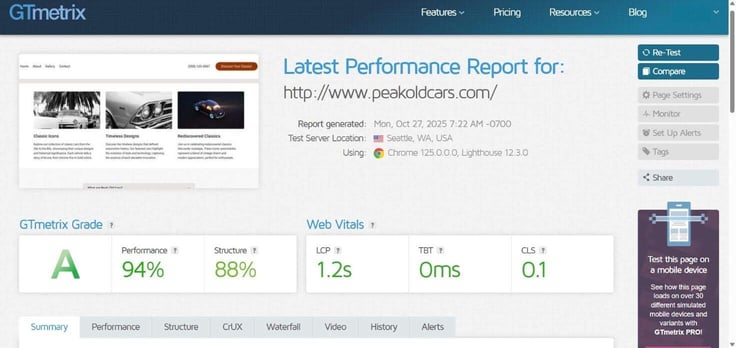
The site loads fast, even with a hefty dose of content in it (as evidenced by the somewhat lower Structure rating). While I can’t claim anything for certain since the visitors were scarce at the moment of testing, the web host seems ready to handle them if they come in droves.
Not really.
Although I have limited experience with site builders, the ones I used were far more intuitive and smarter, considering artificial intelligence is supposedly running the show here. Bluehost’s product is barebones and doesn’t offer nearly as many options for creation as some of its peers. I could maybe live with such limitations, were it not for the fact that the AI seems to be stuck in the past decade.
Considering the builder is using WordPress for editing, it does offer plenty of possibilities to get everything right, but it will also likely require you to put quite a bit of effort into it. All in all, the thing is manageable, but for my money, there are better alternatives out there.
The conclusion is that Bluehost VPS provided a noticeable upgrade over shared hosting in terms of speed and reliability.
I got intimate with the backend of my server, configured it to my liking, and explored a fraction of the configuration and management capabilities. Then, I ran a test to see the server in action a little bit.
I also spent more time than I’d have liked setting up the server, but that comes with the VPS territory. Here’s how it all went.
In my mind, VPS is a tricky affair due to it being more demanding of technical knowledge. Unlike shared or WordPress hosting, which is typically designed to be “set it and forget it”, VPS gives you root access. It means you gain immense power but also shoulder immense responsibility.
I’m saying this because Bluehost offers inexpensive self-managed (unmanaged) VPS where you’re the boss, head man, top dog, big cheese. As such, you have the absolute freedom to build, experiment, and deploy setups that call for custom server environments, especially if you’re a developer by nature or have an in-house team that knows the drill.
However, playing around with different software, frameworks, and tools on a bare server comes at the cost of increased risk of downtime in case you fail to properly configure it or miss a critical update.
The good news is that Bluehost also offers managed VPS, which I ultimately snagged. In this instance, the vendor handles all the technical aspects of server administration, leaving me to concentrate on the core task at hand and granting me peace of mind that expert-level support is in charge.
With that out of the way, I began to analyze the VPS pricing page. The situation is more straightforward here than with shared hosting, as all the plans have the same features, just varying resource allocation.
I think it’s fair to say that Bluehost offers comprehensive VPS packages. For security and monitoring, there are dedicated firewalls, 24/7 real-time monitoring, free SSL, and SiteLock security that scans for and removes malware, protects against vulnerabilities like SQL injection and cross-site scripting, and monitors for email blacklisting.
On the performance front, I had optimized caching, a CDN add-on, and HTTP/2-enabled servers at my disposal, along with unlimited bandwidth. A free cPanel license (which is a notable cost saving for the first term), automated backups, SSH and SFTP access, and two dedicated IPs were some of the features that add convenience and control.
As usual, I’ve made a table for comparison:
| Standard NVMe 4 | Enhanced NVMe 8 | Ultimate NVMe 16 | |
|---|---|---|---|
| Intro Price | $34.99/mo (36-month term) | $53.99/mo (36-month term) | $82.99/mo (36-month term) |
| Renewal Price | $53.99/mo | $83.99/mo | $128.99/mo |
| vCPU | 2 cores | 4 cores | 8 cores |
| Disk Space | 100GB NVMe | 200GB NVMe | 450GB NVMe |
| RAM | 4 GB DDR5 RAM | 8 GB DDR5 RAM | 16 GB DDR5 RAM |
| Uses | Personal portfolios, simple blogs, websites with low traffic | Growing small businesses, web developers managing several clients | Selling products or services online |
There is also an option of a custom package, where a Bluehost expert will offer guidance for a tailored solution that best fits your demands.
Deliberating for a few minutes about what is the best option for my inspection(s), I settled on the Standard NVMe 4 plan. My reasoning was that I could always easily upgrade in a few clicks (Bluehost smartly saw to it) to a higher plan in the event my pick wasn’t capable enough.
Following the same established procedure as when signing up before for Bluehost’s entry-level hosting, I selected the Standard NVMe 4 plan from the pricing page.
I chose to figure out a domain some other time, since I wanted to dive into VPS management as soon as possible. One quick overview of the cart (featuring a cPanel license item) meant I could head on to the checkout.
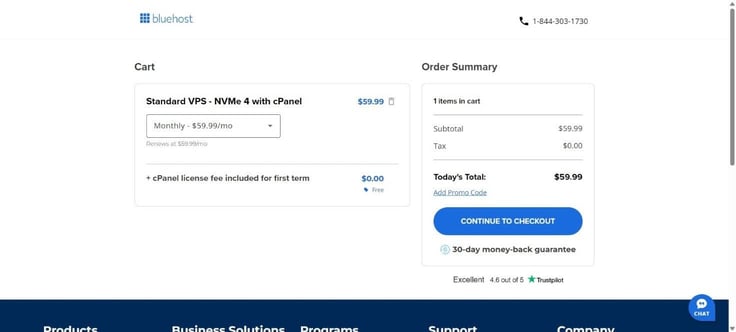
Upon filling out and submitting the mandatory information, I was back in Bluehost’s dashboard with a fresh VPS plan waiting.
With root access comes great responsibility. More precisely, it was on me to secure and configure my server. I particularly focused on security, which is paramount for any VPS.
It’s worth noting that Bluehost employs AlmaLinux 9 as the default VPS operating system. I’m not much of an expert on Linux, but a few of the tech-savvy acquaintances I talked to said that, as a CentOS alternative, AlmaLinux is a good choice in this matter due to its stability, reliability, and binary compatibility with Red Hat Enterprise Linux (RHEL).
The latter is the commercial version of a Linux-based OS, so software that runs on RHEL will run on AlmaLinux. Its orientation toward stability means fewer surprises and more reliable uptime. Plus, there is a vibrant community with plenty of resources in case an issue or two pops up.
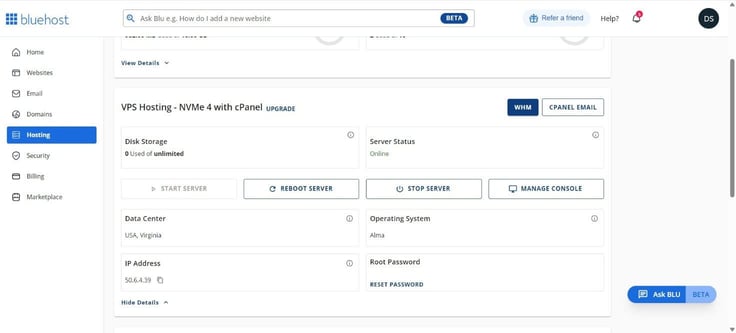
First, I grabbed my VPS’s IP address from the Bluehost control panel, as I needed it for login. You’ll find it in the VPS section of the Hosting page when you click the ‘View Details’ link. This is where you can also change the root password if you want.
Next, I opened the Terminal app on Windows as my SSH client of choice. Logging into a VPS for the first time requires a secure remote connection, and SSH delivers just that via a command-line interface.
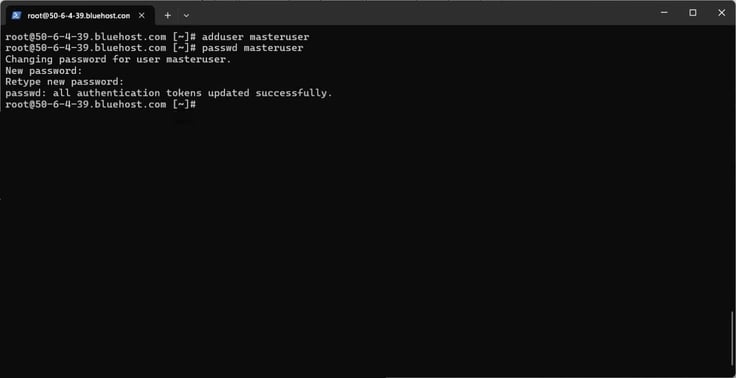
I typed the ssh root@50.6.4.39 command (you’ll replace the IP with yours) and got the prompt “Are you sure you want to continue connecting?” After typing ‘yes’, I had to enter the root password. Don’t fret if you don’t see it while typing – this is normal, done for security reasons.
After the second try, I was inside my server.
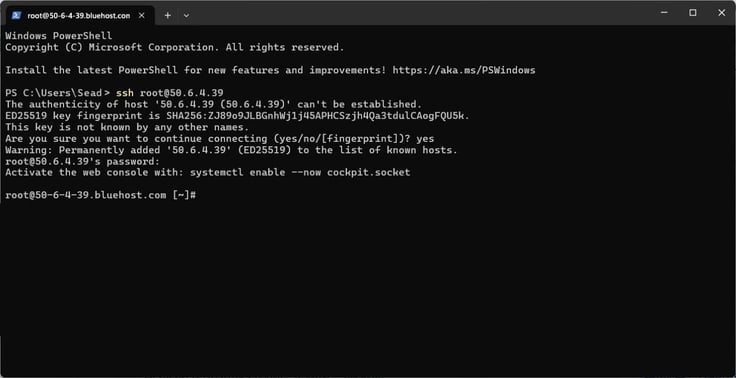
The next order of business was to update the VPS. The dnf update -y command does the job quickly, updating all installed packages.
I rebooted the server with the reboot command just to make certain that the system runs with the latest updates. The SSH session ended automatically, which meant this part was done.
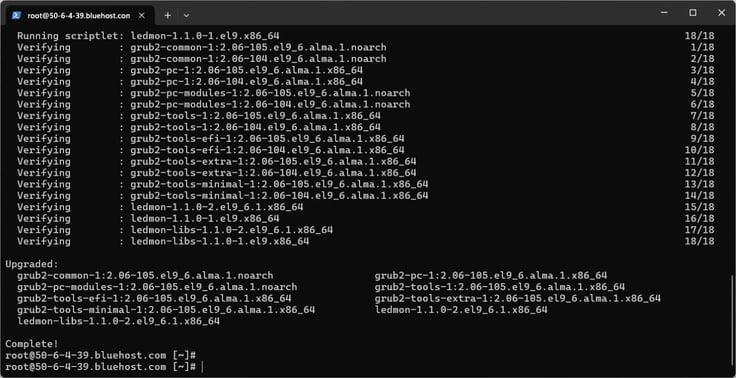
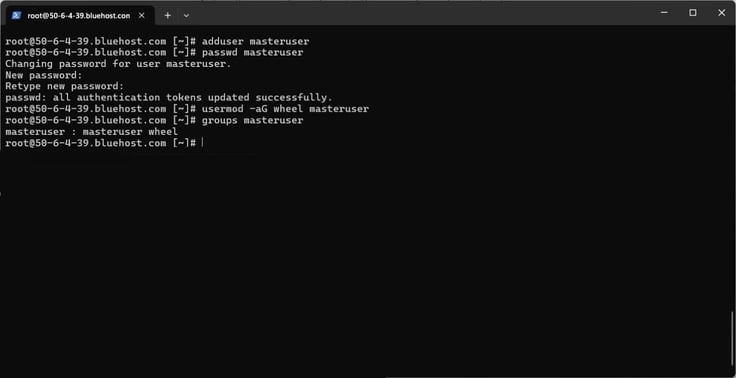
With fresh code in tow, I went on to create a new admin user because keeping everything on the default root option simply isn’t safe. I typed adduser masteruser, where the masteruser part is the name of the new user. Don’t be alarmed if nothing happens after you press Enter – the client registered your command.
Then, I set a password for that user with passwd masteruser, typing blind two times. There was a prompt saying that all authentication tokens were updated. I also gave the user admin privileges with usermod -aG wheel masteruser, then verified with the groups masteruser command. The masteruser : masteruser wheel prompt meant that the transfer worked.
I wanted to make my VPS login more secure, and using SSH keys instead of passwords would do the trick. I opened the terminal and created an SSH key pair by typing ssh-keygen -t ed25519. I was asked for a file location and hit Enter to move forward. I did set a passphrase, which was optional.
From there, I copied the key to my server with ssh-copy-id masteruser@50.6.4.39 and typed ‘yes’ to resume connecting. I entered the password for the masteruser I created a few minutes earlier and got the ‘Number of key(s) added: 1’ message.
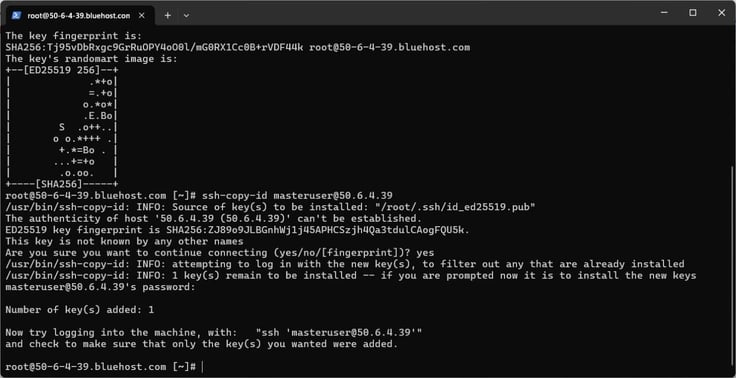
I can now log in without a password. If you want, you can test your new login with the command ssh adminuser@your.server.ip.address – just don’t forget to put your username and IP address.
With a working key-based login, root login, and password authentication became far less safe methods, so I made an effort to disable them. Thanks to the sudo nano /etc/ssh/sshd_config command, I gained access to the SSH configuration file.
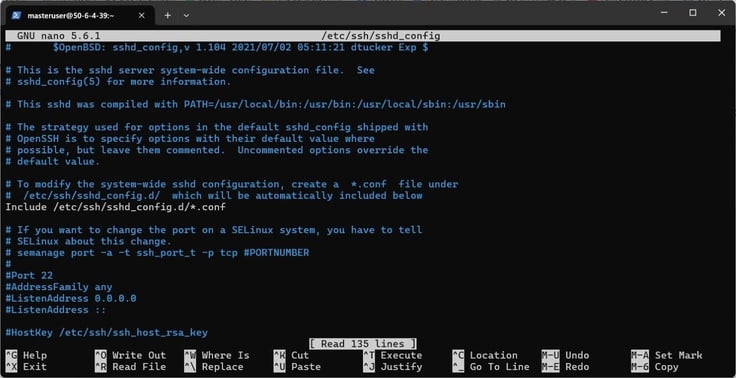
Among 135 lines of code, these three were the most important ones:
#Port 22
#PermitRootLogin yes
#PasswordAuthentication yes
I changed them to:
Port 2222
PermitRootLogin no
PasswordAuthentication no
Then, I pressed Ctrl+O, then Enter to save, and Ctrl+X to exit. The next step was to restart the SSH service with sudo systemctl restart sshd, and log out with exit. I logged again using the new port via ssh -p 2222 masteruser@50.6.4.39 – a much more secure login setup.
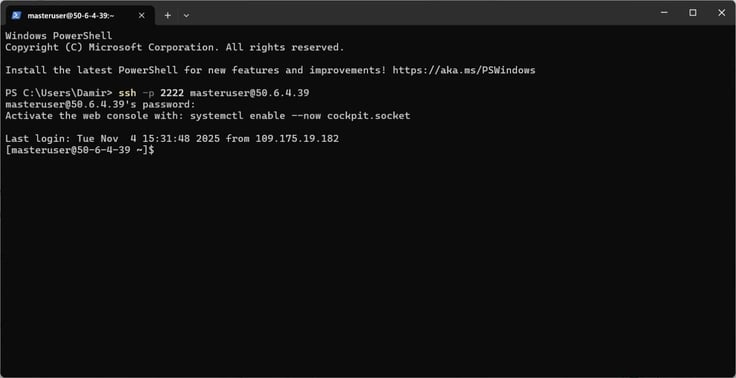
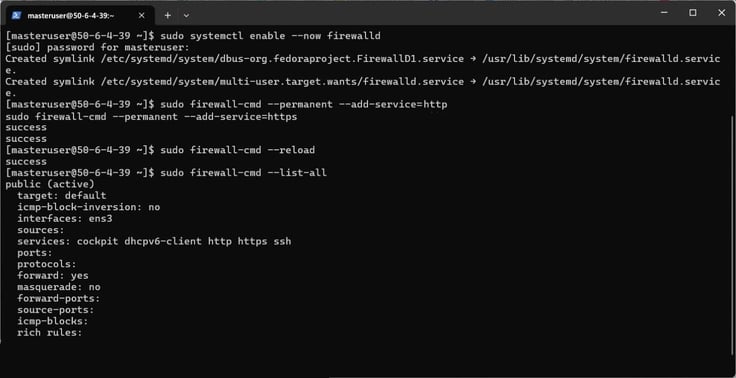
Continuing with a security-first approach, I proceeded to set up a firewall. AlmaLinux uses firewalld, a dynamic firewall management tool that can be customized and divided into zones based on a network’s trust level.
To enable it, I typed sudo systemctl enable –now firewalld. I also had to allow necessary services like HTTP and HTTPS (SSH was already enabled) with these two lines:
sudo firewall-cmd –permanent –add-service=http
sudo firewall-cmd –permanent –add-service=https
With the terminal displaying ‘success’, I reloaded the firewall to apply changes with sudo firewall-cmd –reload, then confirmed that the firewall was up and running with sudo firewall-cmd –list-all.
One of Bluehost’s recommendations when setting up a VPS is to install Fail2Ban, an intrusion prevention software that monitors service logs and bans clients that persistently fail authentication checks. In other words, if someone repeatedly tries to log in, Fail2Ban modifies firewall rules to keep them out.
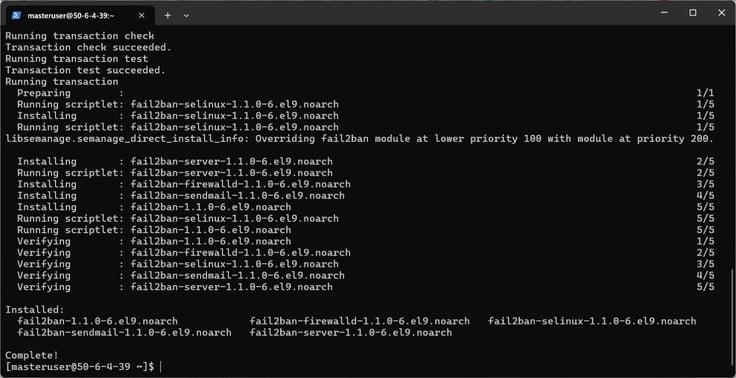
I installed it with the sudo dnf install fail2ban -y command, and after a few moments and tons of code, I got the ‘Complete!’ prompt.
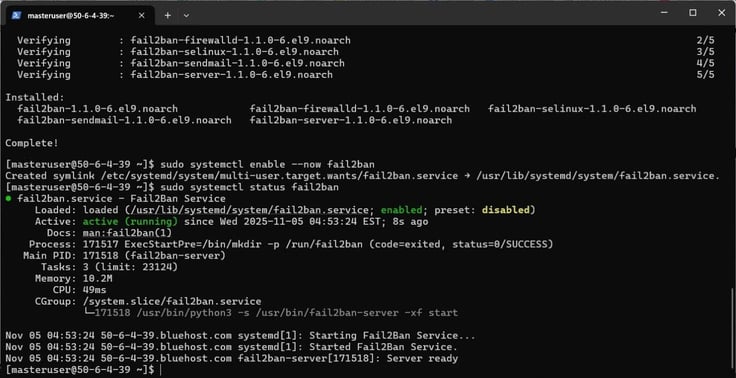
To enable Fail2Ban, I punched in sudo systemctl enable –now fail2ban, then sudo systemctl status fail2ban to check the status. The green “enabled” and “active (running)” lines meant the software was working as intended.
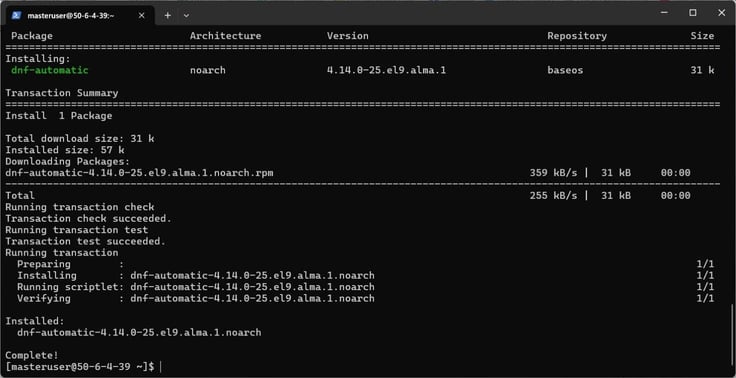
I also turned on automatic security updates via the DNF automation plugin. In case you’re not familiar (I wasn’t, I admit), DNF is a software package manager that installs, updates, and removes packages on a Linux system.
First, I had to install the plugin through the sudo dnf install dnf-automatic -y command.
Next, I edited its config file with sudo nano /etc/dnf/automatic.conf, where I had to find and change the line “apply_updates = no to “apply_updates = yes”.
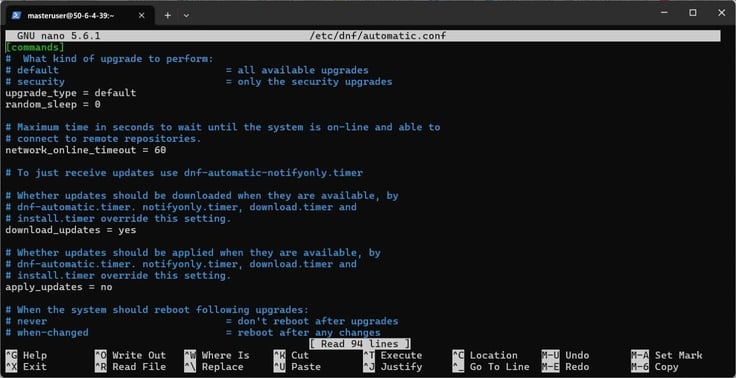
Finally, I enabled the automatic update timer via sudo systemctl enable –now dnf-automatic.timer to make sure patches for vulnerabilities and bug fixes are applied on a regular schedule.
That concluded the security part of my VPS setup. There was one more thing to install, which was a LAMP stack, so there is actually some utility out of the server. Here are the commands for Apache, MySQL, and PHP I used:
Apache:
sudo dnf install httpd -y to install
sudo systemctl enable –now httpd to start and enable it:
MySQL:
sudo apt install mysql-server -y
sudo systemctl enable –now mysql
Once installed, I ran the secure installation tool for proper configuration of the database (there were also a few prompts to set a root password and remove test databases):
sudo mysql_secure_installation
PHP:
sudo dnf install php php-mysqlnd -y
sudo systemctl restart httpd
The hard part was done, which meant the managing part was about to kick in. Bluehost includes a free cPanel/WHM license with VPS plans for the first term. This is a massive feature for beginners as it simplifies many server tasks and allows easy day-to-day management.
From the hosting page, I pressed the ‘WHM’ button under the VPS hosting section to access the tool.
Because it was my first time logging in to WHM, a page called Feature Showcase popped up.
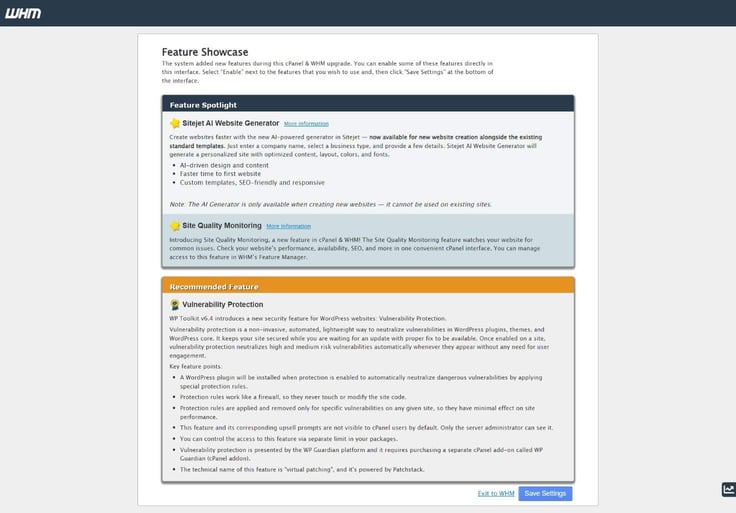
I clicked on ‘Save Settings’ at the bottom and continued to WHM’s homepage, from where I could do almost anything.
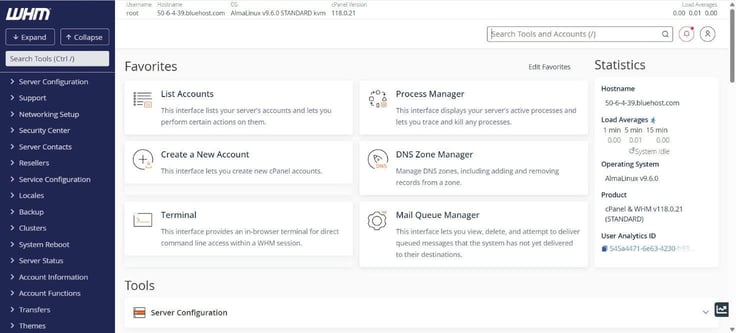
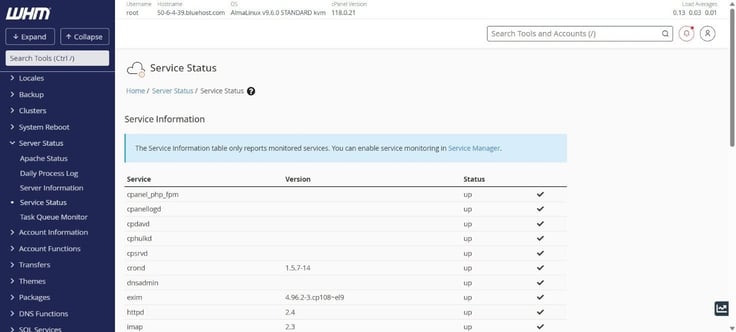
For starters, I can see how my server is doing by choosing Server Status from the left sidebar, then Service Status.
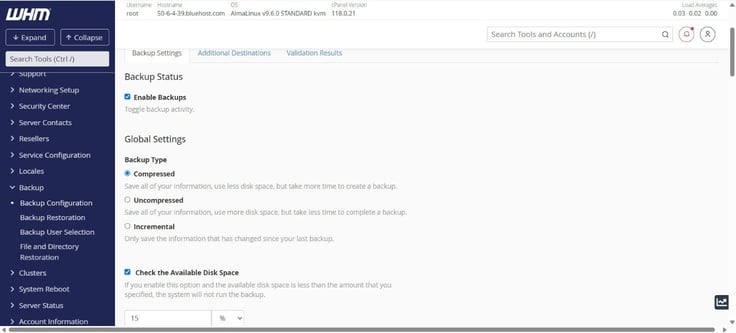
The Backup tab allowed for a detailed backup configuration, including frequency and setting a remote destination like an FTP server.
Editing or updating DNS records when domains change, installing SSL for websites, creating host accounts, and so on – it’s all there.
When it comes to management from the Bluehost dashboard, there isn’t as much to do. I found it to be clean and focused on the basics, which suited me. I suspect the design is intentional so as not to force a command line wizardry. However, the Manage Console button provides a direct interface for deeper server control and management.
I ran the GTmetrix test to see what exactly I have cooked up. Here’s the scoop:
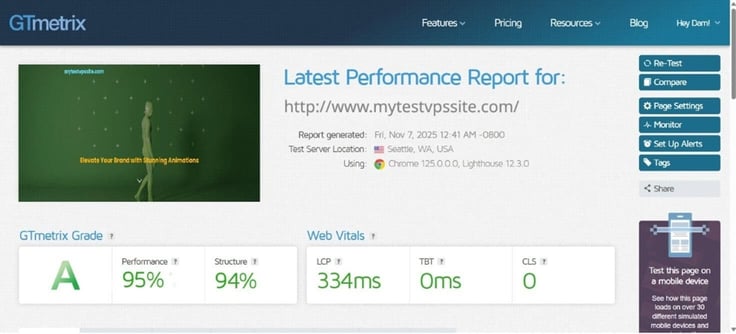
The scores sure do suggest that my VPS and site setup are optimized, with fast server response. The Web Vitals show that the site loads almost instantly and is highly responsive, which is well above what most sites achieve.
Of course, you have to take this with a grain of salt, since this is only a test site, but it should be indicative nonetheless.
Do remember that even the best VPS out there can’t guarantee top speed unless your apps are optimized. Hosting is just one of many factors (e.g., site code, caching, CDN, database) that matter in that regard.
If you have some experience or know-how with the command line interfaces, then yes. Bluehost’s VPS follows the standards set in the VPS hosting space regarding core technology and user responsibilities, so there are no surprises there.
Be that as it may, beginners might find it difficult at times to navigate. As someone who is leaning closer to the newbie side than experienced users, I’d prefer it if there were some help tips available, like a setup wizard of sorts that would guide you through the usual installations and configurations.
Other than that, I had no major complaints.
The power of an entire server is no laughing matter. This is as serious as it gets in the hosting world, and I gave it a good test run.
While most of the configuration and management is the same as with the VPS, Bluehost’s dedicated hosting seemed to be geared toward growing projects that value control but don’t really require fancy high‑end enterprise infrastructure.
Don’t just take my word for it – here’s how it all went down.
I guess peeps at Bluehost weren’t feeling all that creative, since these plans are almost the same as the VPS ones, name-wise.
Similarly, they share an identical set of features, differing only in the number of CPU cores, DDR5 RAM, and NVMe storage. Here’s a quick overview:
| Standard NVMe 16 | Enhanced NVMe 64 | Premium NVMe 128 | |
|---|---|---|---|
| Intro Price | $144.19/mo (36-month term) | $220.23/mo (36-month term) | $315.19/mo (36-month term) |
| Renewal Price | $192.32/mo | $271.19/mo | $391.18/mo |
| vCPU | 2 cores | 16 cores | 32 cores |
| Disk Space | 100GB NVMe | 2000GB NVMe | 3000GB NVMe |
| RAM | 4 GB DDR5 RAM | 64GB DDR5 RAM | 128GB DDR5 RAM |
| Uses | High-traffic, media-oriented websites | eCommerce and SaaS apps | Enterprise-level applications; Big Data analysis |
Some of the goodies offered include unmetered bandwidth, three dedicated IPs, SiteLock security, staging environment, SSH and SFTP access, free backups and SSL certificate(s), dedicated firewalls, DDoS protection, 2FA, optimized caching, 24/7 real-time monitoring, and HTTP/2 enabled servers.
As you can see, this is serious stuff for serious users who value guaranteed, non-virtualized performance and total isolation above everything else. These plans target the most resource-intensive, mission-critical projects.
Moreover, I am talking about fully managed servers. This means I’ll still have root access, but Bluehost will aid in keeping the server healthy by managing the platform, while I manage apps and content.
Factoring in all CPU and RAM are physical and mine alone, I opted for the Standard NVMe 32 plan that should deliver stable, reliable speed even during traffic spikes.
There wasn’t anything new to the sign-up process I had gone through twice before, so I won’t bore you with repeats. If I were to be picky about all the little details, then the only one that was different was the mandatory inclusion of a paid cPanel license, which costs $12.00 per month.
In terms of command line prompts, setting up a dedicated server is nearly identical to setting up a VPS. That’s because the difference between the two servers is purely in the hardware sharing layer, not in the operating system management one. This meant I’ve already learned the exact skills and commands that I would use on a dedicated server.
Since I wanted to avoid treading the same ground and show you something different, I thought enabling FTP would be a nice change.
As with the VPS, I opened the WHM in the Dedicated Hosting section. This time around, there was a page with WHM documentation akin to Terms of Service that I forgot to screenshot (my bad). I had to unceremoniously scroll to accept the “terms” before the Features Showcase page reared its face once again.
Anyway, once the introductory pages were out of the way, the familiar sight of WHM appeared. In the search bar located at the top left corner, I searched for “FTP” and selected FTP Server Selection from the three results.
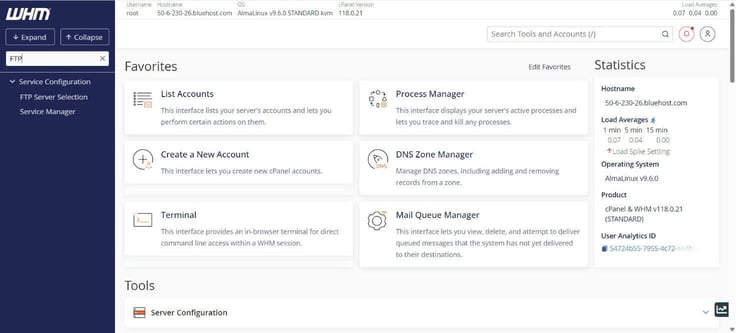
FTP comes disabled by default, so I checked the PURE-FTPD option. Bluehost recommends it as the server’s faster, more reliable FTP service, and I tend to listen to those who are far savvier in these scenarios than I am.
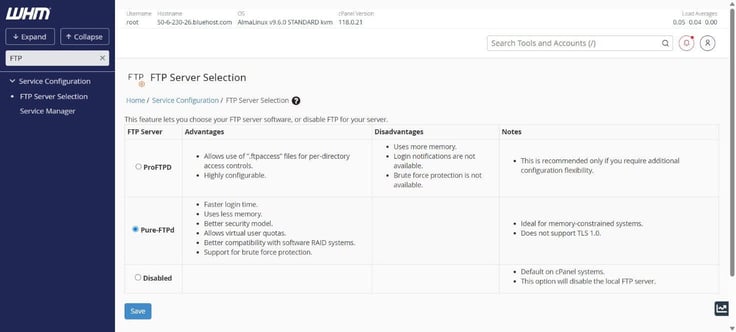
I clicked ‘Save’ at the bottom, and that was that. Easy-peasy.
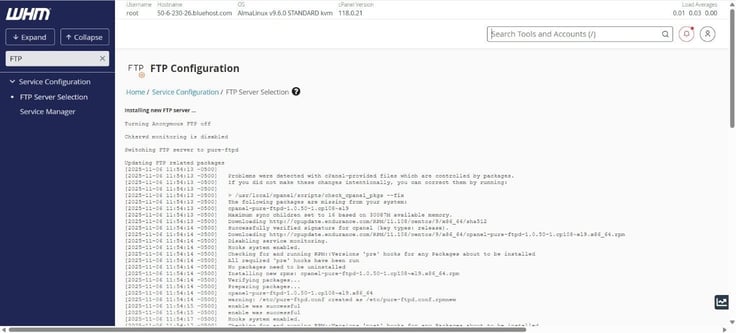
How about enabling server-side caching?
From WHM’s homepage, I clicked on Software in the left sidebar and chose EasyApache 4 (you can search it just like FTP), because it offers faster and more flexible Apache and PHP management.
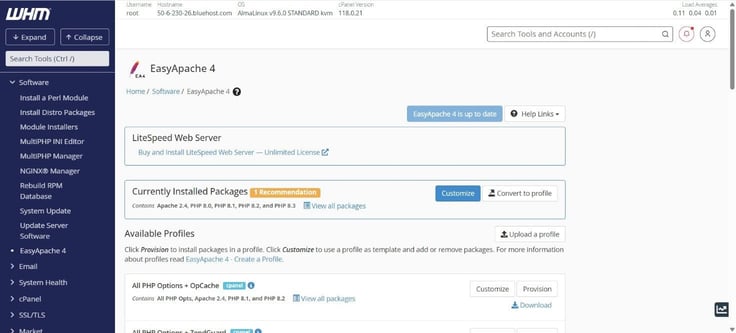
I pressed the “Customize” button next to the currently installed packages, which listed all the said packages.
Under PHP Extensions, I typed “opcache” in the search box and toggled the switch to ‘Install’ for each PHP version. OPcache is an extension that keeps precompiled PHP code in memory, thus speeding up repeated requests.
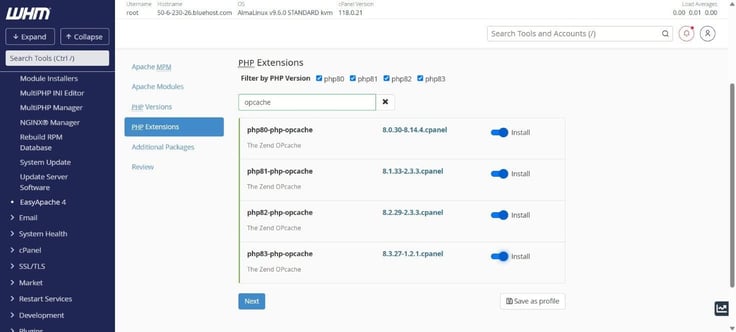
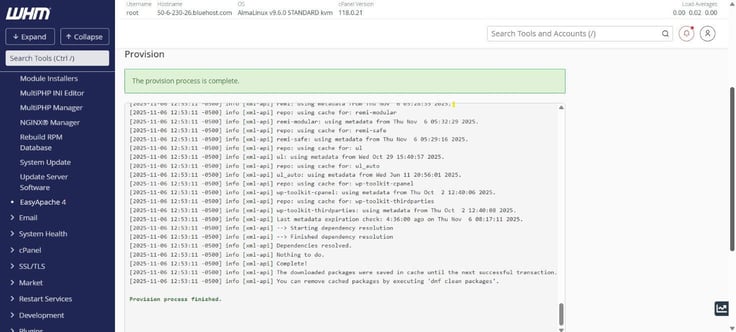
Then, I clicked ‘Next’ at the bottom, followed by ‘Provision’ after making sure that OPcache will be installed. The provisioning took a few seconds, and I clicked ‘Done’ before returning to EasyApache 4’s settings.
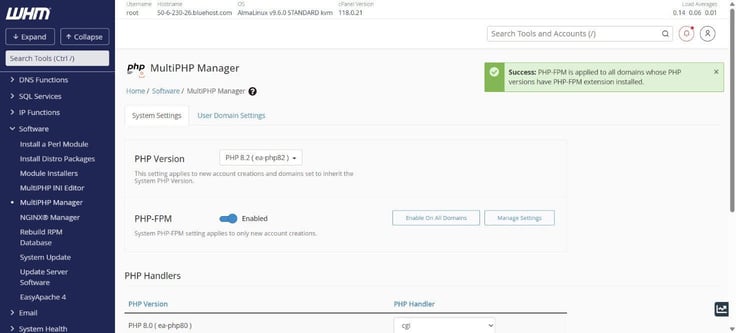
From there, I opened ‘MultiPHP Manage’ in the Software section. I clicked on the ‘Enable On All Domains’ button so that PHP-FPM (a process manager for PHP) runs for every domain I eventually created. In case you’re wondering, PHP-FPM improves performance and security by isolating each account and managing PHP worker pools.
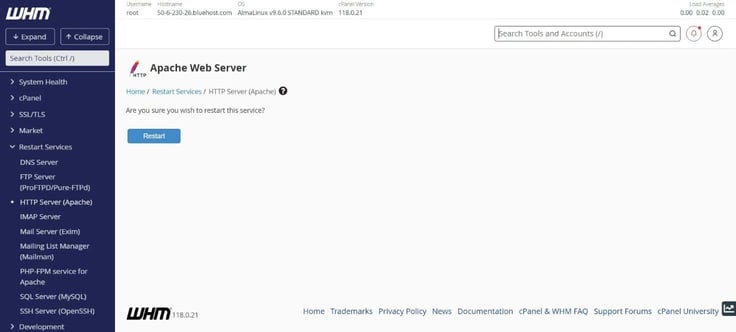
Just to be sure, I restarted Apache. From the left sidebar in WHM’s main page, I selected ‘Restart Services’ and ‘HTTP Server (Apache)’, then hit the ‘Restart’ button to reload my PHP handler configuration.
Better to be safe than sorry.
It’s the same procedure here as with a VPS: Management goes through Bluehost’s dashboard and WHM. So, if you’ve already gone through the paces as I have with VPS, you’ll feel right at home.
For instance, let’s say I want to manage SSL certificates. In the left sidebar, I clicked on SSL/TLS, then Manage AutoSSL.
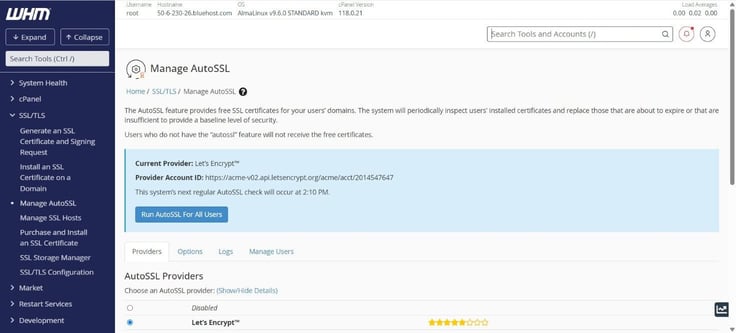
I can select between two providers (Let’s Encrypt and Sectigo), set notifications, or run AutoSSL for all users (or select specific accounts). WHM will automatically issue SSL certificates for all domains and subdomains.
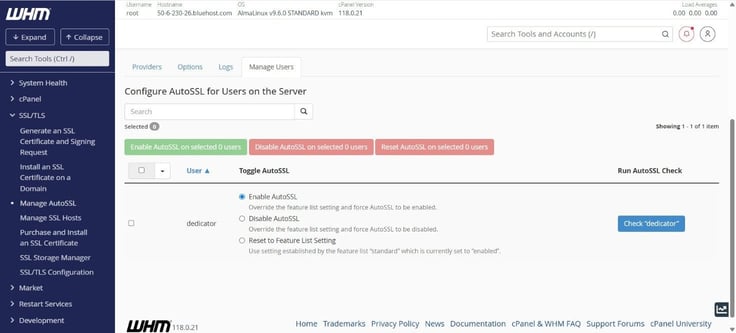
That’s just one example of the same old WHM you’ve come to know and love.
While I’m on the subject – does anyone else hate that WHM doesn’t sort sections in alphabetical order, so you have to search for features, or is it just me? Nevermind.
I loaded a bit of content on the server to see how it would fare with loading speeds: The result was highly encouraging:
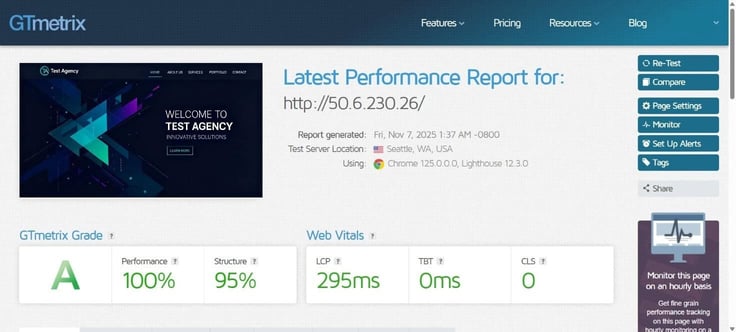
Of course, it’s not the same as a fully operational web server or a fleshed-out website with tons of files, but the lower LCP and higher performance percentage hint that Bluehost’s dedicated hosting is a sound investment.
I would.
For someone running a medium‑sized website and wanting reliable performance (the will to do some optimization is obligatory), Bluehost’s dedicated hosting is a good choice. The infrastructure is strong, with modern hardware and full access to a physical server. And if you’re upgrading from VPS hosting, the transition will be seamless, giving you room to scale.
I may be mistaken, but past experience with competitors shows Bluehost lags a bit in terms of enterprise‑grade readiness. If you seek top-tier infrastructure, you may want to set your sights on a more specialized provider, though Bluehost will certainly suffice.
My plans didn’t include phone support, so I turned to the ever-present chat as my sole option to get some details on Bluehost’s service (I’m obviously not counting manually sifting through the Knowledge Base). The good news is that Bluehost prefers to keep things natural, which means I got to talk to actual human beings instead of an AI assistant or chatbot.
My first run-in with a human agent was okay. Following some initial filtering to get to the most relevant person, I got the answer I was looking for, but only after a few minutes.
I decided to give the customer support a more complicated task, so I asked all kinds of questions regarding the WordPress options and VPS setups. I was going to inquire about dedicated hosting, too, but I gave up because the service was relatively slow and, to my surprise, inaccurate sometimes.
To begin with, I was often required to provide my email address, security PIN, and other unnecessary details to what were simple and to-the-point questions. Call me paranoid, but in this day and age of data breaches, I’m extra careful about what I share and with whom.
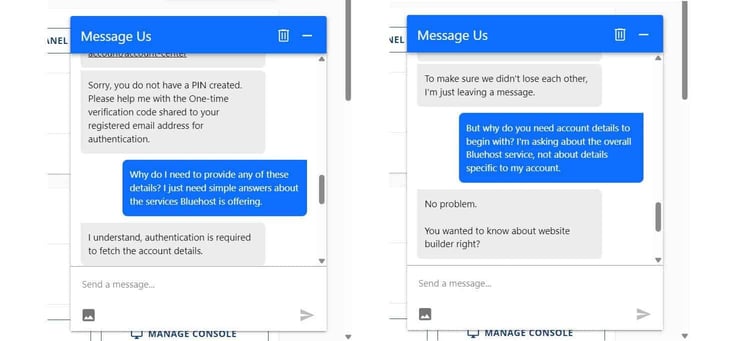
After explaining my stance and the support agent relenting under “pressure”, I was able to get the answers I wanted. I took some time and “negotiating”, which was redundant by all means. It made me yearn for AI help that, at the very least, is direct.
Other times, I’d ask some technical stuff and get an incomplete answer. Case in point: I was redirected to a beginner’s guide to website creation when asked about resources on hosting sites on my VPS.
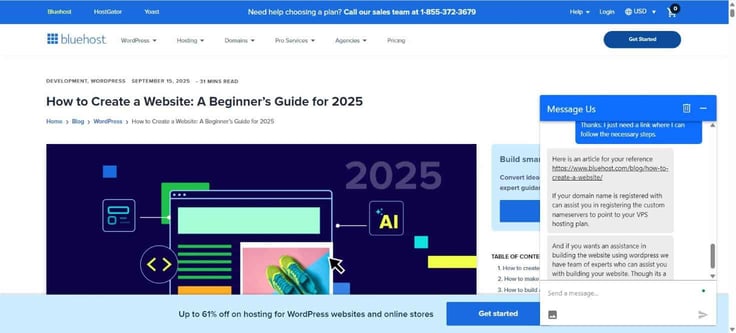
Needless to say, it was a waste of my time, as the provided link didn’t even address my query.
An interesting thing happened with my VPS, which became unresponsive post-setup. After going through the motions with the customer support, my case escalated to a T3 specialist, who managed to fix the problem (apparently, my firewall went haywire and closed all the ports).
These situations can happen, and I was pleased that the issue was corrected, even though it took the better part of the day.
Yet, all of these little endeavors meant this part of Bluehost’s service was a mixed bag. Quite frankly, there is plenty of room for improvement.
Update: Just as I was about to wrap up my testing, Bluehost introduced the ‘Ask BLU’ feature, which is the AI layer in the customer support chat. Currently in beta, it seemed to be more direct and succinct in providing answers, with the option of connecting me with a live agent. It was definitely, yet oddly, a step up from their live reps.
My impression is that Bluehost is a solid stepping stone for beginners in the hosting space. It’s pretty much user-friendly all the way, offering an easy path for web hosting newcomers who are looking for strong WordPress compatibility right out of the box.
For most standard sites and small businesses, I’m certain the performance is more than enough to handle daily traffic without a sweat. Yet, there are small but visible signs that Bluehost is a mass-market provider, and that comes with trade-offs.
If you’re a power user or a developer, you might find that the vendor’s focus on simplicity can sometimes feel a bit rudimentary at times.
What disappointed me the most was the AI website builder assistant. I’ve tested a few of its competitors, and they all did a better job at outlining a nice-looking site while incorporating most (if not all) elements outlined in the site description. It may not be a deal breaker per se, but it’s not far off from it either.
One of the things that left a sour taste in my mouth is the fact that Bluehost immediately sold my data (namely, email) upon signing up for its service, even though I agreed to receive phone communications, which may be promotional in nature.

Within minutes, I received a dozen or so offers for website design, logo creation, content writing, and so on. Not cool.
If you can set aside that snafu, the hosting service will largely make up for any shortcomings.
My verdict is this: Bluehost is a good choice for beginners, freelancers, bloggers, and small businesses that primarily value an easy start for their hosting journey.
The compatibility with WordPress is a massive advantage, which translates into dedicated performance optimizations and a server environment that is configured specifically for WordPress stability and speed.
On the other hand, you might sacrifice some high-end features and quality hands-on support for that simplicity.

HostingAdvice.com is a free online resource that offers valuable content and comparison services to users. To keep this resource 100% free for users, we receive advertising compensation from the hosts listed on this page. Along with key review factors, this compensation may impact how and where hosts appear on the page (including, for example, the order in which they appear). HostingAdvice.com does not include listings for all web hosts.
Our site is committed to publishing independent, accurate content guided by strict editorial guidelines. Before articles and reviews are published on our site, they undergo a thorough review process performed by a team of independent editors and subject-matter experts to ensure the content’s accuracy, timeliness, and impartiality. Our editorial team is separate and independent of our site’s advertisers, and the opinions they express on our site are their own. To read more about our team members and their editorial backgrounds, please visit our site’s About page.


