
Writer: Sead Fadilpasic


Editor: Britain Simons


Reviewer: Cristian Lopez

As digital equivalents go, pointing your domain to new nameservers is like updating your forwarding address. And before you think it’s one of those dreadful tasks that can shut down a site, it only feels like it. Mechanically speaking, the process is remarkably simple, as I’m about to demonstrate.
Pointing a domain is the act of telling the internet which server your site belongs to. While this can be done in a few different ways, this guide focuses on updating nameservers, which is often the simplest method when moving to a new hosting provider.
If the above sounds a bit convoluted, that’s okay. In the next 10 or so minutes, this guide will walk you through everything you need to know about pointing a domain to a new host, from updating nameservers to verifying DNS propagation. In the end, you’ll have a domain that connects cleanly to your new hosting provider.
Let’s get to it.
-
Navigate This Article:
Step 1: Gather Your New Hosting Provider’s Nameservers
Your first order of business is to pay your new web host a visit and obtain its primary and secondary nameservers. These usually look like ns1.host.com, ns2.host.com, and similar.
Here are Hostinger’s nameservers for its VPS service:
(Under “Change to Hostinger Nameservers”)
nermes.ans-parking.com
artemis.dns-parking.com
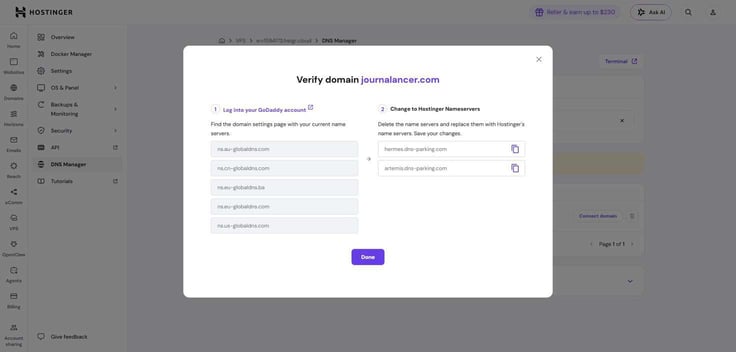
Because every hosting provider is different, the easiest way to get the nameservers is through AI chatbots. Most vendors have these, and they immediately link to your account’s details, so the information is accurate.
If you’re in the market for a new hosting service, I highly recommend Hostinger:
Hostinger.com

Monthly Starting Price $2.69
- 24/7/365 ticket and live chat support
- 99.9% network uptime guarantee
- FREE domain, site builder, backups, SSL certificate, and AI tools
- Unlimited bandwidth, databases, and email accounts
- Speedy NVMe SSDs optimize performance
- Get started on Hostinger now.


Sead Fadilpasic
| Money Back Guarantee | Disk Space | Domain Name | Setup Time |
|---|---|---|---|
| 30 days | 25 GB SSD – 100 GB NVMe SSD | FREE (1 year) | 3 minutes |
Of course, you can always follow instructions from the hosting dashboard, like clicking the “Connect domain” button or locating the Nameservers section in your plan.
What matters the most is exact spelling and formatting.
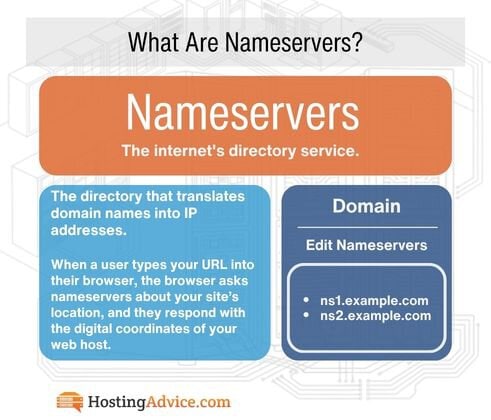
Nameservers can be incredibly sensitive. It’s a given that you should copy them directly from your host’s dashboard. However, you should also double-check that you haven’t accidentally dragged in a hidden space or misspelled part of the hostname. Even a tiny typo can prevent your domain from connecting to the correct server.
With some hosting providers, nameservers depend on the type of hosting you choose. So, if you have multiple hosting packages, make sure to collect the right nameservers. I say this because incorrect ones are the most common cause of failed connections, so you’ll save yourself considerable headache by being dutiful.
Step 2: Log in to Your Domain Registrar and Locate DNS Settings
At this point, I’m reminded how handy it is to have your domain registrar login credentials stored somewhere you’ll remember to look. I made my site a loooong time ago, so I had to do a bit of digging, since the last time I logged in, the UK was still in the EU, and the Zika virus was “trending”.
In my case, GoDaddy was the next stop, with the fellow business owner (sadly, I’m not an actor), Walton Goggins, greeting me.
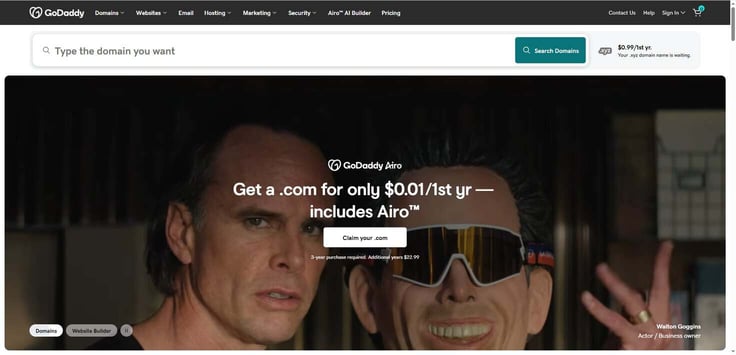
After briefly checking what Boyd Crowder was up to, I logged in.
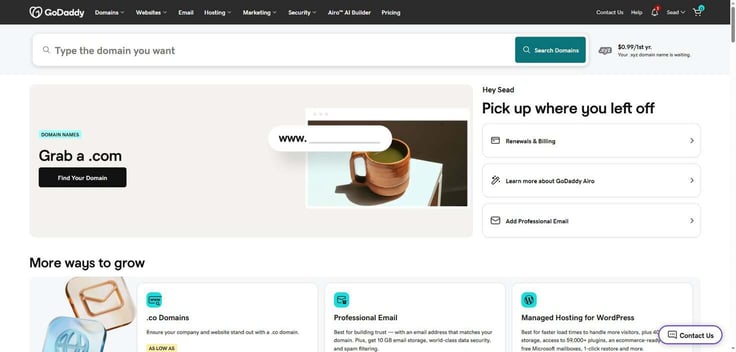
You’ll find the necessary details by clicking on your username and “My Products” under the Account section. For other domain registrars, something like “My Domain” will be the location where DNS settings are.
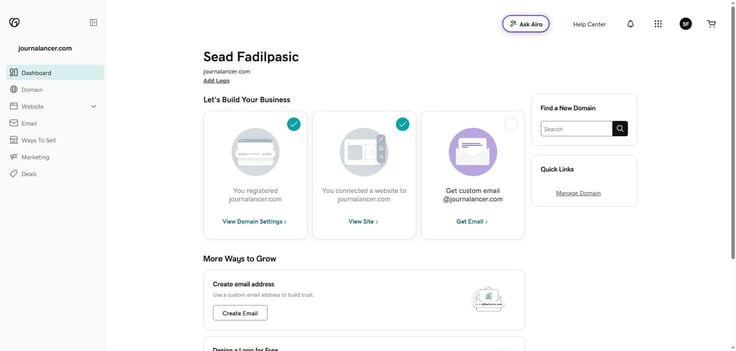
From the dashboard, go to the Domain section, then DNS, then Nameservers.
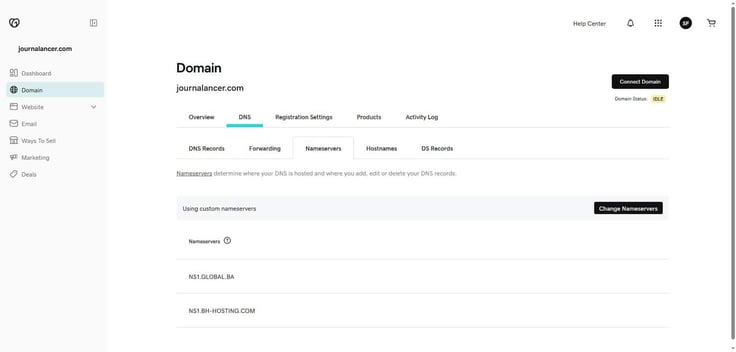
That’s the general route you can expect if your domain registrar is Namecheap or another provider. The interface will vary a bit, but nameserver controls should always be a couple of clicks away.
Step 3: Handle Email and DNS-Dependent Services
Okay, this is important. When you point your nameservers to a new host, the change affects more than just the website.
Thus, if you haven’t copied over your old settings, the following services will suddenly stop working:
- Email (MX records): These tell the internet where to deliver your mail. If these aren’t recreated on the new host, your inbox will go silent.
- Subdomains: Your blog or webshop will vanish unless you manually add them to the new DNS zone.
- Third-party services: From CDN settings to verification records for Google Search Console and everything in between, they will stay behind at the old host unless you bring them along.
Here’s what you do:
- Log into your old host and screenshot or copy every single DNS record you see (MX, TXT, etc.)
- Before you change nameservers, enter those records into your new host’s DNS manager.
- With propagation all nice and done, send a test email from an outside account (like a personal Gmail) to your business address. If it arrives, everything is officially firing on all cylinders.
Overlooking your DNS records can and will break your email services. So, take a minute or two to copy those MX records before you switch, since that’s the only sure-fire way for your inbox not to go dark.
As someone who made this mistake one time, take it from me — that is much easier than losing your sanity trying to recover emails that somehow got “lost”.
Step 4: Replace Existing Nameservers With New Ones
This is the most sensitive part when figuring out how to point a domain to a new host, so be extra careful for everything to go as smoothly as a penguin on an ice slide.
To update your nameservers, click on the “Change Nameservers” button on the right. Your option may be something like “Use custom nameservers” — you get the drift.
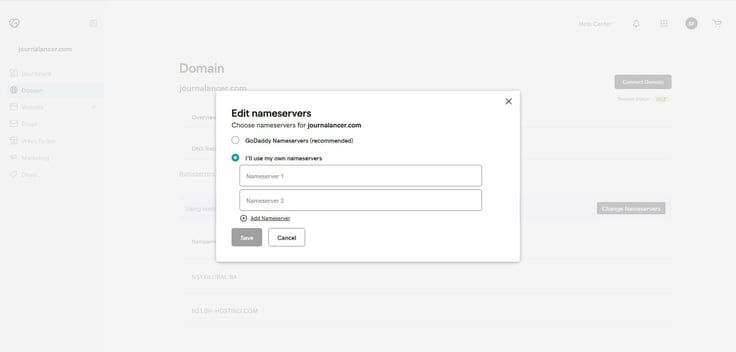
Copy and paste the new nameservers. You may also need to remove the default entries, so there’s no confusion of any kind.
I know I’m repeating myself and projecting peak parent energy, but be sure to enter them exactly as provided. GoDaddy will double-check as well that everything is green across the board.
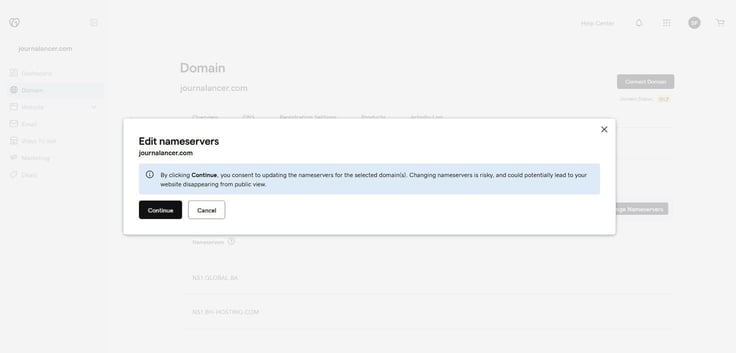
If so, proceed to save the changes. You should get the ‘all clear’ message and a message saying that the switcheroo is taking place.
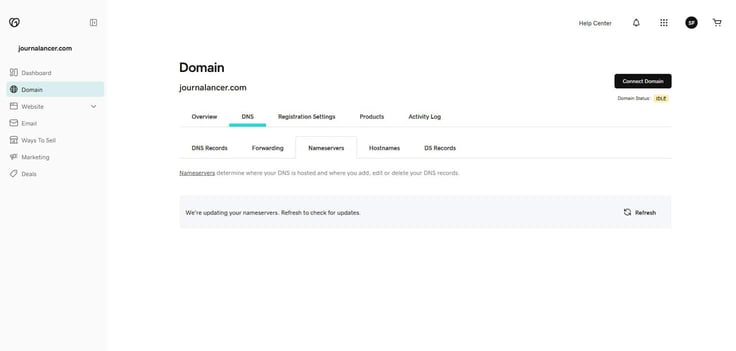
Now, do note that DNS propagation, which is the process of updating DNS records across the internet, isn’t instant. While DNS changes can theoretically take up to 48 hours to be fully reflected everywhere, most nameserver changes become visible within a few hours.
Delays are usually caused by DNS caching at ISPs, local networks, and individual devices. Factors such as TTL (Time to Live) settings and geographic location can also affect how quickly updates are seen.
As seen in the screenshot above, you can check directly if the new nameservers are in place. In case they’re not after 48 hours, partial entry (or a missing one) may be the culprit, as it can break DNS resolution. We’ll cross that bridge in the dedicated troubleshooting section.
Step 5: Verify Nameserver Changes Using DNS Tools
There are loads of decent DNS checkers that can aid you with this task. I’ll be using DNSChecker.org, a free tool that also provides a global view of your progress.
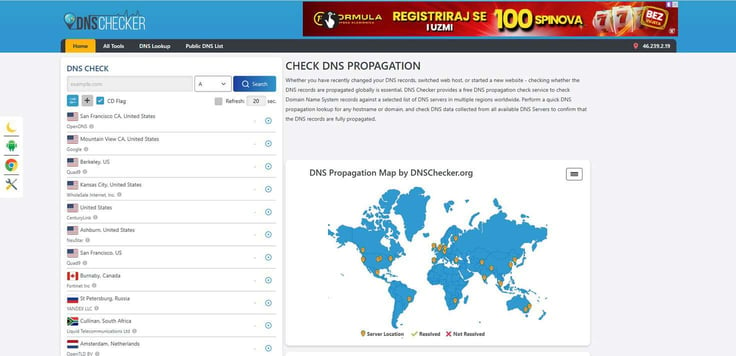
Most of the tools have similar interfaces, so you’ll get the hang of it in no time if you opt for whatsmydns.net or some other checker.
Type your website address into the search box and change the record type in the drop-down menu from the default ‘A’ record to ‘NS’, which stands for nameserver.
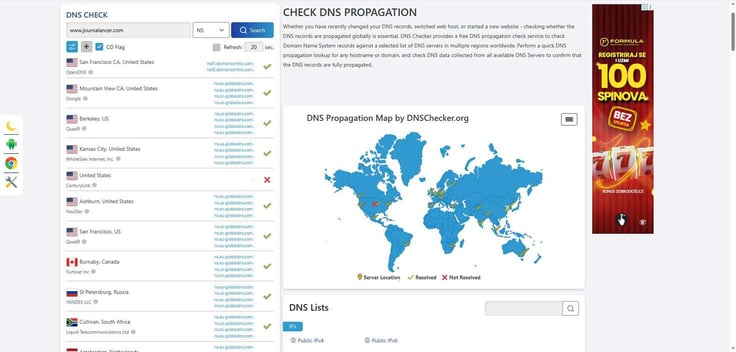
You’ll see a list of locations across the globe with either a green checkmark or a red ‘X’. The former represent spots where the new nameservers have successfully propagated. Red Xs simply mean that a specific part of the world is still doing the math, so to speak.
Your job here is to confirm that the nameservers match your new host exactly, in every region. That said, there is no reason to panic if you see a mix of checkmarks and Xs for the first few hours. Propagation takes time for the message to reach every server.
Now, once the nameservers are updated globally, switch the record type back to ‘A’. If the IP address listed there matches the one provided by your new host, your domain is officially resolving to its new abode.
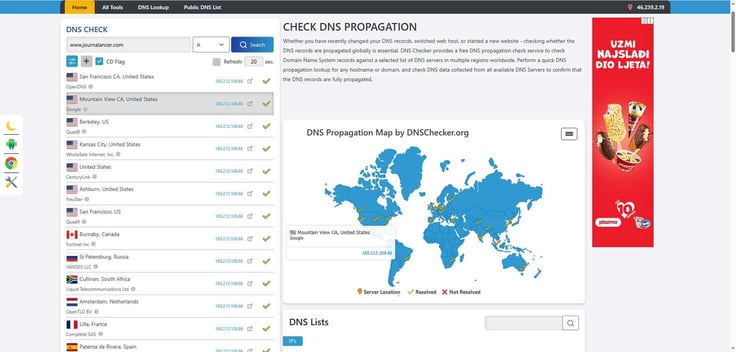
And that’s it, pretty much.
Always make a mental note to verify everything before assuming the migration is complete. I know it’s tempting to start editing your new website the moment it looks okay-ish, but if propagation isn’t finished globally, you might find yourself locked out or staring at an old version of your dashboard. It’s an unnecessary waste of time that is easily avoidable.
Step 6: Confirm Your Website Is Loading From the New Host
You have one more test to administer. It’s visiting the domain in your browser, which is like the final boss of website migration.
Ideally, you should open a fresh browser tab and type in your domain instead of relying on a bookmark. Typing it out manually makes certain that the browser is looking for a fresh connection.
Once you land on the homepage, click around. Go through your key pages and check that your images, videos, contact forms, and other elements are loading correctly from the new server.
It’s also smart to test the website on your phone using mobile data (no WiFi). This is an easy way to bypass your local network’s memory and see what the rest of the planet sees.
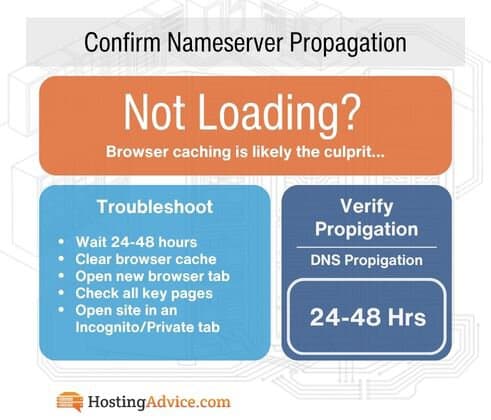
In case you’re still seeing your old site, browser caching is likely the culprit. What’s essentially happening is that your browser is trying to be helpful by loading a saved version of your site. In doing so, it delays certain visible updates.
The solution is to clear your browser cache, clear history, or open your site in an Incognito/Private window before you assume something went wrong. Once again, assumption is the mother of all mistakes. If the website displays correctly in Incognito but wrong in your regular window, your browser just needs a little nudge to move on.
Hit it with a hard refresh by pressing Ctrl+F5 on Windows or Cmd+Shift+R on Mac. It should tell it to stop being stubborn and look at the new host.
Troubleshoot Propagation and Connection Issues
I’m happy to report that most issues at this stage are just growing pains.
Here’s what you can normally expect and what the remedy is:
- Site not loading: Either propagation is still in progress, or you have incorrect nameservers. Since the fix for the former is to wait, go back to your registrar and confirm the exact spelling and formatting of your nameservers. Even a single misplaced character or typo can prevent DNS from resolving correctly.
- Mixed results globally: This is just a normal propagation delay. Be patient and give it another few hours before you start changing settings again.
- SSL errors: Your new host likely hasn’t issued a security certificate for your domain yet. Many have a dedicated “Let’s Encrypt” or “Auto-SSL” option you need to activate after the domain is pointed to the new host. That way, they can verify you really own it.
- Email not working: You’re missing or have incorrect MX records. Check your new host’s DNS manager. If the MX records aren’t there or don’t match your email provider, your email won’t know where to land.
What if it’s been over 48 hours and the propagation is largely a no-go? I’m afraid it’s time to reach out to your new host’s support. Show them the nameservers you used, and they’ll tell if there’s a configuration error on their end.
Your Domain Is Now Connected to Your New Host
As you can see, learning how to point a domain to a new host is no big deal. But now that the heavy lifting is done, don’t be complacent just yet. To make sure everything is in order, keep an eye on progress for the next 24 hours.
That means opening DNS Checker one last time to see whether those red Xs have turned into green checkmarks, sending a test email, checking your subdomains, and activating your SSL certificate.
Once your site loads and your inbox is active, your migration is complete.
If you’re ready to dive deeper into optimizing your online presence, be sure to check out our library of tutorials on WordPress optimization, hosting management, AI deployment, and a whole lot more. Plus, we share more expert tips on social media, so give HostingAdvice a follow.
Thanks for reading, and enjoy your new web host!
HostingAdvice.com is a free online resource that offers valuable content and comparison services to users. To keep this resource 100% free, we receive compensation from many of the offers listed on the site. Along with key review factors, this compensation may impact how and where products appear across the site (including, for example, the order in which they appear). HostingAdvice.com does not include the entire universe of available offers. Editorial opinions expressed on the site are strictly our own and are not provided, endorsed, or approved by advertisers.
Our site is committed to publishing independent, accurate content guided by strict editorial guidelines. Before articles and reviews are published on our site, they undergo a thorough review process performed by a team of independent editors and subject-matter experts to ensure the content’s accuracy, timeliness, and impartiality. Our editorial team is separate and independent of our site’s advertisers, and the opinions they express on our site are their own. To read more about our team members and their editorial backgrounds, please visit our site’s About page.