
Writer: Jack Wallen


Editor: Britain Simons


Reviewer: Cristian Lopez

WordPress is the most widely-used platform around the world. The reasons for that are many and include easy deployment, a user-friendly UI, tons of themes, expandability with plugins, security, reliability, and more.
Whether you use WordPress for your business or your personal needs, there’s one aspect of site management you should become familiar with: backing up your site.
There are two main reasons why you should back up your WordPress installation:
1. Prepare and safeguard data in case of disaster
2. Migrate from one host to another.
You might think this would be challenging, but it’s something that can be done by just about anyone. Once you’ve backed up your installation, you can then move it to any host that supports WordPress, making it reliable and portable.
Let me show you how this is done.
-
Navigate This Article:
Step 1: Understand Exactly What Needs to Be Moved
Migrating your website might seem a bit overwhelming. After all, you could run into issues like broken URLs, database errors, and DNS confusion. Fortunately, with a bit of care, those issues won’t rear their ugly heads.
There are no shortcuts. It’s also important to understand that backing up a WordPress site isn’t just a matter of copying a folder or two and moving them to the new host. Even if you have access to your site’s file manager, simply copying and pasting those folders won’t do it.
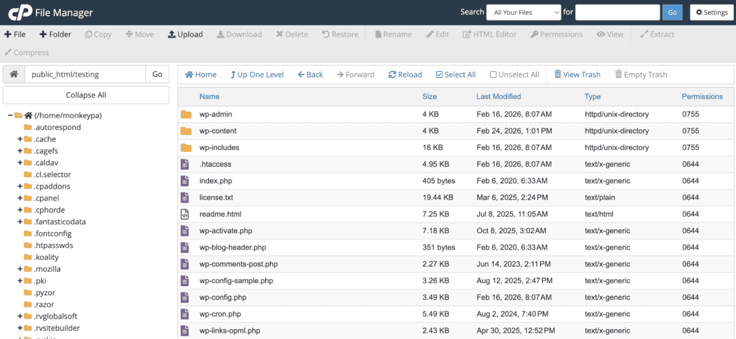
It may be tempting to just copy these files and folders, but it won’t end as expected.
There are several pieces that have to be backed up, including themes, plugins, uploads, core files, databases, posts, pages, settings, users, and URLs. There’s also the wp-content folder, core WordPress files, and the wp-config.php file.
One step that is often overlooked is the database backup. If you don’t back up your database, your migration will not work. Period.
In other words, every piece of your WordPress installation has to be backed up.
I’m going to demonstrate two different ways to back up your WordPress installation: using the built-in GUI tools and from the command line. Both options work well, but those who are new to WordPress should obviously go with the GUI.
Step 2: Prepare the New Hosting Environment Properly
Before you begin the backup process, it’s important that you first get your new hosting environment set up properly. This means making sure that you’ve first set up your new hosting account and that your domain is working properly. If you can point a browser to your domain and it is directed to the correct site, you’re good to move on.
Once you have your account up and running and have logged into the cPanel of your new host, the real work begins.
On the new hosting provider, you’ll need to access the phpMyAdmin tool from within the cPanel main window, under Databases.
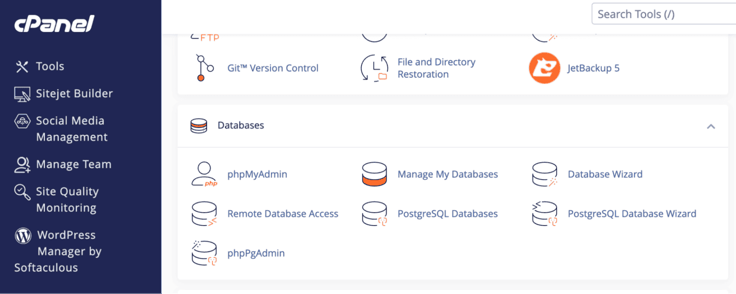
Click phpMyAdmin and then click the Databases tab. On this tab, you should see a listing of any/all hosted databases. This is where it can get a bit tricky.
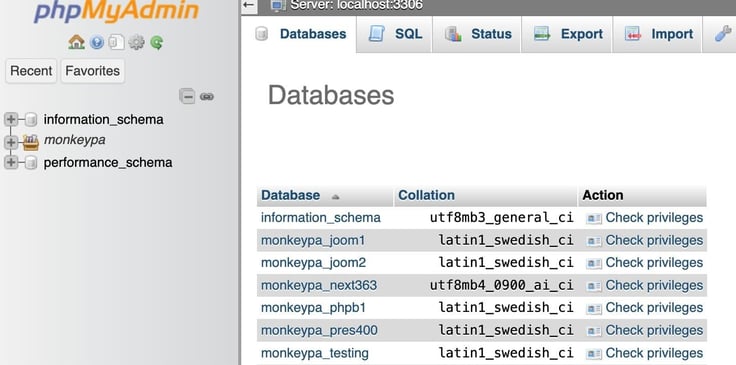
A sample listing of databases on phpMyAdmin.
Side note: There’s an easier way of backing up your database, which I’ll touch on in the next section. Although it is valuable to learn how to export/import a database from the command line, we will also run through a built-in WordPress tool for this process (now, we’ll touch on the SQL language, which can be challenging).
MySQL is a completely open-source database system, used by companies like Netflix to manage, store, update, and organize huge amounts of data at scale.
From within phpMyAdmin, make sure to select the database to be exported from the left sidebar. Once you’ve done that, click the Export tab.
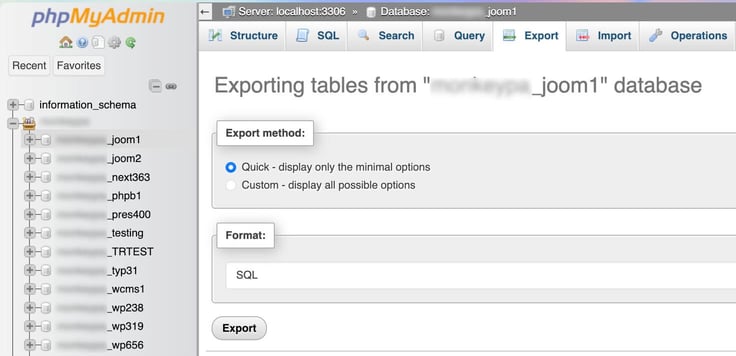
phpMyAdmin makes importing and exporting databases easy.
On the Export tab, make sure Quick is selected and then click Export. This will prompt you to save the .sql file to your local drive.
With the saved file in hand, log into the phpMyAdmin page on your new site and walk through the process, only this time, you’ll click the Import tab and (when prompted), upload the .sql file you just downloaded.
Now, you do have to access the MySQL console, so you can create a database user with the correct privileges to access the newly imported database.
Here’s what you have to do. On the new server, access the phpMyAdmin tool and go to the Databases tab. You should see a button at the bottom labeled Console. Click that button to access the database console.
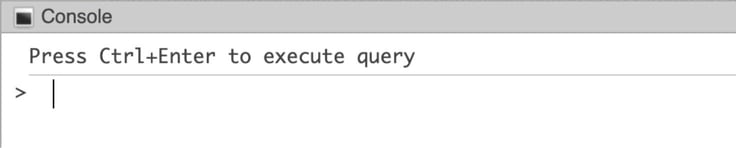
One thing to keep in mind is that you need to know the name of the database you just backed up, which will be listed in phpMyAdmin.
Let’s create a user with access to the database you just imported. Let’s say the name of that database is wordpressdb. Once you’ve done that, you then need to create a user and grant it access to the imported database.
This is done with the command:
CREATE USER ‘username’@’host’ IDENTIFIED WITH authentication_plugin BY ‘password’;
Here’s what you need to know:
- Username: the name of the database user that you’ll create.
- Host (your host): your domain name.
- Password: a strong/unique password you’ll use for the user. No “12345.”
Once you’ve created the user, grant it access to the database with:
GRANT PRIVILEGE ON wordpressdb.* TO ‘username’@’host’;
Where username is the username you created, and host is the domain of your server.
You’re done with the most challenging aspect of the process.
NOTE: Do not forget your new database username or password.
Step 3: Back Up All Files From the Old Host
Next, we’re going to back up the files from the original host. Fortunately, WordPress makes this pretty easy, thanks to any number of plugins that are available from the WordPress app store. The good news is that most WordPress installs already include a backup tool called “Backuply”.
If you log into your original WordPress wp-admin section, you should see Backuply listed in the left sidebar. Click that entry to reveal the tool.
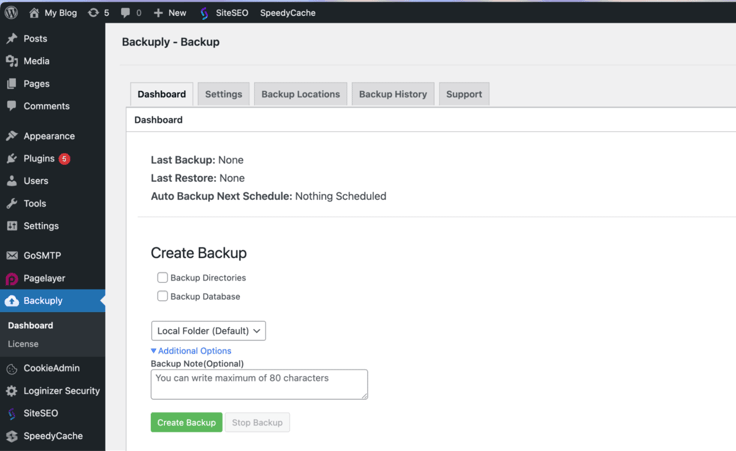
As you can see, there’s an option to also back up your database: this is the easier route I mentioned earlier. If you’d rather back up the database with this tool, make sure to check both boxes for Directories and Database. After you’ve done that, click Create Backup.
Here’s the next bit of important information. Click Backup Locations. On that tab, you should see where the backup was saved on the server.
You’ll then want to go to the cPanel File Manager, navigate to that location, and then download the backup file (which ends in .tar.gz). Download that file. Another option for downloading the file is found within the plugin I’ll talk about below.
Step 4: Upload WordPress Files to the New Host
On the new WordPress instance, go to the Backuply plugin and click the Backup Locations tab. Here, you’re going to create a new location on your server.
Note: There is also an easier method for this, which I’ll talk about below.
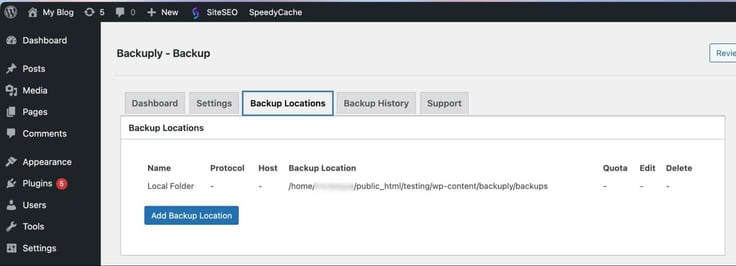
Create the new location on your hosting server.
Next, upload the backup file to the newly-added backup location (via the cPanel file manager).
Once you’ve done that, go back to Backuply and click Backup History. On that tab, click Sync Backups. Your backup file should appear in the listing.
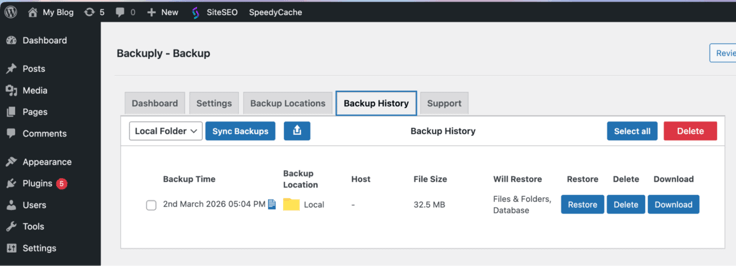
Select the backup file box and click Restore.
Depending on how much data you have in your WordPress site, this can take a bit of time, so allow it to completely finish.
If you couldn’t locate the backup file using the cPanel file manager, you can go to the Backuply Backup History tab, select the backup, and click Download. The same thing holds true if you want an easier method of uploading the backup to the new server; go to Backuply > Backup History > click the Upload button, and upload your backup file.
Step 5: Update the wp-config.php File with New Database Credentials
If you’ve decided to go the manual route for creating/exporting/importing the database, you’ll have to take another step before the migration will work. Since you created a new database, it will probably have different credentials (username and password).
There’s a key file, named wp-config.php, that houses the database credentials, and you have to modify that to include the new information.
The wp-config.php file will be found in the root directory of your WordPress installation. Say, for example, your installation is named testing (such as www.domain.org/testing/), the file will most likely be found within the cPanel file manager at public_html/testing/ (Where testing is the name of your actual site).
You should be able to open that file for editing within cPanel. If not, you’ll have to download it, edit it, and upload it back to the same location.
Here’s what you’re looking to edit within the wp-config.php file to locate:
- DB_NAME
- DB_USER
- DB_PASSWORD
- DB_HOST
Make sure to replace the old credentials (and host) with the new information.
If these credentials are not correct, WordPress will not have access to your database, which means the site will fail to load. Before you save the file, review it and make sure that the information is correct.
Step 6: Perform a Proper Search and Replace for URLs
This is where it can get tedious. Since you’ve migrated from one host to another, you need to make sure that URLs match. If your domain is exactly the same, this shouldn’t be an issue.
If, however, the domain has changed, you’ll have to go through all of the WordPress settings and make sure the new domain is properly added. If you don’t want to do this manually, there’s a much easier way.
There’s a free WordPress plugin called “Better Search Replace” that makes this far easier.
Let’s say you migrated from domain.org to domain1.org. If you open wp-admin and go to Tools > Better Search Replace, you’ll find two fields where you can add the old domain and the new domain.
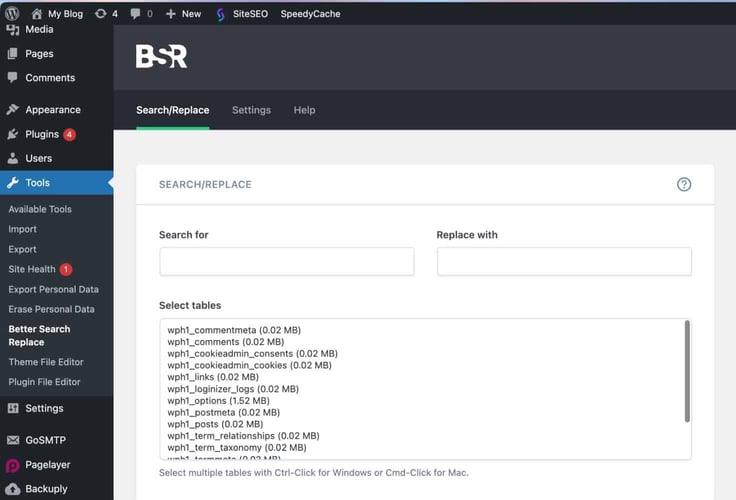
Once you’ve taken care of that, scroll down and click Run Search/Replace. When that is finished, everything should be good to go.
Step 7: Test the Site Before Updating DNS
If you haven’t already updated your DNS (Domain Name System) settings to point to the new domain/server, you should test the migration to make sure it works. Because you haven’t updated DNS, you can’t use the domain of the new site yet. You should be able to access a temporary URL from your hosting provider.
With that information in hand, you’ll want to check to ensure the following works:
- Make sure the homepage loads
- Ensure all posts display properly
- Check to see if all images load
- Make certain the admin login works
- Test if all permalinks function
If you find that your permalinks aren’t working, you’ll need to flush them.
Flushing means you’re forcing WordPress to refresh the site page structure, cache of permalinks (URLs), and regenerate WordPress rewrite rules to avoid “Page Not Found” or “404” errors.
This is easy. All you have to do is go to wp-admin > Settings > Permalinks and click the Save Changes button.
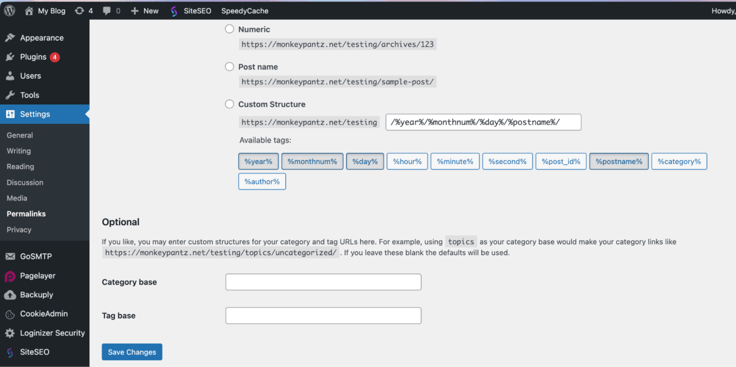
Flushing the permalinks in WordPress.
You do not have to make any changes to Permalinks. By simply clicking Save Changes, it will flush everything, and you’re good to go.
Step 8: Update DNS to Point to the New Host
If everything is working on the new site as expected, it’s time to update the DNS so that it points to the new host. How this is done will depend on your hosting provider and where you registered the domain.
What you have to do is locate the name servers for the new host, configure those name servers with your domain registrar, and wait for the changes to propagate.
Propagation is the time required for the changes in DNS to take effect. This can take anywhere from a few hours to 24 hours. Until the changes in DNS propagate, your domain will continue pointing to the old server, so give it time to complete.
You might also experience a bit of mixed behavior during the propagation window, which means that some users will be sent to the old server, while others will be sent to the new server. This is all a matter of location, as some DNS changes will propagate to certain locations faster. Don’t worry, eventually all users will be sent to the correct site.
Step 9: Final Post-Migration Checks and Optimization
Finally, you’ll want to walk through some post-migration checks and optimizations. These include:
- Clear caching plugins: if you’ve installed any caching plugins (to speed up page loads), you might have to clear them.
- Regenerate permalinks: this should already be taken care of (when you flushed the permalink cache), but do make sure all permalinks are working properly.
- Check SSL certificate: if your site uses SSL (which it most likely does and you absolutely should), check to make sure the SSL certificate is valid for security. You’ll know if you point a browser to https://domain.org (where domain is your domain) and you are unable to access the site. If you can still access it via http, then the SSL certificate isn’t valid, so you’ll need to check with your hosting provider.
- Reconnect CDN if applicable: for this, you’ll need to make sure to update the origin IP address in your CDN (Content Delivery Network) dashboard (such as that offered by Cloudflare) to the new server IP, purge all CDN caches to ensure updated content loads, and update any CDN plugin settings (such as with CDN Enabler) with the new API keys or URL configurations. This network of connected servers ensures fast load times regardless of your users’ location.
- Test contact forms: if you use contact forms, make sure they still work.
- Verify email delivery: if you have email delivery within your WordPress site (such as user notifications or registration information), make sure it works properly.
Common WordPress Migration Mistakes to Avoid
Because this can get a bit complicated, there are always things you might miss. A good basic checklist for this is:
- Forgetting the database
- Incorrect wp-config credentials
- Skipping search/replace
- Updating DNS too early
- Uploading files/folders to the wrong directory
- Ignoring file permissions
Don’t worry, if you’ve made any mistakes, they are easy to work out. On top of that, you’ve backed up your original site, so you still have all the data/configurations available to you. Even if something goes wrong, you can start over.
Why Manual WordPress Migration Builds Real Control
Knowing how to migrate a WordPress site from one host to another puts you in control of your site(s). Not only will you be able to easily migrate, but you will also always have a solid backup of your WordPress installation, should something go wrong.
Even if your hosting provider’s server dies, when they have the new server in place, you can always import everything back and be up and running in no time.
No matter the reason, you won’t ever have to worry when the time comes to migrate from one hosting provider to another. Remember, most hosts offer cPanel, and the WordPress tools are the same, no matter who hosts your site.
I’ve been there. I’ve watched a host go out of business, which would have caused a hair-pulling, full-on panic. Thanks to a regular WordPress backup, I was able to restore my site in minutes.
To that end, I regularly back up my WordPress installations, so I can easily restore a site and not miss a beat. Thank you for reading, and remember, you can always use the search bar on HostingAdvice.com to get expert guides on all your website questions or try out our Hosting ChatBot (curated with our expert articles).
Don’t forget to follow us on social media, and we’ll see you next time!