
Writer: Joe Warnimont


Editor: Britain Simons


Reviewer: Cristian Lopez

My dad called me to figure out why his computer monitor wasn’t turning on. He had spent 45 minutes, probably shouting at the screen and slapping it a few times. I asked, “Is it plugged in?” He checked the outlet and said, “Yes.” So, we walked through a dozen other potential solutions.
Then a thought hit me: “The cord is plugged into the wall, but is the other end plugged into the computer?” After a few seconds, I heard a deep sigh over the phone, and then, “That oughta do it.” Problem solved.
My dad will admit he’s not the best with technology. But even I think he can learn how to install WordPress on Bluehost. That’s because everything in this guide is designed for beginners: WordPress, Bluehost, and the steps to combine the two.
If my dad could get a WordPress site up and running within minutes, and so can you. The process is fast, requires no technical skills, and doesn’t warrant a call to the tech whiz in your family.
-
Navigate This Article:
What You Need Before Installing WordPress On Bluehost
Before I leave the house, I always check my pockets: Phone? Check – Wallet? Check – Keys? Check. My quick review of everything I need makes sure the day goes smoothly. Think of this section as your pocket check, but for building a website. Before you set out, you’ll need a few things to ensure everything runs smoothly.
So, check your pockets as we go; here’s what you need:
- A hosting account (at Bluehost): Start with their shared hosting accounts. They’re inexpensive and all you need for a simple website.
- A domain name: Every Bluehost account comes with a free domain name for an initial promotional period. You can also buy a domain elsewhere and transfer it to Bluehost.
- Your login credentials: You’ll get these when signing up for a Bluehost account. You use these to sign into the Bluehost and WordPress dashboards.
- 15 minutes of your time: You’ll need to set up an account, install WordPress, and log into your WordPress website.
Note: Notice how I didn’t mention anything about needing WordPress. Well, that’s because this is a very beginner-friendly tutorial. There’s no need to download WordPress elsewhere, because Bluehost already has a super simple one-click installation button.
Step 1: Create Your Bluehost Account
It all starts by going to Bluehost.com and creating a hosting account. Click the Get Started button and sign up for a web hosting account below.
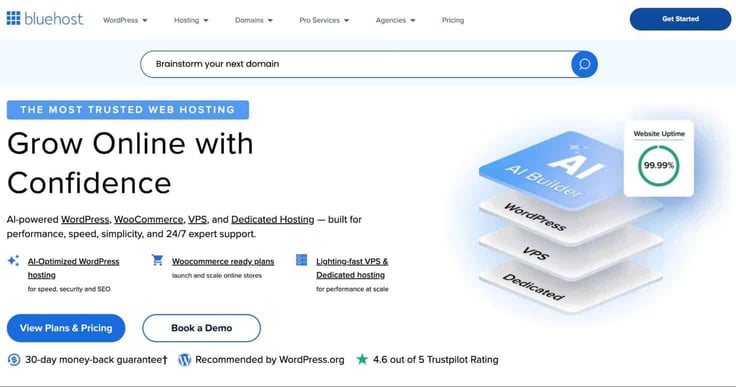
I recommend going with the Starter – Web Hosting plan to begin. You can consider upgrading to a higher plan later on, when you need faster performance or extra features.
Bluehost Features & Pricing
Click to Choose a Domain Later, then pick your login credentials using an email address and a desired password. Skip any suggested add-ons, and enter your payment information. Here, you can decide how many years you want to pre-pay to save money on hosting. Then, click Submit Payment.
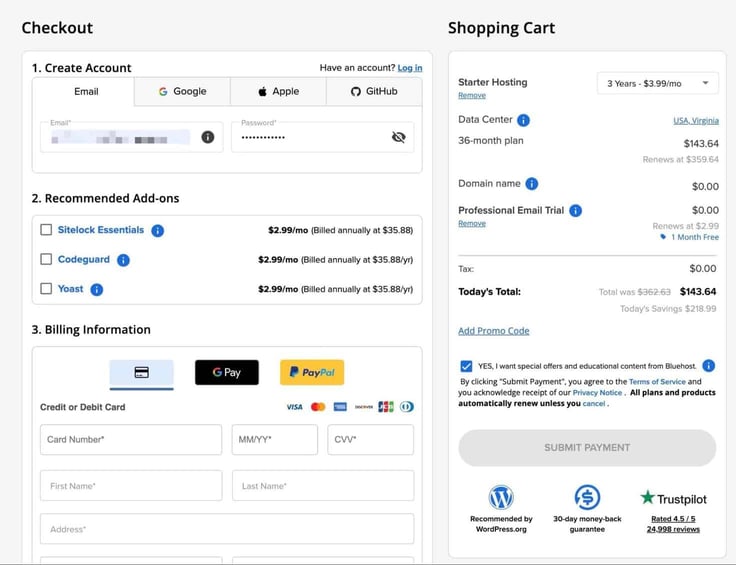
Bluehost should now automatically log you into your account. For future reference, just go back to the Bluehost.com homepage and log in with your Bluehost credentials (bookmark this page). Check your email for confirmation.
This brings you to the Bluehost dashboard, an area that allows you to manage:
- Hosting
- Email addresses
- Domain names
Note: The Bluehost dashboard is not for managing design or content aspects of your WordPress website. For tasks like creating posts or designing your website, you’d go to the WordPress dashboard.
Here’s how I like to view the Bluehost dashboard. It’s a place to:
- Create email addresses that include your domain name.
- Manage payments for hosting and domain names.
- View your hosting usage (and figure out later if you need to upgrade for more performance or storage).
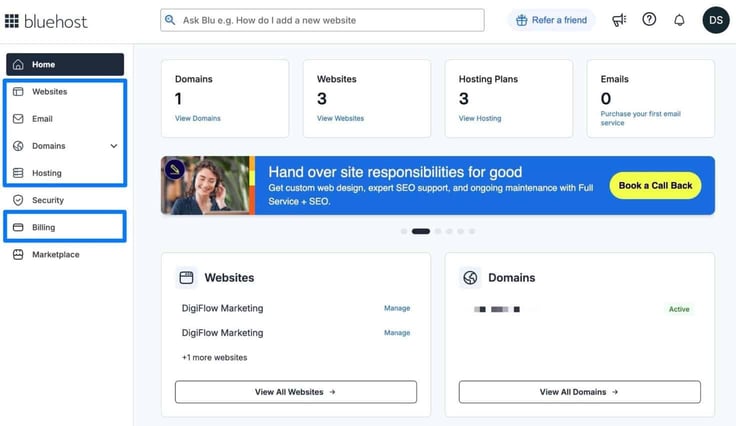
I encourage you to ignore all the other advanced features right now.
Step 2: Install WordPress on Bluehost
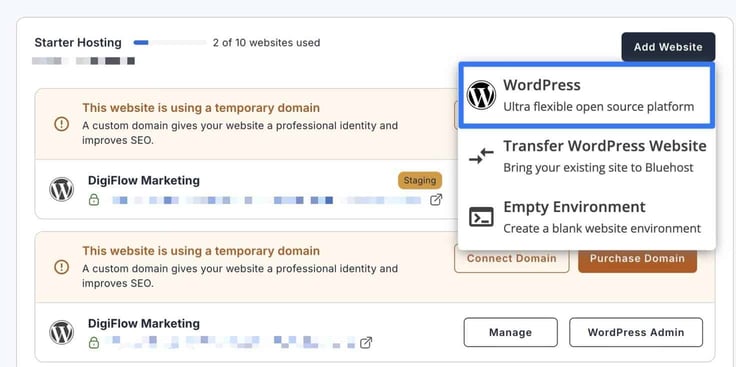
Now you can proceed with adding WordPress to your Bluehost account. Go to the “Websites” section in the Bluehost dashboard.
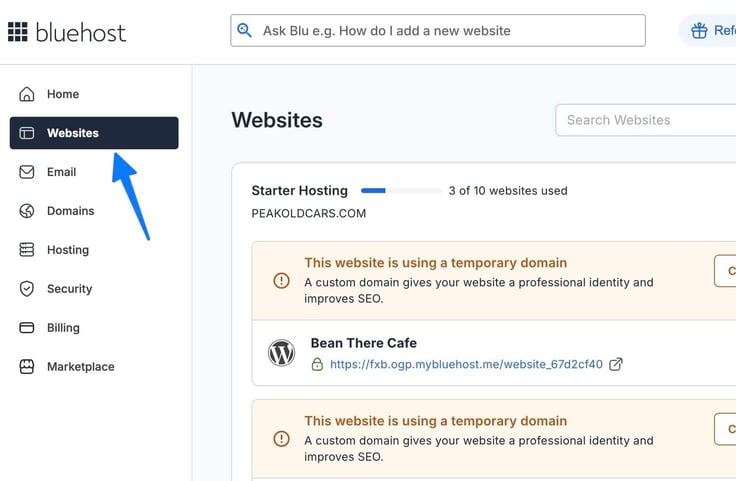
You’re given two options: manage an existing site or add a new one. This is where you’ll go to open and manage your current WordPress websites in the future. For now, since we’re just getting started, click Add Website.
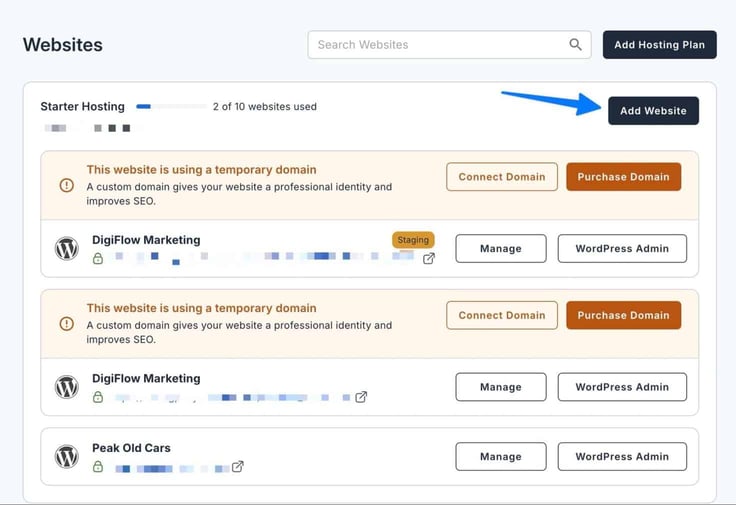
You’ll see a drop-down with options to either add a WordPress site, Transfer WordPress Website, or create an Empty Environment. You might work with the other options later, but for now, choose WordPress.
As WordPress installs on Bluehost, you may wonder what’s actually happening in the background.
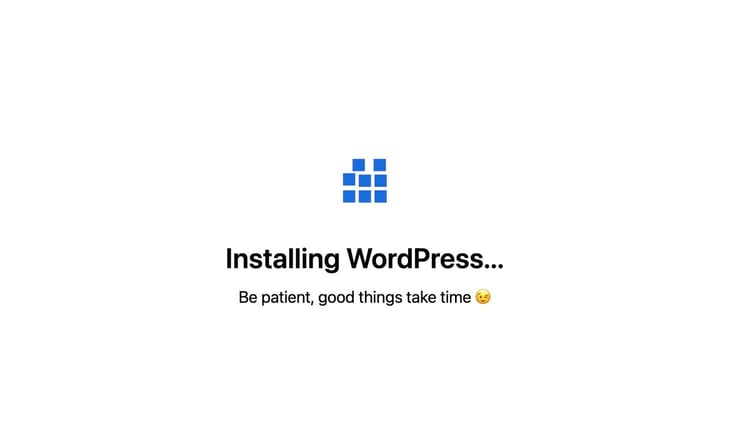
Bluehost is hosting (storing) your website on its servers. That means, there’s actually no code being written or software being downloaded to your computer. While we wait, here’s what’s being installed on your Bluehost account:
- A database: to store everything from your website posts to your users.
- Core WordPress files: for running things like your website’s login process, and storing plugins and themes.
That’s what we call the “one-click install.” It’s doing the work. Bluehost installs WordPress’s many folders and database elements without you lifting a finger, and Bluehost recommends WordPress as its primary website system because it’s beginner-friendly and reliable.
Fun fact, WordPress is used by over 43% of websites on the internet. They’re our top choice for a good reason!
Step 3: Complete Your WordPress Installation with Initial Customizations
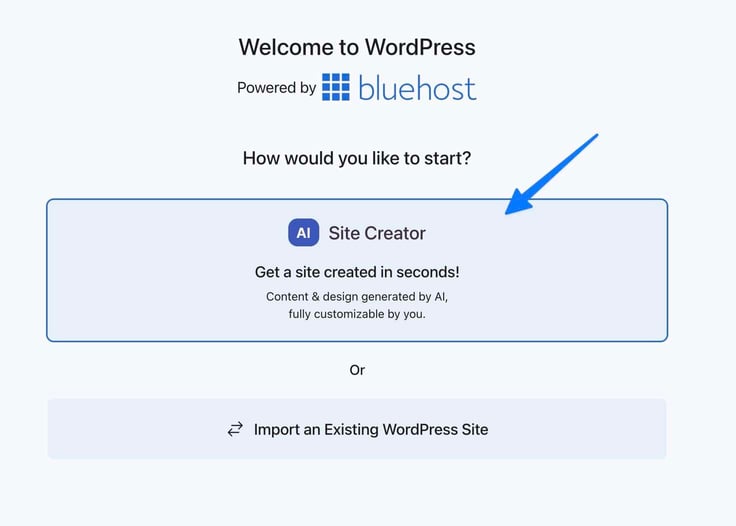
Before Bluehost gives you full control over your WordPress website, it attempts to customize some essential parts of your site so you don’t forget. During the setup, you’ll see a page to either use the AI Site Creator or Import an Existing WordPress Site.
Go with the AI Site Creator. This is just to establish a foundational design. You can change everything later.
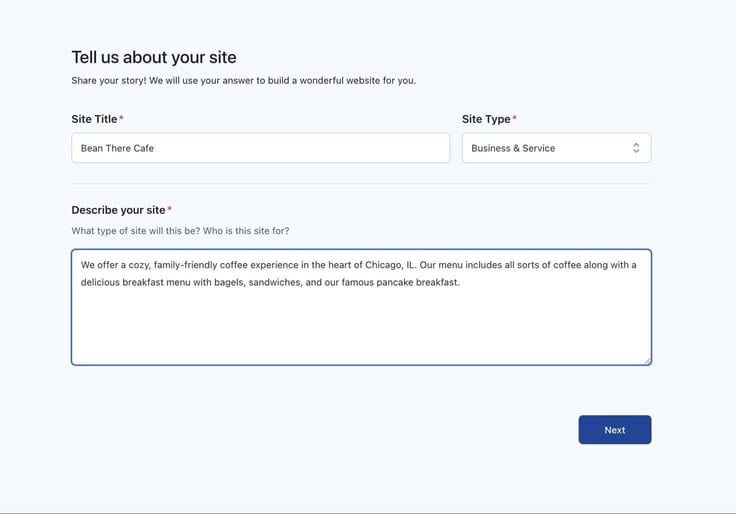
Fill in your Site Title, Site Type, and Description. The Site Title appears in search engine results and browser tabs. The site description is a quick explanation for users to find you. This helps your site rank higher in search engines (with SEO). It’s also a chance for you to tell the AI all the things you want from your website, in simple language.
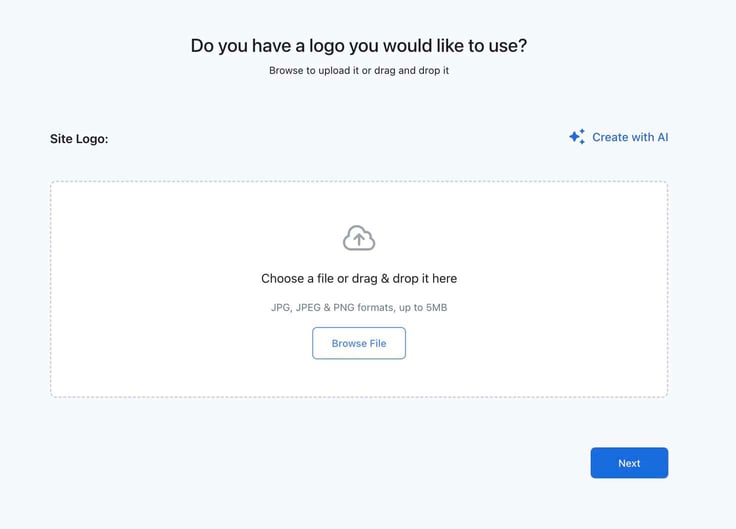
Next, add a logo to your WordPress website. You can either upload one from your computer by clicking the Browse File button, or use the Create With AI link.
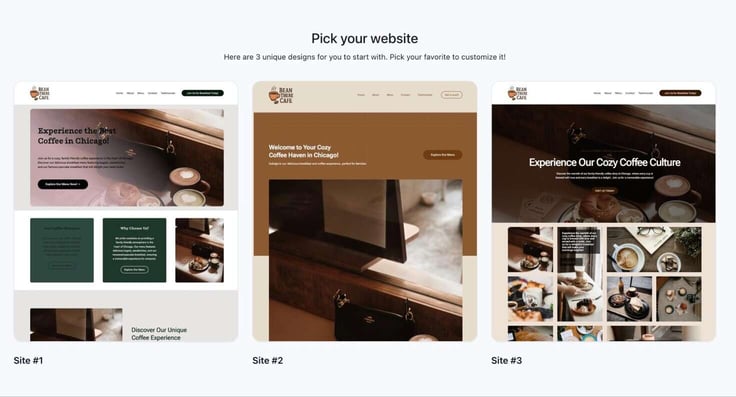
On the following page, select a general website design that fits what you’re trying to achieve. If it’s not perfect, you can make refinements and changes later. Just pick the best fit to move through the setup wizard.
You can take the time now to customize your website layout, before proceeding to the WordPress dashboard (the main hub for edits). Feel free to use AI, add menu items, and configure all the right pages you need. Or, just skip right to the WordPress dashboard, where you can do all that, but with more features, by clicking Save & Publish.
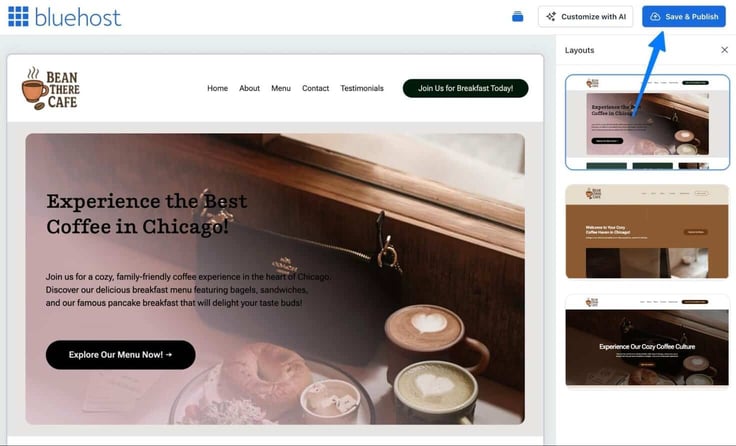
This creates an initial design for your website, giving you a foundation instead of starting it all from scratch. It also allows you to go to your WordPress dashboard to get familiar and continue your customization.
Step 4: Log In To Your New WordPress Dashboard
Your WordPress dashboard is where you’ll spend most of your time creating posts, adjusting your homepage design, and replying to comments. Consider it your control center, where you’ll handle virtually every aspect of website creation and management.
It’s what we call the backend of your website. So, you can create a page — I highly recommend an About Us or Contact Us page. You can do this in the backend WordPress dashboard. Then you click Publish to see it on the frontend, aka your publicly visible website.
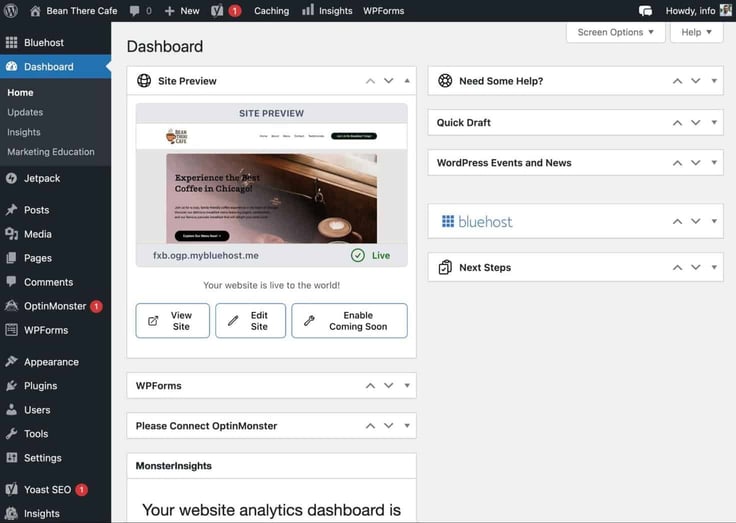
It’s easy to log into WordPress. You just need to pick your preferred method. I like to access a WordPress site by going straight to its dashboard domain URL, which usually looks something like this: www.example.com/wp-admin (but using your domain name instead).
Another option is to go to your Bluehost dashboard and find the WordPress dashboard link under Websites. Click on the WordPress Admin button to proceed after that. Bookmark it.

Bluehost does a good job of saving your WordPress login credentials, so it automatically logs you in to the WordPress dashboard. Should you, however, end up on the WordPress dashboard login page, simply use your Bluehost login credentials to also log into WordPress — Bluehost automatically makes your WordPress admin user with your default Bluehost login credentials.
After you’ve logged in, you’ll end up on the WordPress dashboard. This is your control center to manage it all: posts, media, pages, appearance, etc.
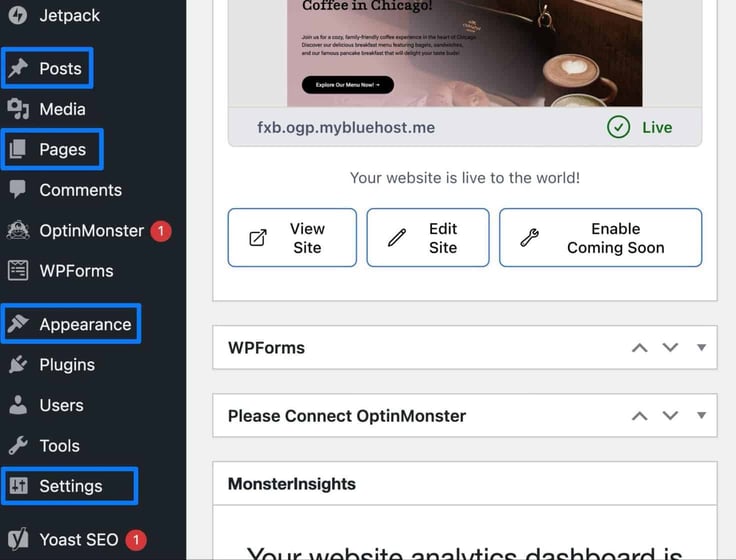
The WordPress dashboard lets you:
- Design your entire website
- Add pages and write blog posts
- Customize a navigational menu
- Adjust features, colors, styles, and fonts
- Install themes and plugins
- Moderate comments and add users
I felt intimidated the first time I saw the WordPress dashboard, but it’s actually pretty simple. The left sidebar shows everything you need.
I recommend focusing on the essentials: Posts, Pages, Appearance, and Settings. Here’s what you can ignore until you need them later on: Comments, Plugins, and anything about commerce or eCommerce.
Step 5: Choose A Domain Name For Your WordPress Site
It’s time to choose a domain name to link to your WordPress website. This way, anyone can visit the domain name, something like example.com, in their browser.
You can either claim a free domain name with your new Bluehost account (go through the checkout process), or purchase elsewhere (Ionos or GoDaddy). Another option is to move an already existing one from another vendor to Bluehost.
If you’re stuck on what to choose for a domain name, follow these tips:
- Stick to short and memorable domains: People need to remember it and manually type it into their browser.
- Relate it to your website content: The domain should hint that your website is for exactly what you’re offering. E.g., top-ranking sites like Chewy.com for pet products, lntriallawyers.com for a trial law firm, or larealestateagency.com for a real estate agent.
- Skip numbers and hyphens: These cause confusion. Everyone who shares your domain name verbally will have to specify that a hyphen or number is used.
- Opt for a .com domain extension whenever possible: It’s easy to remember and trusted. And, not legal advice, but switching to another extension just because your domain name is taken could put you in hot water for copyright infringement.
Once you’ve decided on the perfect domain, go back to your Bluehost dashboard. Then, click the Websites page. There, you’ll see your current WordPress website with a temporary domain name. You’ll want to link this website to a domain using one of two options: Connect Domain or Purchase Domain.
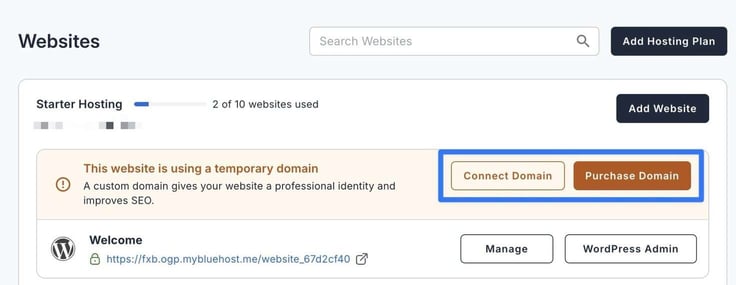
The Connect Domain option lets you either transfer a previously purchased domain name to Bluehost or link a domain you already bought in Bluehost to this particular website.
If you’re new to it all and need a fresh domain name, click Purchase Domain.
On the following page, type in your desired domain name to see if it’s available. If not, try another option. Once you find an available domain that works, click Continue. Walk through the process of purchasing the domain and linking it to your current WordPress site in the Bluehost dashboard.
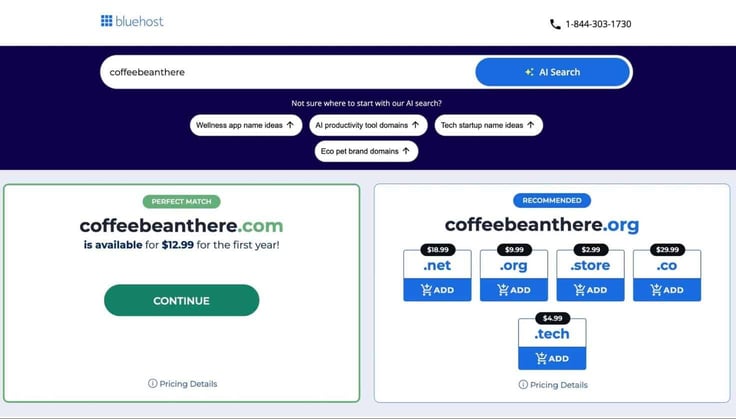
Note: It usually only takes a few minutes for the domain name to “propagate,” or for the internet to recognize the change, but sometimes you have to wait up to 24 hours.
I’ve encountered one common mistake with beginners when they install WordPress on Bluehost: people often install two WordPress websites on one Bluehost account. You may become confused if you accidentally installed a site during your Bluehost setup. Then, installed another WordPress site later.
Simply check the My Sites area to see all your WordPress sites. If you see multiple, delete one, or at least ensure the domain name is assigned to the right WordPress site.
Step 6: A Beginner’s Setup for WordPress
I could leave you here, logged into your WordPress dashboard to explore on your own, but that would be cruel because it’s easy to get overwhelmed. Many people, new to this, try to complete everything in one sitting. It’s my job to explain to you which features you should set up and which you should leave alone.
The initial batch of tasks involves everything you should do first:
- Set a clean permalink structure: The permalink is what your page and post URLs look like. The goal is to make them as clean as possible, like example.com/aboutus instead of example.com/?p=123. Cleaner permalinks improve SEO and help people find your webpages. Adjust them in Settings > Permalinks. Go with the Post Name option.
- Ensure your timezone is accurate: In Settings > General, you can set your timezone to make sure user traffic records properly. It’s important that your posts have the right publication dates and times.
- Create pages and posts: To make a page, like your Homepage or Contact Us page, go to Pages > Add Page. To make a blog post, go to Posts > Add Post. For either, add content like text, pictures, and videos, then click Publish.
Note: If you’re still a little confused about the differences between posts and pages, a WordPress page contains static content that’s not time-stamped, like your Contact or About page. Posts are always time-stamped and get published in chronological order, creating a feed or blog.
I also have a list of tasks for you to complete in the near future.
Take these steps to make sure your site is well-branded and has stronger functionality. I recommend leaving them for later, since you already have a solid foundational design for your site. But it’s worth noting because these settings all require maintenance into the future — you’re never done with these tasks.
Install a theme:
In Appearance > Themes, you can browse themes to change the entire design of your website in one click. Install free themes right from this dashboard area, or search for premium themes on Google to upload and install their files in this same area.
Note: If you’ve put in hours editing, don’t do this! It’s a clean slate (it may erase your work).
Install plugins:
WordPress has lots of features, but it doesn’t come with everything. It works more like a smartphone. Think of plugins like apps, where you can install more features from a plugin store.
Examples include: caching plugins, image compression, SEO plugins, and security plugins.
Install plugins by going to Plugins > Add Plugin in the WordPress dashboard. You can upload plugins on this page if you buy them from third-party vendors.
Keep in mind that Bluehost Marketplace is just the host’s regurgitated version of the WordPress plugin library. You’re more than welcome to purchase necessary plugins through there, but you can also find them in the Plugins section — both free and premium versions.
Customize menus:
Go to Appearance > Editor > Navigation to adjust your navigational menu. These buttons, usually at the top of your website, direct people to other pages like About Us and Contact.
Your goal with the first few tasks is to establish complete functionality with a respectable design for your website. They go above and beyond to improve your design and user experience.
Other tasks I recommend saving for later include: advanced theme customization, integrating with Google Analytics (to see stats on how many people come to your website), and widgets.
Common Questions on How to Install WordPress on Bluehost
No matter how easy I try to make it for you to install WordPress on Bluehost, questions are bound to arise. Here are my answers to the most common questions I hear.
How long will it take me to install WordPress on Bluehost?
Technically, installing WordPress on Bluehost only takes the click of a button (and less than a minute). That’s actually just to combine the two. But for the average beginner to sign up for Bluehost, install WordPress, and customize the essentials in WordPress, I would budget about 15 minutes.
Is WordPress free with Bluehost?
Absolutely. By itself, WordPress is a free, open-source software you can add to any hosting service. The benefit of adding WordPress with Bluehost is the one-click, beginner-friendly installation process that anyone can do. Bluehost, however, requires you to pay for a hosting plan.
Can I install WordPress more than once?
It depends on your hosting plan, but most Bluehost plans allow you to install WordPress multiple times on one account. You have several options for this, too. This is more advanced, but you can install multiple WordPress instances on one domain name (using something called subdirectories). Or, use multiple domain names and install WordPress on each one.
Can I change my WordPress theme later?
Yes. Any theme you currently have installed is replaceable with the click of a button. It’s all done in Appearance > Themes. You trade out design elements when you swap a theme, but everything from content to posts stays the same.
Last Thoughts on Building Your WordPress Site with Bluehost
If you’re like my dad, someone who describes himself as a “tech neophyte for life,” learning how to install WordPress on Bluehost should still come easily. And what I love about WordPress is that it grows with you. You can launch a working website in minutes, one to be proud of when sharing with others, yet there’s always room for growth.
Later on, when you’re more comfortable, you may dabble in plugins, shop functionality, or maybe you go crazy optimizing your content for search engines.
What now? I encourage you to write that first blog post. Add your first button. Customize your Contact Page so people can send you an email. Focus on engaging your target audience. That’s all the advice you need for now. Use this tutorial to build a website quickly, then do more later, if you want, at your own pace.
Don’t forget to follow us on social media and we’ll see you the next time you find yourself overwhelmed with your website. We’re here for you!
HostingAdvice.com is a free online resource that offers valuable content and comparison services to users. To keep this resource 100% free, we receive compensation from many of the offers listed on the site. Along with key review factors, this compensation may impact how and where products appear across the site (including, for example, the order in which they appear). HostingAdvice.com does not include the entire universe of available offers. Editorial opinions expressed on the site are strictly our own and are not provided, endorsed, or approved by advertisers.
Our site is committed to publishing independent, accurate content guided by strict editorial guidelines. Before articles and reviews are published on our site, they undergo a thorough review process performed by a team of independent editors and subject-matter experts to ensure the content’s accuracy, timeliness, and impartiality. Our editorial team is separate and independent of our site’s advertisers, and the opinions they express on our site are their own. To read more about our team members and their editorial backgrounds, please visit our site’s About page.