

Writer: Joe Warnimont


Editor: Britain Simons


Reviewer: Cristian Lopez

I’m no professional developer. Maybe that’s why, when I first attempted to write JavaScript, I stayed up until 3 AM debugging a simple button that was supposed to deliver an alert message when pressed. The problem was just a misplaced semicolon and some inconsistent capitalization of variable names. Yet, I felt like I’d just solved a mystery of the world.
A smart developer, whether professional or not, would have turned to ChatGPT to help debug or even write my JavaScript. That’s what I’ve learned when pairing AI with coding: ChatGPT is no replacement for learning, creativity, or true development. It serves as a coding partner, one that can prevent JavaScript syntax errors while I focus on what code is needed and what it should do.
I’ll show you how to use ChatGPT to write JavaScript in a way that minimizes those late-night debugging sessions that could have been done in minutes. Below, I’ll explain how to make ChatGPT your partner by building a simple webpage with JavaScript interactivity.
-
Navigate This Article:
Step 1: Understand How JavaScript Fits into What You’re Building
My goal is to help you write JavaScript without the usual headaches. To achieve that, you should understand what you’re building and the elements that go into the structure. No one ever built a house without knowing how to use a hammer or drill, and it’s no different with your website-building tools and materials.
Here’s what you’ll use to build your website:
- HTML: Coding language for establishing the structure of your website. Helps create elements like forms, buttons, paragraphs, and headings.
- CSS: A language that works alongside HTML to establish a desired appearance. CSS handles everything, from your website layout, to colors, fonts, and spacing.
- JavaScript: A coding language that adds interactivity to your site. Think image galleries, animations, and form validation. It functions alongside HTML and CSS to tell a button what to do after it’s been clicked, or what should happen when the user scrolls, or submits something.
I’ll mainly focus on using ChatGPT to write JavaScript. Having said that, we still need HTML and CSS to construct a website with JavaScript. They all work together. So, you’ll see instances of all of them as I walk you through my tutorial.
Step 2: Gather Your Tools to Write JavaScript with ChatGPT
My toolbox for writing JavaScript with ChatGPT, or building any type of website with AI, involves just a few pieces of software, all of which you can find or add on your computer.
Here’s what you need:
- A web browser: Firefox, Chrome, Edge, Arc — they all work fine for this purpose. If you’d like a stronger DevTools browser, which comes in handy when debugging JavaScript, go with Chrome or a Chromium-based browser.
- Code or text editor: I like to use a code editor like Zed (GPU and AI based) or Vim (terminal editor).
- ChatGPT: I recommend most people simply sign up for a ChatGPT account and use it through their browser, but other options exist, too, like using a ChatGPT app made for Windows or Mac.
I also recommend creating a dedicated folder on your computer for web projects. This way, you don’t end up saving all of your website folders in the Downloads or Desktop areas of your computer.
Step 3: Ask Yourself — Which JavaScript Feature Do I Want to Build First?
I’m big on simplifying processes. Although you may feel excited, wanting to build every possible tool you can think of with JavaScript, it’s wise to select one feature. Keep it small. Keep it simple. That ensures your first attempt at using ChatGPT to write JavaScript remains manageable. It’s like driving in a parking lot before going on a busy highway; you gain confidence and can think clearly.
I consider all of the following features to be very beginner-friendly. Pick one of these:
- A timer that counts down days, hours, minutes, and seconds for an upcoming event. This builds urgency to boost sales.
- A straightforward calculator to complete basic math like addition and subtraction. Use cases may be baking recipes or science articles.
- A toggle to change the color of a webpage, similar to how many websites and apps have dark mode toggles. It’s easier than you think and elevates your site!
- A message that appears when you click on a button. Encourage interaction with your customers.
Only pick one. Remember, you’re a new driver, and you’re doing yourself a favor by practicing the basics in a parking lot. You’ll also enjoy that each of these JavaScript features provides immediate results. You get to see the fruits of your labor in a few minutes, and they allow for some interactivity, like pushing a button, seeing a timer tick, or calculating an equation.
Step 4: Request Your JavaScript Code from ChatGPT
“Just make me food.”
Would you sit down at a restaurant and say that to your server? Of course not. It pays to be as specific as possible:
“I’ll take the corned beef sandwich without sauerkraut, and put the dressing on the side, and can I have some extra fries, and what’s your drink menu?”
You should think the same way about ChatGPT. If you’re vague, or brief, or contradicting yourself, ChatGPT will usually opt for the simplest answer that gets close to what you’re asking for. It’s designed to be safe, neutral, and fall back on bland averages. If you miss the tiniest of specifics, don’t expect ChatGPT to address them.
I especially feel this way when asking ChatGPT to write JavaScript or any type of code. Specifics mean everything.
Here’s what to include:
- What you would like to build.
- Which type of coding language you want to use (If you don’t know — ask ChatGPT, with specifics).
- Your experience level: ChatGPT provides simpler explanations for beginners.
- That you’d like for ChatGPT to create complete files, with file names, that are usable immediately.
Your prompt will vary from mine and should evolve, but I wanted to write one that gives you a solid start.
Example ChatGPT Prompt:
“Write me a basic webpage using all of the following: HTML, CSS, and JavaScript. Within the webpage, add a button that changes the color of the page from white to black. Allow the button to revert the color back to black, too, and ensure that all foreground elements switch so they are visible — like making text white when the background is black. Put all of the code in a file called index.html. In that file, include beginner-friendly comments, so I know what each section of code does.”
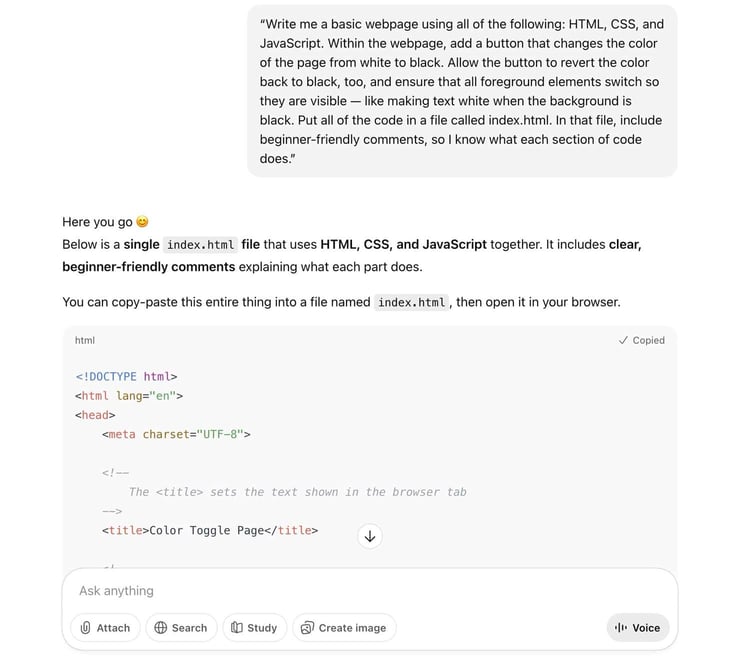
You have the option to compile multiple files into one folder, like having one file for JavaScript and another for HTML. For a simple project, though, I prefer combining it all into one file. You can separate the files later as your project grows. If ChatGPT tries to produce multiple files, reply with this prompt:
“Combine these files into one index.html file. The JavaScript and CSS and HTML should all be inside one file. This way, I can manage it easier and copy the code as one.”
Keep in mind, you can always continue your conversation with ChatGPT to tweak the previous file. ChatGPT should maintain an updated index.html file for you to test. If you don’t like something on your webpage, simply go back to ChatGPT and request that modification. For instance, you could always ask ChatGPT to switch the button’s color or text after you’ve developed your entire webpage.
Step 5: Make a Project Folder and Save Your index.html File Inside
I mentioned earlier that you should create a folder on your computer to hold all of your development projects. This is so you don’t clutter your Desktop or Downloads folders, both of which are not appropriate for saving large files anyway. Inside that folder, make a subfolder for this particular project. Call it whatever you’ll remember. Maybe my-simple-js-site or my-chatgpt-project.
Within that folder, make a file called index.html.
Windows: Start > Notepad
Mac: Finder > Applications > TextEdit
Then, paste this basic HTML code (place holder):
Note: feel free to skip this if you’re familiar with creating an HTML file.
    My Simple JS Site


    Hello, Web Dev Pioneer!
    This is my first local AI webpage.
File > Save As (“All Files” or “Plain Text”) > index.html
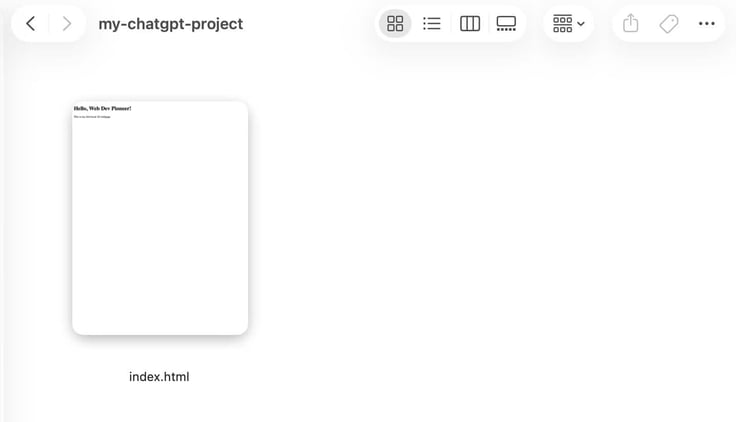
You should keep file names like index.html simple and all lowercase. Although the specific folder name doesn’t matter much, the files inside your main folder very much do matter.
Using the index.html file name makes sense because most servers look for that name when trying to serve up the homepage of a website. It’s the go-to for any homepage.
Finally, copy the code provided by ChatGPT. Open the index.html file in your text editor, and paste (and replace) the provided code into the file.
Example Reference:
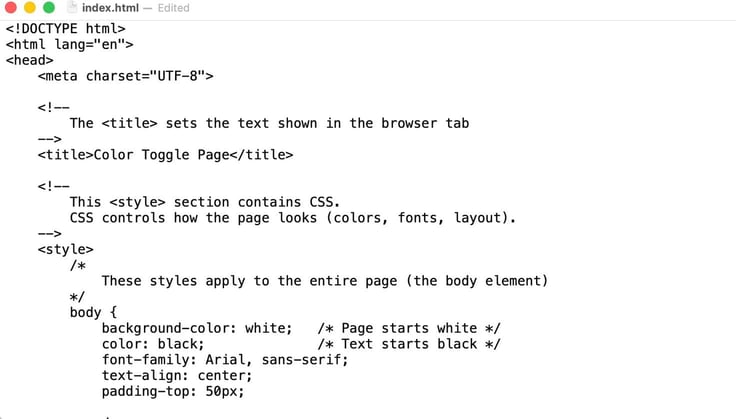
Be sure to save the index.html file.
Step 6: Before Publishing, Test Your Website in a Local Environment
If you save a file on your computer with the .html file extension, you can click on that file, and your computer will automatically open it in your default browser as a website.
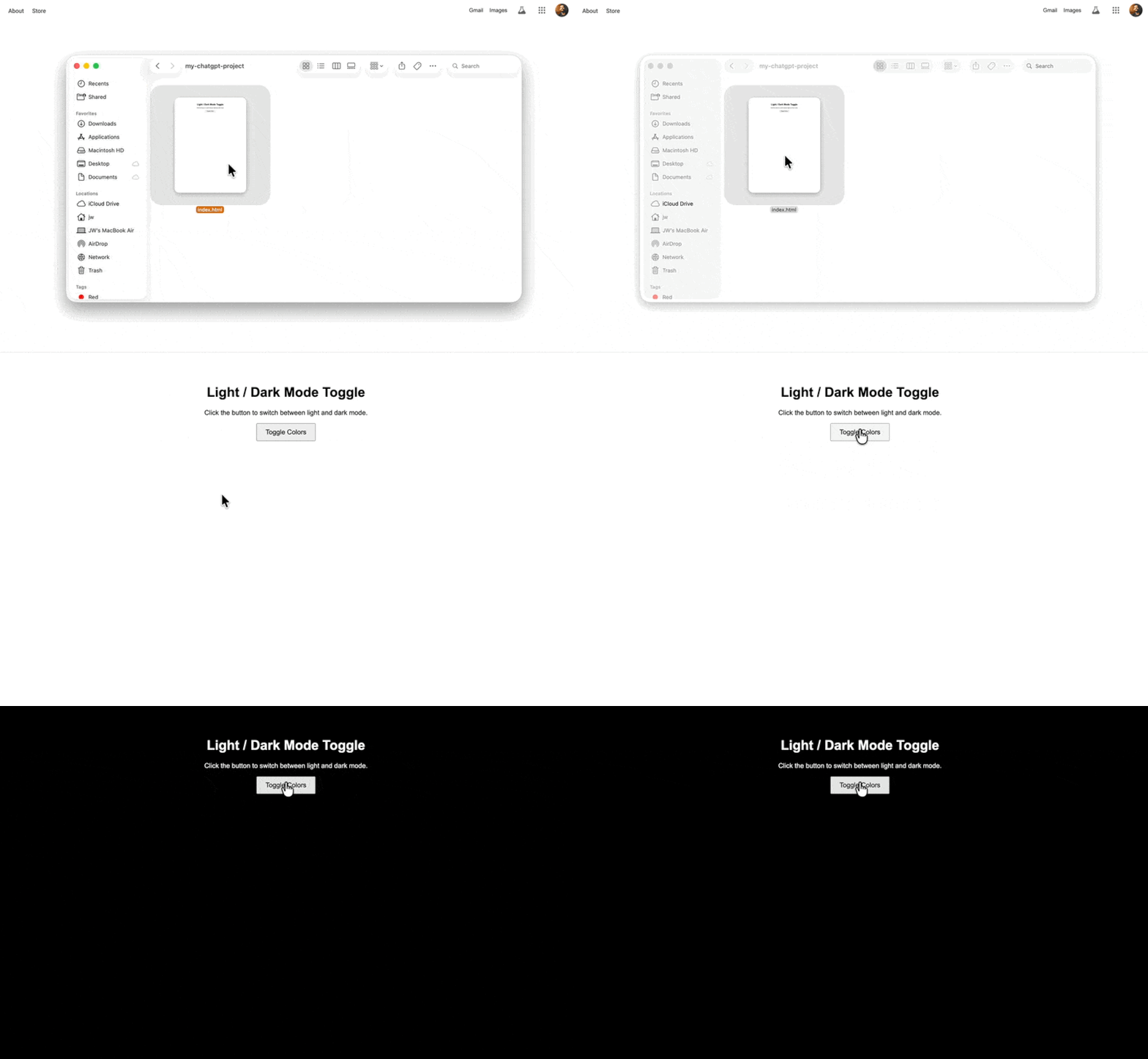
It doesn’t have a domain name, but your computer acts as a local server. Only you can see the website inside your browser.
Here’s what you should do while looking at your local website:
- Make sure it actually shows up. Maybe you saved the wrong file extension. You shouldn’t, however, have to connect to the internet. This is a local file that doesn’t use the internet.
- Check to see if every aspect of your website looks right. If not, ask ChatGPT to make a tweak and provide the new index.html file.
- Test out all interactive elements, especially the JavaScript button and color-changing feature ChatGPT made for you.
Again, if anything doesn’t work, or you’d like to modify something — like adding a menu to your website or including a banner image to introduce users to your page — return to ChatGPT and request new code. Something malfunctioning on a website is completely normal at this stage
Developers run into issues all the time. Reviewing the code and going back to ChatGPT with screenshots and your observations is all part of your diagnosis.
Step 7: Help ChatGPT Diagnose Issues with Your Browser Console
While talking about necessary tools for this process, I mentioned picking a browser with a powerful Console and DevTools. Every type of browser has them, but I prefer those from Chrome, Arc, or any Chromium-based browser.
One thing I’ve learned about web development with ChatGPT is that if you simply tell it about an error, it often inundates you with every fix imaginable. That’s a waste of time. Instead, you can cut down on ChatGPT’s (and your) work by tapping into the browser console.
Here’s how to do it when you encounter an issue with your JavaScript or website overall:
- With your website open locally in your browser, right-click anywhere on the page.
- Click the Inspect option in the menu that appears.
- That opens a panel on the right. In that panel, open the Console tab.
- Scroll through the Console tab to look for errors. All JavaScript and HTML and CSS errors appear here.
- Copy the messaging shown in the Console and paste it into ChatGPT.
Also keep in mind that you might see “No Issues Detected” if everything looks good.
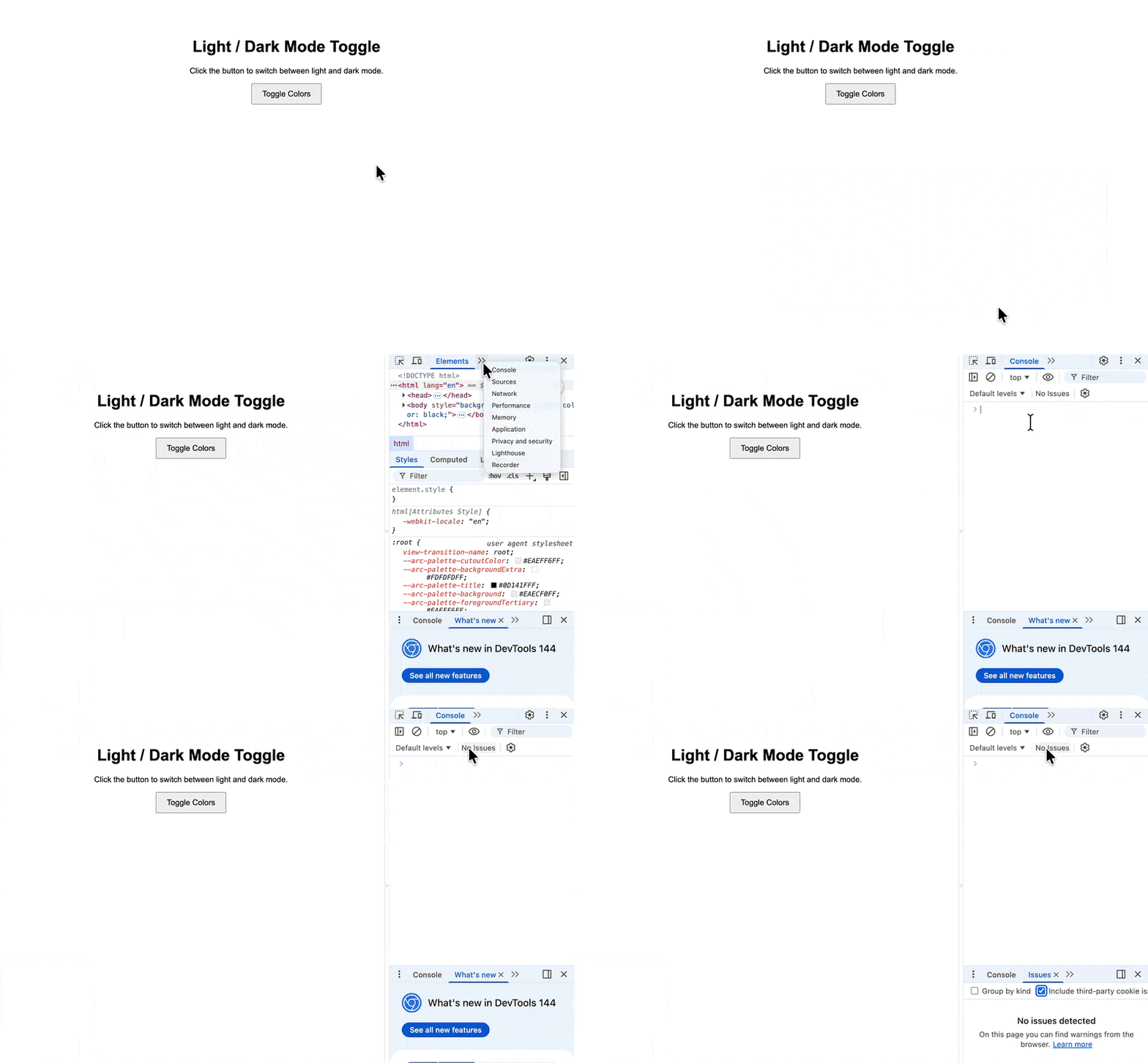
I like to use this prompt to explain the situation to ChatGPT:
“I found this error message in my browser’s development console. Tell me exactly what it means in the simplest way possible. Then, explain what needs to change in my code. After that, actually implement the change in my code to fix the error.”
After ChatGPT provides a fix, once again copy that new code into your index.html (replacing the old) and save it in your text editor.
I like to think of DevTools as your browser’s check engine light. Instead of codes and cryptic messaging, DevTools tells you what’s wrong in fairly plain English, and if you can’t understand an error, ChatGPT most likely can.
Step 8: Ask ChatGPT to Clean and Simplify Your JavaScript
This may seem like something we should have done earlier in the process, or perhaps something ChatGPT should’ve handled itself, but believe me, you’re way better off asking ChatGPT to clean, organize, and simplify your code at the end.
That’s because you’ve already done all the messy work. You’re currently holding an index.html file with JavaScript and other code languages that create functional webpage elements. Use this as your foundation, but know that after all that work, you’re probably left with an overly complicated, messy file that you won’t understand if asked to open it.
Side note: I love this step because it’s one of the few ways you’re able to learn something when you write JavaScript with ChatGPT. It’s a step that sets you up for easier code reading and modifications later. In short, you’re not stuck with what most ChatGPT users receive: something that works right away but confuses them until the end of time if needing to make changes.
So, to start, I recommend saving a backup version of your stable index.html file. You can revert to that one if something goes wrong.
Give ChatGPT this prompt, or something similar:
“Thank you. Let’s keep this as my core, stable index.html file, but also try to rewrite the JavaScript so it’s as easy as possible to read and modify. Please use clear, simple variable names. Make all comments short and easy to understand for a beginner. Make sure each section has a comment, too. But make sure all the functionality we’ve developed remains the same.”
Now you’ll receive a far cleaner file with stronger organization, and all these comments that allow you to go into the code and understand it. The best part? Your variable names actually mean something, instead of using general names like temp or x.
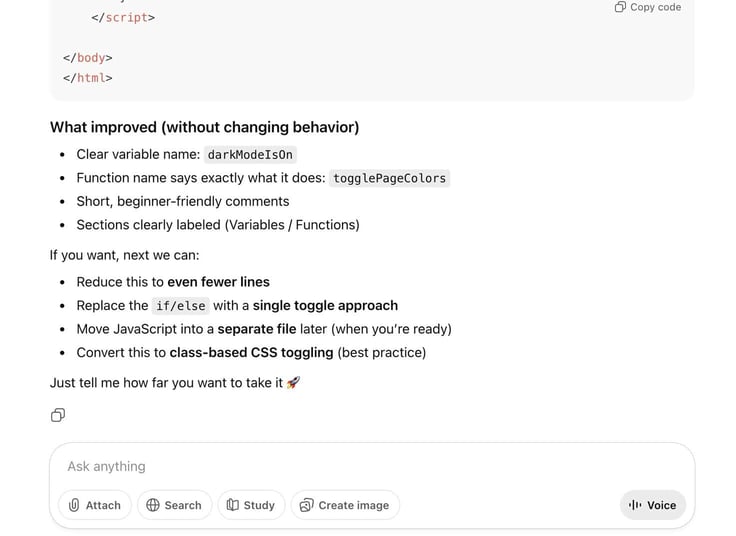
When you’re done with this step, be sure to test out the new code in a local environment to ensure ChatGPT didn’t break any of your functionality. If you notice issues, go back to ChatGPT and request that it revert to your core, stable version.
Step 9: Move All JavaScript to Its Own File
It’s a good practice to eventually move all JavaScript from your index.html file to its own file. I know, I know. Why didn’t we do that before? Well, I find it’s advantageous to organize a simple HTML website in one centralized file. This way, ChatGPT and you focus on getting the functionality down before messing with any file management, which can often lead to bugs because of the added complexity.
As you grow a project, I always suggest eventually extracting your JavaScript and CSS to place them in their own files. As a result, you can manage more complex JavaScript separately from other coding languages, making larger website projects more organized.
Send this prompt to ChatGPT to make it happen:
“Find all JavaScript inside my index.html file and move it to its own separate file. Name that file script.js. Then, please update the index.html code so the HTML and CSS code currently link to all necessary JavaScript in script.js.”
After that, follow these steps:
- Take the new index.html file and copy and paste its contents into the one saved on your computer.
- Using your text editor, create a new file in your project folder. Name it script.js and paste all the separated JavaScript code into that.
Your index.html and script.js files should be stored in the exact same folder on your computer.
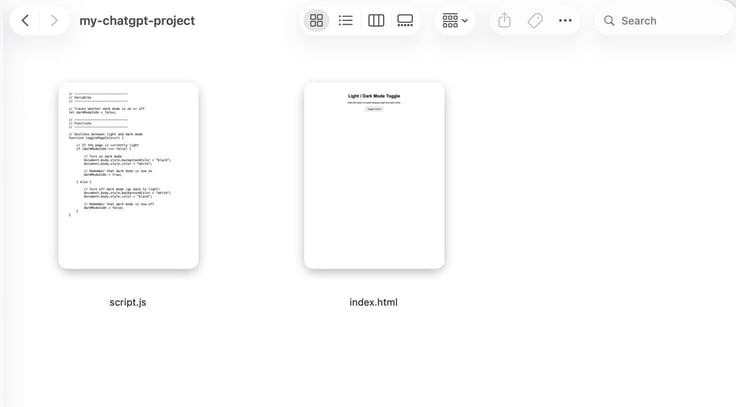
To test your website, click to open that index.html file again.
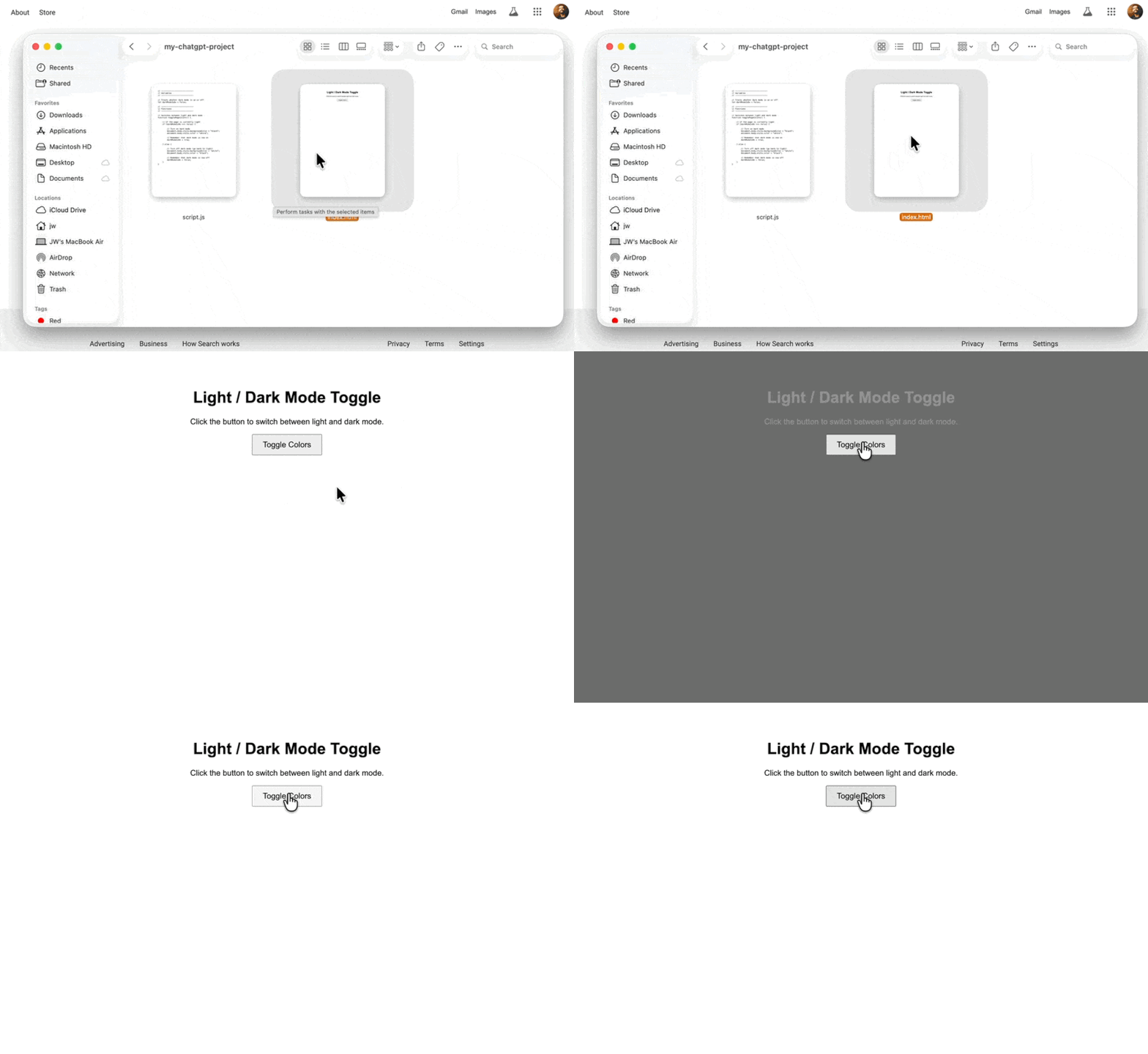
Go through your usual testing and ask ChatGPT to make adjustments if you notice issues. Most problems stem from your JavaScript file name (script.js) not matching references to it in your HTML file.
Step 10: Pick a Way to Host and Publish Your Website for Free
I love testing locally to build confidence in my skills and make mistakes without anyone seeing. Eventually, though, you should learn to publish a website live online. This is called hosting, and it’s done on a server owned by a hosting company. Luckily, there are free ways to host the JavaScript you made with ChatGPT.
Here are my recommendations for hosting:
| Website Host | Advantages |
|---|---|
| GitHub Pages | Advanced version control; permanent live pages and URLs; it’s the industry standard |
| Netlify | Drag-and-drop configuration; secure HTTPS connection; go live very quickly |
| Vercel | Custom domain options; quick previews for the smallest of changes; good for when you need higher performance |
I create all of my personal and test projects in GitHub/GitHub Pages — mainly because it’s easy enough to learn and the entire industry uses it — so I’ll walk you through that option.
GetHub Steps:
- Make an account at github.com and log in to that account.
- Click the “+” button in the menu and select New Repository.
- Name the repository, set it to Public, and check the option to “Add a README file.”
- Select the Create Repository option.
- Once inside the new repository, click Add File.
- Pick Create New File or Upload Files, depending on whether you’d like to copy and paste the code over, or upload the files from your computer. Either way works fine.
- Name your files, and click Commit Changes.
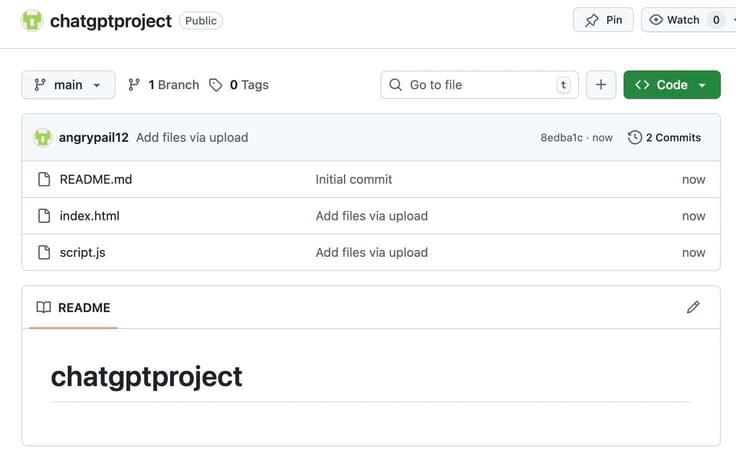
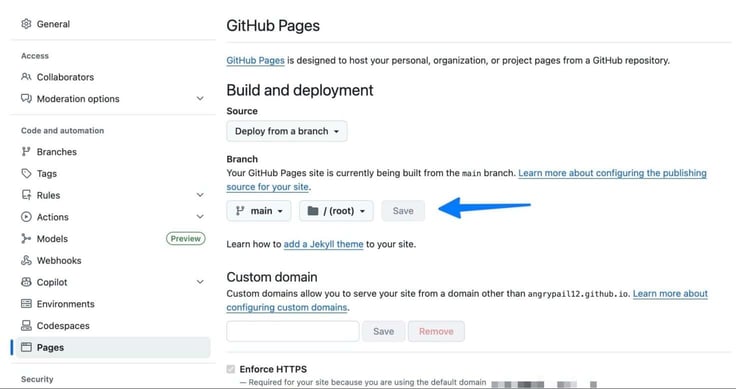
When you’re all done adding files, it’s time to create a GitHub Pages page for that project. Go to Settings > Pages. Under the Source heading, pick Deploy From a Branch in the dropdown menu. Choose the “main” branch and click Save.
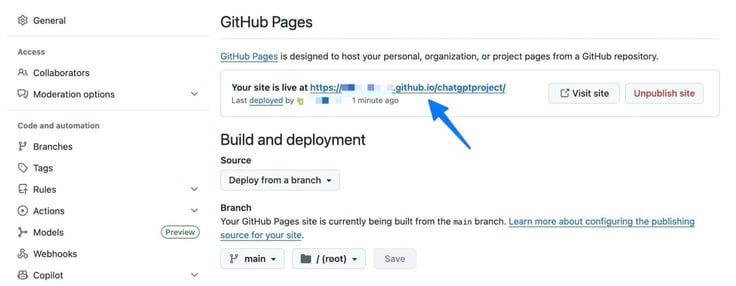
Within a few minutes, you’ll see a message at the top of the Settings > Pages section that says “Your Site is Live at…” and you’ll see a URL that you can click to see your live website — something like username.github.io/my-js-site.
Run through the same troubleshooting as before.
My Final Thoughts and Best Practices for Improving Your JavaScript with ChatGPT
I’ve made plenty of mistakes during my time writing JavaScript with ChatGPT, so I want to pass along some tips for you to have better results.
Best Tips:
- Be consistent with file name capitalization: You don’t want your HTML file linking to a file called Script.js when the real file is named script.js.
- Ensure your file paths match where files actually live: You can’t have a script tag that reads js/script.js when the actual script.js file resides in your main folder and not a subfolder named /js.
- ChatGPT works wonders for deployment debugging: If you can’t get a local site to work the same way in GitHub, tell ChatGPT exactly that. Copy and paste over your complete code and files. Then, tell ChatGPT to troubleshoot.
- If you’re concerned about security vulnerabilities, ask ChatGPT first: JavaScript may deal with elements like payment info, passwords, and forms that collect personal information (there are also important privacy laws). Before implementing them, ask ChatGPT to explain security, legal, and privacy risks. This will not be legal advice, but good to be aware of should you consult a lawyer in the future.
Above all, treat writing JavaScript with ChatGPT as a complete learning experience. Too often, we turn off our brains and fully lean on AI for everything. But what happens when you need to explain your work to a colleague, client, or boss? What happens when a solution to your problem is actually faster to complete yourself instead of bashing away at ChatGPT?
Those web developers, most knowledgeable on a subject, will still excel past someone who’s exploring AI JavaScript coding, hosting, and design for the first time. Even when both those people use AI, there are still things that can go wrong.
Experience and expertise will always have a leg up, but it’s more possible than ever to build a functional, interactive, and good-looking website using just ChatGPT. Be sure you’re learning in the process, and build your knowledge beyond what ChatGPT spits out. Above all, take the time to check your work before you publish a live website on a hosting platform.
If you enjoyed this article, be sure to bookmark HostingAdvice.com for the future, and follow us on social media!