
Guides

Studies 
Studies
Our studies cover a range of trending topics and deliver original, reliable data you can't get anywhere else on the web.
From ease of use to managed services, SiteGround's platform touts a lot of features worth taking the jump for. But is it really as good as it seems?

By: Lynn Cadet

Editor: Lillian Castro

Reviewer: Christian de Looper
Disclosure: When you sign up through links on our site, we often earn referral fees from partners. For more information, see our ad disclosure and review policy.
Over the course of a few weeks, I had the chance to review SiteGround to determine if it was the right fit for me. I’ve heard a lot of good things about the host, so putting it to the test would allow me to see if these rumblings are true.
As a humble website owner, I was only looking for a few things: a seamless user experience, a functional website building experience, and an affordable hosting plan (not too great of an ask). Fortunately, SiteGround had all three of these attributes.
Below, I’ll be reviewing SiteGround’s hosting platform, covering everything from its cloud hosting to its WordPress packages.
Built on Google Cloud infrastructure, SiteGround offers highly performant hosting for a fraction of the typical cost.
I found SiteGround super easy to navigate and manage. SiteGround covers all the bases by providing an in-depth client portal and management area.
The introductory prices are extremely accessible, but customers should seriously consider the renewal costs. SiteGround is known to have higher renewal rates than its competitors (most likely due to its cloud-based infrastructure).
SiteGround is one of those web hosts that you never really hear anything negative about. And that’s not because it’s underrated or flies under the radar — its reputation is just that rock-solid.
After years of writing about the hosting industry and hearing about SiteGround, I’ve longed to try out SiteGround for myself. And today, I get to do just that, starting with its cheap hosting plan.
Let’s see if SiteGround is truly as good as it seems.
Pulling up SiteGround’s homepage, I could see right from the start what SiteGround values as a web host. And it happens to align exactly with what I’m looking for in a host: fast and secure hosting and world-class support. A promising proposition so far, but does it deliver?
To find its shared hosting plans, I clicked on “Web Hosting” at the top of the screen, which turned into a drop-down list of SiteGround’s web hosting solutions. I chose “web hosting” from the list as that is the indicator of a cheap plan.
Once on the page, I realized that SiteGround has three main plans: StartUp, GrowBig, and GoGeek. All three come equipped with a boatload of features — a highlight I was truly impressed with. That means I’ll be set no matter where my budget falls.
Here is just a sample of the features SiteGround offers in its packages:
Browsing through the page further, I could clearly see that ease of use is SiteGround’s calling card. Throughout its plan description, there were features built and added to make the hosting process simpler, including a one-click CDN, a website builder with AI capabilities, and free collaborator access.
Besides the ease of use, SiteGround also has some of the best introductory prices on the market. Its StartUp plan is $2.99 a month, which is a pretty affordable starting point.
If you’re just starting out with web hosting and are not sure if it’s for you, you won’t have to worry about SiteGround putting a dent in your wallet.
Note: SiteGround offers a 30-day money-back guarantee for peace of mind. You can receive a full refund (minus domain registration fees) within 30 days of signing up, in case you end up not liking the platform.
However, I must say there is an element of SiteGround’s pricing model that makes me a bit hesitant. And that’s its renewal prices. They’re a bit hefty, but I’ll explain why that’s the case a little further below. First, check out this pricing comparison (with other competitors) below.
| Host | Plan | Introductory Price | Renewal Price |
|---|---|---|---|
| SiteGround | StartUp Plan | $2.99/month | $17.99/month |
| Bluehost | Starter Plan | $1.99/month | $9.99/month |
| HostGator | Hatchling Plan | $3.75/month | $10.99/month |
| Hostinger | Starter Plan | $2.69/month | $11.99/month |
SiteGround may be a little more expensive after renewal compared to other hosts. However, what makes SiteGround stand apart is its cloud infrastructure. It’s pretty rare to find a hosting provider that offers a cheap plan on cloud computing — almost unheard of.
The other competitors on this list just offer regular shared hosting that can be susceptible to slower speeds and noisy neighbor syndrome. SiteGround, on the other hand, sets you up with a solid cloud hosting foundation, which at a minimum can provide more stability and performance.
So in short, with SiteGround, you get more performance for your dollar, whereas a cheap plan with another host will most likely be running on shared servers with far less speed and strength.
Since I plan on just testing out SiteGround, I decided to go with its base plan, StartUp, to find out what exactly SiteGround has to offer.
To start the signup process, I clicked on the “Get Plan” button. This took me to a domain registration page, where I could enter a name of my liking. At this step, I could either create a new domain name or input an existing one, in the case of a website transfer.
I typed in pizzadreams and switched the extension to .net, since the .com version was already taken. If you haven’t guessed it yet, I’m thinking of making my website for a pizza parlour. Because who doesn’t love pizza?
Anywho, after entering the domain name, I was directed straight to the billing/contact information portion of the signup process. Oftentimes, web hosts let you see an overview of your cart before proceeding with the checkout, but SiteGround went straight to business.
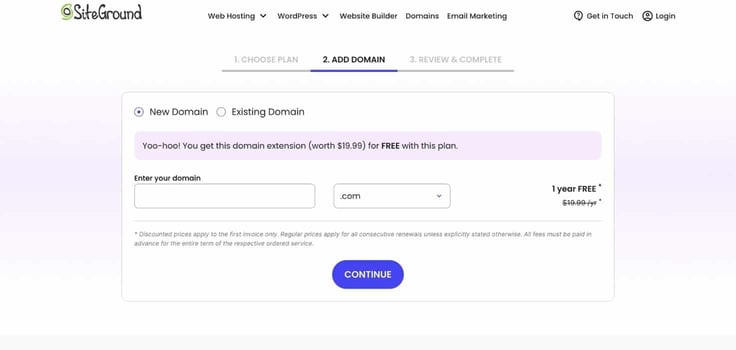
I input my account information first (email and password). Next was my contact information, and then my payment information was last.
Scrolling further down the page, I could finally see the purchase information. There were two drop-down arrows on the overview. One was for selecting the duration of your plan. The other was for changing datacenter locations.
SiteGround had these datacenter locations as options:
I chose Texas, USA, since I live on the East Coast of the U.S. The closer the datacenter is to my audience, the better.
SiteGround also gave me the option to change plan tiers during checkout. So if I were to change my mind, I won’t have to completely restart the signup process. I thought that was a small yet convenient feature to add on SiteGround’s part.
Of course, SiteGround also dangled some add-on features during checkout. The choices included domain privacy, email marketing, a site scanner, and premium backups. I’ve learned to expect some upselling, so I didn’t mind because most hosts do this at this stage.
Right under the order summary was my total, which was a whopping $35.88. That’s a pretty good deal for a year of web hosting, I would say, especially for a hosting plan built on cloud infrastructure.
Although StartUp is technically a shared plan, I was excited to see how it would fare up against other hosting plans I’ve used in the past, which were built on shared server environments. I guess now is the time to find out.
First, I logged into my account dashboard to get a lay of the land. The homepage featured shortcuts to websites, domain registration, and email marketing services. The top bar also had tabs that led to these destinations: home, websites, services, billing, affiliate, and marketplace.

SiteGround’s dashboard is pretty concise, so there wasn’t much for me to scour, which I liked. And everything was easy to follow and understand.
Now, it’s time to get into some site building. To launch the process, I clicked on “Websites” on the top bar, then clicked on “New Website” to get started. SiteGround prompted me to select which hosting plan I wanted to host my site on. I chose the StartUp plan.

Next, I chose the domain I wanted to use. You could either create a new one, choose an existing domain name, or generate a temporary one from SiteGround.
At this point, SiteGround also allows you to select the data center location of your preference. I wanted to highlight that because it shows that SiteGround offers flexibility. You’re not completely locked into choices when you hit pay at checkout, which is great.
I decided to choose a temporary domain for now (I opted out of registering the domain name earlier) and kept chugging along. The next step was setting up my website, which included these two options: start a new website or migrate an existing one.
I decided to start a new website using WordPress. You can also create a website with SiteGround’s website builder. But I’ll be testing its site builder in a later section of the review.
Side note: There was some upselling during the setup process, including offers for extras and add-ons. I deferred on both and kept moving.

After finishing the setup, I clicked on “Login to WordPress Admin.” This allowed me to launch the WordPress starter wizard. Here is where the site-building journey actually begins. Once I answered all the questions, I was able to select a theme to which I would set my website on.
After that, I could either launch or edit my site. The theme provided a solid foundation, but it didn’t entirely align with my vision. So I chose to edit, which took me to the WordPress site editor. With SiteGround, the WordPress site editor came with a preinstalled Otter Blocks library.

The library had blocks for everything, from hero images and contact forms to testimonials and pricing. I decided I didn’t want to make too many adjustments, as I would further test out the WordPress editor in the WordPress hosting section of my review.
However, for some reason, the theme kept breaking. Slowly, I was able to pinpoint the issue. It was the hero image block pattern. So I had to remove it and add a different block pattern.

But I’m sure the issue was really with the theme developer and not SiteGround, as it didn’t create the theme. So if you’re working with the Otter Blocks library and Neve theme, that may be something to look out for.
After switching out some pictures and text, I transformed the predesigned, generic restaurant template I got from Neve to look like the perfect web presence for an intimate, hole-in-the-wall pizza shop.
SiteGround splits up its dashboard into two sections: the primary client area and Site Tools. Site Tools is where you go to track, monitor, and manage all of your hosting plan’s details and performance. And each plan you purchase has a unique Site Tools dashboard.
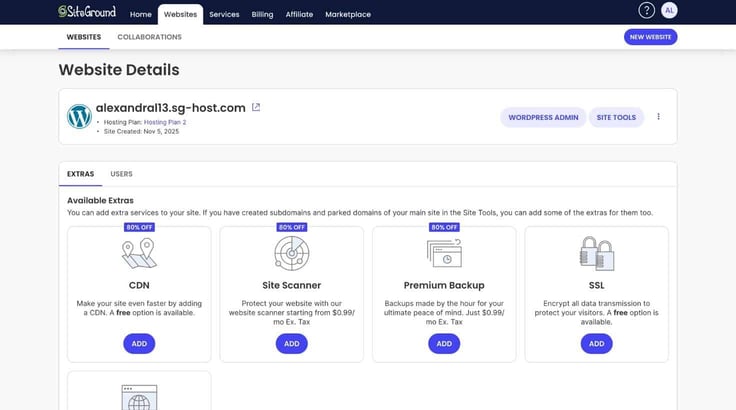
To find Site Tools, I clicked on the “Websites” tab of the SiteGround client area. A list of my hosting plans appeared, and from there, I could choose to click on “Site Tools” on whichever plan I please. I chose the Site Tools option for my cheap plan.
This is how the dashboard looks:
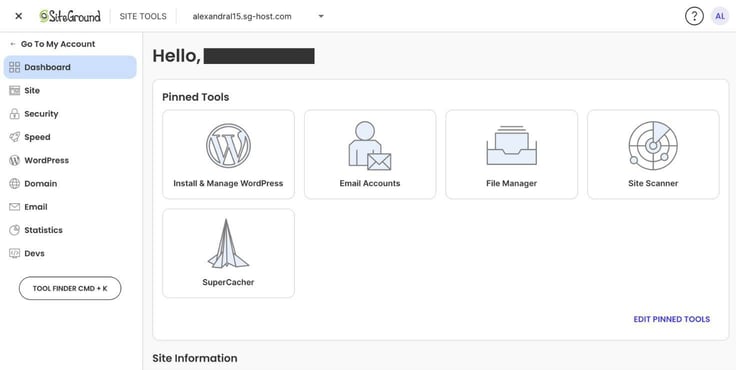
SiteGround did a phenomenal job creating this dashboard, as not only was it thorough, but it was also really simple to navigate and decipher. None of the details came off as obscure or too technical to understand, which is great for an audience base of varied backgrounds.
The possibilities were almost endless. I could create new users (you could also do this in the client area), manage backups, install applications, and track visitor traffic.
I was truly impressed with it. Web hosts don’t always take the time to develop a comprehensive client area and hosting dashboard, and a lot of times, you have to outsource even basic site tracking to other tools like Google Analytics. So I appreciated that effort from SiteGround’s team.
Time for the moment of truth. I spent some time hyping up SiteGround’s cloud-based shared hosting environment earlier. But does its cloud foundation really make that much of a difference compared to other shared plans? I’ll guess we’ll have to see.
Using GTMetrix’s speed testing tool, I typed in my temporary domain name to determine its performance for myself. Here are the results:
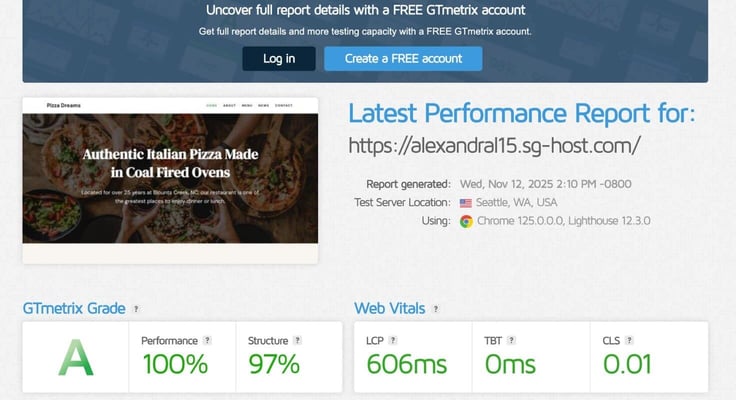
It received a smashing A grade, with a 100% on performance and 606ms for LCP speed. SiteGround wasn’t playing around when it said it was fast, and the cloud definitely came in clutch. While my website wasn’t super heavy with content, so disclaimer there, I still thought those results were a great indicator of SiteGround’s capability.
Side note: All of SiteGround’s plans come with a Speed Optimizer plugin and out-of-box caching for performance optimization. So that could help explain its dominant performance.
The answer is absolutely! SiteGround hit the mark on almost everything a cheap plan should have and more. Most people don’t expect a base plan to have incredible performance, but SiteGround even excelled in that department.
While some may be wary of the renewal costs, the pricing could be a fair tradeoff for those who truly need the performance, flexibility, and wide range of features. In fact, its base plan offers such a great combination of features that it could put the tier two or three plans of some competitors to shame.
So I would recommend SiteGround’s cheap hosting service to anyone searching for simple, fast, and secure hosting. The renewal costs may not be worth it for a hobbyist or a blogger, but it would be a worthwhile investment for small businesses and developers.
When looking for a WordPress plan, it’s easy to take a plan at face value and not look deeper beneath the surface to see if it’s actually tailored to the WordPress environment.
But let me let you in on a secret: While some hosts may advertise plans as WordPress hosting, many of these plans aren’t specifically designed for WordPress. They’re just a shared plan coupled with preinstalled WordPress software — no other WordPress optimizations added.
Fortunately, not every host follows this slightly deceptive tactic. So without further ado, let’s find out together whether SiteGround provides a WordPress hosting worthy of the CMS’s standards and mine.
Hopefully, there will be no duping around these parts.
To browse SiteGround’s WordPress hosting plans, I clicked on WordPress at the top of SiteGround’s website and selected Hosting for WordPress. By the way, SiteGround also offers hosting for WooCommerce — WordPress’s eCommerce sister software.
Upon reaching the webpage, I could see that SiteGround’s plans promise these three attributes: “ultrafast, managed, and simple to use.” While these words shouldn’t be enough to elicit excitement, I have to say my interest was piqued. After all, a good WordPress hosting plan should have all those things, and I’m somewhat of a WordPress enthusiast.
Looking through the plans, I had to do a double-take, however. I realized its WordPress plans look just like its shared ones. I guess SiteGround pulled a good ol’ fashioned switcheroo.
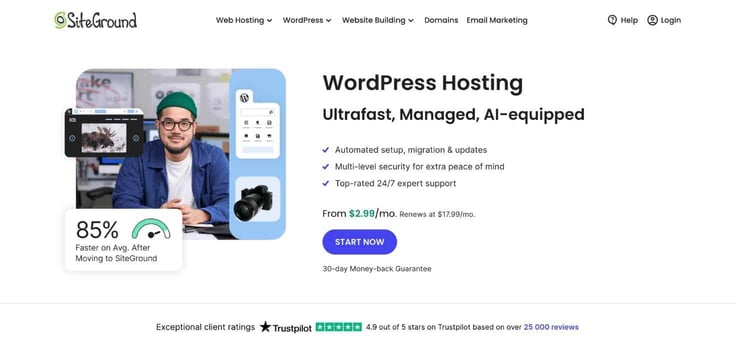
As I mentioned earlier, a lot of times hosts like to just attach a WordPress install to a shared plan then call it WordPress hosting, though WordPress hosting should have a lot more than that. But SiteGround doesn’t do that. It essentially provides real WordPress hosting for both its cheap and WordPress packages. I see what you did there, SiteGround team.
Luckily, that means no matter what plan you choose, you’ll be getting some excellent WordPress performance juice for your site. From fully managed WordPress updates to speed optimization plugins, SiteGround has everything I would need to build a WordPress site with performance and ease of use.
I also love that SiteGround is super transparent about its pricing. Not only does it show you its monthly pricing, but it also displays its renewal prices, so I can know exactly what I’m signing up for in the long run.
Since I already tried out its StartUp plan during my cheap hosting review, I’m deciding to go big and try its highest tier, GoGeek, for this part of the review. I’m excited to say the least because I want to see just how much I get to work with here. It’s like features galore. The highest tier includes all the resources of the other plans and then some.
The GoGeek plan includes these exclusive features:
Going back to pricing, it is definitely something to consider. While the margin between the introductory prices isn’t huge, its renewal pricing is a different story. Between the StartUp and GoGeek plans, the difference in cost is $27 a month when calculating renewal costs.
So something I will be looking out for while testing the GoGeek plan is whether the increase in cost is really worth it compared to its lower-tier plans. However, I do appreciate that it offers a lower, accessible introductory price to accommodate those with a smaller budget.
Some hosts, like Bluehost, for instance, don’t offer a low-entry price for their WordPress cloud hosting. With Bluehost, I would have to pay $75 a month right off the bat for its WordPress cloud hosting base plan — no lower introductory price period.
I appreciate that SiteGround makes its plans accessible and open for every kind of budget, while still giving users the power of the cloud. It doesn’t compromise but finds a way to give users affordability and performance at the same time.
To sign up, I clicked on “Get Plan” under the GoGeek plan, which took me straight to the domain registration page. This stage gave me two options: to either make my own name or add an existing name. I didn’t have a name yet.
Thankfully, I get a free domain with this plan, so I don’t have to worry about paying extra to register. Only thing is that I was drawing a blank on what name I wanted. Usually when I’m having a creativity block, I use the host’s AI domain generator.
Unfortunately, when I checked, SiteGround didn’t have one. But that’s not exactly a dealbreaker for me. I’ll just go old-school and make one up on the fly. If you want a little assistance with creating a name, luckily, you can use other free AI tools online (cough, cough, ChatGPT).
I wanted to make a site about cruise travel. So I brainstormed the name: cruisingwithlynn.com. Short, to-the-point, and memorable. After entering my name, it was time to fill out all my contact information, from account credentials to my billing address and payment information.
SiteGround ensures you get the best performance by allowing you to choose the data center location closest to you. I appreciate this aspect because not every host does this, although more are adding this step these days.
I chose the Texas data center since it’s the closest to me. At this step, I could also determine whether I wanted a monthly, one-year, or two-year plan. The one-year contract would total out to $71.88 ($5.99 a month), which I would pay upfront.
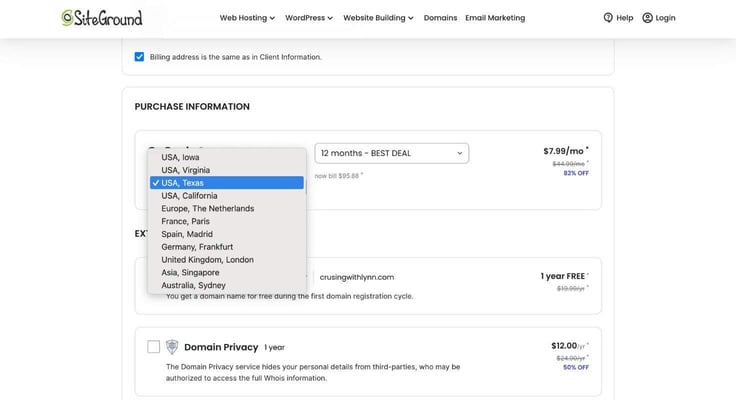
After the introductory period ends, however, the GoGeek plan renews at $44.99 a month ($539.88 total for a year). The two-year plan, while pricier upfront, does run a discount over two years and saves you more in the long-term. You would pay $19.99 over 24 months, totaling $479.76.
Both the one-year deal and the two-year plan offer great savings. So choose whatever fits your budget. I prefer the one-year ($5.99 a month) deal because it provides just enough for me, since I don’t need a long-term plan.
I also appreciate that SiteGround places all of its signup steps on a single page. This way, if I do have to go back and make any changes, I can do so without leaving the page or losing my progress.
After entering and reviewing my details, I scanned through SiteGround’s add-ons that were at the bottom of the page. SiteGround offers 1-month free trials for all of them, except for the domain privacy feature. I decided to skip on them, but I would recommend considering those free trials if you need email marketing or extra security.
After logging in to my account, I was given two options to jumpstart my website journey. I could either click on the Websites shortcut on the homepage or click on the Websites tab located at the top of the page. I decided to take the shortcut and clicked the button labeled “Set Up Site.”
A pop-up box appeared prompting me to select the hosting plan I wanted to use to build my site. I chose the GoGeek plan. Next, it asked me to choose a domain name to create my website under. At this point, I could either choose an existing domain, create a new one, or use a temporary domain name.
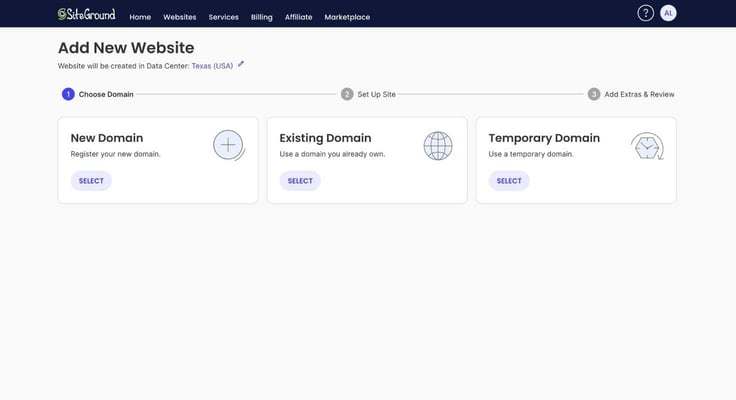
Once I chose the name, I moved on to how I wanted to set up my website. SiteGround offered me two options: start a new website or migrate an existing one. If you choose to start a new website, you could create one using SiteGround’s website builder or WordPress alone.
Since I’ll be using SiteGround’s website builder later on in the review, I decided to go with WordPress this time. I must also mention that you can also forgo both of these applications and just go solo with a blank canvas.
To use WordPress, I first needed to create login credentials within the SiteGround dashboard. I entered my email address and then made a password.
SiteGround recommended purchasing a Site Scanner subscription to protect my site, since WordPress can be susceptible to hacking attempts due to the use of third-party plugins. I clicked “No Thanks” on the pop-up and kept chugging along.
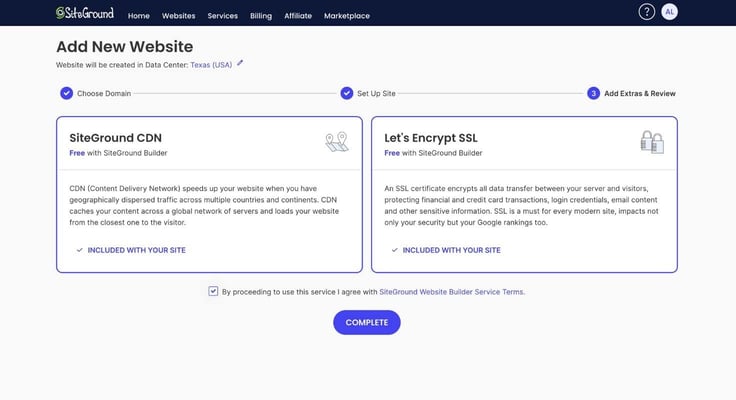
However the next page featured more upselling. I thought that was a bit annoying. Fortunately, that was the last of it, and I clicked “Finish” to continue. It took about a minute for the setup to complete.
After that, I was all set. I could either go straight to developing my site in the WordPress backend or navigate to SiteGround’s Site Tools to access the hosting control panel. I will leave browsing the control panel for later and dive right into the WordPress site-building.
I appreciated that SiteGround didn’t just drop me into the WordPress dashboard without any guidance. Instead, it started the journey with a WordPress starter wizard, which can come in handy for novice WordPress users who need a little hand-holding.

Excited to see what’s next, I clicked on “Start Now” to get the ball rolling. Here are the steps the wizard took me through in chronological order:
I waited about a minute for my items to be installed. And then I could click to either go into WordPress to manage my site or view my site as is. The site the wizard generated didn’t look half bad. I was actually impressed by how complete it looked.

If you do find yourself needing help navigating the WordPress backend and editor, SiteGround offers numerous tutorials, ebooks, and a comprehensive knowledge base that detail the entire process within the WordPress dashboard.

I would definitely say the WordPress wizard did a way better job the second time around (in comparison with my cheap review). It didn’t take long for me to implement all the edits I needed to bring my vision to life, and I hit zero snags while using the site editor. That’s probably because it was missing the Otter Blocks library that was giving me problems during the cheap review.

I can confidently say that SiteGround’s WordPress wizard was invaluable to the web-building experience. It certainly cut my development time in half and helped me achieve a pretty professionally designed website in the end.
I usually steer clear of the highest tier of hosting plans because I tend not to need the performance and like to save on expenses. So I am intrigued to see how well GoGeek will perform. Using the GTmetrix tool to run my test, I got these results:

For a site with several blog posts and images, I thought it performed pretty well. An A grade with an under a second long LCP is quite an impressive speed score. So SiteGround was not bluffing about this plan and its performance.
I was thoroughly impressed by SiteGround’s GoGeek plan. It scored high marks across the board in my book. The performance was awesome, the navigation was simple, and the pool of resources was generous.
Was there some upselling that I wasn’t a fan of? Yes. But I was happy to see that SiteGround didn’t just take a shared plan, slap the WordPress brand name on it, and call it a day. They actually developed a platform built for the CMS environment.
Overall, I couldn’t find any reason to complain about SiteGround’s WordPress hosting service. As for the GoGeek plan specifically, I would definitely recommend it for experienced website owners who can find value in the higher price tag and need more features and speed, rather than a novice user.
While SiteGround doesn’t offer a website builder plan, it does have its own proprietary website builder, which is included free with all of its plans.
In this section, I’ll give a quick rundown of its highlights and whether I think using it is worthwhile, compared to other website builders on the market. Let’s jump into it.
As I stated above, SiteGround doesn’t have any dedicated site builder plans. But instead, the web host goes another route by integrating its site builder with all of its hosting packages, which is a common thing to do in the hosting industry.
Since there isn’t a new set of plans to look through, I’m just going to use a plan I already own to review the builder. Choosing my cheap package, StartUp, my plan is to redo my Pizza Dreams website with the site builder.
I’ll be using this part of the review to weigh SiteGround’s website builder against WordPress’s site editor and see how the experiences compare. Let’s see how it holds up against time-tested legend, WordPress.
Like with the previous websites, I started this journey by navigating to the Websites tab in SiteGround’s dashboard and clicking on “New Website.” After choosing my domain name, I was asked how I wanted to set up my site — migrate an existing site or create a new one.
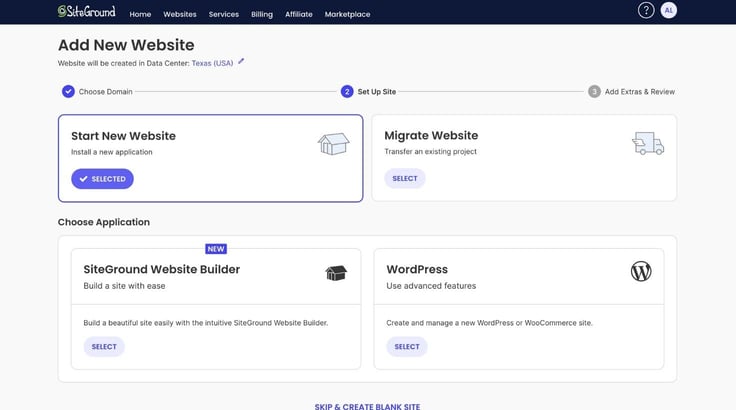
I selected “Start New Website,” then chose what application I wanted to use. Here I had three options:
I think you know which one I’m going to use. I clicked “Select” on the site builder option and kept moving. Nicely, the SiteGround CDN and the Let’s Encrypt SSL are included with its builder, so I appreciated that.
After agreeing to the use of those features, I clicked “Continue.” I was brought to a window that said it was creating my site. And 30 seconds later, the installation was complete.
Clicking on “Get Started,” the next page that appeared was a template library. The template library was filled with polished and professionally looking designs. There was also a template for every type of industry, from medical and nonprofit to hotel and restaurant.
I could also preview the designs in real time. I was able to click through the different pages and tinker with the feature layout. From there, I could either choose to go with one of its many template designs or start from scratch with a blank canvas.
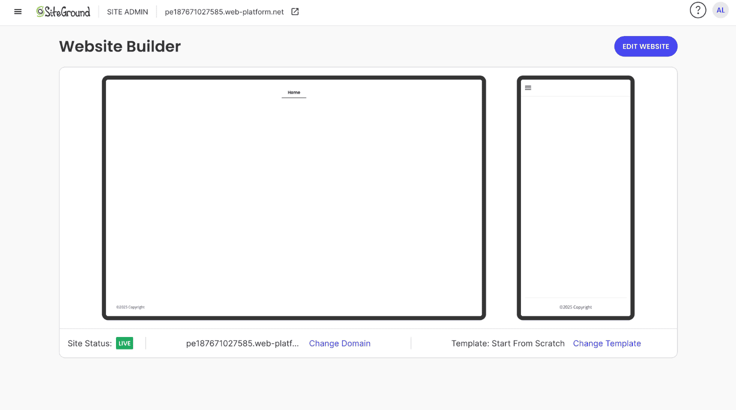
Once I clicked on the blank canvas, I was taken to a preview page. There, I clicked on “Edit Website” to go to the site editor section.
At first glance, I liked how the site editor looked. It had a straightforward design and it was easy to navigate. Whether you’re a newbie at this or a more experienced user, you won’t have any trouble exploring the builder and finding what you need.

The layout was simple: There were tabs for pages, navigation menus, files, and styles. The Files tab even featured a photo gallery sourced from Unsplash. That was a major plus for me because not every site builder includes a stock image gallery as a feature — something WordPress also lacks, unfortunately.
Having a fully stocked photo gallery in the site editor meant that I didn’t have to go elsewhere to search for pictures, upload them, then repeat the process if the photos aren’t the right fit, which can be time-consuming.

The editor also allowed me to add sections easily. Its sections library placed a wide pool of block patterns at my fingertips, categorized by webpage function, such as maps or testimonials. This organization made adding my sections a breeze. You could easily see how everything looked on both mobile and desktop as well.
The only thing I wish SiteGround did better was to add more variety in their section categories. For example, it didn’t have any templates specifically designed for blog posts or those that catered to the footer of the home page.

Beyond that, I realized I hadn’t spotted the AI capabilities yet. But I guess I spoke too soon because as I went to edit the text in one of my homepage web sections, the AI text generator appeared.
The generator was easy to spot because it had the same star distinction that other AI tools have. Testing it out, I typed my prompt into the text box, which went like this “Write an intro phrase for my pizza shop,” and was impressed with the suggested text it generated. It also had a drop-down list for adjusting and selecting the tone of voice you’re seeking.

The text was a little long, but that’s nothing too hard to fix. But I have to say, while the text generator was effective, I was a little let down by the SiteGround AI experience. I was expecting a little more AI assistance from the start of the journey like I had with some other AI-powered builders I’ve reviewed in the past.
But to be fair, I must point out that the SiteGround site builder never marketed itself as AI-powered. It only listed AI content generation as the only included AI feature, so I’m not too mad about the lack of AI capabilities throughout the process.
You can also check out SiteGround’s AI Studio, which allows you to access a range of AI models to get quick answers to your questions and generate more content. You can find it under the “Services” tab of SiteGround’s client area.

Overall, I thought SiteGround’s website builder was solid. Of course, I could have saved a lot more time and effort going with one of its nifty themes/templates, but I like that it gave me both the option to build with a premade template or start from scratch.
The first go-around with testing my StartUp plan went pretty well. Like I said before, SiteGround gives a fairly generous package of features, including ample storage, bandwidth, and cache features. In light of that, I’m expecting Pizza Dreams 2.0 to perform just as well, even though it was built differently.
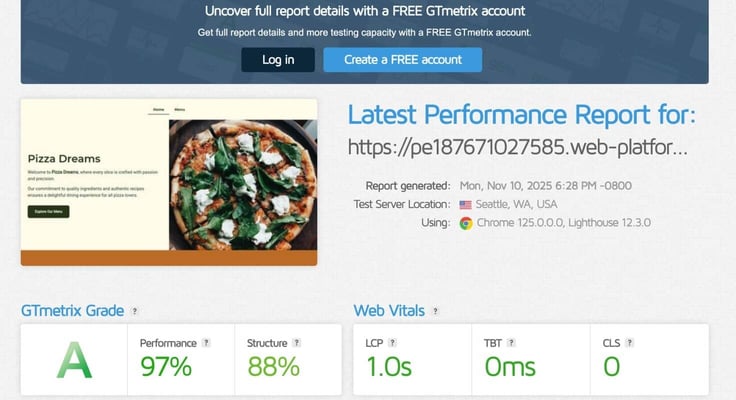
It performed slightly slower than the first iteration of Pizza Dreams that I made with WordPress. But the results are still commendable.
While I’m not sure how Pizza Dreams 2.0 would perform with actual visitors, I have a strong inkling it will be able to keep up based on these results.
I would say SiteGround’s website builder was pretty solid. It didn’t have the most extensive library of templates or block patterns, which was its main downside. Particularly, the builder was missing blogging-friendly text patterns and template pages.
However, I did appreciate its AI text generator and Unsplash gallery integration. SiteGround always finds a way to add ease of use in its processes. And those two features definitely made building my site easier.
Overall, I think it’s a decent website builder to start a website with. Is it super granular? No. But it allowed me to create an aesthetically pleasing site without breaking the bank. I would recommend its use for those who don’t need a lot of personalization and are looking to get a beautiful site up and running quickly.
Now it’s time to test out the big guns. SiteGround gives us a small glimpse into its cloud hosting capabilities with its cheap/WordPress hosting plans. But where you truly get to experience the cloud at its fullest potential is with its cloud hosting plans.
I won’t keep you too long with ramblings because, honestly, I can’t wait to try it myself. So let’s get into the review!
Cloud hosting is no child’s play. And you can gauge that right away from SiteGround’s landing page. The prices are higher, the features are more robust, and the power is significantly stronger.
However, SiteGround ensures that its reputation remains intact, demonstrating that cloud hosting can be just as easy to manage on its platform, thanks to WordPress auto-updates and automated scaling.
I’m getting a little ahead of myself here, however. Let’s go back to the start of my journey. To find SiteGround’s cloud computing plans, I hovered over its “Web Hosting” on the top bar, then clicked on “Cloud Hosting” under its WordPress plans button.
This takes you to a page that looks like this:

With SiteGround’s cloud hosting plans, you get two options. I could either choose from its preconfigured plans or create my own cloud. And let me tell you, no matter what you choose, you’ll have a wealth of resources at your fingertips.
Here is a snapshot of the features you get with its cloud service:
Starting with its Jump Start package, you receive 4 CPU cores, 8GB of memory, 40GB of SSD storage, and 5TB of data transfer. That’s pretty generous. However, as expected, these plans also carry a much higher price tag.
The Jump Start plan is the lowest tier, and it starts at $100 a month.
| Jump Start | Business | Business Plus | Super Power | |
|---|---|---|---|---|
| CPU cores | 4 cores | 8 cores | 12 cores | 16 cores |
| Memory | 8 GB | 12 GB | 16 GB | 20 GB |
| Storage | 40 GB | 80 GB | 120 GB | 160 GB |
| Data transfer | 5 TB | 5 TB | 5 TB | 5 TB |
As you ascend, each tier becomes $100 more than the previous one, making it easy to distinguish them. But if you’re looking for a bit more customization, you can configure your own plan instead. To view the custom configurations, I clicked on “Configure Your Own Cloud” under the simple, premade plans.
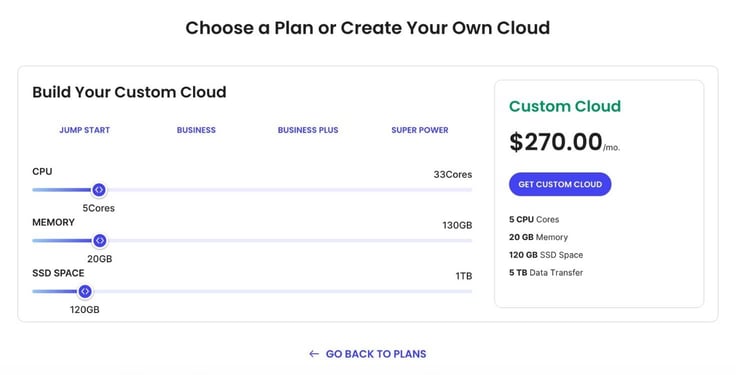
On this page, I could drag the toggle button to find the right amount of each resource that I wanted. For instance, I could get five cores with 25GB of memory and 140 GB of storage. The possibilities might not be endless, but there are many combinations to sort through.
Here are the limits for each specification:
You may look at competitors, such as Kamatera, and realize that there are cheaper cloud service options out there. But a lot of these hosts, including Kamatera, don’t have extra features, such as backups, in their base plans. If I wanted extra security and additional features, I would have to pay add-on prices for them.
So if you want to pay less and pass on some features, a cheaper host like Kamatera or Liquid Web may be the better route than a more expensive and resource-rich plan like SiteGround’s.
Satisfied with my plan choice, I clicked on “Get Plan” to take me to the checkout process.
Since the cloud hosting plans don’t include domain registration, I was taken straight to the account info portion of the signup process. Like with my other plans, I filled out my information, including my name, address, email, and payment details.
The cloud hosting plans had the same data center selection as the other plans:
Looking at my order summary, the price for the Jump Start plan was $100 flat. The cost may be high compared to its other plans, but the pricing is on par with or even less than cloud services such as AWS or Cloudways for the amount of resources.
With the Jump Start plan, I was getting some serious juice so I was definitely looking forward to seeing how much more control, flexibility, and performance I’ll get to play with. After reviewing all the details and filling out my information, I clicked on “Pay Now.” And just like that, I was on my way to finding out just how much power SiteGround can wield.
Logging into my account, I was greeted with a home page that featured several tabs along its top bar. I clicked on the “Services tab” at the top, which took me to this page.

I clicked on “Manage” under “Hosting” to access the page with all my hosting plans. Under the Jump Start plan, I clicked the button that said “Settings.” Doing so allowed me to navigate to a page with more plan details.
From this page, I could see what websites were built on this plan, and I could also choose to view my server’s statistics and its autoscaling settings. I also noticed that I didn’t have to do anything to configure my server. It was already up and running. That means SiteGround already did all the heavy work.
I was pleased to learn this, as I could avoid the time suck of configuration and get right to business. This element is also a great touch for website owners who are dipping their toes into cloud computing but don’t understand the technical side of it.
I talked a bit about Site Tools in the cheap hosting section, and I’ll cover it here as well. To start, I have to say Site Tools is one of the best hosting dashboards I have come across while shopping around for web hosts.
It offers a comprehensive home base for everything from tracking your account details and site traffic to managing backups and applications. You can access it by clicking on the “Websites” tab of the main SiteGround client area, then clicking on “Site Tools” under the hosting plan you want to manage.
Site Tools offers insight into your hosting plan and websites; it’s almost too much to discuss here. But I’ll give you a quick rundown of how it’s set up:
Here is a screenshot of its backup feature:
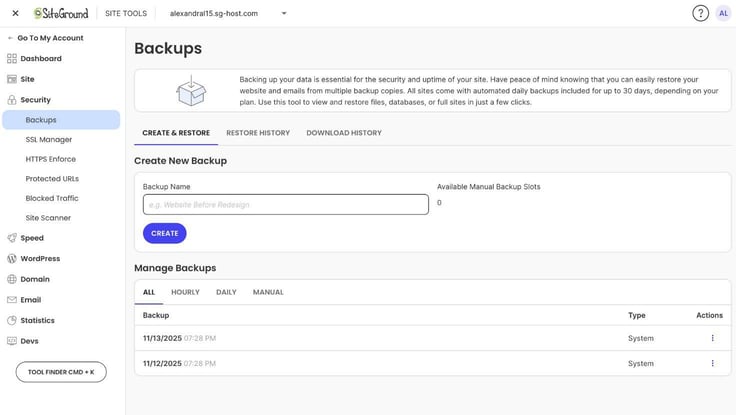
SiteGround supports a variety of applications, which makes it great for various niches and project ideas. However, though SiteGround uses Google Cloud servers, it doesn’t provide root access with its plans since it’s a managed hosting provider.
So if you’re a developer seeking more freedom or customization, the lack of root access may be something to consider before jumping in with SiteGround.
To test the performance, I decided to migrate the site I made earlier with my GoGeek plan, cruisingwithlynn.com, to my cloud hosting plan. SiteGround offers a free site migration WordPress plugin, which I installed and entered the migration token number I got from my Site Tools dashboard into.
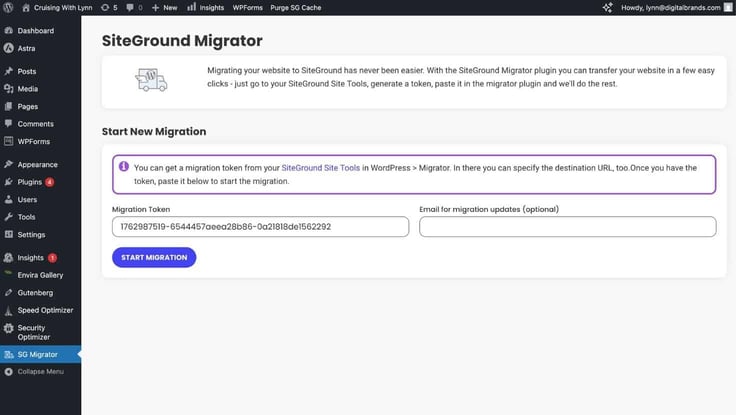
After a quick migration process, I went back into WordPress and added a few more blog posts to bulk up the site. Using GTmetrix, I ran a performance check and got these results.

SiteGround certainly doesn’t disappoint when it comes to performance and speed. So it was no surprise when Jump Start performed with such excellence. It was the highest score I’ve seen yet while testing the platform, and its LCP was well below the average 1.2-second threshold.
So in short, I was thoroughly impressed. Of course, my site wasn’t a super demanding one or a resource-intensive application, but I was well assured by the results.
It may cost a pretty penny to purchase SiteGround’s cloud hosting service, but you definitely get your money’s worth. SiteGround is selling real cloud hosting here, not just slices of the machine.
Compared to its competitors, which would be the likes of Cloudways and AWS, SiteGround offers similar features with a lower price tag. Built on Google Cloud infrastructure, it’s not only well-rounded with features such as autoscaling and ironclad security, its performance also packs a serious punch.
Overall, if you have the need for high performance and the budget to match it, SiteGround’s cloud hosting would work great for your needs. It wouldn’t be so ideal for those with smaller workloads who could take better advantage of SiteGround’s lower-tiered plans.
If you scroll down SiteGround’s homepage, you will quickly see that the web host holds its customer service in high regard. SiteGround has not only won multiple awards for its support, but it also boasts a 98% customer satisfaction rate based on rated interactions.
Though I didn’t find much trouble while using SiteGround’s platform (the service is really well-built and straightforward), I decided to test out its customer support capabilities to round out this review. Let’s get into the setup.

SiteGround offers 24/7 expert support across multiple channels, including live chat, phone, and helpdesk tickets. Helpdesk tickets are for more technically advanced issues and troubleshooting. SiteGround also offers priority support for GoGeek plan subscribers.
Through its support, SiteGround promises fast response times, expert assistance, and efficient resolutions. During my review, I had to transfer a website to another plan, and I needed help with that. So I asked customer support to see if they would help me as quickly as they said they would.

Thankfully, I got a response within a minute of posing my question. And the support agent was super friendly and answered my question with ease. I could see why SiteGround has the award collection it has.
Throughout my review, I had many great things to say about SiteGround, and rightfully so. The web host offers a ton of features that help simplify and boost the hosting experience.
While few, SiteGround’s platform did have some cons, however. I’ll share the pros and cons side by side below.
The ratio between the pros and cons is definitely uneven, thankfully with SiteGround leaning more toward the positive side. Overall, SiteGround provides an excellent balance of features and functionality, with great value for your money.
SiteGround is a web host for everyone. Not only does it make hosting simple, but it also provides all levels of power. Whether you’re just starting out or a business owner with a major eCommerce network, SiteGround has a plan for whatever stage you’re in.
Because it’s managed, I would probably say it’s not the best for developers, especially those seeking root access and custom configurations (Cloudways or Kamatera might be better). But SiteGround does still do a decent job at accommodating more skilled users by providing access to Git and support for other applications on its platform.

HostingAdvice.com is a free online resource that offers valuable content and comparison services to users. To keep this resource 100% free for users, we receive advertising compensation from the hosts listed on this page. Along with key review factors, this compensation may impact how and where hosts appear on the page (including, for example, the order in which they appear). HostingAdvice.com does not include listings for all web hosts.
Our site is committed to publishing independent, accurate content guided by strict editorial guidelines. Before articles and reviews are published on our site, they undergo a thorough review process performed by a team of independent editors and subject-matter experts to ensure the content’s accuracy, timeliness, and impartiality. Our editorial team is separate and independent of our site’s advertisers, and the opinions they express on our site are their own. To read more about our team members and their editorial backgrounds, please visit our site’s About page.


