
Guides

Studies 
Studies
Our studies cover a range of trending topics and deliver original, reliable data you can't get anywhere else on the web.
My hands-on review after two weeks of configuring servers, running performance tests, and pushing its “power hosting” claims.

By: Christina Lewis

Editor: Lillian Castro

Reviewer: Cristian Lopez
Disclosure: When you sign up through links on our site, we often earn referral fees from partners. For more information, see our ad disclosure and review policy.
Liquid Web’s bread and butter is high-performance hosting for developers and businesses. I thoroughly tested its VPS and dedicated hosting plans and found that its slightly higher price tag was completely justified by the premium, dev-friendly features I got.
Liquid Web caters to a more experienced crowd — think developers, tech enthusiasts, and businesses.
Its plans are optimized for performance, and that’s not just marketing jargon. Its servers are fast and can handle large amounts of traffic.
It has a narrow focus on VPS and dedicated hosting, meaning it does those two things very well.
I’ve written about Liquid Web dozens of times, but this was my first hands-on experience where I actually got to buy a plan, set up my server, and get my hands dirty. I was really looking forward to it.
I started this review with Liquid Web’s VPS plans because it felt like the most natural start as I worked my way from cheapest to most expensive.
I shopped for the best plan, worked my way through checkout, set up my server, and took the control panel for a spin — here’s a rundown of the highlights.
Liquid Web has a pretty developer-heavy focus, so its VPS plans have a lot of features that appeal to that audience.
I’m not the best at coding, but I did learn a thing or two in grad school about web development. That gave me an understanding of what features developers need, and I think Liquid Web really shines in that department.
First, I looked at its plans. I saw four options at the top, but if I scrolled down, there were 16 VPS plans to choose from, each with different resources and pricing. The nice thing about having so many plans to choose from is that I could configure my server exactly how I wanted without wasting money or space.
After viewing all the different plans, I scrolled back up to check out what base features were included. With each plan, I got:
I appreciate the range of choices I have when it comes to customizing my server with my operating system, control panel, and level of support.
Something often underrated that I appreciate even more is having one-click scalability, so I don’t have to deal with any back-and-forth or delays when I need more resources. Other providers, like IONOS, for example, don’t allow you to upgrade until your hosting contract ends.
And finally, I also like that I get root access and a dedicated IP address. These are the types of dev-friendly features that make Liquid Web really stand out to me.
When it came time to choose my plan, I decided to go with the 1 GB RAM VPS for $5 a month — a small plan, but plenty enough for my tests.
To be thorough in my review, I compared the 1 GB RAM VPS plan to similar plans from competitors to see where it stands. Here’s what I found:
| Host | Plan | Introductory Price | Renewal Price |
|---|---|---|---|
| Liquid Web | 1 GB RAM | $5.00/month | $5/month |
| IONOS | VPS xs | $4.00/month | $2/month |
| InterServer | 1 slice | $3.00/month | $3/month |
| Kamatera | 1 GB RAM | $0/month | $6/month |
| Hostinger | KVM 1 | $4.00/month | $9.99/month |
Liquid Web is definitely at the higher end of the spectrum when it comes to pricing. But I will say the higher price is justified by all the features it includes. Getting better hardware, dedicated resources, and more control is worth the extra cost to me.
Liquid Web also gives you anywhere from a 35% to 77% discount if you buy two years or more upfront. This has the potential to save you several hundred dollars in fees, depending on the plan you choose.
After choosing my plan, I clicked “Buy Now,” which took me to the first checkout page.
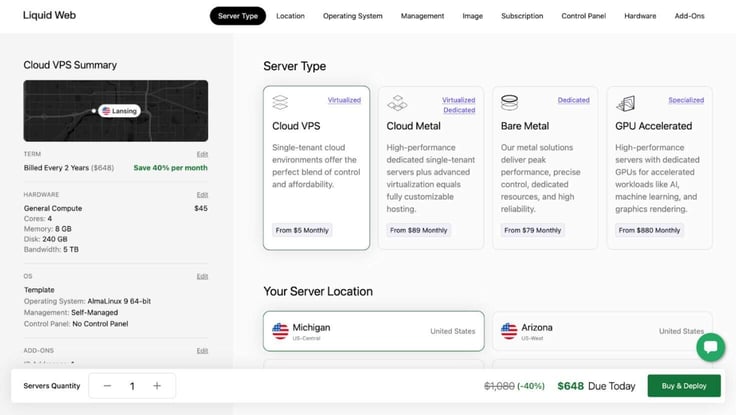
Liquid Web has one of the longer, more detailed checkout processes I’ve been through, but I did like how many customization options I had. Even with the added questions and customizations, it took me no more than a few minutes to sign up.
I confirmed my plan choice and chose my data center location, OS, and level of support. I could choose unmanaged, semi-managed, or fully managed.
I decided to add managed support and cPanel to my account — both of these things make managing your VPS significantly easier. That brought my total from $5 to $80 a month, which is completely worth it for the added value.
Adding managed support means that you’re spending far less time keeping track of server health and updates, and you don’t need to touch the command line unless you want to. For me, paying for this level of convenience just makes sense.
I kept scrolling to confirm my plan’s duration, my control panel, and any add-ons I wanted, like advanced DDoS protection, cloud block storage, extra IP addresses, and cloud backups.
After that, I clicked “Buy and Deploy,” which took me to the payment page.
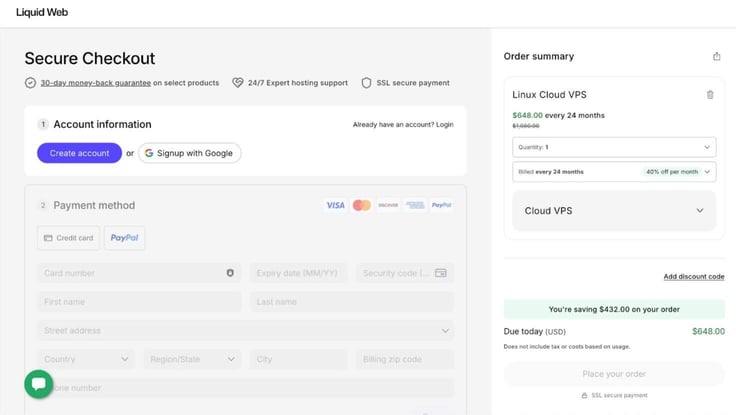
Since I’m testing Liquid Web for a shorter period of time, I chose a one-month billing cycle for a total of $80 — just as advertised. However, you can save up to 30% if you choose a two-year billing cycle.
For a premium service like Liquid Web, that’s not a bad price. For comparison, the same plan at Kamatera (another premium VPS) would cost me $89 a month.
Once I filled out my payment info, I clicked “Place your order” and was good to go.
After making my purchase, Liquid Web sent me a ton of emails to get started. They had all sorts of information for setting up and configuring my server. One email provided instructions on how to access my hosting dashboard, which I logged into first.
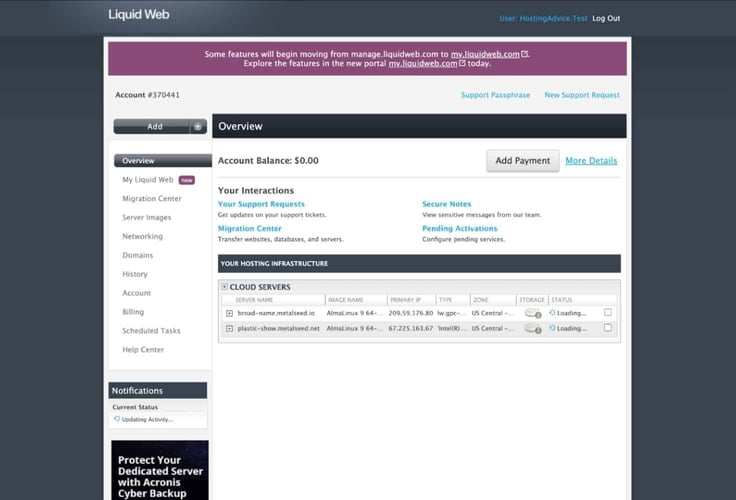
This design wasn’t the best first impression, but in Liquid Web’s defense, it looks like they’re currently migrating to a newly revamped dashboard. I clicked on the “My Liquid Web” menu option on the left, and it took me to a much newer, nicer dashboard.
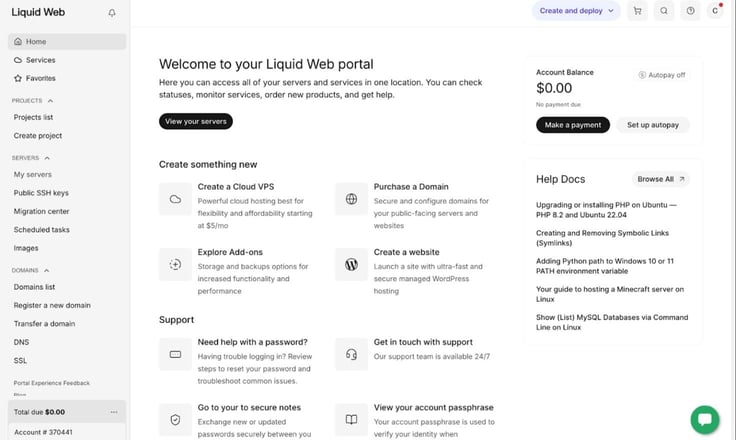
From here, I clicked “My servers,” then selected my cloud VPS plan. This was where I ran into my first roadblock. It was a little confusing trying to figure out how to access my server management tools.
I found out from customer support that I can find my login credentials under “Secure Notes” (more on that in the Customer Support section).
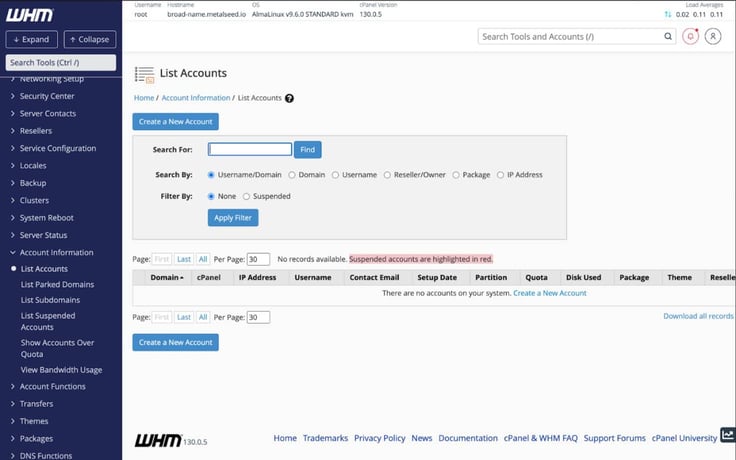
From there, I needed to create my first cPanel account. With help from customer service, I searched “List accounts,” then added a new cPanel account by clicking “Create a new account.” These steps weren’t difficult, but it probably would have taken me a while to figure out how to do this.
Given all the welcome emails I received, I was surprised the dashboard wasn’t quite as intuitive as I would have liked.
I followed the prompts, which involved entering my domain name and setting up a username and password — nothing complicated. Once I was given some direction, it was pretty easy to follow each step as I set up my account.
Once my cPanel was ready, I clicked “Go to cPanel” and was met with a familiar interface. I was shown a pop up window that gave me three options for getting started: downloading WordPress, using the Sitejet Builder, or discovering other features of my account.
Since I’m all about user-friendly site-building tools, I chose to start with Sitejet. I should mention that Sitejet is not Liquid Web’s site builder — it’s available through all sorts of hosting providers. Because of that, I’m not going to focus too heavily on how exactly I built my site.
That being said, I do want to point out how nice it is to have a super user-friendly site-building option with my VPS. A lot of virtual private servers limit you to installing WordPress through the command line or uploading your own site files, so it’s really convenient to have this option.
I answered some questions about my site, like its name and description. Then I chose some preset colors and fonts. The last step involved customizing my layout, which was incredibly intuitive.
After tweaking the look and feel, I hit “Publish.” I really appreciated having an easy solution for getting up and running, which would be extremely helpful for someone who wants the power of a VPS but doesn’t have the skills to build a site or manage one themselves.
Even though I added cPanel and managed support to my plan, I still had root access. I logged in to the console from within my hosting dashboard using the credentials under the “Server credential” section.
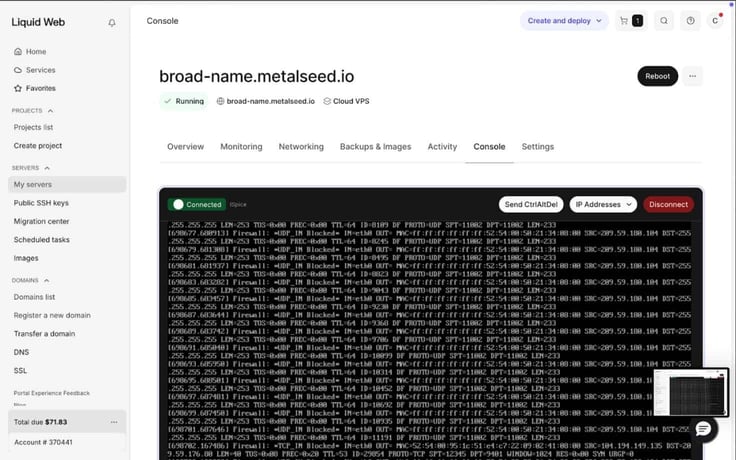
I liked the convenience of having the console right within my dashboard. If I didn’t purchase cPanel, this is where I would have set up my server — probably using Docker to create a WordPress installation.
Next, I went into the backups section of my hosting dashboard. I clicked on my server and then “Backups & Images,” which took me to the screen below.
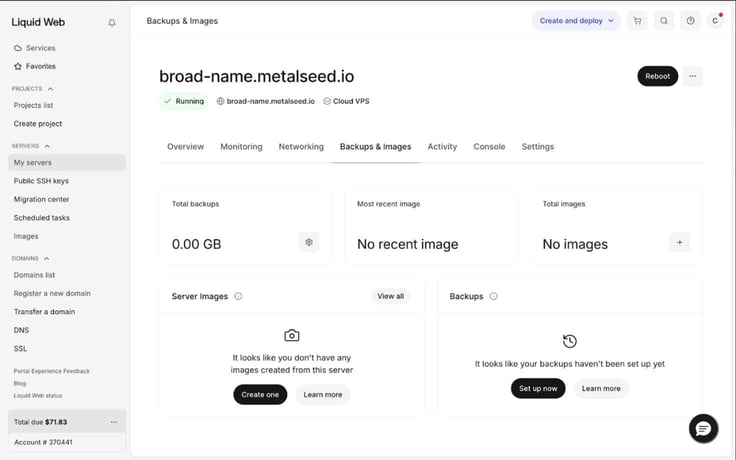
You can choose from two backup options: Acronis Cyber Backups or Cloud Backups. You should know that both of these cost extra, though, which is a fairly standard practice. Acronis Cyber backups start at $17/month for 100 GB and Cloud Backups charge $0.05/month per GB.
On this same page, I also accessed “Monitoring,” which showed me an overview of my server’s overall performance, server load, network traffic, and memory usage. I liked how I could choose between the last 12 hours, one day, or two weeks, but I wished there was an option for a custom date range.
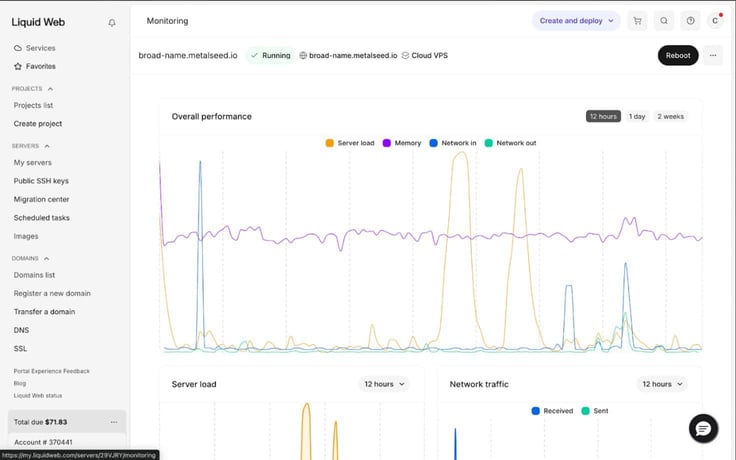
Liquid Web has a pretty comprehensive control panel. It’s fairly easy to find what you’re looking for, and I like how simple it is to use. I’d argue that’s one of the most important features a web host can have (perhaps right after performance and security).
To wrap up my VPS review, I ran my site through the GTmetrix performance test — a solid benchmark for measuring web vitals and performance.
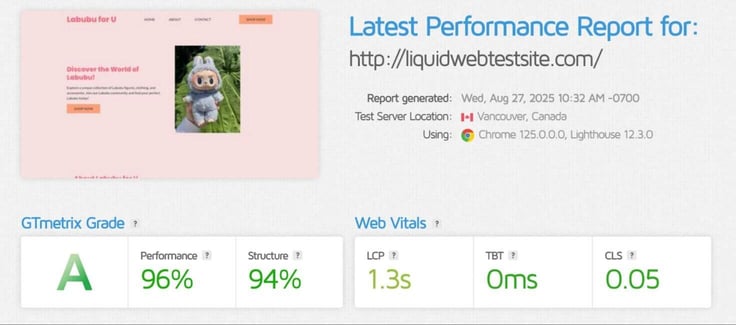
Liquid Web scored an “A” for performance and structure, proving that it could back up its claims about being fast. I was also impressed with its web vitals, including the Largest Contentful Paint (LCP).
These metrics give me an idea of how long key components of my site will take to load. The LCP is the most important to me, and it came in right around the recommended time (if not just a hair above it). Ideally, it would be 1.2 seconds or less, but for my needs, 1.3 seconds works just fine.
My best guess is that a larger plan with more resources would probably load a bit faster. I did choose the smallest plan with only 1 vCPU and 1 GB RAM, after all.
I think Liquid Web’s VPS plans are just right for developers and businesses. Devs can take advantage of the low cost of its unmanaged VPSes, while businesses with bigger budgets can enjoy the convenience and support of its managed plans.
I also like that you can still access the server remotely when you purchase a managed VPS. Some other hosts “lock you out” of the server when you buy a managed plan, so it’s nice to retain control while still having convenience.
For its price, I think Liquid Web delivers a lot of value to more serious hosting customers. If you’re not ready for that yet, I recommend checking out IONOS or Hostinger instead. Both of these hosts deliver fantastic value for beginner website owners.
Once I wrapped up my VPS review, it was time to move on to the next (and last) level: dedicated hosting. Based on my experience with Liquid Web’s VPS hosting, I was pretty sure its dedicated servers would pack a punch, too.
Reviewing Liquid Web’s dedicated servers was really similar to the process I went through for its VPS plans. I compared plans, made my purchase, configured my server, and ran it through some tests.
Editor’s note: The plan we tested and reviewed is no longer available as of May 2026. Some details, including names and prices, have changed.
Dedicated servers are meant for super users. Think big businesses, healthcare organizations, or high-powered apps. This type of plan is for folks who mean business, so they’re more expensive and come with a ton of power.
I began by browsing the Dedicated Server Hosting page on Liquid Web’s site. Surprisingly, it had a great introductory deal on the Intel E-2134 server at just $44 a month (now $55.50/month as of May 2026). Most other dedicated servers start around $60 a month, at least. This is a self-managed plan. Note that fully managed plans start much higher at around $167/month.
Liquid Web featured three out-of-the-box plans with a fourth option for a custom configuration. Like its VPS plans, I was able to scroll down the page to view more servers. There were 24 plans to choose from.
Since I was looking at bare metal hardware, there weren’t a ton of frills included with each plan, but that’s to be expected. However, each server did come with:
I could also choose to add server management for an extra fee.
Liquid Web gives you the option of purchasing a Linux or Windows server. You can also choose your operating system from these choices:
I decided to go with the entry-level server starting at $22 a month. It had a low introductory rate that I couldn’t pass up and offered plenty of space for me to build a small site. Before making things official, I compared its pricing to some similar options from competitors.
| Host | Plan | Introductory Price | Renewal Price |
|---|---|---|---|
| Liquid Web | Intel E-2134 | $55.50/month | $111/month |
| InMotion | Aspire | $35.00/month | $69.99/month |
| IONOS | IX6-32 NVMe | $41.00/month | $100/month |
| Hostwinds | E3-1270 | $122.00/month | $122/month |
Unlike its VPS plans, Liquid Web was actually cheaper than most other dedicated servers — at least for its entry-level plan. And for this price, it’s a really good deal.
Liquid Web uses enterprise-grade hardware, which provides significantly better performance than more basic (and less customizable) setups from providers like IONOS or InMotion. Liquid Web also has a 100% uptime guarantee and super-responsive support (more on that later).
I felt pretty confident in my plan selection, so I moved on to the checkout process.
To sign up, I clicked “Buy Now” and was directed to a page to confirm all my server configurations. This page had at least 10 customizations, from data center location and operating system to control panel choice and optional add-ons.
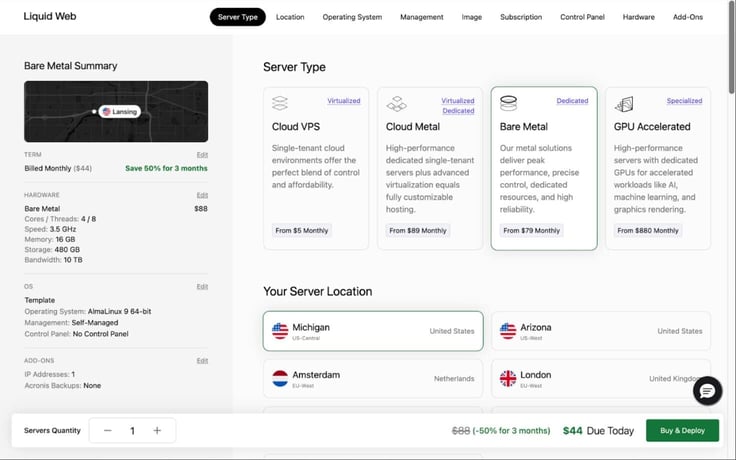
Again, I loved how customizable Liquid Web was. It felt like I had a lot of control over my hardware configurations and software choices. That’s the sort of thing that makes the extra cost worthwhile for super users and businesses.
The bottom of the page included some add-ons I could buy, including Acronis Cyber Backups, advanced DDoS protection, and a monitoring service called ThreatDown.
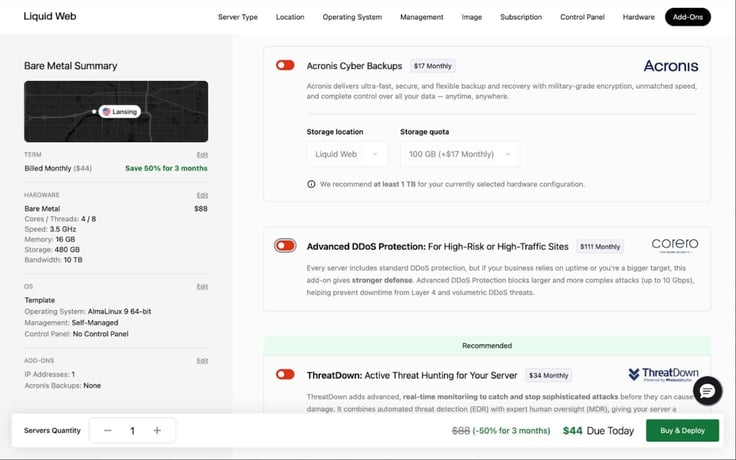
Since I was deploying a server for testing purposes, I chose not to buy the add-ons this time, but they’d be a smart addition for high-risk or high-traffic sites.
After confirming all my server details, I clicked “Buy and deploy,” where I entered my payment info and confirmed my purchase with the “Place your order” button.
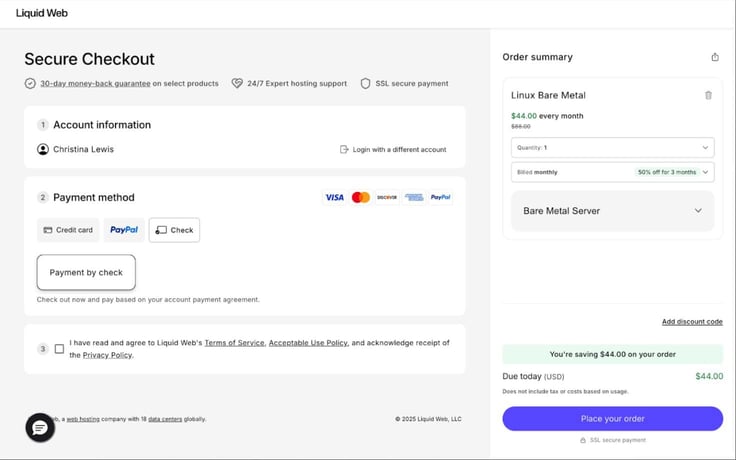
My server was running AlmaLinux 9, but since I’m more familiar with Ubuntu, I decided to change my OS. Changing it only involved clicking on the three dots in the upper right corner and clicking “Reimage.”
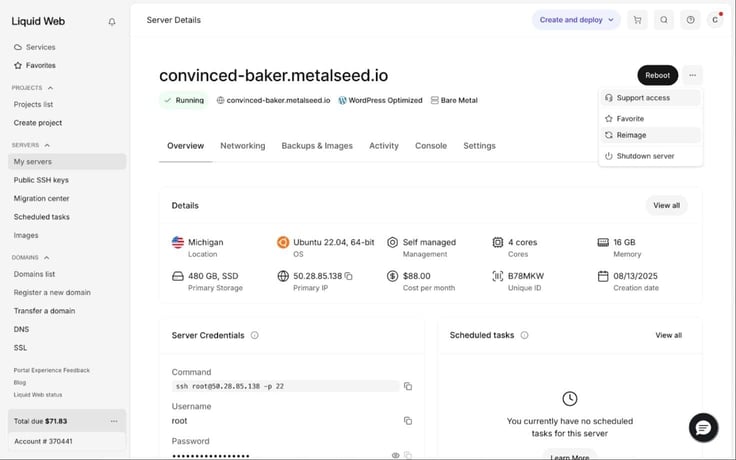
I looked at the image templates and chose Ubuntu and clicked the black Reimage button. It took roughly 10-15 minutes to update my server.
Then, I logged into the server via SSH with the server credentials found in my hosting dashboard. Once I was in the console, I decided to install Docker for my WordPress installation. Following an online tutorial, it only took me about 10 minutes to install everything.
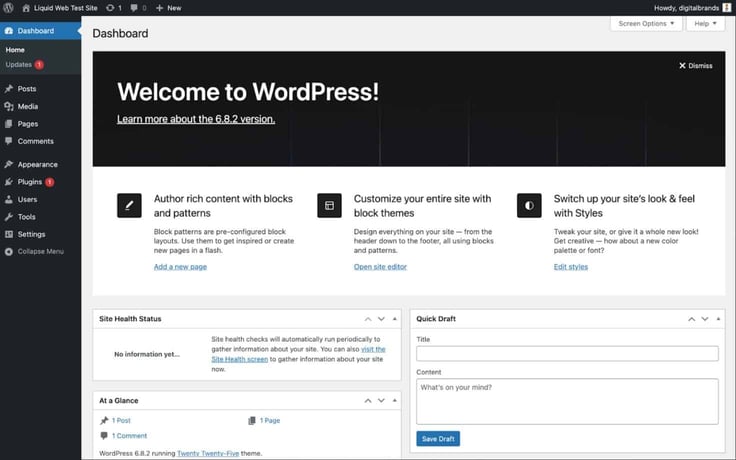
I signed into the WordPress backend and started designing my site. I won’t go into too much detail since WordPress is the same with every host.
Managing your server requires a lot more skill with an unmanaged dedicated server than it does with cPanel. Almost everything is done through the command line (except for a few things you can do in the host’s dashboard).
First I tried installing my SSL certificate. I went back into the console, and I ran the certbot command to generate it — easy peasy.
Next, I poked around in the DNS settings in my hosting dashboard. It was extremely easy to configure the settings there. I updated my DNS settings by changing the IP address associated with my domain LiquidWebTestSite.com. I figured it made sense to reuse the domain name I purchased for my VPS review.
Everything worked as intended, and the changes propagated within an hour, just as expected.
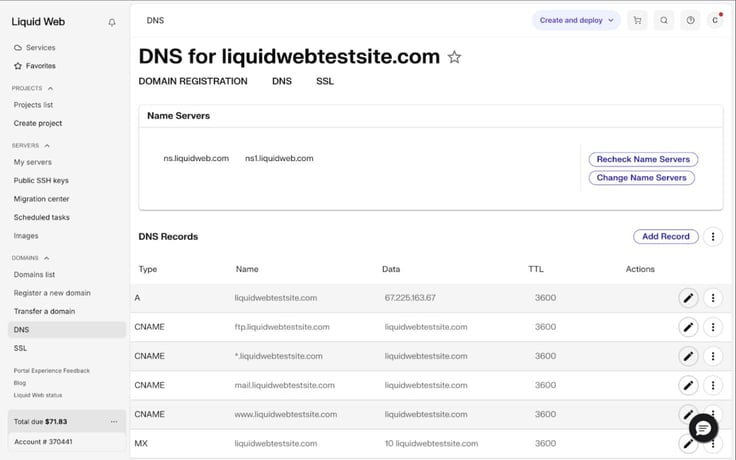
I could also access several other tabs such as “Networks,” “Backups & Images,” “Activity,” and “Settings.” Each of these tabs let me view and manage important server features. Take the Network tab, for example.
This is where you can see your server’s usage over a set period of time (anywhere from 12 hours to two weeks).
I clicked on the “Settings” tab which also showed me some add-ons I could purchase for my server.
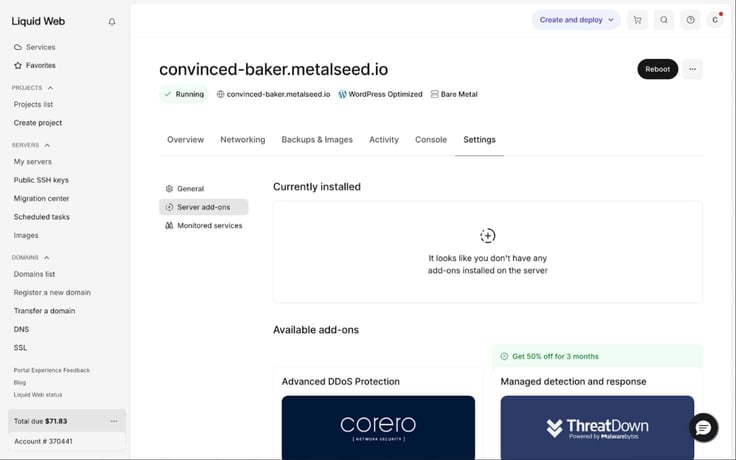
Overall, I think the hosting dashboard gives you a really convenient way to manage your hosting plan and server. Combined with having root access, there isn’t anything you can’t customize, which I find really practical.
I can confidently recommend Liquid Web’s dedicated hosting to businesses that want something performant and customizable — HostingAdvice itself even runs on Liquid Web.
I loved that I had remote access to my server, which let me make changes instantly without having to contact support. I was even given the option of adding cPanel and managed support if I didn’t want to manage the server the old-fashioned way.
For businesses that want high availability, customization, and performance for a reasonable price, Liquid Web delivers.
I contacted customer support quite a few times during my review, most often to help me locate certain features in the hosting dashboard. Right after logging in for the first time, I reached out for help locating my cPanel credentials.
I’ll admit, the first bot response was not helpful — it directed me to my server login credentials instead. However, I asked to speak to a rep and was connected pretty quickly. Within six minutes, Abhishek H. responded.
He explained that I could use my server credentials to sign into WHM, search for “List Accounts,” then add a new cPanel account from there.
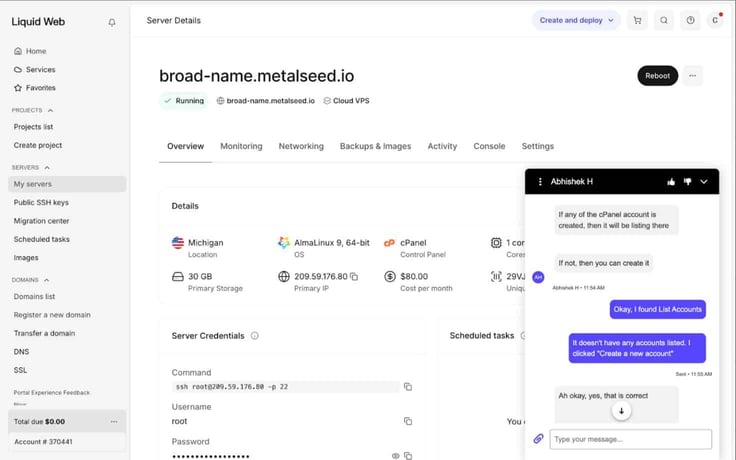
Even though the support was responsive and helpful, there was one incident that soured the experience a little. After speaking with a different representative about an SSL certificate, they tried to upsell me on some security products.
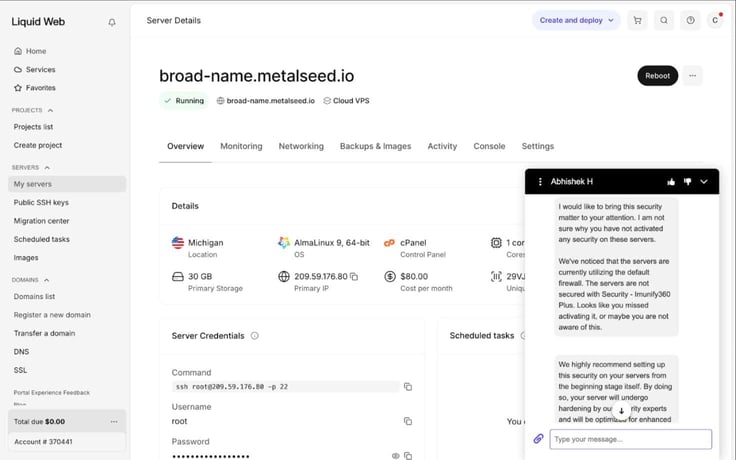
It was brought up as a security concern at first, but then I became aware of what was happening. Something along the lines of, “I’ve discovered a security issue that you should resolve ASAP.” Followed by a message that could only be interpreted as “Please buy this product or your server will be at risk.” It left a bit of a bad taste in my mouth.
It didn’t seem like a recurring issue — none of the other reps said anything like this — but it’s something you should probably be aware of.
For what I paid, I was really happy with the level of control I had over my VPS and dedicated server. With my VPS, I was able to add managed support, which made my life so much easier (not that I don’t love manually installing and updating my server).
Whenever I had a question, customer support was able to resolve my issue promptly.
The only hiccup I ran into over the two weeks I ran my tests was that there were fewer global data center options than competitors. I’m based in the U.S., so this isn’t something that’s going to ruin my day. However, it’s something you should be mindful of if you have a large global presence.
If I imagine that I’m a web developer who wants a performant, managed hosting solution for my latest and greatest app, I can’t think of many better options than Liquid Web.
It really ticks all the most important boxes, like performance, support, security, and customization. I appreciate that it stays in its lane, too, focusing on VPS and dedicated hosting instead of the entire realm of hosting options.
For its price, I think it’s one of the better options for more serious users.

HostingAdvice.com is a free online resource that offers valuable content and comparison services to users. To keep this resource 100% free for users, we receive advertising compensation from the hosts listed on this page. Along with key review factors, this compensation may impact how and where hosts appear on the page (including, for example, the order in which they appear). HostingAdvice.com does not include listings for all web hosts.
Our site is committed to publishing independent, accurate content guided by strict editorial guidelines. Before articles and reviews are published on our site, they undergo a thorough review process performed by a team of independent editors and subject-matter experts to ensure the content’s accuracy, timeliness, and impartiality. Our editorial team is separate and independent of our site’s advertisers, and the opinions they express on our site are their own. To read more about our team members and their editorial backgrounds, please visit our site’s About page.


