
Guides

Studies 
Studies
Our studies cover a range of trending topics and deliver original, reliable data you can't get anywhere else on the web.
This budget hosting pioneer delivers on everything, from simple shared plans to resource-intensive dedicated hosting.

By: Lynn Cadet

Editor: Lillian Castro

Reviewer: Christian de Looper
Disclosure: When you sign up through links on our site, we often earn referral fees from partners. For more information, see our ad disclosure and review policy.
I spent the last three weeks doing a widespread review of HostGator’s hosting platform. While HostGator certainly isn’t new to the hosting business, its hosting platform has seen many changes since its start in 2002. And I’m determined to see if this host has stood the test of time.
HostGator offers several hosting types: shared, WordPress, VPS, and dedicated hosting. I’ll be aiming to see if it delivers on my expectations for each of these categories. So without further ado, let’s dive into what I found.
HostGator’s server performance blew me away. The host delivered on its promise of reliable speed and increased performance for every plan, from cheap to dedicated.
WordPress is HostGator’s primary web-building partner on all its plans. While WordPress is an extremely viable site creation platform, it isn’t the easiest for beginners to jump into, but HostGator does offer step-by-step guides on how to use the CMS.
All in all, HostGator offers affordable, well-rounded plans where you can find and manage everything you need under one roof.
In this section, I’ll review HostGator’s cheap hosting plans. HostGator is no rookie in the hosting game. In fact, its platform has been around since the early aughts, making it a part of the exclusive club of hosting pioneers.
With a reputation like that, I’m hoping its plans will decidedly meet my expectations. At first glance, HostGator’s cheap plans seem to offer all that you need to create a small- to mid-sized website. But I’m willing to go beyond the simple eye test and really see if it is truly as comprehensive and performant as it seems.
Unlike some other budget hosts, HostGator is pretty generous with features, which I was pleased to see. Browsing through its plans, I realized that every plan came jam-packed with essentials, including SSL and domain names — all included in the base price.
HostGator also had bonuses, such as CDNs, which have really become an essential add-on for hosting plans in the last couple of years. No matter what plan you choose, you’ll surely be without want.
The only specifications that distinguished each plan from one another were the amount of SSD storage and the inclusion of domain privacy and malware detection/removal.
Since I don’t plan on creating a content-heavy website, I decided to go with its base plan: the Hatchling Plan. At $3.75 a month, I thought the pricing was more than fair, especially if you compare it with other budget hosts that probably don’t offer the same level of features.
To compare, I created a table of other hosting competitors within the same vein as HostGator and their base plans:
| HostGator | Bluehost | SiteGround | |
|---|---|---|---|
| Price | $3.75 | $1.99 | $2.99 |
| Renewal Pricing | $10.99 | $9.99 | $17.99 |
| Features | 10 websites, 10 GB SSD storage, free CDN, managed WP updates, enhanced security, etc. | 10 websites, 10 GB NVMe storage, free CDN, managed WP updates, enhanced security, etc. | 1 website, 10 GB SSD storage, managed WP updates, enhanced security, etc. |
I had made my decision. The Hatchling Plan had more than enough resources for me to jumpstart my web journey. From CDNs to DDoS protection, I was confident that I would have the tools I needed to create not only a well-performing site but also a secure one.
I loved that it had a CDN to enhance performance and managed WordPress updates so I could offload those tedious maintenance duties.
The only thing the base plan lacked was phone support. But that wasn’t that big of deal for me as it offers free live chat support, which is perfect for my communication needs.
I also have to point out that HostGator was super transparent about what resources each plan provides and the amount I would receive of each. I’ve run into issues with other hosts that don’t always display in totality what you get with a plan — only showcasing the top end of the list.
So I liked how HostGator provided a complete list of its features, covering every category from email and databases to application support and security. That way, I could walk into my plan with full assurance that I’m getting all that I need — no blind spots.
Moving on to the signup process, I clicked on “Choose Plan” for the Hatchling Plan, which zipped me straight to HostGator’s domain registration page. From there, I could create a domain name and choose one to register.
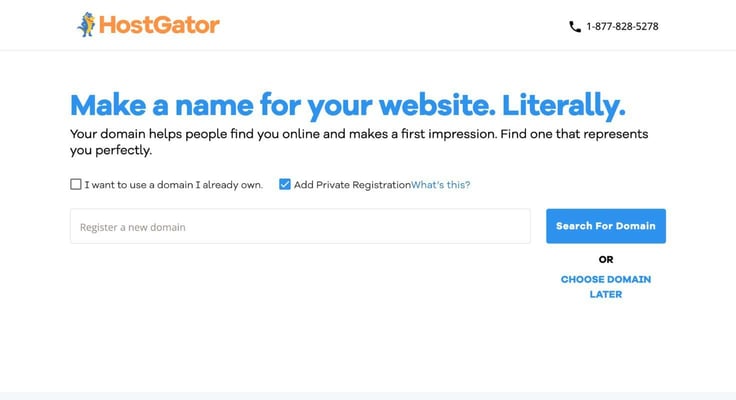
I thought about making a blog site about comic books and my favorite books. So of course, I decided to go with the name: Books for Nerds. It would be perfect for a quirky book club with fun reads. HostGator gave me two choices: either to search for my domain name now or come back and register later.
Since I already had my name on hand, I searched for the name right away. Typing in booksfornerds.org, the webpage came back with an alert telling me the name was already taken. Thankfully, it gave me alternative suggestions to help me choose a name close to my desired concoction.
Scrolling through the list, I found books4nerds.com — a pretty close alternative. I actually ended up liking it even more than my original name, as it fit the quirky theme a bit more. So I clicked “Select.”
By the way, I have to mention that at this point, HostGator also gave me the option to add domain privacy (for an additional cost) or choose to say that I already have a domain name.
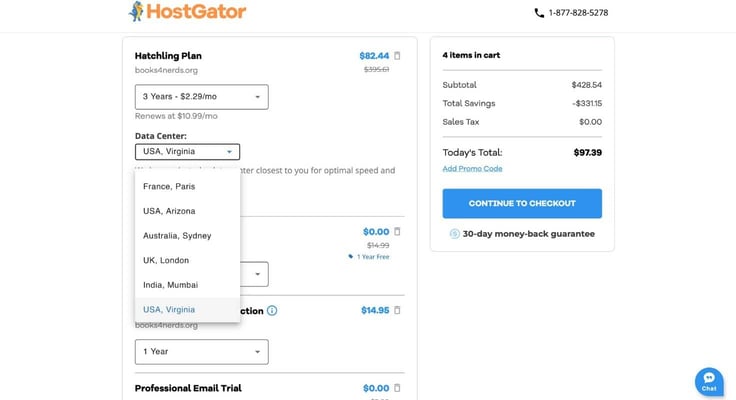
In cart, HostGator also allows you to choose from a group of data center locations for your convenience, including two locations in the U.S.: Virgina and Arizona.
Surprisingly, there was no upselling throughout the process yet, which is something I tend to run into with other hosts. In my cart, though, HostGator did display some add-ons that I could attach to my plan for extra support, including a Google Workspace integration and SiteLock security.
However, I did receive a little surprise while reviewing my billing overview. The $3.75 a month pricing was only for 3-year contracts, and the 1-year contract was actually $4.95. While it wasn’t a dramatic increase, the savings weren’t as great as I thought they would be.
Here is how the pricing broke down by term:
The 3-year contract is the better deal if you ask me. It’s about a $75 difference in total, which means you basically get a year for free.
After creating my account and credentials, I logged in. During the login process, I was asked to verify my account and create an additional security pin. Another offer for HostGator’s domain privacy also popped up along the way. Maybe I spoke too soon about the upselling…
Once I got into my account, HostGator brought me straight to the hosting section of the dashboard. From there, I could see all my active hosting packages and domain names. I clicked “manage” on the Hatchling Plan. This took me to a webpage filled with the details on my plan.
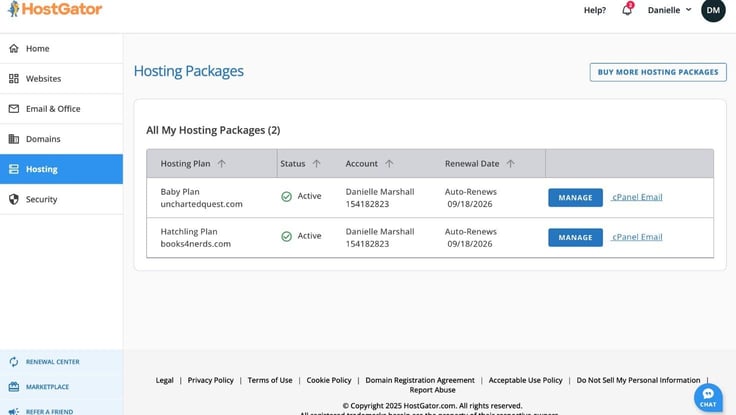
On that page, I could also click on “Edit Site” where it could take me to its WordPress site builder. It took a few seconds to launch and transfer me to the WordPress interface. The builder then asked me a few questions to start tailoring my website. I could also choose to migrate an existing WordPress site at this stage.
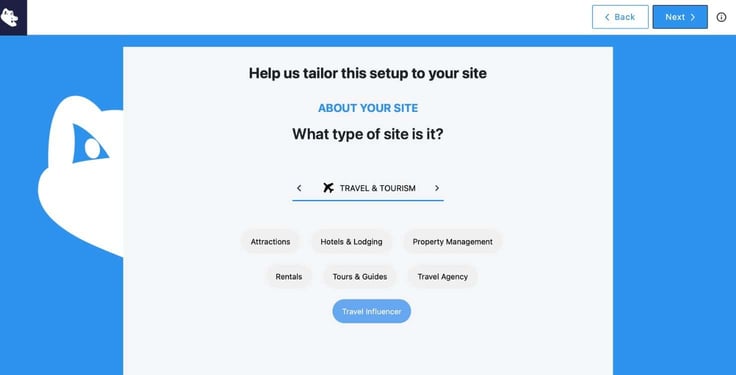
Here are the questions it asked during the setup:
After answering these questions, I proceeded to the second part of the process, where I entered my site’s title and a brief description for it. I could also upload a logo at this step. FYI: You can choose to skip this step and the following steps if you please. This is intended to provide HostGator with an introduction to help you narrow down your design process.
Then, it asked me what my site is primarily for: Publishing? Selling? Designing? Since I plan to mainly discuss books on my site, I chose publishing. And that was the final question of the onboarding part before HostGator sent me off to its design studio.
What I found interesting was HostGator’s unique, white-labeled WordPress setup. Unlike other hosts that ship you straight to the WordPress dashboard or have their own website builder, HostGator combines these two experiences, giving you something that is not exactly just WordPress or solely an in-house website builder.
Another cool tidbit was that HostGator allows you to go back to any part of the process to make modifications and saves all of your previous answers in case you change your mind. I guess that tidbit was built with me in mind because I ended up changing my responses during the initial questionnaire because the theme I got didn’t quite match my vision.
After making those changes, I found that the editor still didn’t provide me with a template that met my expectations. It was quite generic, but that was okay since I could make customizations.
HostGator hooks you up with the bare bones version of the site, and you have to do the heavy lifting to make it look the way you want. Next, I chose my desired colors and fonts. Then, the final two steps of the onboarding process were selecting a homepage layout and other page layouts.
I appreciated how simple and smooth HostGator made the whole process. HostGator also allowed me to choose from a pool of plugins for it to automatically install. These included Jetpack, Yoast SEO, OptinMonster, MonsterInsights, and WPForms.
After making my selections, I was done with the onboarding process and headed toward the WordPress dashboard with a semi-completed site.
From the moment I got on the dashboard, HostGator clearly showed me the way to the WordPress editor, so I could complete my site’s construction.
Since I already know my way around WordPress, I could easily understand how to use the Block Editor. But beginners may need to do their homework on it before jumping into site creation. HostGator also offers a Help Center feature to help users with their journey.
From my experience with most cheap plans, the host usually has its own site editor, so I have to say that it’s interesting that HostGator does everything through WordPress. Although WordPress can be used by everyone, it does require a little more legwork than using an AI website builder. So I had hoped HostGator had some AI capabilities to ease the load.
Side note: HostGator does offer other CMS-based builders. It has one-click installers for WordPress, Drupal, Magento, Joomla, and phpBB forum software.
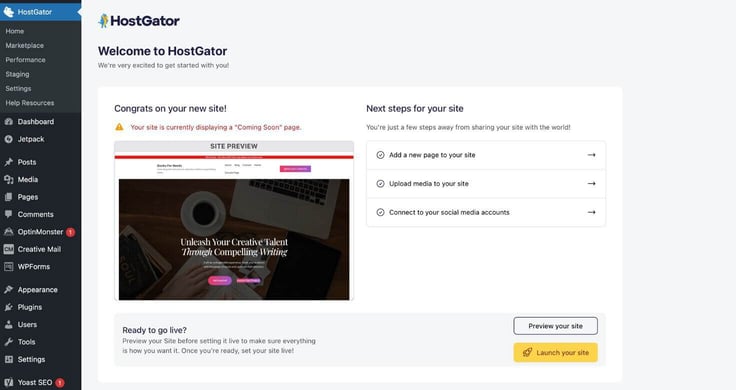
Carrying on, on the dashboard homepage, I clicked “edit site” on the featured site preview block. Entering the editor, I was greeted with a brief overview of how to use it. If you’ve never played with WordPress’s Gutenberg editor, that short pop-up tutorial will certainly come in handy in helping you get familiar.
Now settled into the editor, I came upon a feature I haven’t used before — the WonderBlocks library. When researching it, I found that the WonderBlocks plugin is a library of premade WordPress templates and block patterns, which you can use to customize your site to your liking. So here is where I can really dive into the customization part of the journey.
I wanted to create a space that would be ideal for a virtual book club with a diverse literary palette. It had to match the vision I had in my mind. So first, I had to change the images to match the style and edit the generic text that was unrelated to my website.
Unlike other editors, Gutenberg doesn’t provide a stock image library (WonderBlocks doesn’t either). So I had to find images elsewhere and upload them into its media gallery manually if I wanted a different visual from the default one. I wish that part was more integrated so I wouldn’t have to do so much back and forth.
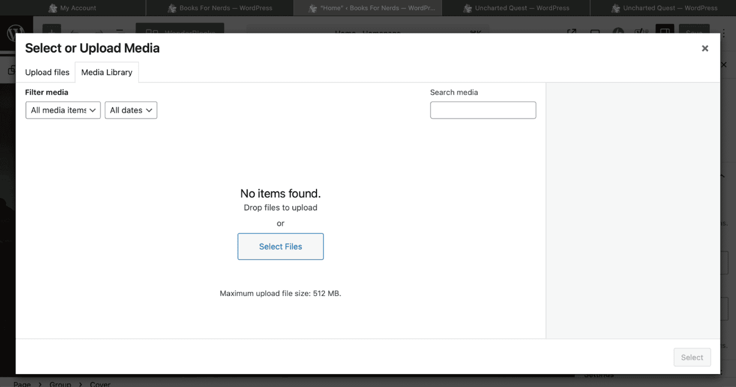
But other than that, the WonderBlocks library provided me with all the templates and block patterns I needed to complete my site. The templates were also categorized by page layouts, so I could easily find patterns for blog posts, about pages, and more.
After adding some written content to my homepage, I saved my site and clicked on the preview button at the top. I could see what my site would look like once published. The preview page also gave me the option to edit my homepage. I wasn’t entirely satisfied with how my header and footer looked, so I decided to make some changes to those as well.
However, getting there is a little tricky. Clicking on “Edit Site” led me to the header and footer sections of my site. Yet clicking on “Edit Page” allowed me to edit the main body of the page I was on. So knowing that distinction will be helpful when customizing.
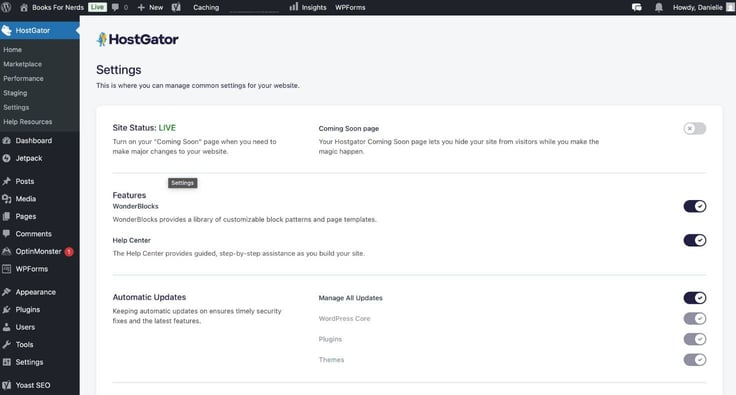
Once I fixed the navigation menu in my header, I thought my site was up to my liking. I returned to the preview page and clicked “Coming soon” on the top bar. From there, I was brought to another page in the WordPress dashboard. All I had to do was click on a toggle button under coming soon and voilà, my site was live!
Clicking on that toggle button also led me to a page where I could manage all of my site’s settings. That page also showed whether my automatic WordPress updates were on or not, which they were. Here’s what it looked like:
Overall, I found the WonderBlocks library to be effective in helping me build my site. Was it the simplest or most streamlined? No. Did it have a wide variety of templates and designs? No. But it got the job done, didn’t have me pulling my hair out, and I didn’t have to spend hours building my site.
Now, onto the speed and performance test! I’m not exactly expecting much, as it is a shared host plan that I’m testing for performance. So let’s see where HostGator’s cheap plan lands in the realm of speed.
Using GTmetrix’s tool, I typed in my website’s domain name into the input field. After a few seconds of assessing, incredibly, my site got a 96% performance score, meaning grade A speed. It passed everything from structure and performance to core web vitals.
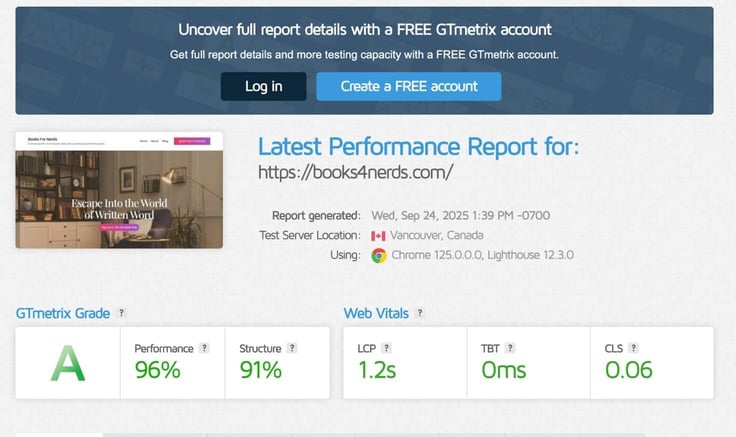
The standard for page loads is 1.2 seconds, and my site achieved exactly that speed. I was slightly floored at the result, as I had zero expectations going into the test. One thing HostGator did tout was its performance, and it certainly delivered!
HostGator’s cheap plan is affordable, powerful, and effective. What I was most impressed by is that HostGator delivered on its promise of performance. Not only did it perform well, it also had top-notch speed.
However, I did have to knock it down a few points because of its website editor. Maybe because I’ve been spoiled by AI tools with other hosts, I was expecting a bit more, especially now as most hosts are embracing AI and integrating it into their processes. If there had been a little more assistance, I wouldn’t feel like I had to figure out everything myself.
While HostGator was a little shy on templates and themes, that didn’t matter too much because I had access to WordPress’s complete library of plugins. So even if I didn’t want to build with the editor it provided, I knew I had other options.
Overall, I would still recommend HostGator’s cheap plan because of its performance and the totality of features it provides for the price. It might just take a little homework to get used to for novice users.
I’m no stranger to WordPress software. In fact, you could call me an aficionado. I think the CMS is the best thing to happen to our world — or maybe really just the digital world, as it helped build it. To me, it is one of the best ways to build and maintain a site. Don’t believe me? Ask Disney or Rolling Stone.
Thankfully, HostGator happens to have a hosting plan just for software. Its WordPress hosting plans have three tiers: Baby Plan, Business Plan, and the Pro Plan. I will be going through each to find the one that best suits my needs and review the platform from there.
One thing that makes WordPress so great is that it’s for everyone. And HostGator doesn’t deviate from that sentiment. Just from glancing at its WordPress webpage, I could already gauge that HostGator offers a truly accessible platform.
HostGator doesn’t lower the bar — it meets customers where they are. From its prices to its feature set, HostGator does an exceptional job at building a complete solution that anyone can use and afford.
Its base plan includes a variety of perks that are sure to satisfy anyone with small- to mid-sized website needs. Email was also included, which was a highlight for me, as many hosts have joined a recent trend in rescinding their email offerings or offering them at an extra charge.
Here is what the “Baby Plan” included:
I also have to point out that HostGator has WordPress preinstalled in its plans. That is going to be an awesome timesaver and make the setup process so much easier. I’m also looking forward to testing the performance punch later, as HostGator boasts at least 2 vCPUs in each of its plans.
What differentiates the base plan from the other tiers is the level of increased performance and SSD storage included. The higher tiers provide more vCPUs and storage and have additional features, including daily website backups and domain privacy as perks.
But I did find one thing was missing. Most hosts offer managed WordPress updates with their plans, so users don’t have to handle them. But I didn’t see that feature anywhere on the HostGator page. Note: I realized later that the WordPress updates just aren’t listed but are included in the plan.
Compared to other hosting providers, HostGator’s WordPress pricing was a tad bit pricier, starting at $4.50 per month for a 1-year plan (you can pay less at $3.09 a month for 36-month term). For example, the base plans for Bluehost and SiteGround start at $3.95 and $2.99, respectively. Bluehost also had a significantly lower renewal rate than HostGator — $9.99 vs. $16.49.
Overall, while albeit pricey when stacked up against some competitors, I think HostGator offers a fair share of features and performance that justifies the higher price. In fact, it offers 10 GB more of storage and support for at least 10 more websites than Bluehost and SiteGround.
Besides, its monthly plan prices are just as affordable as a cup of coffee — maybe even cost less in some areas.
Going with the Baby Plan, I clicked on “Choose Plan,” which brought me to HostGator’s domain registration interface. From there, I could create a name and register a new domain name or choose to create one later.
I liked that it brought me straight to the domain page because sometimes hosts ask you to create an account and pay before moving on to that step. However, at this stage, I did hope that HostGator would provide an AI domain generator to help create a name. Sadly, it didn’t.
To access its AI generator, I would have to navigate to its separate domain services webpage. This isn’t the first time I’ve had this issue with a host. Several hosts don’t include their AI domain generators in their landers. So I can’t completely fault HostGator for having this setup. Just following industry code, I guess.
For this site, I was planning on creating a travel blog. After all, WordPress is known for its blogging prowess, so what’s better than creating a blog to document my exotic escapes? I needed to come up with a good name. But I wanted some help with this one. So you guessed it, I went over to HostGator’s AI domain generator to give it a spin.
It asked me to type in a short prompt about my website. After I did that, I clicked “generate.” The AI produced a short list of its top available names for me to choose from; I could also favorite the ones I liked or keep generating more names if I wasn’t feeling the batch it provided.
After much thought and deliberation (not really), I decided to go with unchartedquest.com. It had a perfect balance of mystery and fun. Once I did that, I went back to the WordPress lander, restarted the signup process, and typed in my new name.
On the billing overview, the plan came out to be $176.95 in total for a 3-year subscription. One thing that stood out to me, though, was that HostGator allows you to choose your data center while in cart. For the U.S., I had the choice between Arizona- and Virginia-based facilities.
I really liked that HostGator had that option. With several locations and countries on its list, HostGator allows customers to choose the data center closest to them, showing that it values providing great performance and low latency for users. That was surely a highlight in my opinion.
Just like with its cheap hosting, HostGator’s WordPress plan also launches off with its unique WordPress setup process. After clicking “login to WordPress,” I was brought to the first page of its WordPress setup wizard.
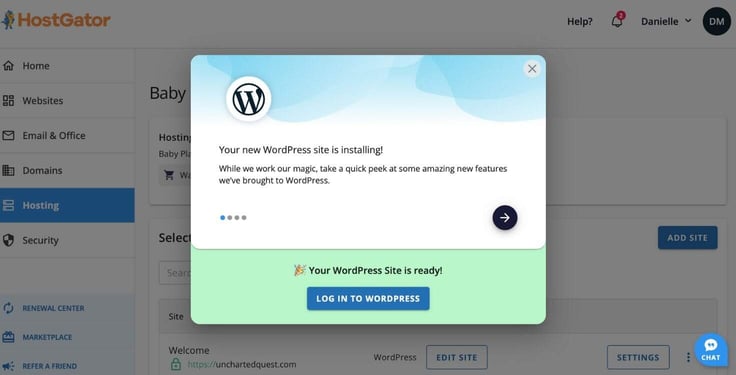
Clicking on “start WordPress setup,” I went through the same set of questions I did before with the cheap plan. This time, instead of selecting “I’m an expert,” I chose “never used [WordPress]” to see how the process looks from another perspective.
Since this will be a travel blog, I went with Travel and Tourism as my niche when asked in the questionnaire. I didn’t see an option for “travel blogger,” so I went with “travel influencer,” which was close enough.
Next, I entered my site title and description and chose “publishing” as the reason for my site. Just like before, after a few short seconds, HostGator populated various versions of the same theme but with different color palettes.
I chose one with a sand colored hue and kept the design train moving. After choosing my homepage layout, I was transported to the WordPress dashboard, ready to dive deeper into customizing.
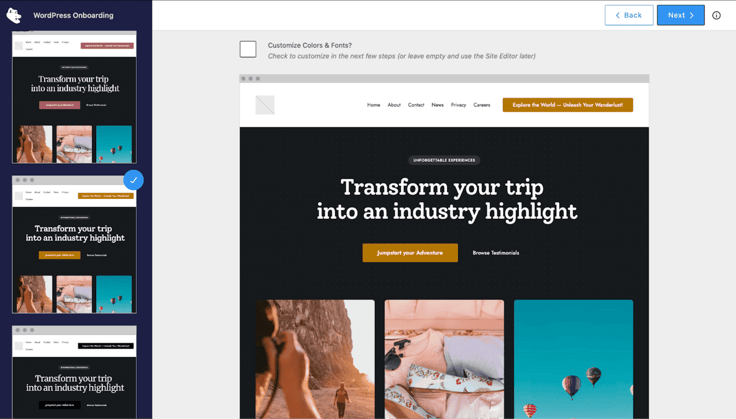
What I learned from the cheap plan is that HostGator sets you up with a launching pad with this onboarding process and its templates. So you don’t have to start with a blank canvas. While it doesn’t necessarily hand you everything on a silver platter, it gives you just enough to jumpstart your site-building journey.
Of course, I have to mention that if you don’t like the WordPress editor it provides, you can always bypass it and download popular web-building plugins, such as Elementor, to get a different experience and more themes.
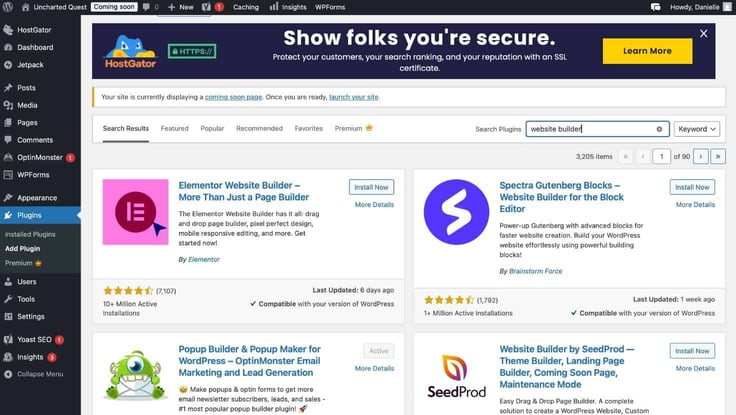
Side note: Remember when I said I chose the “never used WordPress” option over “I’m an expert?” Well, there wasn’t much of a difference in the process. Everything was the same. So if you’re a beginner, don’t expect to get additional tailored assistance unless you choose to reach out to customer support.
Now, back to the WordPress dashboard. HostGator had a neat shortlist of action items for me to do to finish up my site.
I also noticed that HostGator had a separate dashboard from the one WordPress provided, which I’ll show below. Its dashboard was a bit organized and offered shortcuts to adding pages, managing settings, and more.
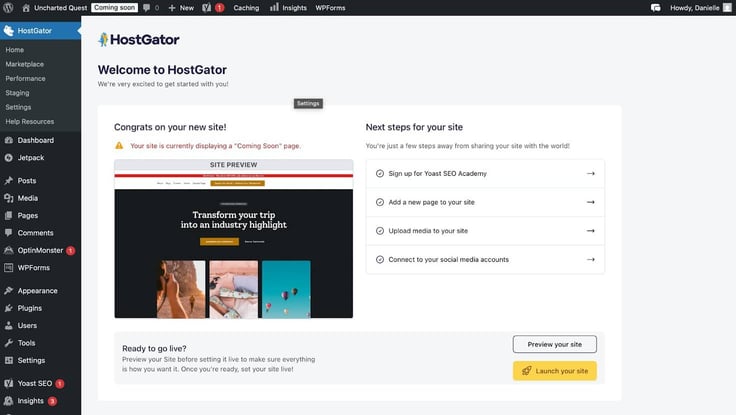
I could either click on one of those steps or hover over my site preview and click “edit site” to be taken to the editor.
Once inside the Gutenberg editor, I could access HostGator’s WonderBlocks plugin. The WonderBlocks library is filled with customizable block patterns and templates to help me populate and edit my existing site layout.
Something I realized was that HostGator’s default designs were mostly geared toward businesses. The content was eCommerce-forward, even though I had chosen the option for blogging and publishing, not selling. That meant I had to do heavy editing on every block.
After going through the WonderBlock patterns and fixing the homepage’s layout, I went through and edited the premade content to fit my site’s vision.
During the initial onboarding process, HostGator allowed me to choose from a pool of plugins, which it could automatically download for me. One of those plugins was Jetpack. It was labeled as a speed, security, and growth plugin. But, as I would find out later, Jetpack also comes in handy during content creation.
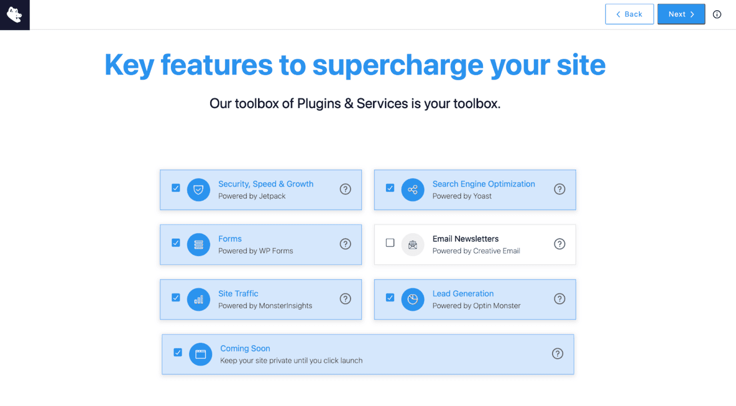
Jetpack’s AI writing assistance was built into the editor. I tested it out while writing my first blog post. The writing assistant doesn’t generate written content, but it does generate feature images and headline options and gives feedback on structure.
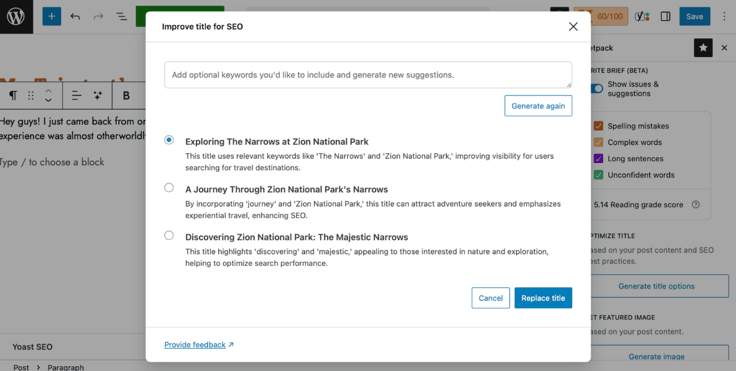
I thought it worked pretty well. It never advertised itself as a content generator, so I had no issues with it not having that capability. The only drawback is that you only get 20 free AI requests. If you want more, you would have to upgrade your Jetpack plan to its paid plan.
Though the upgrade only costs $4 a month, there are tons of free AI generators out there to choose from if Jetpack isn’t meeting your needs.
After testing Jetpack, I moved on to adding more blog posts. Using the WonderBlocks library, I selected a few different templates under the “text” category and added them to the page.
After that, I added a welcome blog post and a travel diary about a trip across Europe to fill out the blog posts page. Adding a few images here and there, I was done with my posts and was ready to publish.
But here is where I ran into a little trouble. When I went to preview, my blog posts weren’t appearing on my blog. I was expecting them to appear automatically. However, I actually had to go into the WordPress reading settings and set it to the specific page I wanted them to appear on.
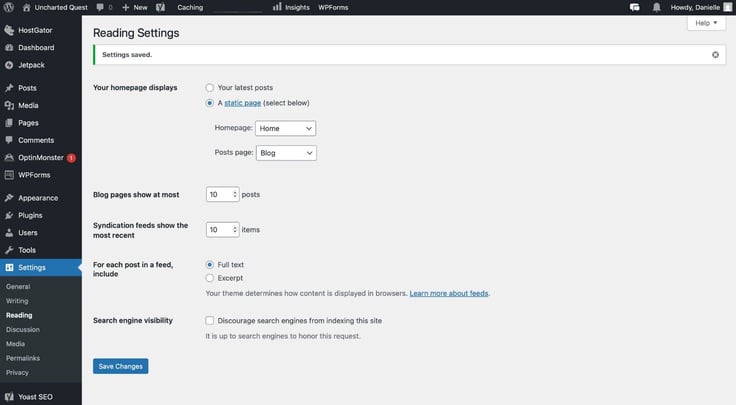
Still, the site had a lot more work to undergo, including repairs to the headers and footers and edits to the navigation menu. I also added an about page. After a couple of hours of construction, the site was up and ready to go.
It was finally time to publish my site.
The more I played around with the WonderBlocks the more familiar they became. I would say it was pretty easy to use after testing everything out. Once I pieced everything together, I was able to easily decipher which controls allowed me to edit the site layout and the page layout.
I also liked that HostGator provided backups for my blog posts.
After the superb performance HostGator showed with its cheap plan, I wasn’t expecting anything less than an A grade for its WordPress hosting. After all, shared hosting is known for being less optimized.
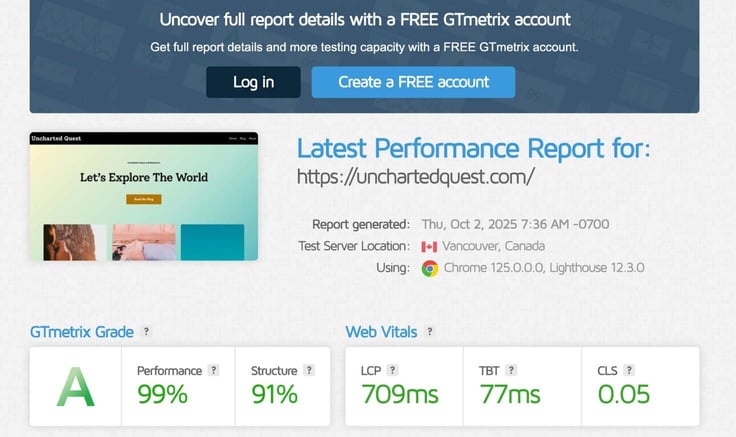
Yet again, HostGator blew me away with its speed. This time, I mean really blew me away. The LCP or page load time (the average LCP is 1.2 seconds) didn’t even enter the seconds thresholds. It topped out at 709 milliseconds!
HostGator’s dedication to web performance and speed is truly a game changer.
HostGator’s WordPress hosting shared many similarities with its cheap plan. So it was sort of like reviewing the same hosting package twice. I found that the main differences were pricing and storage.
The base plan for cheap hosting is $3.75 a month, while the WordPress hosting base plan is $3.09. The WordPress plan also has 10 gigabytes more of storage.
Staying on the matter of differentiators, its performance also slightly edged out HostGator cheap plan’s speeds, and it had phone support.
And to compare it with other hosts on the market, I would say HostGator’s WordPress plan was more competitively priced for the number of features you get than others. For instance, Bluehost and SiteGround may offer cheaper initial pricing but they also provide less support and storage in its base plan.
All in all, I would recommend HostGator’s WordPress hosting service as it covers all the essentials you need to build a WordPress site.
I love VPS hosting because it’s fast, scalable, and performant without carrying an enormous price tag. While HostGator’s VPS plans cost significantly more than its shared or WordPress plans, the features and performance you get make up for it.
Below, I will walk through its VPS platform, comparing it to other hosts on the market. From powerful hardware to security patches, HostGator’s VPS plans have a lot to offer. Let’s see if it’ll pass the test.
Like its other offerings, HostGator offers three tiers for its VPS plans: Snappy 2000, Snappy 4000, and Snappy 8000. I have to say I like its dedication to keeping up with its alligator theme (not like I’m a UF alumnus or anything).
Besides the clever naming distinctions, HostGator also scales the number of cores, RAM, and NVMe storage as you ascend each tier. Since I plan to only test its VPS packages, I will be going with Snappy 2000 to evaluate the platform.
Snappy 2000 includes the following specifications:
The other two tiers have the same exact features, differing only in the amounts provided. While examining its pricing, HostGator falls in the middle of the pack compared to the rest of the market.
There are cheaper VPS hosting plans out there (Hosting.com, for example). However, HostGator offers a fair price, especially considering the number of features it provides and the included managed server features.
For instance, Bluehost’s base VPS plan has a near identical combination of features and specifications but starts at $144.19 compared to HostGator’s $141.19
Other highlights of HostGator’s VPS platform are complete customization, guided server setup, one-click app installer, and a network guarantee. HostGator also builds all of this on AMD EPYC servers hosted in Tier 3 data centers.
Based on the features it offers, I can see HostGator seeks to prioritize fast performance and a smooth experience for all its customers. Its VPS plans also seem very accessible, meaning anyone could use them.
With premium support, cPanel, and server monitoring, I don’t have to be a heavyweight tech enthusiast to handle HostGator’s VPS platform.
Now, it’s time to sign up. After clicking on “choose plan,” a familiar page showed up: its domain registration lander. For this plan, I was thinking of creating a website that could truly test the VPS’s performance. So why not an eCommerce storefront?
I have a slight obsession with basketball, particularly the Golden State Warriors (not a bandwagoner, promise). So since it’s still the offseason as of when I’m writing this, I want to create a website selling and auctioning basketball memorabilia to launch before the season starts.
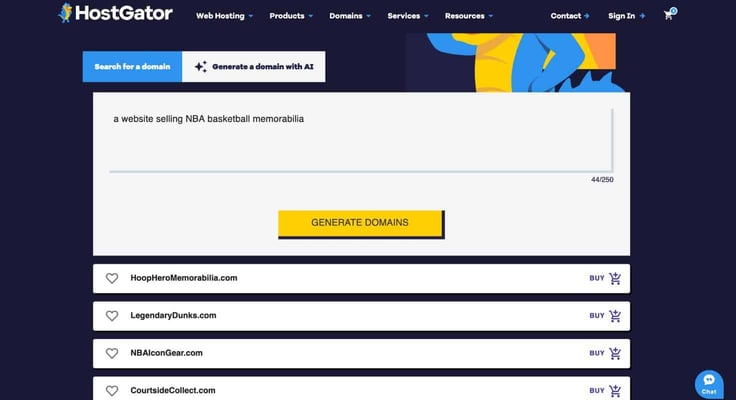
Since it did so well with my last generated domain name, I decided to get some assistance from HostGator’s AI domain generator with my next domain name. I typed in as a prompt “a website selling NBA basketball memorabilia.” I guess the search was too specific because it didn’t generate any results.
So I switched out “memorabilia” for “merch” and received about a dozen results. The generator spat out some great, catchy names. For me, it came down to SwishCentral or CrossoverAttire, both of which I really liked. Since I want my site to display a variety of merchandise and not just apparel, I went with the name: swishcentral.com.
I circled back to the domain registration page and typed in my new name. After that, I was taken to my cart and order summary. At this point, I had forgotten that the cPanel licensing wasn’t included in the base price.
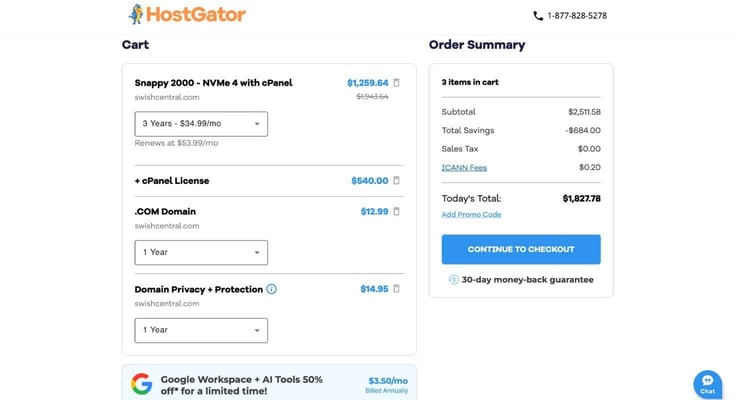
I couldn’t fault HostGator for that as it is common for most hosts to offer cPanel as an add-on (Hosting.com is one exception, however). A year of cPanel through HostGator costs $144, pretty hefty especially considering the cost of the plan as well. But alas, that’s cPanel.
Domain names aren’t usually included in VPS plans either, making it another cost to cover. cPanel has been steadily increasing its prices over the years, so its high price point would be the same across all hosts with its licensing.
But the good thing is that cPanel is optional with HostGator. So if I wanted to avoid cPanel’s expensive ticket price, I could just download a more inexpensive control panel option instead.
So in total, the base VPS plan came out to be $1,259 for three years, including a domain name, domain privacy, and a cPanel license. The pricing does change by length of contract term.
The great thing about HostGator’s VPS hosting plans is that they’re managed. While this may not be a game changer for those who are more technically inclined, I think it’s incredibly ideal for those who don’t have a tech background.
Since HostGator has guided server setup, upon logging into my account, I didn’t have to do much to get my VPS up and running. I clicked on “Hosting” on the sidebar of my HostGator dashboard and then clicked “manage” under VPS, which took me to this page.
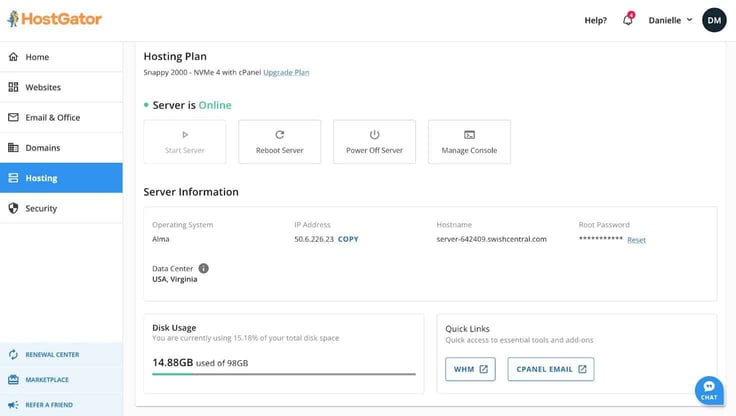
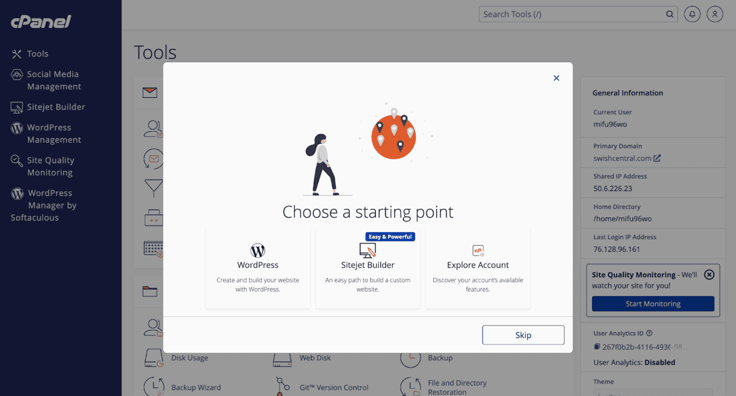
Since I purchased cPanel as an add-on with my plan, I could click on the cPanel, or WHM, button within my VPS settings and go straight to cPanel to manage my site. The cPanel dashboard greeted me with a pop-up asking me how I would like to start my website journey.
Side note: I did have to contact customer support to find how to access my server however. The account dashboard provided a button to run a server setup before accessing my hosting environment, but there was an error message each time I tried it. When I asked for help, the customer support rep told me I could just circumvent that process and go straight to using my cPanel dashboard.
It gave me these three choices: launch WordPress, use Sitejet website builder, or explore cPanel. I selected the second option, as I have never tried Sitejet and would like to see how it performs.
Once I clicked on Sitejet, I was taken to another webpage to start the website creation process. Sitejet had two methods for building sites: an AI website generator or template selection. I love a good AI builder, so of course, I had to test out the generator.
First, the AI builder asked me what industry my business is in. I chose “Sporting Goods Store” from the list it provided. Next, I entered my business name, swishcentral.com. Then, it asked me for a short description of my site, so it could fill out the design prompt.
After waiting a few minutes, the generator produced the final product. Let’s just say I was disappointed to say the least. The website was lacking personalization and didn’t match the description I gave whatsoever.
Of course, none of the blame fell on HostGator’s shoulders. This was Sitejet’s website builder after all, and it did say the generator was still in the beta testing stage. Going back to cPanel, I had the choice to either create another site with WordPress or try the template method with Sitejet.
I decided to keep the WordPress train going since I’m already familiar with its interface. I typed “WP toolkit” in the search bar of cPanel to find the WordPress settings. The WP toolkit already comes installed on cPanel and allows you manage your WordPress sites from the control panel.
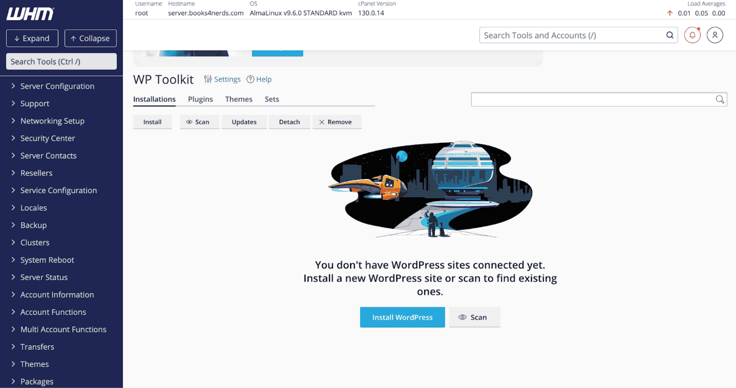
Through the WP toolkit, I could install WordPress and other plugins for my site. I chose to install Yoast SEO and WooCommerce along with WordPress, since I plan to primarily use the site as a storefront. Once those installed, cPanel populated the WP toolkit with my site’s details.
I clicked on “Log in” to take me to the WordPress dashboard. Then, I clicked on “WooCommerce” in the sidebar. WooCommerce offered two options: to go along with its guided setup or skip it. I chose the former.
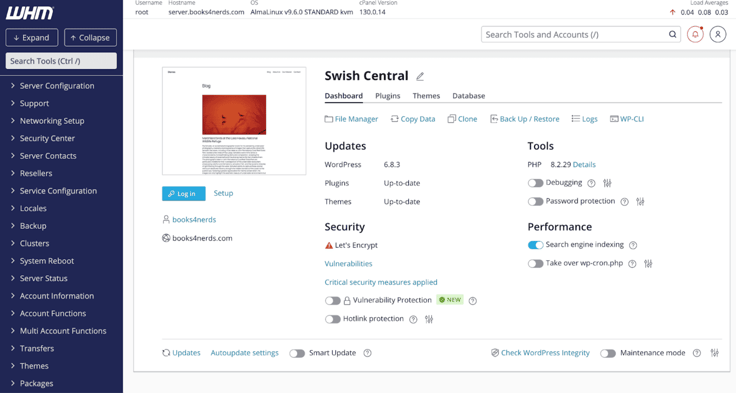
After answering a few of the setup wizard’s questions, WooCommerce asked me to connect my WordPress account. Then I could start customizing.
I won’t go into too much detail about this part, as you can find WooCommerce in any WordPress setup and host out there. Like other WordPress-based editors, I had to find images outside of the platform and upload them to the editor.

WooCommerce also had a dedicated section on the WordPress sidebar for easy navigation. From the WordPress sidebar, I could choose to add new products, monitor analytics, and set up and manage payments.
After creating a quick catalog of sports items, I was done with creating my shop. All I had to do was add edits to the home page, write a couple of blog posts, and I was on my way to publishing.
HostGator, with cPanel, offers a fully managed VPS hosting service, which includes technical support for server-related issues. However, if I didn’t purchase the cPanel license, its plan would be considered semi-managed, where most of the server duties would fall on me alone.
Through cPanel, I could create and access manual backups, manage DNS settings, add security rules, and more. The cPanel dashboard is thorough and easy to navigate, giving me everything I need to manage my server.
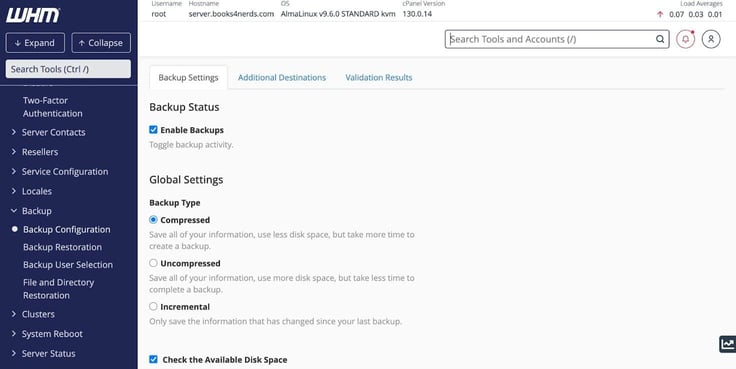
I could also access the command line from the cPanel dashboard to do heavier modifications and configurations.
I was excited to see how an eCommerce site would work on HostGator’s VPS platform, as it already boasts such great performance on the previous plans. And yet again, HostGator crushed it.
The results:
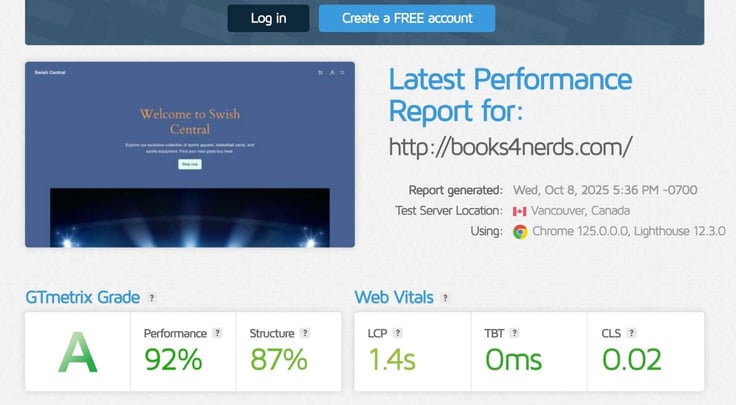
It passed the GTmetrix test with flying colors. HostGator is truly in the top tier for performance among hosts. No need to worry about performance or speed with this host — Consistency so far has been HostGator’s name.
Note: I ended up reusing and transferring domain names between my plans in this review. So that’s why the test is displaying results for books4nerds.com.
The short answer to this question is yes. Virtual private servers can be a tough hosting server to break into, as there are pricing and knowledge gap barriers. But HostGator offers more than just an affordable VPS option, it offers a simpler platform that doesn’t require a learning curve.
While there were a few drawbacks, such as no free domain name and issues with setup (detailed below in Customer Service), with the help of customer support, I got those things squared away fairly quickly.
Overall, I would recommend this VPS hosting package for everyone, whether you’re more tech-savvy or a business owner who needs higher performance. HostGator did an excellent job of making something that can be quite intimidating into something anyone can use.
Although I don’t frequently cover dedicated hosting, I think it is an exceptional solution for anyone seeking to build and power well-performing and multilayered sites. Not only are dedicated servers a powerhouse, but they also provide great security, customization, and control.
For HostGator’s dedicated hosting, I’m looking for three things: top-tier performance, scalability, and technical support. Having a team that can assist when something goes awry is super important to me when looking at dedicated hosting.
Managing these types of servers requires a lot of hands-on experience, and a trustworthy and attentive hosting care team is essential. So enough of my rambling, here’s my step-by-step review and testing of HostGator’s dedicated hosting plan.
As the saying goes, “With great power comes great responsibility.” This statement not only describes Spider-Man’s superhero journey but also my journey with dedicated hosting.
Dedicated hosting is known for its high performance, control, and resource-packed server packages. But it also requires a lot of maintenance and money to manage.
By just scanning HostGator’s dedicated plans, I could already see how much more resources and power they provide than the other hosting types. The difference was stark — and that’s what sets it apart (and justifies the cost).
While HostGator’s shared plan starts with 10 GB SSD storage, its dedicated plan starts with an incredible 1000 GB of NVMe storage. Comparing its tier-one dedicated plan to competitor Bluehost, the numbers are pretty on par. They offer the same amount of resources at the same price of $141.19 per month. The renewal costs were also nearly identical.
Moving along, I decided to choose the base plan, Value – NVMe 32, to test out HostGator’s dedicated hosting. I was excited to try out the platform and see how it compares to its other plans. Hopefully, it meets my expectations.
Time for signup! I haven’t had any issues signing up with HostGator so far, so let’s hope this part is no different. Clicking on “Choose Plan” under plan Value – NVMe 32, I was again automatically taken to the domain registration page.
I decided to opt out of registering a domain this time and went with the “choose the domain later” option. Why? I plan to do a domain transfer later with a name I already own, hopefully with the help of customer support.
While in the cart, I got the option to choose from several plan contracts. There were monthly, quarterly, semi-annual, yearly, 2-year, and 3-year contracts, which all varied in pricing. Since dedicated hosting is quite expensive, I’ll provide the pricing for both monthly and yearly contracts below.
| Plan Duration | Price Per Month | Total (minus cPanel license) | Savings |
|---|---|---|---|
| Monthly | $156.39/month | $156.39 | -$38.08 |
| Quarterly | $149.59/month | $448.77 | -$108.11 |
| Semi-Annual | $149.59/month | $897.53 | -$216.23 |
| 1 Year | $141.19/month | $1,713.47 | -$450.40 |
| 2 Year | $135.99/month | $3,263.76 | -$979.13 |
| 3 Year | $129.19/month | $4,650.86 | -$1,713.47 |
*Pricing is subject to change
The price was slightly different from what was displayed on the landing page. That may be due to HostGator failing to update its landing page with its new pricing. But as you can see from the table, the longer the contract, the cheaper the final becomes.
While in the cart, I also noticed that HostGator gave me a choice between two operating systems for the dedicated server: Windows or Linux. Depending on what I chose, HostGator also gave me the option to include a Plesk or cPanel license in my plan.
The cPanel license is an additional $12 a month, while the Plesk license is slightly lower at $10 a month. I found the cPanel helpful when testing HostGator’s VPS plans previously. Having a graphical interface is a game changer, especially if you’re not familiar with the technical aspects of server management.
So my answer to adding a control panel would be a resounding yes. Here’s the kicker, though. The prices I placed above in the table are the pricing variations for its Linux-based dedicated servers. If you choose to go with Windows as your operating system instead, you should expect to factor in around an additional $40 per month toward each contract plan in your budget.
The great thing is, like most competitors, HostGator also offers a 30-day money-back guarantee in case you have issues with the product. You’ll be reimbursed for any charges you get within that initial 30-day period.
I ended up choosing the base monthly plan ($156.39) with a cPanel license ($12 per month), which totaled $168.39.
If I didn’t mention it earlier, when logging in, HostGator asks for you to input a verification code once in a while to ensure the security of the account. It can sometimes feel inconvenient but it shows HostGator prioritizes safety of its customers.
After going through the login process, I did get an offer to purchase an SSL certificate. I’m not very fond of upselling, especially if I already have the products the offer is promoting. So that’s one thing to consider when looking at HostGator.
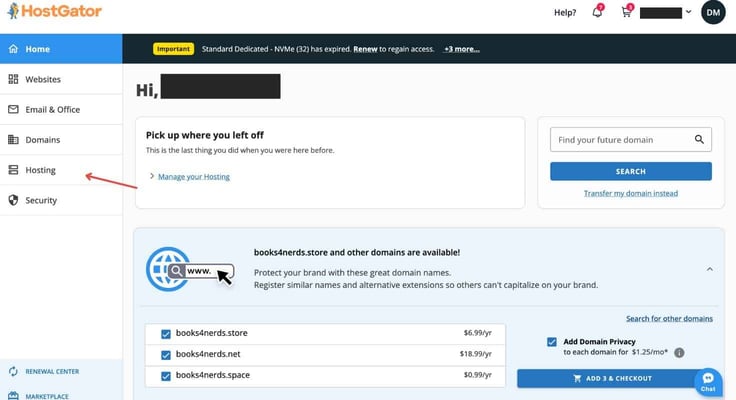
After that, I headed to the “Hosting” section of the account and clicked “manage” under dedicated hosting. The server was already online, which I could see from the dashboard.
But here is where I hit a bump in the road. Earlier during the signup process, I mentioned I was going to transfer a domain name to my dedicated hosting account. To log in to WHM (included with cPanel), the control panel/account manager for my dedicated plan, I need a domain name before I can continue with my site.
So I contacted customer support via chat to help me with a transfer request. It took about 2 hours to resolve the issue with my domain name switch, but in the end, the setup was successful.
I must also mention that my customer representative notified me not to use the “run server setup” button on the HostGator dashboard when setting up both VPS and dedicated plans. He said it is best to just use WHM to set up all the server configurations, as the “run server setup” button usually shows an error message, a notification I ran into multiple times. So it was nice to get that clarification.
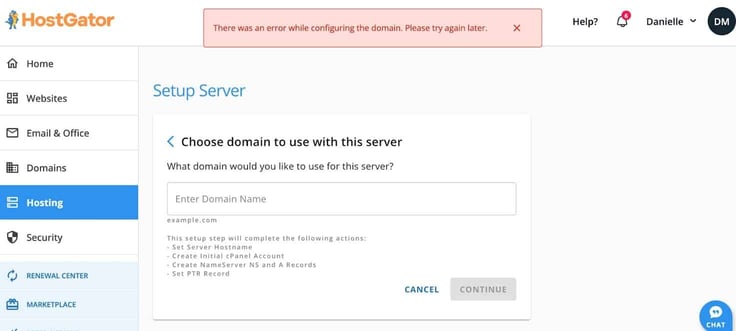
I clicked on the WHM button on my dedicated server dashboard in my HostGator account and was taken to cPanel. The control panel gave me the option to click on WordPress right away to continue onto site creation. But since I wanted to browse the control panel a bit more, I passed on that.
Thankfully, cPanel makes it super easy to find WordPress again by typing in WP toolkit in its search bar. Once I got the WP toolkit page, I clicked on “Install WordPress.” About 30 seconds later, the installation was complete and then I was asked whether I wanted to install WordPress plugins. I opted out of that and went on to the web-building process by clicking on the “Log in” button.
Another thing to note: From the WP toolkit page, I could also access WP-CLI, which is a command line interface for WordPress. So if I needed to go deeper with my WordPress configurations, I could use that feature. It was nice to know I had that on hand.
Entering the WordPress dashboard, I clicked on “Open site editor” on the homepage and went into development mode. This process was a little more manual than my previous sessions with shared and WordPress hosting. But that’s not alarming, as dedicated hosting is more personalized and user-controlled.
I built my site just as I did with my VPS plan and got it up and running in a couple of hours.
cPanel’s WHM panel made finding everything streamlined and simple. The controls were visible and easy to pinpoint, so I wouldn’t have to do much guesswork to understand the control panel. It also had a search bar at the top to help me locate anything I couldn’t find on my own.
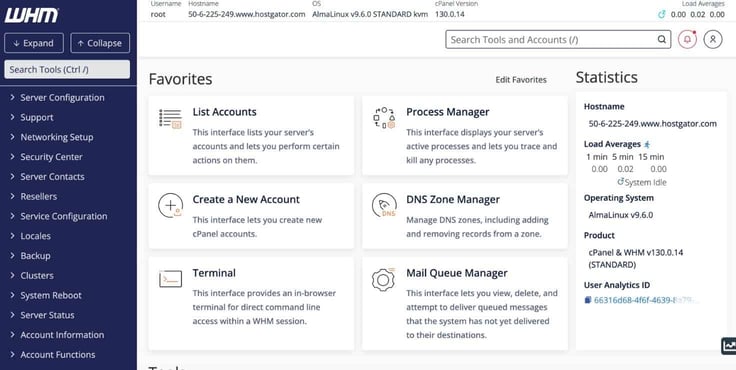
Just like with the VPS plan, I could use the WHM dashboard to access the command line terminal, manage server configurations, and complete backups, among a host of other things. It was pretty thorough and straightforward.
I could also access controls, including “reboot server,” “power off,” and “manage console,” from HostGator’s own dashboard if I didn’t want to log into WHM or discovered an issue with my server. There was also an option for resetting my root password and a window displaying how much disk space I had left.
Testing a dedicated server in the world of hosting is much like doing a test drive with a sports car in the world of automotives. Dedicated servers are champions of performance, beating out shared hosting, VPS, and its other counterparts. So, to be honest, I’m not expecting anything less than excellence from my HostGator server.
And just like before, HostGator did not disappoint.
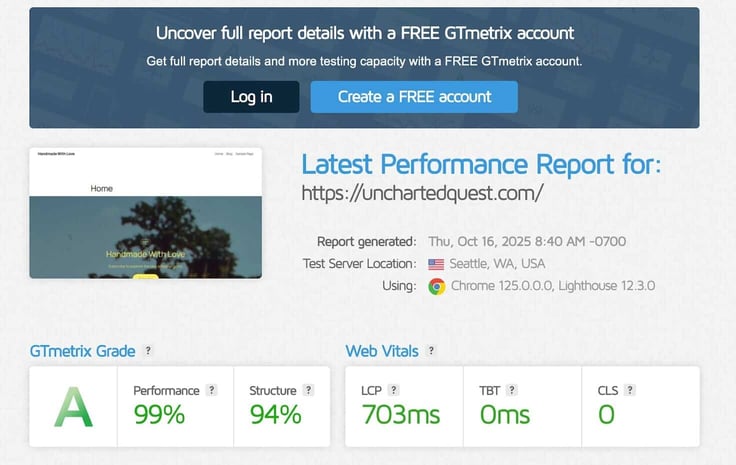
Its LCP speed time was the quickest out of all the speed tests, clocking in speeds at 703 ms. Quite impressive, if you ask me.
Though I must give a disclaimer, I didn’t go too extensive with the design, just kept it simple with a blog post and a homepage. So I’m not sure how it would hold up for medium- to large-sized sites with years and years of content. But the test score assures confidence.
Note: I ended up reusing and transferring domain names between my plans in this review. So that’s why the test is displaying results for unchartedquest.com.
In my opinion, HostGator’s dedicated hosting service covers all the bases. Not only is the platform super easy to configure, but it also doesn’t skimp on performance. That means anyone can use it and leverage the best parts of dedicated hosting.
From my experience, dedicated servers can be one of the most daunting hosting types to approach. But with HostGator, all those worries disappear. With its streamlined server setup and cPanel offerings, managing a dedicated server under its platform is almost as simple as 123.
I would definitely recommend its hosting service for dedicated servers. The pricing is also fair and falls in line with other hosting companies. But most of all, if speed is what you’re looking for, HostGator’s platform will satisfy your needs.
Customer support is one of the most valuable parts of a hosting service. While the servers may be the engine behind the hosting platform, I like to think of the customer support staff as the mechanic helping keep everything in check.
Like a mechanic, the customer representative is the one who makes sure everything is running smoothly. And when I run into a problem, they’re there to get my site back up quickly. That is why I knew for certain that I had to review HostGator’s customer support.
My request came naturally as I needed help transferring a domain name from my cheap plan to my VPS plan. And I couldn’t do it myself, so to customer support I went. Thankfully, HostGator has a chat button that follows you everywhere around its site. So whether I’m in my account settings or browsing plans, I could click on the chat from anywhere.
One thing to know before I dive into my customer service experience is that HostGator provides 24/7 phone and chat support for all its plans except its Hatchling Plan. The Hatchling Plan is the base package for its cheap hosting, and it only has 24/7 chat support.
With that aside, HostGator’s customer support process was nothing short of smooth. Like many other hosting providers, HostGator’s chat feature started off the conversation with a virtual assistant that asked me a few basic questions about myself, like my name.
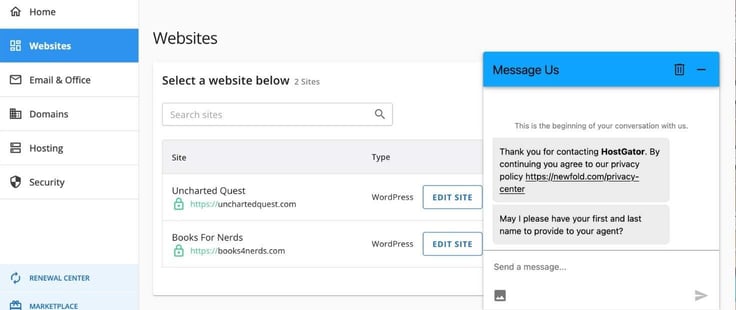
Once past that, I was quickly directed to the customer support queue. While I didn’t get a reply instantly, the customer representative sent his first response within two minutes of my request.
Throughout the conversation, I didn’t have to wait more than two minutes for a reply unless the rep was actively working on the problem. The rep was very knowledgeable and provided multiple options for fixing my issue.
Once we landed on a solution, he even told me how long it would take to transfer my domain name from my cheap plan to my VPS plan. He also provided a link for me to track the transfer. I was thoroughly impressed with the diligence taken. Not only was the rep polite and responsive, but he also knew a great deal about the technical aspects of hosting.
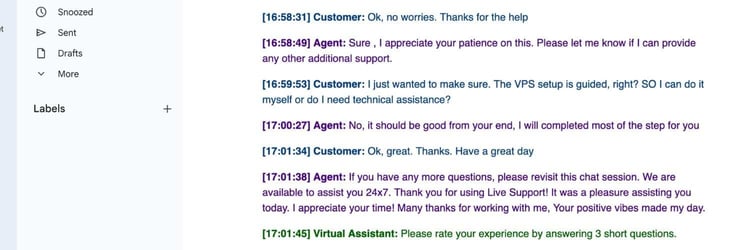
I ended up using customer support a second time for a similar reason. This time, I was switching a domain name between my WordPress hosting and dedicated server plans.
Interestingly enough, however, this experience wasn’t as smooth. The customer representative I received wasn’t as knowledgeable and didn’t have the expertise to help me with my problem. Instead, they gave me the wrong instructions, simply because I don’t think they understood what I needed.
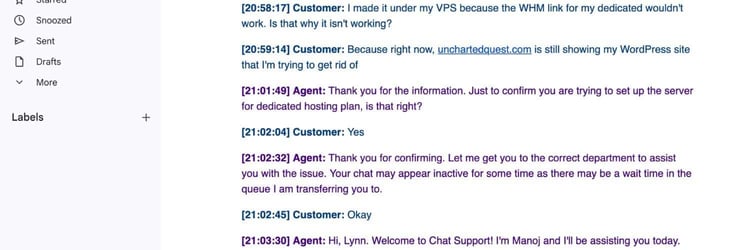
Thankfully, I was able to clear up the miscommunication, and they were able to direct me to another support agent. This agent was able to figure out my problem and transfer my domain name. Unfortunately, I was already over an hour in by the time everything was resolved. So clearly, there was a lot of back-and-forth involved.
Overall, I would still give HostGator’s customer service a B+ grade. While there was some miscommunication and the support team was a bit hit-or-miss, I was able to get my requests fulfilled regardless.
For a budget host, HostGator performed extremely well, especially in the WordPress category. Not only was it a WordPress hero, it was also a performance juggernaut. That’s something you can’t always find when scoping simple, retail web hosting.
But HostGator also had its shortcomings. I’ll explain below in detail what impressed me and what left me wanting more about the platform.
I could tell HostGator invested a lot in its server performance. While some hosts may compromise on shared hosting and offer more power on other plans, HostGator stays consistent throughout.
From its shared hosting to dedicated servers, it’s clear that HostGator made it its mission to provide top-tier and consistent speed across its platform. Though I found some downsides, they certainly didn’t outweigh the benefits HostGator provides.
To sum up my review of HostGator, I would say that I was thoroughly impressed with the platform as a whole. Yes, it had a few drawbacks, including upselling while logging in and some hiccups during server setup. But what hosting service doesn’t have any faults?
My overall experience with its plans was great. Whether it was a cheap plan or a VPS plan, I could easily manage my hosting environment and figure out how to build my site.
While HostGator could be a bit more modern by implementing AI features, I thought it did an excellent job simplifying parts of the journey many people would consider challenging, including the VPS and dedicated server setup.
The page speeds, consistency, and well-rounded packages were all highlights for me while testing out the platform. I truly believe that HostGator is an effective and powerful platform for almost any user seeking reliability, performance, and cost efficiency.

HostingAdvice.com is a free online resource that offers valuable content and comparison services to users. To keep this resource 100% free for users, we receive advertising compensation from the hosts listed on this page. Along with key review factors, this compensation may impact how and where hosts appear on the page (including, for example, the order in which they appear). HostingAdvice.com does not include listings for all web hosts.
Our site is committed to publishing independent, accurate content guided by strict editorial guidelines. Before articles and reviews are published on our site, they undergo a thorough review process performed by a team of independent editors and subject-matter experts to ensure the content’s accuracy, timeliness, and impartiality. Our editorial team is separate and independent of our site’s advertisers, and the opinions they express on our site are their own. To read more about our team members and their editorial backgrounds, please visit our site’s About page.


