
Guides

Studies 
Studies
Our studies cover a range of trending topics and deliver original, reliable data you can't get anywhere else on the web.
Easy-to-use website building, a shaky VPS experience, and unexpectedly great (AI and human) customer support.

By: Lynn Cadet

Editor: Lillian Castro

Reviewer: Christian de Looper
Disclosure: When you sign up through links on our site, we often earn referral fees from partners. For more information, see our ad disclosure and review policy.
Since the start of my career, I’ve used GoDaddy to host dozens of sites. So when I had the chance to review it officially, I was more than happy to. It’s not typical for me to get the chance to test products I already use and love, so this was a real treat.
Although I’ve mainly used the website builder for smaller sites, GoDaddy also has shared, WordPress hosting, and VPS hosting for larger and more complex websites. Here’s what you need to know before you buy:
For absolute beginners, GoDaddy’s website builder, Airo, is one of the best options you can get for your money. But more advanced users may find it limited in functionality and style customization.
Even if I had a large website with a lot of traffic, GoDaddy has VPS hosting options that would work for that, too. But avoid its base tier, unless you’re using it for testing only.
GoDaddy uses in-house tools, such as its Airo site optimizer, to guarantee the best web performance for your site and visitors.
Thankfully, I was able to form my own opinions about GoDaddy through personal use before reading reviews on the r/webhosting subreddit. Spoiler alert: the reviews are harsh. And unnecessarily so. Redditors might disagree with me, but I actually like GoDaddy’s cheap hosting plans.
Of course, its plans have their limitations, which I’ll cover in more detail below. But I think GoDaddy is still worth trying out, especially if you’re building a smaller, personal site.
GoDaddy has four standard shared hosting plans: Economy, Basic, Deluxe, and Ultimate. If you want something with a little more punch, GoDaddy also offers high-performance shared hosting plans starting at $17.99 a month.
However, since this is a cheap hosting review, I’ll be focusing on the standard tiers. With that information out of the way, let’s jump straight into it.
GoDaddy is a domain registrar first and foremost, and you can clearly see that when you get on its homepage. Right in the middle of its homepage is a CTA button that reads, “Get Your Domain.”
Its web hosting plans aren’t as clearly laid out or readily available, however. You have to use its navigation menu.
To find GoDaddy’s cheap plans, I first clicked on the navigation menu, found the Hosting category, then clicked on Web Hosting under that category. This brought me to this page here:
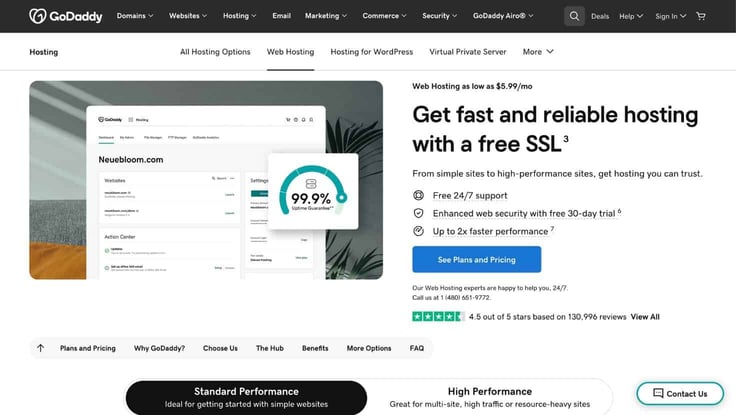
While I didn’t get to the lander in one click, I thought GoDaddy did a great job of displaying its plans. It made it pretty clear what I was getting with each plan, which also made it simpler to choose which one I wanted.
I didn’t have to scroll through a table with 50 rows of features, half of which I have no idea what they mean. Instead, the plans were laid out side by side so I could compare basic features, pricing, and storage space — super straightforward.
As far as the big-picture stuff (like free domain names, emails, and SSL certificates), the plans are pretty much the same. The biggest differences are the amount of storage space provided and the number of websites you can host on a single account.
The only plan that stood out from the rest was the “Hosting for WordPress Basic” plan. It was the only one with WordPress features. After looking at GoDaddy’s other WordPress plans, I realized that GoDaddy was just advertising one of its WordPress plans on its cheap plans webpage — interesting strategy, I guess.
At first glance, the plans seemed pretty affordable. As I looked deeper into the specs, the features helped justify my opinion. The mix of features could accommodate anywhere between a beginner site to a medium-sized site. Here are some standouts GoDaddy offers:
But one thing was obviously missing from the feature set: a website builder. After talking with GoDaddy’s AI customer support assistant, I learned that GoDaddy has separate plans for its website builder (which we’ll explore later), and the cheap plans don’t include one.
I was a bit disappointed to hear that, but not too surprised. Although I’m not a fan of the strategy, GoDaddy isn’t the first host to partition its shared hosting from website builder. But for the price, it would have been nice to have that included, especially since other web hosts with cheaper plans do.
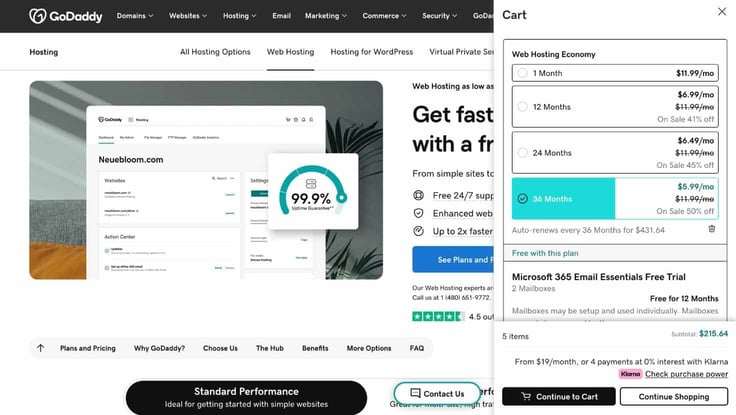
Another lowlight in its offerings was that its email and security suites are only offered as add-ons. GoDaddy gives you a one-month trial of these features, but after that, you’ll have to pay to leverage tools like CDN, malware monitoring, and web application firewalls.
Thankfully, its plans do include built-in DDoS protection and automatic backups at no cost.
After going through all the details, I decided to go with the Web Hosting Economy Plan for my review — it’s the smallest and cheapest, and has all the same key features as the other plans (just less storage and fewer websites).
Once I made my choice, it was time to sign up. Signing up for GoDaddy is a fairly easy process and doesn’t take much time.
Here’s how the signup process went for me:
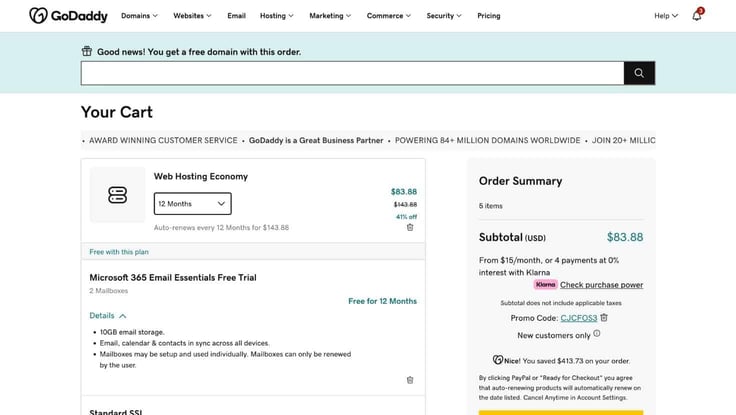
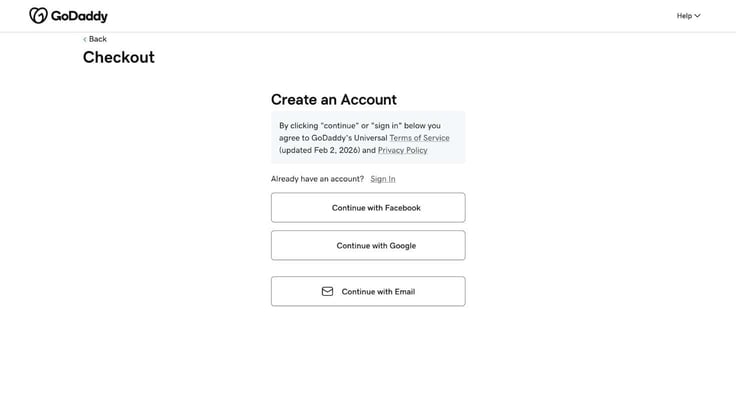
Other web hosts’ checkout pages can be a little annoying and cluttered with excessive add-ons, but I thought everything in my cart was laid out neatly and was easy to understand.
But as I said, just keep an eye out for the suggested add-ons during the checkout process. Like the costly SSL Setup Service I mentioned earlier. You probably don’t need that.
Once I was done with the signup, GoDaddy wasted no time and immediately got the ball rolling on creating my new site. Its onboarding wizard jumpstarted the journey with a few questions, like “How would you like to get started?” It also had me choose my closest data center location.

Like I mentioned earlier, GoDaddy’s cheap plans don’t include a website builder, but it didn’t leave me out in the cold on my own. Thankfully, GoDaddy presented me with my web-building options right away — use WordPress or build from scratch.
I chose to create my website with WordPress. To access WordPress, I could do it in one of two ways:
At the moment, the Edit website button wasn’t working, so I had to log in to cPanel. Appreciated that GoDaddy already had WordPress installed. All I had to do was click the login button, and this took me to the official WordPress dashboard.
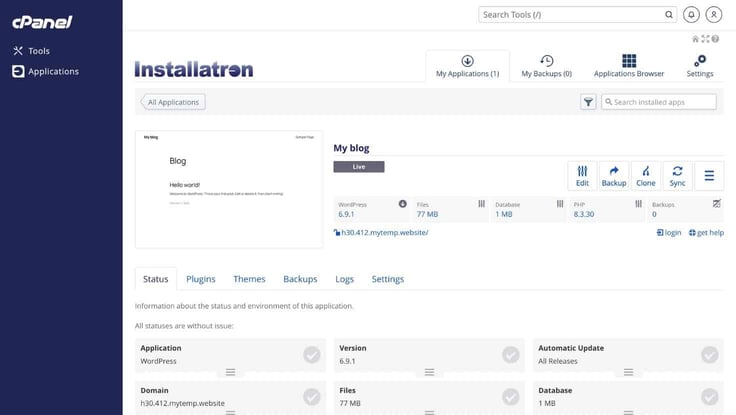
You should know GoDaddy doesn’t provide any additional features or functionality to help you around the WordPress interface with its cheap plan. No site checklists, GoDaddy labeling, or assistants. You would have to learn and navigate the WordPress platform on your own.
Side note: GoDaddy does have a pretty detailed getting started guide on its blog. You can find the link to it in the Action Center of your account dashboard or here.
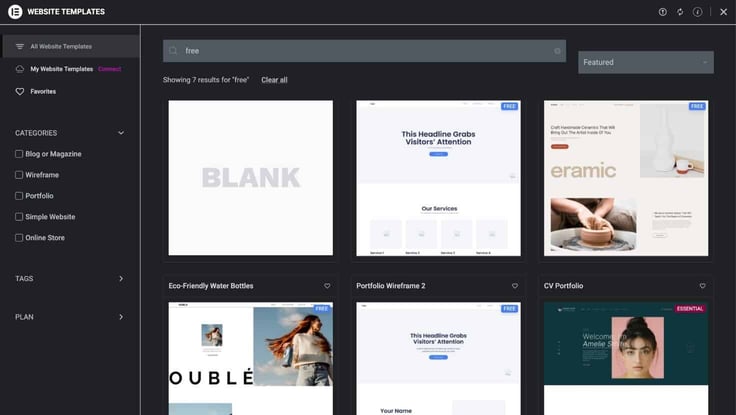
I decided to download Elementor (site-building plugin) to help me build my site and accelerate the process. I chose a template and made some adjustments. In no time, I had my site up and running.
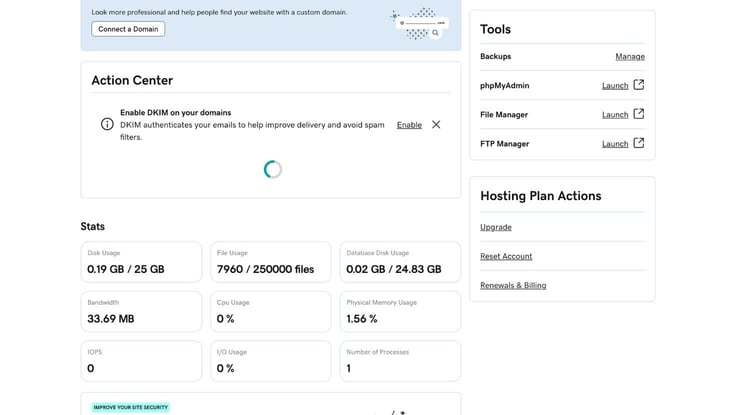
Returning to the GoDaddy account dashboard, I found new usage statistics for my site. I could also find an auto-backup that GoDaddy already made for me. On the Security page, I could run malware scans and view the scan schedule.
Overall, the cheap plan had a lot to like. It’s easy to use and offers enough resources for me to launch a small to medium-sized site. For someone who’s not too familiar with WordPress, it may be a tad challenging to build a site with it. But GoDaddy’s handy tutorials can help with overcoming any obstacles.
I haven’t exactly built any super high-traffic sites with GoDaddy, but it’s performed near perfectly for my smaller ones. Let’s see if GoDaady can keep its streak going.
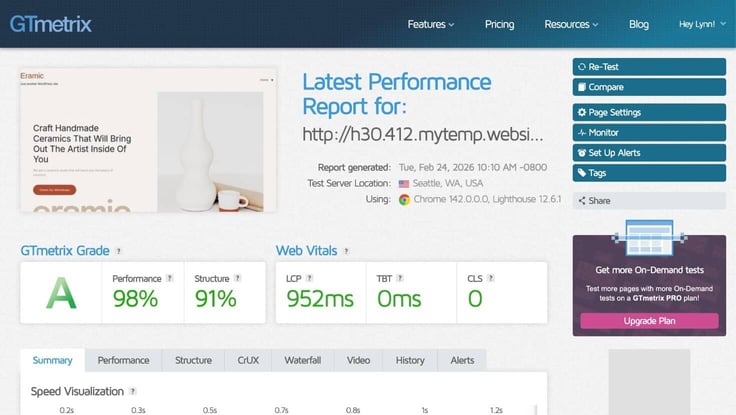
GoDaddy didn’t let me down.
While part of my good experience has to do with GoDaddy’s hardware and infrastructure (like the NVMe SSDs and global CDN), the other part has more to do with my plan selection.
The best way to avoid performance issues is to sign up for a plan that makes sense for your needs. I always make sure to choose a plan that’s the right size for my website.
I’ve never had any major downtime issues with any of my GoDaddy sites — just some maintenance downtime here and there, which is fine by me.
Like I said at the beginning of my review, I’ve been a GoDaddy fan for years. I’d say my formal review backs up every sentiment I have about it.
It may not be the most high-performance host, like Kamatera or AWS, or as affordable as IONOS and Hostinger, but honestly, that doesn’t matter to me. I like that it makes hosting easy enough so I don’t have to deal with the hassle of server management or coding.
You should use it if:
You should skip it if:
Based on my experience, I think GoDaddy is a great choice for anyone just starting out with web hosting. Its seamless, easy-to-use, and secure hosting provides an excellent launching pad for any kind of web presence — just make sure to learn WordPress.
I always hear that WordPress is beginner-friendly, and I only somewhat agree.
Sure, you don’t have to code anything from scratch to build a WordPress site, but you do need to learn how to use the WordPress dashboard to install things like themes and plugins. My point is, there’s a bit of a learning curve. More so than with GoDaddy’s AI site builder, Airo.
However, I think GoDaddy does a pretty good job of making things as smooth as possible with its WordPress hosting plans. Before I give too much away, let’s take a look at what GoDaddy’s WordPress hosting is all about.
Like with its shared plans, I used GoDaddy’s navigation menu to find its WordPress hosting landing page. The first thing I noticed was that GoDaddy’s WordPress plans were very succinct.
GoDaddy had only three WordPress options to choose from, making life much easier for me. The plans weren’t so different in makeup either. Just know each one comes with the basics for a simple site (site management tools, basic security measures, free themes, etc). But as you upgrade, you’ll get fancier features like staging sites and SEO optimization.
Also, I would say to make sure you know which features you need before you buy a plan. I’ve been in a rush a time or two and haven’t always chosen the right plan for my site. It’s not the end of the world, but it does make me say, “Ughhhhhh.”
If you do end up choosing a plan that is missing a thing or two, thankfully, GoDaddy lets you upgrade your plan at any time. You do have to pay a fee, though, to upgrade, which stinks. GoDaddy and its sneaky fees.
Regardless, I appreciate this sort of built-in scalability.
I love that GoDaddy tosses in premium perks into its WordPress packages that other hosts typically make you pay for.
These were some of the ones I was most impressed by:
From a convenience standpoint, I really like that GoDaddy makes sure you’re always working with the most up-to-date WordPress tools and features. Unlike with its cheap plans, it also includes its AI-powered website builder in the mix — the WordPress-tailored version, of course.
One of my favorite perks is that it provides automatic plugin updates. I like that the auto updates take some of the mental load off managing my site, because honestly, I have enough on my plate.
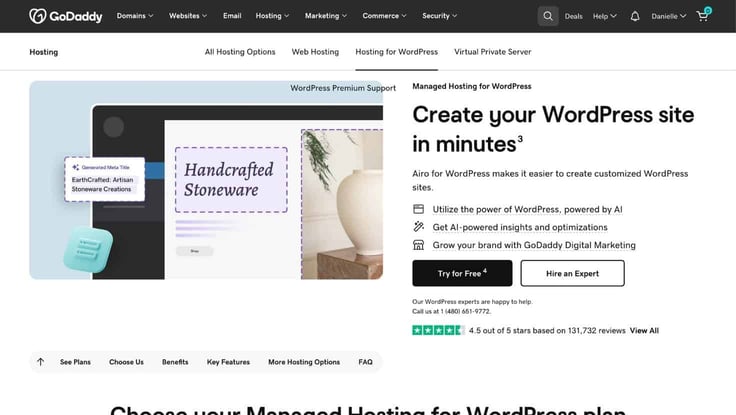
Since I won’t be selling anything on my WordPress site, I can save money by choosing a lower-tier plan, such as Managed WordPress Basic or Deluxe. But beware: the Ultimate plan is the only one that lets you sell stuff online!
GoDaddy’s WordPress hosting pricing is a bit higher than other hosts’, though it offers similar features. So that’s something to consider.
You can get a nice discount if you sign up for a year or more of hosting and pay upfront. That’s what I usually do, since I mostly build sites for books or work-related projects, and I know I’ll need the site for a year or more.
However, if you don’t want to fork out $100 to $200 for a service you haven’t tried yet, that’s understandable. In that case, you can do month-to-month instead. Those plans are a lot more expensive, though, so buyer beware!
I clicked Buy under the WordPress Basic plan to start the signup process. At my cart, I could choose between different contract durations. The 3-year contract was $1 per month cheaper than the 1-year deal.
GoDaddy also includes a 12-month free trial of Microsoft 365 Email Essentials with all its plans. That’s a pretty good deal if you need a dedicated email suite for collaboration or email marketing.
Other than that, the process was the same as when I was signing up for cheap hosting. After choosing my plan duration, I clicked Continue to cart and reviewed my cart details. Then I clicked Ready for checkout, signed in to my GoDaddy account, and double-checked my info. And I was ready to go!
Here’s my take: If you’ve used WordPress before, GoDaddy is as easy as any web host to make and manage your site. The tools are intuitive, user-friendly, and straightforward.
If you’ve never used WordPress or GoDaddy, expect a teensy bit of a learning curve. But it shouldn’t be hard to use. After all, WordPress is made for people without coding experience, like me. I’m confident that if you have basic computer skills, you can figure it out in a few hours.
At the start of my hosting journey, the thought of installing WordPress made me break into a sweat. If that’s you, don’t worry.
Unlike some other web hosting services, GoDaddy actually preinstalls the WordPress software for you. These tools auto-update as needed, so you’re always working with the latest version, too.
For me, that’s a big win, since I don’t have to worry about updating WordPress.
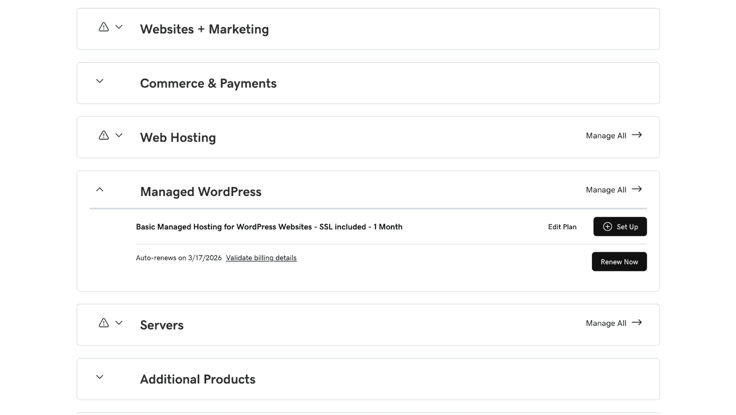
To start building my site, I logged in to my account and clicked My Products. This took me to a list of hosting products I already purchased. Under the Managed WordPress category, I clicked the drop-down arrow, then selected Set Up Plan next to the WordPress Basic plan.
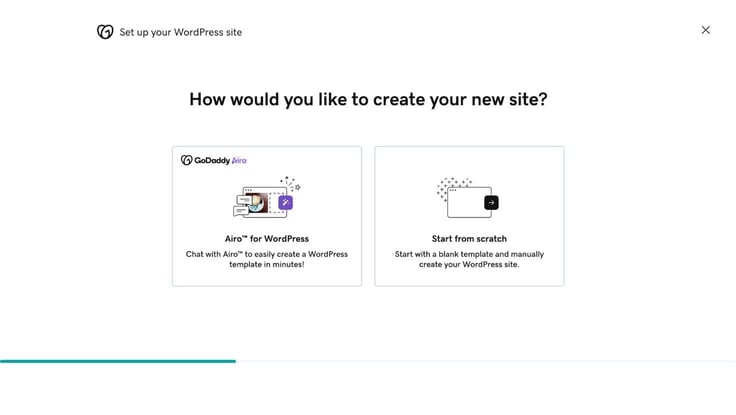
GoDaddy’s WordPress setup wizard appeared not long after. The onboarding process didn’t take any longer than 30 seconds, super quick. It asked me a few questions, and the final question was about how I wanted to create my site. I had two options: to create with Airo or start from scratch. Always up for some convenience, I went with Airo.
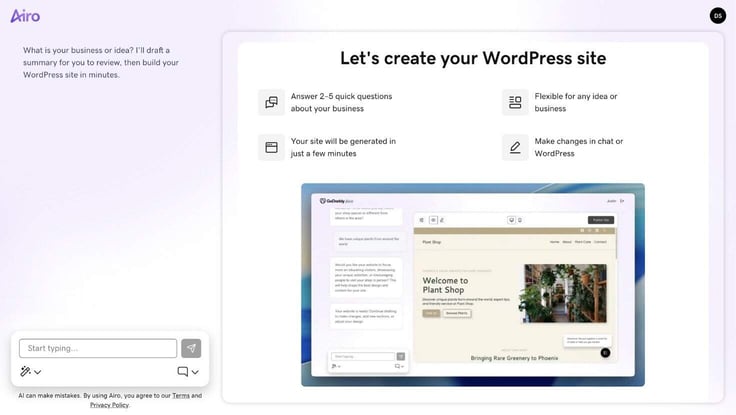
Just like with most AI-powered web builders, it started with a questionnaire to assess my vision. After answering a few questions about my needs, I clicked Generate and waited for Airo to do its magic. FYI: This version of Airo is tailored for the WordPress experience, so expect it to fit in perfectly with the CMS platform.
The design Airo created looked stunning and had all the bells and whistles you would need for a blog. I wanted a website about gardening advice and the generated sample site definitely fit the bill. The site also had multiple pages, including one for my seasonal tips and another for guides.
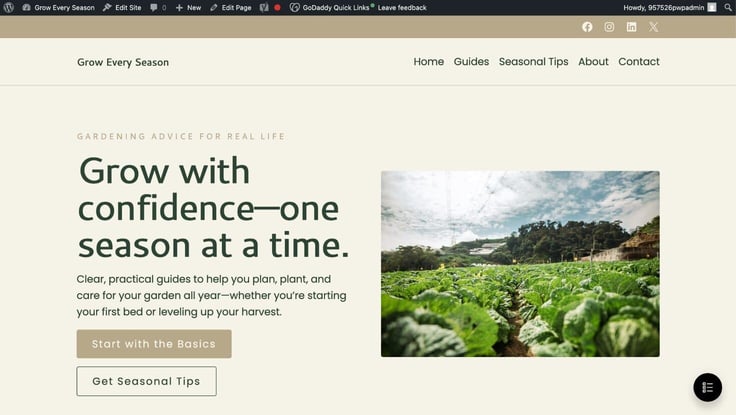
And the content on the site was all easy to read and made sense for the tone I was looking for.
Next, GoDaddy prompted me to log in to WordPress, so I could access the dashboard and continue managing my site. Its WordPress dashboard resembled the original, but had some unique additions.
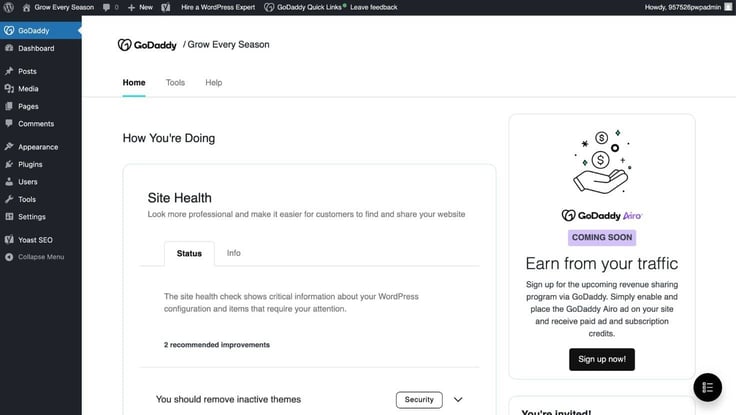
When you click GoDaddy on the sidebar, it will take you to a special dashboard tailored for GoDaddy users. From the homepage, you can check on your site’s health. Then, if you click Tools, you can access all the tools GoDaddy offers with its managed WordPress plans, including these:
I loved that the plugin manager automatically updates the optional themes and plug-ins I use with my website. I could also create and manage backups at any time.
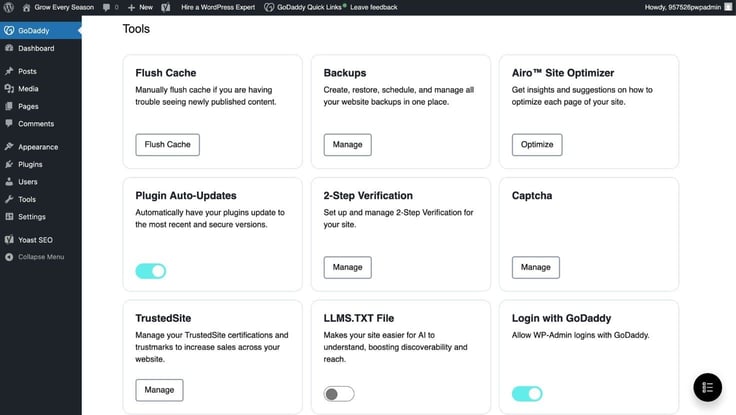
If you’re new to WordPress and are wondering what autoupdate means, it basically means you can spend less time tinkering with technical stuff and more time on, well…literally anything else. I consider that a win, since I don’t care for those kinds of tasks.
You could go back to the Airo site builder to have it make changes to your site whenever you want, or you could use WordPress to make edits manually as well.
GoDaddy also makes it easy to migrate WordPress sites hosted with other providers with the site migration wizard. I wouldn’t say it’s hard to migrate a website, but it’s certainly not fun. If I can migrate a site using a simple tool, I’m going to use it 100% of the time over manual transfers.
Most web hosting control panels are pretty similar. You get a simple dashboard with menus and buttons to complete common tasks, like website backups or updates. GoDaddy isn’t any different, which I actually think is nice.
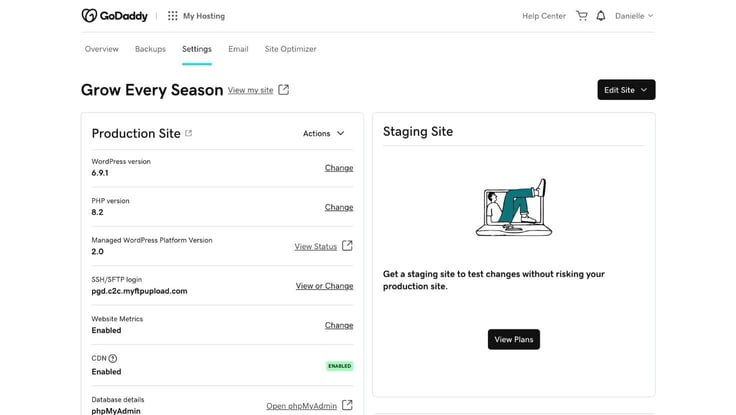
To manage my site, I logged in to the hosting dashboard and was able to find the settings for my WordPress hosting. There, I could monitor site logs, change PHP versions, check my plan storage, and more.
GoDaddy also has dedicated workspaces for individual sites. So if you want to track how a specific site is performing, you can by clicking on the website name on your account dashboard, where you’ll find a separate interface for your website.
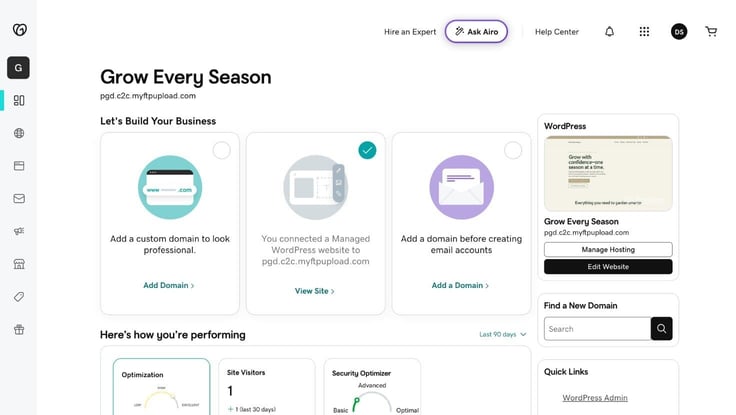
While I was testing the host, I kept thinking to myself how clearly labeled and easily accessible everything was. Another win for GoDaddy.
I have a secret to share about website performance: The trick is to make sure that everything is set up correctly right from the start. I’m talking about things like plugins, CDNs, image sizes, and caching.
GoDaddy makes this a lot easier with its provided tools, like its Airo Site Optimizer. It also includes some standard speed-optimization tools, such as a content delivery network and NVMe drives, to make your site even faster. But do all these tools really help? Let’s find out.
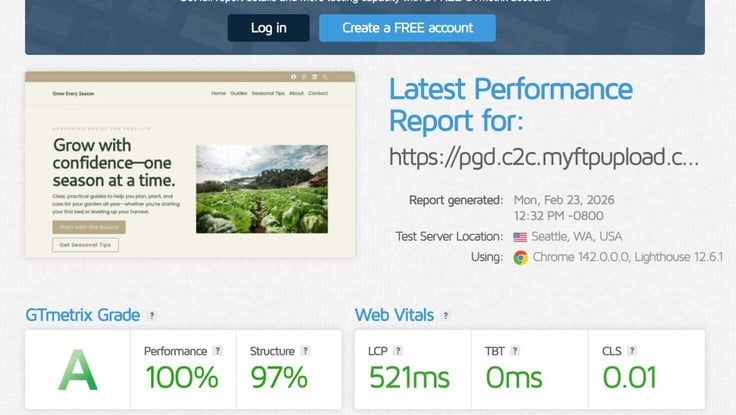
If that’s not a near-perfect score, I don’t know what is. GoDaddy crushes the performance test once again, and it turns out to be a sneakily performant host. Of course, my site didn’t have 10 pages, nonetheless hundreds of pages, but these results were impressive regardless.
Here’s a trick of the trade: If you want to go beyond GoDaddy’s speed optimization features, you should check out third-party WordPress plug-ins such as W3 Total Cache, Cache Enabler, WP Super Cache, WP Fastest Cache, or WP Rocket.
If you have your heart set on creating and managing your website using WordPress, GoDaddy is as good as any host. It offers great performance, a tailored WordPress experience, and AI creation tools for making a stunning yet professional website.
I didn’t find much to complain about. The plan was affordable and included everything I needed to jumpstart my WordPress journey. The added bonus was that it was managed, meaning I didn’t have to worry about the technical stuff. That gave me more time to focus on the more important things.
You should use it if…
You should avoid it if…
Overall, I think GoDaddy’s WordPress hosting plans offer a lot of advantages for the price point. I really like how everything was managed, and the interface worked very well without any hiccups.
You may have seen online advertisements for GoDaddy’s website builder, GoDaddy Airo, around the web. I know I have, at least a bajillion times while watching YouTube. While it may not dominate the market like WordPress or Wix, GoDaddy’s site editor is still one of the most popular DIY builders in the web hosting space.
Of course, there must be a good reason why. In this section, I’ll guide you through GoDaddy’s site builder’s top features and how it works, so you can make the decision for yourself on whether GoDaddy Airo is worthy of praise.
First and foremost, what you need to know is that GoDaddy Airo is exclusive to certain plans. You have to purchase either a WordPress plan or a website builder plan to use it. A bit of a bummer if you’re trying to stick to a tight budget and need a cheap plan.
But the silver lining: You can start for free.
To find GoDaddy’s website builder plans, I first clicked on GoDaddy’s navigation menu, next on Websites, then on Website Builder. Unlike GoDaddy’s other plans, its website builder is not located under its Hosting tab.
Its site builder plans are on the more expensive side, especially compared to other hosts. But that could be explained away by its proficiency in site building and use of innovative tech.
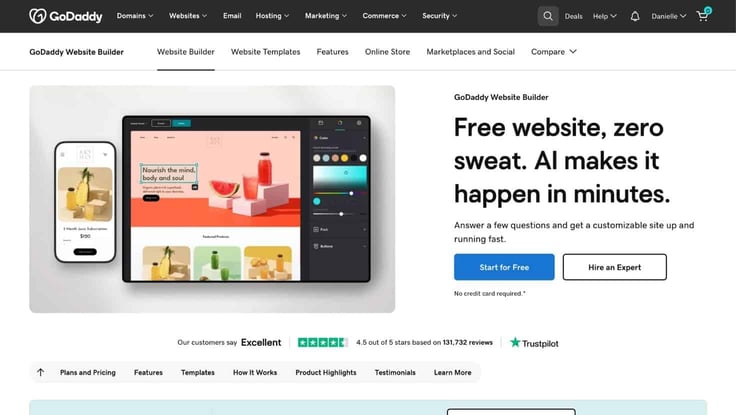
Thankfully, GoDaddy keeps its offerings short and sweet. The platform offers three site builder plans: Basic, Premium, and Commerce. Starting at $0.00, these plans provide everything you’d think would come with a site builder package, including:
Even the lowest-cost Website Builder plan includes the ability to connect your own domain name and use SEO optimization tools. Plus, you get a secure SSL certificate and an integrated website chat feature.
A feature I particularly like is that any website you design and publish using the website builder is automatically compatible with all popular web browsers. They’re also mobile-friendly. This alone will save you time testing your website prior to publishing it, because you already know it’ll work regardless of what system or device your visitors are using to access it.
Another standout feature is that you can start designing and building your website, test whether it meets your needs, and even publish it all for free. The catch: You have only seven days to use the service before you need to purchase one of its three plans, or you will no longer be able to use the site.
But at least, I could access all of this without even entering credit card details. I love that GoDaddy offers a no-strings-attached signup option; it allows me to test out its features before fully committing to a plan.
Signing up can start in one of two ways. You can either start for free, which expedites straight to the site-building process, or you can opt to buy a plan and go through checkout.
Below, I’ll show you the steps to the latter. If you’re starting for free, just know that you won’t have to pay for anything upfront until you hit the seven-day mark of hosting your site. Here’s what you need to know for signing up:
And voila, you’re done! Quick and easy as pie.
GoDaddy’s website-building process started off like most builders: by asking a series of questions to get to know you, or I mean your site. These things always sound like mini interviews, don’t they? Anyways, the questions included:
Next, it prompted me to write a short description of my site and vision. FYI: This whole process, including the questionnaire, started immediately after I clicked “Start for Free” — no background required.
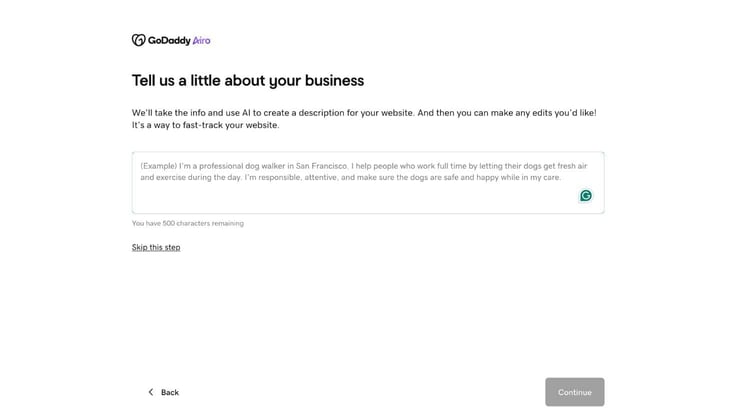
After I answered all the meaty questions, GoDaddy Airo got to work. In seconds, Airo had already built a full site for me. But before I could fully dive into the site, GoDaddy dropped an offer to buy one of its plans — as expected, I guess.
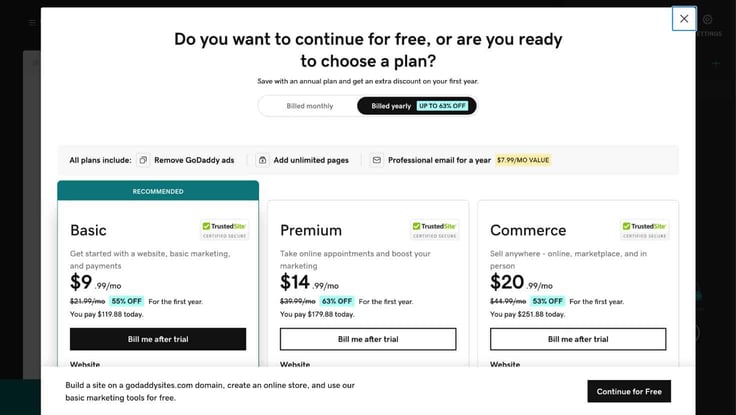
But hey, I can’t blame its efforts here. It’s like, “Look at this beautiful site we built for you, don’t you wanna keep it by buying one of these cool plans?” But not so fast, I had more to explore and evaluate before blindly saying yes, so I opted to continue for free instead. Sorry, GoDaddy.
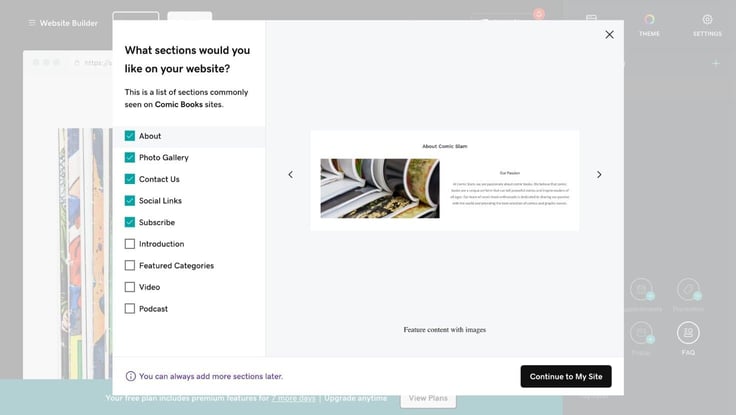
The custom-designed sample was pretty neat. But it did require a lot more customization on my part to fit what I was looking for.
I liked that GoDaddy offered a tour of its editor, so anyone unfamiliar with the platform could learn more about it. The tour showed me where to find color and design, how to add sections, customize navigation, and where to click publish. GoDaddy also included a Next Steps checklist to guide you along the way.
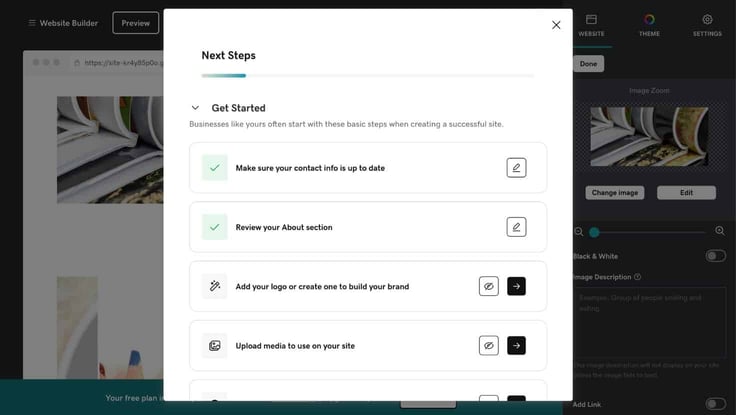
To change my layout, all I had to do was click on any element of my website to customize or update it. Alternatively, you can click on the Theme option to adjust the color scheme, fonts, and appearance of the buttons.
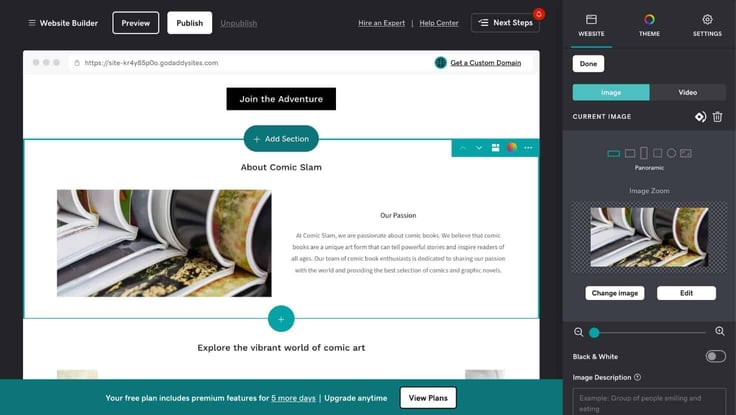
As you can see, each section of the website can be fully customized. All I had to do was scroll my mouse around the area I wanted to customize and a box appeared prompting me to adjust/add text, change the photo, or reformat that section of the site.
I have to say I was expecting more of a drag-and-drop experience from GoDaddy like Wix has. GoDaddy had a functional setup, but it was a bit limited in what it could do. I tried to drag items and shuffle sections around the page but they wouldn’t budge, which was disappointing.
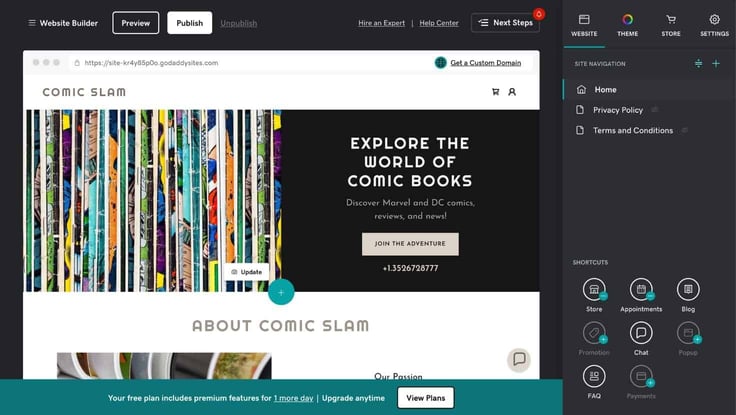
Once I was done customizing the site design, I went poking around the rest of the builder. Airo had several capabilities, ranging from blogging to eCommerce. Here are some of the capabilities that you can find within the editor (via shortcuts or in the sidebar):
All of these shortcuts lead to a separate dashboard created just for my GoDaddy site. Clicking on Blog, I found the home base for all things blogging Airo-fied. I could generate a post with Airo or create one from scratch myself. I could also track and manage posts, whether drafted, scheduled, or published, from this page.
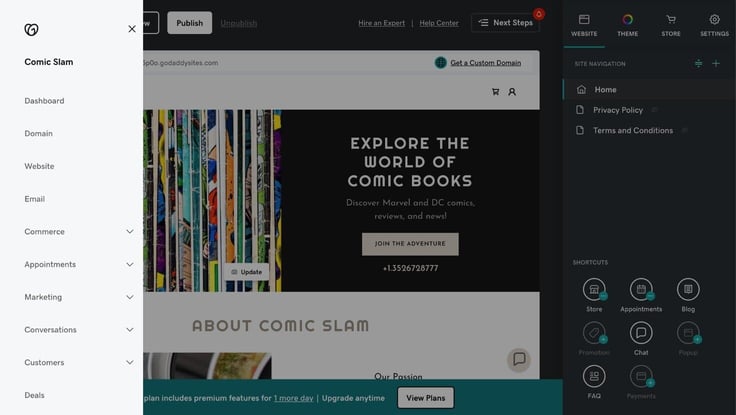
To test its AI content generation, I decided to create a post with Airo. I waited a few moments for the generation to load and the post appeared. Unfortunately, it was a bit underwhelming. Like don’t get me wrong, it looked beautiful, but the wording was so obviously AI. The tone was dry and the content was a bit cliché and didn’t read naturally.

The overall blog editor was a bit bare bones, too, lacking functionality for things like fonts and design, and other design details. Compared to something like WordPress, its blog editor just doesn’t measure up. So if you’re planning on blogging often, GoDaddy might not be for you.
I did, however, appreciate that GoDaddy made everything so simple to follow and to do. Even if you have no experience building sites, Airo’s AI capabilities could help you do everything. From adding services to creating marketing strategies, Airo could do it all. But I would advise not to lean heavily on its generations and always edit them to your needs.
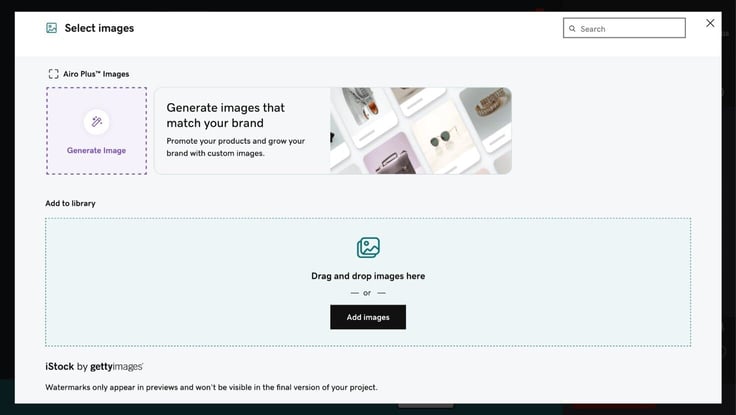
You can use Airo to create and edit images, too. Via its content creator, you can edit logos, images, banners, and more. Airo can also generate images. With these in-house media tools, I didn’t have to import images into the platform, which was an awesome time saver.
GoDaddy also offers support for eCommerce services. The Basic plan doesn’t come with many commerce features, but the higher your plan, the more support you get.
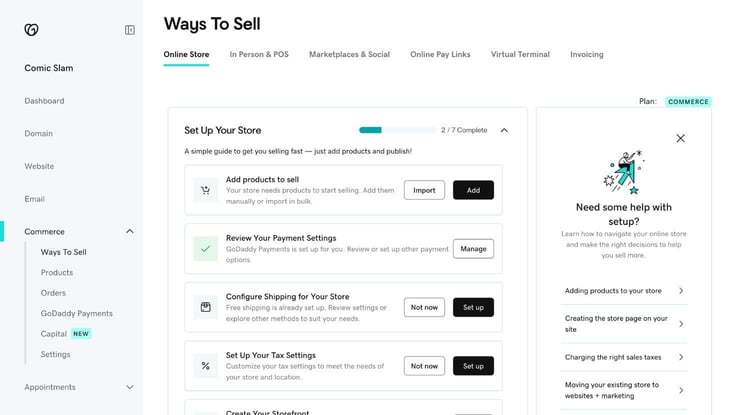
Browsing its eCommerce features, I found that I could add products, manage orders, and track payments. GoDaddy also had a great marketing hub where I could track marketing activity across several channels, including SEO, social media, email, and social posts, and organize and monitor progress within a built-in marketing calendar.
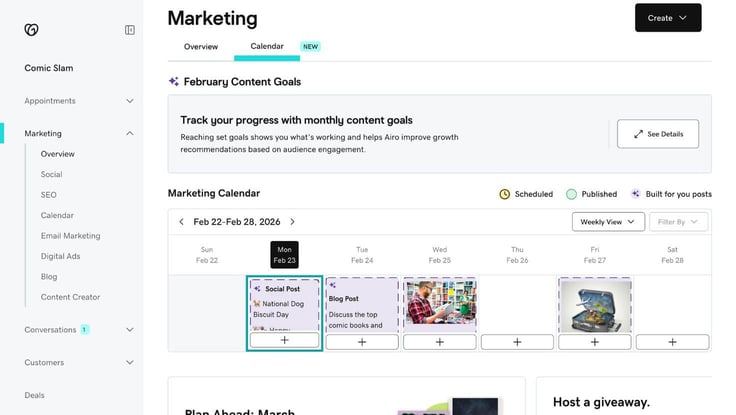
I would definitely recommend spending some time going through all of Airo’s proprietary tools and features to get the hang of the platform. But overall, the learning curve for using the website builder is minimal. Anyone with basic web-surfing and word-processing skills can get a website up and running in a matter of hours or days.
I was excited to see how my site would perform, especially with the use of GoDaddy’s proprietary site optimizer. Its site optimizer automatically limits the complexity of elements added to your website and optimizes the content you add to ensure the best results.
So let’s see how the website builder performs with this added boost!
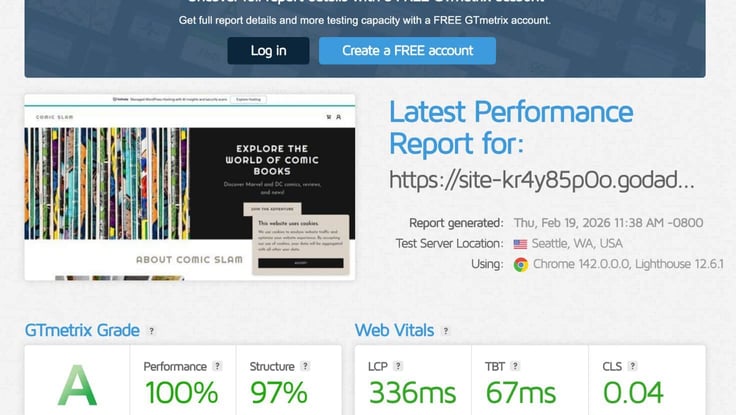
The Airo site optimizer did it again! With a score like this, there’s no need to worry about the speed of your site. The site optimizer definitely did its thing and proved to be an essential performance tool on both the WordPress and site builder plans.
Speaking as someone with zero programming knowledge or graphic design skills, I can confidently say GoDaddy’s website builder is an easy way to create a professional-looking website or blog in a few hours using a series of templates and customizable modules.
Granted, your site won’t be as intricate as one created from scratch or using WordPress, but I found that the tools provided offer enough power to get the job done. I also appreciated the addition of its site optimizer, which helped to ensure fast load and response time for my visitors.
Yet Airo still has some room for improvement. Unlike its competitor Wix, the website builder doesn’t offer a drag-and-drop experience and limits the level of customization you can add. I couldn’t move things around and got locked into the predesigned sections that came with my template.
Who Should Use It:
Who Should Skip It:
Compared to the website creation tools offered by WordPress, or if you were to program your website from scratch, the creative freedom you get with Airo is more limited. A platform like Wix would be better suited for those looking to customize with code or add more personalization.
For advanced website creators who need maximum speed and performance, the utmost creative control, plus advanced security, a Virtual Private Server (VPS) offers the dedicated resources of an in-house physical server, without having to make a hardware investment.
VPS hosting also happens to be GoDaddy’s highest level service category (It discontinued its dedicated servers). Naturally, after testing its shared and WordPress plans, its VPS packages would come next in my test run. Here’s how my experience went down:
When it comes to VPS hosting options, GoDaddy offers four standard performance plans and four high-performance plans. The biggest differences between these plans are the number of vCPU cores, RAM, and the level of storage that’s provided.
A month-to-month and a 6-month prepaid plan are available for more money, but you can save up to 38% by prepaying for a 12-, 24-, or 36-month plan. The longer prepaid plans lock in your monthly rate for the duration of your plan.
Again, a month-to-month and a 6-month prepaid plan are available for more money, but you can save up to 38% by prepaying for a 12-, 24-, or 36-month plan.
This is where things get a little tricky. Each VPS hosting plan includes monitoring and alerts, backup and recovery, an SSL certificate, and other core security features.
However, for an additional monthly fee between $6.99 and $19.99, you can add the essential website security or deluxe website security tools to your hosting plan. Based on your needs, I highly recommend adding one of these security upgrades to keep your hosting environment secure.
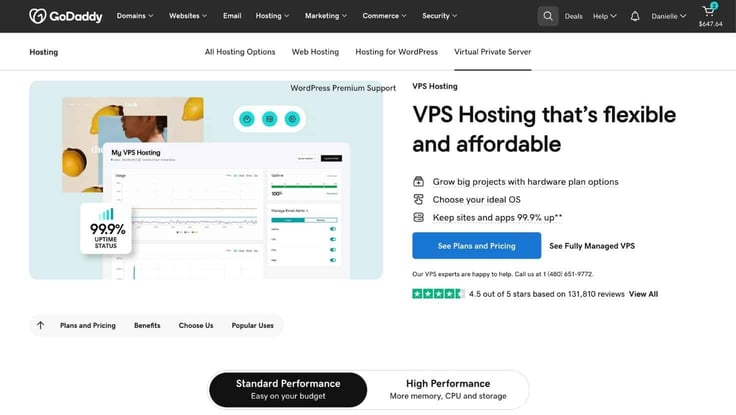
I found that GoDaddy did an impressive job bundling all the right tools and resources so website creators can have everything they need to manage their VPS and projects.
System administrators have full control, including root access and flexible server configurations. With root access, there are no restrictions on the applications a user can install. It’s possible to access and edit the system files, settings, and server logins.
These hosting plans also include automated snapshot backups that can last up to seven days. And of course, recovery tools are available through a dedicated console.
These were some of the standout features I was most impressed by:
It’s not difficult to say that GoDaddy’s packages are enticing. They’re not only competitively priced, making it easy on your budget, but they are also extremely accessible. No matter your price point, you can get a great selection of tools and resources to help you along your VPS journey.
For my review, I decided to go with the base plan, the 1 vCPU/2GB RAM package.
Okay, sign up time again. Interestingly, the VPS signup process deviates from the other signup processes in this review, so you may want to pay attention here.
Here are the initial steps to get started:
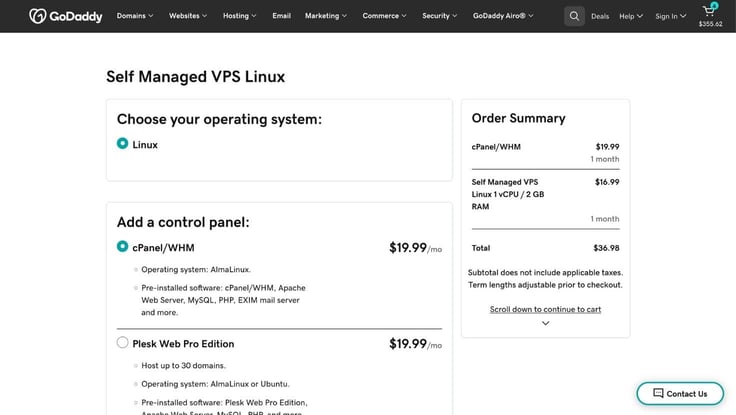
Configuring your VPS with GoDaddy is super simple, just as easy as signing up. Thankfully, for less tech-savvy people like me, you don’t have to worry about any technical stuff, like working with terminals or console tools.
GoDaddy takes care of all server setup. All I had to do was find my VPS in my account dashboard and launch the configuration process with a single click.
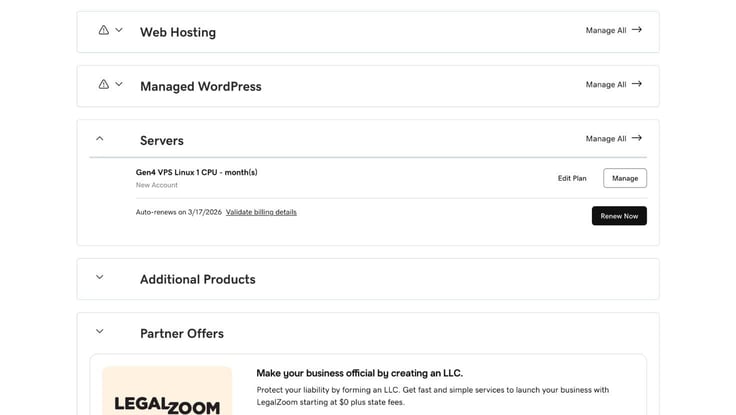
To find my VPS, I went to the servers category on my account dashboard, then I clicked on Manage under my VPS server. This launched a setup process that started by asking me for a server name, then followed with these questions:
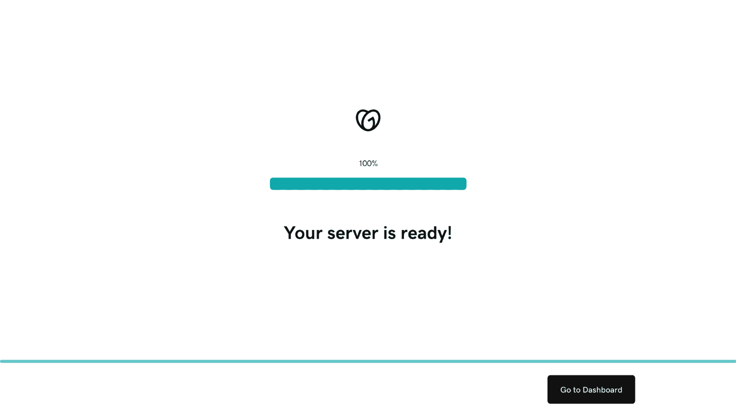
And that was it! GoDaddy proceeded to configure my server for me. It didn’t take long for the setup to complete, maybe about a minute. Once the setup was over, I was able to poke around and explore my server dashboard. I liked how clean, concise, and organized GoDaddy made everything.
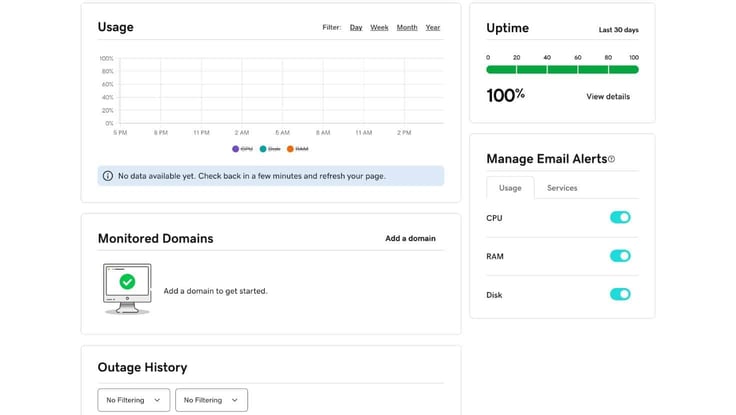
It wasn’t hard to navigate the dashboard at all. I could track real-time usage of RAM, CPU, disk space, and uptime on the homepage. For more insights, GoDaddy had a small window at the bottom of the page with an overview of the monitoring and alert history.
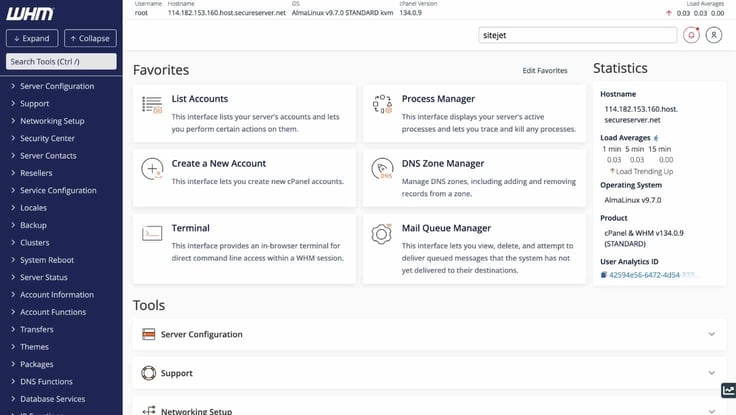
To manage my server, GoDaddy offered two control panels: cPanel and its hosting dashboard. Its hosting dashboard, which I mentioned earlier, is less detailed and ideal for getting a quick snapshot of my server health and management.
If I wanted to dive deeper, I could log in to my cPanel account, which was an add-on GoDaddy offered in the cart for $20 a month. Getting to cPanel was easy. From my hosting dashboard, I just clicked a black button labeled Launch WHM, which took me straight to the control panel.
For quicker actions, like backups and monitoring, I used GoDaddy’s dashboard. Near the top of the dashboard was a menu with these categories: Dashboard, Monitoring, Backups, and Settings. Each page was easy to navigate and highlighted specific tasks that could be done.
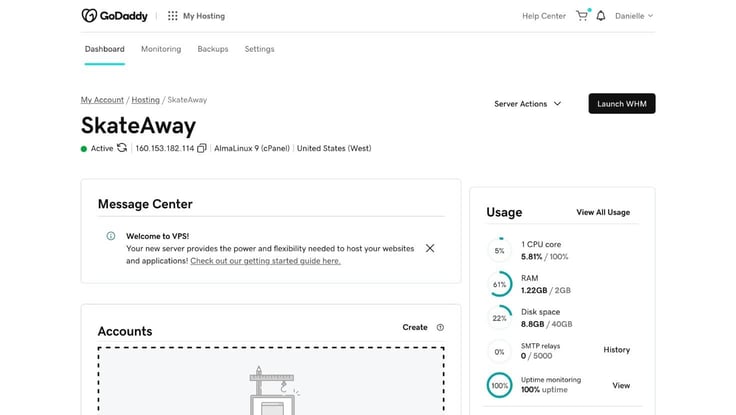
If you need to reboot your server or access other troubleshooting methods, you can find the Server Actions button at the top of every page in the main dashboard, which drops down into a list of those actions.
I wanted to build a quick site to test GoDaddy’s VPS performance. But VPS plans don’t come with temporary domains, or rather any domain name at all, which you need to create a site. So you know what that means.
This was my chance to review GoDaddy’s domain services. It was easy to find its domain registration service, as it’s the first thing you see on GoDaddy’s homepage.
Thinking of a site idea, I decided to make an online candle shop, so I typed candlenights.com into the domain search box. Unfortunately, GoDaddy quickly showed me that that name was taken, but GoDaddy populated many alternatives with various domain extensions.
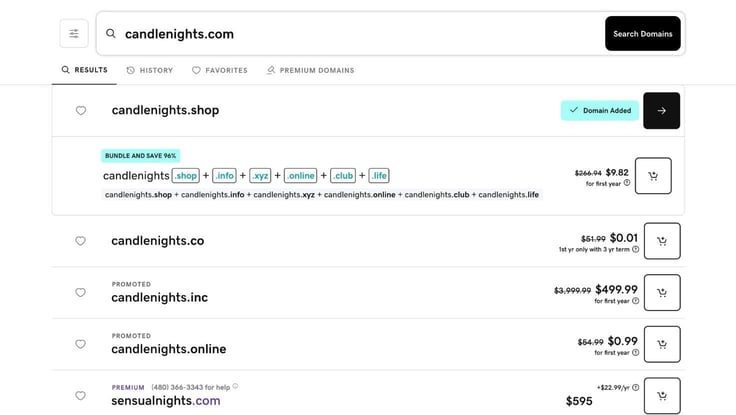
I chose candlenights.shop, which was far cheaper than I would have thought. It was only $0.99 for an entire year.
As I went through checkout, I realized that GoDaddy threw in a few free perks with its domain registration. Not only did I receive domain privacy protection, but I also got free access to Airo.
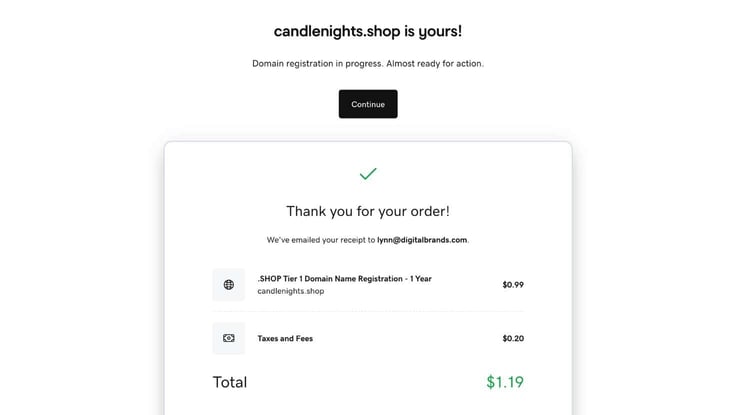
I completed the purchase, which came out to be a whopping $1.01. Incredible deal. The upselling that ensued kind of put a damper on my high, however, as three offers appeared on my screen in a row. If you’re going to use GoDaddy, just know to mentally prepare yourself for this part of the process.
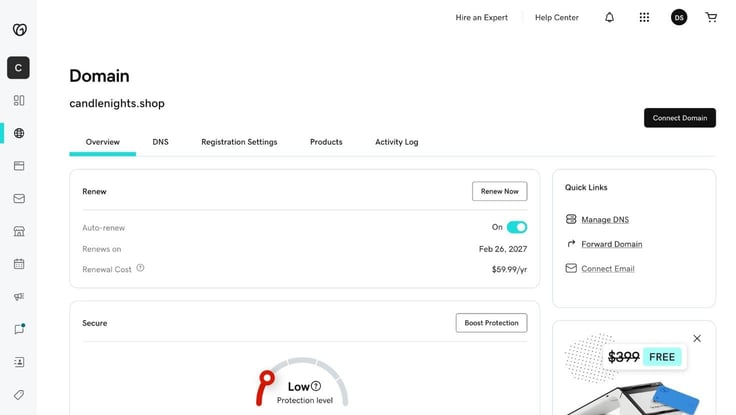
Side note: Also, remember to check the renewal cost of your domain. I later realized that my domain’s renewal price is $59.99 a year. The price may seem like a deal now, but you may be paying for it a year later.
Moving on, it was time for me to add my domain to my VPS server. It was a slightly complicated process that included some assistance from GoDaddy’s AI chatbot, which was surprisingly super useful here.
Once I changed my A records, I had to wait a day or two for the DNS routing to update. This is when everything went wonky. After I finished my domain business, I returned to my server dashboard and realized my VPS wasn’t responding. It kept crashing from high CPU usage.
I couldn’t understand why, since I haven’t used the server to build anything yet. So I tried troubleshooting it on my own by restarting the server and hoping it would work, but to no avail. With my hands tied, I decided to call GoDaddy’s customer support team for help.
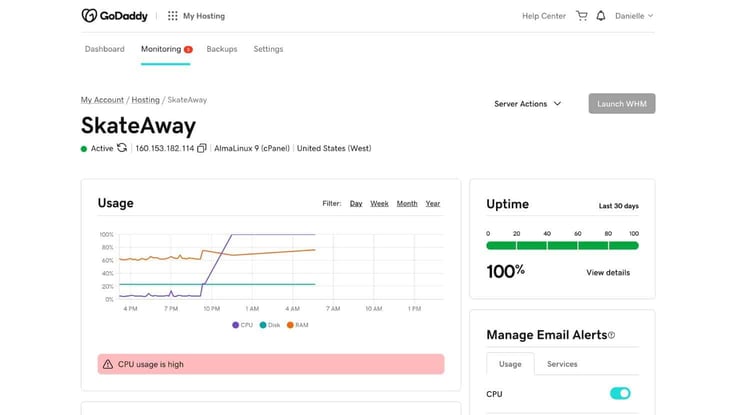
I was quickly connected to a dedicated VPS representative and told him about my problem. Diego’s response was interesting and unexpectedly transparent. He relayed that the base VPS plan I purchased is mostly used for development and sandbox testing.
If I wanted to host a site successfully, I would need to purchase a tier two plan or higher. He effectively said that the base VPS plan is not built for hosting sites, and even a shared plan would be a better choice in this situation. He also said that just my cPanel account could cause server usage issues.
I found it refreshing that he explained things to me and told me the truth, instead of just fixing the problem. He remotely rebooted the server for me, and it was back up and running in no time. So I guess that’s an A+ grade for GoDaddy’s customer service.
But the fact that you can’t actually host a site with its cheapest VPS plan is… strange.
“According to customer support, the GoDaddy base VPS plan is not built for hosting sites, and my cPanel account alone was consuming too many of its resources. The rep also noted that even a shared plan would be a better choice for website hosting than that specific VPS plan.”
Once my server was back up, I could finally access my cPanel and follow the instructions the GoDaddy’s AI assistant gave me to add my domain. All I had to do was create a new account with the domain name attached. I’ll show a picture below of the page I used to create the account:
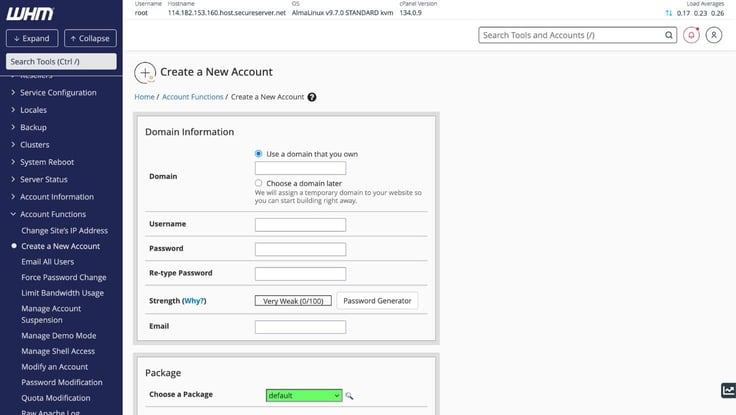
After I saved the changes, I clicked Go to cPanel, which took me straight to the new dashboard with my domain name. I had the option to create with WordPress, Sitejet, or from scratch. I decided to use Sitejet this time.
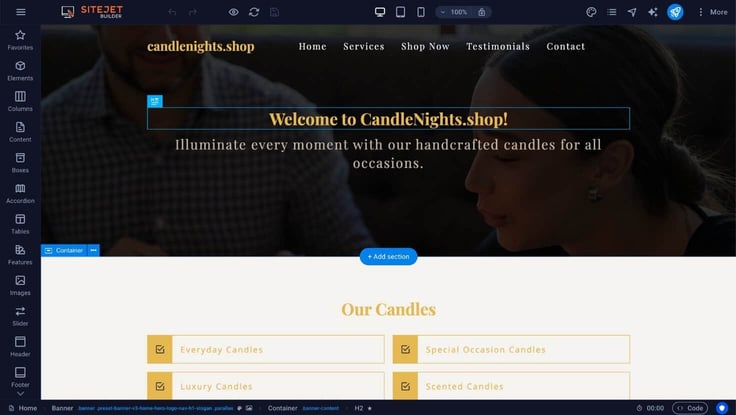
I won’t go to far into detail about this process. Just know I used Sitejet’s AI generator, answered a few of its questions, then made some edits to the generated design. Then, it was time to test its speed.
I loved that GoDaddy’s VPS plans include 24/7 network monitoring and visibility. That’s because if they didn’t, I probably wouldn’t have known why my server wasn’t working. Its network alert notified me of the high CPU usage and allowed me to get help to fix my problem.
But as I found out earlier from support, GoDaddy’s base VPS tier isn’t exactly what you would call website hosting because it’s not built for it. My cPanel account alone was affecting its performance, making the server environment unusable at times.
So the GTmetrix result I received here isn’t exactly telling the full story.
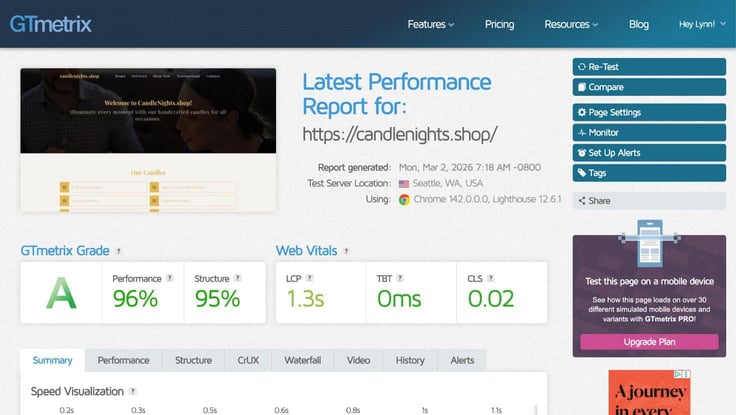
Under the right circumstances (i.e., little content and no visitor traffic), almost any single-page website can perform pretty well. And I think that’s what happened here. Yet, my other GoDaddy plans still performed better, with the WordPress and shared plans beating their LCP speed by leaps and bounds.
Just remember, if you want to use GoDaddy’s VPS base tier, use it for development and sandbox testing only because it won’t be able to support your website for long. And no one likes constant server downtime.
What I like about GoDaddy’s VPS hosting plans is that you can choose and pay for exactly what you need, and scale up later if necessary. You get a lot of server configuration options, but you need to understand how each affects your website’s capabilities, speed, and performance.
While VPS hosting plans are designed for advanced users, GoDaddy makes it manageable even for those who are less technically inclined like myself. With its easy-to-use control panels, I didn’t need help navigating and could easily build a site with Sitejet or WordPress.
However, the amount of RAM and CPU that I got with my base plan wasn’t much, and there are definitely web hosts out there (uhmm Hostinger and IONOS) that could beat GoDaddy on its price-to-resource ratio. But its plan pricing wasn’t out of reach for the everyday consumer, which I appreciated.
Overall, I can’t say I would recommend GoDaddy for low-cost, self-managed VPS hosting. You can easily find better-priced VPS plans with more resources elsewhere, like IONOS or Hosting.com. Take it from me, you don’t want to deal with the pain of that base plan.
Typically, my interactions with customer support start with me reaching out to a representative with a question through live chat or phone call. But with GoDaddy, my experience was different and a bit unexpected.
After signing up for my first plan, I received a call from a GoDaddy support representative asking about my experience with the platform so far. I never had a host contact me before. So I was genuinely surprised and a little flattered.
But what’s more: This little act of customer service showed me that the GoDaddy team wasn’t just there to answer questions; the team truly cares about its customers and their satisfaction.
That experience alone had already shaped my opinion of GoDaddy’s customer support. But I had to test whether support could help me with a real problem.
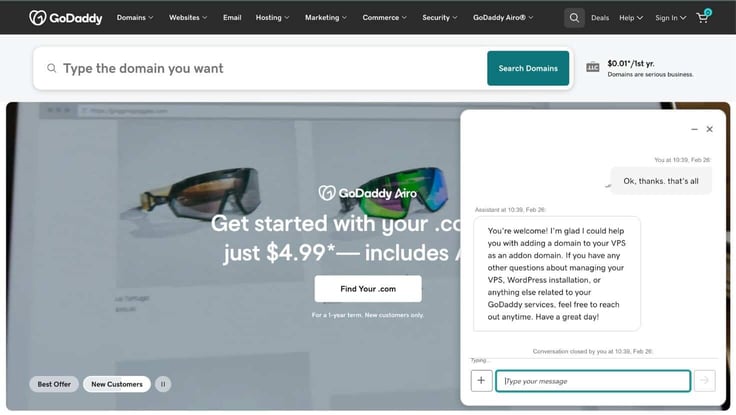
I had run into an issue with my VPS plan and needed help solving it, so I went to support. It started off with a virtual assistant that was surprisingly more knowledgeable than I would have thought. I guess GoDaddy is just full of surprises.
As someone who’s generally skeptical about AI bots (because most are terrible), GoDaddy’s is surprisingly helpful. GoDaddy must have invested a lot of time and money training it because it is almost humanlike.
But once I got to the more technical parts of my question, its answers were beginning to get long and a bit confusing. So I asked for a human rep, and I got one in less than 60 seconds. Overall, Stefan messaged me not too long after and the conversation was productive and didn’t take much time.
If you haven’t caught on already, my VPS plan was causing me a lot of trouble. So for my CPU problem, I decided to reach out to customer support via phone call. I got a response in minutes and my representative was super helpful and transparent.
I was able to get my problem resolved in little to no time. My interactions with GoDaddy’s customer support team taught me two things: AI chatbots can be helpful when trained properly, and what makes human support priceless is the care behind it.
Though I’ve been a GoDaddy customer for years, I have to give an honest review and, regrettably, discuss its downsides as well as its upsides.
GoDaddy has a lot to like, but knowing some of its flaws can help you make the best decision for your web needs. Some of the things that stand out the most for me on both sides of the spectrum are:
Obviously, no service is perfect. My main complaint is that GoDaddy tries to push you into long-term, prepaid contracts for each service, and sets up automatic renewals by default (that you must manually opt out of).
If you don’t mind a yearlong-plus commitment, that’s probably not a big deal for you. Otherwise, you should expect to pay a lot more for a month-to-month service.
I did notice, however, that it doesn’t have a dedicated hosting option anymore. I don’t mind, since I’m not building any massive sites. But this may be a dealbreaker for you if you’re looking for dedicated resources. Still, a VPS is a pretty scalable option if you need something powerful.
Regardless of your website goals, everyone wants a hosting service that’s reliable, well-established, and generous with providing the tools and resources you need to achieve your online objectives. GoDaddy offers comprehensive plans that give users a variety of options, both financially and technically, to choose a hosting environment that suits their needs.
GoDaddy’s solutions are available for virtually everyone. While you can find cheaper plans elsewhere, GoDaddy has one of the more affordable website builders on the market, beating out giants like Wix in competitive pricing.
Before completing your hosting purchase, carefully evaluate your actual needs. Choose a plan that meets those needs, keeping in mind that all of GoDaddy’s hosting plans are scalable as needed (for an additional fee). In other words, only pay for what you need.

HostingAdvice.com is a free online resource that offers valuable content and comparison services to users. To keep this resource 100% free for users, we receive advertising compensation from the hosts listed on this page. Along with key review factors, this compensation may impact how and where hosts appear on the page (including, for example, the order in which they appear). HostingAdvice.com does not include listings for all web hosts.
Our site is committed to publishing independent, accurate content guided by strict editorial guidelines. Before articles and reviews are published on our site, they undergo a thorough review process performed by a team of independent editors and subject-matter experts to ensure the content’s accuracy, timeliness, and impartiality. Our editorial team is separate and independent of our site’s advertisers, and the opinions they express on our site are their own. To read more about our team members and their editorial backgrounds, please visit our site’s About page.


