
Writer: Andrew Wandola


Editor: Britain Simons


Reviewer: Cristian Lopez

When I first started learning web development, I remember my instructor saying, “If you can find a lazy way of doing something, always go for it.” And I was like, “What?? I’m paying 50 of Benjamin’s finest bills just for you to teach me how to be lazy? I don’t need training, I’m a natural!”
Seven years into working in the digital space, everything now makes sense. Take website migration as an example. Back then, you had to manually move files, databases, URLs, settings, and pray that the internet gods spared your images from disappearing into another dimension.
It was one thing if you were working on a personal project. A client project? Bro, you’d be cooked!
The lazy way, which I’ve come to greatly appreciate, involves using a plugin like WP Engine. It basically changed the game for WordPress users. If you played your cards right, a migration process that took hours could be completed within minutes. For perspective, mine took only one minute and 33 seconds.
And to prove that I’m not just making things up, I’ll show you how I did it.
-
Navigate This Article:
Step 1: Prepare Your WP Engine Account Before Migration
We need to get things ready on the destination side before we even touch the existing site. By destination, I mean WP Engine. That’s where we’re going to ship the website.
This step is actually more important than people think. Many of the migration failures I’ve solved over the past few years didn’t happen because of broken plugins.
Nope. Nine times out of 10, it was because something wasn’t properly set up prior to migration.
So let’s start with your WP Engine account.
WP Engine WordPress Hosting
The first thing you want to do is create a new environment. This can be:
- Production (your live site)
- Staging (I recommend this if you want to test things out first before going live)
Not sure what’s best for you? Just set up staging on WP Engine and push the changes to production.
The migration plugin will need to communicate with WP Engine via SFTP.
But wait a minute….what is SFTP?
SFTP is basically a secure method for transferring files over the internet, including passwords, credit card numbers, personal information, and communications. That way, the internet’s bad guys can’t intercept them.
Speaking of credentials, you need the following:
- SFTP host
- Username
- Password
- Port number
Also, keep this in mind: the migration won’t work if any one of the credentials above is wrong or missing.
Where to Find SFTP Credentials In WP Engine
- Log in to your WP Engine account
- Select Sites.
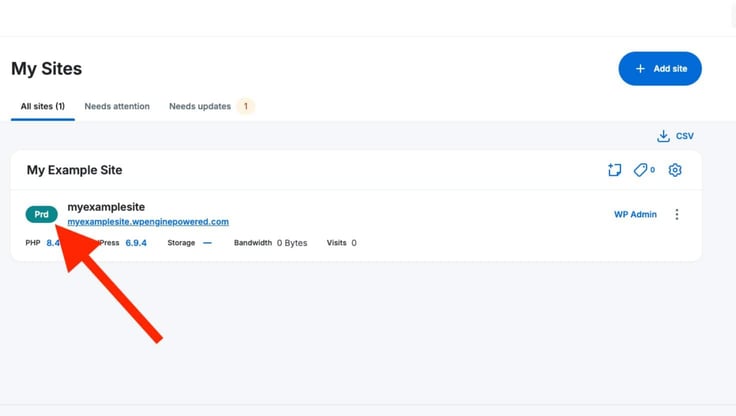
- Under the My Site dashboard, you’ll see a list of sites attached to your WP Engine account.
- Right next to the name of the site you’re targeting, you’ll see a colored label.
Mine is green and says Prd.
Translation: “This is the production environment. And it’s live, which is why it’s labeled green.”
If it’s a staging environment, it’ll say Stg. If it’s a development environment, it’ll say Dev.
Now go to Users and SFTP and click on the “SFTP Users” tab. Let’s go over what you’re seeing on this screen real quick.
SFTP Address is the same thing as SFTP Host. Grab that.
Port Number is usually 2222 (grab that too).
If you already have a user account set up, you’ll see the username under the Username column. Then make sure you have the password with you. If you don’t have a user account, simply click Create SFTP User.
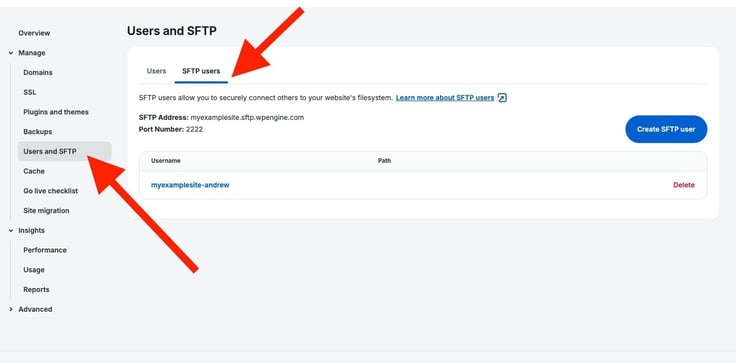
At this point, you should have: SFTP host name, port number, username, and password.
You’ll also want to note your temporary WP Engine URL.
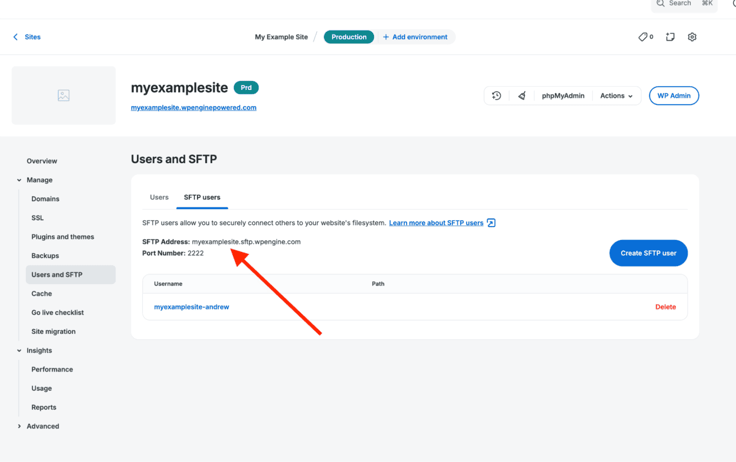
That’s where your migrated site will live before you connect your domain.
Now there’s one more thing I want us to review before we even begin the migration: website size. You shouldn’t be worried if you’re migrating a small blog.
A site with any of the traits below will need some cleaning up before migration:
- Thousands of images
- Old backups sitting in folders
- Years of unused files
Why? Good question.
Larger sites take longer to migrate. Before you know it, you’ll be dealing with that annoying ‘request timeout’ error.
And fixing such an error after the fact isn’t fun. You’ll need to access the backend, futz around with the PHP code, adjust server limit settings… adjust anything to fix the issue, while hoping you don’t make things worse.
Now, roll up your sleeves for clean up.
Step 2: Clean Up Your Existing WordPress Site Before Migration
I’ll be honest with you here; skip this step, and you’ll regret it. I know it’s not flashy or fun. But trust me on this; you don’t want to deal with the consequences of skipping it.
First things first, log in to your current WordPress site.
Eliminate Unused Plugins and Themes
See the plugin section? Identify those you haven’t used in a long time. It could be weeks, months, or even years.
Find them.
Delete them. Especially if it’s outdated or there are better offerings. We can always add back plugins after migration.
The same goes for themes. You don’t need 11 inactive themes sitting around “just in case.” They’ll just make the transfer much more difficult than it should be. If you’re not using them now, you probably won’t use them in the future either.
Organize and Reduce Media Library Clutter
Next, let’s check your media library:
- Duplicate, outdated, or legacy file type images
- Old design assets, limited offers, and video content
- Files you forgot existed, hidden pages, or expired partnerships
I always go by one rule: if I don’t need it, I delete it. This is not a storage unit — it’s an optimized frontend website.
Cleaning up the image gallery, for example, improves server performance, speeds up site backups, and increases storage space.
Remove Old Backups and Temporary Files
Oh, before I forget, you may also want to get rid of old backups. That’s because some backup plugins store large files directly on your server, which increases your website’s size.
And the bigger the site, the longer it takes to migrate. Although I would recommend always having at least one complete backup in case anything goes awry, local or cloud.
Finally, clear your cache and temporary files. These don’t need to be migrated.
Update WordPress Before Migration
When done, go ahead and update everything. I’m talking about WordPress itself, plugins, themes, and anything else that needs updating.
You’re probably wondering, “What does updating things have to do with migrating a website?”
A clean website migrates faster, requires less storage, and is less prone to errors mid-transfer. If all the parts that work together are up to date, it should prevent errors before they even occur. That’s your answer right there.
The very first time I migrated a WordPress website was in the summer of 2020. I knew a thing or two about WordPress, but site migration wasn’t in my wheelhouse, yet.
Little did I know… So I watched a few tutorials on YouTube and decided that I was going to migrate the site overnight. I got everything ready, plugged my laptop into a power source, disabled screen timeout (to prevent the laptop from going to sleep), and then I launched the migration.
Guess what I woke up to six hours later?
“Migration failed” at 98%.
Ninety-eight percent!!
The hope-and-pray method didn’t work. How frustrating!
Long story short, a little cleanup would have prevented this issue, so save yourself the headache and put in the time now.
Step 3: Install the WP Engine Migration Plugin on Your Current Site
It’s time to get our hands dirty.
First, let’s head back to WP Engine:
On the left menu, click Sites. You’ll see a label just before the environment’s name. Mine shows Prd (production). Click on that label, and select “Site Migration” under Manage.
WP Engine will need a few seconds to prepare the environment for migration. Once that’s ready, click on the “Download Site Migration plugin” link.
Let’s go back to your WordPress website:
Click Plugins and select “Upload Plugin”.
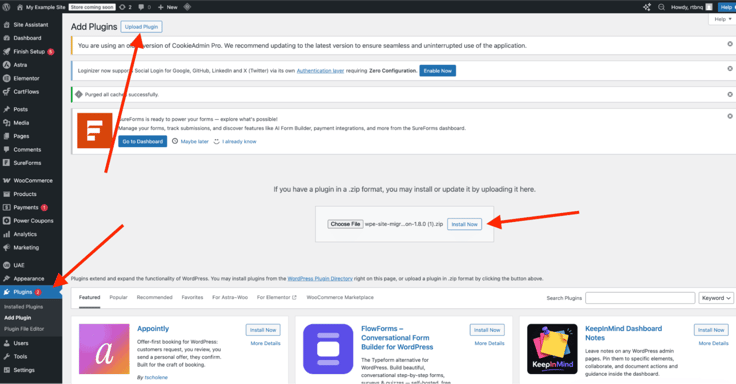
Click Choose File and select the WP Engine Migration plugin from the download location on your local computer. Click Install Now.
Once installed, go ahead and activate the plugin.
At this point, we’re missing some type of key to establish communication between our WordPress website and the WP Engine environment we want to migrate it to.
Think of it like a concert. Yes, we know who’s performing (WordPress), and we also know the venue (WP Engine).
But are we invited? Not yet.
So what are we waiting for? Let’s go grab our invitation from WP Engine.
Right under the section with the plugin download link, you’ll see “Connection Info.” Copy that link and head back to your WordPress dashboard.
You should see the Site Migration option on the left menu if you’ve activated the WP Engine Migration plugin.
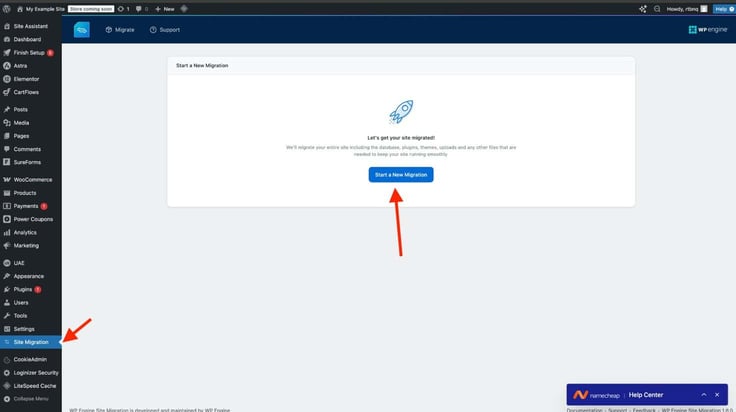
Remember the Connection Info we copied from WP Engine? Paste it here. That’s the ticket to our destination.
Don’t click on Start Migration just yet. Let’s review what you’re seeing on your screen right now.
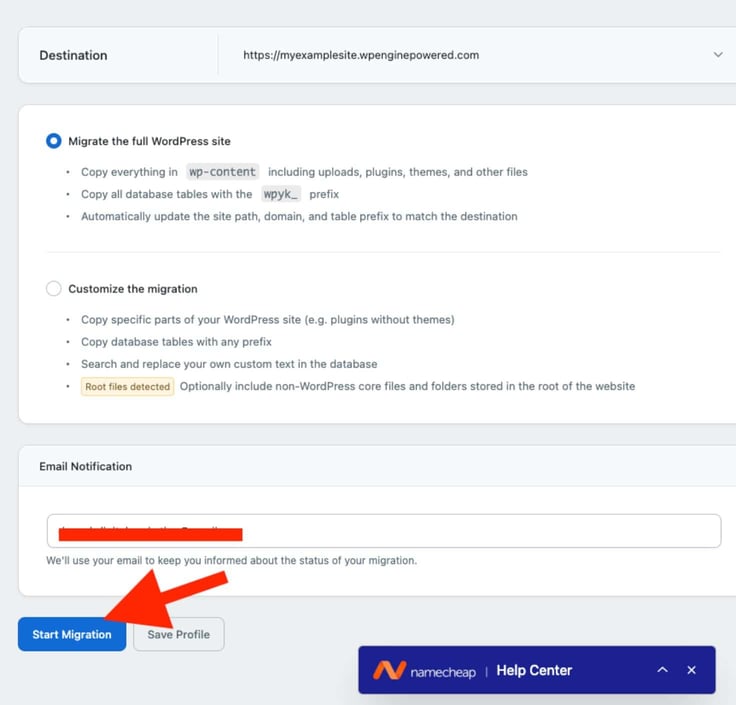
Migrate the full WordPress website
This means you want to move everything from your old website. I’m referring to pages, blog posts, images, plugins, themes, settings, menus, users, database info… You name it.
Customize the Migration
Choose this only if you want to move specific parts of your website. For example, you want to move only the plugins, not themes. This is a more surgical approach when applying specific updates to an already existing site.
Note: Let’s go with the full site option; it’s easier and more beginner-friendly. You can also add an email address. A valuable option if you wish to receive status updates about the migration progress.
Click on Start Migration.
Take a look below. This is what you should see at this point, if you’ve followed every step I’ve outlined so far.
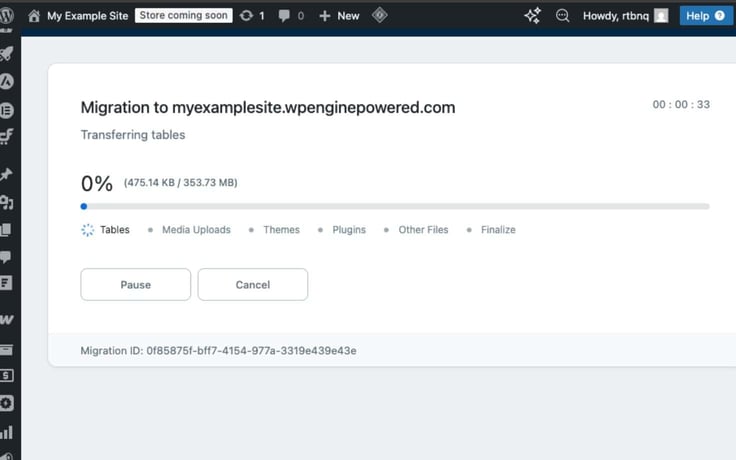
As you can see below, once the loading bar is complete, the site migration is done.
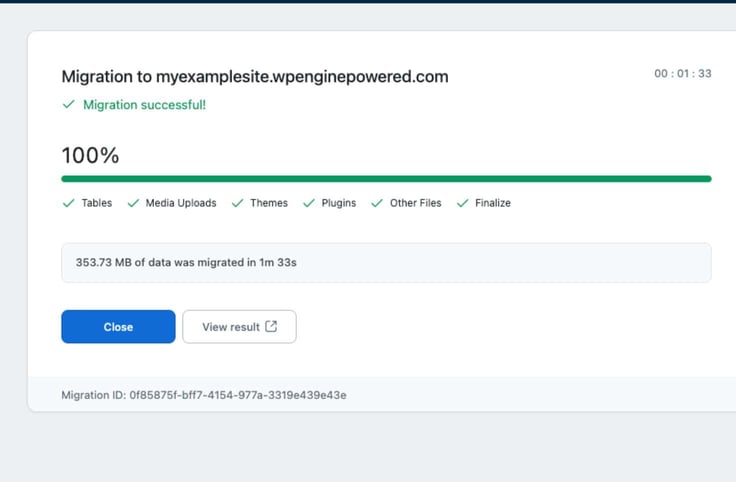
Noticed anything else? It took only one minute and 33 seconds! Told you so!
That’s in big part because I cleaned up the site before migrating it. Your site may take the same amount of time, or longer, depending on how well you followed along so far.
Pre-migration cleanup always speeds up the process. It could be two minutes. 10 minutes. 30 minutes. However long it takes, it’s likely faster than if you procrastinated and avoided the task.
Important: the site migration process might pause midway. That’s perfectly normal. Don’t panic. Don’t cancel. A little patience is all you need.
The only time you may need to cancel and start over is when the progress is unreasonably slow. Say, for example, two hours later, and there’s no sign of things moving. That’s not normal and could mean something is not right somewhere.
But don’t just cancel and restart without establishing what’s really blocking the migration. You’ll likely bump into the same issue moments later.
That reminds me of that funny viral video of a sheep stuck in a trench. A kid rescues the poor sheep (bless his soul), but guess what? The silly sheep runs straight into another trench just feet away and gets stuck again!
Step 4: Log In to Your WP Engine Site and Verify Everything
Time for a reality check. Did the site migrate to WP Engine’s environment? If it did, then we need actual proof, not “just trust me, bro, it did.”
Here’s what to do:
- Log in to WP Engine and navigate to Sites.
- Under My Sites, identify the migration environment
- Then click on your site’s domain.
Your old website should now load perfectly in this environment.
Confirm that everything works by browsing the website like a real visitor:
- Open pages
- Click posts
- Check images
- Test navigation
Is everything looking good? Great!
If not, no worries. We’ll go over this in the section below.
Step 5: Fix Common Post-Migration Issues Before Launch
At this point, you’re probably thinking:
“The migration was successful, right? What did I do wrong?”
A smooth migration is just that – a smooth migration. It doesn’t mean you won’t bump into issues at some point after the migration.
Point is: you may not have done anything wrong – we just need to check a few things.
When I rented my first apartment, I didn’t have a lot of stuff to move; just an air mattress, a TV, my PlayStation, and a camping chair. Ask most men, and they’ll tell you that’s a fully furnished apartment right there.
The move was easy. And I remember asking my brother in Kenya to hop on a quick game of Call of Duty.
But guess what? For some reason, my internet was terribly slow. Quite frankly, I had seen sloths cross roads faster than my apartment’s internet speed. It took ages to load the game. So, I contacted the cable company. They sent over their technicians the morning after. And, they fixed it.
My stuff was completely moved over, but I just needed a little help to handle a technical error. So, I’ll pay it forward.
I made this cheat sheet to guide you, just in case:
- Site is broken: You may need to update DNS settings and wait up to 24 hours for DNS propagation. Log in to your domain registrar, find DNS records, and update CNAME records (we’ll go over this in the next step).
- Broken images: Inspect HTML for image URLs and re-save permalinks. Try a search-and-replace plugin like “Better Search Replace” to add images back. Check your media library folders and verify URLs.
- Plugin conflicts: deactivate and reactivate plugins. If you’re missing a certain function like image optimization (ShortPixel), then add it back. Security and firewall plugins tend to cause the most issues.
- Mixed content warnings: make sure HTTPS is properly configured. Double-check your SSL Certificate settings and verify security is active on a new page. We want to avoid any “This site is not secure” browser warnings.
- Missing styles or scripts: clear cache (server, browser, and plugins) or rebuild assets. Check that your PHP version is compatible.
- Incorrect internal links: run a search-and-replace if needed. Under Tools menu, plugin “Better Search Replace”, and in the “Search for” text field, enter your old URL. Enter your new URL in the replace with field. After, go to Settings > Permalinks > Save Changes. Refresh.
Please note that these are among the most common issues you’ll encounter.
If something specific comes up that we didn’t cover, Claude and ChatGPT are both excellent at troubleshooting issues. Just be sure to provide as many details, screenshots, and even code references as possible in your first response. Just don’t share personal or sensitive information with LLMs.
Step 6: Update DNS and Point Your Domain to WP Engine
Now that the difficult part (clean migration) is done, let’s briefly go over the domain settings. You want your domain to point to WP Engine.
In WP Engine, locate your site, and click on the three-dotted menu next to the site URL. Mine shows a temporary URL.
All you need to do is click on Add Domain, enter the domain URL, set it as primary (this is where the traffic will be sent), and then change the DNS records.
Once you’ve set the domain as primary, it should now display as your new website address. Here’s how mine looks:
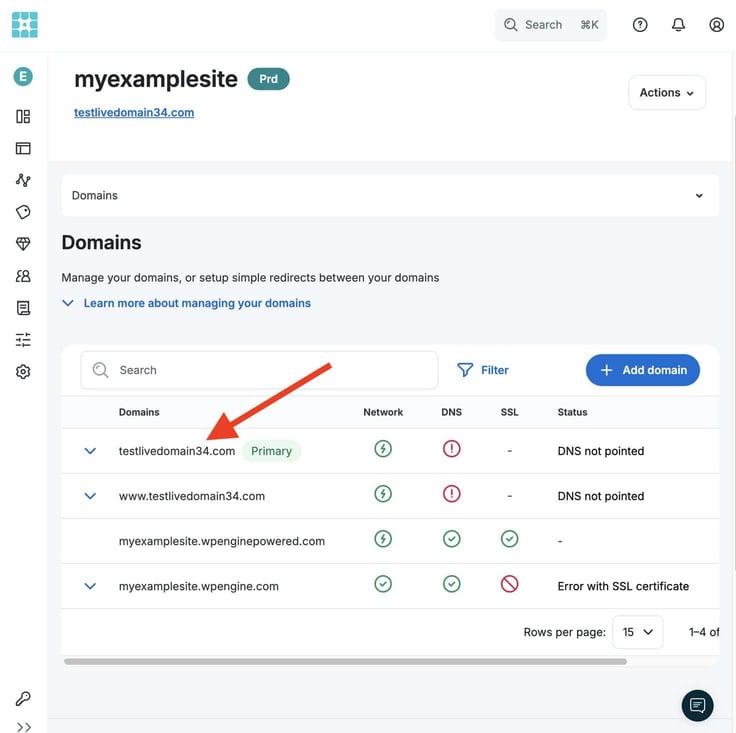
Also, please note that these changes don’t usually come into effect immediately. If you see “DNS not pointed” under Status, log into your domain registrar, navigate to your DNS management, and update A or CNAME records to match those provided by WP Engine.
You may need to wait a few hours to a full day for the settings to take effect, a process called DNS propagation.
And a reminder to check the SSL Certificate status.
Final Checks After Going Live
Assuming the propagation process is done, and the domain is now pointing to WP Engine, what’s remaining is a final round of checks. Make sure everything works.
You should test everything:
- Forms: contact forms, lead generation, data logging, email activation, success notifications, etc.
- Login areas: user and admin.
- Checkout (if applicable): “WooCommerce” plugin, order generation, payment transactions, and confirmation emails.
- SSL certificate (often automatic): Check the active SSL through WP Engine User Portal > Your Environment > SSL (left menu). Choose “Get Let’s Encrypt” for a free certificate if it’s not already there.
- Performance: WP Engine Portal > Insights > Performance. You can also use tools like the “Query Monitor” plugin or “Google PageSpeed Insights”.
If everything looks good, then congratulations!! You’ve successfully migrated your site.
A Simpler Way to Migrate WordPress Without Breaking Your Site
I hope you now appreciate the lazy way of doing things, particularly when it comes to something as complex as migrating a website. Using a tool like WP Engine Migration plugin is still far easier than the old grind.
While I’m a natural when it comes to laziness (just kidding), this is the one time it truly pays off to know these tips and tricks to site migration. Don’t take the long, unpredictable route if you can use a tool.
Also, I should mention that the WP Engine dashboard changes frequently. Things could look different by the time you’re reading this, but it shouldn’t affect the process.
But the whole point here is to understand what’s required before, during, and after the migration, so you don’t get into trouble by skipping steps. No UI/UX update in the face of the planet will prevent you from figuring things out once you understand the process.
Thank you for reading this guide and trusting HostingAdvice to answer all your website needs. Don’t forget to use our HostHelper™ tool to discover further reading and answer any further questions!
We’ll see you on social media. Give us a follow below!
HostingAdvice.com is a free online resource that offers valuable content and comparison services to users. To keep this resource 100% free, we receive compensation from many of the offers listed on the site. Along with key review factors, this compensation may impact how and where products appear across the site (including, for example, the order in which they appear). HostingAdvice.com does not include the entire universe of available offers. Editorial opinions expressed on the site are strictly our own and are not provided, endorsed, or approved by advertisers.
Our site is committed to publishing independent, accurate content guided by strict editorial guidelines. Before articles and reviews are published on our site, they undergo a thorough review process performed by a team of independent editors and subject-matter experts to ensure the content’s accuracy, timeliness, and impartiality. Our editorial team is separate and independent of our site’s advertisers, and the opinions they express on our site are their own. To read more about our team members and their editorial backgrounds, please visit our site’s About page.