

Writer: Sead Fadilpasic


Editor: Britain Simons


Reviewer: Cristian Lopez

It’s official: using ChatGPT for hosting purposes is kinda fun!
Case in point: a few weeks back, I utilized its powers to generate PHP code and discovered there’s far more to the tool than meets the eye. Thanks to the relative ease of my “ordeal”, this next article will be about ChatGPT MySQL database creation.
The first thing you need to know is that the process happens in stages, which makes it much more manageable and less intimidating. From creating a database and a user to running queries, it follows a clear and repeatable pattern. Once you understand the steps, you can apply them to almost any hosting environment.
As you’ll soon see, you don’t need to understand absolutely everything to get a working result. You can test as you go, which builds confidence quickly. A lot of that ties to ChatGPT’s ability to act as a technical translator. Besides giving instructions, it lowers the barrier to understanding at each step, so you can keep moving forward without getting stuck.
What we’re creating here is part of a schema, which is basically a blueprint for how your data is organized. In reality, it just means deciding what gets stored and how it’s structured. We’ll be using MySQL because it’s widely supported on most hosting platforms and because it’s become a default choice for many web projects.
All set? Let’s do this.
-
Navigate This Article:
Step 1: Define Your Website Requirements in Plain English
Before we dare touch MySQL, let’s think about what we actually need for the task at hand. It helps a great deal (and I can’t emphasize this enough) to describe every aspect in plain terms, simple enough even for someone who’s never dealt with coding before.
With that in mind, what I like to do is sort of interview ChatGPT to uncover the data needs. The goal, for now, is to stress-test our logic and find potential flaws in our initial plan.
Let’s start with a basic idea. I’ll be using a personal blog as an example of a hosted site because it’s practical and I have one, which means backdoor access. Here is the prompt I’ll use:
What database do I need for a blog?
This is the result:
“Most blogs use a relational database like:
• MySQL
• PostgreSQL
These are the default choices behind platforms like WordPress.”
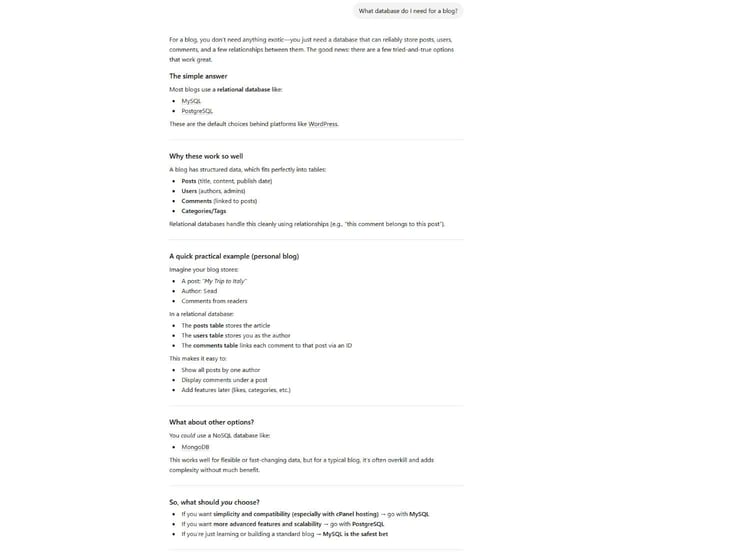
It’s a broad response since it has no context, clarity, or purpose. As such, it’s not really helpful, but now we know MySQL is a must for a database on WordPress.
Now compare that output to the one with the following prompt, where I go into the necessary details:
I have a personal blog. I want to store blog posts. Each post should have a title and content in the form of text and images. My readers should know when each blog post was published. What kind of database structure should I use?
We’re moving from a broad overview to actionable instructions. ChatGPT produced this answer:
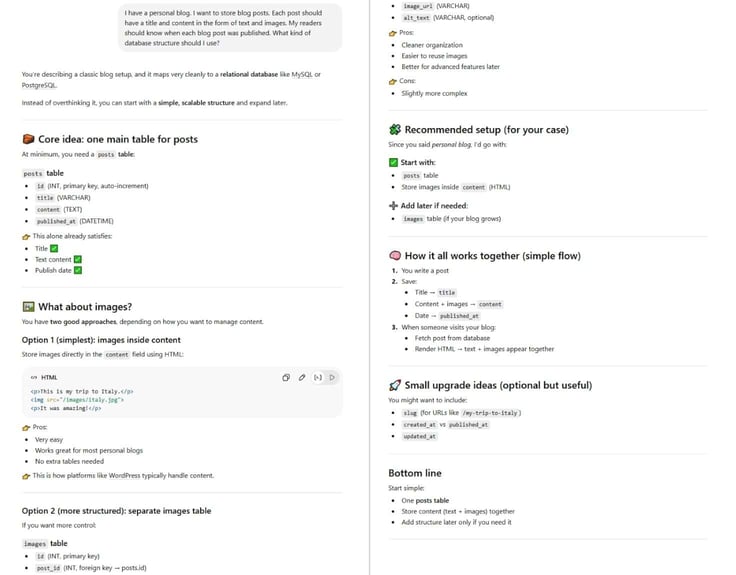
With a more specific prompt, the response usually becomes much more useful because it starts suggesting specifics like a ‘posts’ table, along with fields for title, content, and dates. As a bonus, ChatGPT even suggests ideas to refine the output and generously offers to create the exact SQL it describes.
I tend to give in to my inquisitive nature, so I also asked about stuff I potentially missed or might require down the line.
Once again, I used specific and natural language:
Am I forgetting something that a standard MySQL database would need for SEO, data organization, or future growth?
ChatGPT returned a fairly detailed answer, assuring me that while I haven’t missed anything essential, I would do well to make a few inclusions:
“… adding:
• slug
• timestamps
• status
• basic categorization”
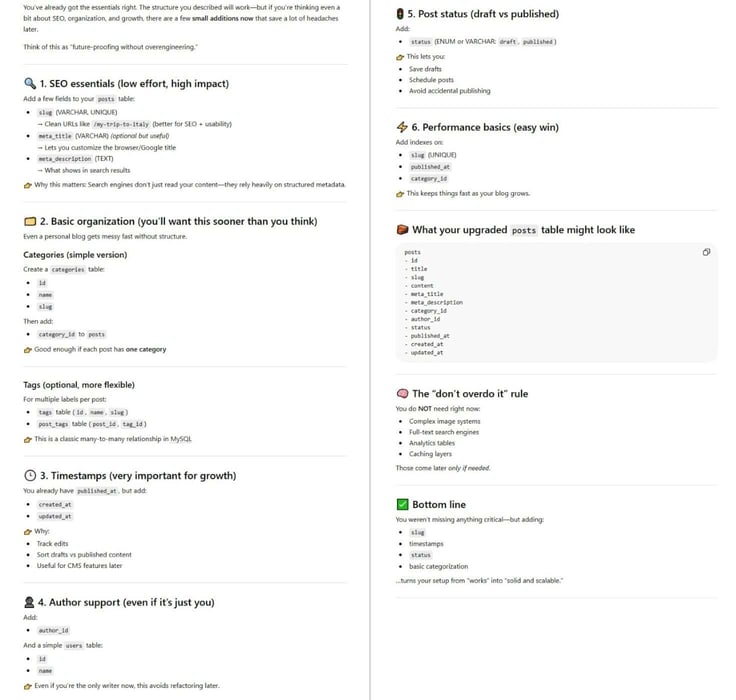
I absolutely love this “future-proofing” side of ChatGPT, as the tool calls it, and I highly encourage you to explore it.
Step 2: Generate the MySQL Schema with ChatGPT
We’re ready to ask our AI partner to create a production-ready CREATE TABLE script for us. But before we do, here are the key concepts, in order.
A CREATE TABLE statement is a command that tells MySQL to create a new table within the database where your data will exist. It also defines what kind of data each field will store, like titles and dates.
Now, adding “production-ready” to our prompt makes sure that tools like ChatGPT go beyond the bare-minimum output. That way, you’re not just asking for a code, but something you can confidently deploy on a live site.
With that out of the way, the key to getting a ChatGPT MySQL database is to be specific about both our use case and our environment. We already have the former (personal blog with posts), which means we need to explicitly request standard MySQL syntax compatible with typical hosting setups (e.g., shared hosting with phpMyAdmin).
Doing so ensures that the ChatGPT-generated output will work across most hosting environments without modification. It avoids provider-specific extensions and uncommon configurations or engine-dependent syntax.
Here’s what we include in the prompt to get the optimal result:
I have a personal blog website where I want to store blog posts. Each post should have a title, content, and a publish date. Please generate a production-ready MySQL CREATE TABLE script using standard MySQL syntax that would work on most web hosting environments. Include appropriate data types, a primary key, and any necessary fields. Keep the structure simple and compatible with shared hosting setups.
Even if you don’t fully understand what a primary key or timestamps are yet (things ChatGPT previously suggested adding), including them in the prompt helps the generated database follow standard practices automatically.
Always remember that less is not more in this instance. The more context you provide, the more structured and deployment-ready the result will be.
Anyway, ChatGPT returned this:
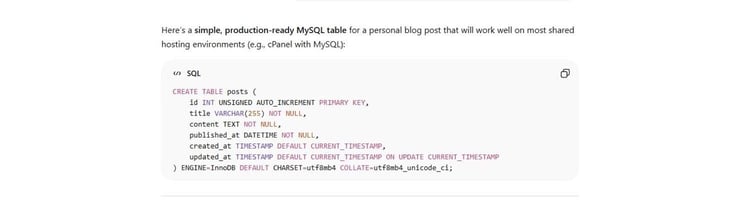
There were also neat explanations regarding why this structure works well and the compatibility choices, the tool used to comply with shared hosting standards.
Now, I’m going to take a guess and say that some parts of the code above (like INT, VARCHAR, and such) don’t make much sense to you. This is a good time to ask ChatGPT to unpack these specific data types for you. Use this prompt:
Please explain each column and data type in simple terms, including why each data type (such as VARCHAR, TEXT, or INT) is used and what kind of data it is best suited for. Keep the explanation beginner-friendly.
In a database, data types determine all sorts of things, from what kind of data a field can hold to what kind of operations make sense on it. Understanding data types helps you make better prompts, which lead to better database design decisions.
The point is, ask away. ChatGPT is pretty darn good at simplifying concepts.
Step 3: Set Up Your Hosting Environment for Database Import
For this step, I’ll be using cPanel as it doesn’t get any more standard than that.
Log in to your account. At the home page, you’ll find the Databases section in the middle of the page, right after the Files section (bottom part of the screenshot):
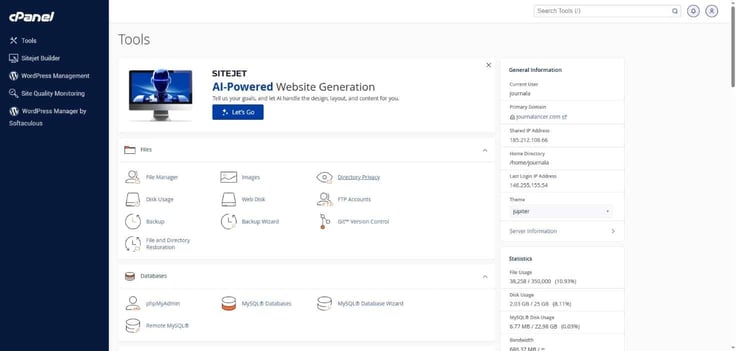
There are a few prerequisites before we can insert our code, namely, creating an empty database and a privileged user.
You have two ways to do this:
- MySQL Databases, which bundles all the manual steps
- The MySQL Database Wizard for a step-by-step flow.
Since that is the sole purpose of option two, and it provides a better overview of the progress, I’ll be using the “Wizard”.
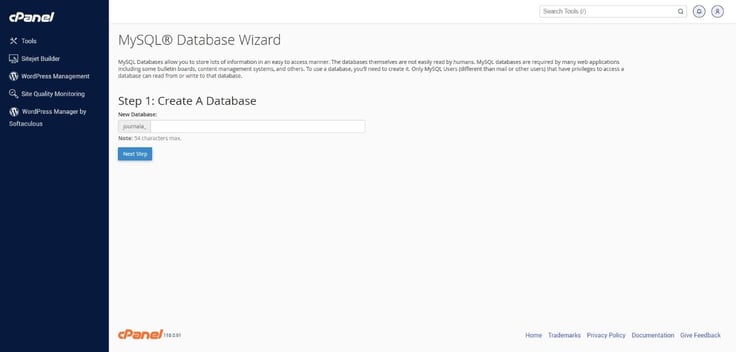
First, come up with a name for your ChatGPT MySQL database. I used ‘persblog’ and got a nice little confirmation message.
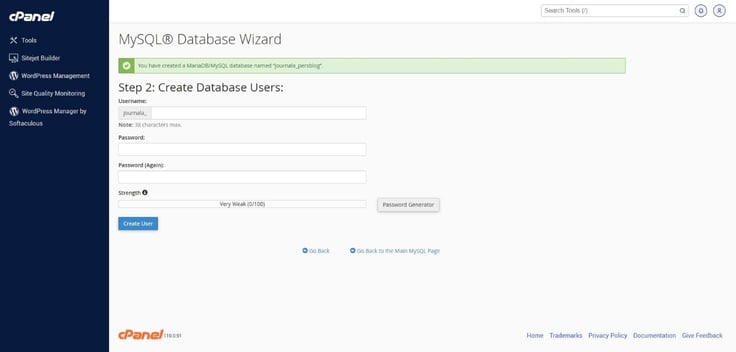
Your host will likely add a prefix based on your username, just like it did here. This full string is your database name.
Next up is creating the user. For assistance with the password, there is a handy Password Generator.
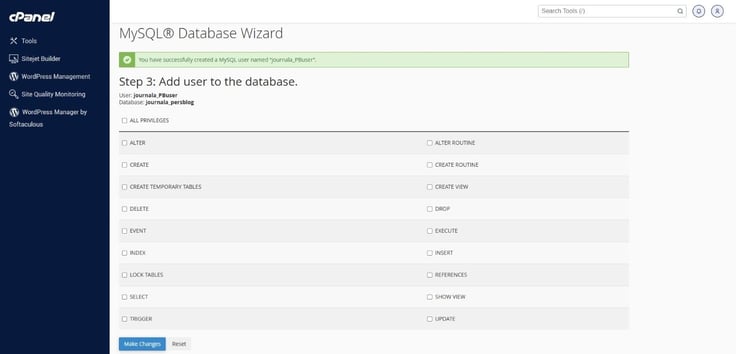
As with the database, the username will be prefixed.
Once the user is created, you need to assign privileges to it so that it has permission to talk to that specific database. Hence, you want to check the “ALL PRIVILEGES” box, and then the “Make Changes” button at the bottom.
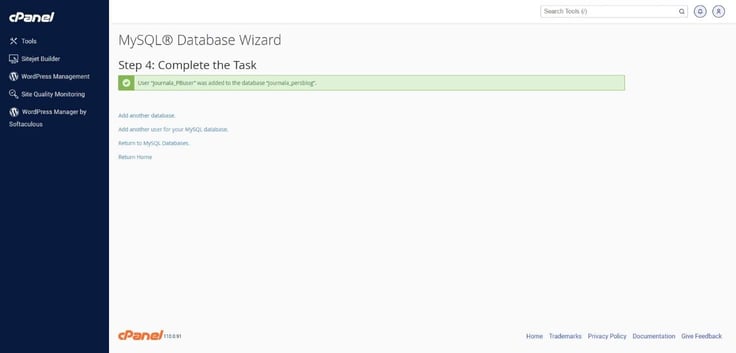
With the wizard done, you must save these three pieces of information:
- Database name
- Database user
- Databases password
I deliberately say ‘must’ because you will need them to connect your website to the database later. It may be helpful to create a personal reference note or document with this info.
Step 4: Import Your AI-Generated SQL into phpMyAdmin
Now that you have an empty database, you are ready to insert your code.
To do this, head back to ChatGPT and the chat where you instructed the AI to create the table. Press the copy button in the top right corner of the code’s box.

Then, go to the cPanel home screen and open phpMyAdmin in the Databases section.
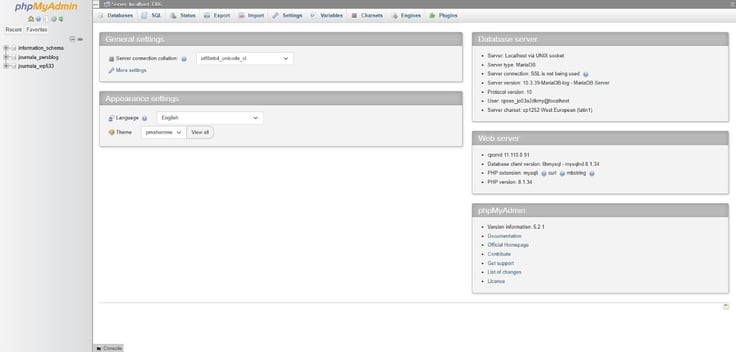
Select your newly generated database from the left-hand sidebar.
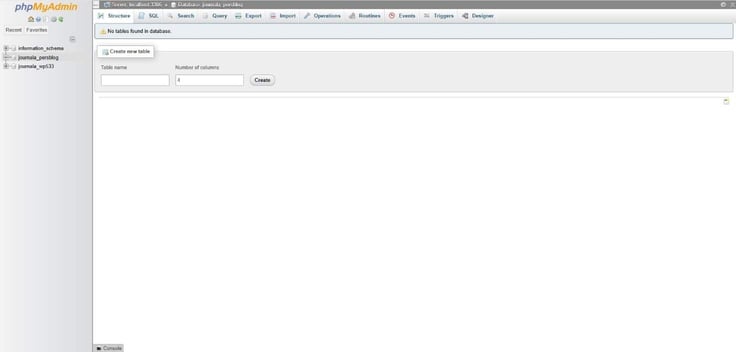
Click the SQL tab at the top.
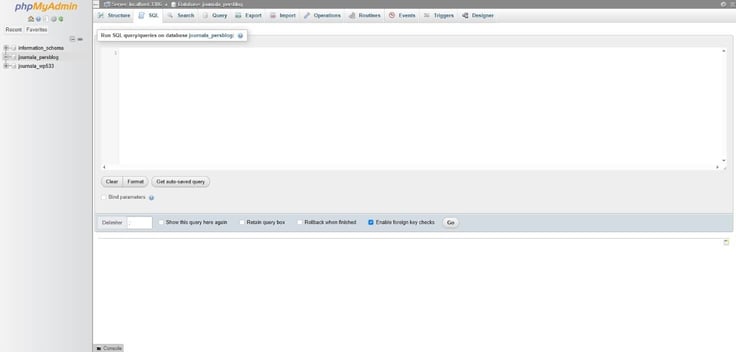
Paste your script into the box, then hit “Go” at the lower-middle menu.
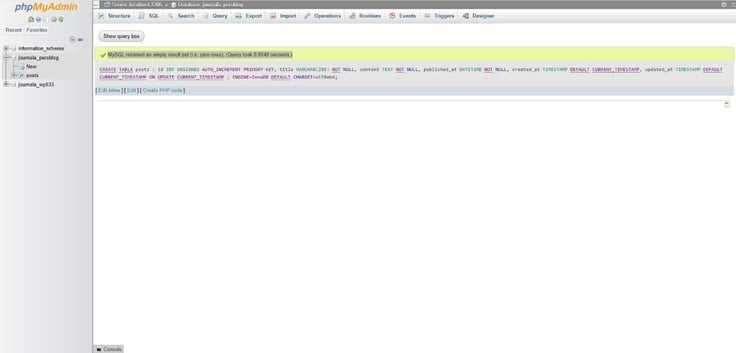
If successful, you will see a green checkmark and a corresponding message.
Don’t worry if it says “MySQL returned an empty result set (i.e., zero rows)” like in my case – it simply means there is no data to display because the table is currently empty (we’ll get to that in a minute).
Also, don’t fret if you get a red error box instead. The easy fix is to copy that error back to ChatGPT, and it will give you a fixed version.
Once the query runs, click on the Structure tab at the top of the page. This is the most user-friendly part of phpMyAdmin, displaying a list of your tables instead of looking at raw code. As you can see below, the table ‘posts’ is there.
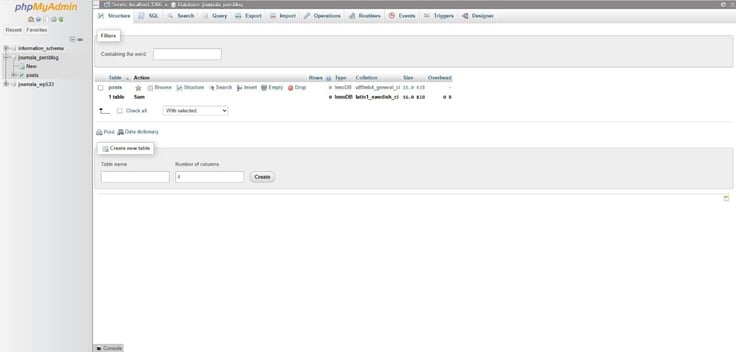
You can also see that MySQL is using InnoDB as the de facto engine to handle the data. At the moment, the Row column shows 0 because the tables are empty shells waiting for data.
To be 100% sure everything is live, let’s go to the Browse tab.
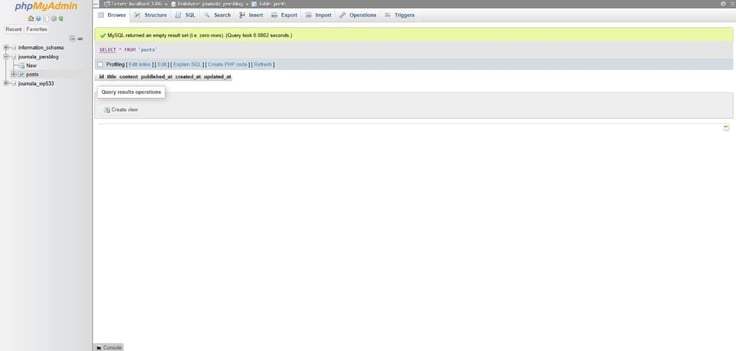
Since we haven’t added data yet, it will be empty, but seeing the column headers (id, title, content, etc.) laid out is confirmation that our little creation is now on our web host.
Step 5: Generate Realistic Mock Data for Testing
We’ll treat mock data the same way we treated the schema: by describing what we want in plain English.
In MySQL, putting actual data into a table is done using the INSERT INTO statement. If you don’t specify it, you likely won’t get ready-to-run SQL that has properly formatted values and data matching your table structure.
Since we already have a blog table, our desired mock data should be realistic sample blog posts we can test with.
So, let’s go with this:
I have a MySQL table for a personal blog with fields like title, content, and publish date. Please generate 4-5 realistic sample blog posts as SQL INSERT INTO statements using standard MySQL syntax, so I can use them to populate my database for testing. Make the titles and content sound natural, like real blog posts.
Five realistic sample blog posts I did get:
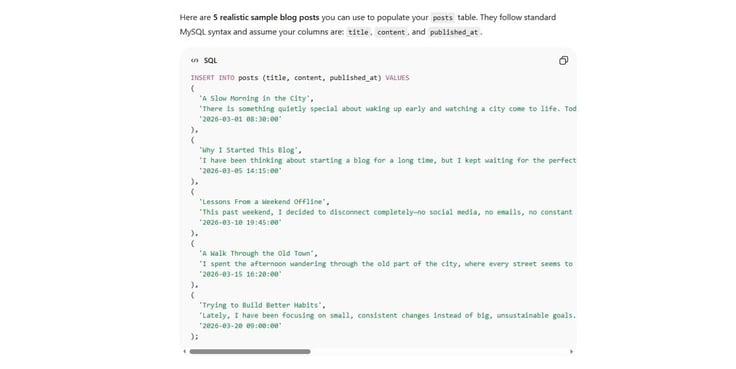
I suspect you have the same reaction as me when you see sample data within the hosting environment: it’s a satisfying sign that the database has been set up correctly.
As much as it’s great to see it, the green checkmark in phpMyAdmin doesn’t confirm functionality. This does. It shows that a table exists and that data can be used as you want. This tangible feedback should instill confidence.
That is precisely why having a “test-driven” mentality goes a long way in coding. By inserting and reviewing test data early, potential issues are easier to identify and resolve before complications snowball later on.
Be certain to troubleshoot the database before it goes live.
Troubleshooting: Common AI SQL Errors and Connection Issues
Remember when I said at the beginning that generating a ChatGPT MySQL database is a repeatable process? Troubleshooting is a great example.
AI models are trained on various SQL dialects, which are basically different versions of the SQL language (such as PostgreSQL or SQL Server), so they occasionally provide code that isn’t quite compatible with a standard MySQL hosting environment.
To avoid incompatibility or errors, refine the prompt by specifically requesting standard MySQL syntax. It’s also a good idea to mention the target environment, like phpMyAdmin. ChatGPT responds well to this added specificity and will produce a precise output when reprompted.
That is what I mean by troubleshooting being a loop-like process; it’s highly practical to treat the error message itself as input. For example, when phpMyAdmin returns an error, you should copy it directly and ask ChatGPT:
This is the error I received when running this MySQL query in phpMyAdmin. Please fix the query and explain the issue.
It creates a fast feedback loop where the AI both corrects the issue and clarifies the underlying cause. Here’s what happened when I encountered an “Error: Token mismatch” message and turned to ChatGPT for help:
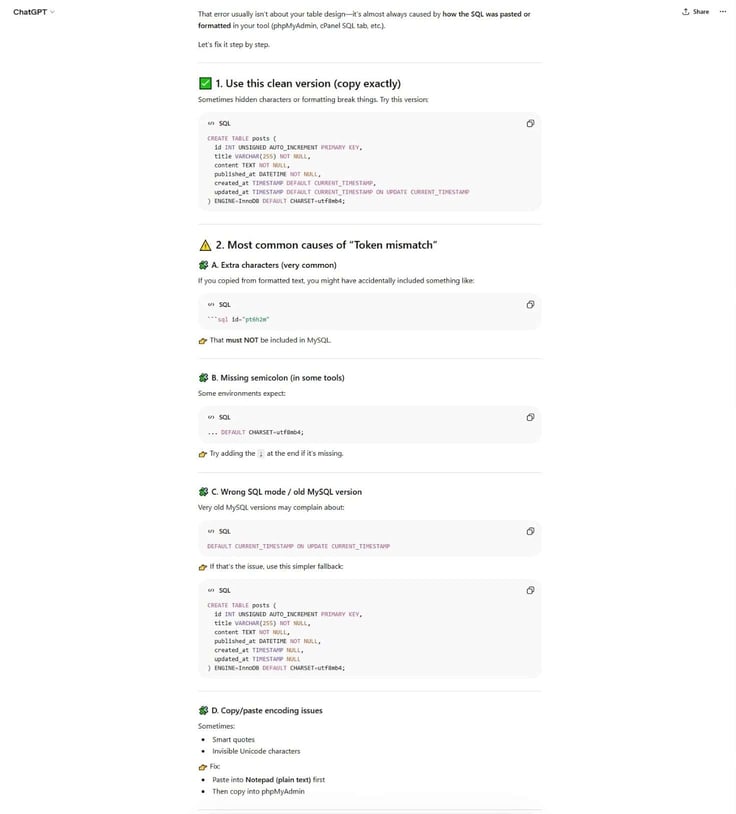
The good news is that if you forget to mention the environment you’re running the query in, ChatGPT will ask you about it.
While I’m on the subject, it’s also useful to distinguish between error types.
For example, syntax errors (like unexpected tokens or invalid data types) are generally resolved by tweaking the SQL.
By contrast, permission denied or access-related errors are usually tied to hosting configuration (such as user privileges or database assignments). These must be addressed within the hosting control panel.
Whatever the situation is, the smart bet is to stick to this framework: fine-tune prompts and reuse error messages as input. It’s an incredibly easy and fast way to remedy any problems.
Best Practices for Database Security and AI Refinement
As helpful as ChatGPT is in this line of work, it’s best to treat it as a hired PI sleuth to protect both your privacy and the server’s integrity.
What do I mean by that?
For starters, never paste sensitive data (your login information, customer emails, personal details, etc.) into ChatGPT for tasks like cleaning or formatting. The vast majority of AI models use input data for training (unless you are on the most expensive plan with specific privacy features).
Pasting real stuff creates a permanent record of that data outside your secure hosting environment. Not legal advice, but it’s a big no-no.
It’s safer to use anonymized or mock datasets instead (simply prompt-generated). This minimizes the risk of exposing private information and aligns with standard data protection practices, even in early-stage or test environments.
If your project grows or your database requirements change, you will need to make structural updates.
This is where the ALTER TABLE command comes into play. With it, you can add, delete, or modify columns in an existing table. So, there is no need to delete your ChatGPT MySQL database and start over.
You can use something in the vein of:
This is my current table structure. I want to add ______. Can you generate an ALTER TABLE statement using standard MySQL syntax?
Such a prompt allows the database to grow incrementally without needing to be rebuilt from scratch, adding a much-needed dose of flexibility.
During my exploration of ChatGPT’s capabilities, I’ve discovered its potential to serve as a long-term database admin assistant. The idea is to constantly engage the tool by generating queries, suggesting improvements (as requirements change), making refinements to schemas, and stacking prompts pertaining to database management.
By maintaining a continuous conversation with the AI about your specific database structure, you position it to provide you with relevant advice as your site evolves.
Mastering the Future of Web Development
I’m old enough to remember how building a database used to feel: intimidating and overwhelming (to say the least).
Thanks to AI, it’s become a walk in the park to build a MySQL Database — with an excited dog. It might pull you a little bit, or sniff about in the wrong direction, but it’s fun to walk when you’re firmly in control to stay on course. Personally, I love every minute of it.
From defining requirements in plain English and generating schemas to testing with realistic data, each step with ChatGPT delivers real site development code while boosting confidence and clarity. Just keep in mind that better prompts lead to better outcomes, and you’ll do fine.
The best part for me? If something doesn’t go according to plan, it’s just another prompt waiting to be written. You can also give our HostHelper™ smart search tool a go, with expert-backed answers drawn from thousands of in-depth guides and reviews.
Thank you for reading, and don’t forget to follow us on social!