
Writer: Jack Wallen


Editor: Britain Simons


Reviewer: Cristian Lopez

WordPress is the most widely used platform around the world. With WordPress, you can easily deploy sites that serve a wide variety of purposes, such as a standard blog, all the way to an eCommerce site where you can sell your products or services.
WordPress includes an extensive plugin market. This allows you to find and install plugins of all sorts with the click of a button. But what if you can’t find a plugin that meets your needs, you want to save money, or simply build your skills?
That’s where ChatGPT (and other AI services) come into play. With the right prompt, you can create a WordPress plugin to your exact specification.
I’m going to walk you through the steps to create a WordPress plugin that builds an image gallery with several transition effects. Whether you need an image gallery or any other plugin, this is the best way to learn the process!
-
Navigate This Article:
Step 1: Understand How WordPress Plugins Actually Work
WordPress plugins are PHP files that use WordPress hooks, which allow developers to interact with and/or modify the execution of core WordPress features, without having to change the source files directly.
New to PHP? Think of it like a blueprint for dynamic content. It’s a plain text file that has code to tell your page what to do.
These PHP files must include a plugin header and are stored in their own subfolders within the /wp-content/plugins directory.
If you happen to use a hosting service that includes cPanel, you can simply navigate to:
File Manager > Public HTML > SITE NAME > wp-content > plugins (where SITE NAME is the name of your site).
If you host the WordPress site yourself, you can either use SFTP (Secure File Transfer Protocol) or SCP (Secure Copy Protocol) to upload the plugin to the correct directory. This is simply a safe (encrypted) file transfer method. Of course, there is an easier way. If you go to the WordPress plugin page of your site, click Add Plugin.
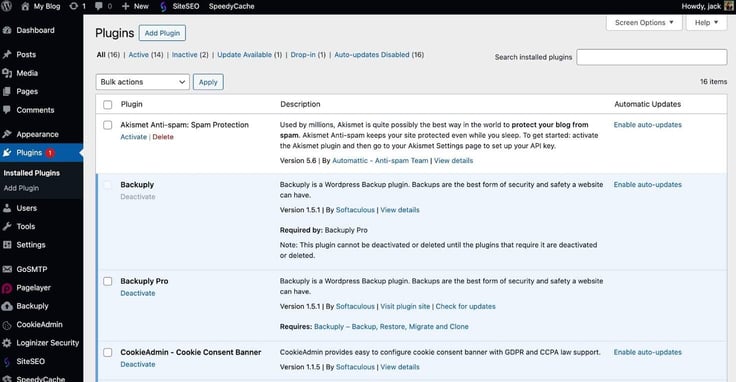
In the resulting page, click Upload Plugin.
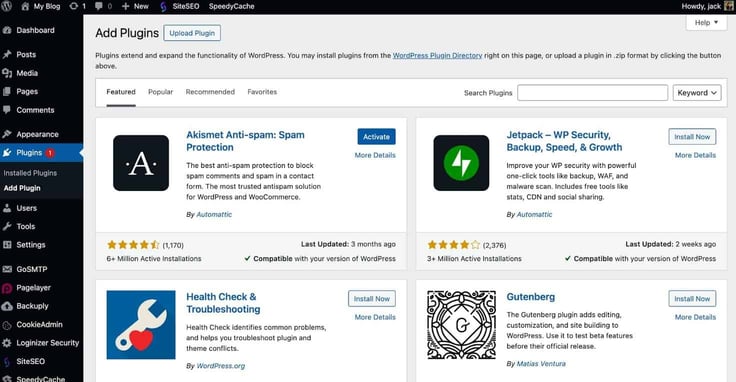
The one trick with the above method is that you have to upload your ChatGPT-generated plugin as a zip file. When you upload your plugin as a zip file, WordPress automatically extracts it and saves it in the correct place (more on that later).
It’s that easy.
My suggestion would be to have ChatGPT generate your plugin, save the generated files in a new folder, zip the folder, and upload the zipped file to WordPress. Let’s walk through the process.
Step 2: Set Up a Safe Local WordPress Development Environment
First off, you have a WordPress instance to use. I would highly recommend that you create a local environment to test the new plugin.
Local Setup: For those who don’t know, a local environment is where you’d install WordPress on a machine (your computer) within your LAN (Local Area Network). By doing this, you don’t have to worry about your test environment being exposed to the outside world (which is good for security purposes while testing).
Another reason for creating a local (testing) environment is that you wouldn’t want to upload an untested plugin to an already running WordPress site that your business (or blog) depends on. Breaking a live site could cause you a major headache.
You can deploy WordPress locally in several different ways and on all major platforms (Linux, macOS, and Windows).
One thing to keep in mind is that you can install WordPress on your macOS or Windows machine in a similar way as you can on a Linux desktop or server. As a Linux admin, I prefer to use that OS because it’s more stable, reliable, and secure. If you’ve never used Linux, just stick with what you know.
You can also deploy WordPress as a Docker container, which is one of the easiest methods… so long as you understand the basics of Docker Desktop (an application for MacOS or Windows).
Regardless of your platform, the fundamental steps for installing WordPress are fairly similar.
How to Manually Install WordPress
Manually installing WordPress isn’t exactly rocket science, but it’s also not as simple as just installing an app on your desktop computer. First off, you’ll need a server to install it on (such as Ubuntu Server for Linux). You’ll also have to run several commands to get the various components/dependencies ready.
Here are the steps for manually installing WordPress:
Part 1: Download WordPress
You first must download the core software files from WordPress.org. You can download the files from the WordPress download page. Make sure to download the latest version.
Part 2: Install the necessary server software
When you want to install just about any type of website, you need server software that “serves” the pages so they are visible. Every website you visit is run by a server like Apache (which is one of the most widely-used server applications). Apache is just one of the components you need for WordPress.
The entire “stack” of applications includes Linux, Apache, MySQL, and PHP, and is called a LAMP server. There’s also the MAMP (macOS, Apache, MySQL, PHP) and WAMP (Windows, Apache, MySQL, PHP) servers.
As far as Linux is concerned, one of the most popular versions of Linux used as a server operating system is the Ubuntu Server (the server operating system, and it’s a very popular option for deploying LAMP).
You can install a full web server “stack” on Ubuntu Server (on Linux) with the command:
sudo apt-get install lamp-server^For MacOS (MacBooks), use MAMP or Homebrew (not Ubuntu). Download MAMP from the official website. Install the package, and it will create a MAMP folder in your applications directory. Launch the Application and click Start to turn on the Apache web server.
For Windows, download the WOMP server according to your Windows architecture (like 64-bit). Run the Installer, agree to the license, and choose an installation folder.
Part 3: Create the database
Next, you must create the database, which houses all of the information for your WordPress site. You may have worked with databases, using Microsoft Access. A web server database is similar, but you have to use a database that is better suited for web server purposes.
MySQL: One of the more popular databases for this is MySQL. You create MySQL databases for what is called the MySQL console, which is a fancy way of saying a command line prompt dedicated to MySQL.
A sample MySQL database creation command would be:

For MacOS, locate the htdocs content folder (where your website and plugin will live), and to access your local site, visit http://localhost/
On Windows, launch the Womp Server Application. Access phpMyAdmin by clicking the WampServer icon and then PHPMyAdmin. Log in with root as the username and no password, click Database at the top, name it, and click Create.
Part 4: Move and unpack the WordPress file
You now need to move and unpack the WordPress file. There are two ways to do this: you can use your file manager, right-click the file, and select Extract (or Open, depending on your OS).
The other option would be to unzip the file using a command, which can be done in both Linux or macOS. To run a command, you open a terminal window and then type what you see below::
sudo mv latest.zip /var/www/html/Unpack the file with:
sudo unzip latest.zipPart 5: Configure the web server
This is where things get complicated, because you have to create an Apache configuration file (to serve the page). Most servers require setting up configuration files, which are text files that inform the server software what to do and where things are located.
In this case, the configuration file informs the web server where WordPress is. Such a file is created with the command:
sudo nano /etc/apache2/sites-available/wordpress.confIn that file type the following command:

Enable the Apache rewrite module with the command:
sudo a2enmod rewriteRestart Apache with the command:
sudo systemctl restart apache2Part 6: Access the web installer
In the same way you visit a website URL, you want to point your web browser to your local site for testing: http://SERVER (Where SERVER is the IP address of the hosting server).
Note: for MacOS and Windows PC, visit http://localhost/
Part 7: Use the web installer
Once you’ve accessed the installer, you’ll see a web page with a very simple wizard to help walk you through the final installation steps, which include creating an admin user for the site.
Part 8: Log into WordPress
Log in as the newly created admin user via http://SERVER/wp-admin
(where SERVER is the IP address of your hosting server)
Once WordPress is installed and you’ve logged in, you should see the standard WordPress admin page.
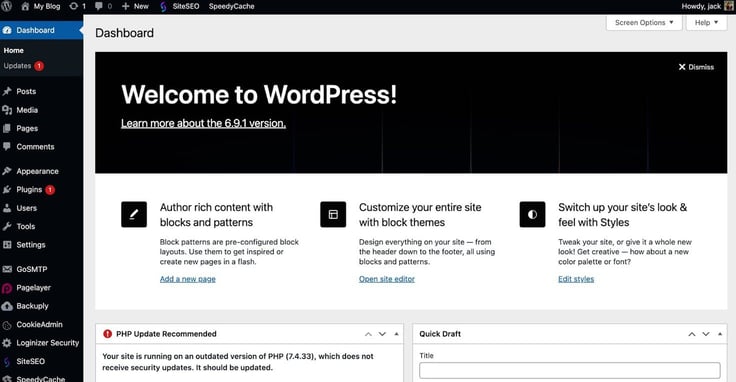
As you can see, the Plugins link is in the left sidebar. Click that, and you’ll find yourself on the page where you can access the plugin upload section. Before you do, however, I would highly recommend that you go to the Updates section and update anything/everything that is available.
An outdated WordPress site could lead to bad actors accessing it and doing nefarious things.
Step 3: Plan Your Plugin Before Asking ChatGPT to Generate Code
You’re now ready to begin the process of creating your plugin. Before you do, it’s important that you spend a bit of time planning what you want your plugin to do. During this phase, you’ll want to be very specific.
Note: Vague prompts can create plugins that are weak, completely lack features, or simply won’t work. Many LLM chatbots also have a usage-based pricing or tokens, so it’s even more important to take time crafting in-depth prompts.
A bit of planning before you type your prompt will save you a lot of time down the road. Here’s a short checklist for what you need to consider when planning your plugin. Get out your pen and paper (or planning document).
Let’s stick with our gallery plugin example to build our Master Prompt:
| Prompt | Details |
|---|---|
| Define what the plugin should do | You need to be as specific as you can with your plugin. For example, if you have certain animations you want to include or what type of configuration options will be available, you need to add them to your prompt. Be as specific as you can with the features you want for the plugin. Example: Instead of just prompting ChatGPT to “create an image Gallery for WordPress,” you want to make sure to define the style, like: “Create an image gallery for WordPress that allows me to upload multiple photos, configure animations for switching between photos, and so that the plugin can be placed within posts and pages, via shortcode.” Note: You will also want to make sure to have ChatGPT include visual themes, if there are user-definable parameters, and even what version(s) of WordPress it will be used on. |
| Instruct where it should appear | In WordPress, you can add many plugins to your site in different locations. Example: blog, cart, posts, and/or pages. Consider creating a plugin that includes a WordPress widget (a small, standalone version of the app that can live in sidebars, headers, and footers). * This is an important step, because you might not want to limit your plugin to a single location. |
| Decide who interacts with it | Do you want registered users (those with a site account), anonymous users (those without a site account), or admin users to be able to interact with the plugin? You’ll also want to know what features are accessible for users, like autoscroll, pause, popup, links, and navigation Example: Can registered users upload images to galleries, or are they only allowed to view the galleries? |
| Decide what triggers its behavior | You’ll want to know if this plugin is triggered as soon as a page loads, or if it requires user input (such as a mouse click). Example: an image gallery scrolling through, static or animated. |
Next, with our gallery example. Here are some example prompt specifications:
(Feel free to copy/paste into your AI chat, but we’ll do that next.)
- Gallery Animations: The plugin generates an image gallery with several transition features, such as carousel (or use fade, flip, spin, and more).
- Software Compatibility: The plugin must run on at least version 6.9.1 of WordPress.
- Placement: The plugin can be added to pages, posts, and widgets.
- Accessibility: The plugin can only be viewed by registered/unregistered users, and only the admin can add the plugin to pages and add images to the gallery.
- Autoplay: The plugin begins scrolling through the image slider as soon as the page loads .
Now that we know what the gallery plugin does, we should be able to craft a ChatGPT prompt to create it.
Step 4: Plugin Elements – Comments, Activation Hooks, and Test Code
We know the specifications of our plugin, so it should be fairly easy to prompt ChatGPT to create it. Now, let’s include comments, activation hooks, and be sure to test code along the way.
One thing to keep in mind is that you can add follow-ups during your chat to add features, change plugin elements, or refine things. Don’t assume your first prompt will produce the perfect plugin.
At the same time, you’ll want to test the plugin before you close the prompt. On the off chance the plugin doesn’t function properly, you may need ChatGPT to modify the code to better meet your needs.
Hot tip: I would also suggest that you request that ChatGPT add comments to the code, so you know what’s going on within the plugin. This will not affect the code. Comments are a traditional feature of development that describe what a certain section does. By doing this, it’ll be easier for you to troubleshoot (debug the code), without having to be a developer to do so.
Make sure to request that ChatGPT follow secure coding practices, such as nonces, sanitization, linting, and escaping.
At the same time, you will need activation hooks to start your plugin. An example of an activation hook is:
flush_rewrite_rules (permalinks)When a plugin registers a custom post type, it prevents 404 errors. For more information on WordPress hooks, make sure to check out this official documentation page.
Step 5: Use ChatGPT to Generate the Initial Plugin Code
With all that in mind, let’s interact with ChatGPT to create our gallery plugin. Head over to the ChatGPT site (or whichever AI you prefer), and prepare to type your prompt.
Here’s an example that I used to create a WordPress gallery plugin:
Write me a WordPress plugin that generates an image gallery with several transition features, such as carousel, fade, flip, spin, and more. The plugin must run on at least version 6.9.1 of WordPress, only allow admin users to add images and place the plugin on the site, and can be used in pages, posts, and widgets. Make sure to follow secure coding practices and generate properly structured WordPress plugin files.
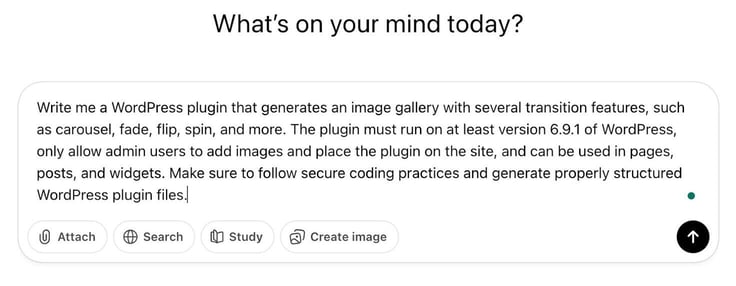
Hit Enter on your keyboard, and ChatGPT will begin creating your plugin.
When the plugin creation is complete, you can add follow-ups. For example, I decided I wanted to also include a few other features, so I followed up with:
Add performance-optimized CSS GPU transitions and include Gutenberg block support.
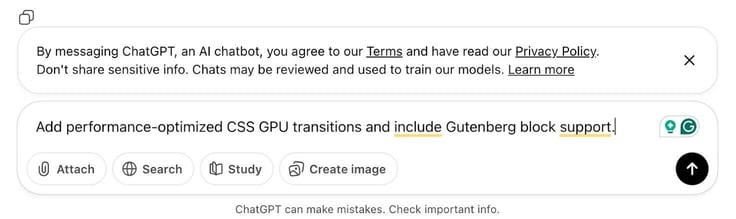
CSS GPU will add smoother transitions, with better performance. Gutenberg Block Support allows for standard editing. The nice thing about this process is that it empowers you to create the exact plugin you need for your site.
Step 6: Create the Plugin File and Install It Locally
Once ChatGPT has generated your plugin, you’ll notice that it does so in chunks. Each chunk will have a separate file name, and that’s important.
I suggest you create a new folder on your local drive and name it after the plugin (such as advanced-transition-gallery). What you will then do is copy each chunk (making sure to name the new file exactly as ChatGPT instructs) and save it within that new folder.
You will also notice that, in some cases, specific files have to be placed in specific directories within your new advanced-transition-gallery folder. For example, ChatGPT may create a plugin that requires an asset folder.
First, create a main folder for the plugin. We’ll call it gallery.
You would then create a sub-folder (as directed by ChatGPT), called assets:
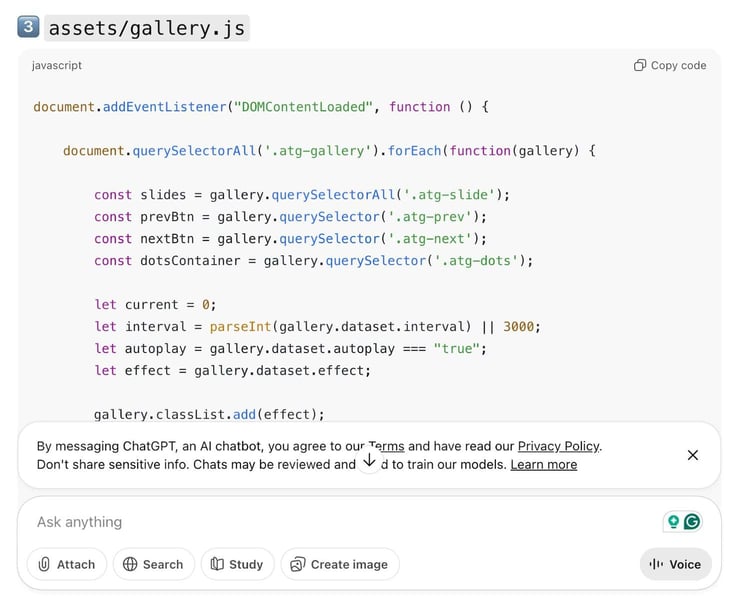
If you have to create sub-folders, make sure to create them and then create the necessary file(s) within. If you get lost in the folder maze, ask ChatGPT for help!
Continue doing that until you have every file ChatGPT created for your plugin saved in the proper folders.
Keep in mind: we’re testing our new plugin on a locally installed WordPress instance. You don’t want to immediately add a non-tested plugin to your public-accessible instance, because if the plugin wasn’t written properly, it will either not work or (in extreme cases) could break your WordPress installation.
When ChatGPT finishes writing the plugin, you’ll notice that it breaks the code up into blocks (or sections). Each block is a file you must save into a folder. ChatGPT does a good job of separating these files and even gives them file names. As you can see above, we have a block of code that should be saved as gallery.js in a folder called assets.
ChatGPT does a great job of separating the “chunks,” so you know exactly how the files are separated.
After you’ve added all of the files to the folder, you’ll then need to zip the folder.
How you compress the plugin folder will depend on what operating system you use. For example, on Linux, you can right-click the folder in your default file manager and select “Compress,” and then upload the zip file to your WordPress site (as instructed above).
With the .zip file ready, you can then either upload it to your WordPress testing site through the plugin page or FTP/SFTP (Secure File Transfer Protocol) it to the server. If you go the FTP/SFTP upload route, make sure you have the necessary folder structure for the plugin created (such as advanced-transition-gallery and advanced-transition-gallery/assets).
After uploading the files, go back to the WordPress plugins page, and you should see the plugin ready to be activated. Click Activate, and your plugin is good to go.
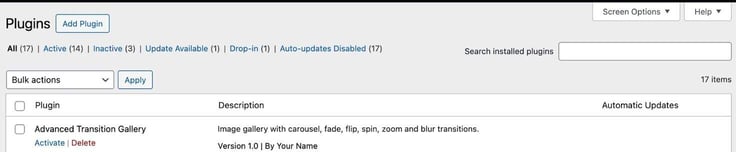
Once you’ve activated the plugin, you’ll see that Activate has changed to Deactivate. You can then test your plugin by creating a post, adding the necessary shortcode, and viewing your new gallery.
Congratulations, you’ve just created your first WordPress plugin with ChatGPT.
Step 7: Improve the Plugin with Additional Features
As I mentioned earlier, you can always go back to your ChatGPT prompt (which is why you should save that prompt) and request that the service add new features.
For example, you may have forgotten to add a settings page, which would allow those who can edit the plugin to customize how it looks or behaves. You might also add various shortcode attributes, such as size, alignment, auto-play, etc.
Another important feature you might consider adding is input validation, which makes it possible to define what type of files can be uploaded. You might want to limit image sizes or file types (as .png files are considerably larger than .jpg files or WebP).
Ideally, you’d want to compress images to kilobytes, not megabytes. Let’s say you want to add a settings page to your plugin.
Go back to your AI prompt and write something like this:
Add a settings page for the advanced-transition-gallery plugin that allows for adjustments like sizing, alignment, and auto-play enable/disable.
If you find there’s a feature that’s not working properly, you can always ask ChatGPT to refine it. For example, you might realize that it’s necessary to limit the image upload size because of loading speed and mobile devices.
For that, you could run the following in the prompt:
Limit upload image dimensions to 1280 pixels wide by 1920 pixels tall (or whatever you need).
You can also incorporate an image compression tool like lossy with this prompt:
Add the ability to compress files larger than 200 MB, such that they are optimized for web and that the quality doesn’t degrade.
Step 8: Prepare the Plugin for Live Hosting
Now that you’ve uploaded the plugin to your testing server and have verified that it works exactly as expected, it’s time to get it ready for the live site.
Before you upload the plugin to the live server, you’ll want to have ChatGPT do the following:
- Clean up and debug code.
- Add a version number in the plugin header.
- Ensure there are no hardcoded URLs in the code.
- Ensure that the plugin follows security best practices.
Again, the above can be done as follow-up prompts, such as:
Add version number .01 to the plugin header.
You will also want to make sure the plugin follows WordPress coding standards, which can be found on the official site. You can always have ChatGPT do that with a prompt such as:
Make sure the plugin follows the WordPress plugin best practices found here: https://developer.wordpress.org/coding-standards/wordpress-coding-standards/.
After making sure your code works as expected, is cleaned up, debugged, and follows best practices, it’s time to upload it to the live site. This is done in the same way you did it on the test site, either via the WordPress plugin page (recommended), FTP/SFTP, or manually via your cPanel file manager tool.
Do not assume that just because the plugin worked properly on the test site, it will on the live site. Test it. If something is wrong, disable it, debug it, and try again. If you find the plugin doesn’t work correctly, don’t panic. You’ve yet to make the public aware of the new feature, so there’s always time to fix what’s broken.
One of the most prevalent issues that can cause problems is a PHP mismatch. You will know if you have a PHP mismatch, as WordPress will inform you when you upload the plugin.
Remember, in the original prompt, I had you inform ChatGPT what version of PHP is used on the test server. If you find there’s a different PHP version on the live server, go back to the prompt and instruct ChatGPT to rebuild the app based on the correct version of PHP.
Another common issue is that of file permissions. Make sure that folders have 0755 and files have 0644 permissions. This can be done via the cPanel file manager or the command line interface. I would start with the cPanel file manager, as that’s considerably easier than the command line.
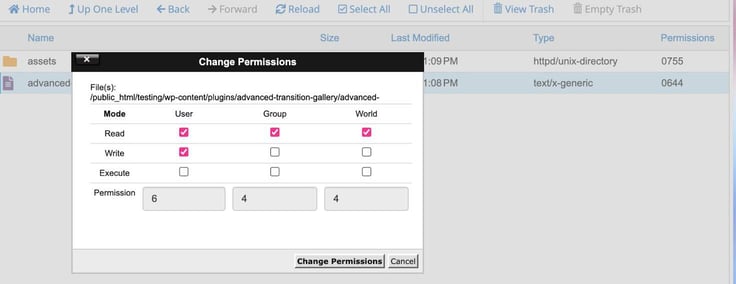
For those who aren’t up on file permissions, 0755 is:
- User: read, write, and execute permissions
- Group: read and execute
- World: read and execute
If you run into a problem that you cannot fix, make sure to go back to ChatGPT and explain the issue you’re having. Chances are pretty good that the AI will be able to resolve the issue. Just remember to be specific when you describe the issue.
Common Mistakes Beginners Make When Building Plugins With ChatGPT
When creating plugins this way, there are a few things to keep in mind. Given that you probably aren’t a programmer (which is why you’re using ChatGPT in the first place), you might assume that the generated code can simply be copied and used without examination or testing.
Checking the code can be a bit daunting if you’re not a programmer. One of the most common issues is indentation. Even though PHP doesn’t care about indentation, it’s always best to properly indent your code so it’s easier to read.
At some point, you might have to hire a real developer to take over. If you’ve laid the code out in a clean, easy-to-read format, that new developer shouldn’t have any problem figuring out what’s going on.
Make sure to view and research any error messages you get with the plugin on the testing server. If you ignore those error messages, you could wind up with a plugin that doesn’t work, a plugin with security issues, or worse. Take the time to vet your code before uploading it to the live server.
Finally, don’t overbuild your first version. Start out basic, so it’s easier to troubleshoot. Consider what the minimal feature list is for the first iteration and stick with that list. Create a backup copy of the functional version before you iterate. As you create new versions of the plugin, you can always add new features.
Final Thoughts: Turning ChatGPT into Your WordPress Development Partner
Before you set out to create your first WordPress plugin, make sure there isn’t one already created that does the same thing you’re looking for. If so, you don’t have to bother reinventing the wheel.
If an existing plugin doesn’t do everything you want (or does things differently), then it’s time to don your creative hat and build. It may also be worth creating your own plugins with AI to save on costs, like subscription or purchase fees.
Also, as a nod to ethics, I would suggest that you add (as a comment in the main file) that the program was generated by AI. Although it’s not necessary, it certainly will lend a level of transparency and trust to the plugin.
In the end, it’s important to understand that you can create your own WordPress plugin. You might stumble at first, but it won’t take long to build all the plugins you need for your site. Each of which will be perfectly tailored to meet your needs.
Thank you for trusting the process! Don’t forget to follow us on social media and bookmark this site for our extensive free library of expert reviews and how-to guides.