

Writer: Jack Wallen


Editor: Britain Simons


Reviewer: Cristian Lopez

If you use a Virtual Private Server (such as AWS, Azure, or Google Cloud), it’s very likely that, at some point, you’ll be working with Git and SSH to upload your code that is then used for apps, web apps, services, and more. You might even find yourself in a situation where you need to upload code that was generated by AI.
One important reason to work this way is that, as long as you break this into stages, it lends itself to a controlled, repeatable process. Any chance you can create a task that can be recreated over and over without fail should be considered a must, because errors and failures cost money.
If avoiding errors while deploying AI-generated code sounds like something you (or your organization) may need, let’s pull off the task together.
Let me walk you through the steps.
-
Navigate This Article:
The AI Briefing – Prompting for Production
The first thing you’ll need to do is generate your code. This can be easily done, so long as you understand what it takes to write a successful prompt.
The most important thing to remember is to be highly specific. Your prompt will need to be detailed and accurate. Even adding asterisks can be beneficial for style, emphasis, and title headers.
For example, let’s say you want AI to generate code for a program that accepts user input and saves it to a database.
That might look something like this markdown.
Master Prompt for a user contact form:
**Step 1. Define the Job to Be Done**
Build a single-purpose application: A user contact form that collects and stores submissions.
**2. Define Data Objects (Database Schema)**
Create a database table named `contacts` with the following fields:
* `id`: Integer, Primary Key, Auto-incrementing
* `name`: Text, Not Null
* `email`: Text, Not Null
* `message`: Text, Not Null
* `created_at`: Timestamp, Not Null, Default Current Timestamp
**3. Describe Screens (User Interface)*** **Input Form Page (`/` route):**
* A simple, clean HTML form with input fields for ‘Name’, ‘Email’, and ‘Message’, and a ‘Submit’ button.
* Use basic CSS for a clean, user-friendly layout (e.g., using a framework like [Bootstrap](https://stackpath.bootstrapcdn.com/bootstrap/4.3.1/css/bootstrap.min.css) for styling).
* Display a success message or an error message to the user after form submission.
* **Admin View Page (`/admin` route):**
* A page that displays all submitted contact entries in a table format.
* Each row should show the name, email, message, and submission timestamp.
**4. Describe Workflows and Logic (Backend)**
* **Submission Workflow:**
* When the user submits the form on the `/` page (using a POST request), the backend must validate that all fields are filled.
* If valid, connect to the database and insert the new contact information into the `contacts` table.
* Redirect the user back to the home page or an acknowledgment page with a “Submission successful!” message.
* If invalid, re-render the form page with an error message and retain the user’s input (flashed messages can be used for this).
* **Admin Workflow:**
* When accessing the `/admin` route (GET request), the backend must fetch all records from the `contacts` table.
* Pass the retrieved data to the admin template for display.
**5. Specify Technology Stack**
* **Backend:** Python with the [Flask](https://flask.palletsprojects.com) web framework.
* **Database:** [SQLite](https://www.sqlite.org) (using Python’s built-in `sqlite3` module for simplicity).
* **Frontend:** HTML, CSS (Bootstrap), and Jinja2 templating for dynamic content.
**6. Provide Implementation Details**
* Structure the project with an `app.py` file, a `templates` folder for HTML files, and a `static` folder for CSS.
* Include a separate Python script (`init_db.py`) to set up the database and create the initial table structure.
* Use Flask’s `request`, `url_for`, `flash`, and `redirect` functions for handling requests and user feedback.
**Expected Output**
Provide the complete code for the following files:
* `init_db.py`
* `app.py`
* `templates/base.html` (for layout inheritance)
* `templates/index.html`
* `templates/admin.html`
* `schema.sql` (or define schema creation within `init_db.py`)
Ensure all code is production-ready and includes basic security measures like using a secret key for sessions and parameterized queries to prevent SQL injection. Make sure the code includes error handling, a requirements.txt, and an .env template.
Obviously, such a prompt will take considerable time to generate an answer, so don’t expect it to be immediate.
Step 2: Sanitizing and Versioning the Code with Git
Once the AI query completes, you’re not going to want to immediately upload your code to the VPS without first sanitizing and versioning it with Git.
If you’re unfamiliar with this, sanitizing is the process of removing sensitive or unwanted information from a repository’s history or contents.
Before you do that, you’ll have to create a new Git repository and initialize it. To do that:
- Create a new directory to house your repository.
- Open your operating system‘s terminal app and change into the newly created directory.
Let’s say your new directory is called projectX and it’s in your home directory.
On Linux, you would change into that directory with:
cd ~/projectX
Now, initialize the repository with the command:
git init
Create a .gitignore file with the command:
touch .gitignore
Create an .env file with:
touch .env
You will also need to connect your new local Git repository with a repository on the GitHub.com site. This is a bit involved.
First, you generate an access token (because GitHub no longer works with standard username/password authentication. To do this, follow these steps:
- Log in to your GitHub account.
- Click your profile icon in the upper-right corner and then click Settings.
- In the left sidebar, click Developer Settings.
- Click to expand the Personal Access Tokens section in the left sidebar.
- Click Fine-grained tokens.
- Click Generate New Token.
- Fill out the necessary information.
- Make sure to select All Repositories (under Repository Access).
- Make sure to go through each permission (in the Repository Permissions section) and select the proper permissions from the drop-down.
- Click Generate token.
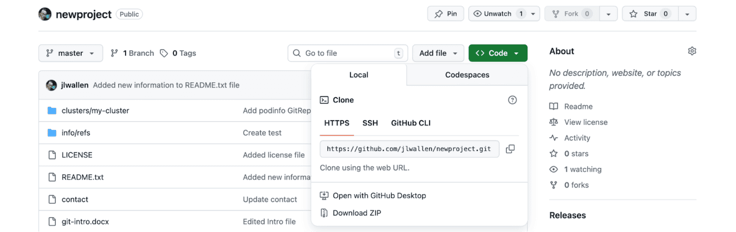
With that taken care of, you can locate the full GitHub repository address within your GitHub account by navigating to the repository, clicking the green “ Code” dropdown, and copying the URL.
Once you have that, you need to set two variables for login purposes with the following commands:
git config –global user.name “NAME”
git config –global user.email “EMAIL”
Where NAME is [your name] and EMAIL is the email address associated with your GitHub account.
You can then connect the local repository to your new repo with:
git remote add origin
Pull the content from the remote repository with the command:
git pull origin master
Copy the code generated by your chosen AI into the new local repository.
You’ll then want to sanitize the code:
git-filter-repo — -sensitive-data-removal — -invert-paths — -path PATH-TO-YOUR-FILE
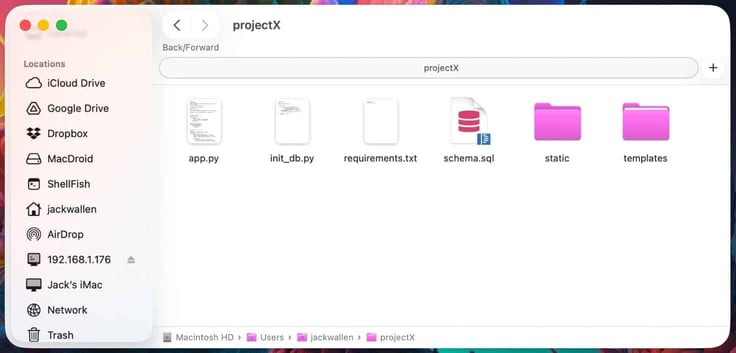
Then, stage it with:
git add.
If you’re unfamiliar with Git, staging is a sort of preparatory stage, prior to creating your first commit. This stage informs Git that there’s code in the repo, but not to take any action yet.
Next, create your first commit with:
git commit -m “Your descriptive commit message”
A commit is a “save point” or snapshot of your repository at a specific point in time. You can use something like “Initial code addition” or something like that for your commit message.
Issue a push to send the changes to the remote repository with:
git push
You’ll most likely be prompted for your GitHub username and password.
Remember, the password is the token you generated earlier, so make sure to use that. Once you’ve successfully authenticated and the push completes, you’ll see the AI-generated code in both your local and remote repos.
Step 3: Securely Accessing Your VPS with SSH Keys
You can always access your VPS via secure shell (SSH) via username and password, but that could leave your server open for brute force attacks.
To avoid that, it’s always best to make use of SSH key authentication. What this does is use a key pair (a private and public key) to give you access. Without the private key (which is stored on your machine), access cannot be obtained via SSH.
The process of accessing a VPS with SSH keys
First, you must generate a key to be used. This is done on your local machine. Let’s assume you’re using either Linux or macOS (both of which include SSH out of the box).
To generate a key, open the terminal app and issue the command:
ssh-keygen -t ed25519 -C “your_email@example.com”
Note: Make sure to substitute your email address in the above command.
You’ll be asked a few simple questions (such as where you want to store the key and to type/verify a password).
A couple of things to keep in mind for this step:
- You don’t have to save the key in (~/.ssh/), but I would recommend doing so for safety and simplicity.
- Use a very strong/unique password for the key: 14 characters, upper/lowercase letters, special characters, etc.
Once you’ve generated the key, you’ll find the key pair in ~/.ssh and the names of those files will be:
- id_ed25519 — this is the private key
- id_ed25519.pub — this is the public key
Now it’s time to copy the public key to your remote VPS account. There are two ways of doing that: using the built-in command or manually.
Option 1 — Let’s take a look at the command line first:
Before you do this, you’ll want to make sure you can access your VPS via SSH. You should have received the information for doing so when you signed up for your VPS account. Let’s say your VPS server IP address is “123.456.7.8” and the username is “leigh”.
To SSH into that account, the command would be:
ssh leigh@123.456.7.8
If your account uses a non-standard port (the standard being 22), the command would be:
ssh leigh@123.456.7.8 -p PORT
Where PORT is the port number assigned to you by your VPS.
You’ll be asked to accept the remote server’s fingerprint, so type “y” to do so. After you successfully log in for the first time, I would remain logged in via that terminal app and either open a second window or another tab to copy the SSH key over.
The command for copying the public key from your local machine to the remote VPS (using the same username/IP address as above):
ssh-copy-id leigh@123.456.7.8
You’ll be asked for your standard user password for your remote account. Upon successful completion, the key will be copied to the account.
Exit the connection (without exiting from the first connection – just in case), and try to log in again. This time, you’ll use the authentication password that you set when generating your SSH key. You should be given access.
Option 2 — The manual method for doing this (public key to VPS) is fairly simple.
All you do is copy the contents of the ~/.ssh/id_ed25519.pub file and paste it at the bottom of the ~/.ssh/authorized_keys file. Once you’ve done that, save and close the file, and attempt to log in with your SSH key file. It should be successful.
After Option 1 or 2 succeeds, you’ll want to disable standard password authentication.
To do that, issue the command:
sudo nano /etc/ssh/sshd_config
In that file, first look for the line: #PasswordAuthentication yes
Change that line to:
PasswordAuthentication no
Next, look for the line: #PubkeyAuthentication yes
Change that line to:
PubkeyAuthentication yes
Save and close the file.
Restart the SSH daemon
How you do that will depend on the distribution of Linux you are using on your remote VPS.
If the distribution is Debian/Ubuntu-based, the command is:
sudo systemctl restart ssh
If the distribution is Fedora-based, the command is:
sudo systemctl restart sshd
At this point, the only way to access your VPS account is via SSH key authentication. Make sure to, once again, test to see if you can log in via SSH. If you can, you can close both SSH connections.
Step 4: Cloning the Repo
Now that you can access your VPS with SSH, log back into your remote server and get ready to clone your repo.
To do that, remote back into your VPS server with the command:
ssh USER@SERVER
Where USER is [your username], and SERVER is the IP address for your remote VPS.
Next, install Git with the command:
sudo apt update && sudo apt install git -y.
If you’re using a Fedora-based distribution, the command is:
sudo dnf update && sudo dnf install git -y.
Make sure you have your repos address and then clone it with the command:
git clone https://github.com/username/repository.git
You’ll get the GitHub repository address from within your GitHub account by navigating to the repository, clicking the green “ Code” dropdown, and copying the URL.
Now that you have the app code on the service, you’ll then need to compile it to create an executable file.
How you compile it will depend on the language used to write the app. Or if this is something like a web app that doesn’t need to be compiled, you’ll want to move the necessary code into the web server directory (such as /var/www/html).
If this is an app that needs to be compiled, run the compilation command to do so, which should wind up with an executable binary file.
You’ll want to move that file into a global directory such as:
/usr/local/bin
For example, if your app’s executable binary file is called my_app, you would move it with the command:
sudo mv my_app /usr/local/bin
Step 5: Creating a systemd Startup File
In order for your app to start and be easily controlled with systemd (the initialization system for most Linux distributions), you’ll need to create a systemd init file.
Let’s stick with our example above (my_app).
Create the new systemd startup file with the command:
sudo nano /etc/systemd/system/my_app.service
A possible systemd startup file might look like this:
[Unit]
Description=My App
After=network.target
[Service]
ExecStart=/usr/local/bin/my_app
Restart=always
User=myuser
Group=mygroup
[Install]
WantedBy=multi-user.target
Here’s a brief description of each section:
- Description — a description of your app
- After=network.target — makes sure the app doesn’t start until the network is up.
- ExecStart — the path to the binary executable file.
- Restart — makes sure the service starts automatically upon failure.
- User/Group — specifies the user and group accounts that run the service.
- WantedBy=multi-user.target — makes sure the service starts during the multi-user boot phase.
Save and close the file.
Reload the systemd daemon with:
sudo systemctl daemon-reload
You can now start the app and enable auto-start on boot with the command:
sudo systemctl enable –now my_app.service
You can verify that the app is running with:
sudo systemctl status my_app
You should now see your app listed in a running state.
Troubleshooting the “First Deploy” Friction
Now that your app is running, there are some things you might have to do to troubleshoot any issues that might keep it from running or being accessed.
For instance, if this is a web app, you need to make sure the port used is open in the firewall:
If you’re using a Ubuntu-based distribution, you would use UFW. Say, for instance, the port your app uses is 8181.
To open that port with UFW, the command would be:
sudo ufw allow 8181
On a Fedora-based distribution, that command would be:
firewall-cmd –permanent –add-port=8181/tcp
For Fedora, you would then have to reload the firewall with the command:
sudo firewall-cmd –reload
One thing to keep in mind is that your app needs to use a port that won’t conflict with another app. For example, if you code your app to use port 80, chances are pretty good that’s going to conflict with another app.
On Linux, you can view all listening ports with the command (will list all ports that are in use):
sudo ss -tuln
If your app’s port is not listed, you’re good to go. If your app’s port is listed, you’ll need to reconfigure it to use a different port and then recompile it.
Another issue could be a dependency problem when you go to compile the app:
This can get complicated, but should be resolved using the AI-generated requirements.txt file.
If the dependencies listed in the requirements.txt file do not successfully install, you might have to do it manually with the distribution’s built-in package manager (such as apt-get for Ubuntu or dnf for Fedora).
Post-Deployment: The “One-Command” Update Loop
Now that your app is up and running, you’ll probably keep working on it to add more features, fix security bugs, etc. That process will depend on what type of app you created.
For a web app (or similar): simply edit the code, push the new code to the repository, pull the code to your VPS repository, make sure the code is in the necessary directory, and restart the service.
If your code requires compilation, you would do the same thing, only instead of moving the code into the correct file, you would compile it.
Then move the newly created binary executable to:
/usr/local/bin
And, restart the service.
From Chat Window to Global Server
Although this process might seem a bit overwhelming, once you get the hang of it, you’ll find that it not only becomes second nature but is also more efficient.
Instead of trying to be a solo developer on your VPS server, you could give an entire team access to the repository, let them help you develop the app, and then clone it or push/pull it to the VPS account.
Thank you for going through this guide to learn how to deploy AI-generated code to a VPS using Git and SSH. Don’t forget to check out our other How-To guides, or use our new Hosting Bot to solve your site hosting and coding problems. And you can follow us on social media below! We’ll see you on the next one.