
Guides

Studies 
Studies
Our studies cover a range of trending topics and deliver original, reliable data you can't get anywhere else on the web.
I spent three weeks testing WP Engine's business-forward WordPress platform and discovered a delicate balance of managed hosting and autonomy.

By: Lynn Cadet

Editor: Lillian Castro

Reviewer: Christian de Looper
Disclosure: When you sign up through links on our site, we often earn referral fees from partners. For more information, see our ad disclosure and review policy.
As a WordPress user myself, I’ve always been a bit curious about WP Engine. Unlike some of its WordPress hosting competitors, such as Bluehost and SiteGround, WP Engine is one of the few WordPress-specific hosts on the mainstream market, meaning it specializes in WordPress only.
And for that reason, I’ve always viewed it as this inaccessible, intimidating entity. Like that one super successful person you know, where you have to get your point across quickly, or they’ll tell you to scram.
Of course, with WP Engine, you know what you’re getting in some sense, and that’s WordPress hosting. No more, no less. But of course, there is more to hosting than well… just hosting.
So I took the opportunity to test and review WP Engine over the last few weeks to learn more about its features, user dashboard, and award-winning support.
Let’s see what I’ve learned.
WP Engine offers a high-powered, WordPress-specialized platform that will impress most business-level WordPress users — with fully managed hosting included.
While the setup and onboarding process were easy enough, WP Engine may feel a bit intimidating to beginners due to its lack of user-friendly tools.
It may be pricier than other WordPress hosts, but it makes up for it in stellar 24/7 expert support and incredible server performance that can accommodate 25,000 visitors and counting.
For a brand with WordPress initials in its name, I have high expectations that it will deliver a stellar WordPress hosting service. Like it has to be amazing at it, right? Okay, maybe I’m getting a little ahead of myself.
But expectations aside, what I do know for certain is that WP Engine specializes in WordPress hosting and is a WordPress-specific host, meaning there is a high likelihood it knows what it’s doing where WordPress is concerned.
This also means that for users seeking other hosting forms, you will have to look elsewhere. You won’t be getting self-managed VPS hosting or dedicated servers here. WP Engine has all but three plans on its site, and they’re all pretty transparent on what they provide.
So without further ado, let’s get into this review.
Let’s go shopping! Of course, I’m not expecting the purchase process to take long since WP Engine only offers one kind of hosting. But I am curious to see how its pricing competes with other hosts.
Once I landed on WP Engine’s homepage, I clicked Pricing on the top bar to get to the plans. Alternatively, you can click the Get Started button. But I would advise against it unless you want to chat with a chatbot and wait for a specialist to walk you through the purchase process.
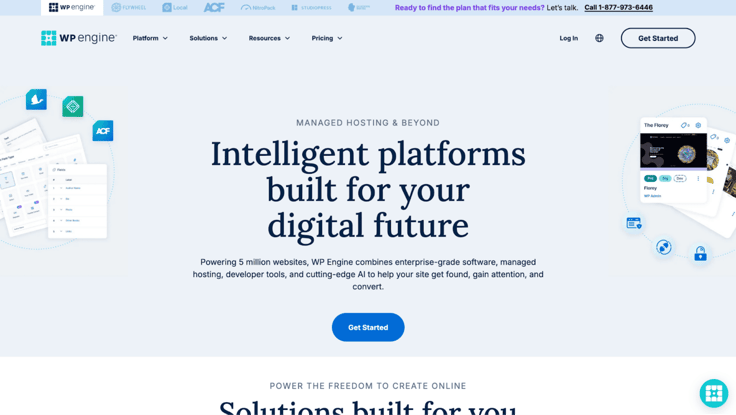
Clicking on Pricing will prompt a drop-down list, where you’ll want to click Managed Hosting Platform. On the lander, I found a side-by-side comparison of WP Engine’s three plans: Essential, Core, and Custom. They were all laid out and easy enough to compare.
This was where it gets a bit tricky. While it may appear that WP Engine only has three plans, WP Engine also has a Build Your Plan option. You can find the toggle for it under the Essential plan. I’ll show you a picture of it below.
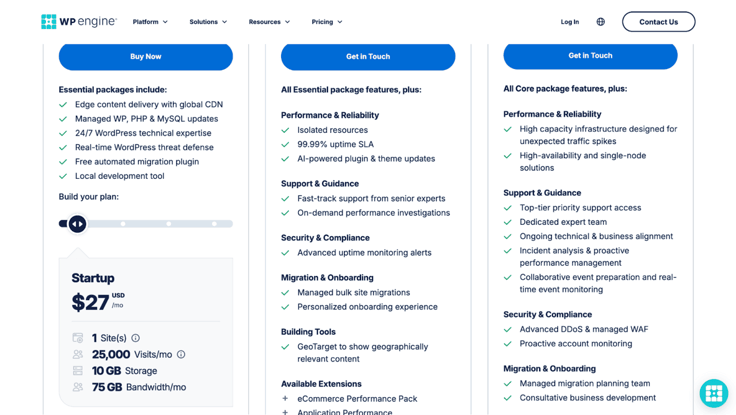
Build Your Plan includes 4 premade plan options: Startup, Professional, Growth, and Scale. The name is a bit misleading, as you’re not actually customizing anything yourself. So while there are technically 3 tiers, Build Your Plan gives you 4 additional plan options under the Essential tier.
The plans had all the same stuff when it comes to essential WordPress features, such as managed updates and 24/7 customer support. The only differences are in price, storage, bandwidth, and the number of sites and visitors you can host. The number of visitors you can host starts at 25,000, which isn’t bad.
As for the other two tiers, Core and Custom, these are for the big-gun enterprise types. Starting at $400 a month, these two tiers cost quite a pretty penny and cater more toward people who need a lot of power and hands-on assistance. For those plans, you’ll have to reach out to the sales team to sign up — that alone shows how serious they are.
For this review, I’ll just be comparing the Build Your Plan options, since they’re the only ones I can access without making a long-term commitment.
Right away, I could see that WP Engine offered premium, advanced features with its plans. These aren’t the typical specs you would see with a budget host like Bluehost or SiteGround (other WordPress-focused hosts). These are plans built with growth and serious care in mind.
Some of the features that stood out to me are:
My main complaint is that WP Engine doesn’t offer a free custom domain. You receive a free subdomain, but that will have “WPEngine” in your URL. So for anyone who wants a custom domain, you’ll have to purchase a domain elsewhere and add it to your WP Engine account later.
If you don’t yet have a domain, we always like to recommend IONOS because you can grab one for just $1.
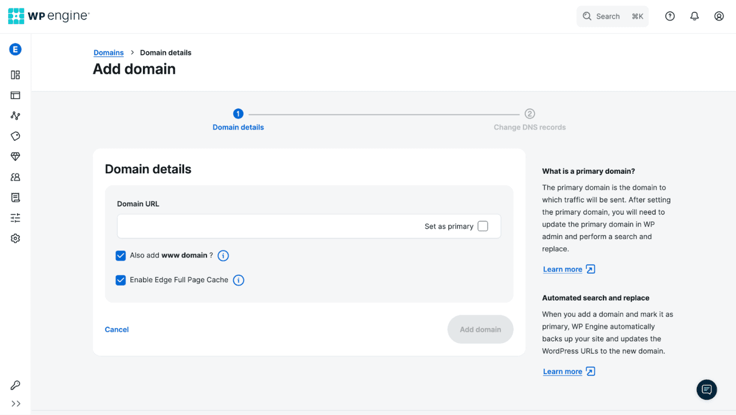
Another missing tidbit was a website builder. As someone who loves to create DIY websites with a little help, I was a bit disappointed. So I would say that’s definitely something to consider if you don’t have basic coding or website-building experience and need that assistance.
WP Engine is definitely not a budget host, as you can see from the [short_code] starting price tag. It definitely prices out beginner WordPress users. But if you’re more of an advanced user, you may see the appeal of a managed platform and won’t mind the price.
After weighing the prices and features, I decided to go with the Startup plan under the Essential tier. It’s the most affordable and has all the features the other plans have — it just has less storage and fewer websites.
Right before I clicked on Buy Now, I noticed that WP Engine also offered add-ons. The three it had listed included automated plugin updates, an extra layer of security with managed WAF, and NitroPack, a site optimizer for speed.
Honestly, they were all appealing, especially if you want to take some tasks off your hands. If I were to choose one, I would recommend the auto plugin updates, so that’ll be one less task to worry about. Plugin updates are an important part of your WordPress site security, and just for an extra $3, those automatic updates are a great deal in my opinion.
Since I’ll be using WP Engine only in the short term, I decided I could do without those features and clicked Buy Now under my plan to sign up. This action took me to checkout. The checkout page showed my total, a box to enter my account information, and a long list of add-ons to choose from (well hello there again).
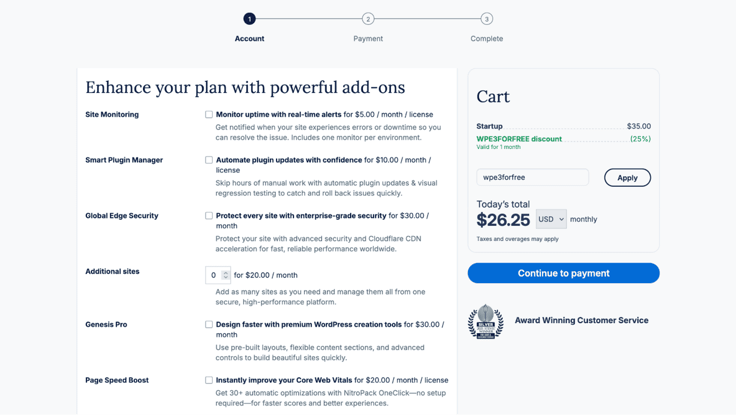
I guess WP Engine really doesn’t want you to miss out on these add-ons. Some of them were new, however.
The optional add-ons included site monitoring, a smart plugin manager, and global edge security, among other things. I decided to skip those (again) and fill out my account information. WP Engine also gave me the option to toggle between an annual or a monthly plan, in case I wanted to change my mind.
Next, I typed in my payment and billing details. Then, I clicked Pay Now. Easy peasy.
I could sense that WP Engine is very serious about its security. Before I could create my login credentials, I had to activate my account through a confirmation email. Then, verify my login with a code after I set my password.
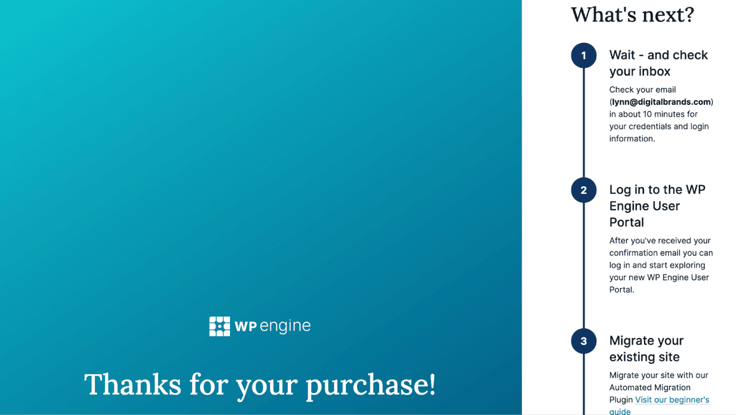
Once I verified my account, I was taken straight to the onboarding process.
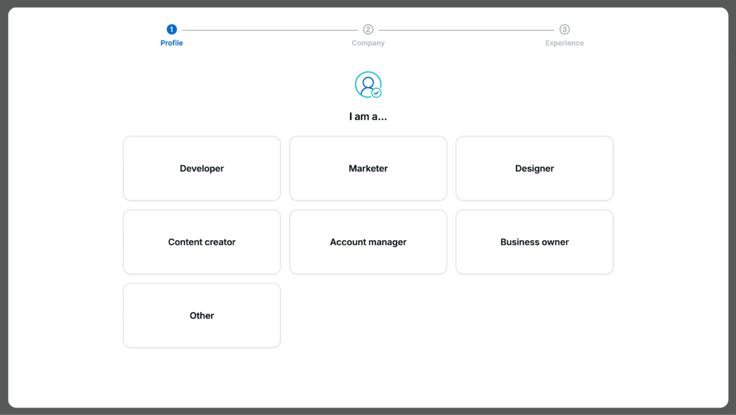
Not too long after I signed up, I logged into my account without issue and answered a few questions about my needs. To create my account profile, WP Engine asked me about my site’s purpose, my job title, and whether I was familiar with WordPress. After completing those details, I was redirected to my account dashboard.
Just so know, WP Engine will also ask you to select a data center location for your account. Choosing wasn’t hard, as WP Engine only had your country of origin as an option. So I just clicked on the United States.
I didn’t have to go searching far and wide to start site building either. WP Engine automatically redirected me to the Sites page of the User Portal. Right in the middle of the dashboard were the options: Build a new site or Migrate a site to WP Engine.
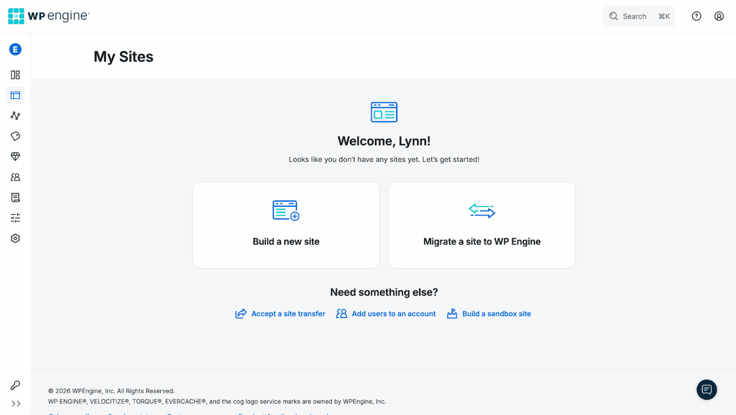
FYI: I’ll walk you through the rest of the User Portal later. But for now, let’s jump into the site-building portion. I don’t have a site to migrate, so I chose to start from scratch.
First, WP Engine asked me a pretty peculiar question: Who will own this site? I’ve tested numerous hosts, and I’ve never had that question before. But this platform is also built for businesses and agencies, so it would make sense for it to ask that at this point.
I clicked I will own it. Then, the setup wizard proceeded to pose these remaining questions:
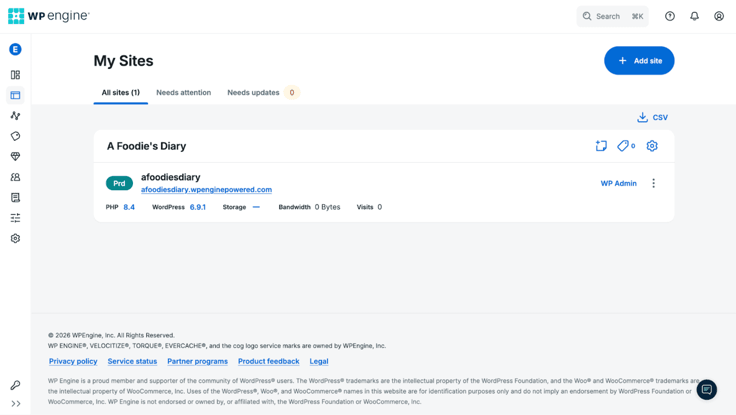
After I answered those questions, WP Engine alerted me that it was setting up my site. I clicked Go to Sites to navigate to where my site was located and clicked on my site’s URL to take a look. The sample site wasn’t much, but that’s as expected. I hadn’t made any theme or design decisions yet, so that’s okay.
This is the part of the review where I really find out what WP Engine has to offer in terms of website-building assistance. Unfortunately, from the looks of it, it’s not much. If you’re a DIY kind of person who likes website builders, this is where you’ll probably start to have some problems with the hosting service.
Like I mentioned earlier, WP Engine doesn’t offer a website builder. So I went into it with that in mind. But I was still expecting something more. Usually, there would be a WordPress setup wizard with themes and templates to pick from, so I could jumpstart the site-building process.
But I was taken straight to the WordPress dashboard without a hint of a guide or a chatbot for help.
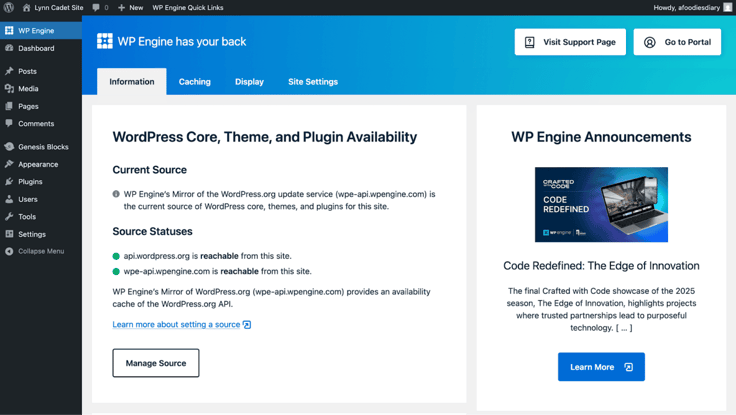
I knew if I wanted something nice, the easy way: I would either have to download a theme builder myself or have someone create a site for me via code.
I guess there is one redeeming quality. WP Engine does integrate a feature called Genesis Blocks to help simplify using the WordPress site editor. It’s essentially another set of block patterns that extends the functionality you get with the Classic or Gutenberg editor’s block library.
This is how it looks within the Classic site editor:
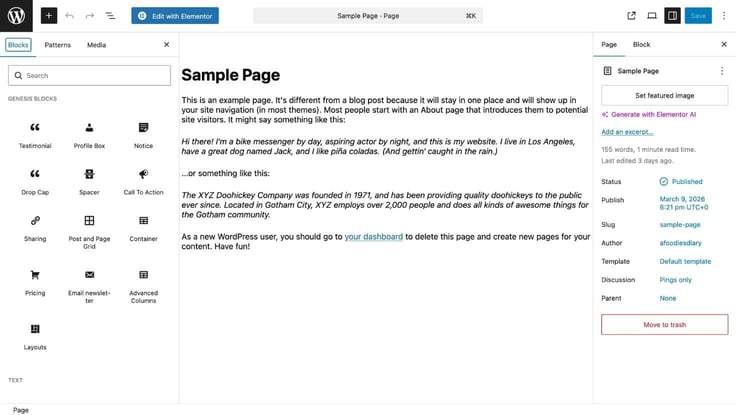
The Genesis Blocks do have some nifty capabilities, including blocks to add testimonials, CTAs, and email newsletter buttons. So I did appreciate that. But it still lacks the ease of use needed to effectively guide most novice users. Uhh, so much for being a bright light, huh?
Besides the Genesis Blocks, WP Engine also offers a StudioPress theme library. It’s a collection of 10 free themes you can find under the Products section in its User Portal. You can choose one (or multiple) and then quick install it, so you can use it on WordPress.
These are just themes, so you won’t get any templates to give your webpages a layout. So you’ll still have to customize and add image and content blocks yourself. The themes just provide the base design and styles (colors and fonts) for your site.
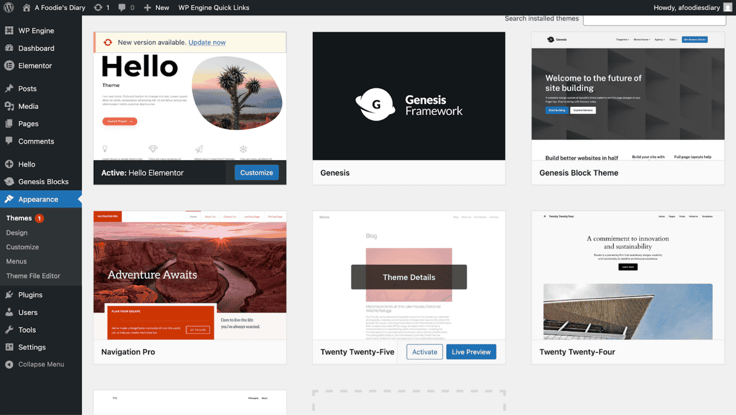
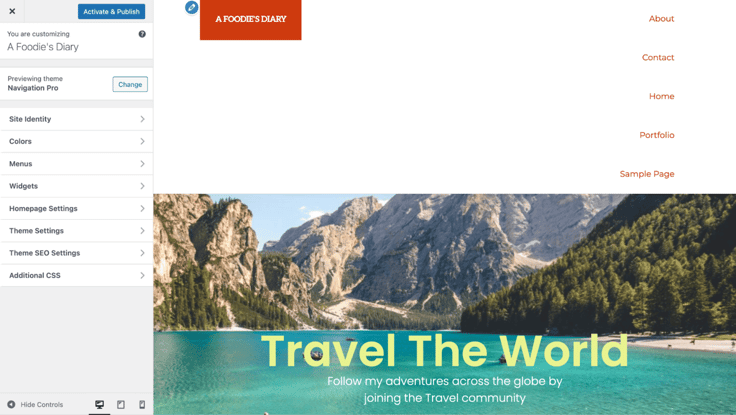
If you choose to install one of the StudioPress themes, you can find it under the Appearance section of your WordPress dashboard. For example, I installed the Navigation Pro theme from the User Portal, and you can see it here in WordPress (the orange one).
Since I wasn’t going to get help the traditional way, I decided to go to the Plugins section of my WordPress dashboard to find and install a website builder plugin. I chose one of the more popular WordPress builders, Elementor, to get started. Whether you know how to use WordPress or not, installing and building with Elementor is easy enough.
Just know that after you download it, Elementor will ask you to pay a premium for its more advanced themes. Since I’m just making a test site, I chose to use one of its free templates, which are only about 10 in total.
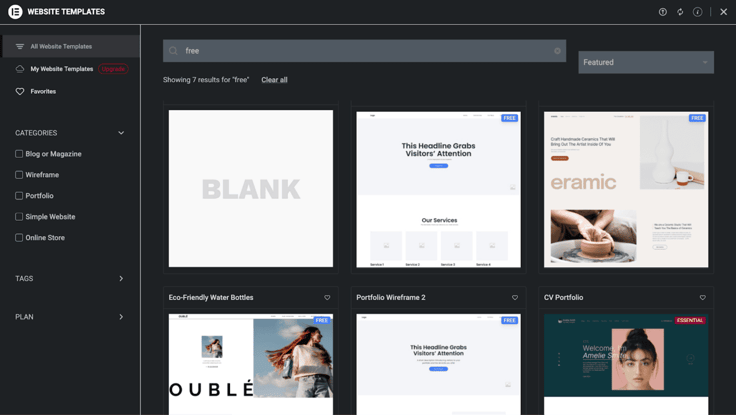
I won’t document much of the design process here, since Elementor isn’t a part of WP Engine’s ecosystem. I kept it simple and made a single-page website. After I added a few personalized touches, my site was ready to go.
Besides the Genesis Blocks and the StudioPress themes, the only other thing WP Engine offers on WordPress is its own unique dashboard. The layout isn’t the most beginner-friendly or even extensive, but these are the features or tasks you can access from it:
I have to say I wish the dashboard were a bit more inviting to use like I’ve seen with other hosts. It was super on the technical side, and people without that background may find it confusing. WP Engine could have made it a bit more accessible.
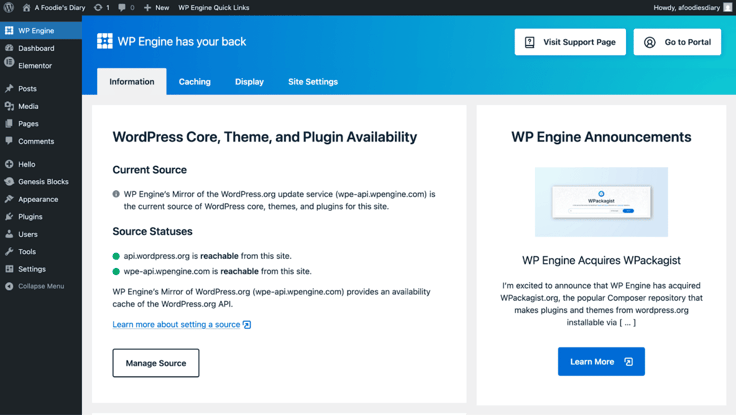
But at the end of the day, you get WordPress preinstalled for you, and that’s a win for any WordPress user. You also get software autoupdates, so you can spend less time on maintaining WordPress and more time on just about… anything else.
To be truthful, I was expecting more from WP Engine for the high price tag, especially in the department of user-friendly tools. I wish it had easy-to-use marketing tools, more design options, and other capabilities that could make life easier for the everyday user.
I do love that the server and hosting were managed. But the $27.00 a month is pricier than most hosts — those that can provide even more for your dollar, including WordPress-tailored site builders.
WP Engine’s user portal is your hosting homebase. I could find everything about my site, WordPress software, and more there.
I like how the interface laid it all out for me. It was easy to navigate and accessible to anyone, no matter your level of tech background.
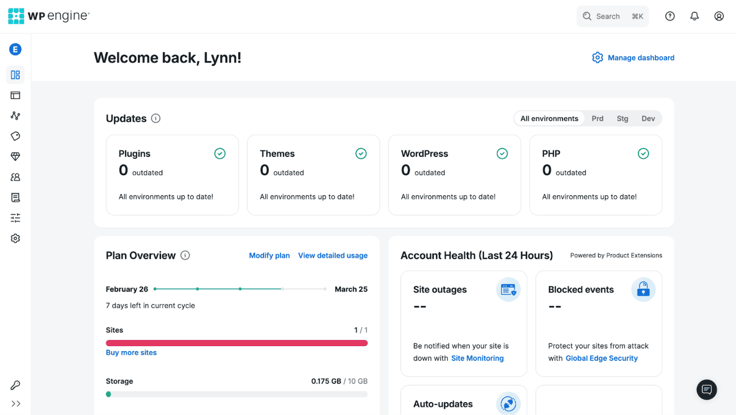
The sidebar included a navigation menu of these sections:
Honestly, the User Portal was one of my favorite parts about using WP Engine. All I had to do was sign in to my account and I had all my site details at my fingertips. I didn’t have to jump through hoops or scroll through several tabs to get an overview of my site’s health. I could see it all on my home dashboard.
Your sites or environments also have distinct management dashboards. On those dashboards, you can find options for developing through Git and other technical aspects. Here is a screenshot of the Backups page for my A Foodie’s Diary website:
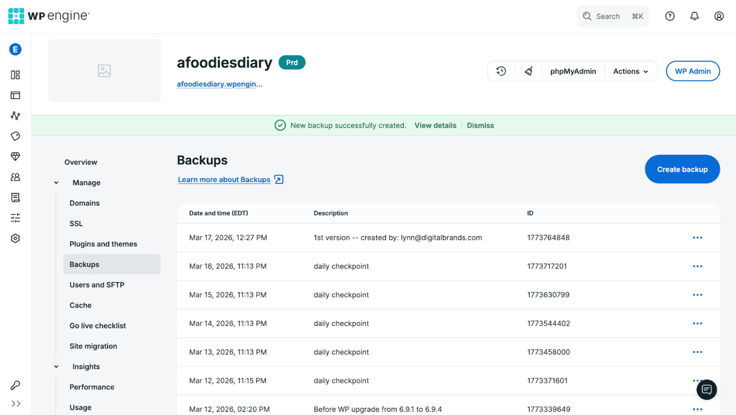
So this was definitely a highlight for me, especially as a person who doesn’t fit WP Engine’s primary audience profile.
Ok, I’ll admit that I was pumped to see how WP Engine would perform speed-wise. It had all the makings of a web host that would perform well in terms of speed and performance, including a global CDN, caching, and speed optimization. And for the price, I was expecting a solid first impression.
So I decided to run my site through GTmetrix for preliminary speed testing. This speed test is mostly to determine a baseline rather than anything else, since my site isn’t being measured while having real traffic or visitors. Let’s give it a go, why don’t we?
Drumroll, please!
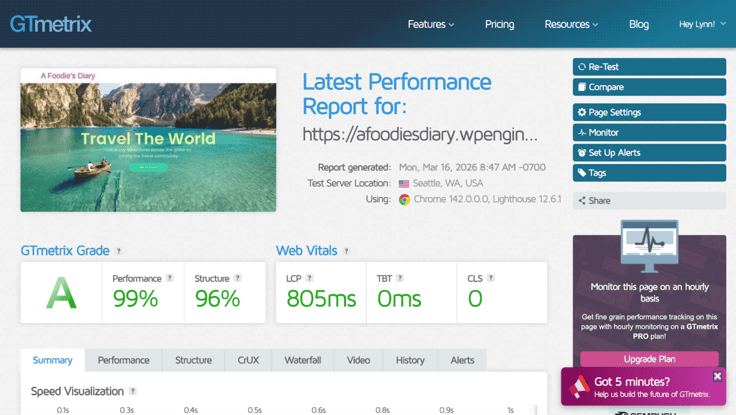
Thankfully, WP Engine didn’t let me down. It had one of the best scores I’ve seen while doing reviews, and frankly, as it should (cough cough, the price). It seems all the work WP Engine put into building a performant platform paid off. And performance definitely wasn’t a complaint I ever came across on Reddit about it.
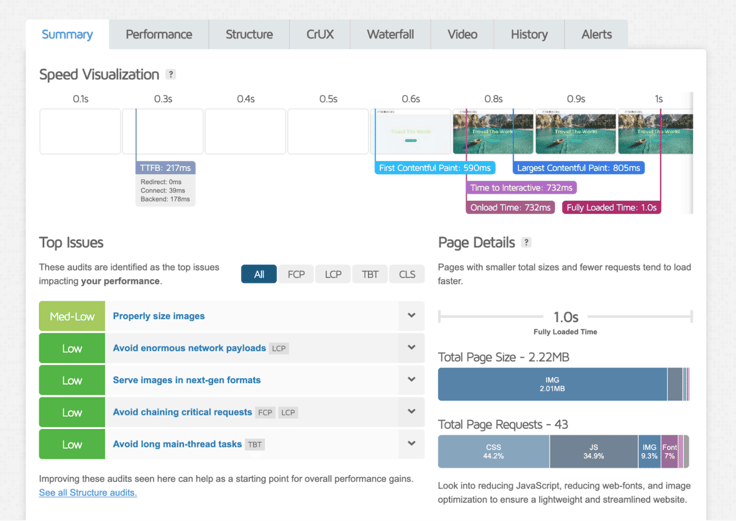
Another plus: I usually run into issues when using large Hero images or not optimizing images for speed on my websites. But with WP Engine, that wasn’t a problem. I could just add images without worry. A site with more content may have a different experience, but for this first test, I can confidently say I was impressed.
Admittedly, I didn’t know what to expect when signing up for the Startup plan. The high price tag and the absence of a website builder left me a little wary.
Of course, there were several things I appreciated about the platform, including preinstalled WordPress, daily backups, fast page speeds, and a smooth onboarding process. Its user portal was also a standout, providing all the information I needed about my site and its performance.
But I couldn’t overlook some glaring issues I had with the service from a beginner or personal website owner standpoint.
If it’s not already painfully obvious, I’ll state it: WP Engine is built for a very specific audience. And I’m not just referring to WordPress users. It caters specifically to WordPress experts and agencies, those who know the ins and outs of the platform and prefer a business-forward platform.
Businesses can use WP Engine’s enterprise-level solutions to create and manage multiple client sites and host them on top-tier infrastructure. Since it’s also a managed platform, you don’t have to worry about updates or server issues.
So the choice comes down to your needs, not whether WP Engine is good or bad.
“WP Engine is built for a very specific audience. And I’m not just referring to WordPress users. It caters specifically to WordPress experts and agencies, those who know the ins and outs of the platform and prefer a business-forward platform.”
If you’re a beginner, I wouldn’t recommend WP Engine because it’s probably not worth the cost. Alternatives, such as SiteGround and Hostinger, offer greater flexibility, WordPress-tailored features, and simple site-building tools for an accessible price. I recommend turning to them if you have a smaller budget and need more user-friendly tools.
WP Engine is supposedly really good at customer support. Not even supposedly. It’s actually a 14-time Stevie Award winner for customer service. I’m not entirely familiar with those awards, but after a quick Google search, I found out that the Stevie Awards are not only legit… It’s prestigious. Now that’s impressive.
So, given this “prestige,” I was excited to try out their customer service. While exploring its landing pages, naturally, a few questions came to mind about its platform. So I used the little blue box with the WP Engine logo at the bottom of the screen to connect with its AI chatbot.
The chatbot started off the conversation with some pleasantries. Then I asked the chatbot to confirm whether WP Engine only offers WordPress hosting. It answered my question quickly, then sent me to a sales rep for more questions.
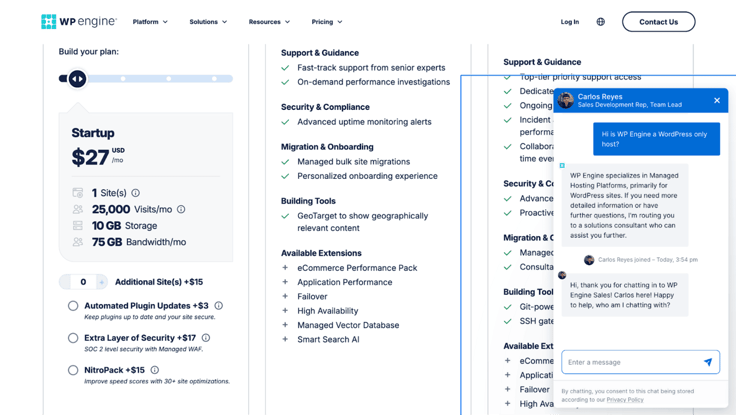
In two seconds, the AI had already transferred me to a real human. That had to be a record. Although I didn’t ask to be transferred, I appreciate that WP Engine prioritizes human interactions and made that switch for me.
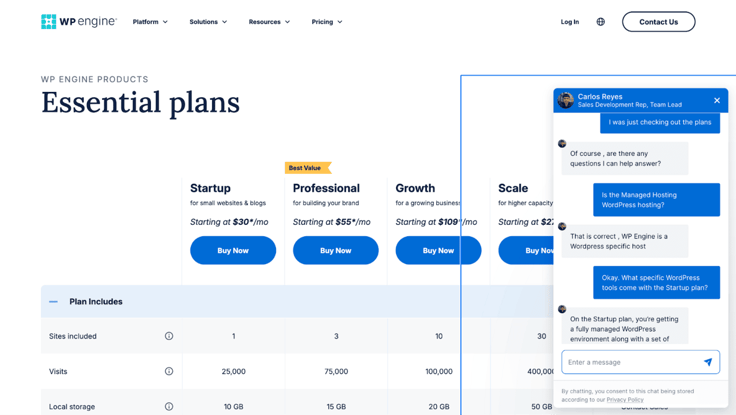
I asked the rep, Carlos, a few more questions about the plans, including what WordPress features I get with the Startup plan. He was friendly and responsive, and answered my questions with speed. It was a solid interaction and first impression.
But I still wanted to see how its customer support performed after you buy a plan. So I contacted them again. In short, I had made a backup of my site but wanted guidance on how to restore that version to my site. So this was the perfect time to see if the WP Engine team could help me with something more technical.
Since I bought the Startup plan, I only get live chat as support, which is fine for me. But if you can’t live without phone support, you’ll have to pay a little extra for one of the higher Build Your Plan options.
The live chat box was located at the bottom of every page across the User Portal. Willa P. is the name of the Support Concierge, which is an AI chatbot. Getting my question across was easy, and Willa understood what I needed instantly.
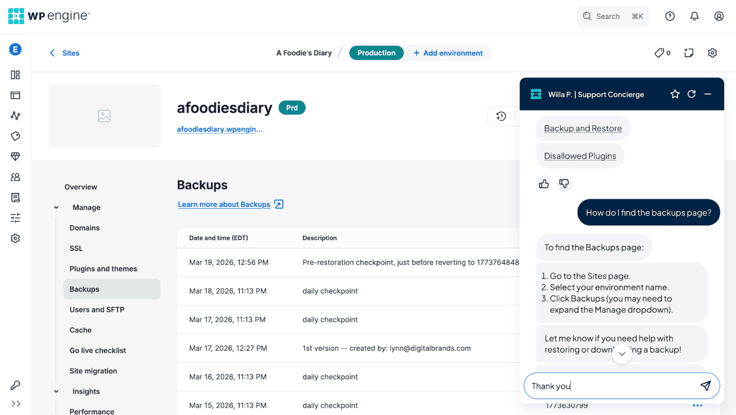
I was able to get my problem resolved quickly. I’m usually skeptical of AI bots. They often have trouble answering questions, but the WP Engine team did a great job training theirs. It was a seamless fit for their stellar support. A rare W for AI!
While it’s clear WP Engine isn’t for everyone, that doesn’t mean it can’t be really good for a specific user type. As I assessed while reading reviews on the r/webhosting subreddit, WP Engine is the ideal tool for agencies and businesses, offering hands-on team support, bulk site maintenance, and enterprise-tailored solutions.
But like the Redditors, I agree WP Engine isn’t the best choice for beginners.
As an individual user who’s not technically inclined like me, WP Engine might not make as much sense. Yes, it has its upsides that virtually everyone can benefit from, but there are some downsides that some people may not be able to overlook.
I’ll list both positives and negatives below, so you can make your choice with a clear mind.
WP Engine has a lot to offer. You just have to weigh whether it’s worth the cost. The high price and lack of ease of use may be a dealbreaker if you’re a beginner or just looking to create a personal website. Otherwise, it gives you the performance and customer support you need to manage and create your sites.
Overall, I think WP Engine is a fairly useful WordPress platform. I love that it’s geared to WordPress users, even though it may require some prior CMS knowledge to navigate. The automatic updates, local development tools, and WordPress threat defense were all highlights.
From an everyday user perspective, I would say WP Engine is just okay. It gives you the managed hosting and features to start, but the price and technical know-how required could stand as obstacles for some.
But agencies or developers managing multiple WordPress sites can find a lot of value in the platform. From high performance to industry-level support, you’ll find much of what you need to run and manage many sites on WP Engine.
So, again, it really comes down to what you need.

HostingAdvice.com is a free online resource that offers valuable content and comparison services to users. To keep this resource 100% free for users, we receive advertising compensation from the hosts listed on this page. Along with key review factors, this compensation may impact how and where hosts appear on the page (including, for example, the order in which they appear). HostingAdvice.com does not include listings for all web hosts.
Our site is committed to publishing independent, accurate content guided by strict editorial guidelines. Before articles and reviews are published on our site, they undergo a thorough review process performed by a team of independent editors and subject-matter experts to ensure the content’s accuracy, timeliness, and impartiality. Our editorial team is separate and independent of our site’s advertisers, and the opinions they express on our site are their own. To read more about our team members and their editorial backgrounds, please visit our site’s About page.


