
Guides

Studies 
Studies
Our studies cover a range of trending topics and deliver original, reliable data you can't get anywhere else on the web.
Wix proves to be more than just a website building giant. It offers best-in-class web technology, business solutions, and AI capabilities, but site performance and hosting resources may be where it falls short.

By: Lynn Cadet

Editor: Lillian Castro

Reviewer: Christian de Looper
Disclosure: When you sign up through links on our site, we often earn referral fees from partners. For more information, see our ad disclosure and review policy.
Whenever I hear the name “Wix,” the first thing that comes to mind is website building. That’s probably because the Wix brand name is quite literally synonymous with user-friendly website design and development.
It’s clear from the moment you land on Wix’s homepage that site building is its bread and butter. But just how good is its platform truly?
I’m not the one to leave anyone hanging. So I signed up with Wix to find out the answer. Below, I’ll cover everything from its design features to site performance and eCommerce resources.
And here’s the kicker: I didn’t have to pay a dime to get started. Read on to learn more about Wix’s free hosting and premium plans.
Wix does not disappoint with its website-building capabilities. Its website builder beats the competition by leaps and bounds with advanced and comprehensive tools and designs.
Wix offers a wealth of business solutions and tools under one roof. You can build a complete online presence, equipped with marketing, social media campaigns, eCommerce, and more, all on its platform.
I liked that I could access its website builder for free, but the very limited storage space made the offer less appealing. Its next cheapest plan costs $17 and doesn’t have enough hosting resources or room for growth to justify the price.
I started my Wix journey by testing out its free website builder, which happens to come with free hosting. Unlike other web hosting companies, where you have to pay for a website builder plan, Wix offers free hosting with its website-building service.
I must admit, whenever I hear the word “free,” I get a little cautious. Free things don’t usually offer great quality, and there’s always a catch. But let’s see if Wix can prove me wrong.
Below, I’ll be going through the sign-up process and how I built my site with Wix. Just a heads up, I’ll be splitting up the “Building My Site” section by the primary features the Wix builder offers, so you can follow along piece by piece.
Starting on its homepage, I could clearly see that Wix offers free services right off the bat. The company is completely transparent with its advertising, showing that it’s totally possible to start for free with no strings attached.
Right under the “Get Started” button, it reads “Start for free. No credit card required.”
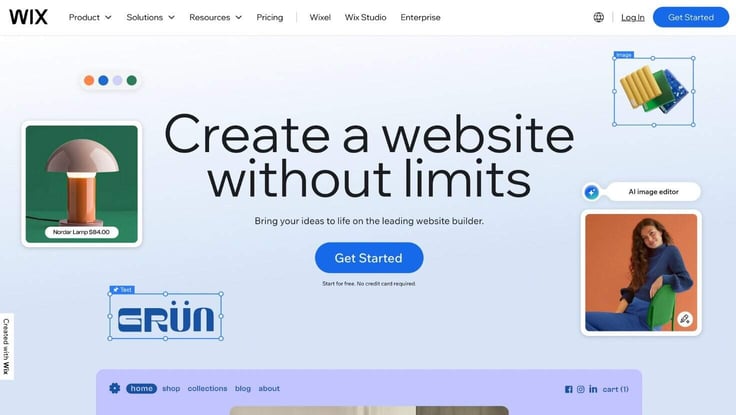
The second part of that statement, “No credit card required,” is what hooked me. You know why? Because it shows that they mean business when they say ‘free.’ So I had no reservations about hidden fees popping up along the way.
Unfortunately, this experience isn’t always the norm with other free hosts. I’ve had my fair share of run-ins with hosts that offer free hosting or even free trials, ask for credit card credentials, and then hit you with hidden fees. So this was a good sign of trust for Wix.
When I clicked “Get Started,” I was prompted to sign up for a Wix account. At this point, most web hosts send me straight to the domain registration page or the shopping cart. But since Wix offers free hosting, it bypasses all of that and sends me straight to the business.
I can’t lie, a part of me was still expecting some kind of upselling or shopping cart to appear out of thin air, but thankfully, nothing did.
After creating my login credentials, which included an email address and a password, I was taken to a page that looked like this:
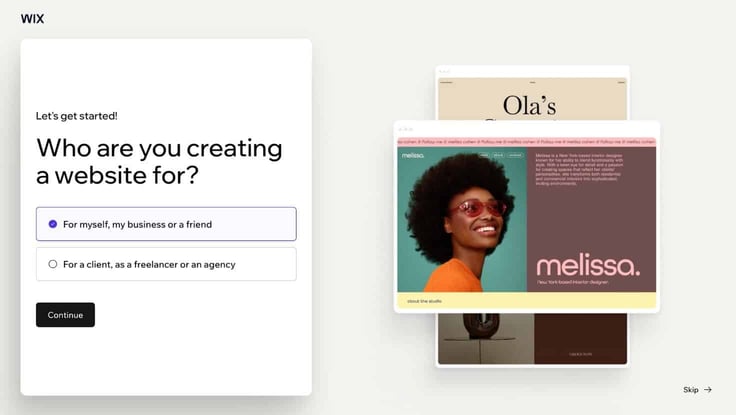
I chose the first option, as making a website for myself is the purpose of this review. But I guess Wix wanted to double confirm because in the next step, it asked whether I wanted to use Wix or Wix Studio to build my site. Note: Wix Studio is the agency- and freelancer-tailored branch of its platform.
I clicked on “Continue with Wix” and kept it moving. Next, it asked if I wanted to bring AI into the fold, which I quickly responded to with a yes. Finally, I got to the part where I could start talking about my site needs.
I told the chatbot that I wanted to make a blog about interior design and advice. When asked the name of the blog, I provided a makeshift name, “Home is Where the Heart Is.” I’ll list all the questions the AI chatbot asked below:
I don’t want to fail to mention that Wix allows you to skip questions or end the chat at any time during this questionnaire, showing its flexibility. You can also ask for help while answering your questions, if you’re drawing a blank, by clicking on “Help me answer.” I found that to be super helpful and convenient, and actually used it for the next question.
The chatbot asked me a more personalized question: What sets your blog apart from other interior design blogs? I needed a little help answering that one, so I clicked “Help me answer.”
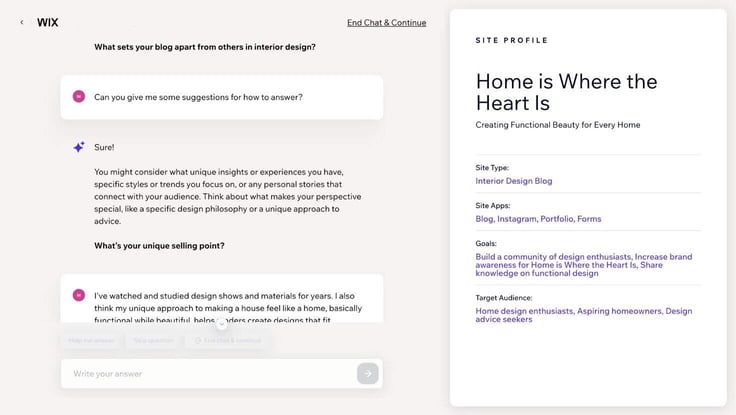
Instead of just churning out some generic answer, the chatbot guided me toward making my own answer by breaking down the question. What I liked about this process was that it allowed me to reflect on the question and create an answer that was unique to me and my vision.
Once I answered that question, the questionnaire ended. If you’ve got a good grasp on your vision, it won’t take you long to finish the questionnaire.
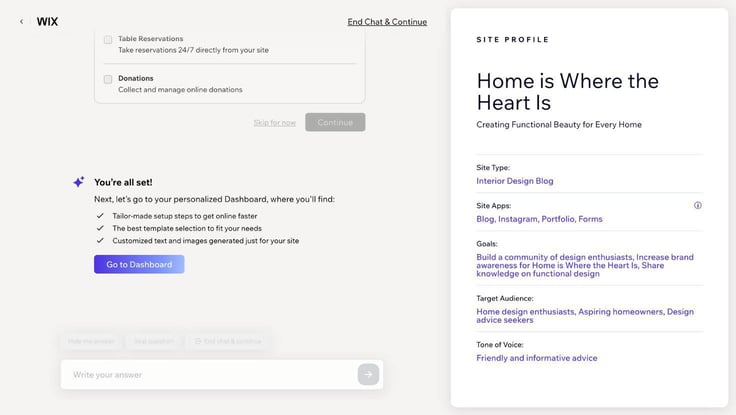
Wix then proceeded to recommend some apps to download to boost the functionality of my site. I liked the preselection it made for me, which included a blog and forms app, so I clicked “Continue.” Just like that, Wix said I was all set. Time to go to my dashboard!
After completing the questionnaire, I was prompted to move on to the personalized dashboard Wix promised me at the start of the signup process. Unfortunately, before I could start exploring, I got hit with my first upselling advertisement.

The upselling was rather conservative, offering me a 50% discount on premium plans. If I were looking to purchase a plan at the time, I would actually consider it because it was a decent deal. So I thought it quite reasonable. But I decided to skip the premium plan for now.
I had high hopes for the dashboard, as I thoroughly enjoyed completing the signup process and questionnaire. So if the signup was that seamless and intuitive, I figured the dashboard would be the same.
Here is a quick snapshot of the dashboard:
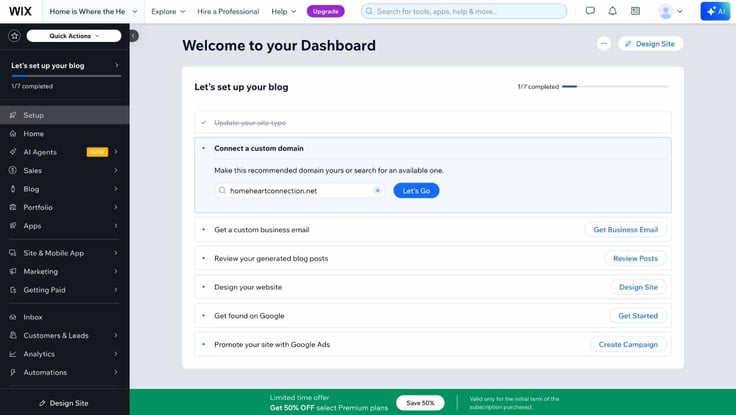
Looks pretty clean, huh? I love how Wix provided the next steps right off the bat in a super organized format. The checklist made it simple to follow along and track progress, even for beginners. Overall, the dashboard helped make the website-building journey appear less intimidating and more inviting.
As I’m only testing its free hosting for now, I decided to skip all steps that require additional payments, including setting up the custom domain and business email. Since “Review Posts” was the next step on the checklist, I clicked on that button to see what it offered.
The “Review Posts” button took me to the blog posts section of the dashboard. Interestingly, Wix had already generated and illustrated a few blog posts on my behalf.
Curious to see what content it generated, I clicked on the first post titled “Transform Your Space: Personalized Design Tips.” I knew design was where Wix shone the brightest. But I didn’t think that included content creation and design.
The blog post was spot-on, matching my vision completely. It shared tips and strategies for creating a home that was functional and beautiful while matching the owner’s personality — the exact premise I gave the Wix chatbot earlier during the signup process.
It was great to see a website builder actually stick to the prompt you gave them. I’ve seen countless times when an AI website builder just doesn’t meet my standards or care to create something based on my responses. So I loved how Wix catered specifically to my needs, even with its blog posts.
While the content and images were a bit lean in some places, it was a really good starting point for a solid blog post. I can confidently say its AI content creation could totally help a blogger save time while wordsmithing to focus on other parts of their business.
Going back to the Posts section, I could see it split up into five tabs: Published, Drafts, Pending Review, Scheduled, and Trash. While Wix is no WordPress in terms of content management prowess, I love how organized and fleshed out its content system is.
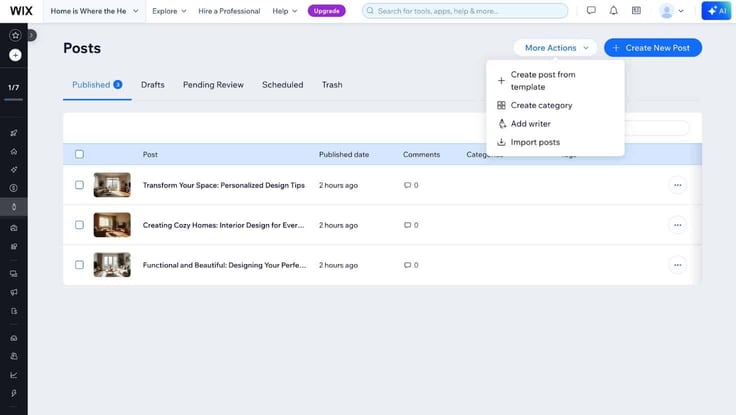
It also had a button at the top named “More Actions” which had a drop-down list with options for creating subject categories, adding external writers/collaborators, importing existing posts, and creating blog posts from templates.
Next to that button was “Create a new post.” So obviously, you know what I’m going to test out next. Navigating to the new post page, the first thing I noticed was that the blog post interface was comprehensive and intuitive. On the sidebar, I could find tabs for:
I like that Wix gave me several options for creating with AI. I could either use AI as a stand-in collaborator to create outlines or images, or have it generate entire posts. I tested out all the AI features, including the image creator, headline maker, and grammar checker.
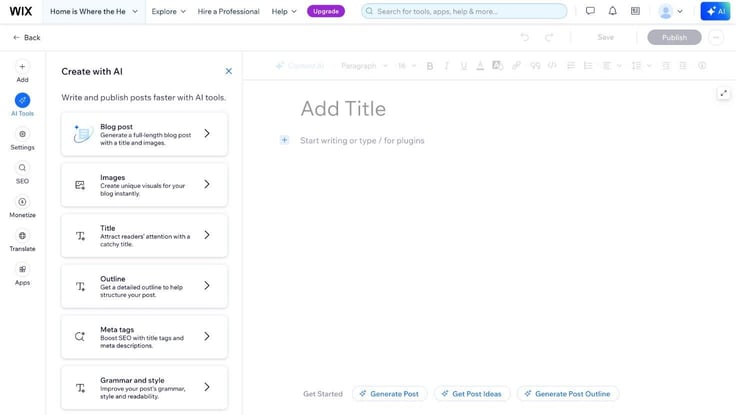
While there were some kinks here and there, overall, they worked pretty seamlessly. The AI images came out realistically, and the headlines, while a bit generic, were usable.
The only issue I had was with the grammar checker. I thought it would be more like Grammarly or typical grammar checkers, but it was more of a ChatGPT-like experience, where I had to copy and paste my content into the AI assistant to get a response.
Wix offers two ways to create blog posts: from scratch or from a template. By clicking on “Create a new post,” you would be choosing the start-from-scratch method. Since we just covered how to do the DIY method, let’s take a look at the template method.
To find where to create from a template, I went back to the Posts section of the Wix dashboard, clicked the “More Actions” button, then “Create post from template.”
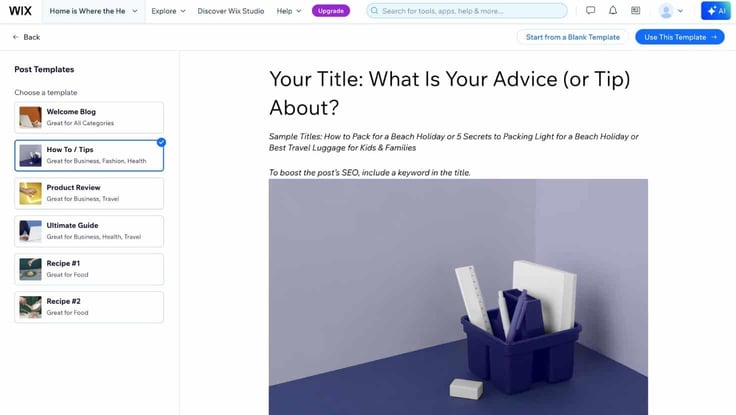
The sample templates were quite impressive in my opinion. Wix had several templates tailored to specific categories or content types, including:
These templates weren’t just premade designs; they were also outlines. Wix did a fantastic job filling them out with headings, subheadings, sample titles, and writing tips for each section. So if writing isn’t your strong suit or you just don’t know where to start, Wix takes the pressure off by giving you a well-designed foundation that also serves as a content guide.
Wix may be known for its design capabilities, but its blogging features stood out for me. The blogging dashboard had the works. It allowed room for writing, collaboration, illustration, and review, making it ideally suited for managing a content-forward website.
Now that I was done with the blog posts, I went back to my account dashboard to see what was next on my checklist. Navigating to the setup tab, the checklist showed design as the next step. I was excited to say the least. I could finally see what Wix was all about.
To jump-start the web-building process, I could take one of two routes: customize a template or generate a design with AI. I chose to generate with AI, figuring it would help me save some time. Once I clicked on “Generate with AI,” it took about a minute for the AI engine to produce the site.
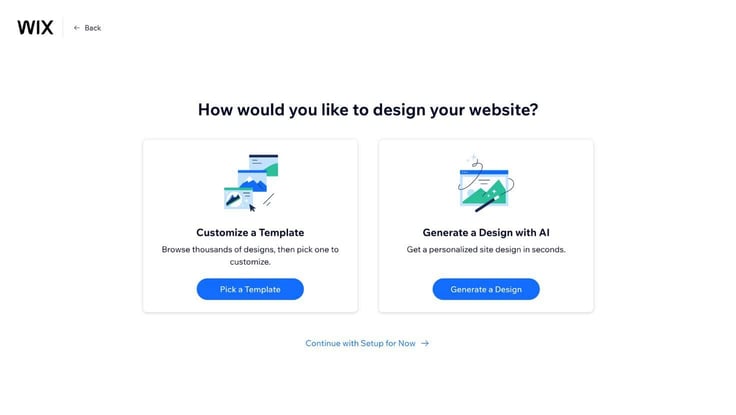
The design was sleek and home decor-forward. But it was still missing something. From there, I could either regenerate the design, tweak it, or continue with setup. I decided to regenerate the design to see if I could get a closer match to my vision.
Thankfully, Wix saved the first iteration so I could compare the two versions. As a person who can be incredibly indecisive, I appreciated that capability, though it was a bit buggy (there was some lag when switching between the two versions).
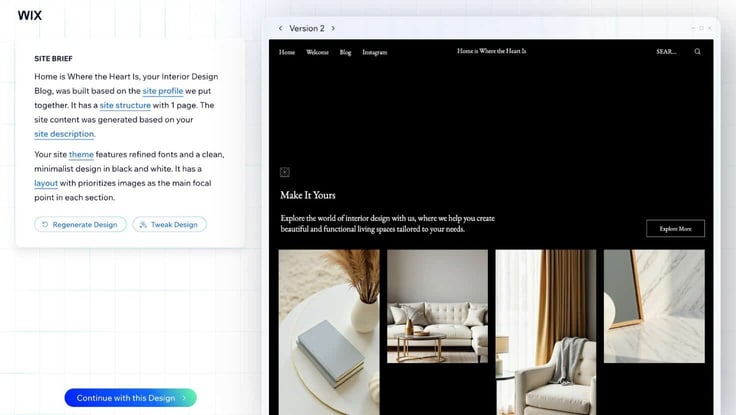
While it was clear it needed some edits, I ended up preferring the second design more. So I chose to continue with the design. Now it was time to move on to the editor. It took about three minutes for the editor to load, and it seemed the site was having a hard time loading everything.
I had to exit and re-enter the editor to stop the lag, which significantly improved navigation. This lagging problem possibly could have been my computer’s fault, but I didn’t have any issues leading up to this part.
Although the design was modern and aesthetically pleasing, I thought it was a little too dark for my taste. So the first thing I did was find where I could change the theme coloring.
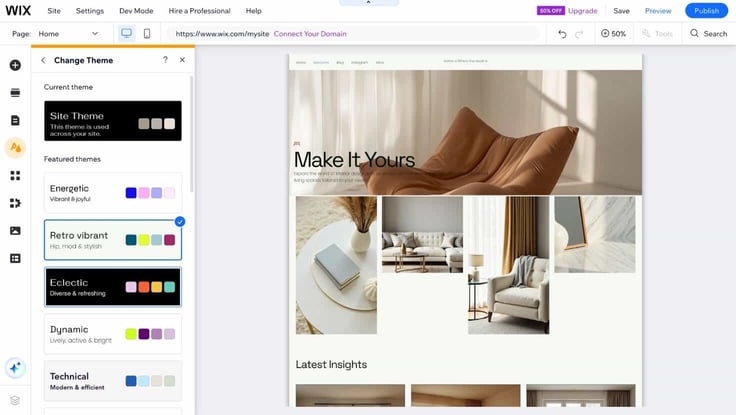
I clicked the site design tab in the sidebar, then clicked “Change Theme.” This action brought me to a list of different themes with various combinations of colors and text fonts. I chose the retro vibrant theme, which brightened everything up with a cream tinge and changed the font, and kept it moving.
Side note: If you like your current theme but just want to change the colors, Wix also allows you to change colors through the Color theme section of its site design tab.
Wix’s editor is a true drag-and-drop builder by definition. Unlike other website builders I have tested in the past, Wix allows me to drag and add sections at will. I could also edit everything on one webpage without having to load a new page.
Wix’s site editor was simply one of the most advanced yet easy-to-use editors I have come across. Because it was so intuitive, though it looked complex, I was able to learn how to use it rather quickly.
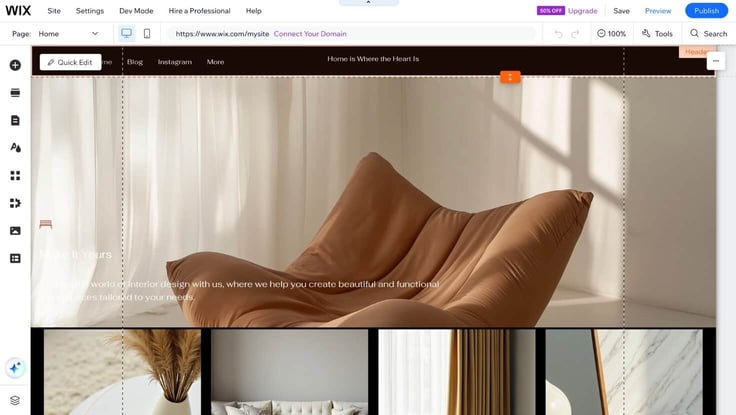
I could change image layouts with a single click, customize headers with its quick-edit feature, and so much more. I didn’t even need to use the sidebar constantly. I could easily customize my website to my liking with its quick edit tools. And if you right-click on an item, you get another extensive list of actions you could use to design.
Unlike WordPress, I didn’t have to leave the page to access and design other webpages for my websites. If I needed to make changes to the layout of my blog, for instance, I could just click on “Blog” at the top menu and find the blog webpage right away — same with my portfolio webpage.
Adding Images
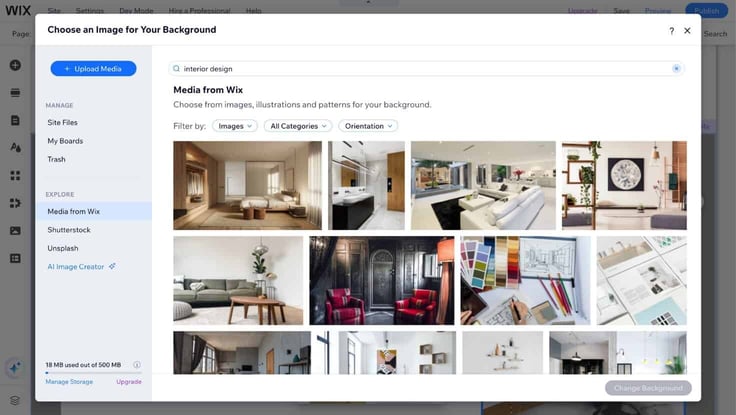
Wix also had integrations with Shutterstock and Unsplash to easily add images. To switch out images, all I had to do was click the image, then change the background, which led me to Wix’s media manager. There, I could choose to select images from Wix’s in-house images, Shutterstock, or the Unsplash gallery.
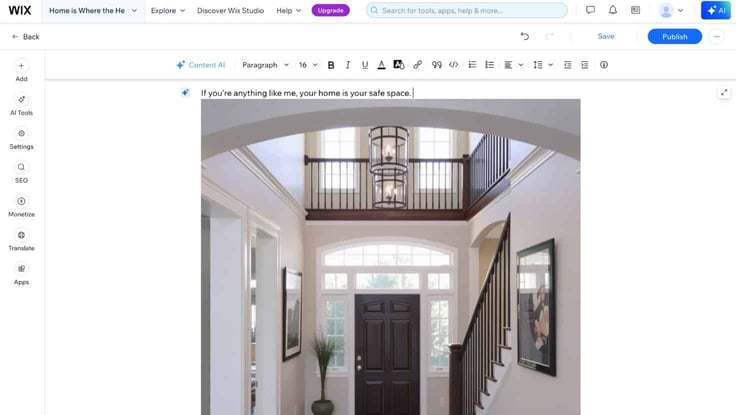
Disclaimer: You have to pay for Shutterstock images ($2.99 a piece). But Unsplash and Wix had more than enough quality images to choose from for free.
And of course, there was the option to use its AI image generator. Wix also has a built-in Photo Studio and Video Maker for editing and designing images and videos.
I created a table to compare Wix with another DIY competitor. While WordPress isn’t primarily a website builder like Wix, it shares a lot of similarities with Wix and serves as a channel for DIYers to create sites.
| WordPress | Wix | |
|---|---|---|
| Design | More user-dependent | More intuitive |
| Content | More flexibility, structure, and functionality | Very user-friendly, less functionality |
| Images | External sourcing | In-house sourcing |
I think they both have their highlights. WordPress is cheaper and offers great customizability, but it also takes a lot more hands-on effort and time. On the other hand, Wix is simple and offers you a website in minutes, but you must also pay for that ease of use.
Selecting Apps
Wix also owns an extensive app library. Its marketplace offers a wide range of tools and solutions you need for a website. Whether you have an online business or a personal blog, you can find a wealth of applications to help you along your web journey.
Some standouts within the market were:
As you could see from the list above, Wix doesn’t just have some small, underground apps — it also has heavy hitters from major brands, like Snapchat and QuickBooks. Most of these apps were either free or included free trials. And I could easily add them to my site if needed.
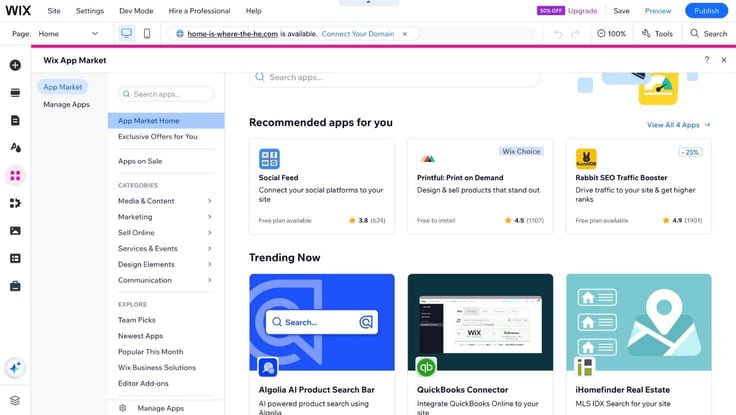
To add apps, I clicked “Add apps” in the sidebar, then chose the app I wanted, which was the Comments app. From there, I clicked on:
While I enjoyed the site design portion, I thought Wix could have been a bit more detail-oriented during this part of the process, however. The high attention to detail I loved during the onboarding and blogging portions sort of disappeared during the AI site-generation phase.
Don’t get me wrong. The site was stunning, and I was able to make it my own through the site editor quite easily. But I was expecting some more from the AI engine, like questions about tone and design before the AI engine got to work.
The loading during this part wasn’t the best either. Before the website design, I had no issues with the Wix site or dashboard. But when it was time to launch the site editor, the site had some trouble loading.
This is a screencast of my site after all my edits:
All in all, I enjoyed using Wix’s drag-and-drop builder, and the final product came out beautifully, though there were a few bumps along the way.
While Wix’s free plan doesn’t have a ton of business tools, its editor does have a My Business section on its sidebar. From there, I could manage and create blog posts, add and track creative projects in Wix Portfolio, manage and display my Instagram feed, and manage apps, such as Wix Bookings.
Here are a few other examples of business tools you can manage from My Business:
Each section under this tab was pretty thorough and offered shortcuts to the Wix dashboard. If you’re running a business, this tab will be super important for your services.
I won’t be going too deep with my website development. But if you want to go further with your customizations and configurations, Wix allows you to in Velo Dev Mode.
In this mode, you can create and build professional web applications by:
To turn on development mode, I went to the top bar and clicked “Dev Mode.” After that, it took Wix a few seconds to reload its editor to include the codebase. And just like that, I could start adding code to my website.
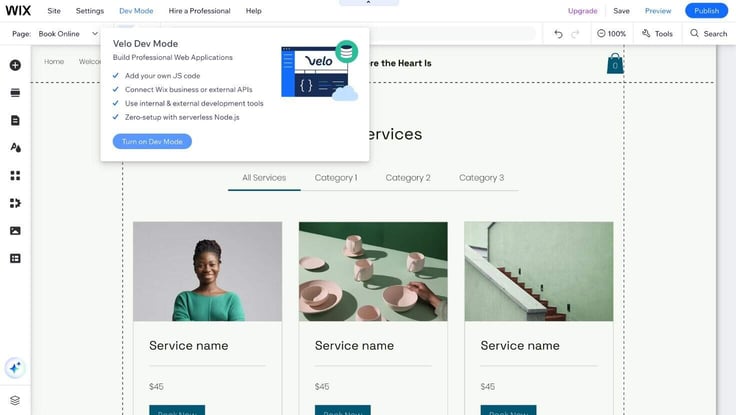
The interface was pretty nifty. I could easily find the developer console at the bottom to add JavaScript or HTML, and Velo offered a getting-started kit for any questions.
I could also run and test my code in Preview mode before going live if I wanted to. All I had to do was input my code and click on the “Run” button at the top of the console. What was even better was that all my site’s webpages were accessible on the sidebar, so I could seamlessly switch between webpages to add code.
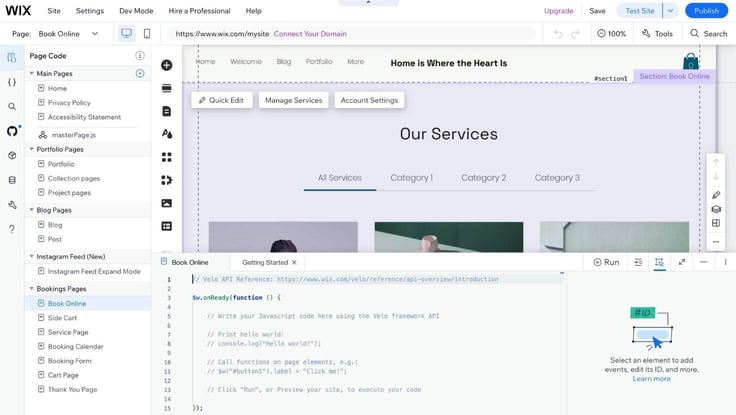
I also can’t forget to mention the tracking tools. Whether you need logging, error management, or code monitoring, Wix has you covered on both sides of the pipeline. You can find all of these resources under the “Developer Tools” category in your account dashboard.
From GitHub access to web modules and databases, Wix does a pretty comprehensive job at accommodating coders’ needs with its Dev Mode offering.
Wix also has a content management system a la WordPress, which you can also find in the site editor. There’s no need to navigate away for anything, which is a major highlight in my opinion.
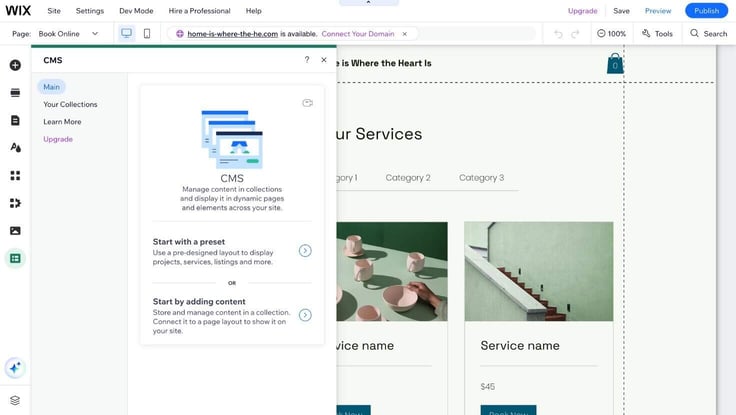
To get started with the CMS, I clicked on the CMS icon on the editor’s sidebar. From there, Wix asked whether I would like to “Start with a preset” or “Start by adding content.” I chose the former, since I didn’t have any existing content to upload.
According to Wix, a preset is a premade collection of content and dynamic pages. Wix then presented me with a list of presets focused on different industries, including recipes, news, property listings, and projects.
I chose projects and waited for the CMS to load. The CMS dashboard was organized by fields, including fields for project name, stats, descriptions, URL, and tags. I thought that was interesting, but I was still a bit confused as to what the CMS does. So I did a little research.
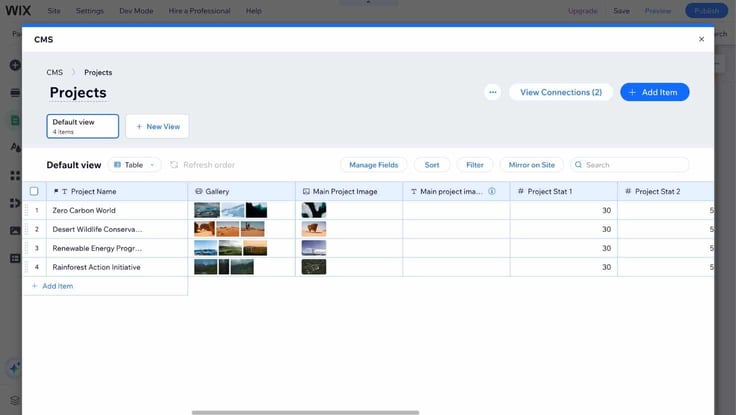
Wix says the CMS is used to separate design from content management. So basically, it makes it easier for teams to split design and content duties among themselves. That way, designers can use the editor to create the site, while writers or managers can use the CMS to manage dynamic content, such as blog posts and product listings.
After learning more about it, I could definitely understand its full value and potential. Since I have experience with WordPress, I can see some similarities between the two platforms. With Wix’s CMS, I could add projects to the collection and track their status, similar to WordPress.
It looks like Wix took on some aspects of WordPress to build their platform. And I can’t blame them. WordPress is definitely the blueprint for DIY website creation. With its CMS tool, Wix steps outside of its box and shows that it’s more than just a design/website builder — it’s a complete site management studio.
Then, I headed back to the main Wix dashboard to set up my SEO metrics. Here are the questions I was asked during the setup:
After I answered those questions, I was taken to the remainder of the SEO setup checklist. Here is a picture of the said checklist:
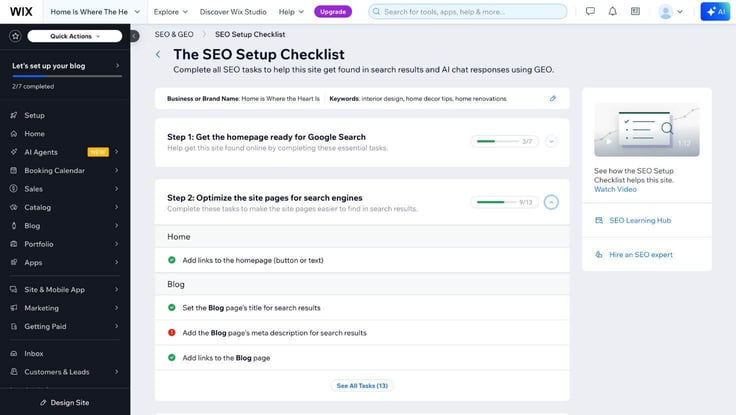
Wix truly offers all that you would need to track and improve your SEO operations. I loved that its dashboard provides access to the Google Search Console, so I could see how my site is performing on the search engine.
Next, I took some time to poke around the account dashboard. And boy, was I impressed.
The interface was extremely user-friendly and seamlessly organized. Every piece was thoughtfully designed and integrated. So there was no way to get lost while navigating. And I could totally see myself using every tab, proving that no section was an unnecessary addition.
Interestingly, I thought the Wix dashboard layout somewhat mimicked WordPress’s setup. Like WordPress, its main point of contact was the sidebar, and it had an app marketplace, a content management system, and so on.
Of course, WordPress isn’t as eCommerce-forward. Wix had specific tabs for sales, monetization, customers and leads, and product catalogs, among others. It also had an inbox section where you can manage your social media and email communications and respond to visitor activity right from the Wix platform.
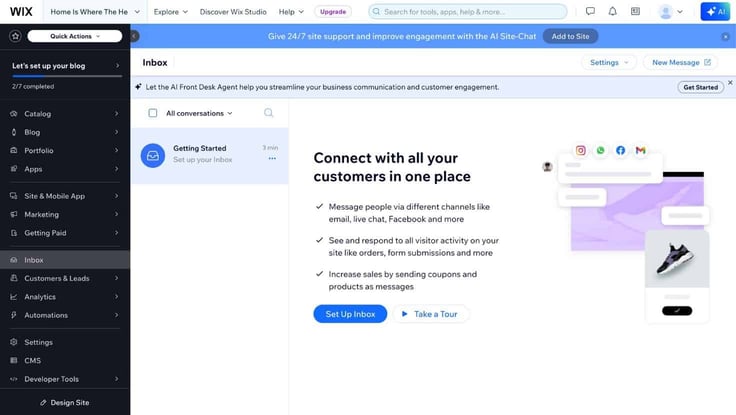
I also liked that the dashboard had built-in analytics. The highlight for me was the depth of the insights. Wix didn’t just give me a quick snapshot of my site performance or the bare minimum. It had information on everything from site traffic and speed to customer behavior and sales figures — a complete picture in one place.
Knowing the price of this plan, I’ll admit I didn’t have high hopes for its performance capabilities. I’m always cautious about free plans due to their reputation for low reliability and subpar speeds. But who knows, maybe Wix will surprise me?
And surprise me, it did!
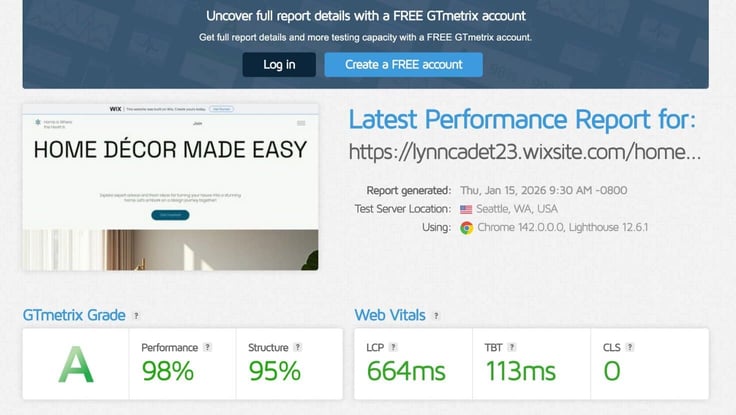
Shockingly, it didn’t score too badly. For the free plan, that’s actually a really good score. But time for a reality check. While the website performed well, it didn’t have much content or heavy pages to fully test the speed potential of this plan.
Overall, for someone just starting out, this performance grade isn’t too bad. It will definitely support you through the early stages of your site.
It’s clear that Wix stays at the cutting edge of DIY website development. From the start, I was thoroughly impressed with Wix’s ingenious website builder and onboarding process. I could easily see the brand’s expertise and experience shine clearly throughout the entire process.
What I appreciated the most about its free plan is that it actually gave me the tools to make a well-rounded, professional-looking website. In minutes, I had created a site that resembled that of a seasoned web designer. With Wix’s AI features and templates, anyone can create a website functional and beautiful enough to stop visitors in their tracks.
But while the free website builder excelled in design, it did have shortcomings in other areas. Unfortunately, I couldn’t overlook the limited storage (500 MB) and the mandatory Wix ads. It didn’t take much for my site to use a good portion of the storage. And when I published my site, it had a Wix banner ad running on it at all times. So those are definitely things to consider when weighing this plan.
Despite its limitations, I still think the free plan offers an excellent starting point for someone who is just dipping their toes into website development and hosting. You may need to upgrade later, but it will definitely hook you up with a stunning, professional site.
While useful, Wix’s free plan is just a taste of the platform. If you really want to see what Wix has to offer, especially in hosting performance, you have to upgrade to one of its premium plans.
Wix offers four premium plans: Light, Core, Business, and Business Elite. Each has its unique set of features and resource combinations. Below, I’ll cover the main differences you’ll find with its premium plans compared to its free package.
To find information on Wix’s premium plans, I clicked on “Pricing” at the top of Wix’s homepage. If you already have a free plan like I do, you can also click on “Upgrade” at the top of your Wix account dashboard to get to the pricing page. A pop-up window will appear with all the details.
Once I arrived on the pricing page, I realized Wix had four main plans, in addition to its free package. Those were Light, Core, Business, and Business Elite.
What really differentiated these plans was the amount of storage space and eCommerce features each had. I’ll create a table below to point out the primary differences.
| Light | Core | Business | Business Elite | |
|---|---|---|---|---|
| Price | $17.00/month | $29/month | $39/month | $159/month |
| Storage | 2GB | 50GB | 100GB | Unlimited |
| eCommerce | N/A | Basic | Standard | Advanced |
| Site collaborators | 2 | 5 | 10 | 100 |
I’ll also add a picture here showing the differences in computing power between the plans. This will help you understand just how much each plan can handle in terms of performance.
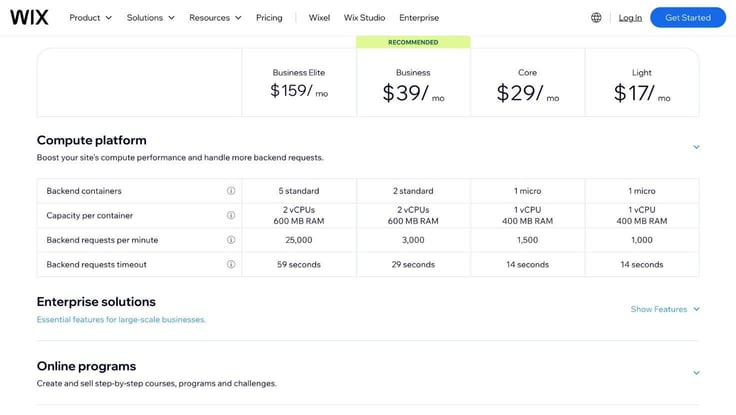
Wix’s base plan, Light, starts at a significantly higher price tag for “cheap” hosting, compared to other hosts. However, Wix offers multicloud hosting across all its plans, which could help explain its higher starting price.
Typical cheap plans are powered by shared hosting. Wix, on the other hand, uses a mix of public cloud providers, including AWS and Google Cloud, along with its own data centers to build its infrastructure. So that means the performance should be much higher compared to regular shared hosting, or at least that’s what I would expect. We’ll test this theory later.
But while a multicloud base could help justify the price point, I’m having a hard time overlooking the amount of storage space that’s included. Two gigabytes of storage is not much storage at all for the price, especially considering that most cheap hosts start their plans with at least 10GB of space.
Like Hostinger, for instance, it offers 20GB of storage on its base shared plan and 100GB of NVMe SSD storage on its base cloud plan, both at a fraction of the cost of Wix’s Light plan.
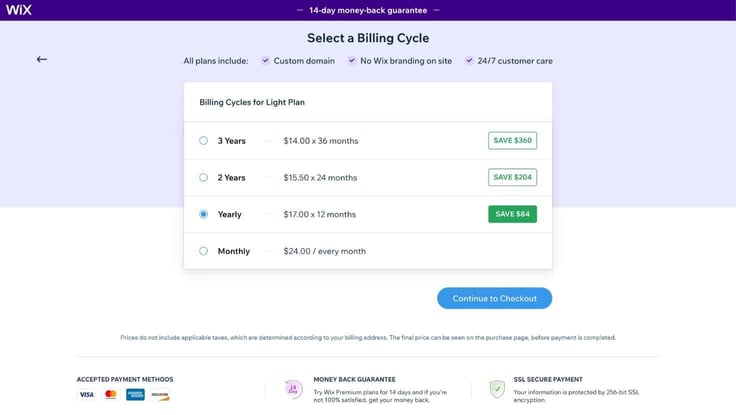
The only silver lining is that you can pay less the longer your contract. The cost goes down significantly from the 1-year contract to the 3-year contract.
Side note: Wix does offer a 14-day money-back guarantee with all of its plans, in case its platform isn’t up to your liking.
Pricing is a major factor to consider when evaluating any web host. In the case of more expensive web hosts like Wix, you would have to weigh the plan against your budget and determine whether the price is worth it.
Who knows, maybe Wix’s website-building prowess and multicloud performance could be enough to justify the heftier price tag? I guess we’ll have to find that out together.
As for my choice, I decided to go with the cheapest plan, Light, to learn more about Wix’s premium features.
When taking a closer look at its pricing page, I realized there was no button to click to purchase a plan from there. Instead, there was only one button that said “Start for Free.” That meant to start with Wix, you actually have to start with its free plan, like I did.
So I would have to follow the same path I took earlier during the free plan review to get started and then upgrade after I’m done with the onboarding.
An unusual strategy, in my opinion, but also a reasonable one. I like that Wix allows you to explore its Wix platform before committing to a contract. Clicking on “Start for Free,” I got the process rolling.
Since I already covered this part earlier in the review, I’ll save you the pain of rereading the boring details and won’t cover it here. If you didn’t read my previous rundown, no worries. Here’s the link to the Signing Up portion of my free hosting review.
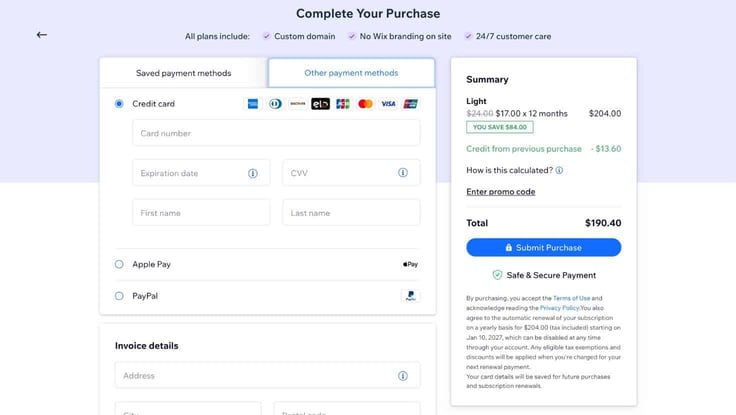
Once I got to the dashboard, I just clicked “Upgrade” on the topbar of the page, which took me to a webpage with the pricing details. After looking over the plans, I set my sights on the Light Plan and “Select” under its feature list.
This brought me to a page with a list of billing cycles. I chose the monthly billing cycle (for the sake of the review) and moved on to checkout. After that, I entered my billing information and pressed “Submit Purchase.” And finito.
To build my premium site, I decided to keep up my previous theme, home design. I won’t go into too much detail about the site-building process here, as I followed the same steps from the free hosting review (check it out here). Instead, I’ll primarily test and review the exclusive features included in the paid upgrade.
Since eCommerce is the main differentiator between the paid and free plans, I’ll mostly focus on those features below. So without further ado, let’s jump right in.
Disclaimer: While I chose the Light plan, some of the features I’m going to review below are not included in its package. You have to buy the second tier, Core, or higher to use tools such as bookings, calendars, payments, scheduling, and more on your site. But Wix still offers access to these tools for exploration on Light and free plans.
First, I had to connect my domain. I realized that Wix doesn’t make you sign up for one during the purchasing process like other hosts. Instead, you have to go to your account dashboard, find the setup checklist, then click on “Connect a custom domain.”
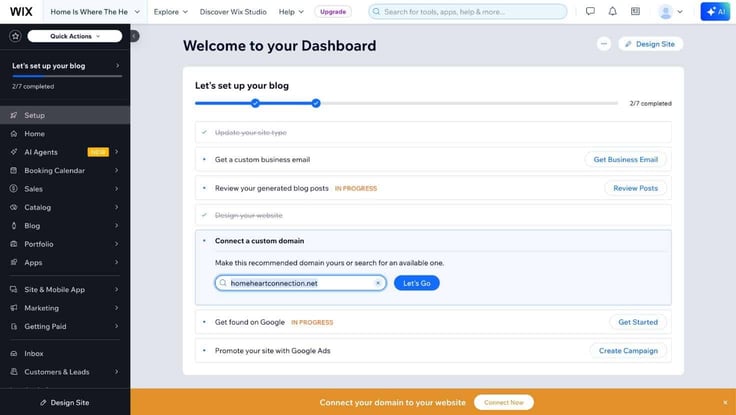
Wix had already suggested a domain, homeheartconnection.net, so I went with that name. Next, I clicked “Let’s Go.” This brought me to the checkout page. Since I didn’t subscribe to a yearly contract, I would have to pay for my custom domain. So disregard this step if you did purchase a yearly plan. Your domain will already be included in your initial bill.
Browsing Wix’s feature list, I realized it offers a lot of support for eCommerce ventures. From booking tools to payment gateway add-ons, Wix provides a wide assortment of resources to help users jump-start their online business. Here are the primary features it offers:
Bookings
I could find its booking features on both the dashboard and in the site design editor. Since I’m currently working on my site, let’s take a look at how to add bookings to the site itself. First, I navigated to the “My Business” tab on the sidebar of the editor.
The My Bookings section should look like this:
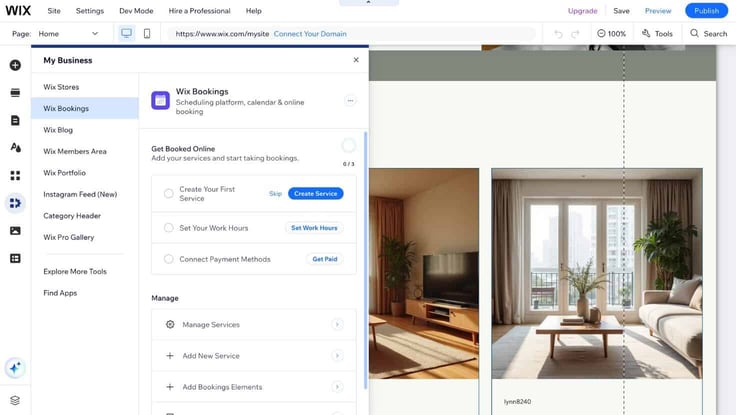
If you don’t automatically see this feature, you can also download it from Wix’s app marketplace. To add my services, I clicked on the first item on the checklist, “Create Your First Service.” A pop-up brought me to the dashboard, where I could either check out premade services or start my own from scratch.
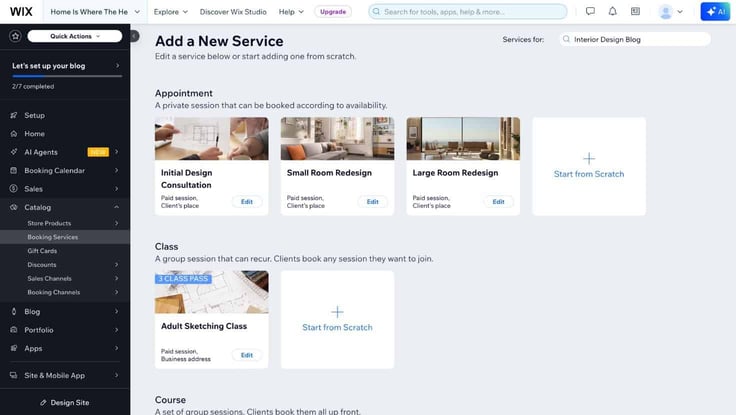
The services Wix generated for me looked pretty good. They fit my style and vision and included booking slots for initial consultations, small room redesigns, and large room redesigns. Looking further down the list, there were also slots for classes and courses. I could edit any of the services to meet my needs, including inputting prices, staff hours, and service duration.
Instead of creating my own, I just edited one of the options Wix offered. I added pricing, made some edits to the service name, and uploaded it to my site.
To get back to the editor, I clicked “Design Site” toward the bottom of the dashboard. Then, I used the page navigation to find the webpage called “Book Online.” Clicking on that page brought to me to the bookings page, which allowed me to see how the services looked published on my site. Here’s a picture of it on the frontend:
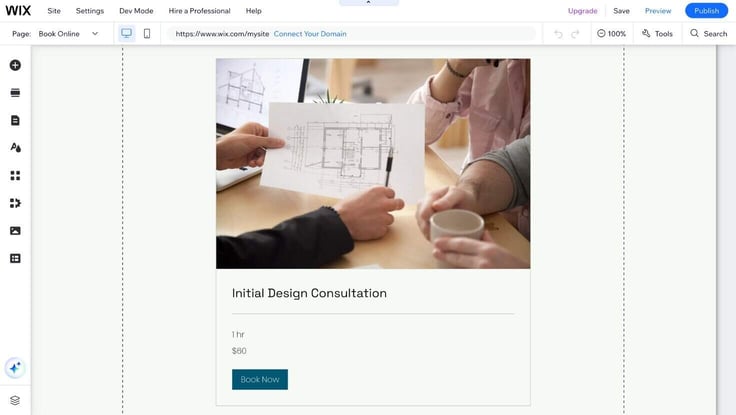
I have to say, Wix is super thorough with its offerings. I could track my booking lists, add staffing hours, monitor booking analytics, and connect payments, among other things. And it all comes with an easy-to-use interface, and the bookings page looks great on the frontend.
Catalog
Under the Catalog section in the dashboard is where you find Products Central. Whether selling physical products like candles or digital items like ebooks, “Catalog” is where most of your operations will live. You can also find this section in the site editor by clicking “My Business” in the sidebar, then “Wix Stores.”
Wix covers all the bases. With its platform, I could sell physical products, digital items, and even print-on-demand products via Printful (ideal for dropshipping users).
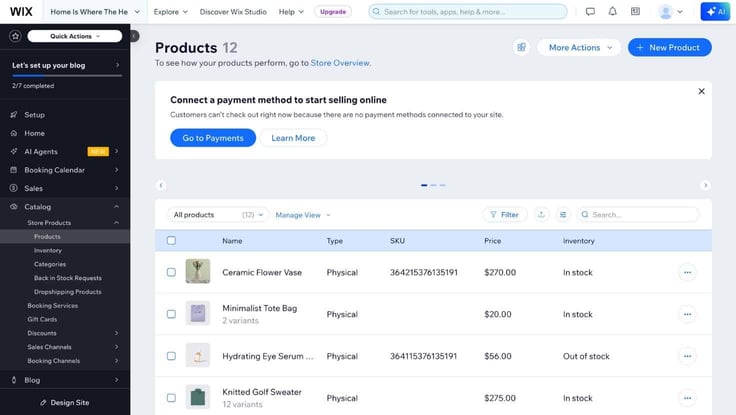
Here are the primary tabs you can find in this section:
I wanted to test out the product listings, so I went to the products page. Since I had already downloaded Wix Stores, Wix populated some examples for me to add to my site. In the site editor, I clicked the drop-down button on the page navigation, then scrolled down to the “Store Pages” category.
Under this category, I clicked “Product Page,” and it brought me to my listings. Here is an example of a product landing page on my site:
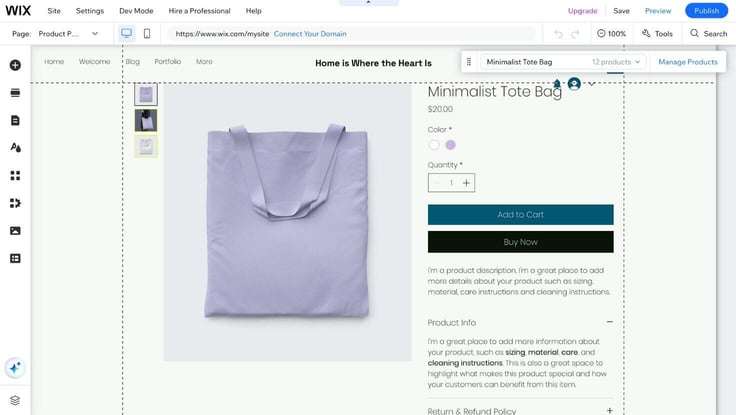
I really liked how professional it looked. I was definitely impressed by the setup. It looked just like the product listings you would see on major online marketplaces. So that was a definite thumbs up.
Sales
Wix fills out its eCommerce trifecta with its “Sales” functionality. Via its “Sales” section, I could track orders, manually add orders, monitor sales, and analyze how well my business is performing.
Wix offers almost every significant sales metric you would expect or need for your business in the “Analytics” portion of this section.
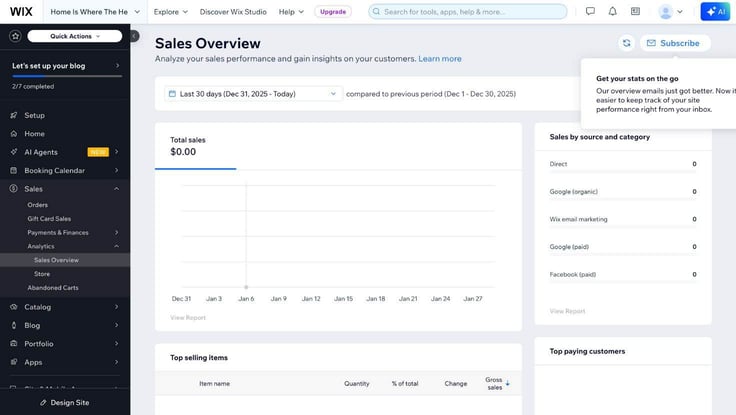
Here are some examples of metrics you can track:
Let me tell you, Wix doesn’t skimp on the insights. And this section doesn’t even cover its other base site metrics. For more data, you can head over to Wix’s “Analytics” tab on the main dashboard. Here you can dive deeper into visitor behavior, real-time metrics, speed benchmarks, traffic, and session highlights.
If you’re into analytics like I am, Wix will definitely impress you with its level of insights and data proliferation. Its analytics dashboard truly collects data on every area to help improve your decision-making and site to the best of your ability.
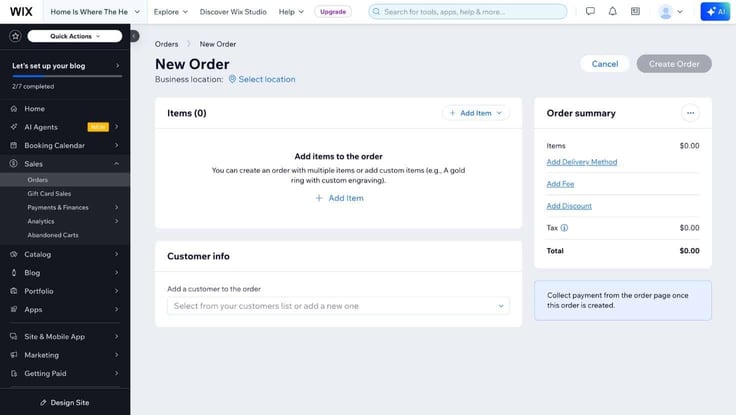
However, the Sales section isn’t only about monitoring analytics. I could also track and create orders, manage payment methods, recover abandoned carts, and create gift cards.
Wix’s paid plans also come with a marketing suite. The Light plan includes a lower-level marketing suite than the other tiers. So let’s see just how much marketing support Wix offers.
I found its marketing tools under the “Marketing” tab on the main dashboard. Just by clicking on the drop-down arrow on the tab, I could already see all that Wix offered from there, including support for:
Each of these had a designated subsection for you to complete tasks. I loved how integrated everything was. With most hosts, you can’t really manage all of these channels in one place. But Wix ensures you have ready access, so you won’t have to leave its platform to complete your marketing duties.
I think this type of structure would also help beginners because it gives you insight into digital marketing. You can discover multiple ways to boost your marketing strategies for your site in the Wix platform. For instance, if I weren’t aware of Google Business, checking out the dashboard would allow me to know what it was and add it to my online strategy.
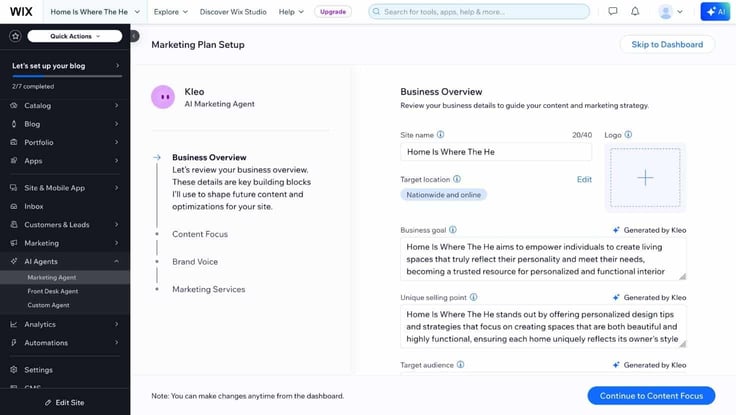
And not to forget its AI capabilities, Wix also has an AI marketing agent to help with building marketing strategies. To use it, I had to review and answer questions about my site and its mission. The AI agent was then supposed to create a marketing plan for me, but it never loaded.
It may be a bit buggy because the agent tools are still very new. Wix also says the agent can handle several different marketing tasks, with your approval, so you won’t have to worry about them. Hopefully, the tool will work better as time progresses.
Okay, now it’s time to see if Wix’s premium holds up performance-wise. I’m excited to see how the Light plan performs since the free plan did so well. So let’s run the test (using our trusty GTmetrix tool, of course).
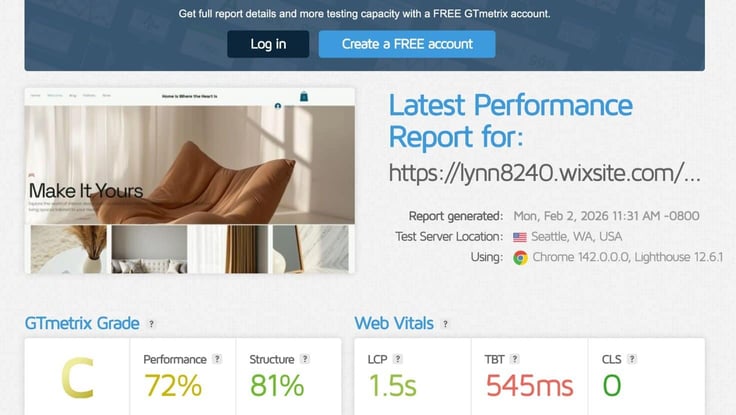
I got a far lower score, shockingly, on the premium plan. This site’s design was complex and definitely more on the heavy side, which could explain the drop in the score. I had way more images, webpages, and content in the paid version of my site than the free one, including product listings and bookings.
But I still wasn’t expecting such a drop in performance. I was a bit disappointed to say the least, especially considering the price of the plan. I think if I optimized my site and removed some of the large images, it would probably perform better. But for the price, I had higher expectations.
Wix definitely gives you your money’s worth in terms of features. At first glance, the price looks unreasonable up against its hosting resource distribution. But as I explored the platform more, I realized Wix offers a holistic, user-friendly hosting product that you can’t find anywhere else.
Its platform gives you everything you need to get online successfully, from marketing and eCommerce tools to website building and content management. And all of it is built on advanced technology that doesn’t complicate the user experience.
It’s rare to find a web host that has all of these tools in one place. But I have to say its major downfall is its storage capabilities. The limited amount of storage it offers is almost as unheard of in the hosting industry as its incredible distribution of business and web tools.
With only 2GB of storage, a consistent website owner may tap out of web space in a matter of months. So I wish Wix would offer more on that front, especially for the cost. The Light plan also didn’t offer enough functionality, especially when it came to eCommerce features.
Besides those downsides, I think Wix’s premium plan offers ample functionality for a certain kind of user. But if I had the budget, I would bypass the Light plan and go for one of the higher tiers so I could get access to all the features.
One thing is true: Wix is a website-building savant, and that’s no overstatement. But how is it at customer support? I set out to find that answer in the section below here.
When checking out its new AI marketing agent, I ran into a loading issue after filling out the setup questionnaire. The agent was supposed to take a few minutes to create a personalized marketing plan but it was having a hard time loading. So after 30 minutes of waiting, I decided to reach out to support.
To find assistance, I clicked “Help” on the topbar of the dashboard. This opened a pop-up box with links to Wix’s blog, voice assistant, SEO learning hub, and live chat. The live chat was located toward the bottom of the pop-up window.
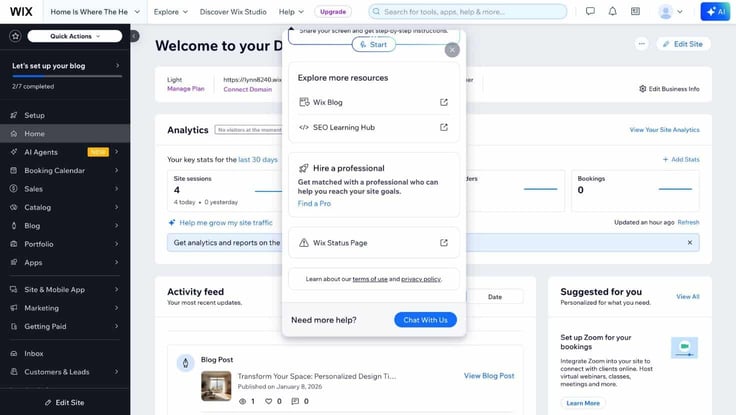
I found that Wix leaned heavily on AI for customer support. I wasn’t quite fond of that because I prefer human interaction, so I thought it was a bit weird that it prioritized everything else and placed the live chat all the way at the bottom. But I’ll put my feelings on that aside.
Onwards, I clicked on the “Chat With Us” button, which opened up its Helpmate chat portal. The conversation started with an AI assistant asking me how it could help. I typed in my problem, then it proceeded to ask me for more clarification. After offering a couple of troubleshooting suggestions, I found that the AI wasn’t helping, so I asked if I could speak to a human.
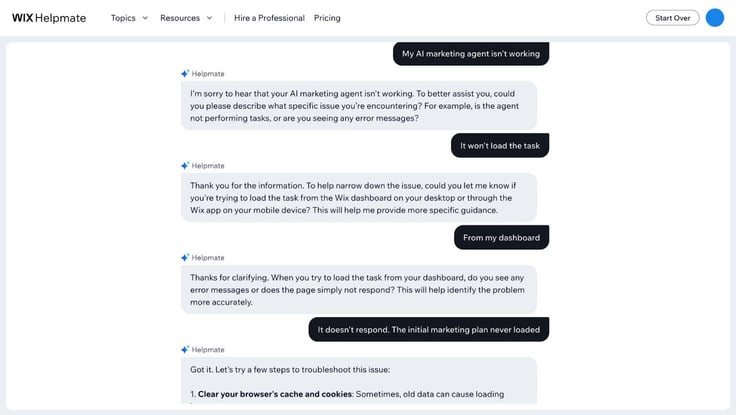
The Wix assistant gave me options for live chat, phone, and email. There was a 40-minute callback period for the phone, so of course, I went with the live chat option. I waited about eight minutes before I was connected with a support expert, Matt.
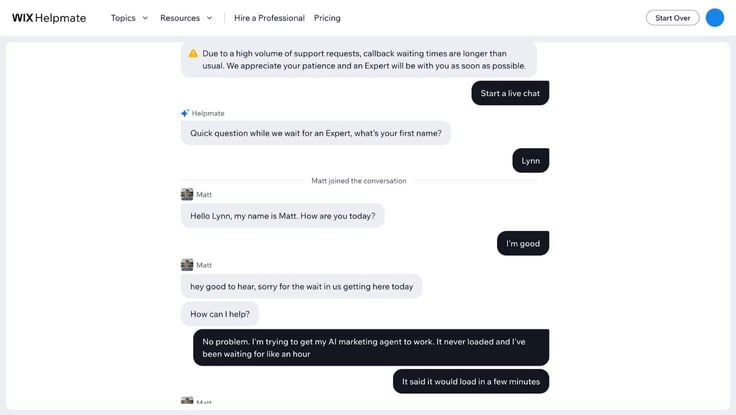
Matt was friendly and helpful. He asked how he could help and then offered a few ways to troubleshoot the problem. He also pulled up my account to find the issue himself. After trying a few troubleshooting ideas, we ended up having to send the problem to the tech team.
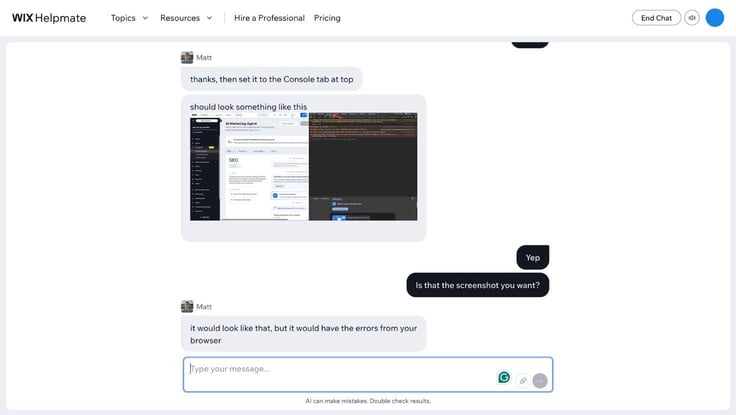
Overall, the whole conversation with the expert took about 20 minutes. He also offered to help me with marketing duties, since the issue wasn’t resolved right away. All in all, the chat may not have produced an instant solution, but I thought it went well.
Update: The issue with the AI marketing agent was resolved by the next day. The Wix team sent me an email with the details and a link to my marketing plan for review.
Wix is a website-building giant and showcases its expertise in this department right away. But while I can’t take any marks off for its website design, there are other parts of its platform that I wish were more refined. I’ll share my thoughts, both positive and negative, below in a pros and cons chart:
I think it’s important to weigh the pros and cons because choosing Wix isn’t an inexpensive endeavor. Wix attracts customers with specific needs, and if website design and business solutions are at the top of your list, you may find its platform worthwhile.
But one thing you should also know: Since Wix uses proprietary technology to make its sites, its website builder is considered a closed platform. This means if you end up using Wix to make your site but aren’t fond of its hosting plans, you won’t be able to migrate your site to another host, only the files and domain name.
There’s one thing Wix is going to do well, and that’s website building. Its website builder blew my expectations out of the water, covering every base that I could ever imagine with top-tier functionality and design. I was also pleasantly surprised by its performance capabilities in its free tier.
Unfortunately, however, Wix’s pricing really sets the platform back. I’m sure it costs a lot to invest in its multicloud infrastructure and consistently update its website-building technology. It also provides a complete business platform equipped with high-level marketing and sales tools.
But I just can’t overlook how much more Wix costs compared to other hosts on the market that may not have the same design prowess but offer far more hosting resources and good-enough design capabilities, like Hostinger, for example.
For someone with a larger budget and a need for business management solutions, I think Wix would be absolutely ideal. Otherwise, the price may just be too high for the ordinary user.

HostingAdvice.com is a free online resource that offers valuable content and comparison services to users. To keep this resource 100% free for users, we receive advertising compensation from the hosts listed on this page. Along with key review factors, this compensation may impact how and where hosts appear on the page (including, for example, the order in which they appear). HostingAdvice.com does not include listings for all web hosts.
Our site is committed to publishing independent, accurate content guided by strict editorial guidelines. Before articles and reviews are published on our site, they undergo a thorough review process performed by a team of independent editors and subject-matter experts to ensure the content’s accuracy, timeliness, and impartiality. Our editorial team is separate and independent of our site’s advertisers, and the opinions they express on our site are their own. To read more about our team members and their editorial backgrounds, please visit our site’s About page.


