
Guides

Studies 
Studies
Our studies cover a range of trending topics and deliver original, reliable data you can't get anywhere else on the web.
From a cheap shared plan to a cloud VPS running Nextcloud, I put ScalaHosting through its paces to see how easy it is to build sites and how well they actually run.

By: Laura Bernheim

Editor: Lillian Castro

Reviewer: Cristian Lopez
Disclosure: When you sign up through links on our site, we often earn referral fees from partners. For more information, see our ad disclosure and review policy.
I’ve built a lot of websites over the years, some completely from scratch, others starting with a prebuilt skeleton that I tweaked for myself or for clients. I’ve even hosted a few on in-house servers, but most of the time I rely on third-party hosting providers, including services like ScalaHosting.
So when I decided to kick the tires on ScalaHosting, I went in without any prior experience using their platform and wasn’t sure what to expect. It didn’t take long, though, before I was pleasantly surprised by how much the service offers, even at the lowest price point.
ScalaHosting makes it pretty painless to deploy all kinds of sites, whether you’re putting together a simple blog or something more robust like an online store. As long as you know the general direction you’re headed, you can get the basic foundation of a site online in just a few minutes.
Once that foundation is in place, you can customize it using the tools built into whatever platform you’re working with — WordPress, in my case. In this review, I’ll walk you through the plans I tested, the features that stood out, and ultimately whether I think ScalaHosting is worth your time (and money).
ScalaHosting makes it easy to deploy everything from simple WordPress sites to more advanced apps like Nextcloud with just a few clicks.
Performance across the cheap, WordPress, and cloud VPS plans was consistently strong, even without extra optimization.
Support was quick, knowledgeable, and genuinely helpful when I ran into issues, especially on the cloud VPS plan.
I’ll start with ScalaHosting’s cheapest plan, because that’s usually where people’s eyes go first.
My experience with this plan was surprisingly smooth from start to finish. I wanted to see how easy it would be to go from “never used ScalaHosting before” to “I have an actual site running,” and whether the cheapest option would feel limited. The short answer: it didn’t. The whole thing felt very beginner-friendly without being condescending.
ScalaHosting makes it very easy to create an account by clicking the Get Started button on the host’s homepage. Here’s what I did:
I went to the site and scrolled down to check out its shared hosting plans. At this point, I was presented with a list of shared hosting plans. I selected a hosting plan from four different options: Mini, Start, Advanced, or Entry Cloud.
I found myself nodding at the cost-effective pricing for each plan, such as the $2.95/month for the Mini plan, which includes shared CPUs & RAM, standard security, 10 gigabytes of fixed NVMe SSDs, support for one site, and no bandwidth limits.
As far as other features are concerned, the SPanel dashboard gives me easy access to:
Not bad for an entry-level plan.
Since this review was focused on the cheapest option, I went with the Mini plan. It gave me everything I needed to properly test what ScalaHosting’s “budget” experience feels like.
You, of course, should choose the plan that fits your needs, not just your wallet. One small bit of advice from someone who’s regretted going too cheap in the past: choose the plan for where you’re headed, not just where you are right now.
If you think your site will grow quickly, it’s worth paying a bit more upfront for a plan that can handle more traffic, rather than squeezing into the cheapest option and having to upgrade under pressure later.
The signup process was refreshingly straightforward.
I selected my plan by clicking Get Started, and the first thing I paid attention to was the pricing after the introductory period. Once the promo pricing ends, the plan jumps by about $7 per month, so it’s worth noting that now rather than being surprised later.
After picking the plan, I moved on to choosing a domain.
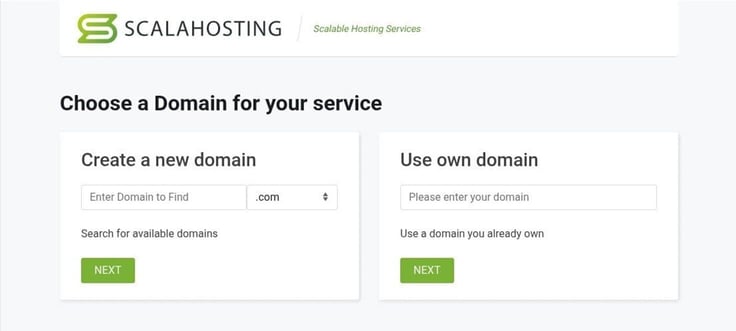
Since I’m starting this test from Because this was a brand-new test, I opted to create a new domain. All I had to do was type in the domain I wanted and click Next. ScalaHosting let me know if it was available and showed pricing for the different extensions (.com, .net, .org, etc.). I would like to create a new domain. To do that, all I had to do was type the domain I wanted and click “Next.”
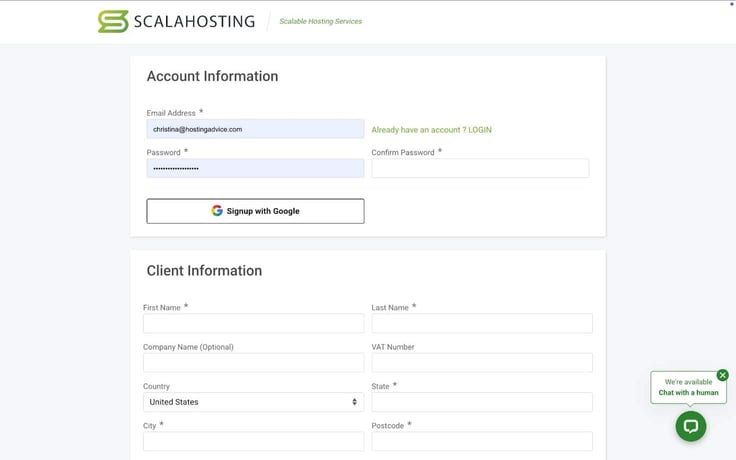
From there, it was the usual: name, address, payment details.
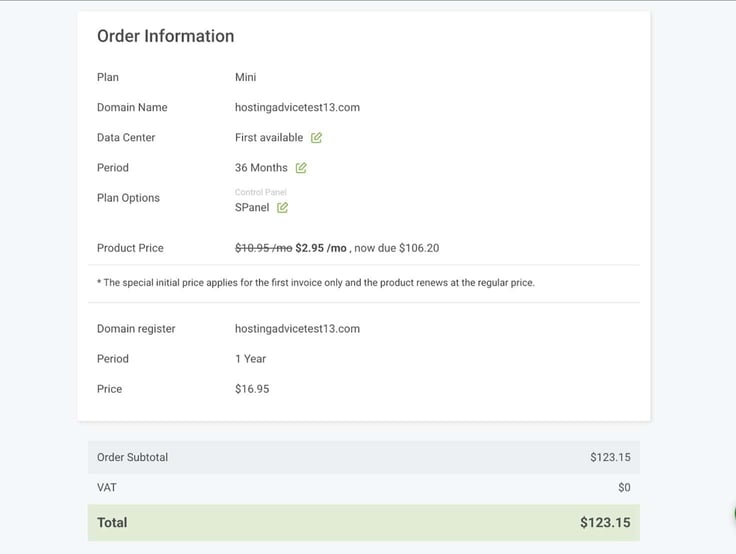
At the bottom of the page, I confirmed my order details and finalized the purchase. My total came out to $123.15 for three years of hosting, which is a pretty incredible deal for that length of time.
From start to finish, the entire signup took less than five minutes. It was painless, beginner-friendly, and there wasn’t any confusing jargon that would trip up someone who’s never used a hosting provider before.
One thing I appreciated was that, aside from making me choose a plan (which is expected), there were no pushy upsells or sneaky add-ons. I never got the feeling ScalaHosting was trying to squeeze extra dollars out of my budget.
With the account created, it was time for the fun part: building the site.
The first step in building my site was to create a new account in the Dashboard. I chose to use WordPress with the Spectra Website Builder.
After the account was created, I was given the choice to either log directly into WordPress or access the account management site.
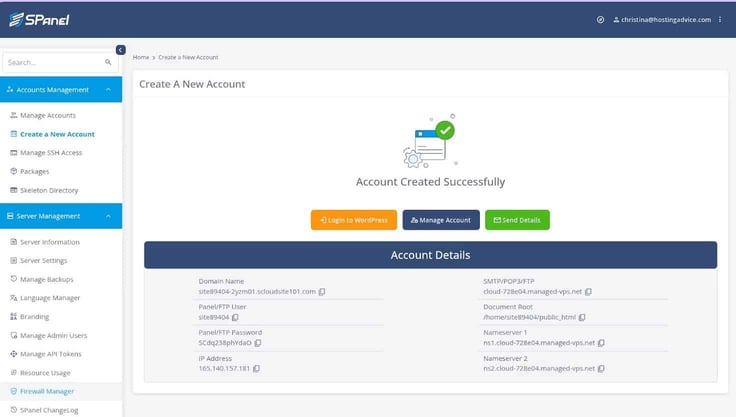
Once that was taken care of, I logged into my dashboard and was ready to go. When signing up for the plan, I made sure to use a very strong/unique password, so as to avoid a ne’er-do-well from gaining access to my dashboard (as well as the site I intend on building).
Speaking of which, let’s build a site with ScalaHosting to see how easy it is.
After logging into my SPanel dashboard, things got a bit trickier than what I’m accustomed to… but it’s not difficult.
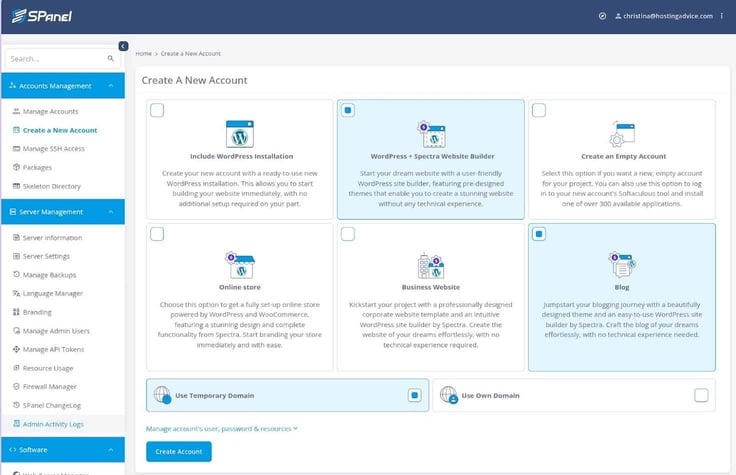
The first thing I did was click “Accounts Management” on the SPanel sidebar. In this new page, you can create either an empty account or one with a pre-built WordPress site (either basic or WordPress + Spectra).
I went with the WordPress + Spectra option because it includes pre-designed themes (I want this to be as easy as possible).
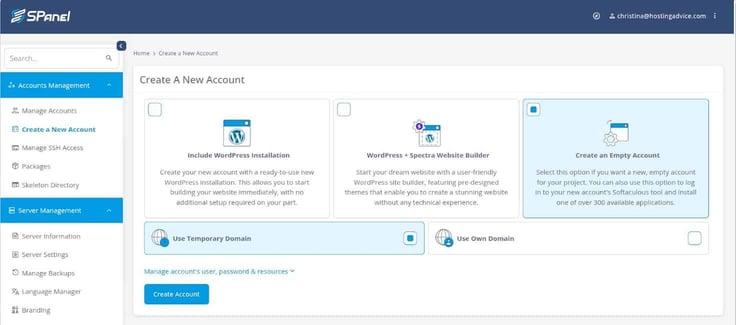
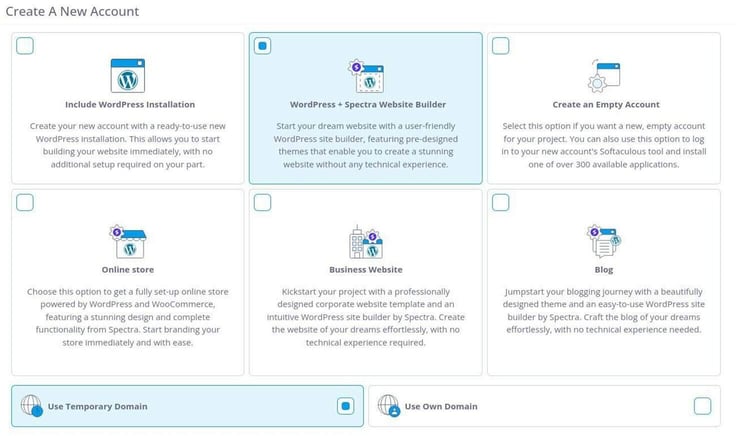
I selected “WordPress + Spectra Website Builder” and then selected a starting point (between Online Store, Business Website, or Blog). Next, I could choose from different domain options, such as using a temporary domain or my own.
Softaculous then went through the process of installing and configuring the new website, and then finalizing the installation.
Once my site was built, I was presented with the options: Log in to WordPress, Manage Account, or Send Details.
In the details, you’ll see listings for Panel/FTP User and Panel/FTP Password. Make sure to either copy those two bits of information or click “Send Details” so you’ll have the information at the ready, anytime you need it.
After that, I found myself on the WP admin page, where I could start building my site.
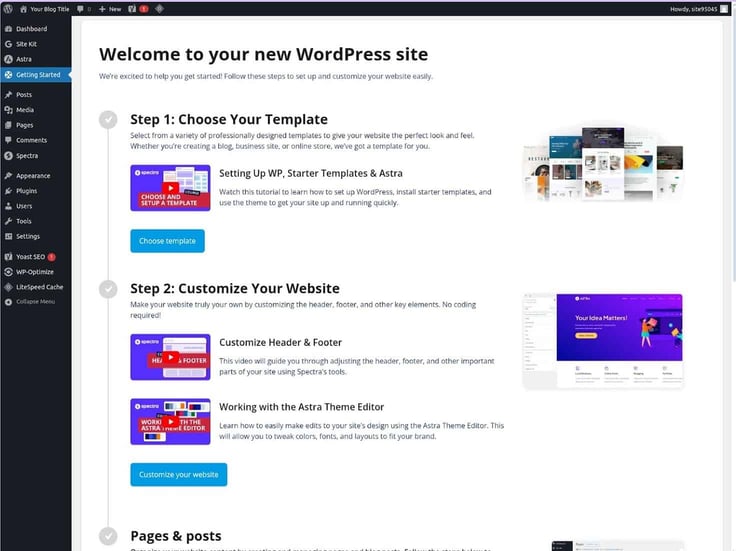
From this page, I could add plugins, create users, choose a template, select a theme, customize the website, and so much more.
The nice thing about the WP admin panel is that it’s very user-friendly, so you should have no problem customizing your site.
One thing to keep in mind is that you might find a theme that looks exactly how you want your site to look, but it will require some work to change things like banner images, menus, etc.
The Template selector took me to the WordPress theme selector, where I could select from a large number of available themes.
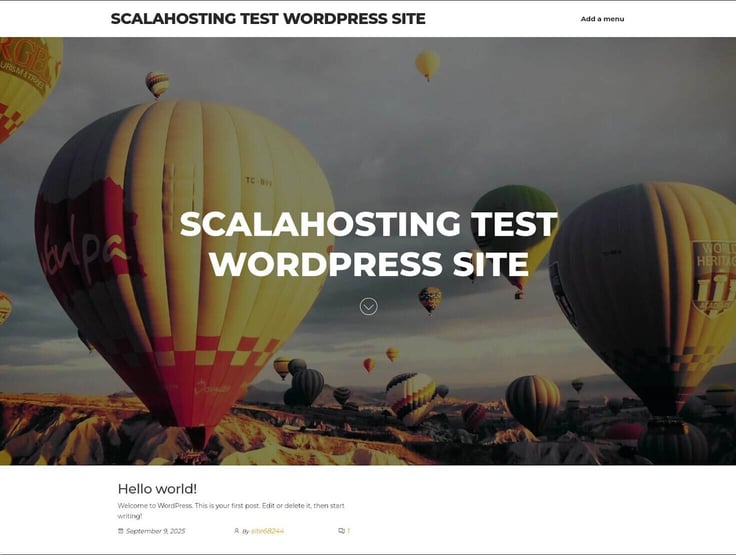
Depending on the template you select, the process for customizing the site will vary. Fortunately, it’s all very self-explanatory at this point, and once you’ve taken care of the template, you can then click “View Your Website” to see how it looks.
After just a few minutes, I had the skeleton of my new WordPress site up and running.
Another feature I really enjoyed about my ScalaHosting plan is the Firewall Manager. Back in SPanel, I clicked on “Firewall Manager” (under Server Manager), where I could easily allow or deny an IP address.
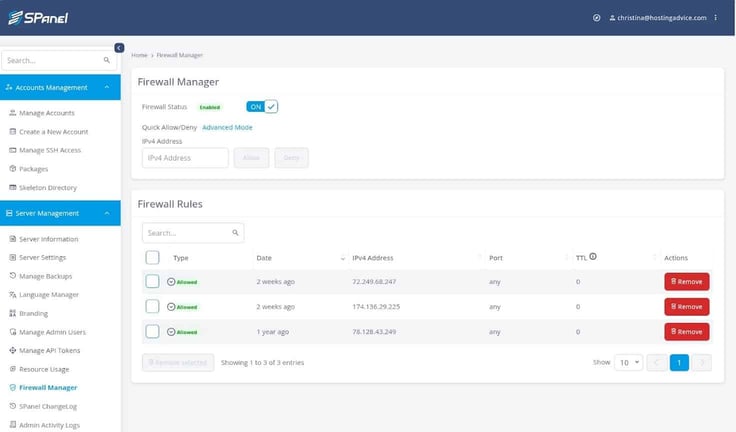
The reason you will want to use the Firewall Manager is to block any IP address that seems to be causing problems. You may not think this is necessary, but eventually, you’ll find someone attempting to hack your site, and you certainly don’t want that.
To block an IP address, of course, you first have to know the IP address. The one caveat to this is locating the offending IP address. I’ve yet to find a section of SPanel that shows access logs (other than Admin Activity logs, which are not what we want).
You could always use SSH to access your server and then comb through the log files to find an offending address. It would be nice, however, if ScalaHosting would add an access log feature to the service, so it would be more of a point-and-click affair.
Either way, with the firewall on, you’ll at least have some basic protection.
Finally, there are the backups. By default, backups (both local and remote) are disabled. I could enable either type of backup and then configure it to fit my needs. For example, if I go with a local backup, I can set a limit, and then select hourly, daily, weekly, or monthly options.
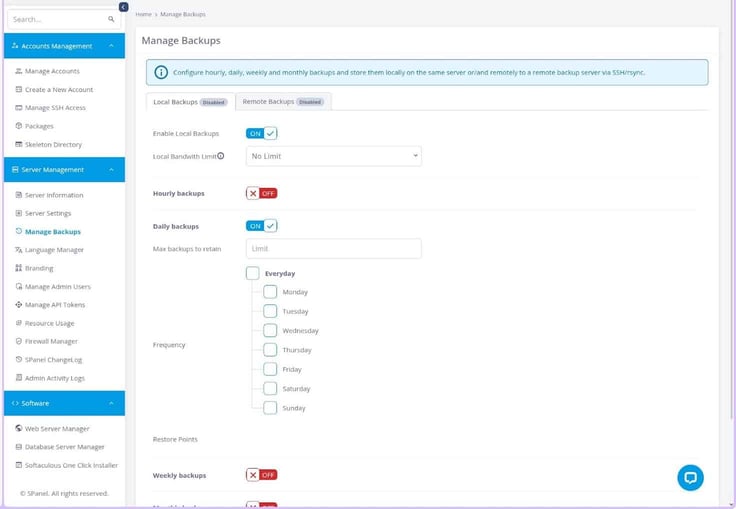
I would highly recommend enabling backups for your site. I would also recommend setting up remote backups (either via SSH or rsync), in case something were to happen to the local backups. It’s much better to have more backups than you need, rather than not enough.
As far as performance is concerned, the one thing I did notice was that when clicking a link in SPanel, the page did take a bit longer to load than I expected. Keep in mind, however, that it could have been caused by bottlenecks with my ISP, my DNS servers, or any number of issues.
At the same time, the WordPress site itself wasn’t the fastest to render, but I have seen hosting sites that were considerably slower. I’d place the performance of ScalaHosting’s cheap plan at the upper-midrange level, which isn’t too shabby.
I’ve seen a lot of hosting sites load far slower than this, so I wouldn’t worry too much about performance (especially given the cost of this ScalaHosting plan).
I decided to test my new WordPress site with the GTmetrix performance checker to see how well it performed. The results looked like this:
For comparison, I ran the same test on a site I’ve been managing for nearly two decades on a different host, and the ScalaHosting site performed significantly better. That was a bit of a wake-up call that I might need to consider migrating that older site.
Yes, I would.
If you want to spin up a professional-looking site using a point-and-click interface, and you don’t have any interest in writing code, ScalaHosting’s cheap plan is a genuinely solid option.
You can get a site online quickly, the tools don’t feel overwhelming, and the performance is more than good enough for most personal or small business sites at this price level.
Just remember: once the skeleton is in place, you’ll still need to invest a bit of time customizing the design and content so the site actually works for your business or personal goals. The host can get you 80% of the way there, but the last 20% is on you.
I often have to spin up WordPress sites for clients or even myself. When this need arises, I don’t want to have to deploy a server, install the dependencies, install WordPress, only then to be able to finally start building the site. That’s just too much work.
Thankfully, there are services like ScalaHosting that make this process exponentially easier. Instead of having to run a bunch of commands on a remote server, you can get your WordPress site up and running in minutes.
Here’s a rundown of my experience using ScalaHosting’s WordPress plans.
First, I went to ScalaHosting’s WordPress hosting page to check out its plans, which had the same names as its shared hosting plans.
Like the shared hosting plans, I could choose from Mini, Start, Advanced, or Entry Cloud. The Mini plan is the cheapest, starting at just $1.48 a month for a one-year term.
So, what else is included in its WordPress hosting plan? First off, you get free installation and/or transfer of WordPress sites, 24/7 tech support, and even an AI WordPress Builder. All of this is far easier to use than you probably think.
The main difference between each plan is the number of websites and resources you get. The more you pay, the more you get.
I decided to go with the Entry Cloud plan for my WordPress site, which starts at just $14.95 a month when you buy three years upfront.
Signing up for my Entry Cloud WordPress plan was the exact same as signing up for my cheap shared plan, so I didn’t document the steps. If you want to see what I did in detail, check out the Signing Up section of my cheap review above.
Once I logged into SPanel, I was prompted to create a new account, which was quite easy. During this process, I selected the kind of account I wanted to create. The options were:
If you want to do as little work as possible, select WordPress + Spectra Website Builder. That’s what I did.
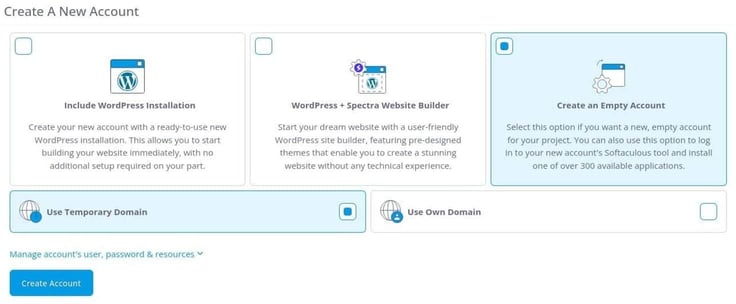
Before you click “Create Account,” you will then need to select from an Online Store, a Business Website, or a Blog. Make sure to select the type of site that best fits your needs. I created an online store.
Once my site was created, I was presented with the account details.
Do yourself a favor and click “Send Details” or at least copy and paste those details into a password manager, so you don’t forget them. Those details include your username and password, without which you won’t be able to log into your new site. I’ve had that happen before, and it is not something you want to deal with.
At this point, I could start building my new WordPress site without having to write a single line of code.
Since WordPress is the same everywhere, I didn’t document my site-building process in-depth. But I’ll say it was all point-and-click, so I didn’t have any problems.
Once my site was built, I decided to check the performance using GTmetrix. The results were quite promising with the new site scoring an A with 97% performance, 98% structure, largest contentful paint at 983 ms, 0ms total blocking time, and 0 cumulative layout shift.
Those numbers blow away those of my own personal site on a different host.
I would, without a doubt, recommend ScalaHosting’s WordPress Hosting Service. Not only does it vastly simplify deploying a WordPress site, but the performance speaks for itself.
If you’re looking to build a personal or business WordPress site, you should consider SalaHosting. The cost is right, the tools are excellent, and the performance is amazing.
Sometimes, I just need cloud VPS hosting so I can either build my own website/service/app, or deploy one of the hundreds of possible frameworks that can serve as a basis for what I need.
So far, I’ve examined their shared and WordPress plans. This time around, I’m going to look at its cloud VPS hosting plan.
What’s the big difference? Essentially, the cheap and WordPress hosting plans greatly simplify the process of deploying a WordPress site. The cloud VPS hosting plan, on the other hand, allows me to control what is installed by creating an empty account.
Once the new account has been created, I can then use Softaculous to install from hundreds of available applications.
I’ve used Softaculous for years and have always found that it makes deploying a site and/or service to be exponentially easier than manually building those sites from the ground up. Softaculous takes care of the dependencies and even the databases (if required).
Let’s dive in and see how ScalaHosting’s cloud VPS hosting plan fares.
My first step (as you might have guessed) was to check out the cloud VPS plans on its website. These are the plans I found offered:
And then there were managed standard cloud VPS plans to choose from, too:
There were four of each type to choose from, each with more resources than the last. The Build #1 plan caught my eye for its budget-friendly pricing and introductory discount. Buying a year upfront would save me 40%.
Each VPS included:
These were just the features that stood out to me, but each plan included at least a dozen more.
Feeling good about the Build #1 plan, I added it to my cart and checked out.
Like ScalaHosting’s shared and WordPress plans, my next step was to create a new account for my cloud VPS.
To create a new account, I logged into ScalaHosting’s SPanel and then clicked “Create a new account” in the left sidebar.
Next, I made sure to select “Create an Empty Account” first. If I had my own domain that I wanted to transfer to ScalaHosting, I would click “Use Own Domain.” But since I’m only running a test to see how easy the process is, I selected “Use Temporary Domain” and clicked “Create Account.”
Once the account was created, I took note of the details, which include the domain name, Panel/FTP user, Panel/FTP password, IP address, SMTP/POP3/FTP address, the document root, and both nameservers 1 and 2.
With those details secured, I clicked “Manage Account,” which dropped me into the SPanel manager, where I could manage email accounts, databases, settings, domains, files, tools, and software.
At the bottom of that page, I found my friend, Softaculous. From within the Softaculous tool, I could choose from apps like:
I could install over 300 different apps and services from within Softaculous. I decided to go with a Nextcloud installation, which I’ve installed countless times for personal use and for clients.
To access this option, I had to expand the File Management entry in the left sidebar, where Nextcloud is listed.
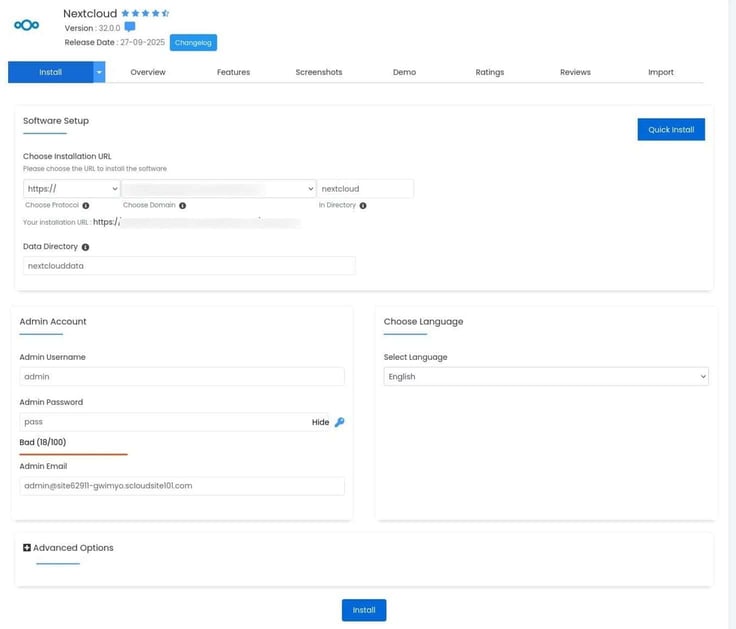
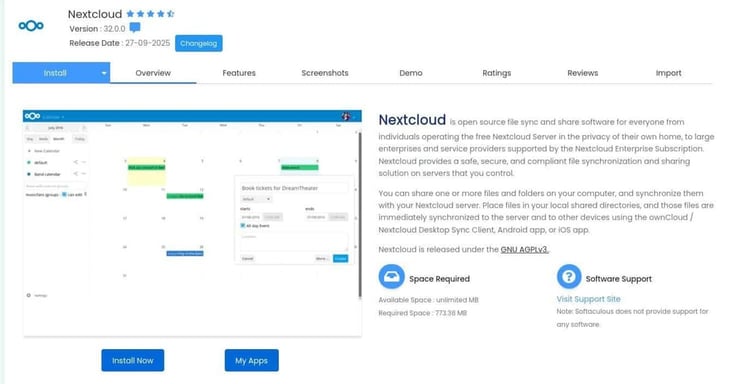
On the resulting page, I clicked “Install Now” to begin the process.
Next, I had to fill out the information for the installation, such as the installation URL, data directory, admin account, language, database name, backup location, and backup location.
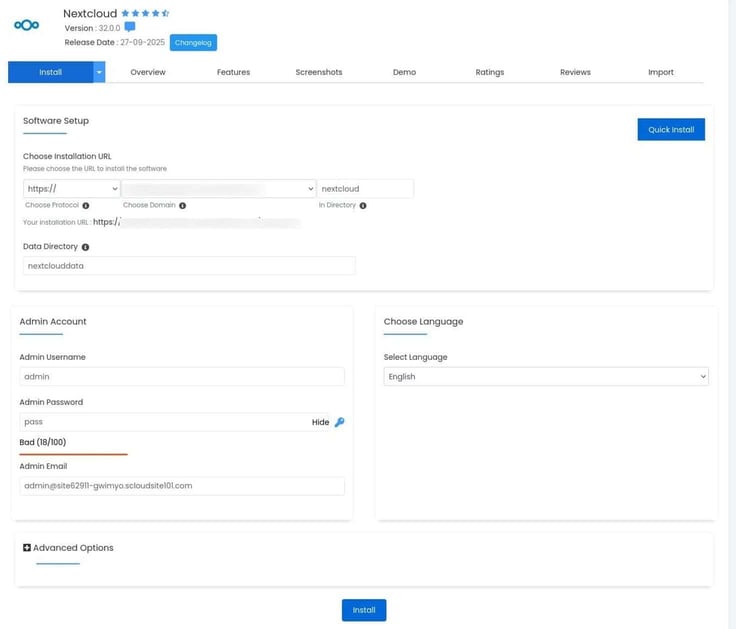
With the installation configured, I clicked Install and allowed Softaculous to do its thing. The total time for the installation of Nextcloud was around 2 minutes, which is far faster than when I’ve installed Nextcloud manually.
All I had to do was click the Nextcloud link (or the Nextcloud Administrative URL link), and I was ready to start customizing my new site.
The first thing to be done is to log in with the admin account I created.
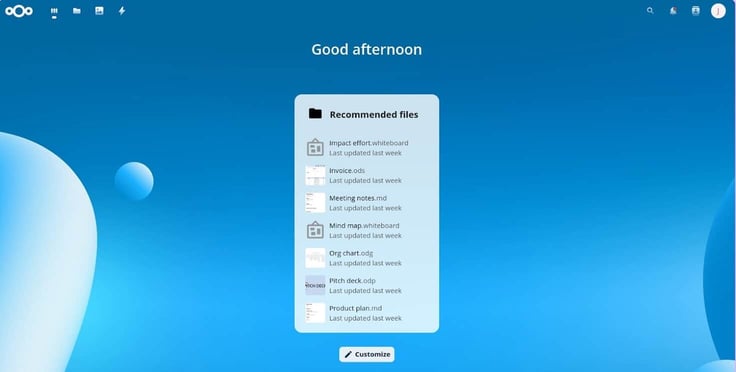
Finally, I was greeted by the usual Nextcloud onboarding wizard, which walks you through installing Nextcloud on your various devices and offers an overview of the various features. After clicking “Next” several times, I was finally greeted by the Nextcloud main page, where I could get to work.
During the process, I did run into a small issue where the temporary domain couldn’t be accessed. This was a great opportunity to try out their customer support.
Running into a hiccup gave me the perfect chance to test ScalaHosting’s support chat. It was easy to access, and I was quickly connected with a real person named Totyu, not a bot. He solved my first issue, which turned out to be an .htaccess file permission problem, and walked me through a few follow-up issues that appeared afterward.
Most of the trouble came from using a temporary domain, which isn’t ideal when you’re trying to thoroughly test the cloud hosting environment. If you plan to install something other than WordPress and want to use the Cloud Hosting option, expect that you may need to lean on support now and then.
The good news is that the support team is actually helpful. When the problem didn’t resolve immediately, Totyu escalated the ticket without any fuss. I was told to expect an email update in about 15–20 minutes, and that timeline ended up being accurate.
In the end, the root of the issue was that the temporary domain hadn’t updated with Cloudflare. If it had propagated properly, I wouldn’t have run into those hurdles at all. That one wasn’t on ScalaHosting, so I can’t hold it against them.
My final step was to test the performance of the site, which was done with GTmetrix and a test InvoicePlane deployment.
Prior to beginning the testing of the new deployment, I had to remind myself that Nextcloud isn’t one of the best-performing platforms on the market. Part of the reason for this is that there are so many services and tools to be found on this platform. Even still, the results were very good:
Performance-wise, there’s zero to complain about, especially given how resource-intensive Nextcloud can be.
This one is a bit tricky because the cloud VPS hosting service does require a bit more knowledge than either the cheap or WordPress account.
Even so, if you can point-and-click your way around an installer, you will find the ScalaHosting cloud VPS to be an incredible value, especially if you want to install something other than WordPress.
If you have the skills to troubleshoot issues (or know what to say in the support chat to empower the staff to help you), the cloud VPS service is very good. If you don’t think you’re up to the task of building a site or you simply need a quick WordPress deployment, I’d go with the WordPress account because it’s going to make your life a lot easier.
If, on the other hand, you do want to build something far more extensive and powerful than a simple WordPress site, you cannot go wrong with ScalaHosting’s cloud VPS.
Before we wrap up, here’s a quick breakdown of the biggest strengths and weaknesses I noticed while using ScalaHosting. These pros and cons highlight what stood out in day-to-day use across the shared, WordPress, and cloud VPS plans.
I’ve used several different hosting services, and I have to say that ScalaHosting has impressed me. The tools available make it possible to do quite a bit, the cost is competitive, and the performance is outstanding.
If I had to migrate from my current host, you can bet I’d seriously consider ScalaHosting as my next stop.

HostingAdvice.com is a free online resource that offers valuable content and comparison services to users. To keep this resource 100% free for users, we receive advertising compensation from the hosts listed on this page. Along with key review factors, this compensation may impact how and where hosts appear on the page (including, for example, the order in which they appear). HostingAdvice.com does not include listings for all web hosts.
Our site is committed to publishing independent, accurate content guided by strict editorial guidelines. Before articles and reviews are published on our site, they undergo a thorough review process performed by a team of independent editors and subject-matter experts to ensure the content’s accuracy, timeliness, and impartiality. Our editorial team is separate and independent of our site’s advertisers, and the opinions they express on our site are their own. To read more about our team members and their editorial backgrounds, please visit our site’s About page.


