
Guides

Studies 
Studies
Our studies cover a range of trending topics and deliver original, reliable data you can't get anywhere else on the web.
Kamatera’s flexible cloud setup, enterprise-grade speed, and no-nonsense control panel make it a serious choice for developers and growing businesses.

By: Surajdeep Singh

Editor: Lillian Castro

Reviewer: Cristian Lopez
Disclosure: When you sign up through links on our site, we often earn referral fees from partners. For more information, see our ad disclosure and review policy.
There’s something about Kamatera’s website that says “business” to me. It almost has a sort of no-nonsense approach to hosting with how clear and customizable its plans are. I could tell Kamatera was built for professionals who need something that’s fast and flexible. In other words, someone like me.
So I signed up, linked my credit card, and created a server with everything I needed — no fluff. I had a decent budget, so I decided to build a $23.50-per-month cloud server with 2 vCPUs, 4GB RAM, 40GB NVMe storage, and daily backups.
That packs quite a bit of power, right? I tested my server for around two weeks, and it’s safe to say it didn’t disappoint. And guess what? I didn’t have to pay a cent for the first 30 days — Kamatera’s free trial includes cloud services worth up to $100!
Kamatera is a cloud hosting provider that I’d recommend for developers, tech enthusiasts, startups, growing businesses, and enterprises.
I built a completely custom cloud server that was immediately available — no laggy provisioning times.
Kamatera’s dashboard is clean, polished, and user-friendly, which I really appreciate as it makes management a piece of cake (as long as you have a little experience with server management).
My colleagues at HostingAdvice have written about Kamatera in glowing terms, so I was pretty excited when the bosses handed me a company credit card and told me to write an honest review.
I had a lot of fun using Kamatera’s cloud hosting service. I mean, who doesn’t like tinkering with some new tech? I’m a tech person through and through, so I made the most of the trial period. The signup process was smooth and I loved how quick it was to deploy my server.
If I had to ballpark it, I’d say it took me just over four hours to configure, manage, and connect my website to the server (wait till you see how awesome the website is). And yes, there’s no way I could complete my review without reaching out to Kamatera’s customer service and running a performance test through GTmetrix.
Being the techaholic I am, the first thing I did when I visited Kamatera’s homepage was click on the “Products” option on the menu bar.
Kamatera offers nine products, including cloud servers (standard VPS), virtual cloud desktop hosting, virtual dedicated servers, and virtual private cloud environments.
I wanted an affordable, entry-level cloud hosting plan for my website, so I visited the “Cloud Servers” page. I mean, I don’t need a dedicated server for a small blog!
While these are Kamatera’s most “basic” plans, let me tell you, they’re enterprise-grade and pack a punch — if you have web development experience, you’ll probably find them pretty user-friendly. I scrolled down and saw that Kamatera offers nine “Simple” plans, starting at $4.00-per-month, and an option to customize your own plan.
I clicked on the little dots below the plans to scroll to the right and see all my options. After doing some research, I opted for the fourth “Simple” plan — the $19-per-month server. It would be nice if they named each plan!
I’d like to note that while not all plans specifically mention the use of NVMe SSDs, each one has them. These days, I expect any hosting provider worth its salt to include NVMe’s (they make things faster than regular SSDs).
Next I visited the “Customized” section. This is where I saw that all custom server options include NVMe storage space.
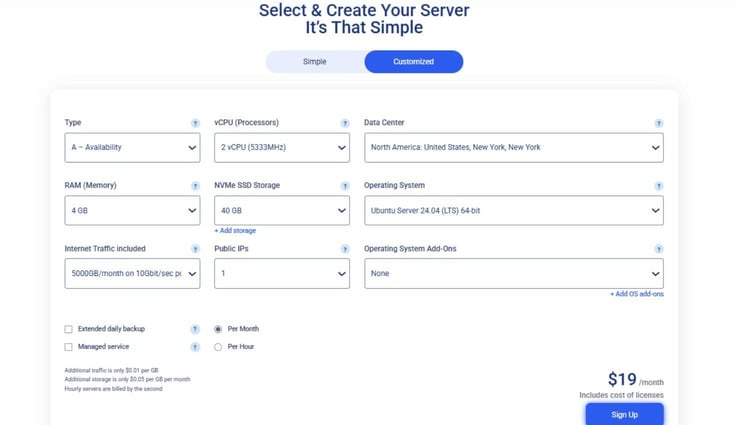
Speaking of a customized server, if you want to build a server with your own configurations, here’s what you can choose from:
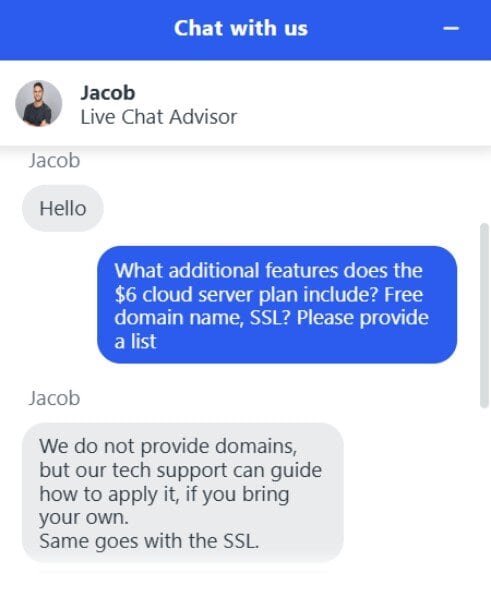
Unlike shared hosting plans, which include a ton of additional features, cloud hosting plans generally include server features only. While I already had a website and SSL certificate to my name, you might need or expect a free domain with your plan. And guess what? There was no mention of them anywhere! The solution? Customer support, via live chat.
I had a great chat with Jacob and he answered all my questions in under a minute. I appreciate the efficiency.
So apparently, even though they don’t offer these extras, you can reach out to tech support if you need help installing SSL certificates and transferring domain names.
Now, before purchasing the server, I had to compare Kamatera’s $19 plan with similar plans from other hosts. I mean, what if another host offered a better overall package?
Here’s a chart that compares my top picks:
| Kamatera | InterServer | Hosting.com | IONOS | |
|---|---|---|---|---|
| Intro Price | $0/month (for up to $100 in cloud services) | $9/month | $9.99/month for your first month | $4/month for three years upfront |
| Renewal Price | $19/month | $9/month | $19.99/month | $8/month |
| vCPUs | 2 | 2 | 2 | 2 |
| Disk Space | 40 GB NVMe | 120 GB NVMe | 80 GB NVMe | 80 GB NVMe |
| RAM | 4 GB | 6 GB | 4 GB | 4 GB |
Kamatera wasn’t the absolute cheapest — IONOS takes that crown. Even InterServer which has a similar price gives you more disk space and RAM for your money. However, considering the hardware and level of customization I got, Kamatera was a pretty easy choice for me.
The next step? Signing up, of course.
I clicked on the “Create Server” button and was redirected to the page below almost immediately.
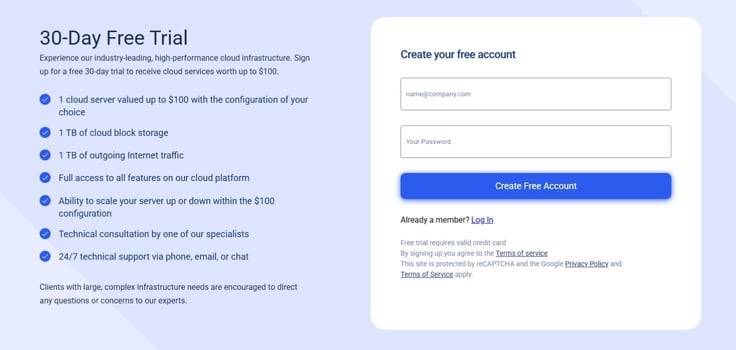
Before creating a free account, I read the details of the 30-day free trial and was left impressed. If you’re not a fan of reading T&Cs, I have news for you: Kamatera offers a free month of cloud hosting, as long as your customizations cost less than $100. Not bad, eh?
They did ask for my credit card, but it wasn’t charged for the first month, so don’t worry! It’s just standard practice.
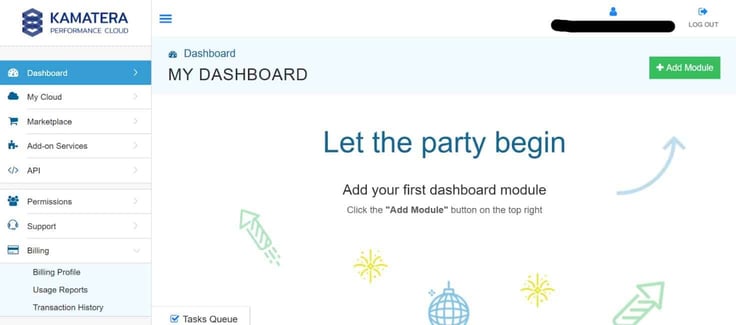
Within seconds, my dashboard was set up. It might sound like I’m exaggerating the speed at which all of this happened, but I kid you not, Kamatera is that guy. Anyway, you’re here for the details, so let’s get “the party” started, shall we?
I faced my first real problem at this point — I couldn’t directly add the plan I liked from the website to my dashboard. Why advertise them in the first place?
I realized that the servers displayed on the website were just to give me a “feel” for what Kamatera offered. I spent some time fiddling with the dashboard and pretty quickly figured out I had to click on “Servers,” followed by “Create New Server,” to customize my cloud server.
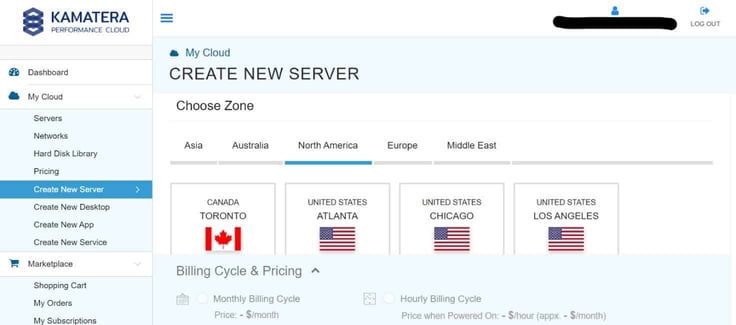
To make things easier on myself, I kept the website tab with my preferred server configurations right next to the dashboard tab.
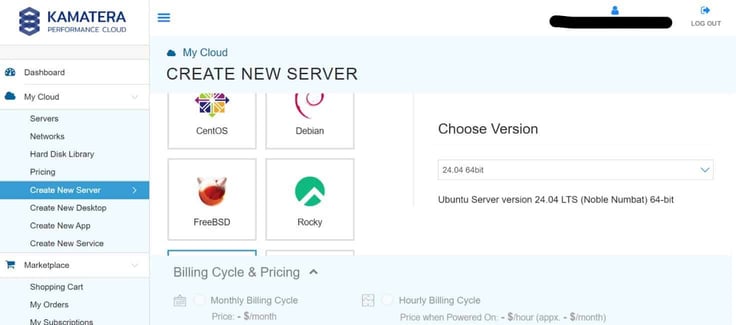
I chose the “UNITED STATES ATLANTA” zone (since I live in Florida, and Atlanta is closest to me), scrolled, and selected this Ubuntu Server version: “Ubuntu Server version 24.04 LTS (Noble Numbat) 64-bit.”
Next, I chose the A Availability server CPU type, 2 vCPUs, 4GB RAM, and 40GB NVMe SSD storage space. I also added the daily backup option and a monthly billing cycle.
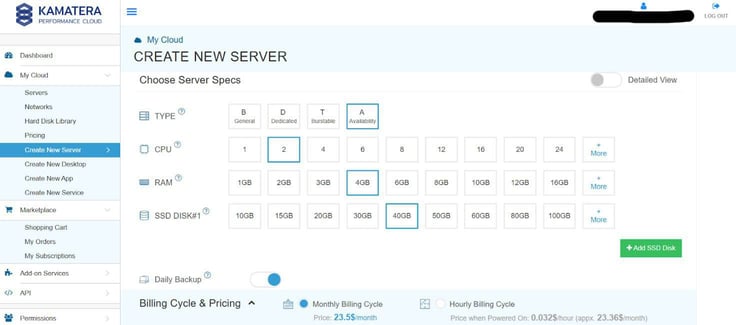
This took my grand total to $23.50-per-month — $4.50 more than what was advertised on the website. This was understandable, though, as the “Simple” plans didn’t include an option for daily backups.
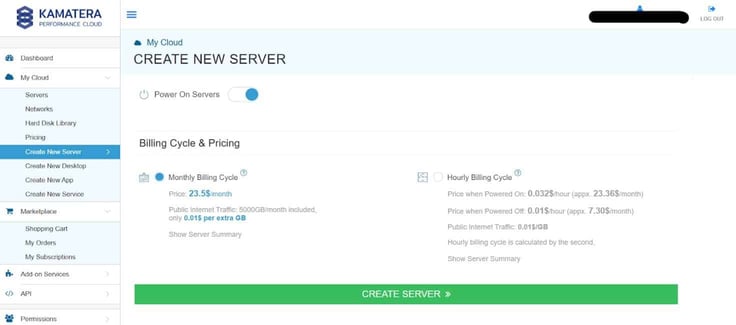
Guess what I named my server? HostingAdvice. Ha, zero points for creativity! I set a password for it and clicked on the “CREATE SERVER” button. And boom — I had a brand new cloud server to my name!
The next step was to obviously check if my server was deployed. I visited the “Servers” section, and after refreshing the page a couple times, there it was! My baby was up and running.
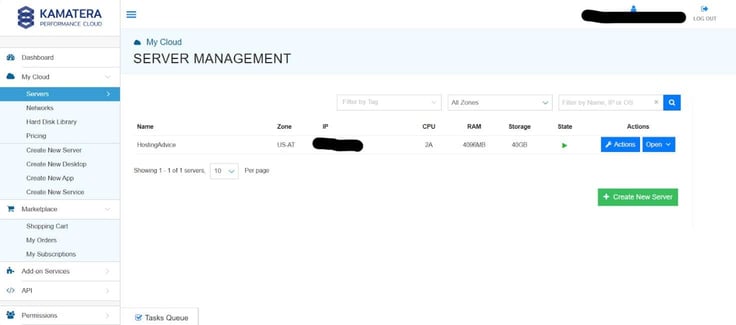
Out of curiosity, I clicked on the “Open” option and was treated to a detailed view of my server.
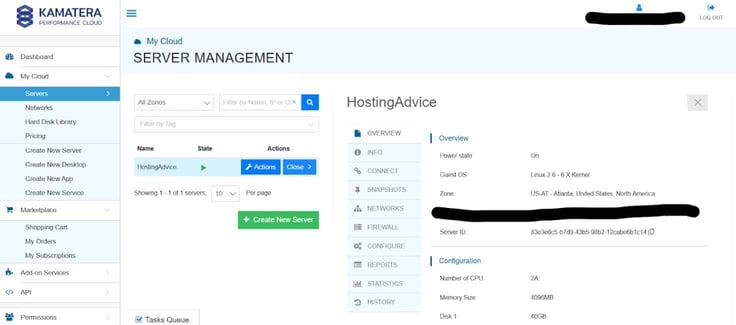
From here, there’s a whole list of ways I could manage my server. Here’s what I could do:
If I clicked on the “Actions” button, I could:
Neat, right? Now, managing your server is one thing, and configuring it is another. My server was basically a blank Linux machine at that point. I still needed to:
Since Kamatera provides access to a command-line interface directly from the dashboard, I could choose to either configure my server through it or install a control panel if I wanted to avoid the CLI.
To access the Remote Console, I clicked on the “Open” button, followed by the “CONNECT” and “Open Remote Console” options. Then I was redirected to the screen below.
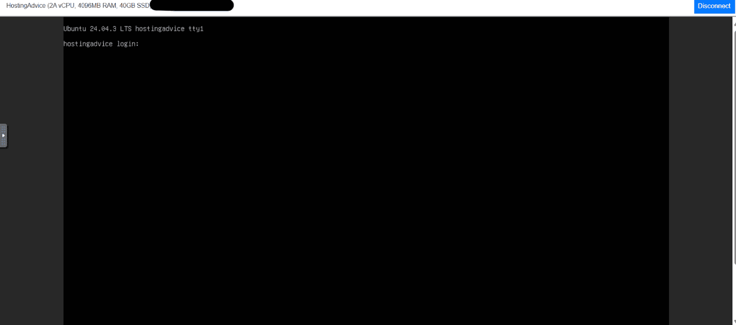
From here, I could install the control panel of my choice or configure my server directly. Since my website is WordPress-based, I opted for CyberPanel (it’s free and lightweight) and configured it — although I know how to use the command line, I prefer how easy CyberPanel makes things.
I was disappointed to learn that Kamatera doesn’t provide a predefined template for CyberPanel installation (or any control panel, for that matter). This just meant running a few extra lines of code, so I didn’t make a fuss.
Note: If you follow the steps I took, don’t forget to update your domain’s DNS records to point to your server’s IP address and add your domain in CyberPanel!
Configuring my server was just one part of the process. I needed an actual website for it to host and a domain name to connect it to. Since Kamatera doesn’t provide either of those things, you can follow the steps I took to set these things up.
First, I visited the official GoDaddy website and searched for the domain I wanted: manutdtalks.com.
Hey, I’m not a football fan in the slightest. But my colleague is a huge Manchester United supporter, and I wanted to surprise him with a blog where he could voice his opinion on everything related to the club.
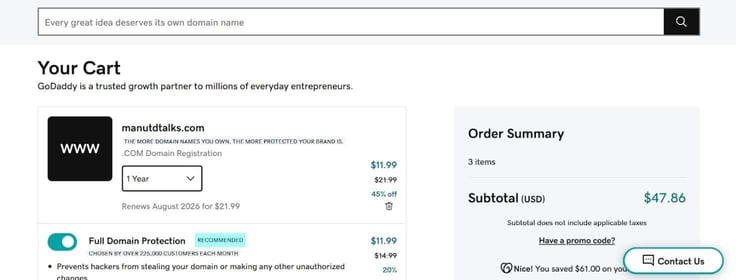
I bought the domain for just $47.36 for a one-year term (before taxes) — I always make sure to include full domain protection and professional email with at least one mailbox. Safety first, right?
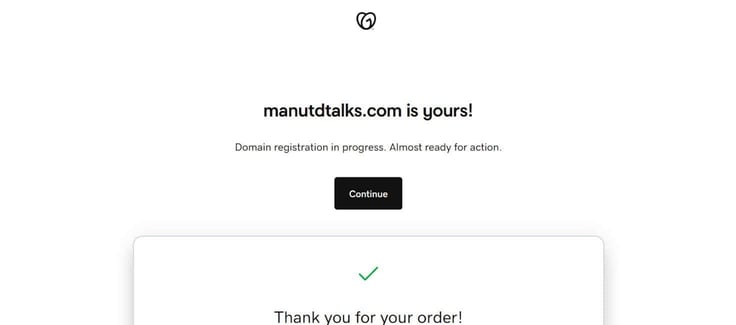
A few clicks later, manutdtalks.com was all mine! I pressed the “Continue” button to set up my website and was redirected to the website dashboard after a few steps.

AI is everywhere nowadays, and GoDaddy’s AI assistant, Airo Plus, is pretty cool. I used it to design a website logo and the coming soon page, and then sent a screenshot to my colleague.
Have you ever seen someone jump with joy? Ah, I should have recorded his reaction! My next priority was to set up my Kamatera server to accommodate the website.

I logged into my server, updated all packages, and installed basic utilities.
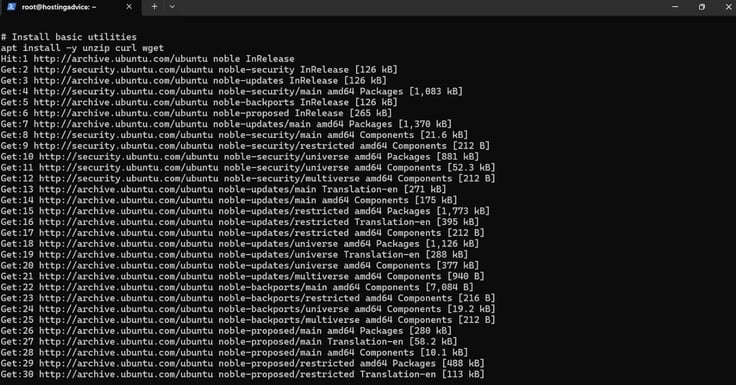
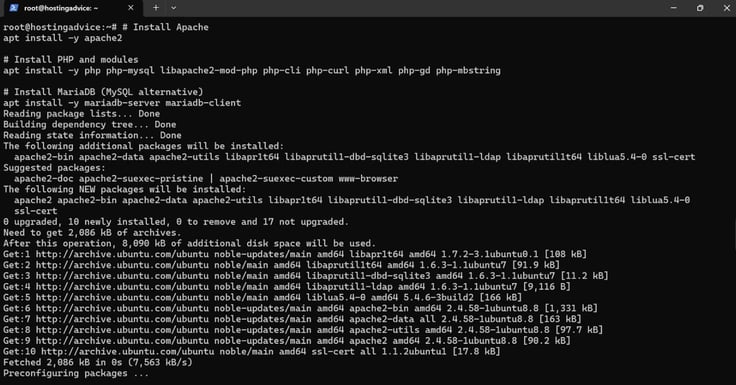
After that, I installed the Apache web server, PHP, and the MariaDB database.
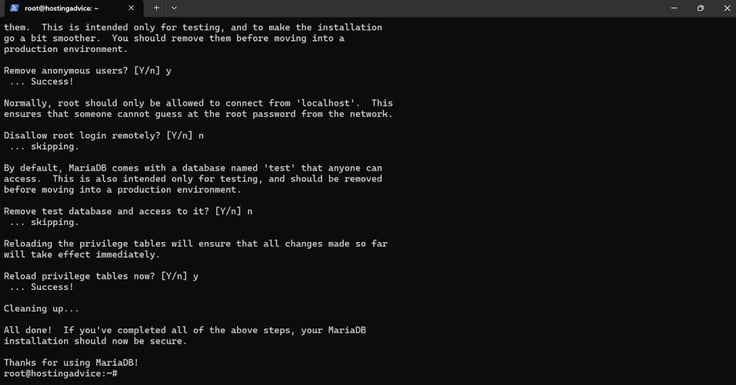
Next, I secured the MariaDB database installation.
Then, I set up a database for WordPress and completed the WordPress installation on the server.
If you run the command “https://your_ip_address/wordpress/wp-admin” in your browser, you should see this screen (where “your_ip_address” is your IP address):
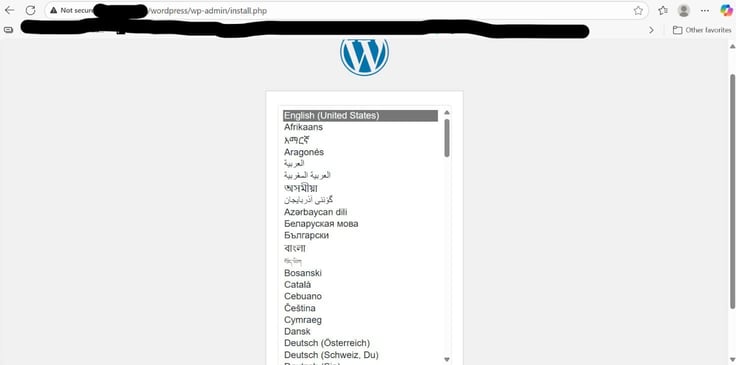
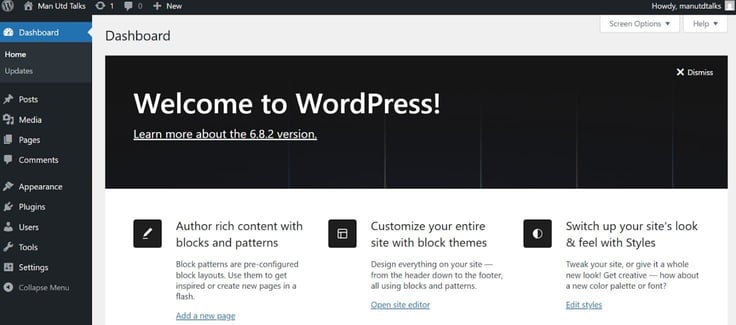
From there, I followed WordPress’s self-proclaimed famous five-minute installation process to set up my website. Truth be told, it took less than a minute! This is what the dashboard looked like:
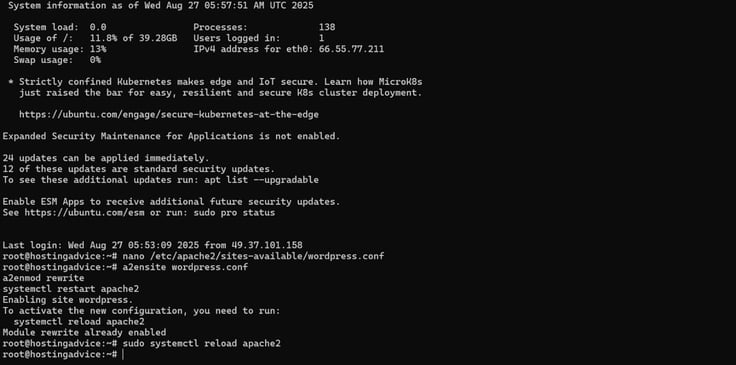
I left the dashboard as it is and began configuring Apache.
All I had to do now was point my website to the Kamatera cloud server’s IP address, and, of course, design my website using WordPress’s free toolkit. So, I logged into my GoDaddy dashboard, accessed the “Domain” section, and visited my domain’s DNS records (don’t forget to disconnect your domain registrar’s website builder).
I updated the A record to point to my server’s IP address and waited for DNS propagation to take place. As you might know, this takes up to 48 hours, so while I waited for the changes to reflect, I made minor changes to the website’s design.

Hey, hey, hey. I know the website isn’t the prettiest one on the block. It’s his website, and I wanted to extend him the courtesy to design it to his liking. I know Wayne Rooney is his favorite player, so I created a quick post to honor the legend.
As soon as the DNS records were reflected (I had to wait for about five hours), I treated myself to a free SSL certificate from Let’s Encrypt and decided to check the website’s performance using GTmetrix (more on that below).
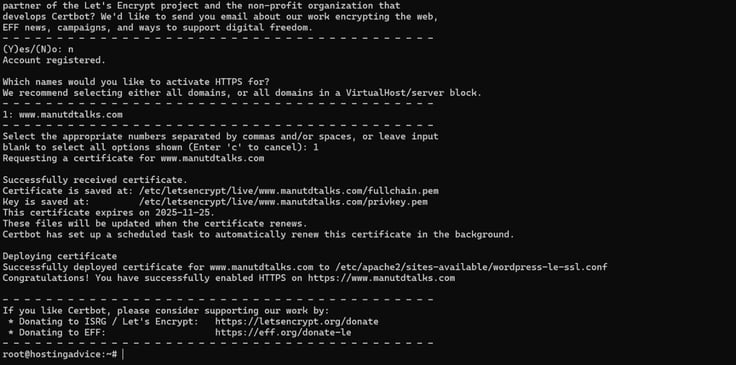
This is what my website looks like now:

A work of art. I know that I made it seem like I didn’t run into roadblocks — I did. All I can say is stay calm, treat each error with care, and yeah, don’t be afraid to use ChatGPT for command line help!
I chose a plan with 2 virtual CPUs, 4GB RAM, and 40GB NVMe storage — I expected my website to fare well on the GTMetrix performance test.
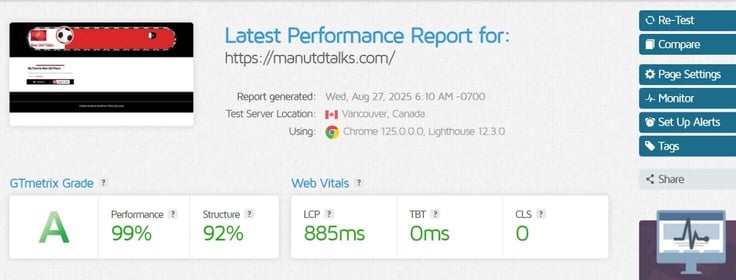
Of course, my website has no visitors at the moment (except for me), so I don’t expect it to load in just 0.885 seconds when my colleague is churning out blog after blog and appealing to the Manchester United faithful.
But it was heartening to see 99% performance and 92% structure grades — these metrics suggest my website is built to handle anything.
Yes. If you know your way around cloud infrastructure, phew, you’re going to have a great time! If you’re an experienced web designer, developer, system administrator, or just a tech-savvy person, dive right in. Beginners should probably steer clear and try another cloud hosting platform that doesn’t require as much manual and technical care, such as Hostinger or SiteGround.
When Kamatera says they provide around-the-clock technical support, they mean it — Jeff from the live support team was at my service almost immediately.

Overall, I rate the responsiveness of Kamatera’s customer support a solid 10/10. And, according to reviews on Trustpilot, people mostly report positive experiences.
According to one person, “They’ve taken time to understand our infrastructure… the support… personal, direct, and real.”
Alongside live chat, you can reach out to Kamatera via phone and email. While I only used live chat, other users reported quick responses via phone and email, as well. The phone support is a great value add here, as some hosts have rescinded their offerings of it and only provide live chat or email.
Kamatera ticks most of the boxes, especially if you have experience with managing servers and the command line (you can’t get by without it). I could easily list a million reasons why you should go with Kamatera if that’s you, but I’m going to be a little more objective in case you’re new to this.
Here are the pros and cons of Kamatera from a general user standpoint.
Given my absolute impartiality, if you’re new to cloud hosting and looking for a beginner-friendly plan, I’d probably recommend a host like Hostinger, since it offers many more beginner-friendly features, like a free domain name and website builder.
But for people who know their way around a server, Kamatera absolutely crushes it. The value you get for your money is some of the best around. Only the lack of predefined templates for control panel installation is a bummer — but probably not a dealbreaker.
What more can I even say at this point? If you’re a serious cloud user, Kamatera should be right up there as a top choice. I can’t call it a “definite” choice, as the cloud hosting market is massive and there are several excellent providers out there, but I know you can’t go wrong with it.

HostingAdvice.com is a free online resource that offers valuable content and comparison services to users. To keep this resource 100% free for users, we receive advertising compensation from the hosts listed on this page. Along with key review factors, this compensation may impact how and where hosts appear on the page (including, for example, the order in which they appear). HostingAdvice.com does not include listings for all web hosts.
Our site is committed to publishing independent, accurate content guided by strict editorial guidelines. Before articles and reviews are published on our site, they undergo a thorough review process performed by a team of independent editors and subject-matter experts to ensure the content’s accuracy, timeliness, and impartiality. Our editorial team is separate and independent of our site’s advertisers, and the opinions they express on our site are their own. To read more about our team members and their editorial backgrounds, please visit our site’s About page.


