
Guides

Studies 
Studies
Our studies cover a range of trending topics and deliver original, reliable data you can't get anywhere else on the web.
I built sites, ran GTmetrix tests, and even wrestled with a self-managed VPS to see whether Hostinger’s rock-bottom prices still deliver real-world performance.

By: Sead Fadilpasic

Editor: Lillian Castro

Reviewer: Cristian Lopez
Disclosure: When you sign up through links on our site, we often earn referral fees from partners. For more information, see our ad disclosure and review policy.
During the better part of a month, I tested Hostinger and its hosting services to see whether the hype had merit.
For the often ridiculously low price, I got all the standard stuff to have my site working as the hosting gods intended.
Hence, budget-conscious and WordPress site owners will appreciate Hostinger’s competitive pricing (more so on longer-term contracts) and optimized performance.
If there was one area where Hostinger excelled, it was the overarching commitment to user-friendliness.
Hostinger offers stable and streamlined hosting at a price that is extremely hard to beat.
Since it’s a rather beginner-friendly host, it may deter you if you’re a more advanced user.
I’ll say this: for all it throws at you, Hostinger’s cheap hosting feels anything but cheap.
Included are several freebies, managed hosting for a WordPress site, an AI website builder, third-party marketing tools, and quite a few other features, so at no point did I feel like I was missing out on something.
More importantly, it was easy for me to get the hang of everything as I moved along, which is one of Hostinger’s main advantages.
I put it through its paces via GTmetrix, and the hosting was performant enough that I’m sure it will see your site through thick and thin — that is, within the realms of shared hosting.
I’ve made screenshots and short videos of my experience for a detailed look at what was going on. Here goes:
I began my review on the pricing page, where Hostinger lists three options: Premium, Business, and Cloud Startup.
The plan features are neatly organized for a quick comparison, but I particularly liked the “Compare plans” section that provides a comprehensive overview of what I’d be getting for my money.
As the most affordable entry point, the Premium plan seemed like a logical start to check out what Hostinger has to offer for a bargain price. I scrolled through its features and learned that it comes with free stuff like:
I felt like I was getting my money’s worth, and then some.
In case you make the switch to Business (a not-so-subtle hint to whom the plan caters) for less than a dollar more, you really feel like you’re getting your money’s worth.
The Business plan gives you access to on-demand backups, a full AI site-building experience, and a free CDN as some of the more notable additions.
To paint you a better picture of Hostinger’s plans, here is a quick head-to-head table:
| Premium | Business | Cloud Startup | |
|---|---|---|---|
| Intro Price | $2.69/mo. | $3.59/mo. | Personal sites, portfolios, low-traffic sites |
| Renewal Price | $10.99/mo | $13.99/mo | $25.99/mo |
| Sites | 25 | 50 | 100 |
| Disk Space | 25GB (SSD) | 50GB (NVMe) | 10 |
| RAM | 1GB | 1.5GB | 3GB |
| CPU Cores | 1 | 2 | 2 |
| Monthly Visits | 25,000 | 100,000 | 200,000 |
| Domain | Free domain for 1 year | Free domain for 1 year | 2 free domains for 1 year |
| AI Website Builder | Standard websites | Advanced websites | Advanced websites |
| Priority support | No | No | Yes |
| Uses | Personal sites, portfolios, low traffic sites | Small business websites with medium traffic, WordPress blogs | Medium or growing businesses, eCommerce stores |
Each plan comes in one-month, one-year, two-year, and four-year versions, the last one being the source of dirt-cheap rates.
Of course, I’m fully aware that renewal would cost me far more, as is the custom with hosting. In this instance, I’d need to shell out $10.99 per month, which is still one of the cheapest renewal rates on the market.
I get the feeling the vast majority of people will be very comfortable with the Business subscription, since it throws in a few notable features at a ridiculously low price.
That said, my first stop was going to be Premium, if only to see how cheap is cheap (spoiler alert: it’s not).
With a plan in sight, I clicked on “Choose plan” to select the duration of my Premium subscription.
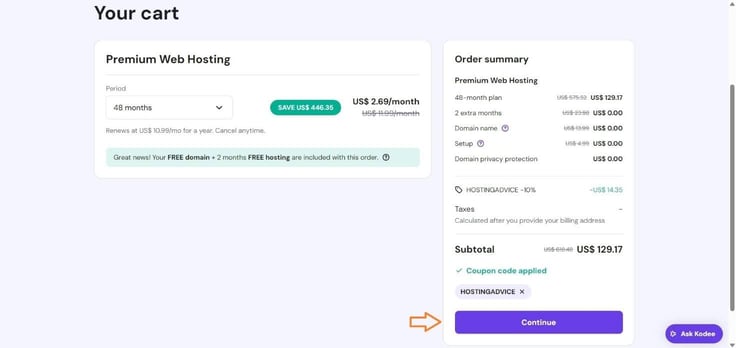
A four-year plan offers an absolute bargain price of $2.69 a month and two months of free hosting, so if you’re looking for the wallet-friendliest option, this is the one.
Satisfied that I’ll be spending only $129.17 for four years of hosting, I clicked “Continue”.
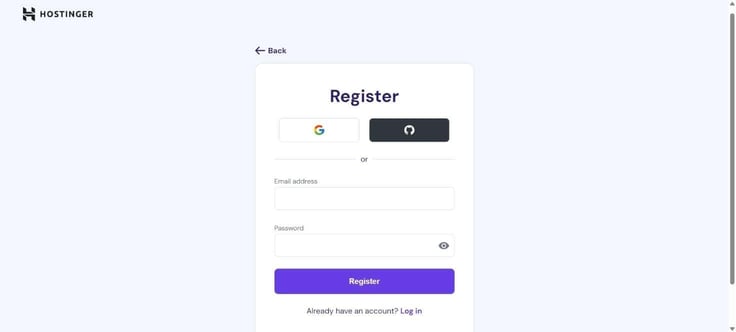
The next step was going to be registration, either with my email, Google, or GitHub account. I went with email.
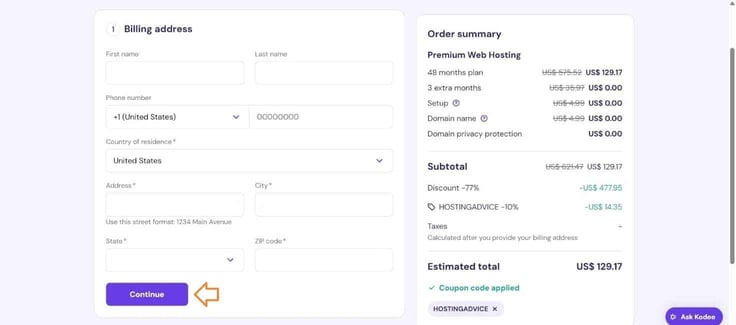
Then, I had to enter my billing address and click on “Continue”, with a neat, last-minute summary of my order to make sure everything is a-ok.
After that, it was time to enter my credit card details or select another payment method I fancied more.
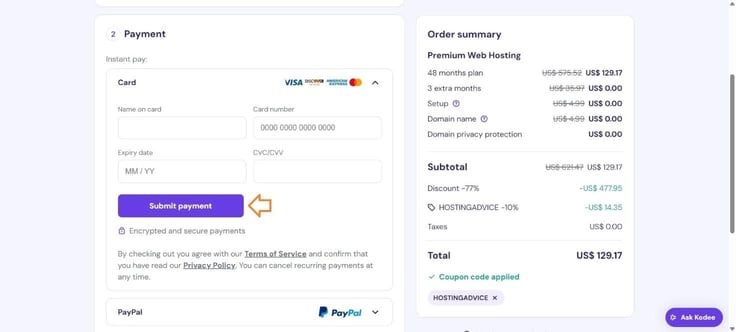
And that was it. I received a confirmation of my payment at the email address I provided. It took me no more than three minutes to go through the entire process. All that was left to do was log in to Hostinger and get the ball rolling.
Unlike with some other hosting providers, it was obvious from the get-go where my next step was. The homepage of hPanel (Hostinger’s spin on cPanel) displays “Your to-dos” front and center (Hostinger’s idea of onboarding), so there’s no confusion about what you need to do.
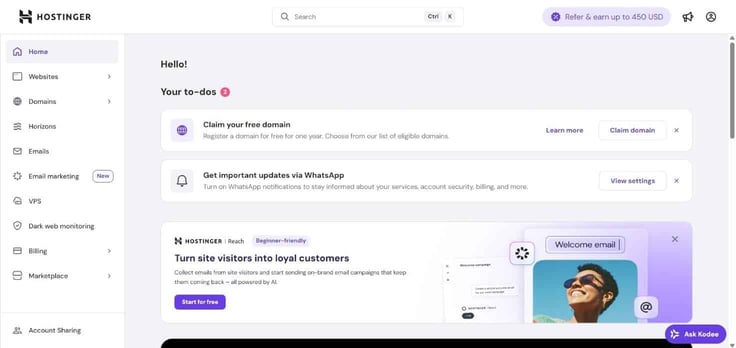
It included finishing the setup of my plan, claiming my free domain, and some tips on useful features and settings. After a quick look around, I decided to click on “Websites” in the left sidebar and build my site from there.
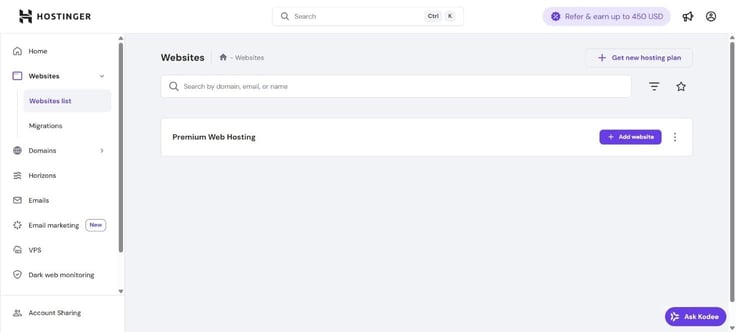
After clicking on the “Add website” button, a drop-down menu gave me a list of four site-building options:
There was also an option to migrate an existing website, which I didn’t have.
Now, at HostingAdvice, we treat website builders as distinct categories in our reviews because of their importance to the overall hosting experience.
Considering I’ll be discussing Hostinger’s no-code, drag-and-drop tool in-depth later, I’ll move on to evaluating the performance of its cheap hosting. Be sure to scroll down and check what I have to say about this website builder.
Overall, I have nothing but praise for hPanel, as I didn’t notice any tangible slowdown of my other programs on account of its (or website builder’s, for that matter) CPU and memory usage, which tells me it’s well optimized.
I suspect this is likely because Hostinger uses the standard HTML, CSS, and JavaScript frameworks and libraries to handle layout, responsiveness, and interactive elements, resulting in a clean and more consistent underlying code.
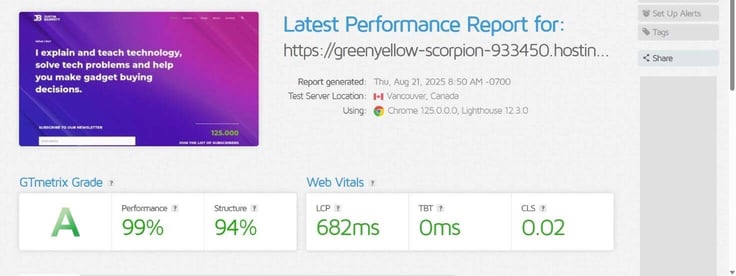
Since Hostinger’s shared plan and website builder run on the same type of hardware, I only ran one performance test through GTmetrix, which you can find here.
That would be a firm yes.
Once I got familiar with the control panel and builder, which didn’t take long, it was all a smooth ride from there. Everything was neatly organized, which made managing my hosting or fine-tuning my site rather enjoyable.
As a starting point or for financially-conscious people, Hostinger’s cheap hosting is a competitive choice that I can wholeheartedly recommend.
My experience was very positive, where at any point in my test drive, I got a reliable and reasonably fast hosting environment. Not many web hosts can pull off a good balancing act for this price tag, but Hostinger somehow manages to do just that.
Let’s make something clear: there is no separate WordPress hosting package, just an optimized and managed option within the cheap shared hosting.
Hostinger treats WordPress websites and those made with its site builder differently from a features and optimizations standpoint. So, what I did was create a website from scratch using the WordPress builder and tinkered around with WP-specific details.
And since it’s managed hosting I am talking about here, Hostinger took care of the back-end and basic administrative aspects. Subsequently, I had fewer things to deal with, which was a welcome change.
I made sure to document the process visually, so you have a better idea of what I’m talking about.
Since the WordPress package is part of the same cheap hosting I already covered, it meant I got the same low prices.
For me, the biggest draw here was having my WordPress site(s) maintained for me. The prospect of having server updates, protection, and performance tweaks handled while I go about my site is a major plus in my book.
I was pleased to learn there was more to the Premium plan. I got:
Once again, I have a table for comparison, focusing only on WordPress-related features:
| Premium | Business | Cloud Startup | |
|---|---|---|---|
| Intro Price | $2.69/mo. | $3.59/mo | $7.19/mo |
| Renewal Price | $10.99/mo | $13.99/mo | $25.99/mo |
| PHP workers | 40 | 60 | 100 |
| MySQL max user connections | 50 | 75 | 100 |
| Databases | 300 | 300 | 800 |
| WordPress features | Free 1-click WordPress installation, Free 1-click Google integration, WordPress acceleration (LiteSpeed), WordPress vulnerabilities scanner, WordPress compatibility checker, WordPress multisite WP-CLI and SSHStarter, WooCommerce | Everything in Premium + Free CDN WordPress staging tool, Free Amazon affiliate WordPress plugin, Object cache for WordPress, On-demand backup, WordPress AI troubleshooter, AI website builder for WordPress | Everything in Business + 2 free domains for 1 year, Dedicated IP address, Priority support |
Looking at the feature list, I couldn’t shake the feeling that all the essentials were there, plus a few extra optimizations to make my site smooth as the smoothest jazz.
However, I like having options, so I took a glance at the Business plan, just in case I ever decided to bump up my subscription.
I’d gain access to a CDN, WordPress staging tool, AI troubleshooter, AI website builder specifically for WordPress, and object caching, to name a few. A pretty compelling package, I must say.
As I’ve already gone through this part when signing up for cheap hosting, I have nothing new to show you here.
The process is 100% the same, even if you purchase the “Managed hosting for WordPress” option, so please refer to the “My Experience Using Hostinger’s Cheap Hosting Plan” section for a refresher on sign-up details.
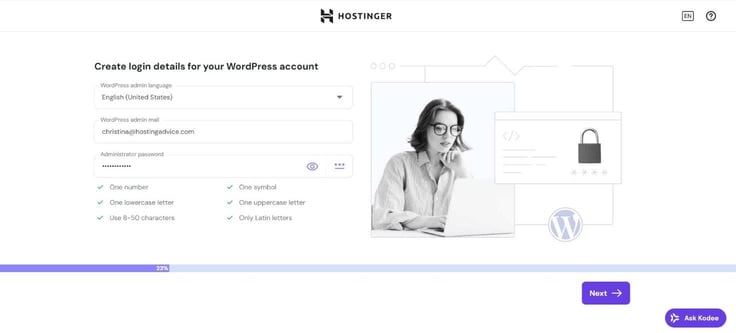
Armed with knowledge of previous site-building experience, I was keen on testing the WordPress builder. The first order of business was to enter my WordPress admin email and come up with a strong password.
Next, I had to decide between a prebuilt website, a blank one, or a WordPress theme as my site’s framework.
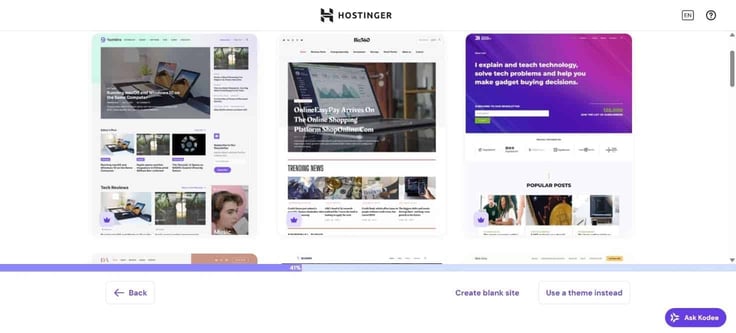
When it comes to themes, there are 15 of them, including some of the fan-favorites like Astra, Hestia, and Neve.
But because I’m passably lazy at times and they look nice, I went for a pre-built website from the Blog category. And yes, I can be that uninspiring at times. I counted 161 available templates across four categories, so there was plenty of choice.
Anyway, here’s a short video showing how my creation appears on desktop and mobile:
I thought it was a pretty good start, although the layout of the latest and popular posts sections could have been better — nothing a quick tweak couldn’t mend.
Pre-built websites simply make the process easier since they are already made and populated with placeholder content, so I was left with the task of adapting them to my brand and needs.
In case you want to give it more thought than I did, opting for a theme gives you more flexibility to set the overall design, layout, and style, though you’ll still need to configure pages and add content.
I also had the dev-friendly option at my disposal, which is creating a blank website without any pre-installed CMS or builder. This means I can upload my custom code and design the website from scratch.
Satisfied with the result from the prebuilt template, I clicked on “Continue” to, well, continue to the next page. This is where things started to feel WordPress-y, and also where I have my first real complaint about the intuitiveness of the installation.
As you can see below, Hostinger provides a few recommendations, and rather sensible ones at that. But for anything else, I had to search manually, provided I knew what I was searching for.
There is no list of categories of any kind, which makes this part of the installation a bit incomplete — though I could always go crazy with plug-ins later on via the WP admin dashboard.
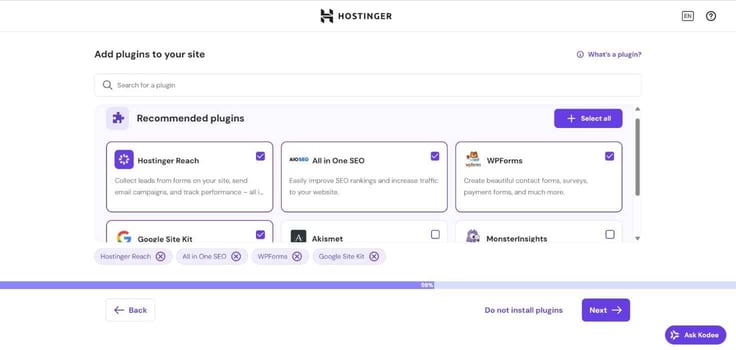
After selecting a few of the recommendations, I clicked “Next” to domain naming, where I opted for a temporary one. All that was left to do was select the data center closest to my target audience and wait for the WordPress installation progress bar to reach 100%.
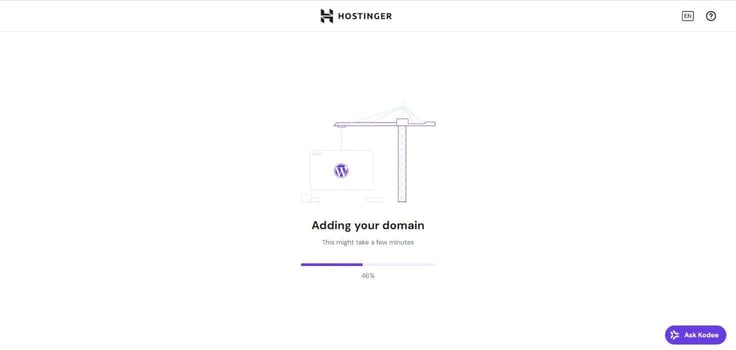
After a couple of minutes, I was greeted with the familiar sight of the WordPress editor.
Now, having created enough WordPress sites to know what awaits me, I was more interested in Hostinger’s approach to setup. The provider did alright in that regard, thanks to a couple of its automatically installed plugins.
From the WordPress dashboard, I got a short step-by-step onboarding guide, along with WP-centric resources that were a nice touch. If I were a WordPress newbie, I’m sure I’d be very appreciative of this help.
One click on “Tools” and I could handle the essential administrative tasks concerning the maintenance and security of my site, as well as redirects and LLMs.txt generation. Once again, there was a link to a handy guide that eased me into site management à la Hostinger.
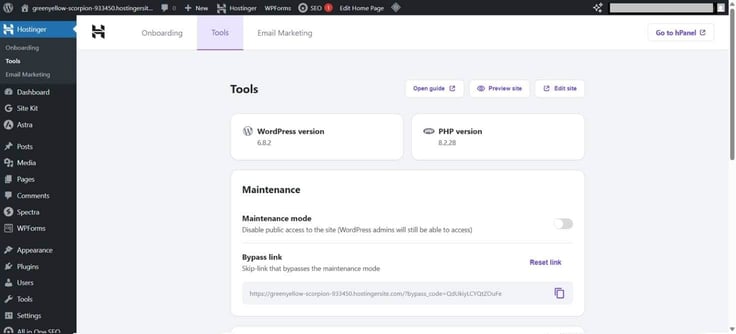
Finally, the “Email Marketing” section is reserved for Hostinger Reach, the vendor’s AI-powered email marketing tool. I had no immediate use for it at the moment, but nevertheless, I did connect my site with the tool.
At no cost for the first year, you can send 200 emails and reach 100 subscribers per month. For getting started, that seems like a rather decent gift.
I liked the fact that I could easily return to hPanel at any time (courtesy of the “Go to hPanel” button in the upper right corner) and get the lowdown on my site.
Hostinger did a good job making this area beginner-friendly, with neatly organized sections for the most important aspects.
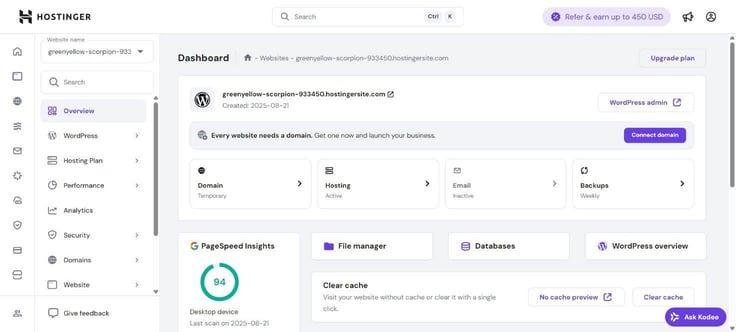
Looking back, the entire experience felt unobtrusive and nicely streamlined, to the point that I was clear on what to do almost every step of the way.
“WordPressing” my site was satisfying for the most part, more so as most of the heavy lifting was done for me.
I do think that the distinction of a separate WordPress hosting can be far better presented, so that yours truly and other site owners can understand from the start the advantages of a WordPress site versus the one made with Hostinger Website Builder.
Being a test site, my little creation wasn’t going to receive visitors any time soon, but I could test load times with GTMetrix.
There was nothing to complain about. I experienced stable response times under load, and my site felt lively when playing around with different settings and edits, which is all you can ask for at this point.
Before I move on to the conclusion, I’d like to point out something that I feel is often overlooked. As a rule, your choice of WordPress theme plays a considerable role performance-wise.
For example, the time to interactivity (how long it takes for a page to become entirely interactive and usable after it loads) on the Airi theme is 3.3 seconds, while its speed index (how quickly your page is visually complete above-the-fold) is 4.1 seconds.
For example, that is 1.3 and 3 (!) seconds slower than the Neve theme, respectively — far from negligible.
Being a decade-long WordPress site owner, I had certain expectations, and I’m pleased to say that Hostinger’s managed WordPress hosting met them to a great extent.
Creating a website was fun, managing it was streamlined through hPanel and the provider-supplied plugins, and the seamless WP Admin access allowed me to freely fiddle with my digital real estate.
Keeping in mind this is the budget hosting territory I’m exploring, it’s fair to say that Hostinger punches above its weight for the value provided.
Yes, it may lack the depth and polish in certain areas found elsewhere for more money, but the most important part is that it didn’t leave me hanging.
The lack of distinction between a separate cheap hosting and a WordPress package was a bit puzzling at first, but not in the sense that it could meaningfully impact my experience.
It didn’t take away from the breadth of possibilities I had before me, and for that, I can recommend you give it a go too.
You don’t want to miss out on the fun of creating a site with AI prompts, because it would be a real shame if you did. It took me less than a couple of minutes to familiarize myself with the builder and get quite fond of it in a strictly non-platonic, business sense.
And how could I not? Its AI instantly creates an SEO-optimized website with the desired layout and the freedom to do whatever you want. As far as easy, no-code options go, this one is *chef’s kiss.*
Check out how this part of my Hostinger journey went.
If it wasn’t clear at this point, Hostinger Website Builder is the same product whether you use it as a standalone service or within cheap hosting plans.
Once again, Hostinger could do a better job of making the distinction clear(er), so I asked the customer support before I tried to figure out the differences myself.
The official party line was that the main difference is the focus of the plan and what’s highlighted at the beginning. The Website Builder plans highlight the builder, whereas the “regular” subscriptions focus on other CMS options. In either case, both support the product fully.
Ok, that makes some sense. The builder comes in two packages: Premium and Business, which should be familiar to you by now. You get the same resources and the same wallet-friendly price tag for the two available subscriptions.
Here’s a brief comparison of the two plans:
| Premium Website Builder | Business Website Builder | |
|---|---|---|
| Starting Price | $2.69/month | $3.59/month |
| Renewal Price | $10.99/mo | $13.99/mo |
| AI Tools | Only website builder | AI text editor, AI image generator, AI blog post generator, AI product generator, AI logo maker & AI SEO assistant |
| eCommerce Features | No | Yes |
| Built-in marketing tools | Yes | Yes |
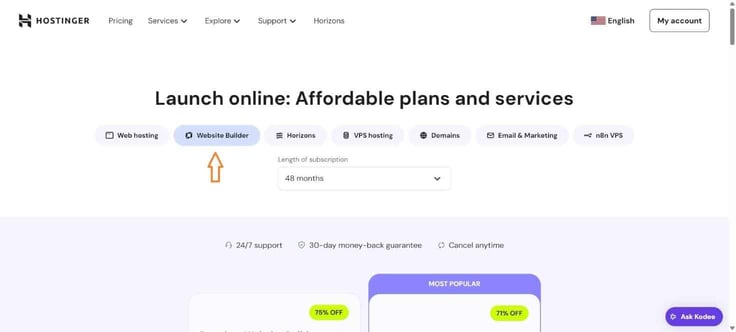
I’ve been down this road before with cheap hosting. The only real difference here happens on the “Pricing” page, where you should choose the “Website Builder” option instead of “Web hosting” or some other, as seen below:
After settling on one of the two plans and clicking on “Choose plan”, the rest of the process is exactly the same as when signing up with cheap hosting.
Frankly, the words “AI-powered” immediately drew me toward the Hostinger Website Builder, as I was eager to explore its possibilities. The idea is to describe your site in a few sentences, and the AI will produce the goods.
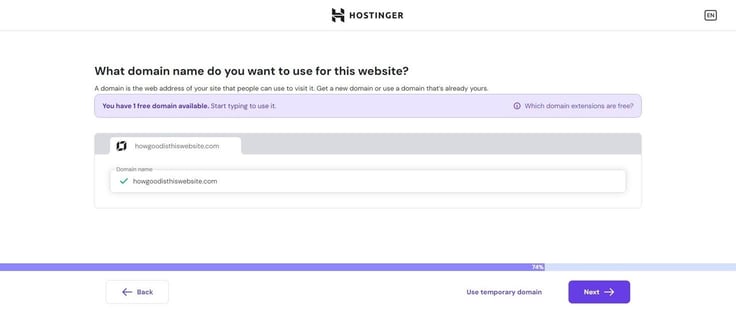
So, that was my choice (plus, I already covered WordPress separately, so no sense in repeating stuff). The first step was to opt for a domain. For the purposes of testing, I went with a temporary one and hit ‘Next’, but not before trying out a few ideas.
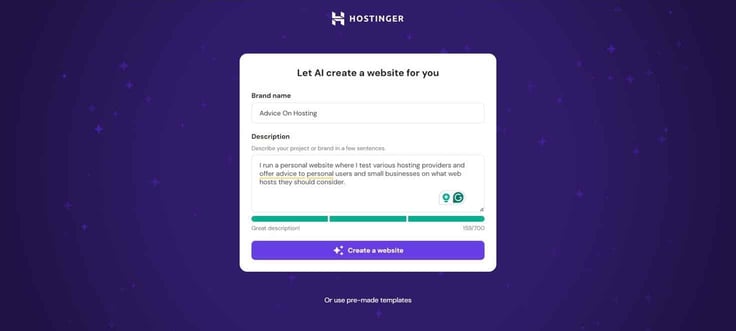
A simple form greeted me on the next step, where I had to come up with a brand name and a description of what my site was about. There was also an option to employ one of about 100 or so pre-made templates.
However, using AI to create a website from thin air (or should I say, description) is objectively way more fun, plus I got the chance to flex my prompt muscles.
I started by describing what my brand does, so that the AI could create a corresponding look. As you can see, I wasn’t particularly inventive with my brand name.
After clicking on “Create a website,” it took half a minute to see the fruits of my prompting. Taking into account it’s a website I’m talking about here and screenshots won’t do it justice, here’s a short video of the end product.
All of that was based on one sentence. Mind you, I had some 540 characters left (between 70 and 130 words), so there was plenty of room to be specific and include all kinds of stuff.
By all means, I could fully edit the layout, design, and content to really make the site my own. I’m not saying that what the AI came up with is fully usable — the point here is that a minute and a half of my input got me a functioning website to build upon.
When I popped the hood and started editing, that’s where the full scope of possibilities hit me. For instance, I could insert something simple like a subscription form.
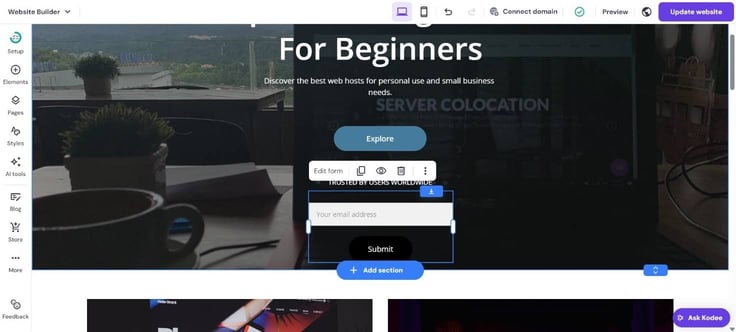
Or, I could do all sorts of store-related tasks and further develop my side gig.
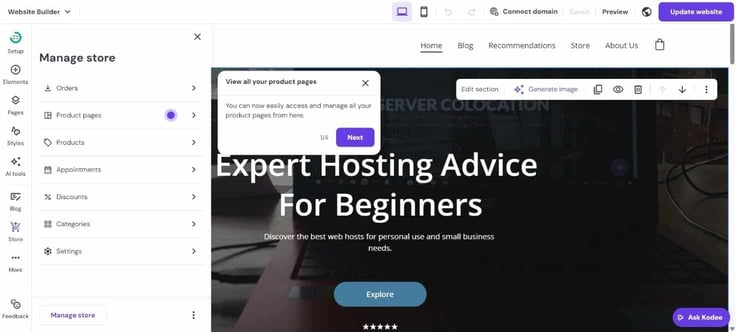
Suffice it to say, you can do a lot to create a respectable website. Of course, most of the AI tools are reserved for the Business plan, but I had the Product Details Generator at my disposal. I could also create a logo with AI, courtesy of complementary credits, as the in-store currency.
Now, all of the available tweaks might be a tad overwhelming for some, which is why I appreciated the fact that the first item in the left toolbar was the “Site setup checklist.”
It gave me a clear path of getting my site ready for the web, though I couldn’t help myself and had to try this and that in between steps.
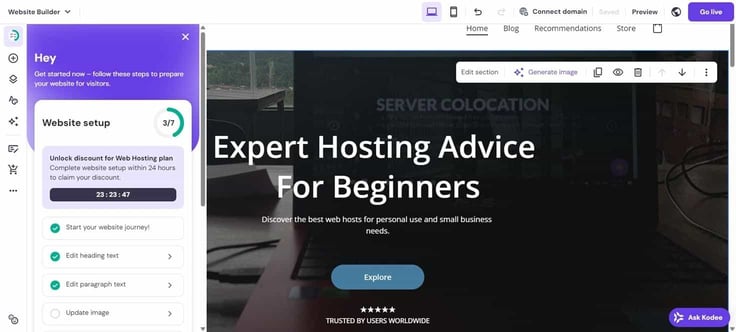
I feel like I could have spent hours in the builder tinkering around, so if you’re anything like me, you’ll take your time and go step by step until everything is ready for the public eye.
While the builder isn’t exactly open-minded to customizations, you can add custom code here and there.
To be honest, I thought this was going to be a little beyond my tech capabilities, but all it took was inserting custom scripts provided by the third-party tools and services to add them to my site.
Just make sure to follow the instructions, and you can set up Google AdSense, for instance, on your own.
And in case you’re not a fan of AI prompts as I am, there is also access to designer-made templates for various website types (landing pages, portfolios, blogs, stores). The bottom line is: I had decent flexibility to add different elements any which way I pleased.
If there’s one word I’d use to describe the speediness of my website, it would be snappy. A quick check via the GTMetrix supports my linguistic decision, which showed green across the board.
And yes, my little place on the internet may not be the bulkiest in terms of content, but the results are, at the very least, encouraging.
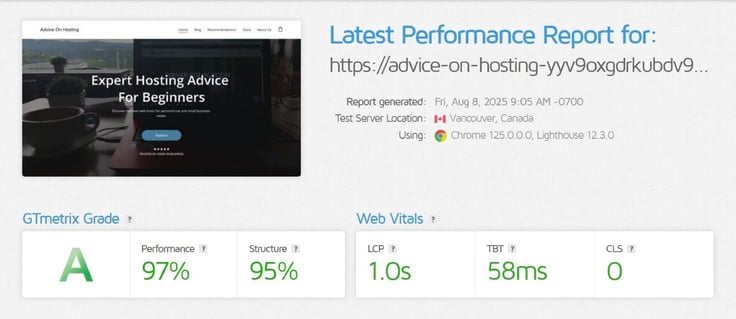
The builder felt lightweight and stable, since I had no major or minor issues to report during quite a few hours of messing about. It reacted instantly when I did the old drag-and-drop routine or edited bits and pieces here and there, creating an overall smooth workflow.
Absolutely.
Once I got familiar with the tool, it was all a smooth ride from there. All the staples of a good website builder are there, like the intuitive drag-and-drop interface, granular personalization settings, marketing integrations, and so on.
Everything is neatly organized, making editing uncomplicated and, dare I say, entertaining at times.
One thing that stood out to me was the speed at which the software works. In a couple of minutes, I got an optimized (the operative word here) website, not just a general framework.
Arguably, the main struggle (if I can even call it that) you’ll have is being descriptive, since the more explanatory you are, the better results you’ll get with AI. I write for a living, so that was never going to be a problem for me, but it might take non-wordsmiths a few tries to nail down their vision.
In fact, the only sweat you might break is when you start uncovering all the options, but that’s a good thing, I promise!
I have bad news for those of you who don’t like the responsibility of self-management. This likely won’t be in your wheelhouse since Hostinger offers a self-managed VPS.
In other words, I had control, but also the obligation to maintain all of my software updates, apply security patches, configure firewalls, keep track of server performance, and more.
To be honest, it took me a while to get comfortable with the DIY aspect for anything beyond rudimentary operations, mainly because I’m not technically inclined to that sort of stuff.
Luckily, hPanel made the ordeal easier and ultimately, worth my money and effort. It greatly simplifies some common operations, putting you firmly in the driver’s seat.
That said, I can see how advanced users will probably shrug off hPanel and the overall VPS as nothing more than basic, though I could also put on a good debate if they are the intended audience.
As I said, I’m not really into the nitty-gritty of the server-side operations, so my initial action was getting to know what’s waiting for me here.
There were four VPS plans that vary in terms of resource allocation, with each next one doubling the amount of RAM, number of virtual CPU cores, disk space, and bandwidth.
| KVM 1 | KVM 2 | KVM 4 | KVM 8 | |
|---|---|---|---|---|
| Starting Price | $5.84/month | $6.29/month | $8.99/month | $17.99/month |
| Renewal Price | $9.99/month | $12.99/month | $24.99/month | $49.99/month |
| CPUs | 1 vCPU | 2 vCPUs | 4 vCPUs | 8 vCPUs |
| RAM | 4 GB | 8 GB | 16 GB | 32 GB |
| Storage | 50 GB NVMe | 100 GB NVMe | 200 GB NVMe | 400 GB NVMe |
| Bandwidth | 4 TB | 8 TB | 16 TB | 32 TB |
All have the same core VPS features, including:
Meaning, I was about to pay for the scale and capacity I need, not a specific capability. It’s how most VPS providers structure their plans, and I find that Hostinger offers one of the best budget-friendly, performant options.
Since I could easily upgrade my subscription at any time, I thought I could give the KVM 1 option a go and see where the VPS road takes me. For under $5, I could comfortably host half a dozen low-traffic sites or a few mid-sized apps.
As I’ve come to expect by now, signup was the usual streamlined affair. After I clicked on “Choose plan” for my respective subscription, I was taken to my cart, where I had a bit more options than before, due to the nature of VPS hosting.
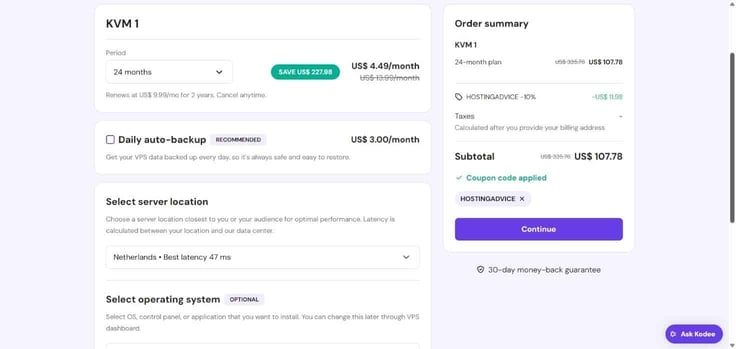
The novelties were daily auto-backups for a fee and the optional installation of the OS, control panel, or application with which I’d run the show. I went with AlmaLinux 9, knowing full well I could change it to CentOS or something else later if need be.
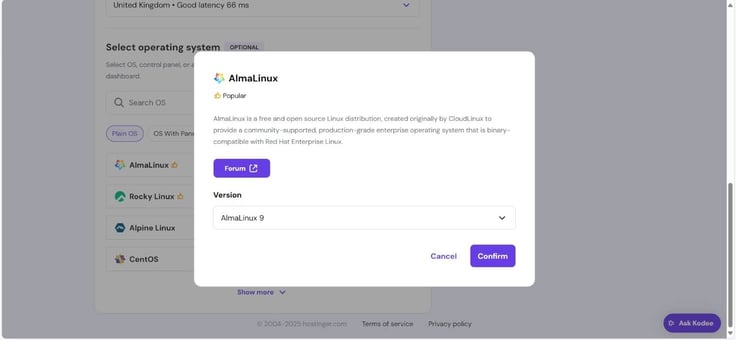
Once I confirmed my OS choice and sorted out the server location, I clicked on “Continue”, where it was time to fill in the billing and payment info, and then get to work.
The thing with VPS is that nothing comes pre-installed or is drag-and-drop by default. I had full control, so it was up to me to install and set up my website platform or tools on my own. Since I’m ok-ish with WordPress, that was going to be my foundation of choice.
Step one was to connect my VPS via SSH, and for that to happen, I needed an SSH client. I went with Command Prompt, as I’m a Windows user and it has a built-in SSH client.
I also tried Putty, since it was recommended by Kodee, but it was dreadful — I highly unrecommend it.
Anyhoo, I opened the prompt and entered the command ssh root@31.97.12.24, where the numbers represent my VPS IP address. After hitting “Enter”, I had to verify that I wanted to proceed with connecting to my VPS.
This is a security measure that happens when you connect to a remote server via SSH for the very first time, since the SSH client has no record of that server’s host key.
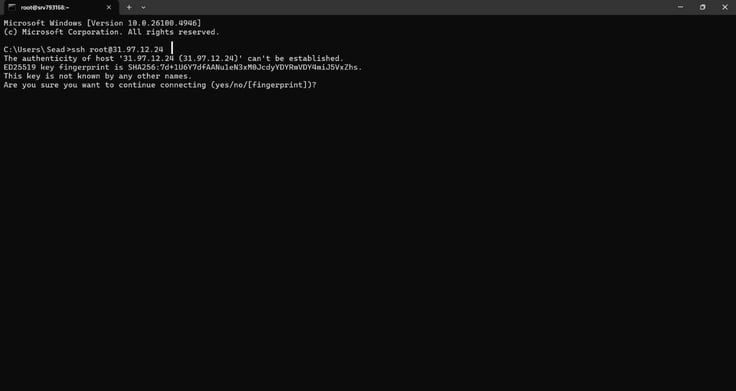
Next, I had to type my root password I set in hPanel beforehand. Interestingly, I had to type “blind”, so to speak, because the characters weren’t displayed on the screen.
This is another security measure designed to prevent unauthorized individuals from observing the password. So, rest assured that the system is recording your input even if it seems nothing is being typed.
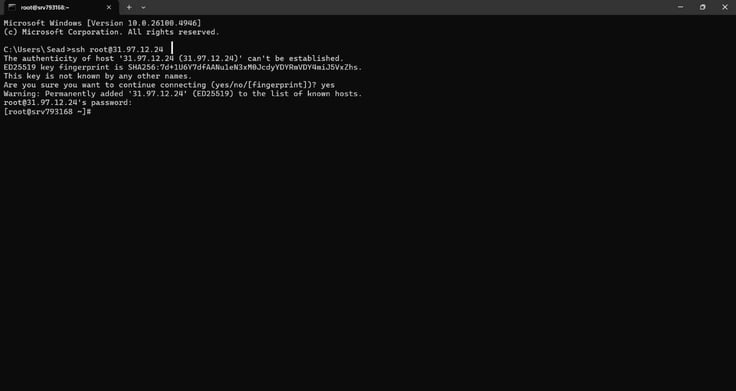
After carefully typing the correct password (from the first try, btw), I entered the dnf update -y command to update my server. The update took a couple of minutes, during which my screen looked like it was from a stereotypical movie scene that involves hacking.
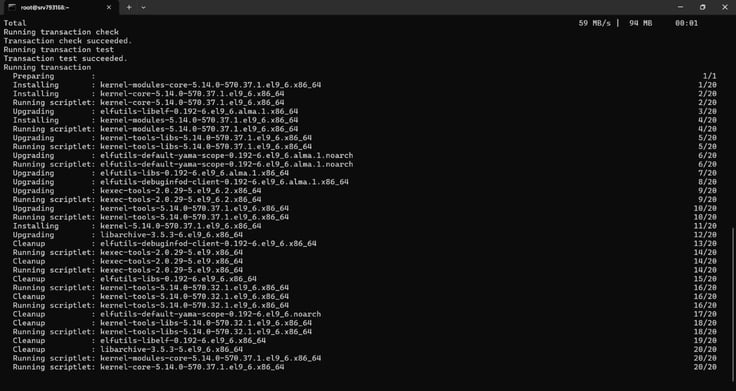
With the command prompt returning ‘Complete!’ and [root@srv793168 ~]#, I was ready for the next phase, which was installing the software needed for WordPress to run. This included Apache web server, MariaDB database, and PHP.
The command dnf install -y httpd mariadb-server php php-mysqlnd php-fpm php-xml php-gd php-mbstring php-json swiftly took care of that particular installation, so it was time to start and enable the Apache web server and MariaDB database so they could both run now and automatically after a reboot.
I entered the systemctl enable –now httpd mariadb command and got no errors, which meant that the services started correctly. Now I had to secure my MariaDB database to protect it from unauthorized access.
After entering mysql_secure_installation command, I received a series of questions with simple yes (y) or no (n) answers:
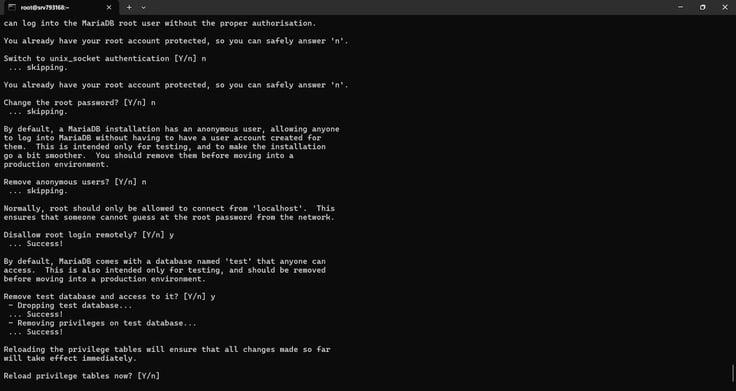
Following the impromptu Q&A, I had to create a database and a user for WordPress. Up first was logging in to MariaDB by running mysql -u root -p.
If you’ve set a root password in one of the previous questions, you’ll have to type it. I didn’t, since this is still a testing phase, so I proceeded to run these commands one by one (just make sure to replace your_password with a secure password of your own):
CREATE DATABASE wordpress;
CREATE USER ‘wpuser’@’localhost‘ IDENTIFIED BY ‘your_strong_password’;
GRANT ALL PRIVILEGES ON wordpress.* TO ‘wpuser’@’localhost’;
FLUSH PRIVILEGES;
EXIT;
You should get the all-clear like this:
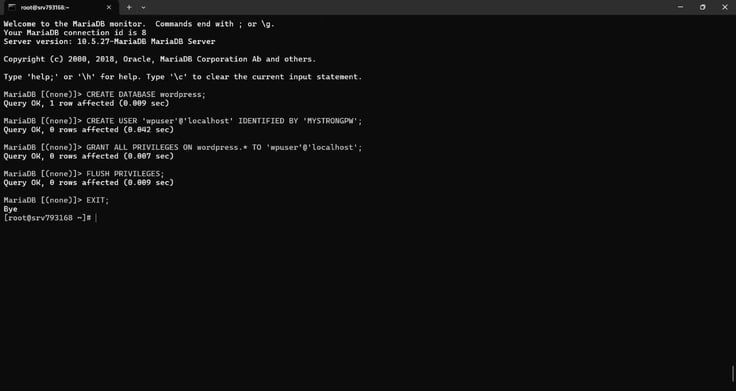
It was time to download and set up WordPress. I had to move to my site’s root directory via cd /var/www/html, then download and extract WP with curl -O https://wordpress.org/latest.tar.gz and tar -xzf latest.tar.gz.
From there on, I had to move the WordPress files to the main directory with cp -r wordpress/* . and set the correct ownership and permissions with these commands:
chown -R apache:apache /var/www/html
chmod -R 755 /var/www/html
There were no error messages, which meant the ownership and permissions had been set correctly and I could finally get out of the command prompt (not my favorite place).
I wasn’t done. To complete my WordPress setup, I had to go to http://31.97.12.24/ (you can go to your domain if it points to your VPS) and wrap up the installation in a more familiar way:
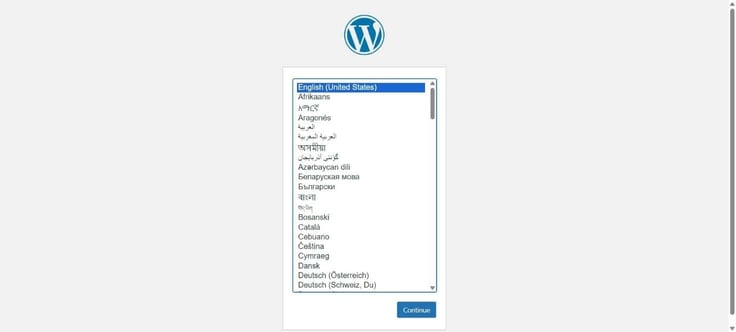
On the following database setup screen, I had to enter all the database-related details so that the wp-config.php file could be created. Once that was done, I got this cheeky message:

Indeed, I was ready to follow the subsequent on-screen instructions and finish installation by setting my website’s title, admin username, password, and email. By pressing “Submit”, the installation was finito, and I could finally log in to WordPress, which I did.
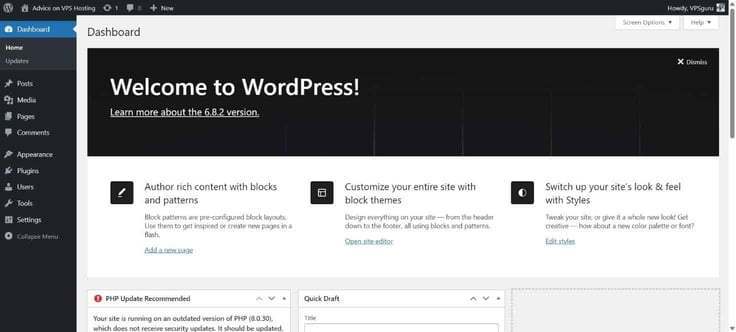
From here, it was the usual spiel for creating a WordPress website. My next stop was the “Plugins” tab, where I would add a website builder plugin like Beaver Builder, Elementor, or others.
With WordPress firmly on my server, I went back to hPanel to tinker with settings in the VPS tab. It offers a nice overview of what’s happening behind the scenes, with a clean interface crafted for a de facto VPS beginner like me.
For those of us who want a simplified and more accessible VPS experience than it usually is via cPanel or Plesk, hPanel rocks.
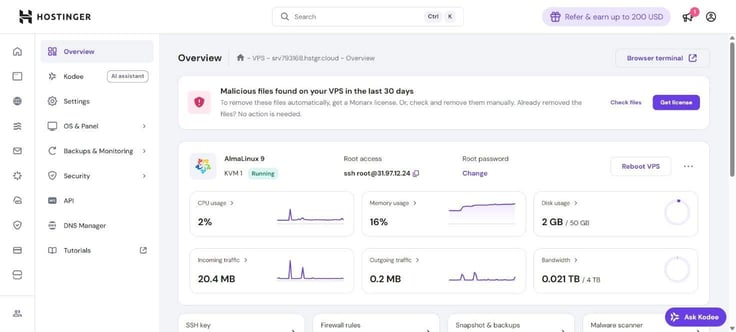
After a while, it became obvious that Hostinger’s VPS sits somewhere between basic and user-friendly on one side and dev-oriented on the other, which largely suited me as I’m not fond of most technical matters.
Case in point: OS flexibility. I’m all for having choices, so being able to change my operating system with various Linux distributions or application stacks whenever I wanted was rather welcome. I had 20-something options for the OS (with or without a control panel) and over 65 applications.
And as you’ll see below, it’s a piece of cake to make the switcheroo. In the OS & Panel tab under Operating System, all I had to do was scroll down to the Change OS section, pick the OS, and press the “Change OS” button.
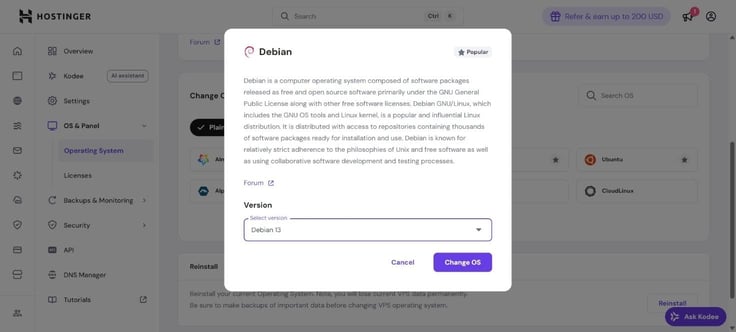
A couple of more clicks ensued (to verify my choice and create a new root password), and a new OS was ready for my perusal after a minute or two.
Perhaps an even better example of how seemingly complicated tasks can be simplified and streamlined to perfection is firewall management. With a few clicks, I could create, edit, and apply firewall rules through hPanel without relying on the command line.
Here’s how that went. In the Security tab found in the left sidebar, I clicked on “Firewall.”
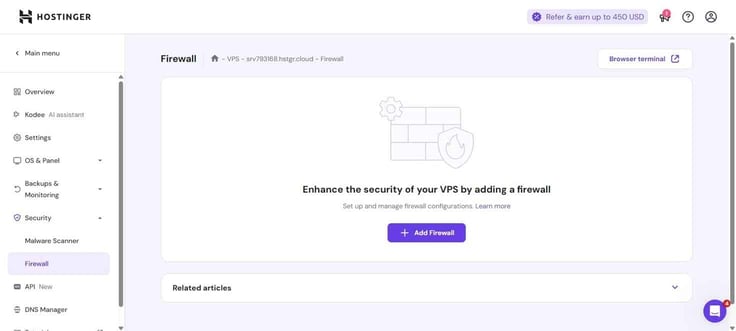
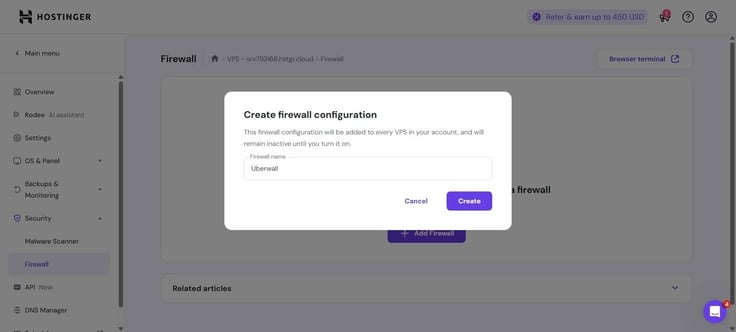
I pressed on the distinct “Add Firewall” button and gave it a (cool) name.
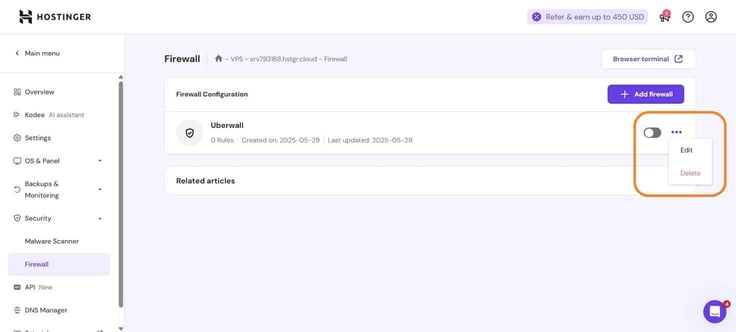
Next, I clicked on the ellipsis button (three dots) next to the newly created firewall group list and selected the Edit option.
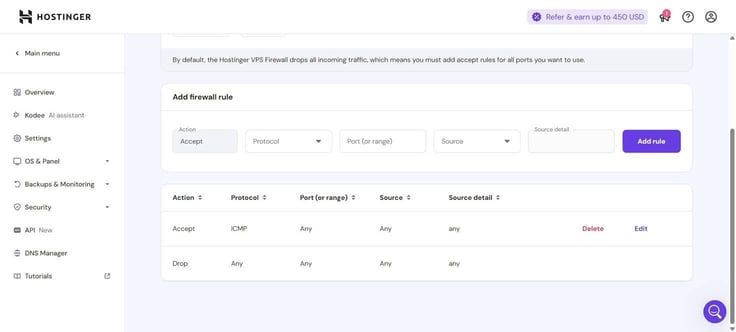
In the section “Add firewall rule”, I picked the desired firewall action, ports, protocols, and traffic source, then clicked on “Add rule” after I was done.
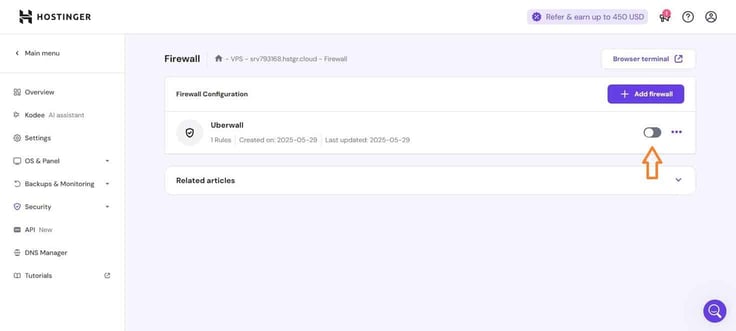
I had to go back to the Firewall page and click the toggle button next to my firewall to activate it. By default, the VPS Firewall drops all traffic, so you must add accept rules for all ports you want to use.
All in all, there was a sufficient amount of granular control (though I wouldn’t mind more) to tailor the firewall to my needs, plus I could employ the same firewall group on any number of servers.
Continuing with the “less is more” mantra in mind, I fancied the web-based SSH console (a.k.a. browser terminal) available directly within hPanel.
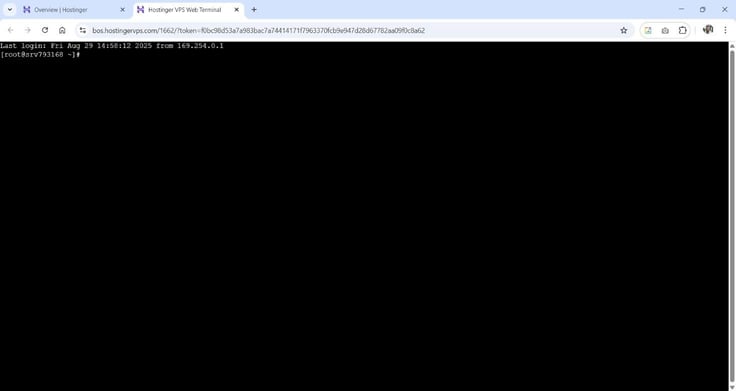
It was a handy feature for quick, direct VPS command line access from any device, where I could modify VPS settings, manage files, or run commands easily and securely (the connection is encrypted) from my browser.
Thankfully, I didn’t (and I hope you won’t either) have to resort to it, but I like that there is a backup for your backup, in a way.
If, for any reason, your VPS goes south and you can’t restore a backup, you can access your VPS under the /mnt directory either via FileZilla or a web-based file manager, thanks to the Emergency mode. It’s off by default, so you’ll have to turn it on.
Granted, the level of server customization isn’t as extensive as with some other providers, foremost those dealing in unmanaged or highly configurable VPS. Hence, I could list several features that users with specific software or configurations will probably find missing.
But then again, this VPS offering was never meant for them to begin with.
With above-average loading times and responsiveness, my VPS (however small in size) produced a stable performance. It helps that Hostinger uses NVMe SSDs and AMD EPYC CPUs with a 32-core system architecture (same class across all VPS plans), which I suspect will deliver fast enough loading times for most projects.
At any point, I was free to do some performance tuning by installing optimization tools such as Redis or Memcached for in-memory caching, or a custom-configured Apache.
Naturally, I am going to back up my praise with actual testing, so here’s a look at my VPS’s network speed via the speedtest-cli command:
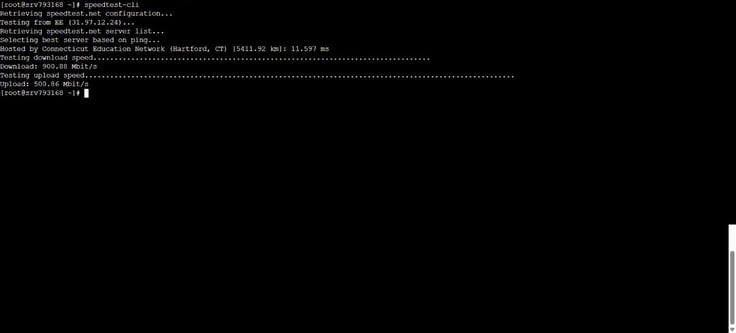
I don’t know about you, but I’d consider these speeds to be high-performance, suitable for hosting sites and apps, streaming, maybe even handling large file transfers. Moving forward, I should experience fast connectivity and minimal bottlenecks for most use cases.
As for you, the actual speed you’ll experience will depend on a few factors, including your VPS plan, server location, what software stack you install, and the level of optimizations on your part.
For a budget-focused provider, Hostinger hasn’t given me any reason to complain about my VPS’s speed. That counts for something, right?
Only if you’re comfortable managing a Linux server or willing to learn. Hostinger’s VPS demands you take the reins and lead the charge, and I can’t stress that enough.
Yes, hPanel is great and aids immensely by simplifying common operations, but at some point, I’m afraid you’ll have to exercise a bit of Linux administration skills (just like I did), basic as they are.
To be fair, as much as I enjoy having someone else do the technical lifting (so to speak), I can’t deny that VPS “freed me” from the confines of predefined apps and provided far more than a stripped-down experience typically found in shared hosting.
With direct control, solid customization, and strong performance at a low price, I found it was as close to an optimal choice for having maximum flexibility.
It’s a service worth serious consideration, but one that comes with the expectation of certain technical knowledge to perform server administration tasks.
Hands down, this was the worst part of Hostinger during the several weeks I spent testing and contacting their customer service.
The web host’s AI assistant Kodee runs the show here, handling most of the user queries, and it’s a hit-and-miss at best. Before I go into it, I just want to point out that I don’t mind our potential AI overlords supplying me with necessary answers.
I mind when it gives me wrong, contextually irrelevant, and misleading ones, as was often the case here.
Case in point: it completely disregarded what I asked and instead offered a typically bot-like response.
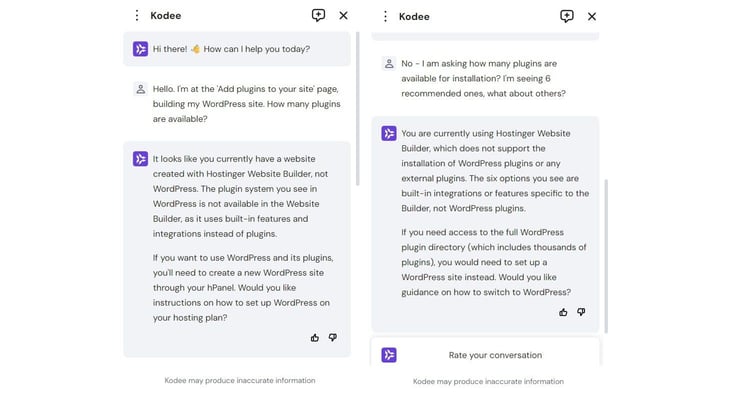
Hostinger tries to manage user expectations by having a little disclaimer at the bottom of the chat that says “AI may produce inaccurate information,” which tells me the company is aware of the problem and will hopefully improve its assistant.
At the same time, I got the sense that Kodee seemed to be more in tune with certain topics.
For instance, any time I asked about VPS-related stuff, it offered considerably more detailed and direct responses, with fewer redirects to articles and videos. It was tremendously helpful for exercising some command line wizardry.
When I wanted to talk to an actual human being, all I needed to do was to say so:

After chatting for 5-6 minutes, Fabio offered fully satisfying responses reasonably fast (the man has to type those out, after all). Come to think of it, I was positively surprised by how easily I got in touch with a real person.
Some topics, like configuration and development-related matters for VPS, fall outside the support scope due to the self-managed nature of that hosting service.
Nonetheless, I was assured that the Hostinger team was always ready to check for potential issues from their side, which was reassuring.
Other customer support options are sifting through the Tutorials and Knowledge Base sections. Surprisingly, there is no phone or email for contact.
If I had to issue a verdict, I’d say that the customer support is capable but could be better. Its AI part needs more training and refinement, and the text-only approach won’t suit everyone, though I didn’t mind it that much.
Truth be told, you’ll be hard-pressed to find a better deal in terms of price and performance. There are a few drawbacks, but considering what you get in return, these are on the verge of being negligible.
If you’re a hosting beginner, run a small business, or do work for yourself like I do, odds are, you’ll find an adequate package that will largely (perhaps even fully) meet your needs.
Even so, Hostinger might be too cheap for the more tech-savvy people out there. It obviously tries to strike the perfect balance on what you pay for versus what you get, which likely won’t grab the attention of advanced users, as evidenced by the lack of dedicated hosting.
If you give it a try, I’m sure that you’ll come to the same conclusion as I did: that what Hostinger does well for the price far outweighs areas where it falls short.
I know I’ve repeated it a few times in this review, but the keyword here is “budget” for the sake of curbing your expectations. You’re not going to get more advanced features like container hosting, autoscaling, or tons of flashier stuff.
And to be honest, at no point did the web host promise or pretend to punch well above its weight.
The only real blemish was the customer service, and in these AI-powered times, I’m afraid it will remain a sizable point of contention for some time. There is definitely notable room for improvement here, but I’d argue that with a finely-tuned service (which Hostinger’s certainly is), chances are, you won’t need it that much.
When all is said and done, the bottom line was that the hosting provider delivered what it promised at a price that is tough to beat or, better yet, dismiss.

HostingAdvice.com is a free online resource that offers valuable content and comparison services to users. To keep this resource 100% free for users, we receive advertising compensation from the hosts listed on this page. Along with key review factors, this compensation may impact how and where hosts appear on the page (including, for example, the order in which they appear). HostingAdvice.com does not include listings for all web hosts.
Our site is committed to publishing independent, accurate content guided by strict editorial guidelines. Before articles and reviews are published on our site, they undergo a thorough review process performed by a team of independent editors and subject-matter experts to ensure the content’s accuracy, timeliness, and impartiality. Our editorial team is separate and independent of our site’s advertisers, and the opinions they express on our site are their own. To read more about our team members and their editorial backgrounds, please visit our site’s About page.


