
Guides

Studies 
Studies
Our studies cover a range of trending topics and deliver original, reliable data you can't get anywhere else on the web.
From setup to speed tests, here’s how IONOS turned out to be the rare budget host that actually performs like a premium one.

By: Christina Lewis

Editor: Lillian Castro

Reviewer: Lynn Cadet
Disclosure: When you sign up through links on our site, we often earn referral fees from partners. For more information, see our ad disclosure and review policy.
I spent three weeks reviewing IONOS, testing everything from its cheap hosting plans to its dedicated servers.
Despite being the cheapest web host on the market, IONOS blew my expectations out of the water. I usually avoid choosing the cheapest version of something — web hosting included.
My past experience tells me that hosting for $1 a month could never live up to my expectations. However, IONOS proved me wrong.
I started my review with IONOS’ cheap hosting plans because they’re considered the most entry-level option. There were four to choose from: Essential, Starter, Plus, and Ultimate.
After I chose my plan, I installed WordPress, built my site, and tested its performance through GTMetrix.
I documented my entire experience from start to finish, with screenshots and screen recordings of everything I saw. Here’s a more in-depth look at how things went:
First, I went shopping. IONOS laid out all of its shared (i.e., cheap) hosting plans and pricing. It was easy for me to see what each plan offered and compare them side-by-side. I liked that they all came with a free domain name for a year. To me, that’s essential.
To get the low, dollar-a-month pricing for a year, I needed the Plus plan, which was a major step up from Essential and Starter. Specifically, it had no limit on databases, disk space, or the number of sites I could build.
It also came with IONOS’ other standard perks, like unlimited traffic, a free domain name, daily backups, an SSL certificate, and free professional email.
Free SSL certificates and free domain names are pretty common with budget web hosts, but I don’t frequently see daily backups or unlimited traffic included with lower-tier plans. This was one area where IONOS stood out to me.
I made a chart to compare the main differences between each plan:
| Essential | Starter | Plus | Ultimate | |
|---|---|---|---|---|
| Intro Price | $4/month | $6/month | $1/month | $10/month |
| Renewal Price | $6/month | $8/month | $12/month | $16/month |
| Sites | 1 | 10 | Unlimited | Unlimited |
| Disk Space | 10 GB | 100 GB | Unlimited | Unlimited |
| Databases | 1 | 50 | Unlimited | Unlimited |
| RAM | 512 MB | 512 MB | 6 GB | 19 GB |
| Uses | Beginners and personal sites (blogs, online resumes, portfolios) | Small business sites (local business sites, landing pages, contact forms) | Medium or growing businesses (WordPress blogs, low-traffic eCommerce stores) | Larger businesses (eCommerce stores, agencies, high-traffic blogs) |
Notably, the Plus and Ultimate plans had a ton of unlimited features. They also came with significantly more RAM. To me, the higher price was completely worth the extra resources I got.
At this point, I wondered, “What’s the catch?” I noticed my pricing would go up to $12 a month after a year, but that’s still a crazy good bargain — and trust me, I did my homework to make sure.
I compared IONOS’ renewal pricing to a few other popular hosts. Plans of the same size came out anywhere from $2 to $16 more per month. If my math was right, choosing IONOS could save me hundreds of dollars in the long run.
IONOS’ Pricing vs. Other Hosts
| Host | Plan | Intro Pricing | Renewal Pricing |
|---|---|---|---|
| IONOS | Plus | $1/month | $12.00/month |
| Hostinger | Business | $3.59/month | $13.99/month |
| ScalaHosting | Advanced | $9.95/month | $17.94/month |
| Bluehost | eCommerce Essentials | $6.45/month | $18.99/month |
| HostArmada | Speed Reaper | $4.94/month | $19.75/month |
| Hosting.com | Max | $8.99/month | $27.99/month |
All these factors considered, it was pretty easy for me to choose the Plus plan, although I’d give an honorable mention to the Ultimate plan for how much value it offered to larger sites.
After choosing the Plus plan, I clicked on “Add to cart,” where I was given the option of changing my plan’s length. That’s where the deal got even sweeter.
If I chose a three-year plan, I got the entire first year free, saving me more than $200. I had to double-check to make sure I read it right. Yep, the entire first year was free.
I didn’t need a three-year hosting plan to run my tests, though, so I passed on the deal this time. But I would definitely take advantage of it in the future if I had a project that would last that long. It’s basically free money.
I clicked “Continue,” and that’s where I was able to claim the free domain name included in my one-year hosting plan.
IONOS had a handy AI-based domain name generator that I used to brainstorm some ideas. I told it to come up with a name for a website all about my dog, Koda.
Interestingly, it didn’t give me any .com extensions. But I appreciated the creativity with the domain names, which I ended up using for inspiration.
My favorites were “WagsWithKoda.site” and “KodasPawesomeLife.at.” I ended up going with KodasPawsomeLife.com. Perfection.
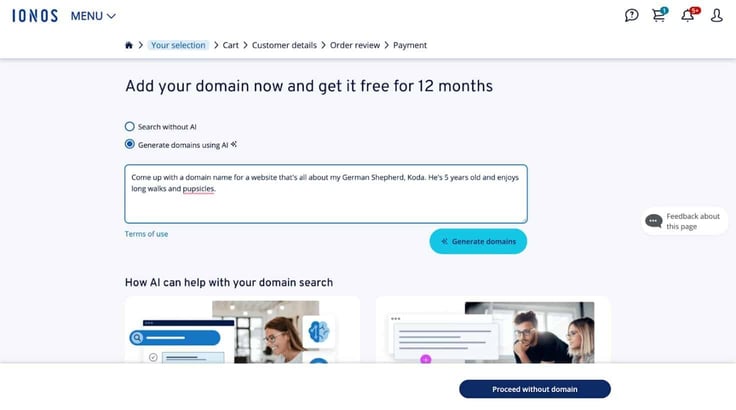
The next page showed me two add-ons for the IONOS site builder, MyWebsiteNow Plus and
MyWebsiteNow Online Store Plus. I reviewed these services separately, so I skipped them this time around. However, if I hadn’t used self-managed WordPress to build my site, this would have been a good alternative.
I was given one last chance to review everything in my cart before I checked out. On the last page, I entered my payment details and clicked “Buy Now” to finish my purchase.
All in, I’d say it took me less than five minutes to sign up, which is pretty darn fast. I think it took me longer to sign up for Apple TV.
I was still a little skeptical at this point, wondering if I was going to be surprised with some mandatory fee that jacked up the total price of my plan, but no. It really was that cheap.
The $1 a month pricing was legit. I paid just $12.13 for an entire year of hosting. No tricks or gimmicks!
After signing up, it was time for the fun part — designing and building my site. IONOS sent me an email to help me get logged into the dashboard.
Once I logged in, I expected some big, bold instructions shouting “Start here!” or something like that. It wasn’t immediately obvious where to go from the dashboard’s main page, but I figured out pretty quickly that I needed to click on “Websites and Stores” to get to my hosting plan.
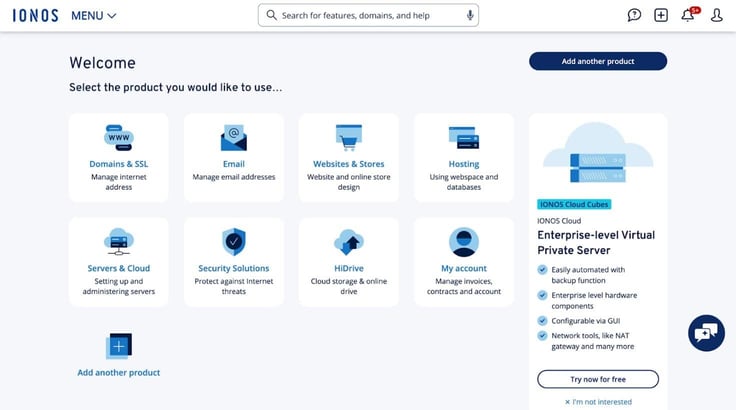
IONOS gave me three options to build my site: a site builder, WordPress, or uploading pre-existing site files with FTP.
WordPress and I go together like PB&J, so it was an easy choice. I love it. I know it. It’s customizable. To me, it’s the best choice for building a site when I don’t want to code something from scratch.
The process of installing WordPress was quick and painless — I just used the one-click installer, which only took a minute or two. Here’s what the dashboard looked like after. Simple, but effective.
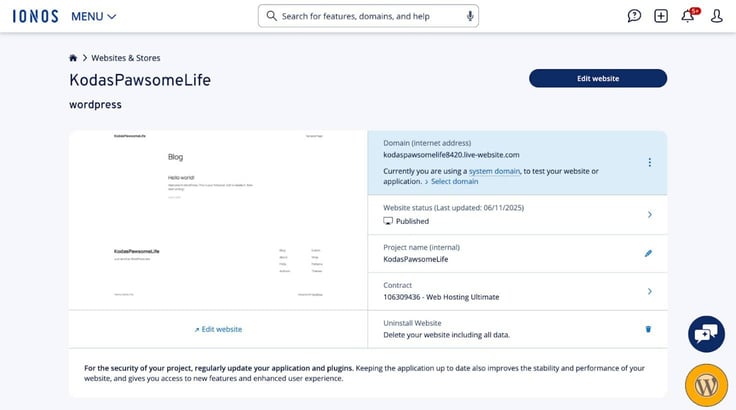
At this point, I was only about 15 minutes into the process, and I had already chosen a plan, signed up, registered my domain, installed WordPress, and started editing my site. That’s pretty quick.
Here’s what I was working with from within the WordPress dashboard:
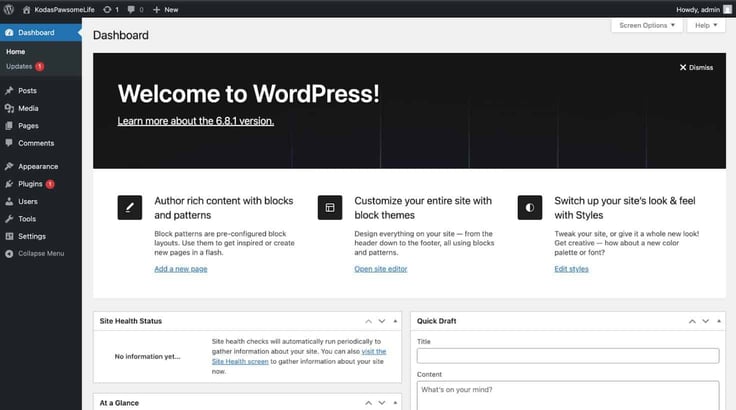
What I like about WordPress is that it’s the same everywhere, and I’m familiar with it, so building my site wasn’t any more difficult than designing a MySpace page.
I like to think of WordPress themes as MySpace backgrounds. But unlike MySpace, WordPress themes don’t require me to manually edit the HTML.
At the start, things were looking pretty bare.
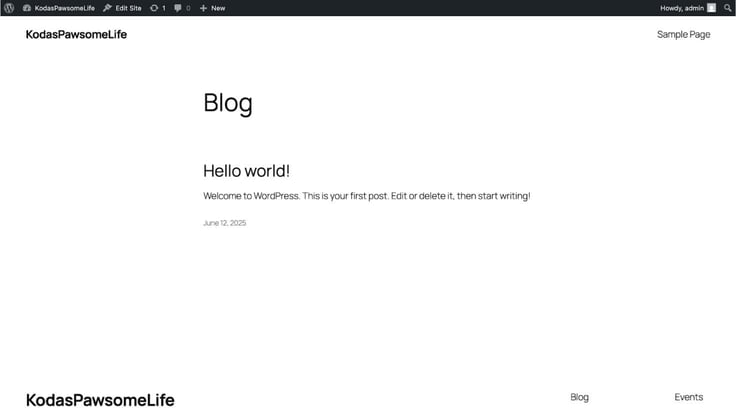
I knew my next step was to choose a theme, so I headed back to the dashboard and clicked on “Appearance,” “Themes,” and then “Add theme.”
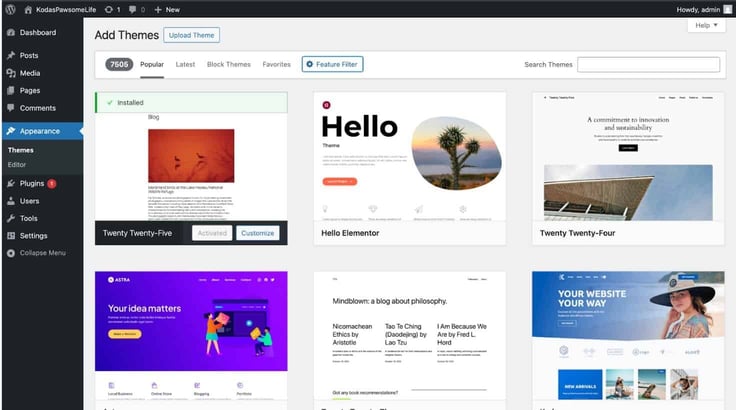
The toughest part was choosing one. There were more than 7,000 options, each with a different design and layout. Some were geared toward blogs and others toward online stores. There were easily 20+ options for every niche.
I was curious if there were any furry-friend-focused themes, so I typed “dog” into the search bar and, well, there were plenty.
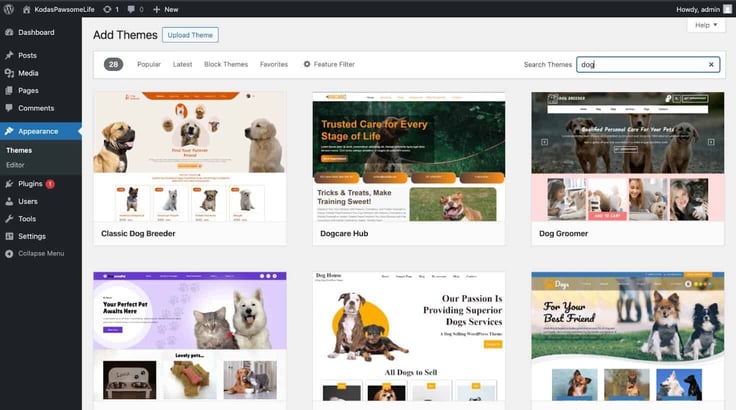
After clicking around some more, I realized most of these themes hadn’t been rated (or had been rated poorly), so I went with something a little more tried and true: Twenty Twenty-Five. A classic in the making.
I clicked “Active” then “Customize.”
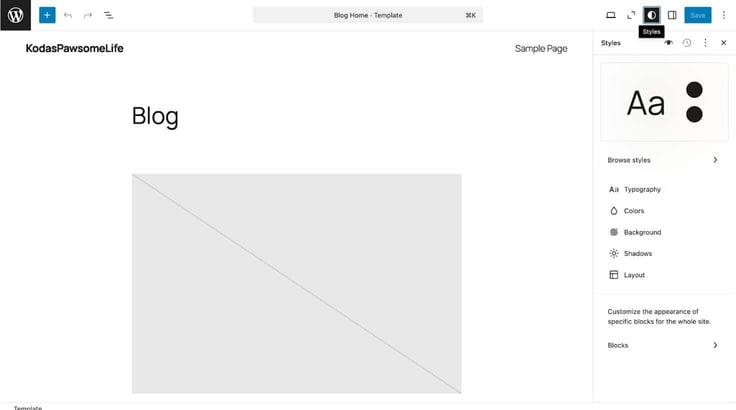
This is where I really dug into the personalization of my site. I chose fonts, colors, and created a logo in Canva.
It took me a few minutes to get the spacing right with my header — the logo kept shifting down to cover my heading, but I figured things out. It really started to come together after I applied some styling.
Once the above-the-fold section of my homepage was done, I spent some more time tinkering with the rest of the page to add more elements. At this point, I had still only spent about 45 minutes on it.
The Twenty Twenty-Five theme automatically displayed recent blog posts on the home page, so I went into the Posts tab on the dashboard to write a quick blog post.
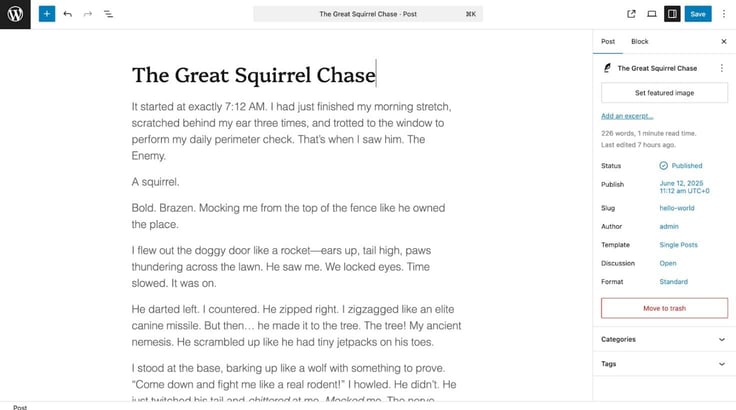
At this point, I decided I’d done enough to publish my site. I could always come back later to add more pages and make changes to my layout.
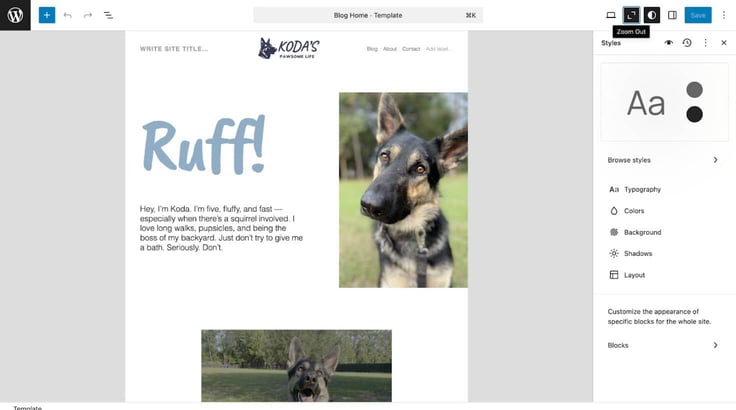
The only thing left for me to do was publish, and voila! My site was online.
It’s hard to say how my site would perform with actual visitors, but IONOS did include plenty of RAM, bandwidth, and storage that made me believe it would have no problem handling moderate to high traffic.
I also used GTmetrix to perform a performance test, and my site loaded in just 625 milliseconds (or about .63 seconds). My site is small, but it’s really fast.
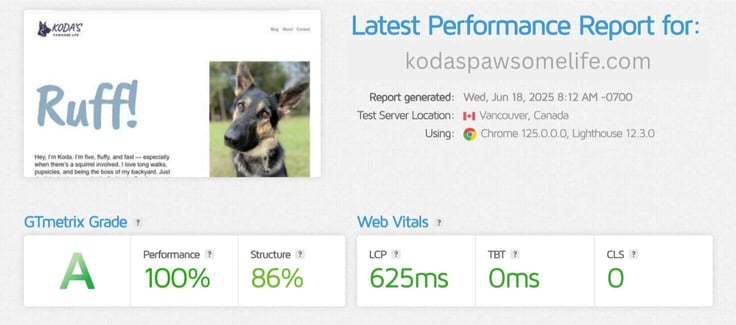
These things considered, I’m not worried about my site not being able to keep up.
Overall, definitely. It checks all my boxes and then some.
Even though I was skeptical about the dollar-a-month pricing, it turned out to be an incredible deal. Not only was it quite literally the cheapest paid hosting plan I’ve ever seen, but the features I got competed head-to-head with much more expensive plans from other top web hosting providers.
From start to finish, I spent no more than an hour and a half getting a simple WordPress site online. It was easy to use, and I didn’t have to spend a ton of time troubleshooting or figuring out the platform.
The dashboard wasn’t fancy, but it worked, and that’s what mattered to me the most. If I ever need something affordable and easy, I would definitely use IONOS again.
The next natural step in my review was to check out IONOS’ WordPress plans.
I was curious how they were different from their cheap hosting plans. The pricing and features were similar at first glance. I even took advantage of another dollar-a-month hosting deal.
But once I dug into the details, I discovered the WordPress plans came with a lot of extra features that my WordPress site could benefit from (I’ll dive more into those features below).
Just like my cheap hosting review, I went through the process of choosing a plan, signing up, and building my WordPress site.
The signup process was nearly identical to the cheap hosting plans. IONOS laid out all the WordPress plans in the same way, but there were three plans to choose from instead of four.
I could choose from Start, Grow, or Boost — each one with more storage, emails, and performance boosts than the last.
One of the biggest draws for me was the familiar dollar-a-month pricing for a higher-tier plan. The yellow “Save 92%” sticker on the Grow plan was too appealing to pass up.
I noticed IONOS included some essential features with every plan, too, like an AI WordPress site builder, a free domain and SSL, free email, malware scans, daily backups, and WordPress updates. Just these features alone were enough to make the base plan worthwhile.
Upgrading to Plus or Boost got me additional email accounts, more RAM and disk space, a free year of Jetpack Vault, and some pretty fancy AI tools for creating content and images.
Here’s how each plan stacked up against one another:
| Start | Grow | Boost | |
|---|---|---|---|
| Introductory Price | $5/month | $1/month | $12/month |
| Renewal Price | $6/month | $10/month | $15/month |
| Disk Space | 25 GB SSD | 50 GB SSD | 75 GB SSD |
| RAM | 9 GB | 15 GB | 20 GB |
| Email Addresses | 1 | 5 | 10 |
| AI Tools | AI site builder | AI site builder, AI-generated text, images, posts and pages | AI site builder, AI-generated text, images, posts and pages |
| Uses | Beginners and personal sites | Growing sites or small businesses | High-traffic or business sites |
What stuck out (in a good way) was how many AI-based tools I got with the Grow and Boost plans.
A ton of other web hosts have AI site builders. It’s the new thing these days. But I haven’t seen very many web hosts include AI content generators, which could be a huge time saver for blogging and backending.
As far as value, I wanted to compare IONOS’ WordPress plans to competitors to make sure I was getting a good deal. This is what I found:
| Host | Plan | Intro Pricing | Renewal Pricing |
|---|---|---|---|
| IONOS | Grow | $1/month | $10/month |
| Hostinger | Business | $4.49/month | $13.99/month |
| ScalaHosting | Start | $5.95/month | $14.95/month |
| Bluehost | Choice Plus | $3.95/month | $15.99/month |
| HostArmada | Speed Reaper | $5.49/month | $21.95/month |
| Hosting.com | Pro | $4.99/month | $13.99/month |
It beat out every competitor in terms of pricing, but I did uncover a small downside. Every other competitor included 10 or more websites per plan, whereas IONOS only gave me one. I assumed that’s how IONOS was able to offer such a great deal on its WordPress plans.
That wasn’t a dealbreaker for me, since I only planned to build one site anyway. However, I would definitely take that into consideration if I knew I needed to support multiple sites under one plan in the future.
The sign-up process for the WordPress plans was the same as the cheap plans. I clicked “Add to Cart” then reviewed the different plan length options in the pop-up window.
Just like with the Web Hosting Plus plan, the Grow plan also had a three-year deal where I could get the first year free if I committed to 36 months — a wildly good deal.
I went with the standard one-year plan and moved on to choosing a domain name. I didn’t use the AI domain name generator this time, but it was an option.
I added my domain name to my cart and moved on to the final checkout page, where I reviewed everything before finalizing my purchase.
This time, the signup was even faster (probably because it was familiar to me). I completed everything in less than two minutes. And again, I only paid $12 for the entire first year.
I’ve made more WordPress websites than I can count, so doing it through IONOS felt easy and familiar. My first step was naming my project and installing WordPress:
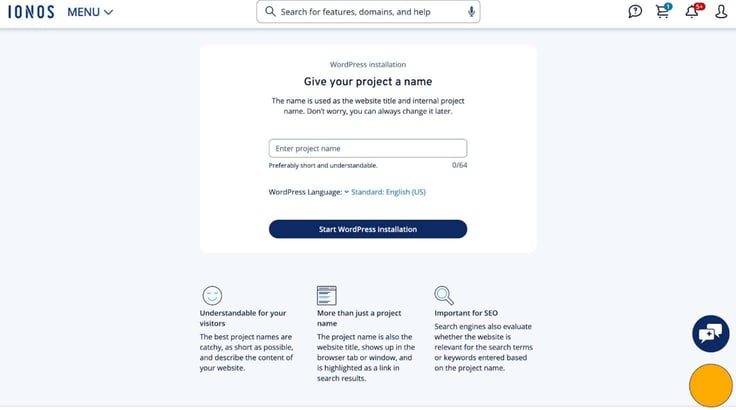
I debated what kind of site I wanted to build, and settled on a pickleball-themed blog — it was my boyfriend’s idea.
The installation was quick and easy. I think it took less than two minutes in total. On the next page, I clicked “Launch WordPress.” Then I was given an intriguing proposition. Did I want to use the AI WordPress site builder or build the site myself? Obviously, I had to try the AI site builder.
It started by asking me a little info about my site and what kind of tone I wanted it to have. Then it worked its magic. It presented at least 20 options for me to choose from. While some of the designs looked pretty similar, they were all nice, clean, and modern.
I chose my favorite template, and the site builder spent a few minutes loading everything. It seemed like a long wait until I saw what it gave me.
It wasn’t a completely finished site, but it provided a homepage, blog, about section, testimonials, and a contact form with branding. It even created a cute paddle logo.

The homepage looked nice, but I was most impressed by the blog section. It came up with blog titles and outlines for me to start writing.
By this point, I had spent less than 10 minutes on it and already had a fully built website in need of some minor tweaks and content. It doesn’t get much faster than that.

I set aside my website tweaks temporarily so I could poke around in the dashboard. This was an area that was clearly different from the standard hosting plans.
Instead of a figure-it-out-yourself setup like most WordPress dashboards, IONOS had a grid of next steps for me to complete. I could see this being enormously helpful for beginners or people who are still honing their WordPress skills.
I wouldn’t say the left-hand menu was difficult to navigate by any means, but having a button that said “Create a Page” was certainly easy to find.
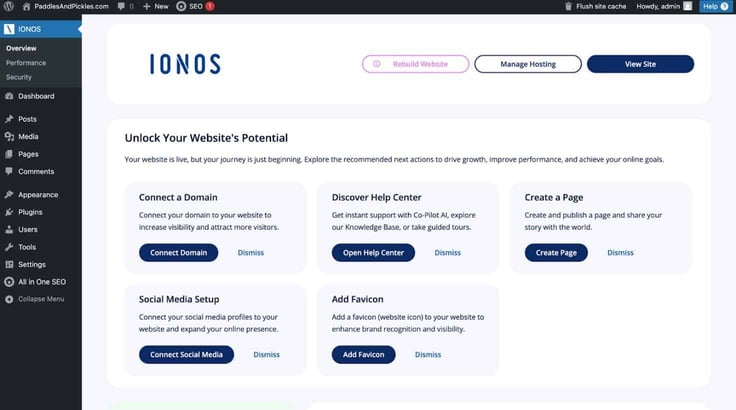
By selecting “Manage Hosting,” I was able to return to my IONOS control panel and make changes to my plan, see my usage, and turn off my automatic updates. It was so user-friendly that even someone with zero experience could do it.
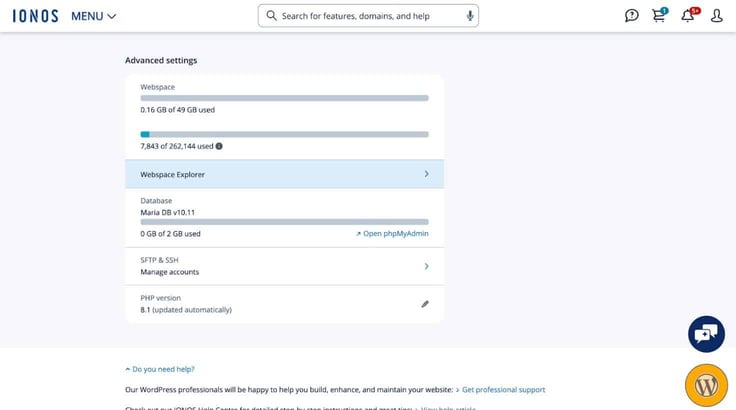
After testing everything out, I’d say the main thing that I appreciated about IONOS’ WordPress plans was the features it included to give me a better WordPress experience.
My plan came with plenty of RAM, bandwidth, and storage, so I wouldn’t have to worry about outgrowing my resources as I added content to my site.
I spent a little more time tweaking my site, and when I was ready, I hit “Publish.”
After publishing my WordPress site, I was curious how it would perform. I didn’t have any real site visitors, so I ran it through GTMetrix to find out how quickly it loaded.
Unsurprisingly, IONOS kicked butt here too. If this were my grade school report card, it would have made an appearance on the refrigerator.
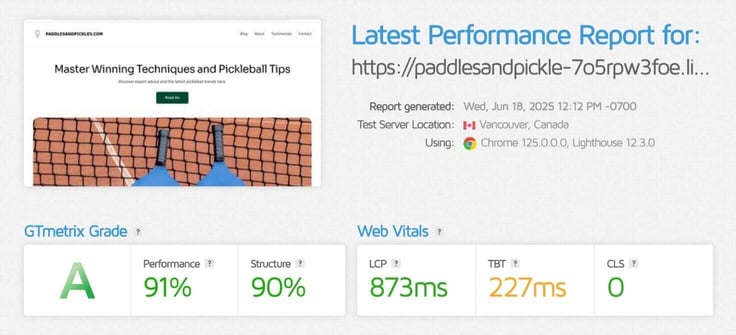
Arguably the most important performance metric, the LCP was very fast compared to what’s acceptable (anything less than 1200 ms is good).
I noticed my Total Blocking Time (TBT) was a bit higher than I wanted, but I suspect that may have had more to do with the site builder’s scripts and less to do with the hosting plan.
With the amount of RAM, storage, and bandwidth I got in the Grow plan (plus this report) I wasn’t worried about having performance issues.
If I wanted to build another WordPress site and I didn’t have a lot of time, I would absolutely use IONOS’ WordPress hosting plans again.
It took no more than 30 minutes from purchase to publish, and the AI WordPress site builder did 90% of the heavy lifting for me. All I had to do was edit some of the website’s content and I was good to go.
As far as cost goes, the price was impossible to beat. Of all the other web hosts I checked, IONOS had the best price-to-value ratio. The only small hangup was that it didn’t include multiple WordPress sites in its plans — a small sacrifice for everything else I got.
I was eager to check out IONOS’ site builder. After all, “From idea to website in record time with AI” was an intriguing claim.
First, I compared the different plans to choose the one I liked best. Then I went through the motions of signing up and building my site. Here’s how that went…
It didn’t surprise me that the site builder had a dollar-a-month introductory deal. That’s sort of IONOS’ claim to fame.
What did surprise me, though, was the quality. Most web hosts include cheap site builders in their hosting plans. These plans are usually only a few bucks a month, and they’re pretty basic.
But IONOS sells a premium site-building platform that’s more in line with what Shopify, Squarespace, and Wix offer.
There were two options under each plan: stick with the easy website builder or upgrade for the online store builder. If I wanted to add eCommerce functionality, that was an additional charge (renewal was $30 a month instead of $18).
So far, IONOS hadn’t let me down in terms of value, so I dug deep to figure out what I was getting for this price and how it compared to other site builders.
First off, each web builder plan came with these base features that stood out to me:
From there, each plan included more premium features to justify the cost. The biggest draw for me was the breadth of features I got in the Plus and Pro plans, which included things like online bookings and SEO optimization tools (like the AI SEO text generator and website translator).
| Starter | Plus | Pro | |
|---|---|---|---|
| Introductory Price | $6/month | $1/month | $17/month |
| Easy Website Builder Renewal Price | $12/month | $18/month | $30/month |
| Online Store Builder Renewal Price | $24/month | $30/month | $34/month |
| Disk Space | 10 GB | 50 GB | Unlimited |
| Pages | 10 | 200 | Unlimited |
| Email inbox storage | 2 GB | 12 GB | 50 GB |
| Site Analytics | No | SiteAnalytics | SiteAnalytics Plus |
| AI Tools | AI site builder | AI site builder, text generator, text improver, image generator, color palette generator, & AI SEO text generator | AI site builder, text generator, text improver, image generator, color palette generator, & AI SEO text generator |
| Uses | Individuals and beginners who want to build a site quickly | Freelancers and small businesses needing more customization and functionality | Established businesses or agencies with SEO needs |
If they handed out awards for web hosts with the most AI tools, I think IONOS would earn first place. The Plus and Pro plans were packed full of AI-based tools that made building my site and creating content easy.
Not only that, even after publishing, I could use the AI text and image generators to help me create site content.
Notably, the Pro plan didn’t limit the amount of pages and disk space I could use. It was overkill for my needs, but businesses would feel right at home knowing they wouldn’t run out of space.
So far, IONOS has convinced me of three things: building a site with them would be fast, I would be able to customize every bit of my site, and it was worth every penny.
I compared the site builder to similar plans from other platforms to be sure:
| Host | Plan | Intro Pricing | Renewal Pricing |
|---|---|---|---|
| IONOS | Plus | $1/month | $18-$30/month |
| Hostinger | Business Website Builder | $4.49/month | $13.99/month |
| Squarespace | Basic | $0 (for 2 weeks) | $16/month |
| Shopify | Basic | $1/month (for 3 months) | $29/month |
| Wix | Core | $29/month | $29/month |
For eCommerce functionality, the $30 a month price for the Plus plan was completely reasonable. IONOS’ pricing and features were on par with Squarespace, Shopify, and Wix.
The only competitor that beat IONOS was Hostinger, whose website builder is geared toward individuals and small businesses instead of larger businesses.
Essentially, the MyWebsite Now Plus plan with eCommerce is a direct competitor with Shopify and Wix, so it made sense why it cost more than Hostinger.
For my needs, I decided to go with the MyWebsite Now Plus plan.
By now, I was a pro at signing up for IONOS’ plans (the process was the same for the cheap and WordPress plans).
Finding what I needed was easy, and it only took me a couple of minutes to select and purchase the MyWebsiteNow Plus plan.
I chose a domain name and moved through the rest of the checkout process. Just like the other hosting types, I could choose from a one-month, one-year, two-year, or three-year plan.
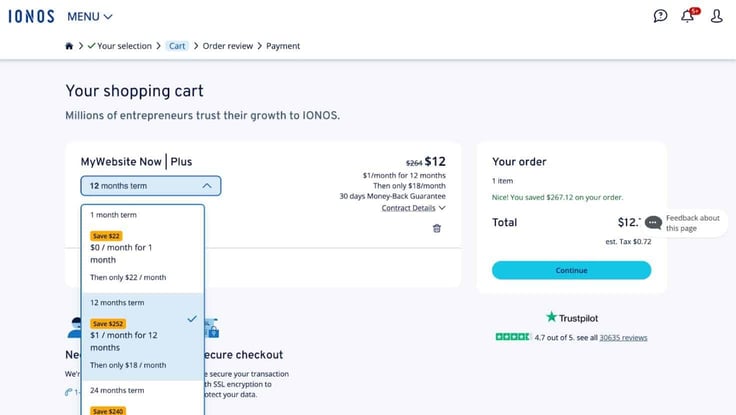
The one-year plan was perfect for me, and it included the dollar-a-month deal and a free domain name. As someone who appreciates a good deal, I liked seeing how much I was saving on my hosting plan — almost $270.
On the page above, I clicked “Continue” to review my order. Then, I clicked “Buy Now” on the next page to finalize my purchase of $12.72.
I was excited to dive into the site-building process and get my hands on all the AI tools I read about during signup, but my first step was logging into my dashboard.
Once I signed in, I selected “Websites and Stores.”
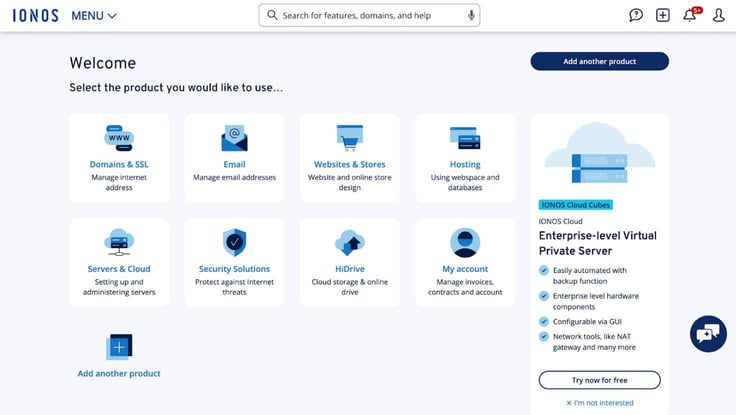
On the next page, I could see all my hosting subscriptions and websites. I hovered over the site builder plan and clicked “Set up website.”
Then I was redirected to the page where I could start building my site.
I was given the option of using AI or choosing one of the premade templates. I had to check out the AI site builder.
I clicked “Next” and filled out some information about my site. I decided to build a site about my favorite hobby, crochet. I came up with a name for my project (The Crochet Corner) and entered a few categories to describe it.
Then, the builder took me through a few more steps to get an understanding of the look and feel I wanted. It wasn’t super in-depth, but I appreciated that it didn’t take long.
It asked for a short description (which was optional). It asked me what kind of tone I wanted my site to have (persuasive, playful, inspiring, etc.). Then it gave me three options each for fonts and colors, which I could customize later.
From a design perspective, I thought the fonts and colors it chose were paired well together. It didn’t feel random. It felt intentional.
When I made it through the questions, it generated eight sample websites, each with a different look. I clicked through the different options and chose the one I liked best — a simple, clean site with all the right elements, including a header, logo, navigation, images, and a contact form.
It wasn’t a finished product at this point, so the next step was to edit my site. To make changes, I hovered my mouse over different areas of the page. I thought the best place to start would be my logo.
I clicked on the placeholder logo, then selected “Replace.” I could upload a preexisting file, choose an image from IONOS’ image library, or create one with AI. I wanted to see what the AI logo maker could do, so I clicked that option.
My results were…not great. It could be that my prompts weren’t very good. I tried a few different prompts, some with more information and some with less. Each logo came out looking something like this:

To be fair, I don’t think AI understands what a crochet hook is supposed to look like. At least not yet.
I decided I was better off creating a logo in Canva and uploading it, so I went that route instead.
I uploaded my PNG logo file and increased the size by clicking and dragging the bottom right corner.
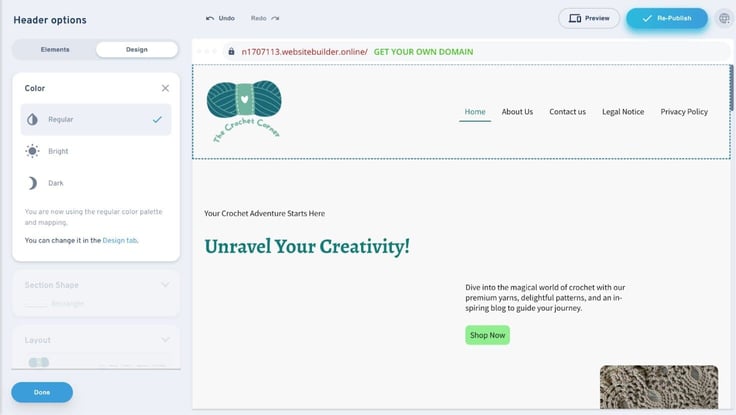
I made some more changes to my homepage, like customizing my header, tagline, and paragraph text. These were easy to change — I just had to click on them and start typing or select “AI Text.”
That’s where I tested another AI feature: The AI Text Generator/Improver. And this feature was much more effective. I gave it a short prompt, and it quickly generated an introduction to my site.
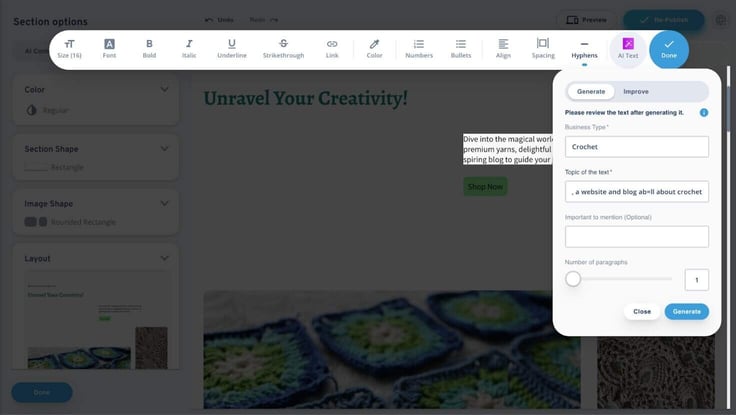
When I chose “improve” instead, it gave me a huge drop-down list of different tones to choose from: confident, friendly, urgent, trustworthy — anything I could think of, really.
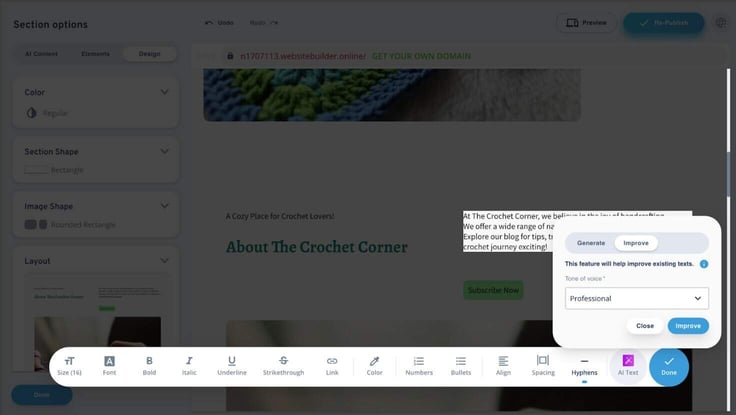
Sometimes I need a little creative help when I’m writing website content, and I love that these AI tools can take something I’ve written and push it in a new direction.
After editing my homepage, I tinkered with some of the other menu settings on the left-hand side of the screen. The menu let me:
Those were just the features under the design tab. The menu also had an option called “Pages.” Pages let me edit, reorder, or add new pages to my site, which showed up in the navigation bar at the top of my homepage.
Then, there was the settings tab. From the settings tab, I was able to upload a favicon, change my personal information, and my favorite part: use the website translator.
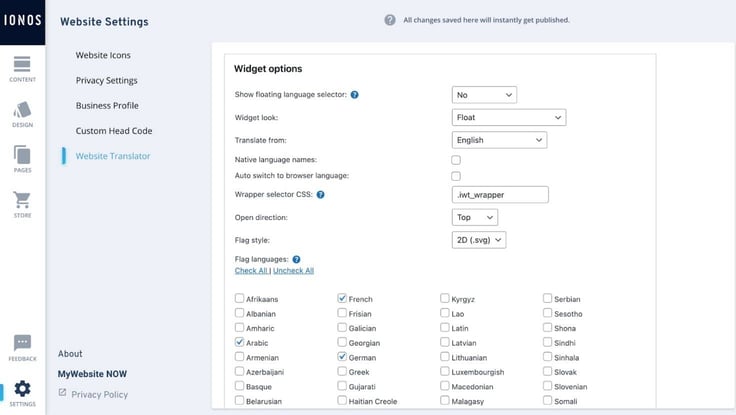
There were at least 100 languages to choose from, including English, Spanish, Chinese, Dutch, Italian, Portuguese, Russian, and Arabic.
There was one feature I hadn’t checked out yet: the online store builder upgrade. This opened up a whole new set of features.
Upgrading was simple — I just clicked a few buttons in the dashboard. Once I added eCommerce functionality, my dashboard looked like this:
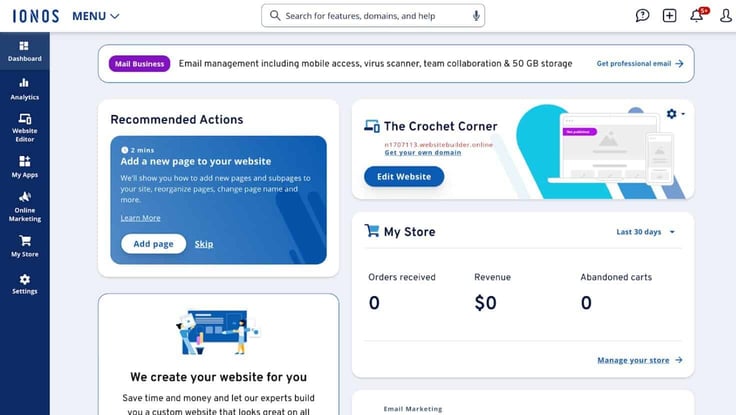
I could see a My Store section with recent orders and revenue information. My website editor was different, too.
I clicked “Store” on the left-hand menu of the website editor, which brought me here.
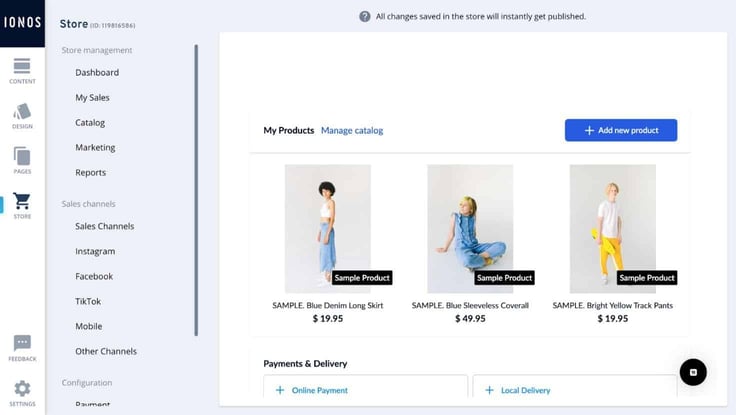
This was when the higher price clicked for me. I was paying an extra $12 a month because I was getting a premium eCommerce experience with everything I could need to build and manage my online store.
Some of the features I really liked included:
And the benefits didn’t stop with the reporting and features. The platform was also super user-friendly.
The store editor came with a ton of sample listings I could delete or edit. I should also mention there was essentially no learning curve.
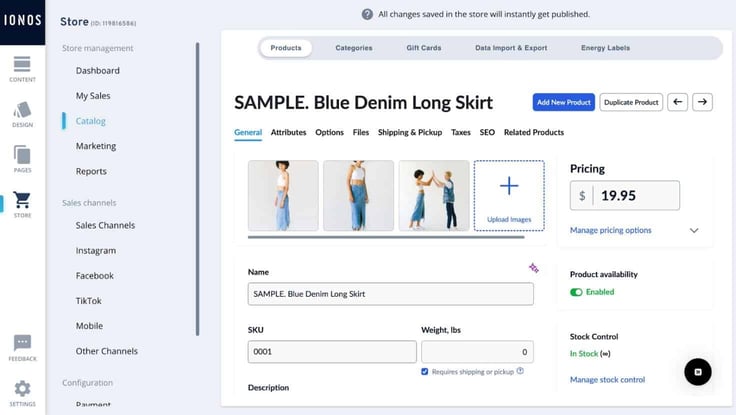
I could do everything in one place, including upload pictures, change the item description, price, SKU number, or weight, and even preview how the listing appeared on Google.
As someone who’s run their own eCommerce business before, it’s hard to find a tool that has everything you want and is still easy to use. I felt like IONOS succeeded in that.
Once I had made my way through all the features (of which there were plenty), I was ready to publish. I will say it took me at least a few hours to make and edit my site, however, I tested every feature I could find, and I spent a lot of time tweaking the design elements.
If I were to make another site without testing all the different AI tools and settings, I could probably get something polished online in less than an hour and a half.
If there’s one thing I know about online shoppers, it’s that they don’t want to wait for my site to load. This means performance is critical for an online store. Even just a couple of extra seconds of load time can ruin a sale.
I ran my online store through GTmetrix to see how it loaded, and it was super fast — just like I expected.
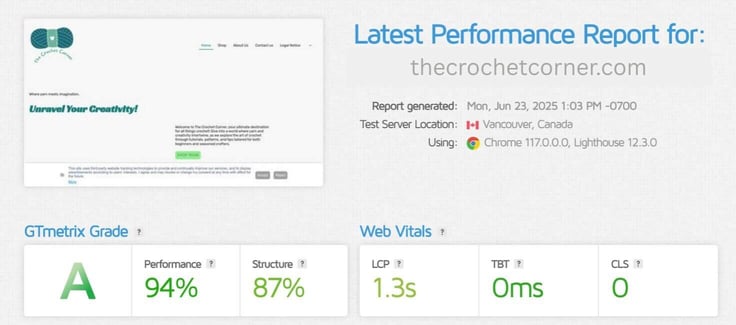
IONOS put a lot of attention into its online store builder, so it’s no surprise it’s backed by performant hardware, too.
Enthusiastically, yes. This was one of the best site builders I’ve used. I loved how design-focused it was, which is something a lot of other solutions miss the mark on.
The IONOS site builder made the design process easy and fast by showing me quality over quantity in my initial design options. Instead of sifting through 20+ okay-ish sample sites, I got eight really nice ones.
As far as editing my site, the dashboard was really easy to figure out, and I had fun playing with all the customization options, like the “Shapes” feature.
The eCommerce upgrade was excellent, too. I could tell IONOS put a lot of effort into making it functional while keeping the interface simple.
Overall, I thought the site builder was completely worth the cost.
The next stop in my IONOS tour was its VPS hosting plans. This was where I started to notice a big difference in form and function.
I browsed all the different configurations (of which there were several), then made my purchase. And since no VPS review would be complete without discussing the control panel, I also went through the server setup process and installed Plesk.
Finally, I ran some performance tests to see how IONOS would fare. Here’s what I learned:
VPS hosting isn’t like shared hosting. It doesn’t come with a ton of frills like free domain names and AI site builders. Instead, it’s all about hardware and dev-friendly features.
From my first look at IONOS’ VPS hosting plans, I could tell it paid attention to what developers and IT departments really wanted: customization and control. In true IONOS fashion, there were also some sweet introductory discounts.
Discounts started at the VPS S plan and included markdowns from 13% to 28% for long-term contracts. But even without the discounts, the servers were priced reasonably.
Each plan came with a set of base features, although I wouldn’t necessarily call them basic:
I noticed the main difference between each of its plans was the amount of CPUs, RAM, and storage included. I could start with the VPS XS plan for as little as $2 a month or get something as big as the VPS XXL plan for $22. This meant I could scale my hosting plan as my application grew.
| XS | S | M | L | XL | XXL | |
|---|---|---|---|---|---|---|
| Introductory price | $2/month | $3/month | $4/month | $8/month | $14/month | $22/month |
| Renewal price | $2/month | $5/month | $8/month | $15/month | $30/month | $50/month |
| CPU | 1 vCores | 2 vCores | 2 vCores | 4 vCores | 8 vCores | 12 vCores |
| RAM | 1 GBRAM | 2 GBRAM | 4 GBRAM | 8 GBRAM | 16 GBRAM | 24 GBRAM |
| Storage | 10 GBNVMe | 80 GB NVMe | 120 GB NVMe | 240 GB NVMe | 480 GB NVMe | 720 GB NVMe |
Now, here’s where the deal became juicier. I usually expect freebies to be pretty basic. As in, I don’t expect to get the best version of something for free. However, IONOS’ free Plesk license went above and beyond.
With the exception of the XS plan, IONOS included a Plesk Web Host Edition license, saving me around $45 a month. That added value alone was enough to make any of its plans worthwhile.
I wanted to compare IONOS’ pricing to other options on the market, just to make sure I was getting my money’s worth:
| Plan | Intro Price | Renewal Price | |
|---|---|---|---|
| IONOS | VPS XXL | $22/month | $50/month |
| Interserver | 18 Slices | $0.01 for first month | $54/month |
| Hosting.com | VPS L | $31.99/month | $60.99/month |
| Kamatera | Custom configuration | $100 off first month | $202/month |
It was tricky comparing these VPS plans since they didn’t all come with the same amount of RAM, bandwidth, and CPUs. But I did my best to compare the options that were the closest in size.
IONOS offered much larger plans than most, including Hostinger, Liquid Web, and HostGator, which I didn’t include in my comparison because they were too small. Of the hosts that had similar-sized plans. IONOS also had the lowest pricing.
Even though the largest plan was the most expensive overall, it was still incredibly affordable and came with a ton of RAM, CPUs, and storage. So, I went with the VPS XXL.
The signup process was pretty easy to navigate. After I chose my plan, I clicked on “Add to cart.” On the next page I was able to choose my plan’s length, data center location, operating system, and backups.
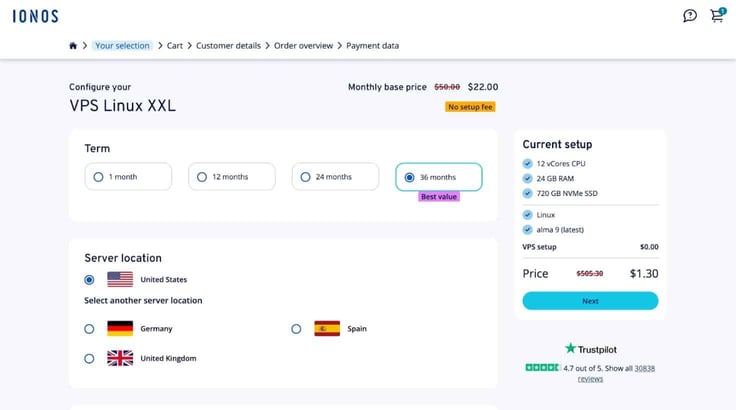
Backups weren’t included in my plan and I had to pay an extra $7 a month, but that’s pretty typical for unmanaged VPS plans. I clicked “Next” and previewed my order before entering my payment info on the final screen.

My total for three years of hosting with a very well-provisioned VPS came out to just under $1,300. For a plan with that many resources and for that long, it was a pretty good deal.
Setting up a VPS is an entirely different ball game than setting up shared or WordPress hosting. It requires a bit more manual configuration, usually through the command line.
To start, I logged into my IONOS dashboard and navigated to my hosting plan. I clicked on “Servers & Cloud,” located my plan, then clicked “Select.”
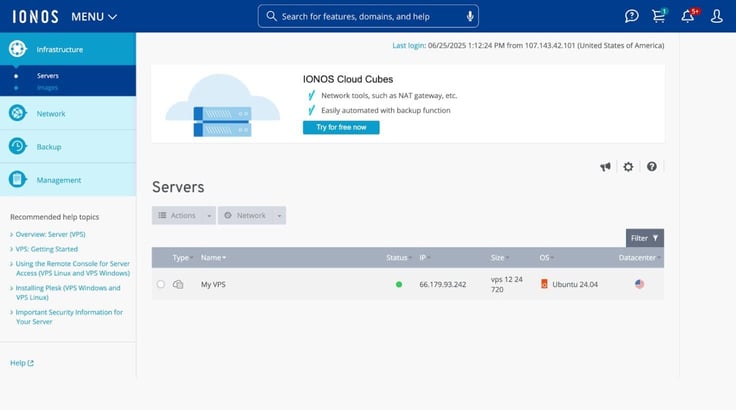
I clicked on “My VPS” to begin the setup. I realized pretty quickly that Plesk didn’t come preinstalled, so I had to do that first.
IONOS included some recommended help topics on the right-hand side of the screen, which covered things like server setup. I clicked on “VPS: Getting Started,” which walked me through everything.
Following the instructions it gave, I opened the command line. IONOS didn’t have a terminal in its backend, so I opened my own by using SSH to connect to the server remotely. The root username and password were easy to find — everything was in the dashboard.
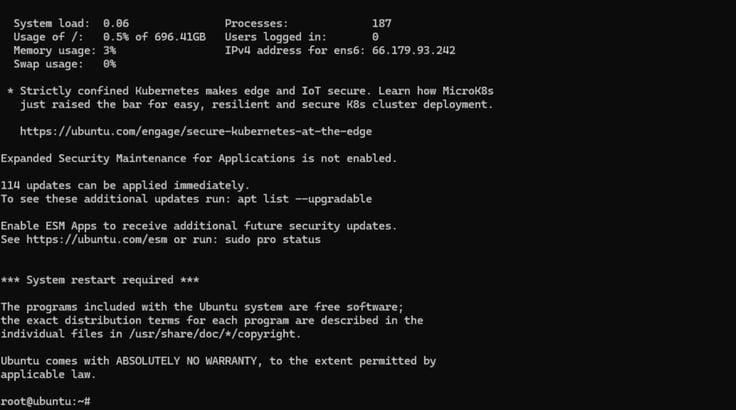
It took about seven minutes for the installation to finish. It was a bit of legwork to get up and running, but having Plesk installed made it much easier to manage my server than using the command line only.
From there, my next step was to sign into Plesk and build my site.
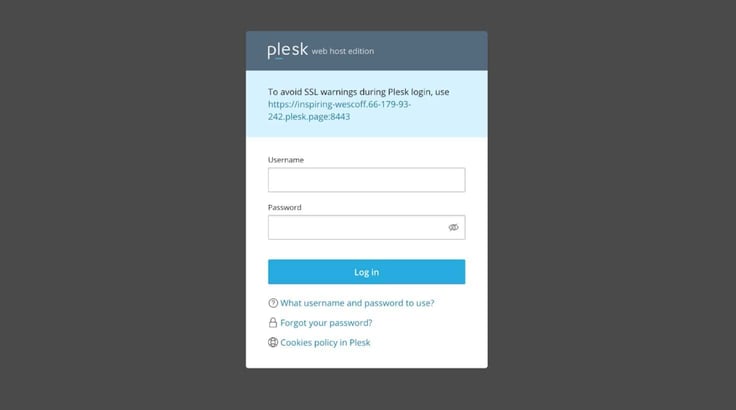
I went to “My Subscriptions” in the Plesk dashboard, then clicked on “WordPress” in the left-hand pop-up menu. It only took about 30 seconds to install WordPress, and I was ready to start building my site.
Once I was in, I built my WordPress site in the same way as any other web host.
I went back into the IONOS dashboard to see what other tools were available to me, like the backup packages and network settings. I already knew I had to pay extra for backups, but I was curious how that feature worked.
IONOS offered something called “Images,” which were a snapshot of my server. I could create one at a time, but creating a new one would erase the previous image.
Given the extra cost and its limitations, I would probably use AWS for backups instead. They’re cheaper, and I can take as many as I want.
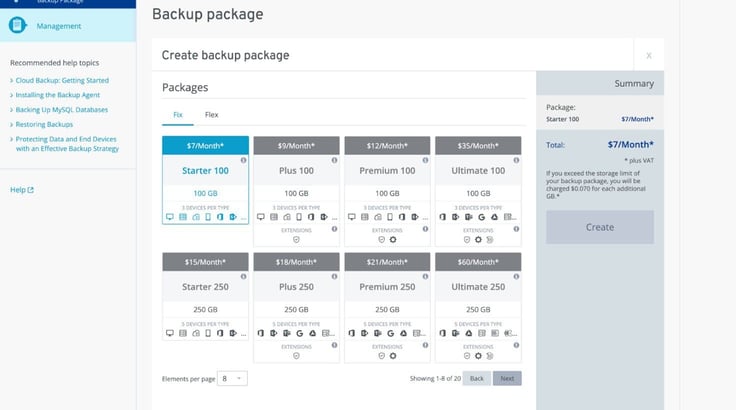
I explored some other areas of the IONOS dashboard like the Network tab, which allowed me to add extra ports if I had applications that needed them. I could also add extra IP addresses for $5 a month each.
The benefit of buying a VPS is that I know it’s going to be fast. After I built my site, I ran it through GTmetrix to see how it would fare. Like all of IONOS’ other hosting plans, it passed GTmetrix’s tests with flying colors.
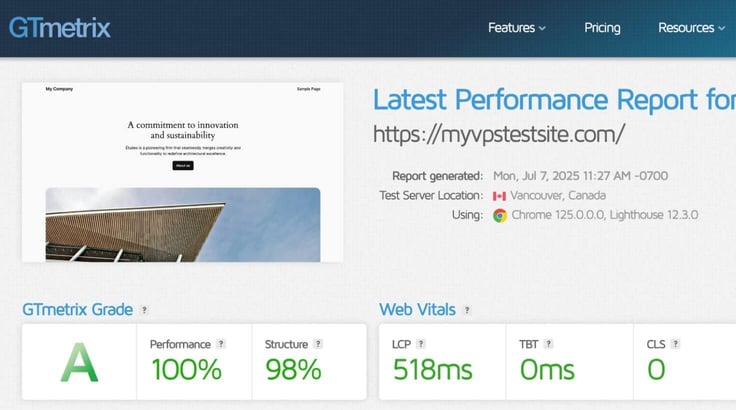
Something I would note is that my site was really small. A real one (with real visitors) would have more files, databases, content, and plugins. All this to say, your mileage may vary with a real site. But even for a little sample site, these results were great.
After running all my tests, I felt pretty impressed with IONOS’s VPS plans. The setup process was similar to most other VPSes I’ve used. I had to do a little manual setup, but once that was over, I could manage everything through Plesk.
In terms of value, I got a pretty sizable VPS for a great price. All these things considered, I would absolutely use IONOS’ VPS plans again.
“You don’t have to share if you don’t want to.” IONOS uses a pretty memorable phrase when referring to its 100% dedicated hardware. It’s not that I’m opposed to sharing, but sometimes having an isolated environment is essential.
IONOS’ dedicated hosting is meant for super users, like people who work in development or IT. To test it, I spent some time manually configuring my server in the terminal. Then, I thoroughly checked out the IONOS dashboard to see what tools were available to me.
This was my experience:
I thought there were a lot of choices with IONOS’ VPS plans until I saw its dedicated server options. I found myself having a bit of choice paralysis looking at all the different configurations.
But don’t get me wrong. Having choices is not a bad thing. It’s what makes configuring a dedicated server worthwhile.
First, I checked out my hardware options. I could go with:
I went with Intel. It’s popular, performant, and I’m familiar with it. After clicking “See Intel servers,” I was able to really dig into the pre-configured options.
In the U.S. data center, there were seven server options configured with NVMe SSDs and another five configured with traditional HDDs. Unfortunately, six of the seven NVMe SSD servers said “Available again soon,” meaning they were sold out due to high demand.
I checked the other data center locations, and it was the same story across most of them. A little more than half of the servers were not available. A good problem for IONOS, a not-so-good problem for me. However, I guess that does say something about the quality of its dedicated hosting plans.
I didn’t compare all the dedicated server options in a table this time (the chart would be a mile wide). Instead, I did a deep dive into the base features IONOS includes with all of them:
While dedicated servers usually don’t come with a ton of freebies, it’s nice that IONOS includes 10 free email accounts and additional users.
As far as pricing went, IONOS was quite a bit cheaper than what most other hosts offered:
| Host | Plan | Intro Price | Renewal Price |
|---|---|---|---|
| IONOS | IX6-64 NVMe | $102/month | $120/month |
| OVHCloud | RISE-1 | $85.59/month | $95.10/month |
| Liquid Web | Intel Xeon E-2456 | $107/month | $214/month |
| InMotion | Advanced | $139.99/month | $169.99/month |
Features aside, it was easy to choose a dedicated server simply based on how much RAM, bandwidth, and CPUs I needed. I went with a smaller plan: the IX6-64 NVMe for an introductory price of $102 per month.
The signup process was really fast and straightforward. Once I chose my plan, I clicked “Configure.” On the next page, I was able to customize my memory, disk space, and backups, called “Images.”
There was a one-time setup fee of $50, which is fairly standard for unmanaged dedicated servers. Extra fees aren’t my favorite, but IONOS pricing is so low, I don’t mind the one-time charge.
I clicked “Create” and was given the option of adding the AI site builder, which I opted to skip this time (I reviewed the site builder previously). On the final page, I was able to confirm my server details and the length of my package before checking out.
I’d say the whole signup process took less than two minutes.
I mentioned before that dedicated servers were ideal for super users. That’s because an unmanaged server requires more manual setup than shared or WordPress hosting, for example.
IONOS didn’t include a control panel in its dedicated server plans, but it did include a console tool in the dashboard. Unfortunately, it wasn’t working when I tried to use it, so I switched to the terminal on my desktop instead.
Using SSH, I gained remote access to my server with the root username and password IONOS provided in the dashboard — they made it easy to find.
I decided I wanted to use Docker to set up my WordPress site, which involved running a few commands in the terminal. All in, it took me less than 10 minutes to set everything up.
Once it was up and running, I signed into WordPress and built my site.
Even though the process required some manual setup, that’s standard across every dedicated hosting plan I’ve used. The benefit of IONOS here is that its dashboard was really simple to figure out, so I didn’t waste any time searching for what I needed.
The dedicated hosting dashboard was nearly identical to the VPS hosting dashboard. I had a left-hand menu that listed out all my different tools and features. Since this was an unmanaged plan, it was pretty bare, but that’s kind of the point of dedicated hosting.
Some of the features that were easily accessible included backups (which cost extra), usage reports, and setting up additional users and roles.
I really appreciated the ability to manage users, which could be very useful for companies that need to control what employees can or can’t do in the backend.
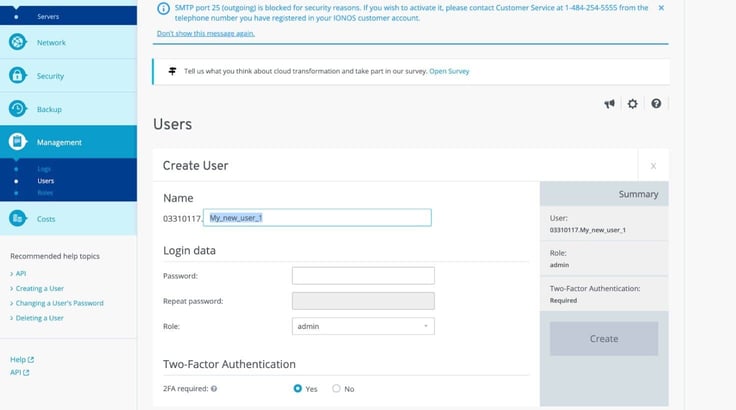
There were also some “Recommended help topics” suggested, which could be really useful if I got stuck trying to do something in the dashboard.
I always wondered if a dedicated server was really worth the extra cost for better performance — this confirmed it. IONOS’ dedicated hosting plan clocked a 225ms LCP, about twice as fast as its VPS plan.
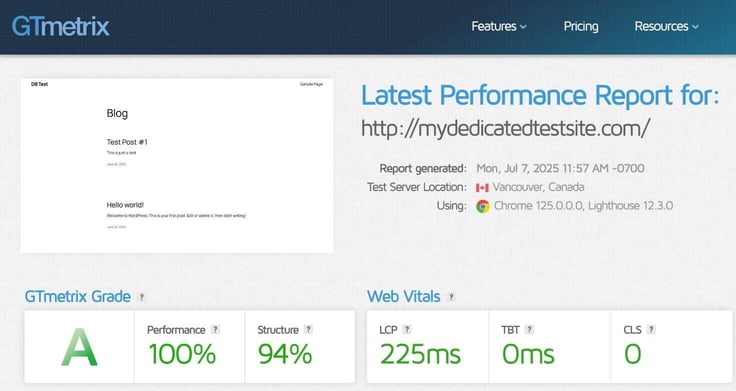
I have to include the disclaimer that a fully built-out site with thousands of files, images, and databases may not be quite as fast. But regardless, this report proves IONOS’ dedicated plans were definitely worth it.
Most definitely. For the price and the performance I got, IONOS was very impressive.
These dedicated servers are perfect for companies that need a lot of power and resources — as long as they have the right people to manage the servers in-house.
The dashboard was basic, but functional. And the pricing was some of the lowest on the market, even after factoring in the one-time $50 setup fee.
Customer support is one of those things I usually don’t think about until I really need it. By then, it’s too late to do anything about it.
I wasn’t letting myself fall into that trap, so I thoroughly tested IONOS’ support team. I contacted them several times over a couple of weeks.
One of the times I reached out was because I wanted to delete and rebuild my WordPress site. However, after I deleted it, I couldn’t figure out how to reinstall it. I panicked, thinking I had deleted my hosting plan.
I sent a message to support, and they were very helpful. Within a couple of minutes, they gave me all the instructions I needed to reinstall the software. Reinstallation was quick and easy with their help.
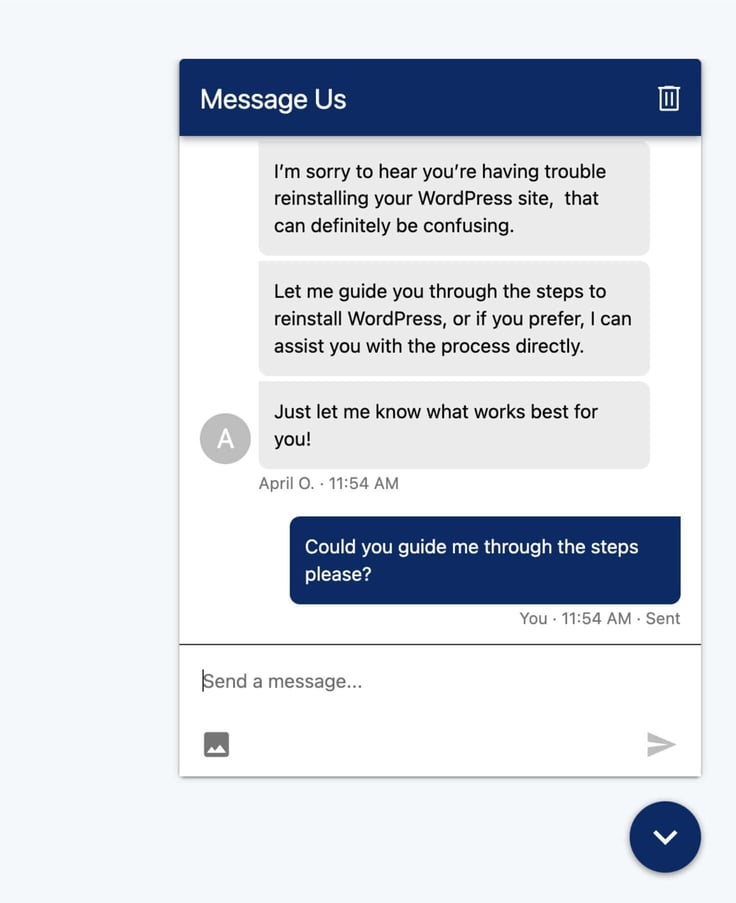
My takeaways for customer support were that:
I felt confident knowing that I could have any questions answered quickly and thoroughly, and I can’t say that about every host I’ve tried.
There were a ton of things I liked about IONOS — more than I could fit in this chart. But there were also a couple of notable disadvantages (none of them were dealbreakers to me, though).
I could tell IONOS put a lot of effort into the user experience. Even the self-managed plans were simple to navigate. I also loved how design-forward its site builder was. As a web designer, I really appreciated having clean, beautiful design options.
On the flip side, I found a couple of downsides. Unlike most other hosts, IONOS didn’t include unlimited websites in its WordPress plans. I also noticed many of its dedicated servers were sold out.
However, none of these things were dealbreakers for me. I’d say the benefits significantly outweigh the disadvantages.
I like a hosting plan that’s affordable, easy to use, and performant. It’s not always easy to find all those characteristics under one roof, but IONOS has them.
The introductory pricing was some of the lowest in the industry, and I didn’t have to sacrifice performance or usability to get it.
I spent roughly three weeks reviewing IONOS and testing all its features, so I can confidently say it’s a solid choice for any kind of hosting.

HostingAdvice.com is a free online resource that offers valuable content and comparison services to users. To keep this resource 100% free for users, we receive advertising compensation from the hosts listed on this page. Along with key review factors, this compensation may impact how and where hosts appear on the page (including, for example, the order in which they appear). HostingAdvice.com does not include listings for all web hosts.
Our site is committed to publishing independent, accurate content guided by strict editorial guidelines. Before articles and reviews are published on our site, they undergo a thorough review process performed by a team of independent editors and subject-matter experts to ensure the content’s accuracy, timeliness, and impartiality. Our editorial team is separate and independent of our site’s advertisers, and the opinions they express on our site are their own. To read more about our team members and their editorial backgrounds, please visit our site’s About page.


