
Writer: Andrew Wandola


Editor: Britain Simons


Reviewer: Cristian Lopez

A couple of years ago, I saw this funny post on Reddit about a McDonald’s in Barberton hiring “losers.” Obviously, it was a typo. They likely meant “Closers,” an actual job role in the restaurant industry.
But the unintended message was already out there; if you’re a loser, McDonald’s has a job for you! Jokes aside, this reference is just for contextual humor.
As a web designer, I couldn’t help but think about how a staging environment would’ve prevented this meme-worthy gaffe. It wouldn’t matter if they had actually posted the correct word “Closers” and some prankster thought it wise to steal the letter “C,” a proper setup would have saved the day.
A staging site, or environment, is an exact copy of your website. Having a secure sandbox built into WP Engine adds an additional layer of foolproofing to test and debug errors, plugins, updates, and any changes before going live.
In a web developer’s world, a staging environment would prevent this issue. That’s my inspiration for today’s topic — setting up a staging site on WP Engine (and why you should).
-
Navigate This Article:
Step 1: Understand How WP Engine Environments Work
Let me explain something super important first before we click a single button.
WP Engine gives you three environments:
- Production: This is your live site (the one people actually see)
- Staging: Your testing playground, and it’s what I’ll be focusing on today.
- Development: More of a sandbox for deeper work, but totally optional.
One more thing to keep in mind: Your staging site is a clone of your live site. Pages, plugins, and design — They’re all the same on both staging and live. The only difference is that nothing you do in staging affects production (unless you say so).
Staging a site also kind of reminds me of Pimp My Ride, one of my favorite shows from the early 2000s, but with a twist.
Stick with me for a minute. Picture this:
The crew pulls up to my crib, but I don’t hand over my car. Instead, they roll up an exact replica to work on. That way, I can keep driving the original while they ‘pimp’ the duplicate. When they roll up with the fresh new look, I simply swap it out — if I’m happy. But if it all goes horribly wrong, my trusty car is unscathed and pristine. No horrified face-palm reaction shot.
WP Engine gives that flexibility and peace of mind. Highly recommended:
WP Engine WordPress Hosting
I got my first web redesign gig seven years ago. I made all the changes in production. And it was chaotic to say the least. One moment, you’d see a ‘Lorem ipsum’ text on the live site. On the next refresh, you’d see ‘Hello world.’
I can’t help but laugh when I picture myself then, as a customer, witnessing these random changes on the live website in real time. Like, how did my Philly cheese steak sandwich suddenly turn into Lorem ipsum, and why does it cost $80? For that kind of money, it better be that good!
Make no mistake; the final product was perfect, but I still cringe when I think of the weird things the users saw as I redesigned the website without staging.
I learned from my mistakes. And I’m here to make sure you don’t repeat them. Let’s continue to set up our staging site.
Step 2: Access Your WP Engine Dashboard
By now, you should have your WP Engine account already set up. Now, to set up the staging environment.
First, log in with your WP Engine credentials.
Next, find the website you need to create a staging environment for. My website’s name is A Foodie’s Diary.
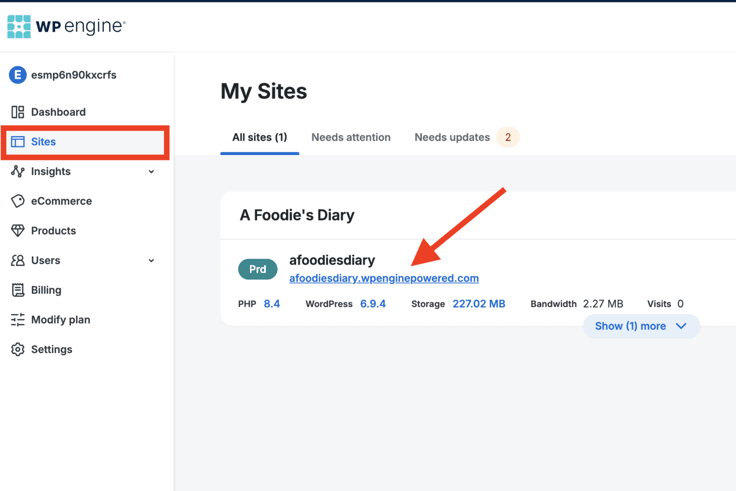
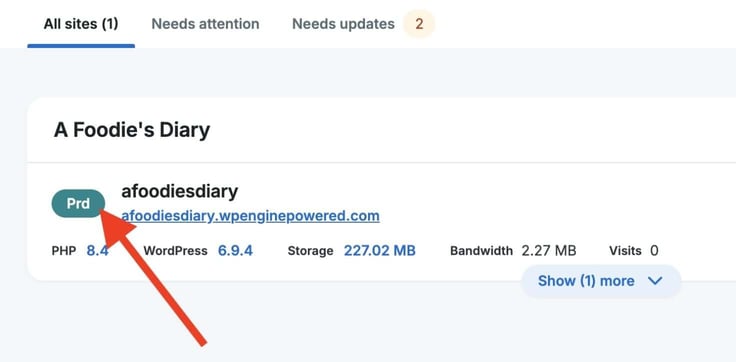
I’ll then click on the green Prd icon just before the website address.
Step 3: Create or Refresh Your Staging Environment
I’m now in Production. Now pay close attention here.
I’ll click on Add Environment to create a new (staging) environment for this website.
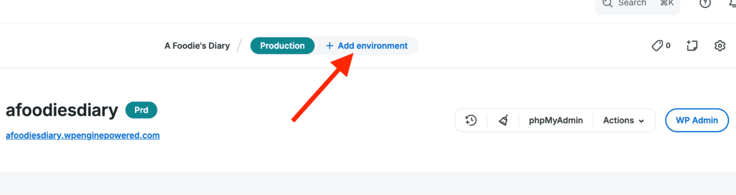
On the next page, there are two options:
- Start with an “existing environment” to copy from one site to another.
- Start with a “new environment” to create an empty environment.
I’ll go with an existing environment because I want to create a staging environment for an already-existing site (A Foodie’s Diary).
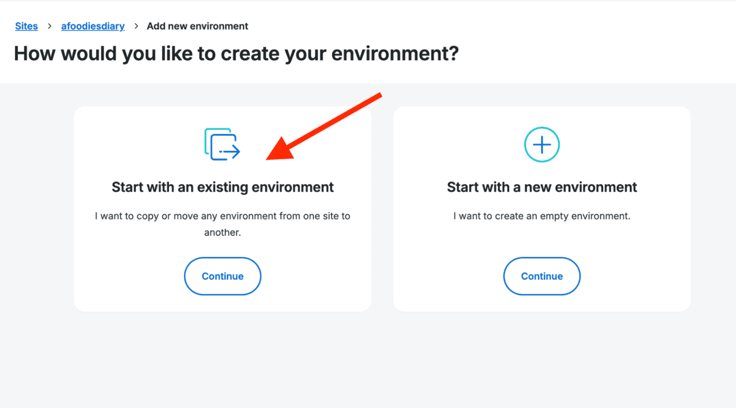
That’s what you should do if you already have a site in production. The Start with a new environment option is self-explanatory; you’re basically starting from scratch.
Next, I’ll click Copy an environment to duplicate an existing (production) environment.
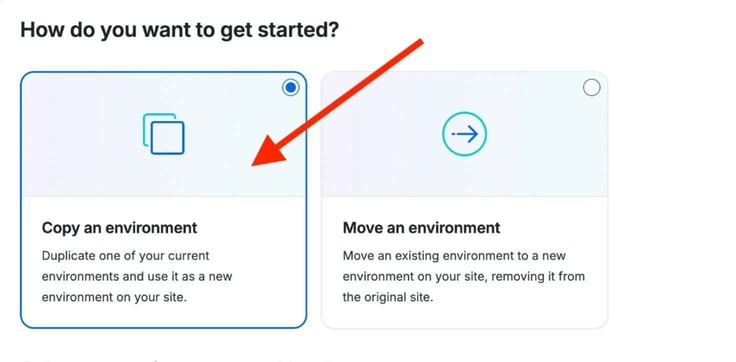
Click Next.
On the next page, right under Type, select Staging.
Finally, to sum everything up, I’ll click on Add environment.
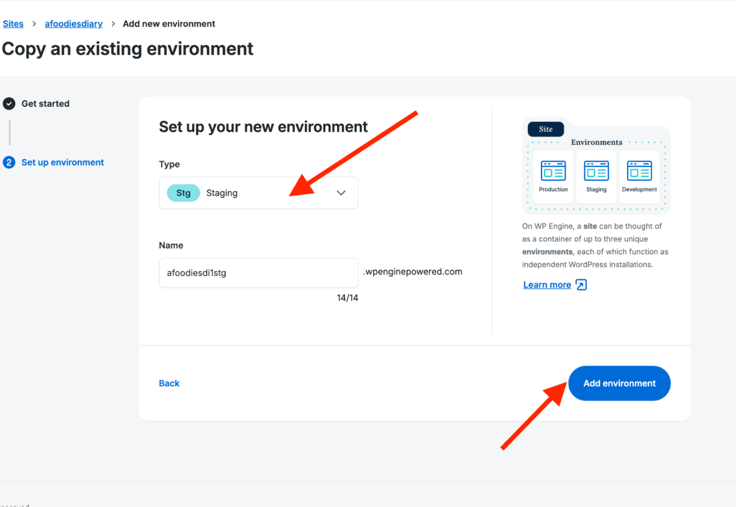
Quick tip: You can enter a unique custom name for your staging environment in the Name field. If you don’t, WP Engine will generate a random name for your staging site.
This is the confirmation I need: “afoodiestage is being built.”
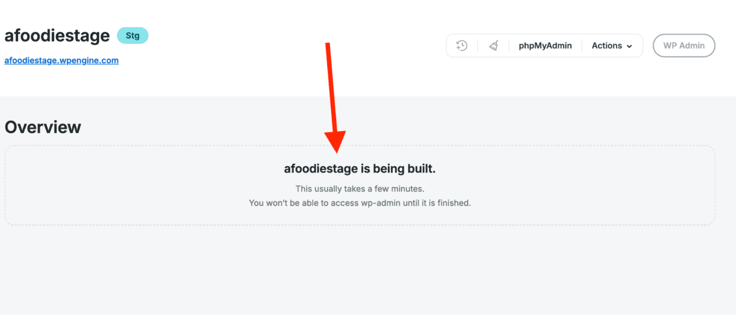
Now watch what happens when I refresh the page.
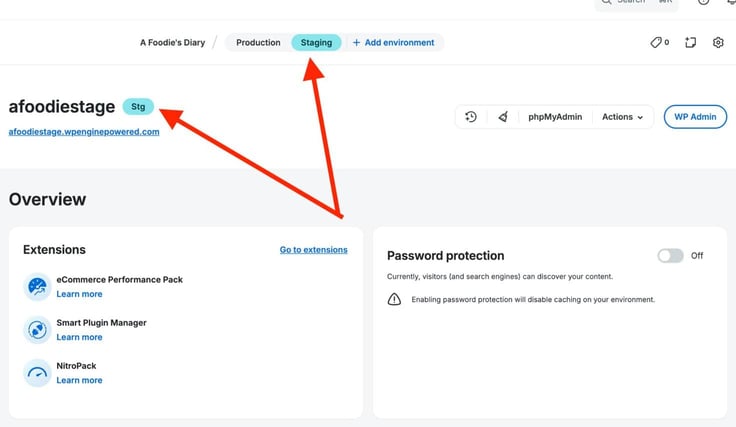
See the blue “Stg” — We’re all set!
Additional tip: You’ll know what environment you’re in just by looking at the menu above the website’s name. For example, in this case, Staging is highlighted to show we’re in the staging environment. You can even use this menu to switch between environments.
When should you refresh staging? Often. Especially before:
- Plugin updates
- Design changes
- Testing new features
And that’s because working with outdated staging data is like practicing for a game using last season’s playbook.
You’ll think everything works… until you run a play and everything breaks down.
Step 4: Log Into Your Staging Site and Verify It
A staging website isn’t helpful if I can’t access its admin dashboard. That’s exactly what we’re going to do in this section.
I have two options here:
- Log in with my credentials by adding ‘/wp-admin’ right after the staging URL, or
- Simply click on WP Admin to access the staging dashboard on WordPress.
I’ll click on WP Admin.
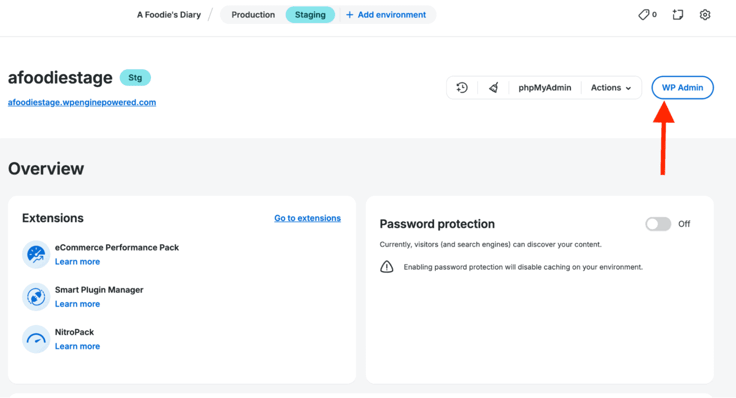
Now I’m logged in to the WordPress admin dashboard for the staging environment.
From here, confirm if:
- All your pages are there
- Posts look right
- Images are loading
- Plugins match production
In other words, find out if the staging site feels like your real website and everything is properly copied over.
Step 5: Make Changes Safely in Staging
Now it’s time to have some fun. They call it a sandbox for good reason!
I’m going to test if my staging environment really works or if I’m being ‘staged’ for failure. To find out, I’ll break things on purpose to show the functionality.
In staging, you can:
- Update plugins
- Change themes
- Test new designs
- Add custom code
- Adjust performance settings
In other words, this is our no-consequences zone. This is where mistakes are tolerated and corrected before pushing the changes to production.
And since I’m an ailurophile, because cats rule, I can’t think of a better way to test things than to add a new section with an image of a cool cat.
![Red arrow pointing to the HTTPS URL bar to show staging environment at [website].wpenginepowered](https://www.hostingadvice.com/images/uploads/2026/05/How-to-Set-Up-a-Staging-Site-on-WP-Engine_3-1.jpg?width=736&height=363 "Red arrow pointing to the HTTPS URL bar to show staging environment at [website].wpenginepowered")
See all the cuteness in that image? It only shows in my staging environment. The production side of things isn’t impacted in any way.
Step 6: Test Changes Thoroughly
Now here’s where most people mess up. And that’s because they make changes… glance at the homepage… and they’re like, “Yeah, looks good.”
*Ominous narrator voice* “No, it was not good.”
Think of it like preparing a meal. Just because the amount of salt is perfect doesn’t mean you’ve remembered all the ingredients, spices, or even that it tastes good.
Just to be sure everything works:
- Key pages look good: landing, contact, about, and shop
- Forms are behaving as they should
- Login/log out features work for admin and users (if any)
- Checkout processes are flawless and trigger email confirmations
- Mobile view is on point with proper layout
- There is no weird spacing or broken layout
To wrap this section up, I’ll open the browser console. That’s one of those places where errors like to hide, like an introvert on the back deck at a party.
And here’s why this matters:
Catching issues at this stage means you get a calm, controlled fix. You spot the problem. You adjust it. And you move on without stress.
But if those same issues slip through and show up after your site goes live, it’s a completely different story. Now it’s public, visible to users, and a lot harder (and more stressful) to deal with. It cannot only hurt your reputation, but also be a security risk.
Step 7: Push Changes from Staging to Production
Alright. I’ve tested everything, and now it’s time to go live.
I’ll go back to the Staging environment in WP Engine, look for the Actions drop-down, and select Push to.
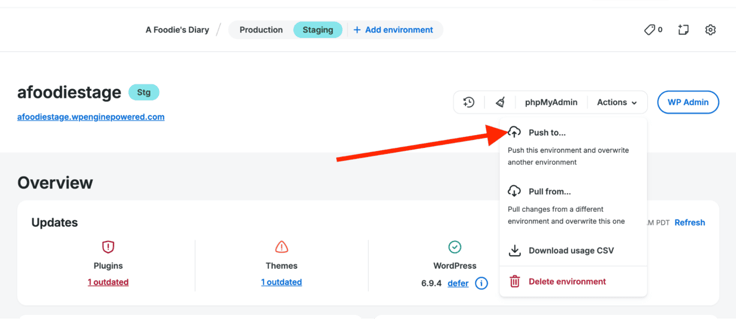
On the next page, I’m going to select my website (afoodiesdiary) as the destination.
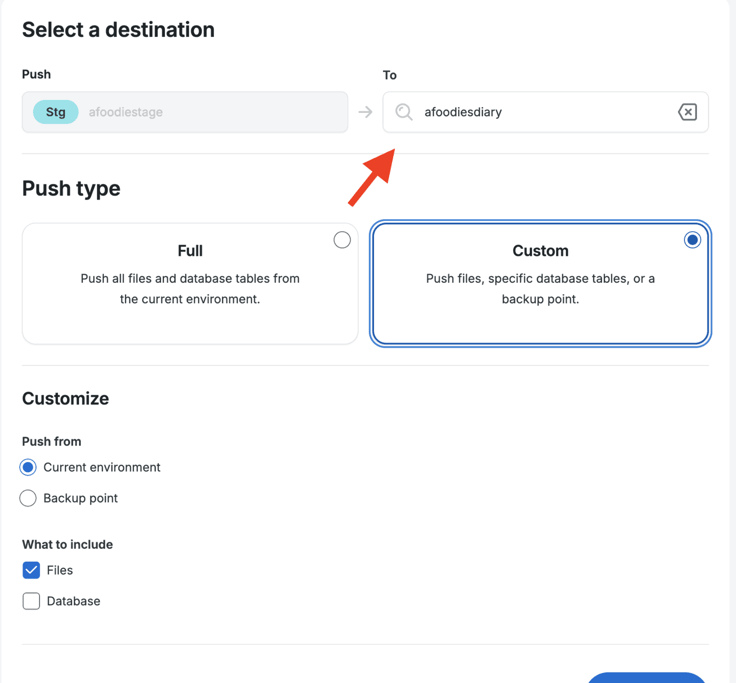
WP Engine has done a great job in labeling these environments. Once you’ve done it a few times, it becomes an intuitive part of the process.
For reference:
- Staging is clearly marked as “Stg”
- Production is clearly marked as “Prd”
What we need to do is push from Stg to Prd. You simply can’t miss it.
Step 8: Choose What to Deploy (Without Breaking Your Site)
This step is actually very important. We’re basically being asked to decide how we want to push the staging site to production.
You have two options.
Option 1: Full Push
If I choose a Full push, WP Engine will take everything from my current staging environment and push it into production. In other words, I’m overwriting production completely, and all the changes will take effect on my live site.
And the overwrite includes files and all database tables. You can choose if you also want to push themes and plugins (more in custom).
When you overwrite something, you’re literally replacing its existing content with something new (from staging in this case), even if that something new is a blank slate.
So, let’s say I have a pizza shop with a speedy online order form! If my customer, John, had just ordered a pizza online (in production) and I decided to push everything from staging to production, including an empty order data table, John’s pizza order would likely go poof and disappear.
The same applies to comments, user activity, and any other new data.
I’m not saying that the Full option is the devil’s cousin. Not at all. It’s for sure there for a reason. It works best when I’m launching a new site or when I’m certain that nothing important on production will be affected.
So, there’s a better way.
Option 2: Custom Push
This option gives me much more control. Instead of pushing everything, I get to decide exactly what should be deployed and what should remain untouched.
I can decide to push files, specific database tables, or even a backup version of my site. If I choose Custom, I’m also allowed to decide where I’m pushing from.
Let’s look at my options:
- Current environment (the latest version of my staging site)
- Backup point (a previously saved version)
I’ll go with the current environment that I’ve been working from throughout this tutorial. WP Engine now wants me to choose what to include, and I have two options: Files and Database.
Files
If I click on Files, I’m basically telling WP Engine, “I want you to include my themes, plugins, and code changes in the push.”
And that’s actually a safe kind of push because it won’t interfere with live user data. In other words, John’s pizza order will still be processed, and the restaurant will have one less grumpy customer to worry about.
Database
If I opt for this option, it means I want to push my content, site settings, users, and any dynamic data such as orders or form submissions. More of the backbone of the site.
And the risk of overwriting live data is quite high.
Since I only made a minor change to my website design by adding that deliciously cute photo of a cat, I don’t need to overwrite an entire database. Pushing files alone is good enough.
Quick tip: Full push is simple but broad. Best done during low-traffic hours if absolutely necessary. Custom push is precise and controlled. Most problems can be solved from a “Files” push.
Step 9: Verify Your Live Site After Deployment
Let’s head back to practical lessons.
In the staging environment, I’m going to authorize a files push by clicking on Push changes. And I’ll also leave them with my email address so they can let me know when it’s done.
We’ve entered the wait stage until the pizza timer goes off — Oh, by the way, I just got a notification from WP Engine as I typed this. Let’s check what that’s all about.
Tada!
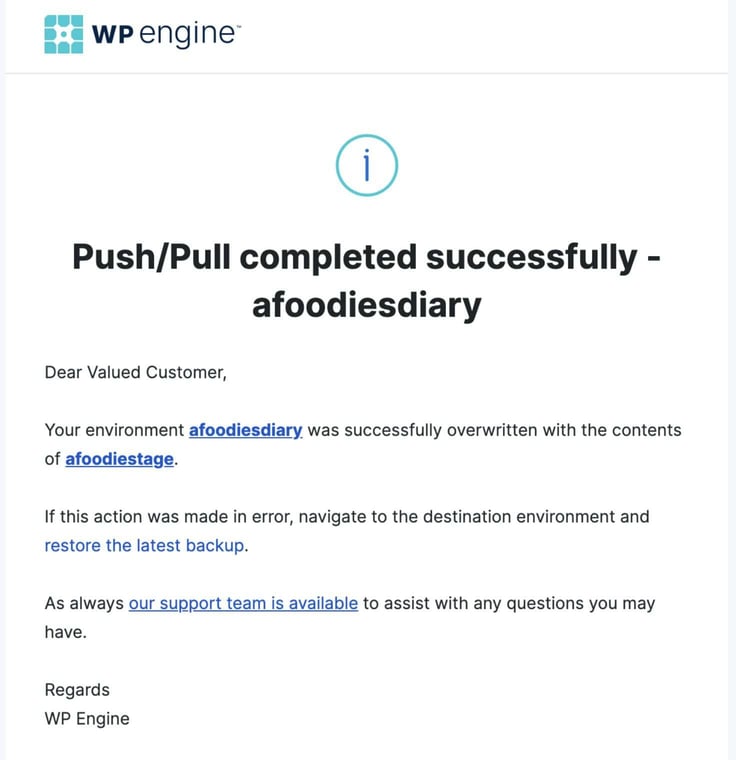
But don’t pop the champagne just yet; let’s check if the adorable cat pic now appears on the live website.
Yep. There it is!
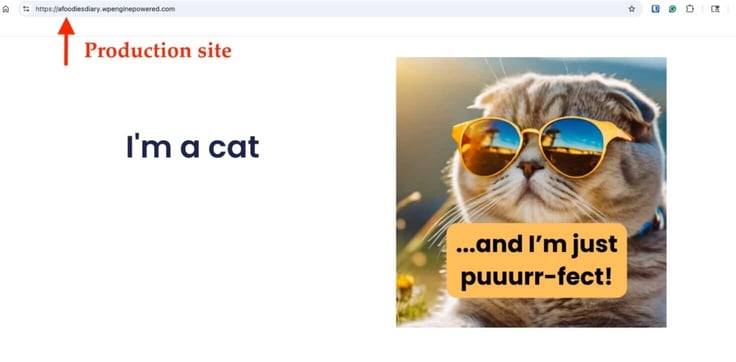
Now, go ahead and pop the champagne, or bubbly drink, and please pour me a glass while at it. Cheers!
Step 10: Build a Repeatable Workflow
One thing I’ve learned over the past seven years as a web developer is that you’ve got to plan everything before doing anything, and the biggest hurdle is getting started.
And when it comes to staging, I like to follow this checklist:
- Create staging
- Refresh staging
- Make changes
- Test thoroughly
- Deploy safely
- Verify live
Simple. Repeatable. And very reliable. Please copy my homework.
Common Mistakes to Avoid
Many of the site issues I’ve experienced in my line of work didn’t come from complex code or advanced configurations.
They came from simple mistakes:
- Not refreshing my staging environment before testing
- Pushing database changes without thinking them through
- Skipping testing by assuming everything works
- Forgetting to clear the cache
- Assuming staging and production are always identical
To prevent most of these mistakes, just keep this one simple rule in mind:
Things change. Staging is a guardrail to safely update security, data, plugins, design, and features. Always refresh your environment to make sure your test site is an exact clone of your live site. We don’t need any headaches later on.
Final Thoughts: Use Staging Like a Pro
I’ve provided all kinds of examples of how staging removes uncertainty. I sincerely hope they’ll help you avoid the guesswork and deploy with confidence. At least your web development clients won’t see some awkward Lorem ipsum filler text while you’re updating anymore!
If you found this topic helpful, our expert team and contributors regularly publish practical guides that simplify web hosting and WordPress. Stay connected via social media so you don’t miss the next one.
You can also use our handy HostHelperTM smart tool only at HostingAdvice.com.