
Writer: Joe Warnimont


Editor: Britain Simons


Reviewer: Cristian Lopez

I have a vivid memory of creating an “online store,” or at least that’s what I called it while designing the thing from my dorm room in 2008. I used the go-to solution for selling on your website at that time: a simple PayPal button. No cart, no product page, no checkout process. Just a static image that acted as a button with no “push” animation.
Boy, it would’ve been nice to have WooCommerce back then.
WooCommerce is what PayPal wished it could be. It doesn’t just add a barebones button and the digital equivalent of a back-alley transaction to your website. WooCommerce actually turns your regular WordPress website into a real eCommerce store, with a shopping cart, product pages, order emails, and a checkout process.
In this guide, I’ll walk you through how to install WordPress on Bluehost and how to find a reliable hosting provider, to either turn your current website into an online store or to launch a full eCommerce shop from scratch.
-
Navigate This Article:
Step 1: Prep Your Bluehost WordPress Website for WooCommerce
You need a WordPress site before messing with WooCommerce at all. WordPress and WooCommerce work hand-in-hand:
- WordPress: The platform for building a standard website or blog. It’s your foundation.
- WooCommerce: A plugin you install on WordPress to turn your site into an eCommerce store.
So, you need a WordPress site before anything, and it must be fully functioning. To get started, walk through my beginner’s guide to installing WordPress on Bluehost. That’s the easiest way to launch a WordPress site.
Then, run through this checklist to ensure your WordPress site is ready for WooCommerce:
- Installation: Is WordPress installed?
- Live URL: Is your WordPress site accessible? Can you log in at a URL like example.com/wp-admin?
- Public access: Is your domain connected to the WordPress site and live so the public can visit your site?
- SSL Certificate: Is SSL (HTTPS) active on your WordPress site? Can you see “https” before your URL and a padlock in the browser bar?
- Reliable Hosting: Does your hosting plan support an eCommerce site? This is why we recommend Bluehost: its WordPress, WooCommerce, and Online Store plans can handle small and robust online stores and all their components.
If you don’t have BlueHost yet, you can learn more below:
The good news is you can verify all of these checkboxes inside your Bluehost dashboard. Just log in to Bluehost and go to the Websites tab. As an example, you can click on Manage (next to your desired website) and select Security to view your SSL status.
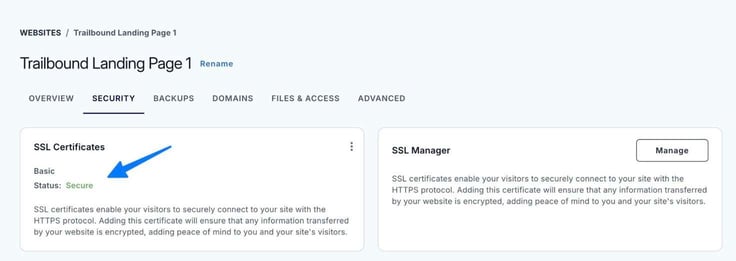
You can also verify things like your domain connection and hosting plan from this Websites area.
Step 2: Log In to WordPress and Find the Plugins Area
You now have your WordPress site ready to go. Next, you must log in to WordPress because, as mentioned, WooCommerce is a WordPress plugin you install within WordPress.
So, log in to your WordPress site by going to Websites > WordPress Admin in Bluehost.

That logs you into your WordPress website, where you can manage everything from blog posts to media, and comments to the appearance of your website.
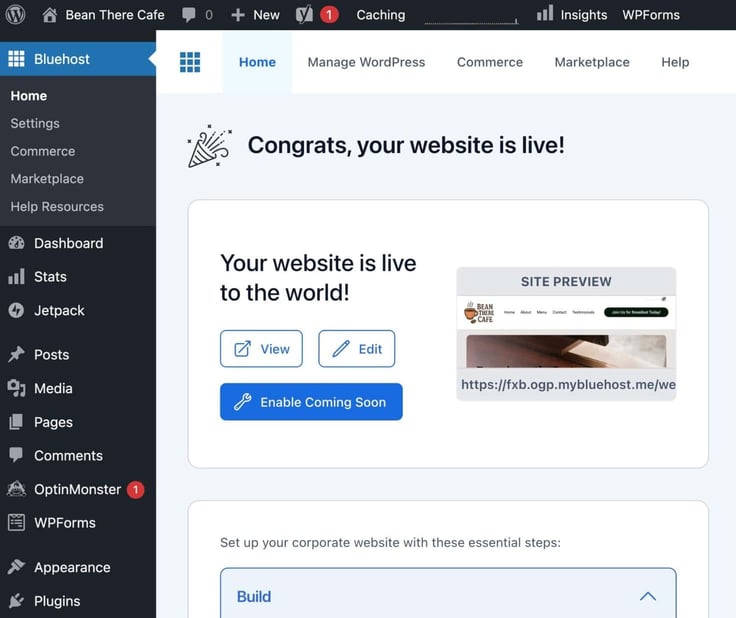
You’ll also notice a Plugins tab. You’ll use this in the next step to find and install WooCommerce on Bluehost and your WordPress site.
Step 3: Install and Activate WooCommerce
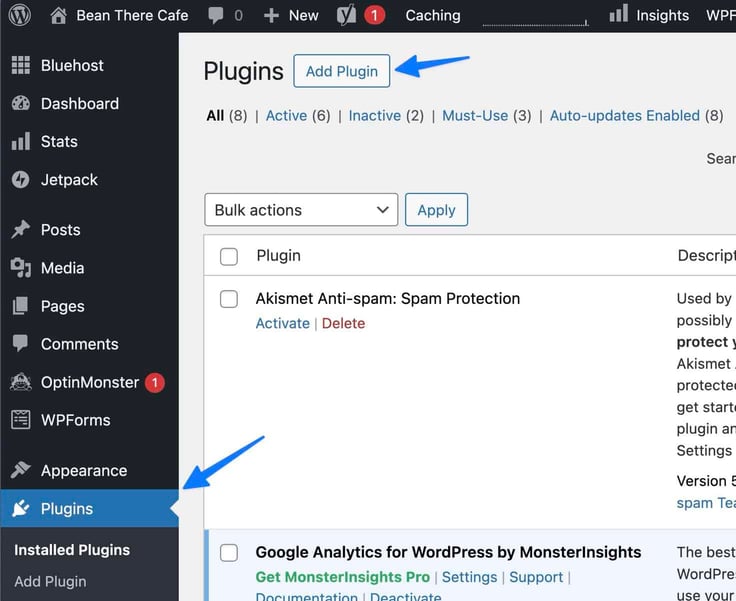
To find and install the WooCommerce plugin, go to Plugins > Add Plugin.
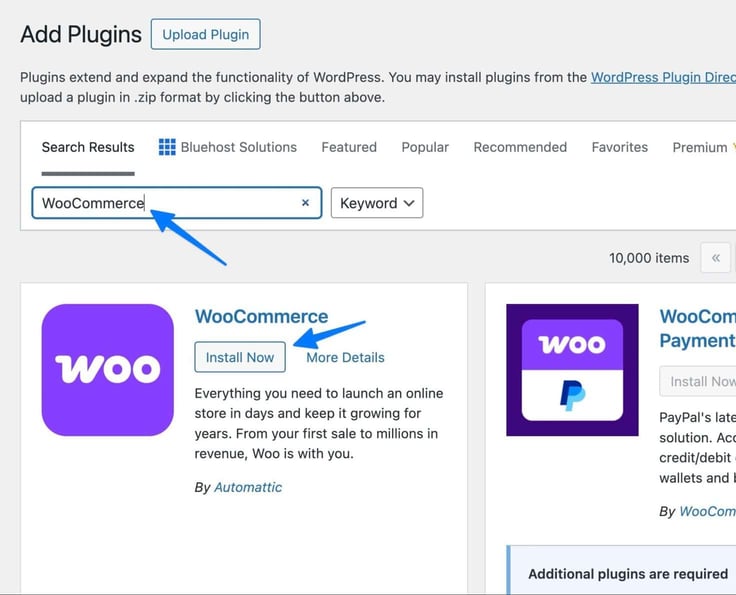
Here, type “WooCommerce” into the Search Bar. That brings up the WooCommerce plugin as an option. There are other add-ons to WooCommerce that you can incorporate later, but skip those for now. Click Install Now next to WooCommerce.
Be sure to Activate the plugin, after which, you’ll have the option to walk through a Quick Setup wizard. You can also skip over that and configure everything manually, but I highly recommend against it. This process only takes a minute, and you’re able to add several essential settings in one swoop for launching your online store much faster.
Step 4: Configure WooCommerce in the Quick Setup Wizard
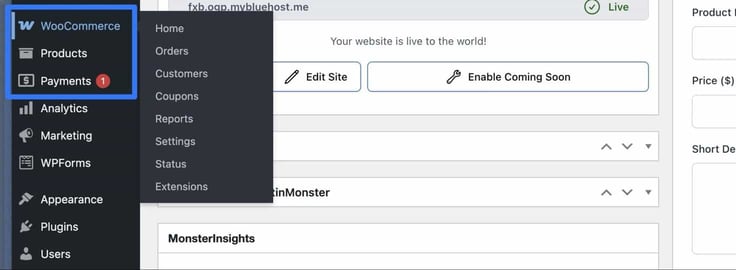
After activating WooCommerce, you’ll see some new tabs in the sidebar, which offer links to manage products, orders, customers, and other things like coupons and reports.
But before all that, before configuring WooCommerce manually, you should know that you can simplify much of that with something called the Quick Setup wizard.
And it’s right on the first page provided after activating WooCommerce. Here, you’ll see options to:
- Add Store Details: Like your business address and industry.
- Customize Your Website: With settings to add a logo, customize your homepage, and choose colors and fonts.
- Configure Navigation: Add pages and the menus.
- Add Legal and Trust Content: Including your privacy policy and terms and conditions.
- Branding: Settings for everything from adding a favicon logo to creating a branded email address. This section also has tools for marketing and engagement.
- Growth: Add testimonials, write blog posts, present an FAQ to your customers, and plan for the future with site performance, security, and analytics.
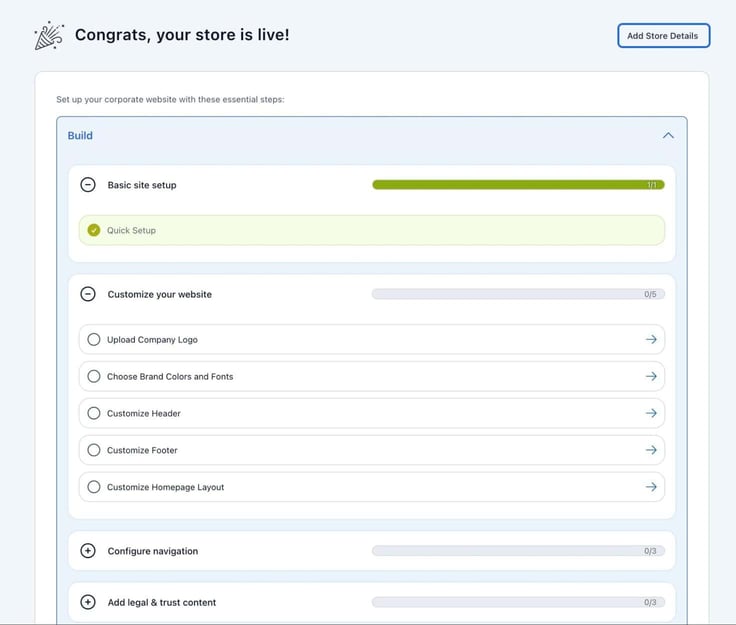
Every link you click on brings you to a new page of settings. I highly encourage you to walk through every one of these steps, as they’re the main settings you need to launch your website as quickly as possible.
Step 5: Set a WooCommerce Theme
I’ve used regular WordPress themes for WooCommerce with no issues, but you’re better off opting for a WooCommerce-specific theme.
Choose one that’s designed with extra features for an eCommerce store — features like a shopping cart, quick product previews, sale icons, a product gallery, and even support for putting rich snippets of products in your blog posts.
If you already have a WordPress theme that you like, one that has worked for your business for several years, stick to that theme for the moment. I want you to test out how WooCommerce functions on something familiar before switching to something new.
Otherwise, you have various marketplaces and shops to explore free and premium WooCommerce themes:
- The official WooCommerce store
- The WordPress Theme Directory (just search for the WooCommerce tag)
- Envato Market
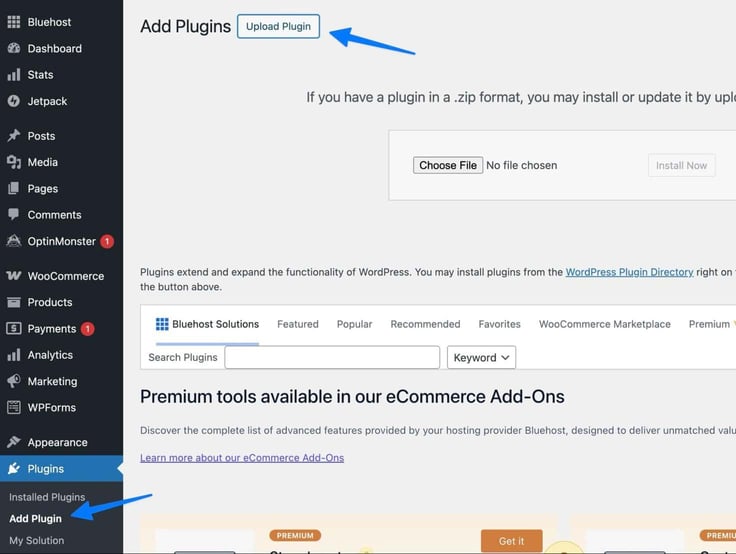
You can also search for “WooCommerce themes” on Google to locate third-party premium themes. To use third-party themes, you may need to download them to your own computer, then upload the zip to WordPress under Plugins > Add Plugin > Upload Plugin.
The most basic way to get started with a WooCommerce theme is to choose the official WooCommerce theme, “Storefront”.
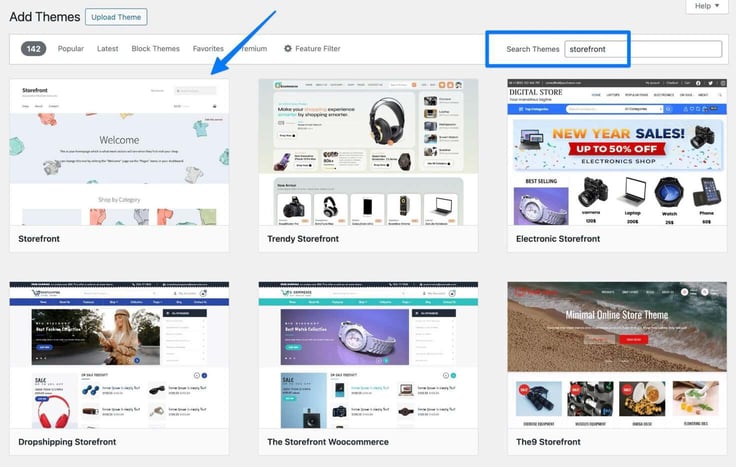
Keep in mind that to find the WordPress Theme Directory, which has lots of free themes, you can go directly to the WordPress Theme Directory website. But I prefer going to Appearance > Themes > WordPress.org Themes in the WordPress dashboard. It’s the exact same selection, just embedded inside WordPress for easier installation.
Step 6: Configure Store Settings that Affect Sales
I have a tendency to spend too much time designing my logo and tweaking my theme — you know, the fun stuff — but there are several settings outside of the basics that really affect your sales. Things like payment processing, taxes, shipping, and email notifications.
Payments
You need to set up a payment processor to accept credit card payments, and alternative methods like cash, checks, and even options like Bitcoin.
To make this happen, go to WooCommerce > Settings > Payments.
Here, you can install payment methods like:
- WooCommerce Payments
- PayPal
- Stripe
- Square
- Offline Payments
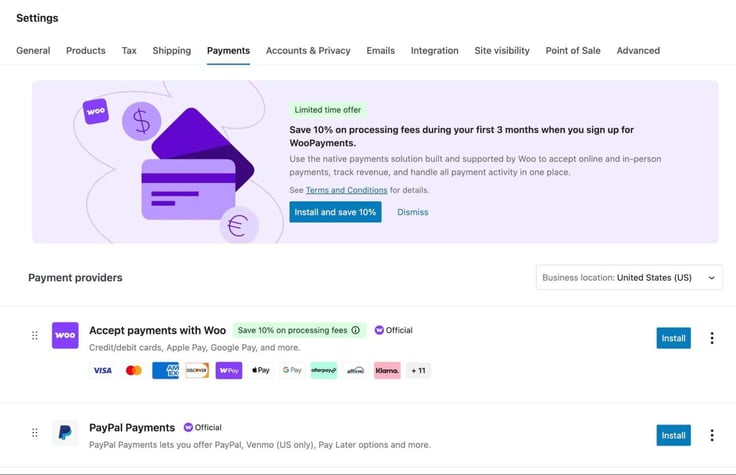
Connect at least one payment method to make it possible for customers to pay. For credit card processing, through options like WooCommerce Payments and Stripe, you’ll need to create a merchant account and connect your bank account.
Shipping Zones and Rates
To add shipping zones and rates, you’ll go to WooCommerce > Settings > Shipping.
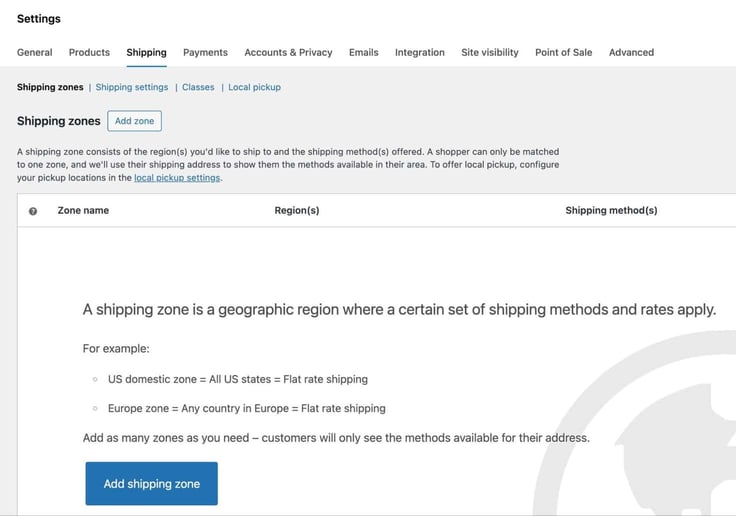
Start by adding a shipping zone and at least one shipping rate. You might consider a flat shipping rate, free shipping, or one that calculates based on things like location and carrier. There’s also the option to add the WooCommerce Shipping plugin, which prints labels from all the major carriers.
Tax Settings
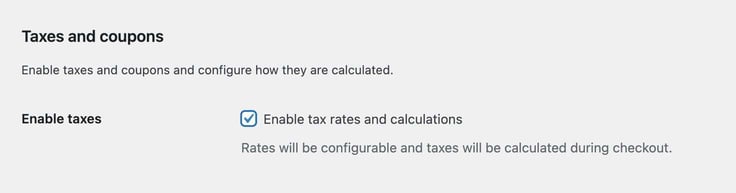
It’s a legal requirement in most jurisdictions to charge your customers sales tax. To do that, go to WooCommerce > Settings > General. Check the box to Enable Tax Rates and Calculations. Note, this is not legal advice, just general setup information to get you started.
After you save your changes, WooCommerce reveals a Tax tab within that Settings area.
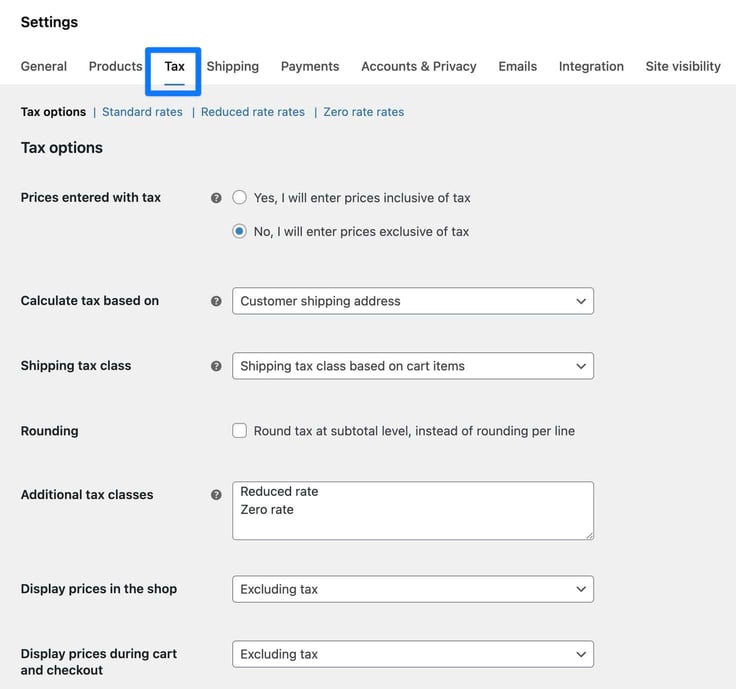
Go there to configure everything from standard rates to tax classes. I like to spend most of my time in the Standard Rates section to add multiple rates for different locations.
Email Notifications
Luckily, you don’t have to worry about configuring email confirmations for shipping, orders, or refunds. WooCommerce automatically sends those out. But you might want to preview and modify them. To do that, go to WooCommerce > Settings > Emails.
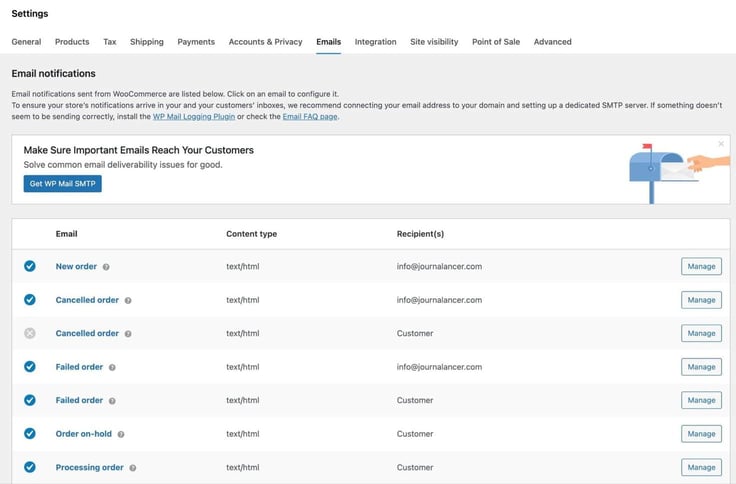
I recommend leaving the default emails but scrolling down to the bottom to change any branding elements that might look off. For instance, you can modify your logo and the “From” email.
Step 7: Add Your First Product (Physical or Digital)
I used to have a lot of trouble setting up any type of product that wasn’t a simple physical item. At one time, if you threw a digital or variable product at me, I’d do my best to pass that work onto someone else. Now, it’s actually easy when you know the steps.
I’ll walk you through how to add multiple product types in the simplest way possible. To add any product to your WooCommerce store, go to Products > Add New Product.
Once you’re there, you can focus on:
- Title and Description
- Images
- Pricing
- Inventory
- Categories
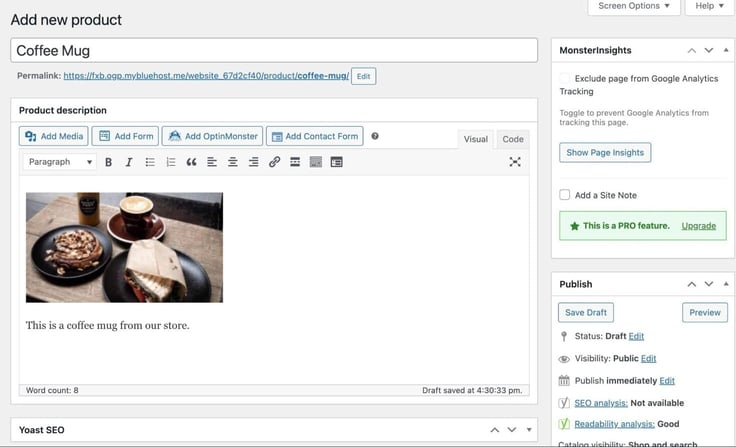
Beyond that, you have to pick the product type. If you’re selling a t-shirt in multiple colors, for instance, that’s a variable product, not a simple one. You change this product type by going to the Product Data dropdown.
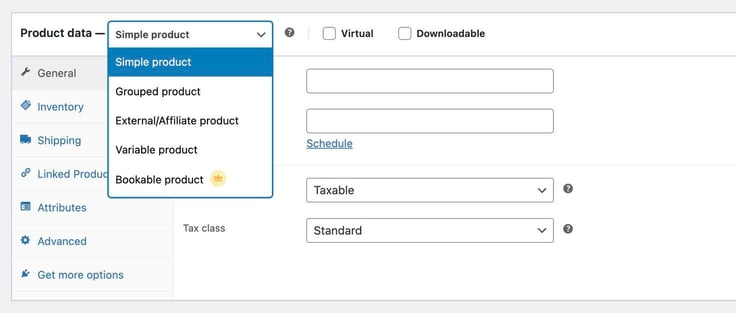
You’ll see these options:
- Simple Product: A basic product without any variants.
- Grouped Product: An item that can be grouped with other products in your store.
- External/Affiliate Product: A link that leads to another website where the sales process actually takes place.
- Variable Product: An item with multiple variations, like a pair of shoes in different sizes and colors.
- Bookable Product: A bookable service or item like a rentable tool or a cleaning service.
Choose the best option.
What About Digital Products and Downloads?
I’ve sold many ebooks and PDFs in my career, but that’s just a small portion of the types of digital products you might sell. Other options include digital templates, audiobooks, videos, and courses.
Here’s how the process is different from a physical product:
- You choose Virtual and/or Downloadable in the Product Data area.
- You then upload your file in the section called Downloadable Files.
- Customers get an email with your file after they make a purchase.
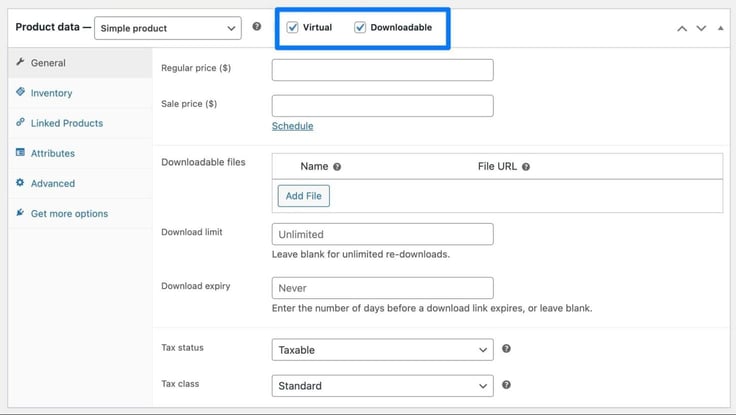
A virtual file, on its own, is one where the product is not something your customer downloads. So, you might sell a video course that unveils access to a collection of videos from behind a paywall. In that case, they’re not downloading anything to their computers.
Step 8: Test Your Store, Then Launch
When I test a regular website, it seems to involve a lot of button and link clicking, and checking if images look right. Online stores are an entirely different story.
You must test a wide range of moving parts for eCommerce, from the order confirmation email to how your checkout works on mobile devices.
Here’s what to test right before you go live:
- Complete a test order: Turn on the sandbox or test mode in your payment gateway. Add several items to your cart, then process the checkout as if you’re a real customer. I would also do this in live mode to see if your fulfillment process works the way you want it to.
- Check all email confirmations: Both you and the customer should get a certain series of email confirmations whenever something occurs. You’ll want to make sure all of these emails go out. Some emails to check: order confirmations, shipping confirmations, and emails to process returns.
- Test every product page: Make sure you have descriptions and pictures that load properly. Ensure the Add to Cart button looks good and actually works to add something to the cart. Also, confirm you have all the product information that a customer would want, like FAQs, product manuals, and return details.
- Review the checkout process on multiple browsers and mobile interfaces: Pull up your store on different browsers: Chrome, Safari, Brave, etc. Do the same on your phone and tablet. You should run the checkout process from start to finish in all of these unique environments. Make a note when the checkout is clunky on a certain interface, then make changes to that specific interface later.
When you’re ready to go live with your WooCommerce site, remove any maintenance mode or Coming Soon pages. I also recommend sending your store link to several other people you know, asking them to test it live, and run a real transaction to see if you missed any issues along the way.
Best Practices for When You Install WooCommerce on Bluehost
The process of installing WooCommerce is actually very easy. It’s just clicking a button in WordPress, but there are little intricacies about its configuration that could cause issues.
My goal is to ensure you do everything right the first time. So, I’ve compiled some best practices to guide you.
Keep Your Performance Lean
WooCommerce adds a considerable amount of load to your server. It’s one of the main reasons experts like myself recommend upgrading from shared hosting to something with specific WooCommerce support or VPS hosting.
Regardless of your hosting, though, you should always strive to keep your website lean. This way, you never overload your host and cause issues that could cost you sales. If you’ve read our stat guides, you know even a one-second delay can cause a considerable uptick in bounce rate.
My favorite ways to keep your store lean include starting with a lightweight theme, something like Storefront, Kadence, or Astra.
You should also limit plugins to what you truly need. Sometimes this means hiring a developer to custom-code a feature for you, although AI is opening the door to building your own. Anything to avoid having dozens of plugins in your dashboard that can slow your site.
Finally, activate caching and image optimization, both of which improve performance and make your site more lean, with plugins like WP Rocket and Imagify.
Set Up Some Sort of Tracking
You’ll want analytics to understand where your traffic comes from. Google Analytics is your best bet after you install WooCommerce on Bluehost, because you have access to several WooCommerce/WordPress plugins that integrate directly with Google Analytics.
I’m mainly talking about analytics plugins like Site Kit by Google and MonsterInsights.
Don’t Overcomplicate Things Early
I could spend a month poring through the features and plugins available for WooCommerce. I’ve been in that position where I want to install everything and make some sort of superstore that offers every possible feature, from flash sales to promotional spinner wheels.
I want to stop you, though.
You’re wasting your time, and probably cluttering up the user experience by overcomplicating things too early. With a new store, I recommend turning off reviews and ratings, minimizing intrusive promotions, and skipping upsells and cross-sells.
I also try to spend as little time on product descriptions when starting out. The goal is to trickle these options in later to test them out properly, one by one. As you integrate features over time, you can analyze things like site traffic, sales, and load speed. Then decide whether to keep them.
Stay Protected with Basic Security
The easiest way to secure your site from attacks, like brute-force logins and DDoS attacks, involves installing a security plugin like Sucuri or Wordfence.
These security tools monitor suspicious activity 24/7 and block bad users from accessing your site. It’s also important to use strong passwords and usernames, with two-factor authentication (2FA) enabled, for your Bluehost and WordPress logins.
My Final Thoughts on Installing WooCommerce on Bluehost
We’ve come a long way since slapping a PayPal button on a basic HTML webpage and calling it an eCommerce store. I’d argue that virtually anyone, regardless of experience, can now get a real checkout experience on their website, and it all happens when you install WooCommerce on Bluehost.
What I enjoy about this process is that you’re turning a basic WordPress site, any WordPress site to be exact, into a fully functioning online store. You get product pages, an inventory gallery, a true checkout experience, and a trusted payment processor that doesn’t send you away from your website.
Even better, with WooCommerce and Bluehost, the store you build today doesn’t have to be the same store in one year or 10 years. WordPress allows you to tweak your features and improve your design.
Right now, though, stick with the essentials; WooCommerce and Bluehost will help lay that foundation for you. If you have any questions, be sure to utilize our HostHelperTM smart tool and give us a visit on social media!
HostingAdvice.com is a free online resource that offers valuable content and comparison services to users. To keep this resource 100% free, we receive compensation from many of the offers listed on the site. Along with key review factors, this compensation may impact how and where products appear across the site (including, for example, the order in which they appear). HostingAdvice.com does not include the entire universe of available offers. Editorial opinions expressed on the site are strictly our own and are not provided, endorsed, or approved by advertisers.
Our site is committed to publishing independent, accurate content guided by strict editorial guidelines. Before articles and reviews are published on our site, they undergo a thorough review process performed by a team of independent editors and subject-matter experts to ensure the content’s accuracy, timeliness, and impartiality. Our editorial team is separate and independent of our site’s advertisers, and the opinions they express on our site are their own. To read more about our team members and their editorial backgrounds, please visit our site’s About page.