
Guides

Studies 
Studies
Our studies cover a range of trending topics and deliver original, reliable data you can't get anywhere else on the web.
The AI builder impressed me. The customer support didn't. Here's the full picture before you commit.

By: Lynn Cadet

Editor: Lillian Castro

Reviewer: Cristian Lopez
Disclosure: When you sign up through links on our site, we often earn referral fees from partners. For more information, see our ad disclosure and review policy.
Over a period of two weeks, I tested and reviewed Squarespace to learn more about its website-building capabilities and hosting features.
Does the popular website builder live up to its hype? That’s what I set out to find out.
During my 14-day trial, I created a site with its AI builder, browsed its wide suite of features, and tested its hosting performance. Better yet, I was able to start all for free, no credit card required.
Let’s see how Squarespace compares to other site-building hosts like Wix and GoDaddy.
Squarespace offers a generous 14-day free trial, with no credit card required, giving users a fair chance to determine whether its platform fits their needs before committing.
Its account dashboard and suite of tools are super user-friendly, well-designed, and comprehensive, providing everything from analytics to eCommerce and marketing.
When it comes to customer support, Squarespace is a bit hit-or-miss, making support something to consider when weighing its plans.
Website-building hosts have always been my favorite kind of hosts, and that’s probably because I love pretty things. So, of course, website design falls into that list.
In all honesty, Squarespace’s ability to churn out top-notch designs is not something I’m worried about. What I’m more curious about is all the other things that come with its web hosting platform. You know, the performance, features, and all that.
Can Squarespace perform as well as other hosting sites when it comes to server performance and web management? Is the drag-and-drop site editor as good as it looks?
Those are questions I set out to answer. Let’s find out together.
P.S. The site editor did not disappoint.
Squarespace, like its competitors Wix and GoDaddy, is known for its superior design and website-building prowess. And that aesthetic is definitely the first thing I see once I land on its website.
The website is beautifully designed and doesn’t look like your typical budget host. So I already knew what to expect from its website-building capabilities.
Before I could move on to its plans, something else on its homepage piqued my interest. It was “Start for Free. No credit card required.” plastered in the middle of its homepage. Free things are already great and are even better when there’s no strings attached, and that’s exactly what you get with Squarespace.
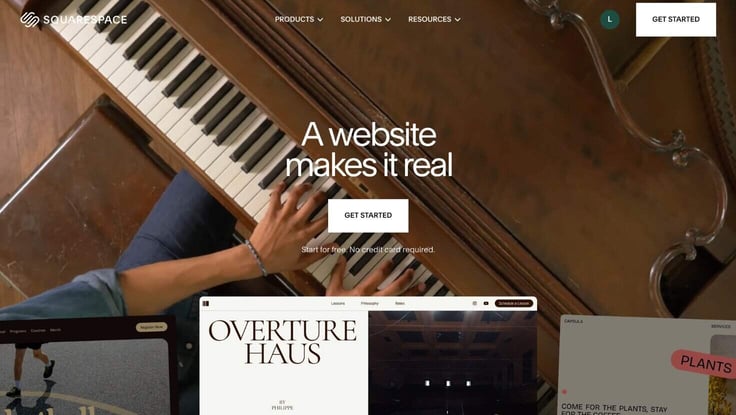
Wanting to learn more about this free deal, I found that Squarespace offers a 14-day free trial across all its plans. In my opinion, the 14 days give ample time to determine whether the platform will fit your needs, so I appreciate the trial’s duration.
To get started with Squarespace, I could either click the Get Started button on its homepage or navigate to its Pricing page to learn more about its plans before jumping into the design process. To me, the Pricing page was a bit hard to find. I first had to type into Google, but then found it later on my own.
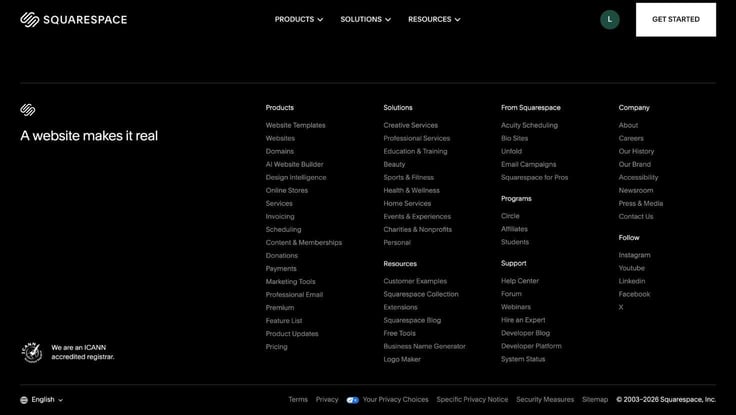
Side note: This was a recurring theme during the review. A lot of times, Squarespace hides important webpages in its footer. Honestly, I would’ve preferred that it place such important elements in a more visible location, like its main navigation menu.
You have to scroll down to Squarespace’s website footer. Under its Products column, the Pricing link will be the last one in the category. I guess it does this to emphasize the free trial.
Once you get there, you’ll find a page with four plans laid out with side-by-side comparisons. There wasn’t much difference between the tiers, except for processing fees and commerce tools.
Here are some features that are included in all tiers:
What wasn’t clear was the hosting specifications you receive with each plan. Squarespace didn’t really address the number of sites, visitors, or storage included with each plan. When I clicked on the Full Feature List button under the plans, there were like 50 rows of more features. But still, nothing about storage, RAM, performance, or security.
I thought that was a bit odd. While I understand Squarespace is a website builder before anything else, I think it’s essential for customers to know what they’re getting hosting-wise since it’s offering that too. Yet its focus was entirely on design, marketing, and eCommerce, with the custom domain and SSL security peppered in for good measure.
So I decided to reach out to support to find out more. Let’s just say the AI chatbot that greeted me was less than helpful. So I decided to keep chugging along. After all, the plan does start off free, so no worries about my wallet. I won’t have to commit to a plan while flying halfway blind here.
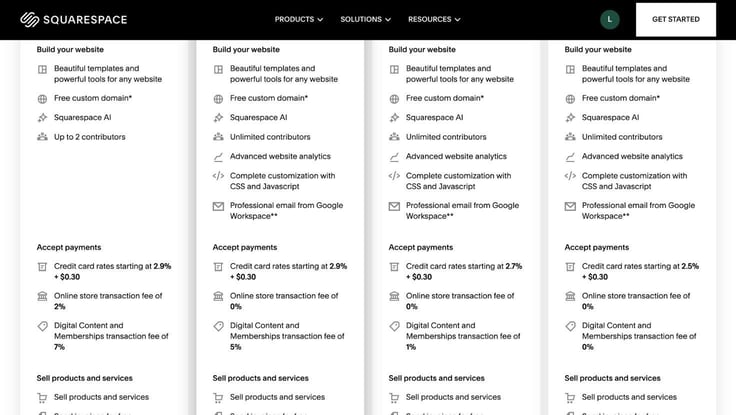
After looking through all the details, I decided to go with the Basic plan. The Basic plan had everything the other three tiers had, except for a few eCommerce tools, coding capabilities, and advanced web analytics. So I was happy with it for the purpose of the review.
But don’t miss this: While the Basic plan is cheaper, it may not work for a certain group of people, especially if you’re a part of the eCommerce industry. I would advise eCommerce owners to review the differences carefully before choosing a plan.
I didn’t have many qualms about the pricing either. While its prices didn’t fall into the budget host category, they were in line with competitors’. For example, Wix offers similar feature packages for almost identical prices. Squarespace is a premium/specialized platform, so the prices didn’t shock me.
Signing up with Squarespace is super easy and straightforward. The only thing is that it just doesn’t start with checkout. Taking a page from its competitor Wix, because Squarespace starts free, the platform throws you straight into the design process right after you click Get Started.
The first question I received in the personal questionnaire is “What’s your site about?” You can either type in your topic or choose from one of its popular topics. I chose photography.
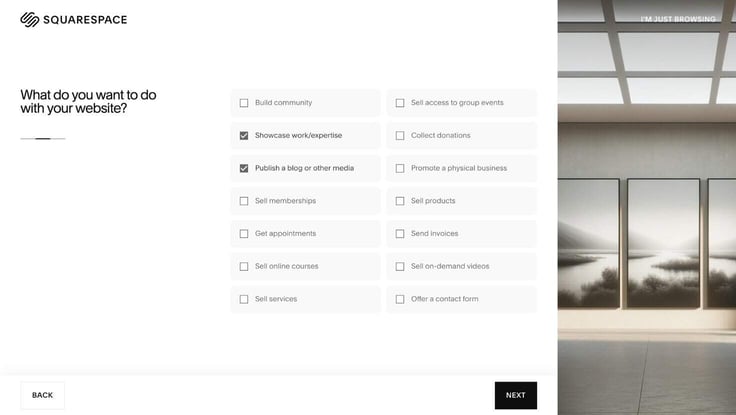
Next, it asked, “What do you want to do with your website?” It had a dozen checkboxes for me to choose from with different use cases. Some examples are selling products, publishing a blog, showcasing work, and building a community.
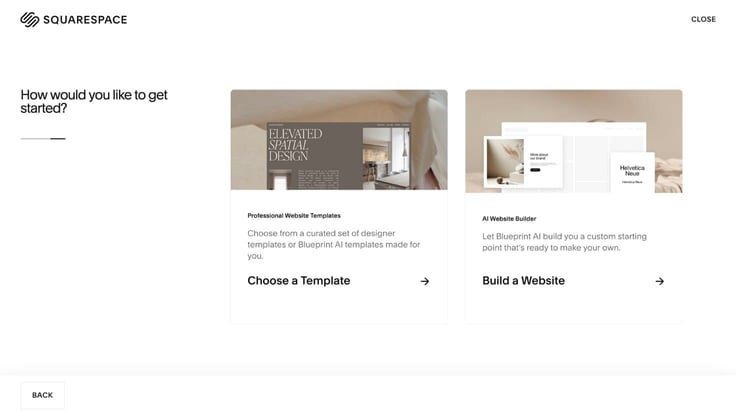
The final question was about how I wanted to start building my websites: through a template or an AI website builder. I chose an AI website builder… because I honestly didn’t feel like lifting a finger.
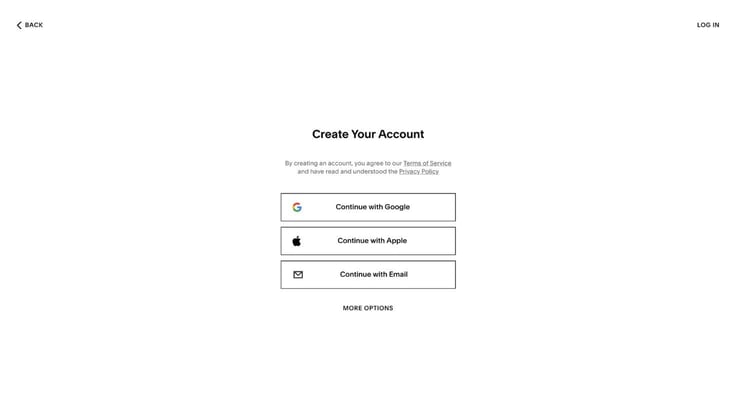
But before the AI builder could get to work, Squarespace prompted me to create an account first. Wix and GoDaddy made me do the same thing in the past at this point, so I wasn’t thrown off by that request. I typed in my name, email address, and password, then clicked Continue.
And I was ready to get to building!
After I signed up, I was directed to this page:

Squarespace threw right into the thick of it with no time to lose. I liked that it cut straight to the point with no unnecessary fluff. It prompted me to choose my site title and brand personality. I chose a name for my site, Open View, then chose Friendly as the tone for my content.
The next part of the process was adding sections to my homepage. Squarespace had already built an intro section for me; I just needed to fill out the rest of the page. I decided to add a Products, About, Social, and Footer section.
Clicking the Change Layout button, I could switch between layouts for each section and preview them in real time, before making a choice.
Once I was satisfied with the homepage design, I moved on to the Add Pages part of the journey. Squarespace had already preselected an About, Contact, and Shop page for me; I’m guessing based on my personalized site details.
I liked that Squarespace had the option to add pages so earlier in the design process. Oftentimes, with other site builders, you have to create and choose layouts for those pages on your own after it’s done generating the preliminary design. So I was happy that the AI builder could help with that. It made the process more seamless.
Within the AI builder space, I could look at all my pages side by side and compare them to determine whether I like the fit. Squarespace calls this space “Blueprint AI.” That was honestly the perfect name, as my site was laid out like a blueprint before me for design review.
Satisfied with the layout, I clicked Next to continue on to Colors. Here, I could choose the color palette that best suited my site. There was a wide selection of hues and combinations. Each color category had a name or adjective that described the color group’s tone.
Squarespace recommended the Friendly color palette group, since it would match the tone of my written content. I agreed, thinking those colors looked warmer and more inviting, and chose one of the four palettes in the group.
The final part of the initial design journey was Font selection. I chose another option from the Friendly category to maintain the feel, and clicked Finish to complete the process.
I must admit that I thoroughly enjoyed Squarespace’s AI design process. It had all the makings of a premium website builder experience.
Oftentimes, AI builders just take in your answers and spew out a design for you to edit later. But here, I was able to partner with the AI generator and make customized choices at every step of its Blueprint AI journey, which I appreciated. And you don’t have to create anything from scratch, even the written copy.
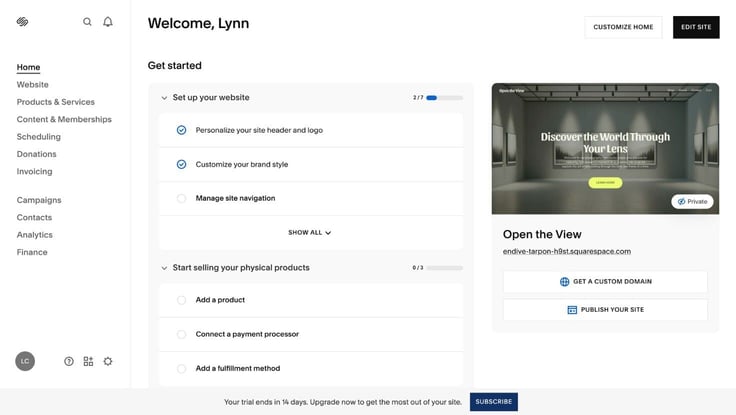
It took Squarespace about 5 seconds to put the finishing touches on my site and load my dashboard. The sample site looked great and had a stunning aesthetic.
Technically, my site was already finished and ready to be published. But I could go back and make changes at any time to perfect the look.
For the rest of the way, I’ll break the review down by the features you’ll find in your Squarespace account/dashboard.
To make design changes, I had to first navigate to its site editor, which was pretty easy to find. Within your user dashboard, there is a sidebar (which you can customize by the way) with several categories. To manage site design, click the Website category.
Once I clicked the category, my website appeared on the screen instantly. At the top of my website was an “Edit” button that led to the actual editor. After tinkering with the editor a bit, I got a feel for it and discovered that it combines the drag-and-drop functionality (a la Wix) with a block editor experience (of WordPress).
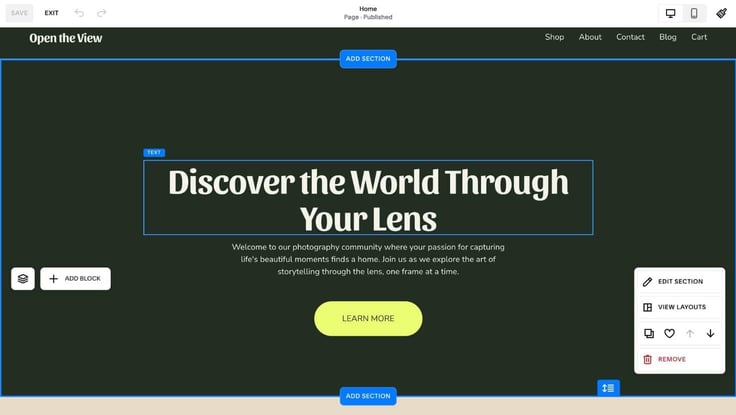
I could move and add sections by clicking up and down arrows, yet drag things around if needed to my desired location. It was like the best of both worlds. Squarespace is definitely easier than using WordPress, though, since it does most of the heavy lifting by creating the design and hooking me up with premade templates.
As you can see above, each section of your website can be fully customized. All I had to do was scroll my mouse around the area I wanted to customize, and a box appeared prompting me to adjust/add text, change the photo, or reformat that section of the site.
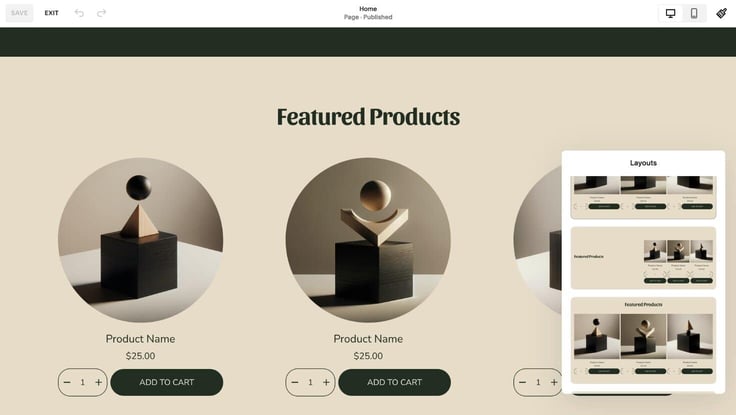
For the layout changes, Squarespace generates new options for you, so you don’t have to search for templates on your own. You just have to click View Layouts.
Another great highlight is that I can easily switch between desktop and mobile view while editing my site. There’s a toggle button at the top of the editor that allows you to preview your edits for responsiveness across devices without hassle. Another plus: All sites are automatically optimized for mobile.
Adding images
One of my biggest pet peeves about site editors is their picture setup. That’s because so many of them don’t include in-house photo galleries. Thankfully, Squarespace doesn’t fit this profile and includes a stock gallery.
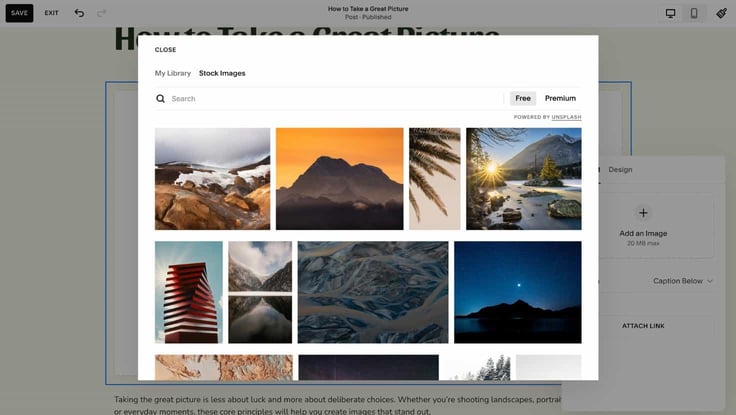
Integrated with Unsplash, Squarespace provides access to hundreds of stock images. I could easily replace or add photos with a click of a button and search for any kind of picture I wanted within the platform.
Of course, Squarespace allows you the option to upload images as well. You also get a library where you can sort through both uploaded and stock images.
Implementing code
To access Squarespace’s custom code capabilities, you have to navigate to the Pages section of the Website category. Scrolling down, you’ll find a tab called Custom Code, which has the features Custom CSS and Code Injection.
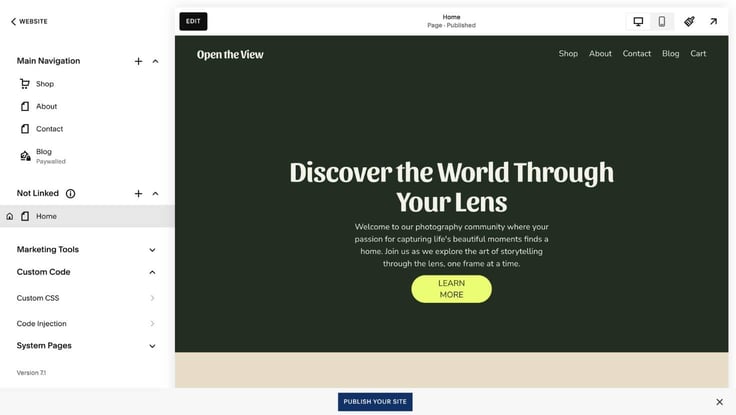
Via the Custom CSS panel, you can add custom CSS modifications into a console within the editor or open the console in a new mini window. The Code Injection panel is similar, but is primarily for adding custom scripts, including JavaScript.
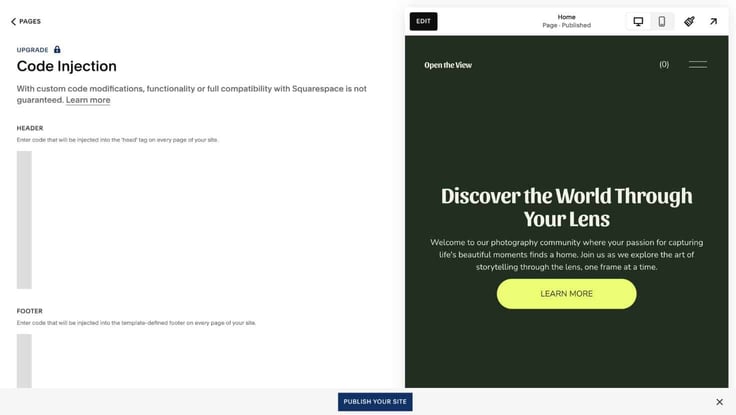
For coders, you can inject your own programming into almost any page, the header, and the footer. Just know that these capabilities don’t come with the Basic plan, so you’ll need to upgrade to customize with code to your liking.
Next, I wanted to add a few blog posts to buff up the content on my site. Interestingly, Squarespace didn’t really have a dedicated blogging space like I thought it would. Instead, it was grouped under a category called Content & Memberships, which included courses, video libraries, and membership management.
FYI: Later on, I found out that you don’t manage your blog posts from this section; you can only start up your blog from here.
To create a blog post, I could do so in one of two ways: by clicking the Create button at the top of the page or by scrolling down to the blog section of the webpage. Before I could start writing, Squarespace asked me to give my blog a title and choose a template for the Blog page of my website.
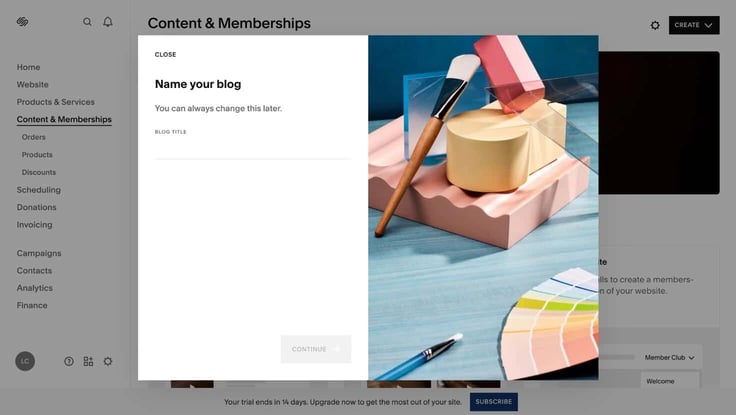
After I made my choice, Squarespace brought me to its site editor, so I could see my blog page on the frontend. I thought it looked great. There was also a bonus. Squarespace generated four blog posts for me to fill up my Blog page.
When I clicked on them, however, I realized that they had the same written copy. So I would have to go back in and edit them. Thankfully, I could edit them directly from inside the editor. I could also add posts from there as well. I thought that was a nice little shortcut.
Squarespace also gave me the option to monetize my content directly from its platform. I could set up paywalls or add subscription plans for my blog posts.
But managing my blog posts was a bit confusing. When I went back to Content & Memberships, the layout had changed. And there was no area dedicated to blogging, viewing, or managing my posts.
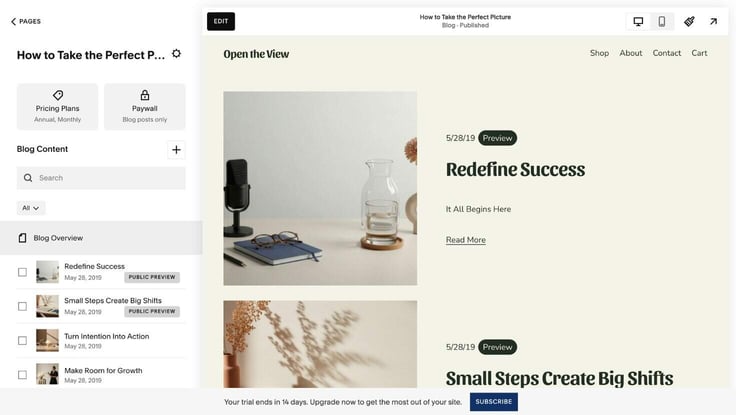
I had to return to the site editor and navigate to the blog page to see all my posts and add new content.
As for eCommerce, Squarespace has several options and features. I’ll list the categories of management features you can find on its platform below:
I found that Squarespace did a great job setting up its eCommerce interface. Everything made sense. So if you’re a beginner, there’s no need to worry about navigating and managing via its dashboard.
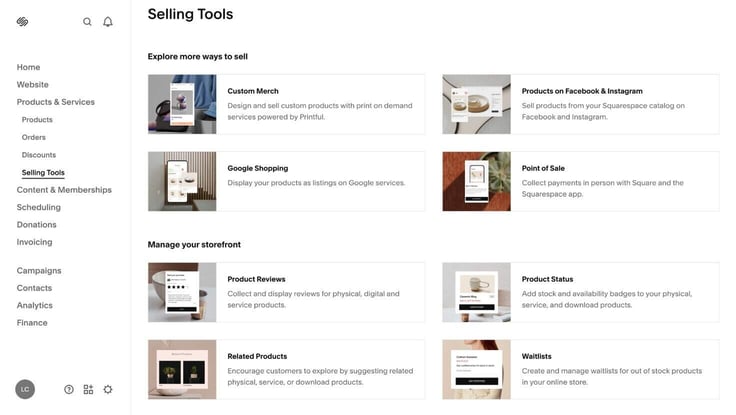
I also love that Squarespace offers all these things under one roof. That way, users won’t have to separate tasks and can track everything from one place. It was definitely a nice, centralized experience.
When I clicked the Scheduling category, Squarespace transferred me to a completely different interface. That’s when I realized that Squarespace didn’t just have a scheduling tool. It had a complete, dedicated platform for appointments and bookings — probably the most thorough offering I’ve seen from a web host.
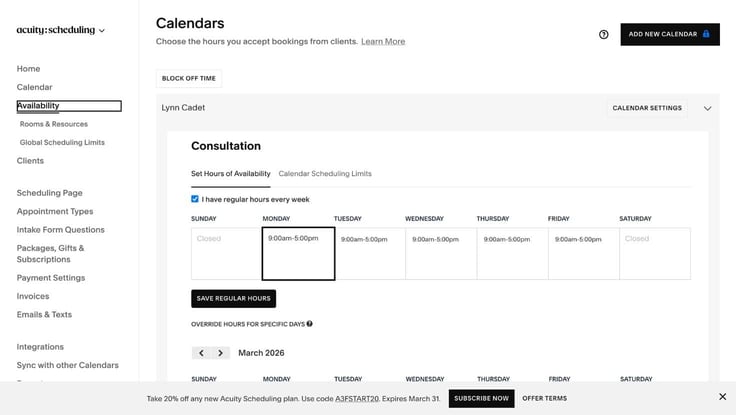
I was thinking to myself, this had to be too good to be true. And unfortunately, I was right.
I did some research and learned that Acuity Scheduling, the name of the appointments tool, is actually a premium add-on you have to pay extra for, as it’s not included in the standard plan cost.
While you have to pay more for it, I still think it’s worth considering, especially if you handle a lot of bookings. There’s just so much you can do with Acuity. I’ll provide a bulleted summary below:
This solution seems to fit users with mature businesses, like Airbnb rentals and medical or beauty consultations.
It not only helps you organize and customize your appointment tasks but also automates a lot of the management process. To me, anything that helps you save time is a win. You just have to decide whether it fits your budget. Plans start at $16 a month.
If you want to build email lists and automated campaigns, Squarespace also has a feature for that. Through its Contacts tab, you can import existing contact lists, manually add new subscribers, add signup forms, and display pop-ups on your site to prompt users to sign up.
Its Campaigns tab, on the other hand, helps you create and manage email campaigns. I’m not an expert at email marketing, but from the looks of it, Squarespace’s campaign feature looks legit.
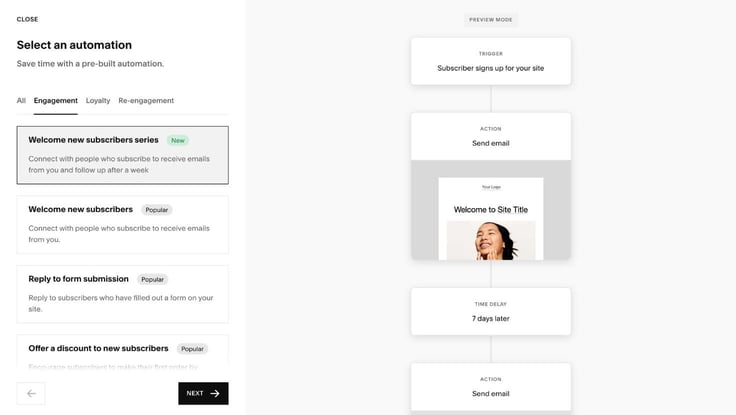
With prebuilt automation, you can set and forget client email notifications. All you have to do is choose the trigger, set the time delay, and Squarespace will complete the action for you, including sending new subscriber emails, thank you notes, and discount code emails.
Now, not every automation option is included in every plan. So you’ll have to check to see which plan offers what before deciding.
One of the final highlights of Squarespace’s platform is its analytics feature. The host offers a dedicated tab for advanced analytics on-site traffic, engagement, and sales. Disclaimer: The Basic plan does not include analytics — the only plan without it.
Before you can get started, Squarespace offers blog posts and tutorials to help customers learn their way around the analytics interface. Bonus: It also offers a free webinar on how to grow your audience.
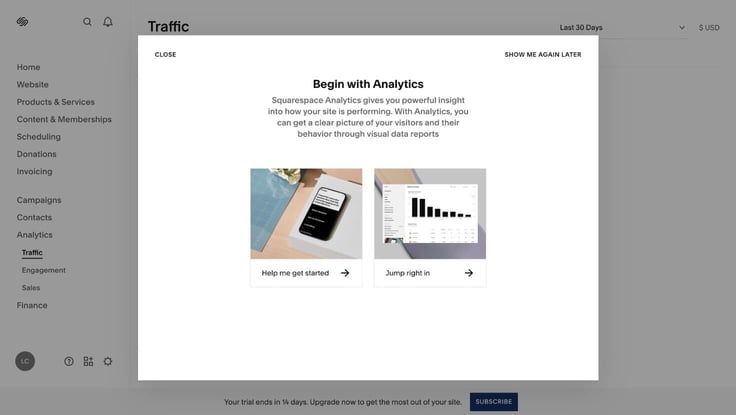
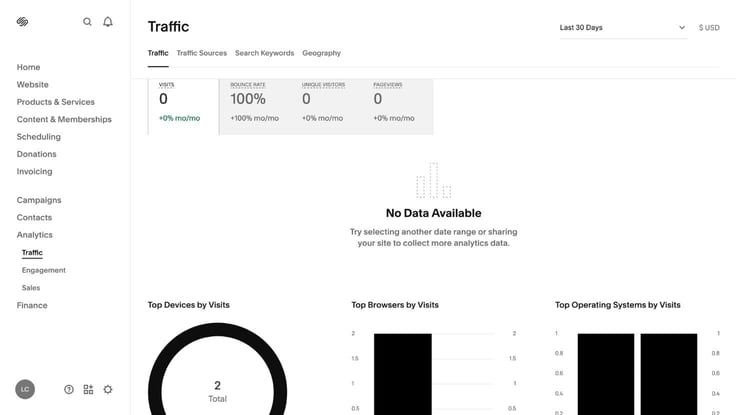
Whether you choose to go through the tutorial or not, I don’t think you’ll have a hard time understanding its analytics dashboard. Squarespace does a great job with the layout. The graphs keep the data from looking clunky and make it easier to ingest.
Here are some metrics you can monitor on the dashboard:
As you can see, Squarespace provides a comprehensive view of your site’s performance. I appreciate that you can track all of these metrics from one place. That will come in handy when testing out new content or making improvements.
Overall, I think Squarespace offers a ready, premium website-building platform that’s actually more than just website building. It covers all the bases. And in my opinion, when comparing it to GoDaddy and Wix, I enjoyed its website-building process the most. There were no kinks or loading issues with the AI generator. And the designs were exceptional.
Of course, no platform can be perfect. There were some obvious issues with its blogging setup and plan pricing/features layout. But I can confidently say I was overall impressed with its platform.
To be frank, I do have my doubts about how Squarespace will perform in terms of speed. As I mentioned earlier, it didn’t give much detail on hosting specifications on its plans page. And website builder hosts aren’t exactly known for their performance.
Nonetheless, I still have hope that it will give me at least a decent grade. I used GTmetrix to test my site. These were the results:
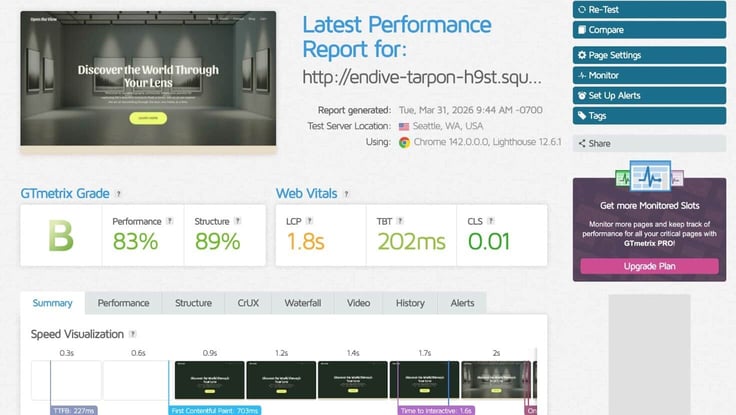
Not the best score. When I tested GoDaddy, I got an A grade and page speeds under a second. But GoDaddy did have a built-in site optimizer tool for speed. I think the culprit here is the images. Website builders like Wix and Squarespace like to include hero images that can slow down a page’s loading time, and my website definitely had a lot of images.
To test this theory, I went back into the site editor and removed two of the larger images. After running the test again, the page speed improved dramatically, but the overall performance still needed adjustment.
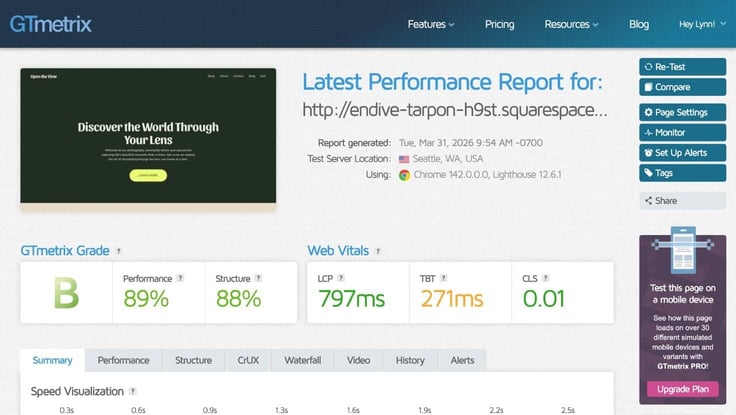
So overall, I would grade Squarespace’s performance as just fair. It’s not bad, but you might have to do some work to your generated site to optimize it for speed, which kind of defeats the purpose of the site being published-ready… but hey, you still save time.
First, the good news: Squarespace offers a strong website-building platform. Its AI site generator is intuitive, flexible, and pumps out professional, aesthetically pleasing designs. If you want an eye-catching website in record time, Squarespace can definitely give you that.
What sets its design platform apart is its Blueprint AI. I love that Squarespace allows you to partner with its AI through the design process. I found that I could customize and make changes during that initial AI phase that I couldn’t do with other hosts.
I also appreciated the 14-day free trial. That’s one of the longest free trials in the market, beating out GoDaddy’s 7-day trial. Squarespace didn’t leave any feature off limits. I could test the entire platform, from eCommerce and bookings to analytics. The only caveat is that you can’t publish your site on the free trial (I had to pay to do so for this review).
Its user dashboard was also exhaustive, in a good way. If you handle an eCommerce business, I think you’ll be pleased with the tools and resources Squarespace places at your fingertips.
Now for the bad news: Squarespace did fall short in some key areas for me, including customer support and performance. To be fair, I’ve seen other website-building hosts, including Wix and GoDaddy, perform well in these areas.
Overall, Squarespace definitely delivers on what it says it does: site design. But I would only recommend its platform to someone who needs impeccable design and doesn’t mind paying the price for its premium business features.
I’ll just start off by saying my Squarespace customer support experience was honestly where I felt the most let down by the platform. I reached out to support a couple of times during my review, and I wasn’t exactly impressed either time.
My journey with support started while I was choosing a plan. The Pricing page wasn’t transparent about the hosting specifications for each plan. So I decided to find the answers myself. From this point on, I began to encounter problems.
Finding support was not an easy task. Usually, other hosts have a small pop-up box at the bottom of the screen that you can click to chat with a sales representative. But Squarespace didn’t have anything of the sort.
I clicked Resources on the top bar, but that only showed a button for its Help Center, its knowledge base of videos and tutorials. So I scrolled down to its footer and under the Company column, I found Contact Us.
After clicking on it, Squarespace brought me to another Contact Us page with two buttons: Contact Support and Security Escalations. I needed to speak to support only, so you know what I clicked on.
Once I was finally on the Contact page, I felt like I had jumped through too many hoops just to ask a simple question, and I was kind of over it. Unfortunately, the inefficiency didn’t stop there.
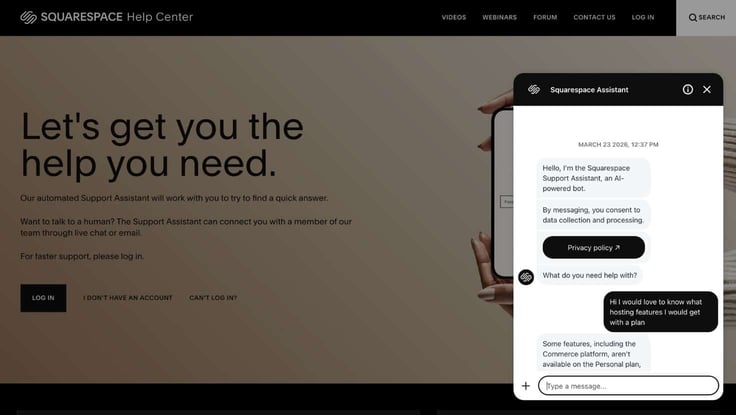
The support experience started off with an AI chatbot assistant that was less than helpful. It couldn’t understand my question, so I asked for a human. It told me to type in my contact information, and then I waited. Then waited and waited.
Once it hit 15 minutes, I just decided to end the chat and move on without the assistance. While some may think a 15-minute wait isn’t that long, I usually get a near-instant response from other customer support teams I’ve reviewed, especially while using live chat. But Squarespace was another story.
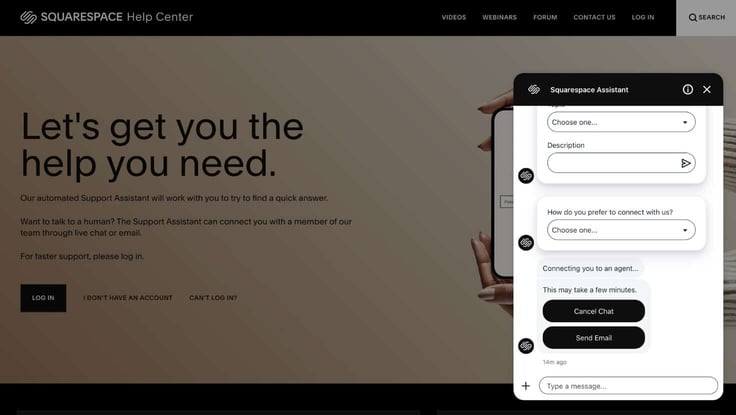
After I canceled the chat, it said: “If you need help, email us or chat with our bot.” Unfortunately, I had to use the bot again for another problem later on. While it gave me the response I needed, its response was so jumbled that it was difficult to understand.
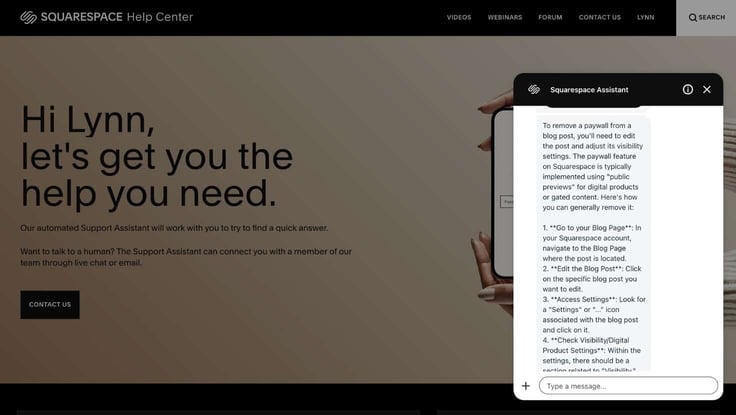
If you’re primarily going to use AI, make sure it’s knowledgeable and understanding. Hosts like GoDaddy and WP Engine are great examples of those who do AI chat support right. Their responses were so succinct that I didn’t need to speak to a human.
The upside is that Squarespace’s platform is super user-friendly and seamless, so you may not need to reach out to support much. And its extensive knowledge base could most likely answer your questions. Hopefully, Squarespace will improve its chatbot or prioritize human support more down the line.
Squarespace is definitely a strong website builder. It didn’t fail me on that front in any way. I expected excellence when I came in, and that’s definitely what I received. I loved everything from the beautifully designed templates to the AI assistance in both generating the site and creating content.
Where Squarespace fell short was in its customer support. Its AI assistant just wasn’t good enough to lead a customer service experience. Other hosts, including WP Engine and GoDaddy, put in the effort to train and perfect their AI assistants, where I didn’t mind speaking to a chatbot. Those chatbots actually understood my prompts and responded to them well.
Unfortunately, getting a hold of a human just wasn’t possible while I was reviewing Squarespace. Maybe if I tried the email support, it would work. But email isn’t the best way to receive quick and responsive assistance.
For DIYers who need a quick site turnaround, Squarespace offers an excellent platform that lets you build a professional, beautifully designed website in under an hour. Its platform is seamless, intuitive, and user-friendly, making it accessible to all kinds of users.
While it is pricier than a budget host, it offers a comprehensive eCommerce and business suite, along with its premium site builder, to help justify the cost.
Its customer support and site performance are what you’ll most have to consider. Someone who relies on human support may find Squarespace’s customer service a bit cumbersome. While its page speeds can pass with some tweaking, it still requires work.
My final verdict: Squarespace is the right choice if design quality and an all-in-one business suite are your top priorities — especially if you run an eCommerce or service-based business. But if fast, reliable customer support or out-of-the-box site performance matter most to you, you may be better served by a host like GoDaddy or WP Engine. Squarespace delivers on its promise of beautiful, effortless design — just go in knowing where its limits are.

HostingAdvice.com is a free online resource that offers valuable content and comparison services to users. To keep this resource 100% free for users, we receive advertising compensation from the hosts listed on this page. Along with key review factors, this compensation may impact how and where hosts appear on the page (including, for example, the order in which they appear). HostingAdvice.com does not include listings for all web hosts.
Our site is committed to publishing independent, accurate content guided by strict editorial guidelines. Before articles and reviews are published on our site, they undergo a thorough review process performed by a team of independent editors and subject-matter experts to ensure the content’s accuracy, timeliness, and impartiality. Our editorial team is separate and independent of our site’s advertisers, and the opinions they express on our site are their own. To read more about our team members and their editorial backgrounds, please visit our site’s About page.


