


I sometimes wonder how easy life would be if high-speed Wi-Fi was available everywhere. It would eliminate the need to buy expensive mobile data plans. While you can’t always access your favorite apps without Wi-Fi, Post Office Protocol version 3 (POP3) offers a way to access your email inbox without an internet connection.
POP3 is a one-way, standard client-server protocol. “One-way” in this context means you can retrieve, download, and delete emails offline using the protocol but can’t send emails. Email communication is paramount — the average American adult spends a whopping five hours a day checking emails. POP3 ensures you’ll never miss an important work email again.
The best thing is that popular email applications like Gmail, Apple Mail, and Microsoft Outlook support POP3, and setting it up is a piece of cake. Now, if your preferred email client doesn’t support POP3, things get a tad trickier — we’re here to help you understand how POP3 works and learn everything about it. Let’s get “POP”ping!
- Navigate This Article:
Understanding POP3
Using POP3, you can retrieve emails from a mail server and view them on a client device. You don’t even need an internet connection — all new emails are automatically downloaded locally. While POP3 doesn’t enable real-time synchronization with other devices, you can access the latest emails in your inbox on those devices by manually checking for them (more on this later).
As the name suggests, POP3 is the third version of POP. Let’s discuss the evolution of POP, its key features and functionality, and debunk some myths.
Evolution of Email Protocols
The evolution of POP, a leading email protocol, is interesting. Such is its simplicity and effectiveness, that it has remained unchanged (POP3) since 1996!
- The Internet Engineering Task Force published the first version of POP, POP1, in 1984 and it was specified in RFC 918.
- The second version of the Internet Standard Protocol (ISP), POP2, was published in 1985 and specified in RFC 937.
- The latest version of POP, POP3, was published in 1988 and specified in RFC 1081.
- POP3 underwent two modifications (RFC 2449 and RFC 1734) before its fully refined version was published in 1996.
It’s worth mentioning that POP4 does exist, but there are only two recognized POP4 server implementations.
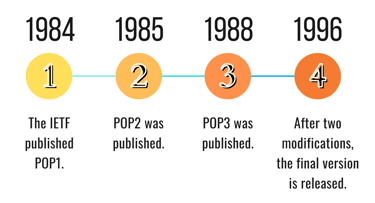
The timeline above shows how POP3 has remained largely unchanged for the last thirty years.
Key Features and Functionalities
You already know POP3 is an ISP that you, an email client, can connect to the email server that hosts your email inbox, and retrieve all messages. Using POP3, you can access and delete messages offline. Once you have downloaded emails onto your device, they will automatically be deleted from the email server (thereby saving server space and reducing server load), unless you specifically configure it otherwise.
Myths About POP3
Given the fact POP3 hasn’t been modified since 1996, it’s natural to think it’s outdated. While email protocols like Internet Message Access Protocol (IMAP) offer more features, POP3 is still one of the most relevant email protocols, especially if you seek offline email access. Here are a couple of other POP3 myths debunked:
- POP3 deletes all emails from the email server: You can configure POP3 to not delete emails upon downloading them on your local device. It’s as simple as that.
- POP3 isn’t safe: While Port 110 lacks encryption support, Port 995 offers more security. If a downloaded email contains a virus, your system may be at risk though — a virus could affect your computer if you download a corrupted file conventionally as well.
While POP3 may seem old-fashioned, its use cases are undisputed. Some sources state that it offers real-time synchronization, but this isn’t true.
How POP3 Works
Here comes the fun part — exploring the workings of POP3 in detail. There are three stages to POP3’s operation: client-server communication, authentication, and email retrieval. Let’s start with the former.
Client-Server Communication
The interaction between email clients and POP3 servers is pretty simple.
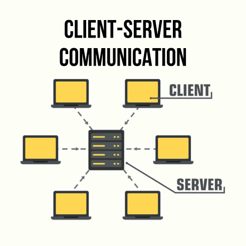
An email client (like Gmail, Apple Mail, Outlook, Windows Mail, or Mozilla Thunderbird) must establish a TCP/IP connection with the mail server on Port 110 to access your mailbox — necessary POP3 server software must be installed on the mail server to successfully establish a connection.
The connection will only be approved upon authorization.
Authentication Process
The email client will supply your username and password to the mail server for authentication.
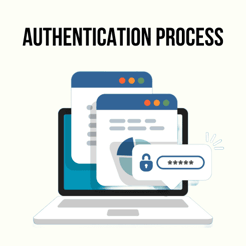
The server will then verify these credentials using POP3 authentication and, if they’re accurate, permit access to your mailbox.
Note that most email clients and servers support Secure Sockets Layer (SSL) or Transport Layer Security (TLS) to encrypt connections. You can also opt for two-factor authentication (2FA) as an extra layer of security to prevent hackers from accessing your account.
Once connected, the process moves into the transaction stage.
Email Retrieval Process
Once the connection is successful, the email client will download all new emails (not the whole mailbox) from the mail server and store them locally on your device.
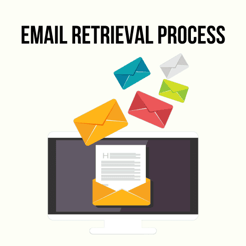
If the email client isn’t configured to keep all retrieved emails in your mailbox, the mail server will delete them by default.
This means that when you access your mailbox online, the retrieved emails will not be displayed. The deletion process happens during the update stage.
Once new emails have been retrieved and handled, the email client will disconnect from the server, marking the end of the transaction.
Advantages of POP3
IMAP, POP3, and Simple Mail Transfer Protocol (SMTP) are the most popular email protocols in the biz and each has its specialties (and some significant disadvantages). We’ll explore POP3 alternatives in an upcoming section.
Here’s what makes POP3 stand out:
- Offline access: POP3 allows users to access, read, and delete emails offline, making it suitable for users with intermittent internet connectivity. For example, if you’re traveling and constantly need to check your Gmail inbox (internet connection tends to be unreliable when on the road), you can set up POP3 in Gmail and be able to read new emails — this holds for all email clients that support POP3.
- Local storage: With POP3, you can easily download emails from the email server and store them on your device, freeing up server storage space. POP3 also allows you to download emails from multiple email clients and devices and view them in one place. This enables you to manage and archive emails locally, without relying on an internet connection.
- Bandwidth efficiency: POP3 conserves bandwidth by downloading emails to the client device, reducing server load and data transfer overhead. To put it into perspective, each time you access your email inbox online, data is transferred between the email client (like Gmail) and the email server. Using POP3 eliminates the need to be connected to the internet at all times, leading to bandwidth efficiency.
POP3 is also relatively easy to set up and use (yes, you do need some coding expertise if your email app doesn’t support it) and supports numerous email clients.
Pro tip: Remember to set up POP3 to not delete emails on the email server if using POP3 is a temporary measure, not a permanent one (like when you’re traveling).
Limitations and Considerations
All said and done, POP3 has some limitations, the chief of which are single device access only, no real-time synchronization, and potential storage management issues. Fortunately, the pros of POP3 outweigh its cons. Read on.
- Single device access: POP3 typically downloads emails to a single device, limiting access to multiple devices. If you’re someone who constantly switches between devices (like your laptop and mobile phone), this could be frustrating. POP3 won’t allow you to access the same mailbox from multiple devices.
- No synchronization: POP3 doesn’t synchronize email actions across multiple devices, such as read/unread status or folder organization. So if you retrieve emails using POP3 on your laptop, for example, and read an email, this action won’t reflect on another device with the same mailbox. You’ll have to manually check for messages all the time (remember, POP3 permits single-device access anyway). Additionally, protocols like IMAP offer advanced server-side folder organization — POP3 focuses on downloading emails only.
- Storage management: Since POP3 pulls all new emails from the mail server and deletes them on the server if not configured otherwise, you could face local storage issues. These emails could have huge attachments. You could face the risk of data loss as well, if these emails have malicious content or if your hardware is compromised.
While POP3’s simplicity is marvelous, it offers limited features that other email protocols, like IMAP, offer (multiple device access, folder management, and server-side searching come to mind). You could also face security concerns, as POP3 downloads all new emails by default without a vetting process — malicious attachments could wreak havoc.
Like I said earlier, while POP3’s disadvantages seem substantial (and they are), its pros make it a fantastic solution for offline email.
How to Implement POP3
Now that you know how POP3 works and have a better understanding of it, it’s time to learn how to implement it. You can go down the command line route or simply configure a supported email client for POP3. Mind you, even if you choose the former, you’ll still have to enable POP3 in your email client settings — the latter is the better option in my humble opinion.
Configuring Email Clients
Configuring Gmail for POP3, for example, is fairly straightforward. By setting up POP3 in Gmail, you can not only retrieve the latest emails on your computer offline but also access Gmail messages from other email client inboxes, like Microsoft Outlook — two birds, one stone. Here are the steps involved in configuring it:
Open Gmail on your computer (not mobile phone) and click on “Settings.” You’ll be redirected to this page:

Next, click on Forwarding and POP/IMAP.

Now, in the POP download section, click on “Enable POP for all mail” or “Enable POP for mail that arrives from now on” (the second option is better).

If you want a copy of your emails on Gmail (POP3 will automatically delete them on the server side otherwise), select the keep Gmail’s copy in the Inbox option.
Scroll down and click on “Save Changes” to implement POP3 — voila, you’re good to go!
If you want to view Gmail messages on another client, like Outlook, take note of these configuration settings:

Other email clients have a similar process to set up POP3, so click on settings and explore them!
Security Considerations
You should implement security measures such as SSL/TLS encryption and strong passwords to protect your POP3 email account. SSL/TLS encryption has several benefits and can be easily enabled from email client settings:
- Reinforces communication and data integrity.
- Prevents impersonations.
- Prevents sniffing of encrypted data.
You don’t need to look far to see the benefits of keeping a strong password for your email account or any account for that matter (they’re obvious!) — 123456 is the most common password in the world, and keeping such easy-to-crack passwords is likely to increase the chance of your account being exploited by wrongdoers.
Backup Strategies
Backing up emails downloaded via POP3 to prevent data loss in case of device failure or data corruption is recommended. As stated earlier, this option is made easily available by email clients — simply explore the POP3/IMAP options in the settings section and select the one about keeping a copy of downloaded emails on your email server (and in turn in your inbox).
Troubleshooting Common Issues
For starters, check if POP3 is enabled on your email client. If you’re trying to set up POP3 in Gmail and it isn’t working, you can try connecting to the POP3 server through another email client — this is one of the most common issues you may face initially.
Additionally, you must configure your firewall and antivirus to permit the retrieval of emails through POP3 (Port 110 for a standard connection and Port 995 for a secure SSL/TLS connection). Temporarily disable them to confirm whether they’re the apps causing an issue. Another common issue is the incorrect configuration of your username or password on the email client — double-check!
Port blocks and network problems are also possible. Contact your system admin or internet provider to resolve these issues.
POP3 Alternatives
POP3 is a magnificent option for users who seek offline email access (a few POP3 alternatives, like IMAP, require internet connectivity to function). While POP3 has limitations and isn’t as feature-heavy as alternatives like Microsoft Exchange ActiveSync or IMAP, it serves its purpose and is still one of the most popular email protocols. Let’s take a look at both solutions.
IMAP (Internet Message Access Protocol)
IMAP would have rendered POP3 irrelevant if it allowed offline access to email inboxes. The email protocol allows you to access your mailbox (in its entirety — all folders included) directly on the mail server, read and organize emails, and even send emails (SMTP configuration is necessary for this), with real-time synchronization across multiple devices. Internet access is required though.
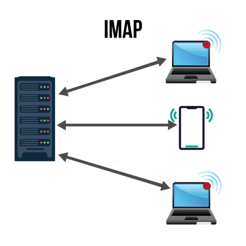
Unlike POP3, emails aren’t permanently stored on your local device — they’re stored there temporarily. It’s also efficient storage-wise, as local storage space isn’t consumed (email attachments can be pretty heavy).
To conclude, IMAP is an excellent solution for people who juggle emails across multiple devices and seek real-time email management directly on the mail server.
IMAP may consume more server storage space than POP3 though, since emails remain on the server (POP3 deletes them by default).
Exchange ActiveSync (EAS)
Microsoft Exchange ActiveSync is a synchronization protocol based on HTML and XML that is available for Microsoft Exchange users only — POP3 and IMAP are compatible with multiple email clients.
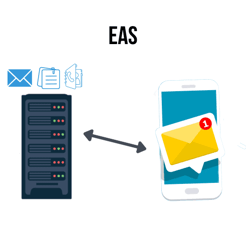
ActiveSync offers syncing of your full mailbox, contacts, and calendars across multiple mobile devices (it’s mobile only) and permits you to send emails without any additional configuration.
Simply put, mobile users can access their entire Exchange mailbox through Exchange ActiveSync. Like POP3, users can access this data even when they’re offline.
Exchange ActiveSync is also extremely secure, as it incorporates standard encryption services. Other standout features include real-time updates, task synchronization, automatic replies, autodiscovery, advanced searching, and PIN reset.
Choosing the Right Email Protocol
POP3, IMAP, and Microsoft Exchange ActiveSync are just a few of the many protocol options for retrieving email directly from mail servers. Numerous hybrid solutions are also on the market. They combine the features of numerous protocols to meet specific use cases or preferences. When choosing an email protocol, it’s important to judge your needs and find the right fit.
Factors to Consider
The last thing you need is to select a protocol that doesn’t meet your individual needs. For example, while IMAP is better on paper, as it allows multiple device access with real-time synchronization, folder management capabilities, and local storage efficiency, the fact is you need an internet connection to use it.
If your sole purpose in opting for an email protocol is to retrieve emails offline or while you’re traveling, IMAP isn’t an appropriate option. Similarly, while Exchange ActiveSync offers robust features for email retrieval and is available offline as well, it’s limited to Exchange users only — you can’t use it if you own a Gmail account, for example.
In short: A few factors you must consider are accessibility, storage management, and synchronization requirements.
Hybrid Solutions
Hybrid solutions combine the best bits of numerous protocols and offer a top-notch blend of accessibility and function. For example, a cross between POP3 and IMAP would allow you to enjoy IMAP’s qualities for email retrieval in an offline mode. Solutions like Hybrid Exchange have made this a reality (it combines all three protocols), so select one that suits your taste!
The Critical Role of POP3 in Today’s Email Landscape
I’m not discounting the benefits of IMAP, but I feel POP3 plays a greater role in today’s email landscape. IMAP is a solution that caters to niche audiences while POP3 could help anyone who owns an email account and computer device — being able to access your email offline is a huge advantage, considering our planet isn’t equipped with Wi-Fi in every corner yet.
While POP3 has certain limitations that we’ve illustrated in great detail, there’s no doubting its applications. It’s important for you to carefully consider your email communication needs and choose an appropriate protocol.
Remember, you don’t have to select just one email protocol to work with — if you find use in POP3 and IMAP, by all means, use both, or just access a hybrid solution that incorporates their best qualities.