


My web development instructor used to say that computers are dumb. And come to think of it, they actually are. A website, for example, offers a functional and user-friendly experience to the average person. But all a computer sees is a collection of files and code.
To avoid being essentially useless, computers need an interpreter like Apache. Otherwise, these files would sit on the server — doing nothing.
Apache is a web server software that does all the “thinking” so computers can actually function.
In fact, you’re reading this article because a web server software submitted your request to the computer. Without this software, you’d be staring at a blank screen or an error message.
How Apache Web Server Works
It’s not rocket science, really. The clue is in the phrase “web server.” It’s like the digital version of the real-life server at your favorite local restaurant.
Core Functionality of Apache
Apache’s main job is to talk to the computer on your behalf. But because it knows that computers are dumb, it takes on many other roles within the server itself.
- Serving Web Pages: The web server in this digital restaurant takes your order (the server request). Do you want it cold or hot? Medium or well done? They’ll deliver it exactly how and when you want it.
- Platform Independence: Apache doesn’t really care if you’re on Linux, Windows, or macOS; it’ll still process your request. It’s like the one interpreter who speaks all major languages. English? No problem. Spanish? No hay problema. French? Pas de problème.
- Multithreading vs. Multiprocessing: Web users have two modes to process incoming traffic. Multithreading is when the server handles requests or tasks using the same process. On the other hand, multiprocessing uses a separate process for each task.
Whatever the task, Apache gets it done.
Modular Architecture
Apache doesn’t come fully loaded with every feature out of the box. Instead, you get to choose what features (modules) you need for your server environment. That’s what we call a modular architecture. For perspective, here are some examples of Apache modules I’ve worked with in the past:
Popular Modules
- mod_ssl: Adds SSL/TLS support to your web server to achieve an encrypted communication system.
- mod_rewrite: Creates cleaner SEO-friendly URLs and redirects traffic.
- mod_proxy: Balances traffic across multiple servers (load balancing) and provides a frontend for backend services.
- mod_security: Adds an extra layer of protection (Web Application Firewall) against common web vulnerabilities and attacks.
In short, Apache’s modular system is just a fancy way of saying this software lets you build the server environment you want.
Customizability
Now pay close attention here. You don’t want to get mixed up farther down the road. Apache’s modularity and customizability are two different things.
Modularity means you can add or remove predefined modules based on your needs. Customizability means you can throw in third-party modules or even build your own.
History of Apache Web Server
Apache, like any other software out there, has some history. Here’s a summary of its origins.
Origins of Apache
The story began in 1995. Apache wasn’t the main objective at the time. It only came into the picture after work on the original NCSA HTTPd server stalled.
It’s one of those scenarios where a plan B evolves into the main plan. And it didn’t disappoint.
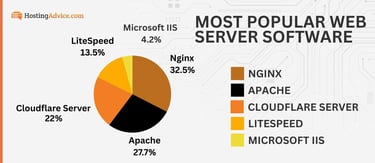
By 2009, Apache had become the first web server to power more than 100 million websites.
Interestingly, even as I rave about its cross-platform compatibility, Apache wasn’t originally born with this trait.
Initially, this web server was built to run primarily on Unix-like systems. But then it became so popular that other platforms wanted a piece of it.
As for the name, it was coined by Brian Behlendorf out of respect for Native American nations known for their resilience and strategy in warfare. Other reports suggest that the name means a “patchy” server since early versions were used as patches on existing code.
Apache Software Foundation (ASF)
The Apache Software Foundation (ASF) to Apache is what Microsoft is to Windows. Formed in 1999 by more than a dozen tech enthusiasts and developers, it provides organizational, legal, and financial support for 350-plus projects and initiatives, including yours truly, Apache.
Initially known as the Apache Group, today, the foundation is headquartered in Wakefield, Massachusetts.
Key Features of Apache Web Server
The features I’ll cover below demonstrate that Apache is more than an open-source web server.
Cross-Platform Support
As I explained earlier, your type of OS doesn’t really matter since Apache is as versatile as an extrovert at a cocktail party. And from a web developer’s perspective, that’s actually a good thing.
I don’t need to learn a new operating system from scratch just to test out a website or application I’m working on. If it works on Windows, it’ll do just fine anywhere else.
Configurable and Flexible
Then there’s the benefit of total control. With Apache, you are in charge of your server environment. It’s up to you to decide things like performance, security, and resource distribution.
Open-Source and Community-Driven
Another good thing about Apache is that it’s open source. From a social standpoint, think of it as an open book. Anyone can read it for free and even make some edits if they wish.

As expected, being open source attracts a huge community of users. We all love free stuff, don’t we? According to statistics, more than 3.5 million websites in the U.S. alone use Apache.
Security Features
A good interpreter knows how to keep confidential communication private. You don’t want them going around telling your business to everyone who cares to listen. Apache understands this rule, so it comes with security features that protect whatever information you want it to send to the server and back.
- SSL/TLS integration: Handles secure HTTPS connections with mod_ssl and protects sensitive data.
- Access Control: Configures access control to restrict entry to specific areas of your website or app.
- Web Application Firewall (WAF): Uses modules like mod_security to shield your site from common vulnerabilities and attacks.
As a web developer, I can’t emphasize the importance of security enough. This is why Apache is my go-to for many projects.
Shared and Virtual Hosting
Dealing with multiple servers is stressful, even for a seasoned server admin. The solution? Shared or virtual hosting. Fortunately, Apache can handle both.
Shared Hosting
Here, Apache uses a technology called virtual hosts. Different domains share the same server resources, such as CPU and memory. And as you’d expect with a shared space, the operational costs are way lower.
Apache’s shared hosting is a wallet-friendly hosting option for a small business or just someone wanting to host a personal website. And don’t worry about not having control over your server environment. That’s not how it works.

You may share the hosting space with other users on the server, but you still can configure each website or app separately.
I sometimes work from a local coworking space, but I’m never worried about other members accessing my laptop (unless it’s stolen, but that would be an isolated incident). Yes, we share a common area, but our devices are still private.
Virtual Hosting
With virtual hosting, you still share the same physical server, but you each get an isolated, virtual portion of it. Also, how you assign the IP address makes all the difference.

Here’s how you can assign IP addresses with virtual hosting:
- Name-based hosting: Multiple domains share the same IP address from the same server.
- IP-based hosting: Each domain has its own unique IP address, giving you more control and flexibility.
Since Apache supports virtual hosting, you can easily scale and manage multiple websites from the same server.
Apache Web Server Configuration
Although Apache works like the computer’s brain, it still needs you to tell it what to do. Once the instructions are clear, it’ll know how to execute them.
How to Install Apache
Here’s how to install this software on different types of operating systems.
I’ll start with Windows:
- Download the Apache installer from the official Apache website.

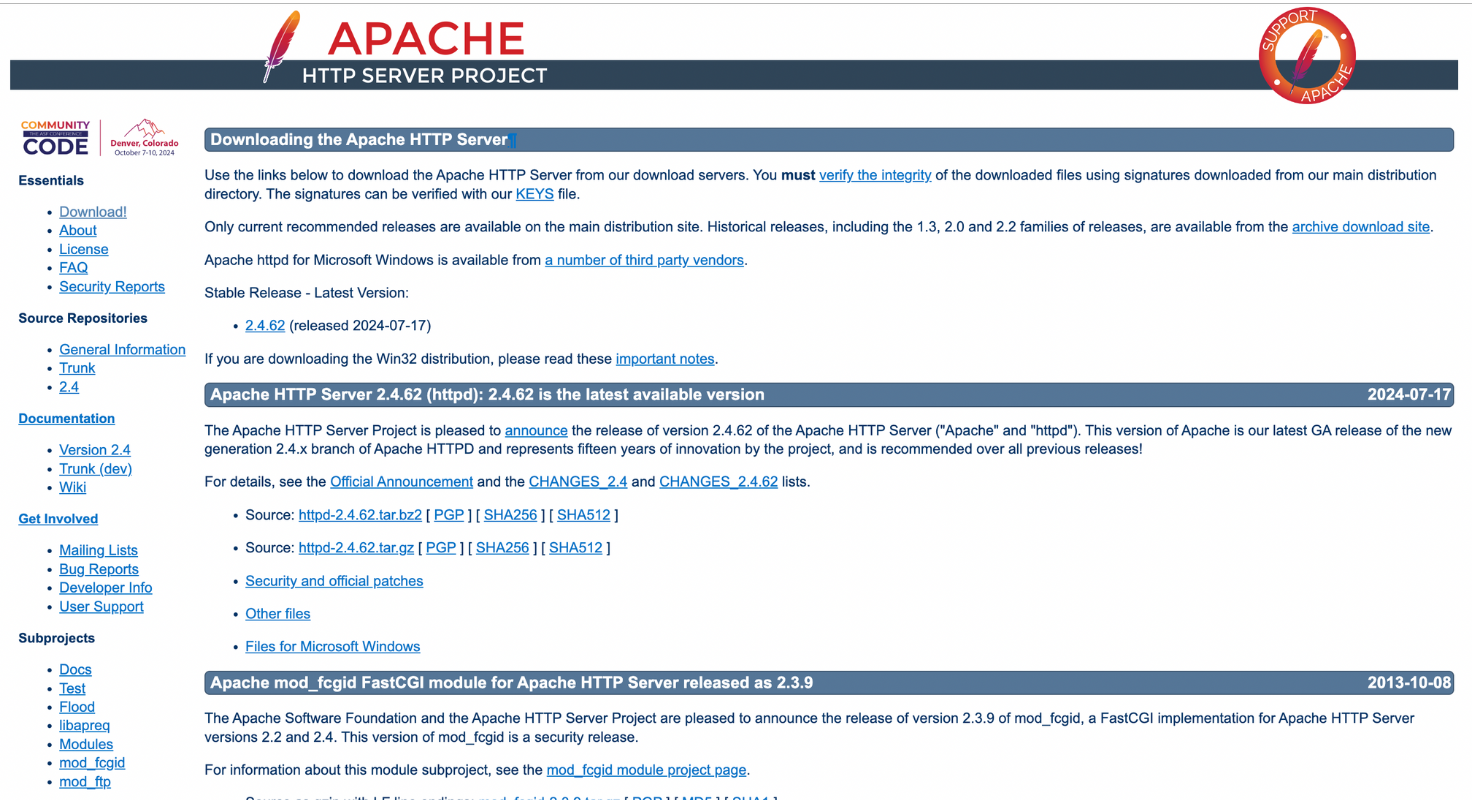
- Run the installer you just downloaded, and follow the instructions on your screen.
- Then, run Apache from the “Apache Service Monitor” or the command line, whichever works best for you.
- To check if you’ve successfully installed the Apache web server, visit http://localhost.
- You should see a default Apache page if the installation was successful.
If you’re on Ubuntu (Linux):
- Open a terminal.
- Update your package list with this command: sudo apt-get update.
- Type sudo apt-get install apache2.
- Enter sudo systemctl start apache2.
- Visit http://localhost to verify installation.
On CentOS/Red Hat (Linux):
- Open a terminal.
- Type sudo yum install httpd into the terminal.
- Launch the Apache service by typing sudo systemctl start httpd.
- Go to http://localhost to verify installation.
For macOS:
- Open a terminal.
- Type this to install Homebrew: /bin/bash -c “$(curl -fsSL https://raw.githubusercontent.com/Homebrew/install/HEAD/install.sh)”.
- On the terminal, run this command: brew install httpd.
- Start Apache by running: sudo apachectl start.
- Alternatively, download and install Apache manually from the official website.
- Go to http://localhost to check if the installation was successful.
If that works, the next step is to configure Apache to suit your needs.
How to Configure Apache
As you play around with Apache’s settings, you should keep an eye on the following files:
- httpd.conf: You’ll find most of the server-wide settings in this file. This is where you decide which ports the server listens on, what settings to implement in the virtual host settings, which server modules to adapt, and so on.
- .htaccess Files: This file handles directory-level settings. You can override certain server settings from here without modifying the main configuration file.
I’ve been hired many times to optimize website URLs for search engines. That’s where the .htaccess file comes in. I can use it to rewrite URLs, implement access control to protect certain directories or files, and even handle errors.
Logging
Servers have this feature called logging. Keep in mind it has nothing to do with cutting down trees. This is just another way to track what happens on the server.
For example, if you make any change, the server logs it into the system. That way, anyone troubleshooting server issues can easily track these changes and then decide how best to proceed.
In Apache, you’ll find these changes in the server’s log files, such as the access logs and error logs.
Access logs reveal the requests made to your server. These could be the visitor’s IP addresses, specific URLs they requested, or both. You’ll find that information in your server’s access logs. And when there’s a server issue, you’ll find it logged in the error log.
Performance Optimization
Apache offers excellent performance if you know how to fine-tune it. This optimization is especially important for websites or apps with high traffic volumes.
Caching
You can never go wrong with caching when optimizing your server for performance. To do this, you’ll enable mod_cache. This module tells Apache to keep a record of frequently requested files. As a result, it reduces the load on the server by fetching files from memory and speeds up webpage load times for users.
Load Balancing
Excess and unexpected traffic can crash your server. Take the story of Lowe’s as an example. In 2018, the company’s eCommerce store crashed on Black Friday. That was the worst timing ever. To avoid this, the company moved the website to the cloud, a type of hosting known for its load-balancing capabilities.
Speaking of load balancing, Apache web servers have two modules specifically for this role.
Apache has two modules for load balancing: mod_proxy and mod_balancer.
The first one is mod_proxy. It converts the server into a proxy. So when client requests come in, this module forwards them to other servers. The second module is the mod_balancer. This particular module distributes incoming traffic across multiple servers.
Gzip Compression
This module compresses HTML, CSS, and JavaScript files before sending them over the network. That way, your website or app will experience faster load times because it takes less time to unpack these files.
Apache vs. Other Web Servers
Let’s put Apache under the microscope to see how it compares with other web servers.
Apache vs. Nginx
Nginx is undoubtedly Apache’s closest rival. Here’s how these two compare to each other.
| Feature | Apache | Nginx |
|---|---|---|
| Architecture | Multithreaded | Asynchronous |
| Configuration | Flexible, supports .htaccess | Lightweight, no .htaccess |
| Performance | Strong with dynamic content | Best for static content |
| OS Support | Cross-platform (Linux, Windows, macOS) | Cross-platform (Linux, Windows, macOS) |
| Load Balancing | Available through modules | Yes |
| Caching | Available through modules | Yes |
The lesson of the day? Apache definitely excels at being flexible. Nginx, on the other hand, is better at handling high-traffic sites and static content.
Apache vs. Microsoft IIS
As you’d expect, Microsoft Internet Information Services (IIS) only works in Windows-based environments. That alone kind of limits its capabilities.
| Feature | Apache | Microsoft IIS |
|---|---|---|
| Platform | Cross-platform (Linux, Windows, macOS) | Windows only |
| Integration | Supports various programming languages | Best with Microsoft technologies like ASP.NET |
| Cost | Free and open-source | Licensed for Windows Server |
| Flexibility | Highly customizable | Easier setup for Windows |
| Security | Community-driven updates | Built-in Windows security features |
The choice between Apache or Microsoft IIS will depend on whether you need an OS-specific or open-source web server.
Apache vs. LiteSpeed
LiteSpeed is what I’d consider as Apache on a turbo engine. Here’s what makes them different from each other.
| Feature | Apache | LiteSpeed |
|---|---|---|
| Licensing | Free and open-source | Commercial (paid versions) |
| Performance | Strong but resource-heavy | Faster, uses fewer resources |
| Caching | Available through module | Built in (LSCache) |
| Compatibility | Broad language support | Apache-compatible settings |
| Scalability | Scalable with Modules | Optimized for high traffic |
Not sure what to choose? I’d go with Apache if you want an open-source and highly customizable web server. LiteSpeed works best for performance-heavy environments where speed is king.
Troubleshooting and Maintenance
No software is perfect. That’s why you need to learn some troubleshooting and maintenance tips well in advance.
Common Errors and How to Fix Them
Below, I’ll share common issues I’ve encountered while using Apache and how I solved them.
Internal Server Error
Caused by misconfigured server settings or corrupted .htaccess files. To find the root cause, all I needed to do was check the error logs we talked about earlier.
403 Forbidden
This appears when the server denies access to a directory or file. To fix it, I set file and directory permissions correctly and verified that the AllowOverride directive allowed the necessary access.
404 Not Found
This is the server’s way of saying it can’t find whatever resource I requested. Sounds familiar, right? I fixed it by double-checking my URL paths, ensuring the requested files exist on the server. I also checked to see if the DocumentRoot setting in the configuration file was accurate.
Updating and Patching
No developer wants to find out that the server they were working on has crashed. And that’s not because the issue is too complex to fix. A simple tap may be enough to fix it. But if you tap the wrong place, things could go from debris to ashes real quick.
To prevent this, you want to make sure that your Apache web server stays up to date with the latest security patches. But that can also be overwhelming.
Your best bet is to enable automatic updates. While at it, keep these tips in mind to avoid rookie mistakes:
- Always back up your configuration files.
- Test the new version in a staging environment.
- Make sure the new version is compatible with your web applications before going live.
The job doesn’t end with updating the server. You need to monitor it constantly.
Monitoring Performance
Tools are your best friend here. I use Apache’s built-in status module, htop, and Nagios to track memory usage, request processing times, and traffic load.
When I want to analyze log files, I use AWStats or GoAccess. That way, optimizing server performance becomes much easier.
Reliable, Flexible, and Built to Last
Three decades after its inception, Apache is still relevant. And it’s not going anywhere anytime soon.
In fact, it’s neatly woven into the fabric of the most popular software stacks today, including LAMP, WAMP, MAMP, and XAMPP. The “A” in these stacks stands for Apache.
So if you ever wanted to learn a thing or two about this web server software, now is the time.