

I still remember my first email account on Yahoo back when dial-up was a thing. The browser-based, blue-white interface was neat, promptly displaying a bolded link whenever a new email containing a PDF or a cat video landed. To think that it survived Y2K, the rise of social media, and the great emoji invasion only speaks to the staying power of email and its clients.
When it comes to email clients, probably the best way to describe them is as personal assistants for your inbox. They fetch emails, organize them, and send a notification your way (sadly, no more “You’ve got mail!”) to take a peek.
They’re like your best and oldest friends who’ve seen you through awkward phases and questionable email signatures. Such a harmonious relationship warrants a closer look into email clients and their lasting impact, don’t you think?
The Basics of Email Clients
If I had to summarize what email clients do, I’d say they transform cryptic strings of characters into business messages, promotional stuff, and the occasional “unsubscribe” plea.
Types of Email Clients
There are three categories based on how you access your email:
- Desktop email clients: Standalone applications on your computer that allow you to write, read, and send emails, as well as integrate additional features for increased email productivity. Some of them come preloaded on your computer, like the ever-present Outlook, while others,s like Thunderbird, need to be downloaded and installed.
- Mobile email clients: Mobile applications intended for your smartphone and tablet. These do pretty much everything desktop versions do and come preloaded based on your device’s OS — Gmail is the Android standard, while Apple Mail is the default iOS option.
- Web-based email clients: Email service that allows access to your email account(s) from any device with an internet connection through a web browser. Gmail is a prime example, with Outlook, Yahoo Mail, and ProtonMail also offering webmail.
Since web-based email clients offer a tiny bit more portability than the rest, most email providers offer some or all types for maximum user convenience.
Key Features of Email Clients
How complex can it be to display an email? Not very, but it turns out there’s a lot more going on behind the scenes as email clients go beyond the traditional service (so to speak) and routinely dabble in productivity-related matters.
- Email composition and sending: Refers to all the processes that happen in the background, from the very moment you start typing to the email’s delivery to the recipient’s inbox.
- Inbox management and organization: Email clients feature rules, labels, and flags to not only avoid missing out on important stuff but also prevent being overwhelmed and bombarded with irrelevant emails every single day.
- User-friendly interface: Includes all the functional and visual layers to keep your inbox tidy and know where to find what you need.
- Integration with calendars and task managers: Built-in and optional components intended to improve your workflow by creating appointments and events, organizing meetings, and adding other useful apps in the mix.
- Security features: Includes all of the phishing protections, proactive alerts, and data encryption to protect sensitive data against being exposed to malicious users. Of course, we mustn’t forget spam filters (bless them) keeping junk and potentially harmful emails away from our eyes.
Popular Email Clients: An Overview
There are dozens of apps and platforms people like you and me use to engage with emails. So for this exercise, we’ll dive together into the nuances between the most widely used email clients and what makes them a good or a not-so-good option.
Microsoft Outlook
Largely considered the email client in numerous corporations, Outlook has tons of features to achieve inbox nirvana — to the point where you might feel overwhelmed at times. However, there’s no denying that being able to pin emails, snooze them, and schedule some for later is a huge help.
| Pros | Cons |
|---|---|
| Offline access | Not the best spam filtering out there |
| Productivity-oriented | Some trouble with shared mailboxes |
| Copilot integration to craft emails and summarize information | You need to have a Microsoft 365 subscription for complete functionality |
| Quick access to other Microsoft apps | Limited support for public folders |
| Option to snooze and schedule emails | Not many third-party integrations |
It’s possible to customize the experience in a number of ways, including the option to add company branding.
You can even use the client when not connected to the internet; it will save a copy of your emails, calendar events, and people to your device. Built-in encryption and phishing protection keep your emails safe, while the intelligent assisted capabilities (mainly via Copilot) make writing emails, using the calendar, and creating meetings easy and speedy.
Mozilla Thunderbird
One of the best things about Mozilla Thunderbird is its spectrum of customization to match your workflow and visual preferences. From a unified inbox for all your accounts (you can also manage them separately) and efficient tagging to smart message handling and various add-ons, you can tweak it almost exactly to your liking.
| Pros | Cons |
|---|---|
| 100% free and open-source | No mobile version |
| Lots of Mozilla-based extensions | Lack of integrations for popular productivity tools |
| Calendar integration | Limited support |
| Multi-account management | Issues with Microsoft 365 |
The fact that it’s free means it’s a great cost-cutting alternative in terms of licenses. Thunderbird works on multiple operating systems, including Windows, macOS, and Linux — but no mobile apps yet (though the team is working on getting it to Android). A special mention goes to Mozilla’s emphasis on privacy, so you can rest assured knowing that your data is not for collection, sale, or used for AI training.
Apple Mail
As of 2024, this is the most popular email client around, thanks to its native ties with iOS and macOS. Apple went for a minimalistic approach with a unified inbox for multiple accounts. In regards to key features and functionalities, a VIP Inbox (for up to 100 contacts), undo send, smart folders, custom notifications, and email reminders really do enhance the user experience.
| Pros | Cons |
|---|---|
| Privacy-centric client | Poor cross-platform compatibility |
| Abundance of user-friendly features | Supports only 5 GB of free iCloud storage |
| Strong security and technical support | Less service integrations that competitors |
| Gesture-based controls | Difficulties connecting to a Google IMAP account |
Perhaps Apple Mail’s greatest strength is its emphasis on privacy. The Protect Mail Activity feature can hide your device’s IP address and load the message privately in the background so no one can collect information about your activity. You also get access to robust search capabilities to quickly find emails via keywords, dates, or sender, as is the standard now.
Gmail
Besides security, where Gmail excels, Google places a lot of focus on a customizable experience. As a result, you can personalize how your inbox looks and feels by switching the inbox type, adding a reading pane, changing a background, and so on. Google’s AI is there to craft reply suggestions and templates, and you can even add custom keyboard shortcuts for actions you use all the time.
| Pros | Cons |
|---|---|
| Top-notch security and advanced spam filtering | Hiccups with handling non-Gmail accounts |
| Seamless integration with Google and other services | Search function is inefficient at times |
| Tons of customization capabilities | No offline use |
| AI-powered email creation | Not possible to backup your inbox |
Of course, the big draw here is leveraging Google’s suite of services right from your inbox. This includes replying directly to comments in Google Docs, updating sharing permissions, working in Spaces, chatting with fellow office dwellers — the list goes on. To slightly boost your productivity, you can pick if emails are grouped in conversations or if each shows up separately.
How to Choose an Email Client
Right off the bat, let me tell you that there is no outright best email app, as a lot depends on what you’ll use it for. Sure, some are better than others, which is what I’ll try to illustrate in the next couple of minutes.
When settling on an email client, pay attention to:
- Compatibility with your operating system: Make sure that the email client of your choosing is available and stable for your OS, including a mobile version if you think you’ll need it.
- Compatibility with other email services: With all the different platforms, devices, and email clients that have varying fonts and interfaces, emails are going to look different across the board. Before you make a pick, check if the client can actually display emails from other services.
- Cost: Depending on your needs, a free client with basic functions may suffice and save you a few bucks on licenses. On the other hand, paid email clients are more robust and likely to be updated over time. Be sure to weigh the options.
- Level of customization: It may not be obvious at first glance, but having the option to change how email is displayed, the theme, spacing between messages, and all the little things allows full control over your inbox. The goal is to make the interface convenient and easy on the eye, so the more possibilities there are, the closer you can tweak everything to your satisfaction.
- Built-in features: Ideally, you want as many features as possible to be as organized and productive as possible. Some features, like a unified inbox for managing multiple accounts, calendar, email synchronization, and scheduling, are a must, while others, like end-to-end encryption, advanced filtering, and offline access, will make more sense based on your priorities.
- Integrations: These can further enrich the experience with particular apps that keep your workflow straightforward and help you be at the top of your game. This includes communication apps, project and time management platforms, writing software, and storage, to name a few.
Assessing these factors (feel free to expand) will help you simplify the process of choosing an email client that meets your requirements.
Technical Details
When sending an email, it’s virtually instantly delivered to the recipient — out of sight, out of mind, right? However, a decent understanding of the technical components can help you identify and resolve potential issues, better protect your account, and optimize the performance of your email efforts.
Email Protocols Supported by Clients
At the core of the email infrastructure are email protocols, which represent a standardized set of rules for exchanging emails between servers and clients. In other words, they are responsible for sending and receiving emails for all users. The three main protocols are:
POP3 (Post Office Protocol 3)
With POP3, you get access to an inbox stored in an email server. When it connects to the mail server, it retrieves all the messages from the mailbox and then stores them on your device, while the server deletes them once they are retrieved. This means POP3 is the “guilty party” when accessing your messages locally in offline mode.
IMAP (Internet Message Access Protocol)
Also used for retrieving emails, IMAP stores emails on a remote server and downloads them on demand when you open them. This means it gets access to the email from any device or location, which allows for email synchronization between email on the server and the email clients. It’s also a massive reason why IMAP is a staple for many email service providers.
SMTP (Simple Mail Transfer Protocol)
Used solely for sending emails, SMTP defines how the message gets from the sender to the email server via a particular email port. Thanks to it, you, me, and the rest of the world can send messages from the same account on different email clients.
Configuration and Setup
Each email client’s setup process differs, however slightly. That said, the information below applies to any email client for the most part — you’ll need to refer to the client’s documentation for more detailed instructions.
Here’s how you set up an email client (assuming you have an email account):
- Launch the application.
- Locate the ‘Add Account’ or ‘New Account’ option in the settings or preferences menu.
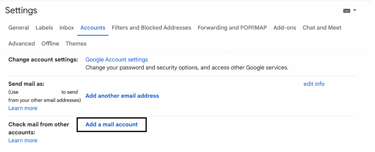
- Select the type of account you’re creating (e.g., IMAP, POP3). Enter incoming and outgoing servers supplied by your email provider.

- Enter your email address and password.
- If necessary, configure additional settings such as specific server configurations, SSL/TLS encryption, authentication methods, incoming and outgoing port numbers, and so on.
- Customize your email client by changing its appearance, setting up filters, and creating folders — you know the drill by now.
- Start using your email client.
Some clients will simply ask you to enter your credentials to connect the email account and automatically set up the whole shebang. Nonetheless, you still want to do some tinkering on your own just to ensure everything is how you want it.
If you access email on multiple devices or if multiple people access the same account, use IMAP. Otherwise, go for POP3 — it’s also a great option if you plan on managing your email through only one interface or offline.
It’s highly recommended to secure your email connection with SSL. This way, an SSL email certificate will encrypt the connection between your email client and the mail server so that your message stays private and off-limits to anyone but the intended recipient.
Similarly, check out and enable the settings for two-factor authentication and virus scanning to further beef up security.
Synchronization and Backup
The good news is that most email clients automatically synchronize emails across devices. It’s just a matter of enabling the option in the account settings if it isn’t on by default. You can also adjust how frequently your emails are updated, select whether to sync emails from specific labels, and set data usage preferences.
In case of a hiccup, there is always the manual sync, which is useful in case you check your inbox periodically on a single device.
Another option is to use third-party tools like Resilio Sync and Syncthing that perform file synchronization, including email. You’ll need to grant permission to access your email account, and considering some of these are open source, you can tweak the setting according to your preferences.

This brings us to backing up emails and data. As you surely know, most business communication happens via email, where sensitive information is stored and critical documents are exchanged. Any form of data deletion or compromise can result in a world of trouble, from customer loss and reputational damage to legal implications.
So, backup is extremely important to prevent data loss and ensure business continuity. Native options of popular email clients make the process fairly easy — you can export all of the emails to a local device. You can also leverage integrated cloud storage like Google Drive and OneDrive, or go for a third-party app with dedicated email backup.
Use Cases and Applications
With email being so versatile and reliable, there is an email client for practically every usecase.
Personal Use
While not the most efficient medium, email is rather convenient to manage daily communications as you send and receive updates, share stuff, and make plans with friends and family at your leisure.
Because there is no need for real-time interaction, email clients are especially useful for people with packed schedules (myself included).
Equally important, email clients make it easy to stay on top of personal schedules and tasks.
Thanks to the built-in or integrated calendar, you can quickly keep track of important dates, events, to-do lists, and so on — at home or when you’re out and about.
Alternatively, you can organize emails into folders or label them for easy retrieval.
Professional Use
Even after all this time, email is the golden standard for doing business, both internally and externally.
Hence, email clients integrate with essential business apps to amp up efficiency by reducing the need to switch between apps and keeping employees focused on the most pressing work.
Naturally, email clients are key to communicating about tasks and projects within the company.
In today’s climate, where remote work is the norm, they are the conduit for safe and effective communication between all team members. You can quickly view, edit, and send a document when out of the office, or securely link it to cloud storage.
All of this makes sharing documents, collaborating on projects, and providing feedback a relative breeze. With emerging AI assistance in tow, email clients help keep your professional demeanor polished with suggestions and intelligent grammar and spelling checks.
Specialized Use Cases
Supercharging productivity and facilitating team collaboration aside, emails are the go-to marketing tool when you want to engage people in a personalized way and increase engagement and, by proxy, sales without paying a premium.
That’s why some email clients are doubling as marketing and CRM (Customer Relationship Management) tools. They offer a more streamlined way to do a bunch of things:
- Strategically send offers and discounts to those who have opted-in for promotional emails
- Push newsletters to showcase and announce products and services
- Automate emails (aka triggered emails) that are sent to users upon performing a specific action on your website or app
- Offer helpful hints or ask for feedback as part of re-engagement emails targeting inactive or unresponsive subscribers or customers
- Send transactional emails after a user makes a purchase
The list can go on for half a day. Suffice it to say, the possibilities are vast.
Security Implications
Unfortunately, email is one of the most common sources of numerous viruses and malware. So, something’s not quite working, making it all the more important to be aware of impending danger and put proper protection in place.
Common Security Threats
In all fairness, I can spend an entire article writing on this topic since it deserves special attention. But for now, let’s stick to the usual culprits:
- Phishing attacks: These refer to receiving an email from someone who is impersonating another individual. From a supposed friend or co-worker to fake bank emails and other services, the email contains a malicious link designed to lure you and steal your data, such as passwords and bank details. Sadly, this happens all the time, resulting in confidential information being compromised.
- Email spoofing and scams: Here, a cybercriminal sends an email that appears to be from a legitimate source but is actually forged. If you ask me, that’s the worst part of email fraud: any email can look genuinely like the real deal, coming from the right person. This is because criminals can ‘spoof’ emails by forging headers, making them more difficult to spot than the usual phishing attack.
- Malware and attachments: Malware is an umbrella term for various types of malicious software designed to wreak havoc on your device or steal your data. It includes viruses, trojans, ransomware, spyware, adware, rootkits, etc. I reiterate that it’s all too easy to make email seem legitimate and slap a malware-infected attachment to it. If you or your colleague don’t check and double-check the sender’s address to ensure it’s kosher, you’ll open the attachment and be in neck-deep trouble.
In short, nasty stuff. Thus, being fully educated on email security perils is the first step toward combating persistent attacks on your inbox.
Security Features and Best Practices
Despite the grimly painted picture, it’s not all doom and gloom. Specific technology, security measures, and actions on your behalf shield you from harm, primarily:
- Email encryption: An authentication process that prevents a message from being read by an unauthorized individual even if they intercept it. Encryption scrambles the original message and converts it into an undecipherable/unreadable format that only the recipient can read, as only they have the private key that will be used to decode the email.
- Spam and junk mail filters: Acting as barriers between you and wrongdoers and marketers (we all get to deal with them at some point), this software analyzes incoming emails to pinpoint unsolicited or harmful messages, as well as recognize patterns of spam emails. It then either quarantines, rejects, or places such emails in a spam/junk folder, protecting you from clickbait, unwanted messages, and harmless content that can clutter up your inbox.
- Regular updates and security patches: These are arguably the simplest way to protect your email client against the latest threats. They literally patch up security vulnerabilities in the client’s code, preventing a malicious actor or its malware counterpart from exploiting them and getting inside your network. Most are automatic, though some may require manual installation.
Above all else, be vigilant. Make it your mission to always double-check the email address of the sender for spelling mistakes or errors before clicking a link, even if the email looks to be by the book. Better be safe than sorry!
Common Challenges
While email clients bring plenty of benefits, they’re not without technical problems and concerns that can potentially diminish the user experience. Here’s what bothers your fellow users most of the time:
- Managing large volumes of emails: Mail servers need to be configured correctly to handle high volumes of outgoing messages. If not, sending everything at once can lead to an overloaded server, activation of spam filters, and being blocklisted. It’s pretty much the same situation with incoming mail. Certain clients can take their sweet time to start or become sluggish with a sizable amount of emails in the queue because they lack the robust infrastructure that can continually support large volumes.
- Synchronization issues: These refer to inconsistencies between the email client’s data and the server’s data, usually in the form of missing emails and calendar entries, mismatches between the messages in desktop, mobile, and/or webmail apps, and any other inconsistencies that get in the way of communication and collaboration. To make matters worse, there is no shortage of causes of synchronization issues — server-side configuration, conflicting rules, data corruption in the email client — so you’ll have some troubleshooting to do.
- Compatibility with different email services: It’s no secret that some email providers have trouble playing nice with others, particularly third-party email clients. There are quite a few reasons why this occurs, including different email rendering engines used to display the email, no support for some HTML and CSS features, and possible UI- or security-based restrictions that might cause distorted layouts, weirdly placed images, inconsistent formatting, and even emails being flagged as spam.
In the event you’re using third-party firewalls or antivirus software, expect potential difficulties when syncing your email and calendar events, as these are known to sometimes get in the way.
Integration and Extensions
An email client is far more than just a gateway to an inbox. Think of it as a Swiss Army knife, where integrations and extensions are the cool new MacGyver-like upgrades that can defuse a bombfine-tune your email experience.
Integrating Email Clients with Other Tools
The whole point of incorporating other apps is to make things — nay, life — simpler. Speaking from experience, here are a few crucial ones that can save you time, money, and energy:
Calendar and Scheduling Tools
These are must-haves, though any email client worth its salt already has them built-in or easily integrable. Case in point: in Outlook, My Day and Calendar panes display upcoming calendar events and meetings anywhere, making sure you not only stay on top of your commitments but also be on your A game regarding time management.
Task Management and Productivity Apps
Great email clients make you more productive and pleasant by organizing your workload more effectively through task management and productivity applications. Anything that can streamline your workflow and boost your productivity falls under this category. This includes the ability to categorize tasks, share inboxes with your team, schedule, snooze, and track emails, set reminders, launch task-specific email templates, and so on.
CRM and Marketing Tools
Perhaps the crown jewel of integrations, CRM and other marketing-related integrations (email analytics, lead capture, etc.) instantly level up your marketing skill. You get an email marketing command center of sorts with all of your email communications in one place, ready to be organized and scheduled. This way, you can understand the needs and preferences of your customers better than ever before.
Extensions and Plugins
Resorting to the Swiss Army knife metaphor, extensions are much like adding extra power to existing features. They can help better customize the email client to fit your needs and style, whether it’s to change how it looks, block spam more effectively, or something in between.
In much the same way, plugins provide added functionality by performing a particular task or set of tasks. If you think I’m nitpicking about the differences, I probably am — but that’s just how the Internet rolls.
From Spam to Slam
Hey, you’ve just come a lot closer to an email expert. Hopefully, you know all the bells and whistles, the tech stuff, and how an email client can make your life a whole lot easier (or a whole lot harder, if you pick the wrong one).
With all this knowledge, you’re totally equipped to find the perfect email client that’s optimal for you and/or your company. Good hunting!