


I used to have a bad habit of opening HTML and other coding files in Microsoft Word. Eventually, I was told to use a text editor, so I turned to Notepad. That wasn’t as rough, but all those files looked like unformatted sheets of hieroglyphics.
If you’ve been in this situation, you know how opening those files in the right type of text editor can be like wearing glasses for the first time.
A text editor is a software for viewing, creating, and editing plain text files that contain anything from coding languages to raw written content.
Many people think text editors are the same thing as word processors. That assumption, however, is false. Word processors focus on document management, appearance, and formatting, whereas text editors stick to the basics of manipulating raw text.
I like to use text editors when I need to put all my effort into the best content creation possible — for times when I can’t waste time with distracting headings, images, or columns.
I, therefore, opt for text editors when creating or editing code files — HTML, JavaScript, and CSS — or when I’m only trying to write and do nothing else. If you’re in the same boat, you need a text editor. I’ll tell you all about them below.
Text Editors: The Basics
As a writer, I’ve grown to love text editors — their simplicity, lightweight nature, and potential for specializing in code manipulation and markdown. As such, I consider text editors godsends for developers, writers, and system admins.
Here’s why I like text editors for those professions:
- Writers can write with no distractions, without complex formatting tools, and without their documents getting really, really slow the way Word does for me after about 50 pages.
- Developers can actually visualize their coding files with different colors and indents. Many code-oriented text editors offer other features like error detection, code folding, and integrated terminals.
- General users can take advantage of lightweight, distraction-free text and code editing for things like list-making, quick notes, and viewing plain text files.
I often get the question, “Are text editors and word processors really that different? Wouldn’t it make sense to call them the same thing? Or at least combine their functionalities?” The thing is, even though they ostensibly serve the same function, text editors and word processors are worlds apart.
I understand your desire to use a Word Processor like Word to edit any text-based document, but you’re doing yourself a disservice. I’ll explain the differences below to show why we need differentiation.
| Text Editors | Word Processors | |
|---|---|---|
| Mainly Used For | Plain text manipulation | Laying out and formatting documents |
| File Format | All plain text, with files like .html, .py, .md, and .txt | Rich text with files like .odt and .docx |
| Performance and Size | Lightweight software with speedy performance | Heavier-weight software that’s more resource intensive |
| Formatting | Very little formatting — usually text-only unless using markdown previews | Advanced, with everything from styles to fonts and paginations to headings |
| Primary Users | Technical writers, system admins, and developers | Publishers, office workers, and students |
| Examples | Vim, Notepad++, and VS Code | Microsoft Word, LibreOffice Writer, and Google Docs |
When I look at this comparison, I can usually figure out the exact tool I need for certain tasks. Am I editing an HTML file or writing an article in Markdown? Either way, I’d go with a text editor.
In fact, most of the time, I’d avoid word processors — unless I need extensive formatting as a student or for publishing. I’ve specifically noticed that starting with a markdown or HTML file inside a text editor is almost always easier if I intend to eventually publish online.
Types of Text Editors
You have many types of text editors to choose from. In fact, certain types of text editors work perfectly for code editing but absolutely stink when writing an article.
Basic Text Editors
These are the simplest text editor tools you’ll use.
I use them for:
- Writing to-do lists
- Note-taking
- Writing universally readable plain text files
- Writing articles in Markdown or when I’d like to later publish the content online
- Adjusting configuration files
I enjoy basic text editors like Notepad and TextEdit. I’m a Mac user, so the Notes app also falls into that category.
Here’s why I like basic text editors:
- They’re straightforward — both the interfaces and text editing processes
- They minimize features and distractions
- They load instantly and rarely overload your system
I get it, though. You may think they look too simple and archaic. But isn’t that the point? Isn’t it nice to cut the clutter of bloated software?
Code Editors
These are the code editors that turn a page of nonsensical HTML or JavaScript into nicely formatted code.
In the introduction of this piece, I mentioned how I used to view HTML files in Word, then eventually Notepad. The Notepad option is much better, but it’s just a basic text editor, not for code.
Basic text editors are more for writers and general users, while code editors (code-oriented text editors) are for developers, system admins, and web designers.
Examples of code editors:
- VS Code
- Atom
- Sublime Text
Code editors understand the syntax of programming languages, whereas a basic text editor does not. So, I can recognize loops, variables, and other programming elements with formatting from code editors.
Main benefits/features of code editors:
- Debugging tools
- Version control integrations (like with Git)
- Error finding and fixing
- Intelligent code completion
- Color-coding (syntax highlighting)
Without a specialized code editor, I’d be stuck looking at that intimidating page of hieroglyphics when viewing an HTML file in Notepad. Thanks to code-oriented text editors, however, I can streamline any development task thanks to features like syntax highlighting.
Terminal-Based Editors
If you haven’t used a terminal-based editor before, that’s because they often seem like relics from the prehistoric days of computing. I, however, liken them to hammers in your toolbox.
Sure, they’re the simplest of tools, but they’ve stood the test of time and perform basic tasks better than any advanced text editor or word processor you can find.
My favorite terminal-based editors:
- Vim
- Nano
- Emacs
A terminal-based editor functions entirely within a computer’s command line terminal. No mouse and no graphical interface. You just type in text and use keyboard commands.
Who would ever use a terminal-based editor? Power users. System administrators, developers, IT professionals, and anyone working with networks or remote servers.
Here are the benefits:
- Minimal resource consumption
- They work when it’s impossible to use graphical interfaces
- Strong text manipulation by only using commands
- Insanely fast and efficient once you’ve mastered keyboard shortcuts
There’s a philosophy I’ve heard repeated in the IT and finance worlds that your hands should never leave the keyboard. In short, using a mouse makes you less efficient. And that’s true, but only once you’ve memorized and practiced keyboard shortcuts.
That’s the point of a terminal-based editor. It’s an old technology that’s significantly better than “more advanced” tools, but there’s a learning curve, so people would rather stick with user-friendly options.
Key Features of a Good Text Editor
A solid text editor is like a well-designed dashboard in your car — everything you need is right where it should be.
Here’s what I like to look for in a good text editor:
- Syntax highlighting for easier reading: This is useful for code editing since it adds visual patterns, like indents, or color-coding for better reading.
- Auto-completion and code suggestions: This feature tries to guess what you’re attempting to write. If correct, you skip the writing and accept the change, speeding up your process and avoiding errors.
- Customizability with plugins and themes: Add highly specific tools to your editor. For instance, I’ve added themes to reduce eyestrain and plugins to change styling for syntax highlighting.
- Version control integration (e.g., Git support): Integrating with a tool like Git means you’ll always be able to jump back to a previous version.
- Multi-cursor and find/replace functionality: The multi-cursor feature lets you edit in several places at once, while a find/replace tool helps you locate a certain word or phrase and replace it with one click.
As you may have noticed, some “must-have” features only pertain to certain types of users, like syntax highlighting being more for developers and not writers. Still, it’s nice to have things like version control and find/replace functionality regardless of the user.
Popular Text Editors and Their Strengths
I’ve touched on a few favorite text editors, particularly those that cater to specific professionals. The best editor, however, varies based on your own needs. I’ll highlight the most popular text editors and their strengths to help you decide.
Visual Studio Code
I’d consider VS Code the Swiss Army Knife of code editors, particularly for web development. I like its debugging, its Git commands, and how it’s actually rather lightweight despite its powerful features.
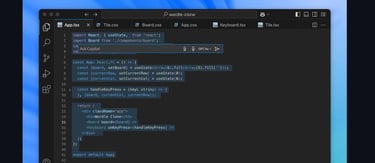
I’d recommend it for beginner developers, and also power users who want full customization.
Sublime Text
Sublime is a lightweight and fast text editor with code-specific features like quick access to functions and precise keyboard-based navigation.

It’s ideal for technical writers and general users thanks to its exceptional support for larger files.
Atom
Although discontinued after Microsoft bought GitHub, many people (including myself) still use Atom as their primary code-based test editor.

That’s because it’s open source and hackable, allowing for custom interfaces and beautiful syntax highlighting.
Vim & Emacs
I’ve mentioned how many people see terminal-based editors, like Vim and Emacs, as outdated, but I see them as the reliable elders of the text editing world.

Although they have steep learning curves, Vim and Emacs make your workflow far more efficient with keyboard-only commands, consume minimal resources, and don’t need graphical interfaces.
Notepad++
You can’t go wrong with Notepad++ as a simple yet feature-packed upgrade from the built-in Notepad tool from Windows.

I like it for quick list writing and notes, but it also pays off for code editing — thanks to syntax highlighting, document comparison, and tabbed editing.
How to Choose the Right Text Editor for Your Needs
Choosing a text editor is as personal a choice as picking a laptop. It must feel comfortable, fit your workflow, and handle your usual projects.
The best option varies based on your own preferences, but with those preferences in mind — and after asking some questions — I can help you land on the right editor.
- What’s your main use case? Is it writing code, managing configuration files, writing technical articles, or simply jotting down notes?
- What’s your comfort level? Some text editors, like terminal-based editors, take a significant amount of time to learn. Others work well right out of the box. Be honest with how much you want to learn.
- Do you have hardware constraints? Most text editors use fewer resources than word processors, but you still have to consider your hardware. If it’s old hardware, for instance, and you’re editing massive text files, you may only have a few text editor options.
I’ve tested every text editor I’ve ever used before paying or fully committing. Luckily, some text editors are free. The premium ones usually offer free trials to experiment with before you decide.
Tips for Getting the Most Out of Your Text Editor
As a frequent user of text editors like Atom and Notepad++, I like to compare these editors to my home. The more I use them and customize them, the more cozy I feel. Besides breaking in your text editor with regular practice, here are several other tips I’ve picked up:
- Customize shortcuts and settings: Use macros and shortcuts to speed up and automate tasks you complete regularly.
- Use extensions for added functionality: I’ve enjoyed extensions for timers, content previews, Git integrations, theme packs, and language support.
- Master productivity features: Features include multi-cursor editing, split editing, code snippets, and command palettes.
Many text editors have those productivity tools built into their systems. So, please do your best to learn these features — you’ll save so much time. And I can’t praise shortcuts and extensions enough. My workflow has improved drastically thanks to them.
Turning the Humble Text Editor Into Your Most Powerful Tool
I learned a long time ago that Microsoft Word just slowed down my writing process. I also found it insanely difficult to manage and edit code without syntax highlighting from text editors. That’s why I rely so heavily now on these text editors.
I encourage you to try them out as well because, whether you opt for the minimalism of Vim or Notepad++ or consider the flexibility of an editor like VS Code, you’ll find that their shortcuts and minimalism work wonders for productivity.