

The “S” in HTTPS stands for “Secure.” If you’re among the ~10.1% of websites that still don’t have an active SSL certificate, we need to change that immediately. They’re available for free! If you use cPanel, which is probably the best hosting control panel available, I see no reason why one would still be using unsecured HTTP.
Enabling free SSL takes just a few minutes. Better late than never. Now, if you’re here because you’ve just bought a new domain, this guide will cover how to install an SSL certificate in cPanel using AutoSSL and force your website to use HTTPS automatically.

- Navigate This Article:
Step 1: Log in to cPanel and Confirm Your Domain Is Pointed to Your Hosting Server
You should be able to access cPanel directly from your web host’s dashboard without a separate login. For Bluehost, go to Websites > Manage [your domain] > CPANEL
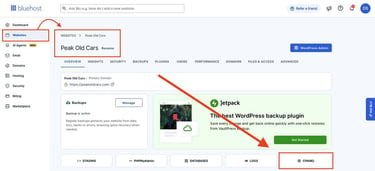
If you can’t find this option, open a new tab and enter your domain name followed by “:2083” — the HTTPS port for cPanel. You can then log in using the credentials provided by your host; you can find them in the “welcome email” sent by your hosting provider.
To find your DNS Records, if you are on a hosting provider dashboard, navigate to the Domains section > DNS. You’ll find the Type (A, CNAME, TXT) and the Points To.

If you are accessing through cPanel, head to Zone Editor > find your Domain listed > “Manage”. This is a more standard option, and we can stick with this.

If you purchased your domain name from a separate registrar, be sure to check that the TXT is correct.

And CNAME records are accurate and added exactly as provided by the certificate authority to your DNS settings in your cPanel.

AutoSSL will only work if your domain points to the server hosting your website, so with the correct DNS records, you should be set.
If not, we need to check three important things: nameserver configuration, A records, and DNS record conflicts.
Nameserver Configuration
When a user searches for your website, nameservers help the browser find the site’s IP address — they’re like gigantic, distributed digital phonebooks!
Click on the “Nameservers” option and confirm this.
If you’re hosting on Bluehost, for example, you will see:
ns1.bluehost.com
ns2.bluehost.com

Instead, if you see something like:
ns1.cloudflare.com
ns2.cloudflare.com
Then it means your domain is using Cloudflare nameservers.
Speaking of digital phonebooks, say you want to remember your friend John’s phone number, so you add them to your phone’s contacts app. Think of namservers like the actual “Contacts” app database itself — built by a nameserver provider (Bluehost or Cloudflare).
The DNS records are your “contact” entries that you type in the app. So, when you tap “Call John” (typing in peakoldcars.com), your phone matches the phone number to dial (DNS records), and your friend picks up. The internet needs to know which “contacts app” you stored the information in, so it goes to your domain registrar to find out.
If you change your website setup, the contact entries (TXT and CNAME records) need to be updated. Save the changes and wait for DNS propagation — this can take up to 48 hours.
A Records
This is how a web host verifies that you actually own the domain.
Back to the phonebook analogy, you can think of an “A record” (which stands for Address) as the domain’s primary phone number listing — it’s the most critical record because it tells browsers the exact IP address that belongs to the website.

For example, peakoldcars.com might have an A Record like 50.5.5.55.
To make sure yours is working:
- Find your DNS records in cPanel
- Look for the “A” under type and the “Record” option in the row
- Confirm the number matches the correct IP address provided in the welcome email from your hosting provider. If not, click edit
DNS Records
Problems only happen when your DNS records point to conflicting or incorrect destinations.
Your website can have different IP addresses, called DNS load balancing, to distribute site traffic for CDNs, redundancy, and high-volume spikes. Load-balanced servers must be configured identically and have validation files. This is typically not an issue.
Another example: If you have two conflicting A records, traffic may randomly go to your website or the wrong one entirely. This could happen if your company just migrated your website to a new server, but forgot to delete and replace the old A record in the DNS settings. A simple mistake can cause a “404 Not Found” error page.
Double-check all your DNS records and ensure there aren’t any conflicts with a free tool.

I recommend using the DNS Checker tool to confirm propagation before proceeding to the next step.
Step 2: Locate the SSL/TLS Status Tool
You should have access to the cPanel dashboard.
Once you’re in, type “ssl” into the search box in the top right corner of your screen, and click on the “SSL/TLS Status” option from the dropdown menu.

This is where you can run and monitor AutoSSL for your site.
Side note: if you click SSL/TLS instead of SSL/TLS Status, you may check to see if SSL is already validated with a DEFAULT SSL/TLS KEY TYPE.

If not, we’re going to run AutoSSL. Go back to the search bar and click SSL/TLS Status.
Step 3: Run AutoSSL to Install the SSL Certificate
Usually, to get a legitimate certificate for something, you have to complete a course or clear an examination. With AutoSSL, you have to do neither. As the name suggests, it automatically issues a free, trusted SSL certificate for your website (usually from certificate authorities like Let’s Encrypt and Sectigo).

To install an SSL certificate, just tick the box next to your domain and click on the “Run AutoSSL” button.
Since your domain meets all the technical requirements mentioned in Step 1, it shouldn’t take more than a few minutes for the Certificate Authority (CA) to validate your domain ownership and issue a certificate.
When you click on the button, your hosting server creates a temporary, hidden verification file that proves you control the domain. The CA attempts to access it via your website, and if successful, issues a certificate.
Step 4: Verify SSL Installation in Browser
Congratulations, you now have an SSL certificate for your website! Click on the “View Certificate” option to see which certificate authority has issued it and when it will expire. You’ll be redirected to a new tab.
As you can see, our “Issuer” is Let’s Encrypt.

Visit https://[yourdomain].com and look for the padlock icon to the left of your URL.

If you are using Safari, you can find it from the top menu. Click Safari > Connection Security Details, and a pop-up window will show “This certificate is valid.”

If you can’t see it and your browser is still displaying a “Your connection is not secure” warning, try refreshing your page — it’ll appear as soon as the browser loads the HTTPS version of your website successfully.

Also, if you want to check on Chrome browser, simply click the menu icon in the search/URL bar. Then, you’ll see “🔒 Connection is Secure” with “Certificate is valid.”
Your certificate should be valid for about 90 days, and cPanel AutoSSL will automatically revalidate your domain around 30 days before expiry (if everything checks out), renew the certificate, and reinstall it for you.
This doesn’t mean you shouldn’t monitor your renewal status. If your website doesn’t meet the necessary technical requirements around the time AutoSSL usually renews your certificate, especially if you frequently modify your DNS configuration, renewal will fail.
You might receive warning emails through your hosting provider, but don’t wait for them. Keep an eye on your certificate’s status, and if it doesn’t automatically renew by 10-15 days before expiry, something might be wrong — revisit Step 1 and fix it. I recommend setting up a recurring reminder on Google Calendar.
Step 5: Fix Mixed Content Issues After Certificate Issuance
There’s a possibility that you still can’t see a secure padlock for your website, and the browser is now displaying a mixed content or insecure content warning. Don’t panic. This warning means your website has mixed content issues, which you can fix quite easily.
Basically, some of your website’s assets (old images, scripts, and stylesheets) uploaded ages ago might be using legacy HTTP links in your database, and are still loading over HTTP. This shouldn’t be a problem if your website is new, as assets are typically added over HTTPS. This is more of an issue for legacy websites that are decades old.
Other popular CMSs, like Shopify, Wix, and Squarespace, automatically install SSL certificates and handle most HTTPS configurations for you. That includes updating legacy media files and mixed HTTP configurations.
Since you’re most likely using the WordPress content management system (CMS), just follow these steps:
- Go to “Settings,” then “General,” and update both site URLs to HTTPS. Save the changes.
- Install the Really Simple Security plugin and enable its Mixed Content Fixer feature. It should resolve most of your mixed content issues.
- Clear your WordPress cache plugin, CDN cache, and browser cache.
- If issues persist, upgrade to the Pro version of the plugin, run an advanced Mixed Content Scan to identify the remaining problems, and click on the “Fix” button. You might need to manually replace some hardcoded or external links, but a reliable plugin will most likely save you the trouble.
- Clear the cache again.
I recommend a hard refresh to force your browser to reload your website from scratch (without using saved cached files):
- On Windows: Press Ctrl + F5 or Ctrl + Shift + R
- On Mac: Cmd + Shift + R
The warning should disappear, and you’ll see the padlock symbol or “Connection is Secure” through the menu bar options.
Step 6: Force Secure HTTPS in cPanel
What if I told you users can land on the insecure version of your website, even if you have an SSL certificate? Installing an SSL certificate doesn’t “delete” the HTTP version of your site. It still exists.
For example, if someone types http://[yourdomain].com in a new tab, they could access it — unless you Force HTTPS in cPanel.
The fix is simple: just search for the Domains tool > select your domain, and toggle Enable Force HTTPS Redirect on. It should take just a few moments for this change to take effect, as it’s a server-side change, not a DNS change.

This way, even if someone types or clicks on this address (from an outdated backlink, for example), they’ll automatically be redirected to the HTTPS version of your site by your hosting server. While many modern browsers try HTTPS first nowadays, you shouldn’t rely on it.
Step 7: Advanced Troubleshooting — Test Your Site for Full HTTPS Compliance
When you now visit https://[yourdomain].com or even http://[yourdomain].com, the HTTPS-protected version of your site will load on your screen.

If you click on the padlock icon, you’ll see confirmation that the “Connection is secure.” If you click on that option, you’ll also see that your SSL certificate is valid. Your webpages should load over HTTPS now. But your job doesn’t end here. Right now, your homepage no longer has mixed content issues.
Despite running a site-wide “Mixed Content Scan” using the Really Simple Security Pro plugin, other pages on your website can still have some unsecured remnants.
To put this into perspective, if an HTTP element is loaded dynamically by a plugin, injected only under certain conditions (like when a user logs in or visits their cart), or comes from external scripts that only appear in real-time, the scanner might not identify them. You need to visit each page and check for browser warnings.
If you encounter a mixed content warning, right-click anywhere on the page and click on “Inspect.” If that’s not working, you may need to head to your browser’s settings and turn on hidden developer tools. Chrome should automatically be enabled. For Safari, click Settings > Advanced > Show features for web developers.
In the Console tab, you can see all mixed content issues for that page in real-time. Then head back to your WordPress dashboard to fix the issue.
Example: Let’s say you’re operating a small eCommerce store. During your site-wide check, when you visit the cart page, a mixed content warning appears. When you inspect the browser console, you see something like this:
Mixed Content: The page was loaded over HTTPS, but requested an insecure script.
http://yourdomain.com/wp-content/plugins/some-plugin/cart-tracker.js
This is a plugin-level issue. Copy the HTTP URL, go to your WordPress dashboard, and search for the “Plugins” option. Check the affected plugin’s settings (Cart Tracker, in this case), and replace the HTTP URL with an HTTPS one if possible, save the changes, and hard refresh the page. The problem should disappear.
Note: if the plugin doesn’t allow you to update the URL or still forces HTTP resources, update, delete/reupload, or replace it entirely with a better option.
Your Site Is Now Fully Secured with HTTPS
Installing an SSL certificate in cPanel with AutoSSL is one of the quickest and most reliable ways to secure a website, especially if you’re a WordPress user. It’s the standard practice. While your site is now fully secured with HTTPS, you can’t afford to forget about your SSL setup.
Like I mentioned earlier, keep track of your certificate renewal status and occasionally visit the most important pages on your site to check for browser security warnings — especially after changing your DNS settings, installing new plugins, changing themes, or embedding third-party scripts.
While it’s easy to get an SSL certificate, don’t blindly trust a site just because it has a padlock. Even phishing or malicious websites can get one! HTTPS only proves that your connection is securely encrypted — not that the website itself is trustworthy.
If you want to learn more about SSL, I encourage you to read this SSL certificate adoption guide and explore other articles we’ve published. Don’t forget to follow us on social media below! You can also use our new HostHelper™ tool to discover further reading and answer any hosting questions!.