


Learning how to install a WordPress theme is one of those simple skills that unlocks a world of potential. Wherever you find the design of your dream, your website will always look fresh and professional.
Website templates, or themes, are these rare phenoms that benefit both first-time site owners and experienced developers — giving them each the opportunity to save time, money, and headaches on website design. It’s true! While my mother loves the idea of being able to point and click to try out color schemes and slider photos, my freelance dev friends love that they don’t have to start from scratch each time a client requests a new site design.
Quality WordPress themes are designed to make people’s lives easier, but for some, the trickiest part is getting them installed and operational. Here, we’ll cover the different avenues for installing a theme for your newest web project.
First, You’ll Need a Theme & Host
You’ll need a web host before anything else, and if you’re specifically interested in WordPress hosting, we’d recommend selecting from one of the top hosts with WordPress-friendly packages. You can use the official install documentation to install WordPress manually, but the best WP hosts simplify things with 1-click installations or pre-installations of the software:


- Best overall value: The most complete managed WordPress hosting at this price
- Kodee AI Agent manages your WordPress site via simple chat
- LiteSpeed servers boost site speed by up to 40%
- WAF, malware scanner, DDoS protection, and auto-updates
- Free migrations — 85% completed in under 5 minutes
- Get started on Hostinger now.


Sead Fadilpasic


As much as we love WordPress, one of our biggest pet peeves is when hosting providers exploit the popularity of the world's most-used content management system by offering so-called WordPress hosting that, in reality, is exactly the same as the host's shared server plans. Fortunately, Hostinger's ultra-fast infrastructure and easy access to SSL certificates and backups sets up the company to outperform the vast majority of the violators of our admittedly made-up rule.
Go to full review »| Money Back Guarantee | Disk Space | Domain Name | Setup Time |
| 30 days | 20 GB SSD – 100 GB NVMe | FREE (1 year) | 4 minutes |

- Best for performance: WordPress sites average 78% faster speeds after migrating to SiteGround
- Free AI agent manages your WordPress site via simple chat
- Smart WAF, AI bot protection & geo-distributed backups
- Free staging, WP-CLI, SSH, Git, and one-click migrations
- 4.9/5 Trustpilot — 98% customer satisfaction for 10+ years
- Get started on SiteGround now.


Lynn Cadet


Want a hassle-free, WordPress-optimized hosting service? SiteGround has thought of everything you need to get your site up and running.
Go to full review »| Money Back Guarantee | Disk Space | Domain Name | Setup Time |
| 30 days | 10 GB SSD - 100 GB Google Cloud SSD | FREE (1 Year) | 6 minutes |

- One of only three WordPress.org officially recommended hosts
- Free handcrafted starter website built by DreamHost experts
- Remixer AI builder, NVMe SSD, and daily automated backups
- Free domain privacy for life — included with every domain
- 100% in-house support including WordPress core contributors
- Get started on DreamHost now.

Christina Lewis


One of only three hosting providers recommended by the WordPress Core team, DreamHost has actively contributed to the WordPress community for more than a decade. The company's platform is optimized for the incredibly popular content management system, and plans include easy setup, automated updates and backups, unlimited bandwidth, and 24/7 specialized support.
Go to full review »| Money Back Guarantee | Disk Space | Domain Name | Setup Time |
| 30 days | 25 - 100 GB NVMe SSD | FREE (1 year) | 4 minutes |

- Best for WordPress: WordPress.org's longest-running recommended host since 2005
- 0.35s average load time — independently verified by WPShout
- AI builds your complete WordPress site in under 60 seconds
- Yoast SEO, NVMe SSD, WAF, and daily malware scans
- 24/7 WordPress experts — under 2-minute average response
- Get started on Bluehost now.
Sead Fadilpasic
Bluehost's WordPress hosting packages are aimed at first-time site owners and personal bloggers. These services come at a premium compared to the standard Bluehost web hosting (basic shared hosting) plans, but the WordPress optimization and platform-specific resources are arguably worth the cost.
Go to full review »| Money Back Guarantee | Disk Space | Domain Name | Setup Time |
| 30 days | 10 - 100 GB NVMe SSD | FREE (1 year) | 7 minutes |

- Cloudflare Enterprise CDN and dual WAF on all plans
- AMD EPYC NVMe — performance guaranteed or 1 year free
- Free WP Rocket and Object Cache Pro on select plans
- Free migrations on every plan with zero downtime
- 97% satisfaction — under 1 minute average response time
- Get started on hosting.com now.
Christina Lewis
As experts in performance optimization, hosting.com is a top choice for powering resource-heavy WordPress websites. The company offers shared or managed plans for the ultra-popular content management system, with the benefits extending to Joomla, Drupal, and other platforms.
Go to full review »| Money Back Guarantee | Disk Space | Domain Name | Setup Time |
| 30 days | 20 GB - 200 GB NVMe | New or Transfer | 5 minutes |
Once you’re set up with your host and WordPress installation, you’re ready for the fun part. Go to the official WordPress theme site, or navigate to “Appearance” and then “Themes” in the WordPress backend, and begin your search. You can filter thousands of designs by popularity, date, layout structure, and commercial or featured.
Some tips when searching for your theme:
- Use words like minimal, portfolio, shop, business, artist, grid, etc.
- Make sure the theme is responsive so it works nicely on all manner of screen sizes.
- If you need a multilingual site, make sure the theme can support that from the get-go.
- Choose a theme that is well maintained and not too complex to customize for your goal.
You can install multiple themes and activate and evaluate each one more in depth later. If you don’t find any free themes that strike your fancy, you can try for a commercial theme (great options for $25-$75) or visit a third-party theme site. Below are some of the best third-party theme providers (free and commercial):
Once you’ve found the theme of your dreams, you can choose one of three options for installation: the WordPress directory, ZIP file, or (S)FTP. We’ll walk through each option next.
Option 1: Download & Install From the Official Directory
This is, by far, the easiest way to install a WordPress theme. Once you’ve selected your design template, note that you can preview the look and layout on your site.
Caution: If you hit SAVE while previewing a theme you will update your site automatically!
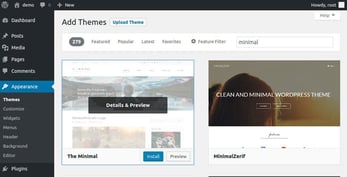
To install a theme directly from the Theme Directory in the backend, click the Install button on the theme tile. After a successful installation, you can activate the theme for your site!
Option 2: Manually Upload a Theme .ZIP File
Alternatively, you can manually download and install zipped archives that contain all the files needed to implement a theme (.ZIP files). If you found your theme on a third-party site, this installation option may be required; however, themes on the WordPress site can also be downloaded manually.
Before installing any WordPress theme .ZIP file, you should always consider the following:
- Evaluate whether you really trust the theme provider (if it’s not the official WordPress site).
- Check out the reviews of the theme and the specific theme provider.
- Make sure the file is truly a .ZIP file once it’s downloaded: You can right-click on the file and unzip first, instead of double-clicking (which could execute an unknown executable!).
Now, to install the theme .ZIP file, go to the Appearance sidebar menu and click “Themes” in the backend. The newly loaded page should feature an Add New button. Click! Next, you’ll see an Upload Theme button. Click! You’ll then see a Choose File button, which allows you to choose your downloaded .ZIP file before clicking the Install Now button. Voila!
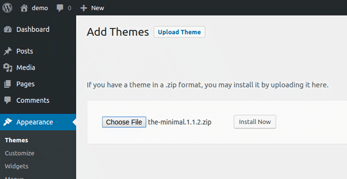
Once the installation is complete, you can click “Activate,” and the theme will be live on your site.
Option 3: Install a Theme via FTP
(S)FTP access is an alternative means of manually uploading your theme. Whether you need to use plain FTP or, the more secure, SFTP depends on your web hosting service. The uploading process itself is the same, though.
Note: The (S)FTP upload method might be needed if you only have access to your web server via (S)FTP without direct access to the web server file system itself.
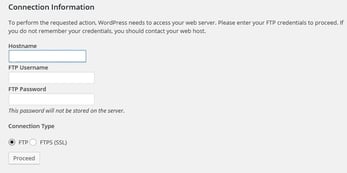
To install a theme via (S)FTP:
- Download the theme .ZIP file from a theme site.
- Extract the .ZIP file locally.
- Use an FTP client (e.g., FileZilla) to access your web server via FTP.
- Select the extracted file directory in the left pane.
- Select the target directory, “wp-content/themes,” on your web server in the right pane.
- Upload files to your web server by right-clicking them and selecting “Upload” on the left.
Now your WordPress installation will pick up this new theme. When you now go to the Appearance tab, you will be able to see and activate it.
Now You’re Ready to Modify & Launch!
Let the customization begin! Whether you’re designing for yourself, a client, or a friend, you’ll find WordPress themes can be an invaluable time-saver. Plus, you get to experiment with some amazingly creative works from other web experts.
For the beginners reading, you’ll want to familiarize yourself with the basic tricks to customizing a WordPress site, and the documentation for your specific theme is also worth a look-over. The docs will explain how to customize the template in the most maintainable way. Some themes rely solely on the built-in WordPress Customizer tool, while others direct site owners to a separate theme management area found in the WordPress menu on the left. Still others may prefer the Gutenberg drag-and-drop experience, or even separate page builder plugins.
Finally, check out the 50,000-some-odd WordPress plugins for the full breadth of functionality for your site, and maintain regular backups in case the worst should happen. Happy designing!
HostingAdvice.com is a free online resource that offers valuable content and comparison services to users. To keep this resource 100% free, we receive compensation from many of the offers listed on the site. Along with key review factors, this compensation may impact how and where products appear across the site (including, for example, the order in which they appear). HostingAdvice.com does not include the entire universe of available offers. Editorial opinions expressed on the site are strictly our own and are not provided, endorsed, or approved by advertisers.
Our site is committed to publishing independent, accurate content guided by strict editorial guidelines. Before articles and reviews are published on our site, they undergo a thorough review process performed by a team of independent editors and subject-matter experts to ensure the content’s accuracy, timeliness, and impartiality. Our editorial team is separate and independent of our site’s advertisers, and the opinions they express on our site are their own. To read more about our team members and their editorial backgrounds, please visit our site’s About page.