

Is it just me or is Hostinger going heavy on YouTube ads? I mean, every other video I watch starts with a short Hostinger advertisement! The theme? Building a full website using artificial intelligence (AI) tools only. While I’m all for such advertising (Hostinger is a great web host), I really hope you don’t believe AI tools can help you build a proper website in minutes.
The reality is you can’t. AI is impressive and fast, but it’s not instant noodles. It will take more than just two minutes to prepare a meal!
Now, let’s look at the bright side: you don’t have to be a pro-max website developer with a large budget to build a good website anymore. AI makes it much easier. Coding languages like HTML, CSS, JavaScript, and backend configurations? You don’t have to contend with them.
Many leading web hosting providers now provide all the tools you need to swiftly build, publish, and host your website using AI alone — and I’ll introduce you to four of the best ones.
The caveat? You’ll have to do much more than just type a prompt and hit publish. AI can get you 70-80% there, but you’ll still need to work with it to build something meaningful. In this article, I’ll walk you through the exact steps to build a simple AI website, whether that’s a personal site, blog, review site, newsletter, or small-scale eCommerce store.
I’ll also help you avoid common mistakes that slow other people down or force them to start over.

Step 1: Prepare the Information AI Needs
You can’t expect the AI to generate a world-class website if your prompt looks something like this: “build a blue portfolio website for content writer Surajdeep Singh.” Don’t blame the microwave TV dinner if you were expecting a Michelin star meal!
For this analogy, we’ll say I’m the Gordon Ramsey of AI website building, so trust me. Do your best to follow each of my steps like your (digital) life depends on it. First, let’s create your website prompt together. The chef’s ingredients list.
Open a new Google Doc (Notes, Pages or Word, whichever you prefer), name it “Website Project Description,” and answer these three questions:
- What Is the Goal of This Website?
Ask yourself, “Is the site meant to showcase my work, generate leads, sell products, or publish content?” This is really important because the AI will create your website’s layout and copy accordingly. The more specific you are, the more AI can deliver on your needs!
If you want a blog site, for example, write “Goal: Blog”.
- What Is the Website’s Purpose and Audience?
Who are you building the website for and what makes it different? They say “The riches are in the niches” for a reason. Don’t rush into answering my questions. I want you to be as detailed as possible and don’t worry about grammar or wording — pass your text through ChatGPT for polishing once done.
Just ask ChatGPT, “Check for grammar, strictly necessary changes only. I’m writing a prompt for an AI website builder with XYZ goal in mind.” Again, we’re carving out what makes you unique.
- What Pages Does the Site Need?
Can you see the navigation bar of this website? We have four core pages: Reviews, Guides, News, and Studies.
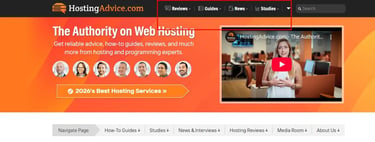
Figure out which pages your site needs and write them down in the correct order of appearance.
If you’re unsure, review competitor websites for a clearer idea. From what I’ve seen, most websites generally include a Home page, an About page, a Services or Products page, and a Contact page.
Optional: Secure a Domain Name Early
I always purchase a domain name on GoDaddy at this stage — it gives me peace of mind and extra motivation to build my website!
Sure, you can wait till the AI builds your website, but why wait? If you aren’t serious, why are you even here? Besides, you could lose the name to someone else on the market. It’s cutthroat.
Remember, the shorter the domain, the easier it is for your users to remember and access it. I recommend a “.com” website.
Can’t decide? If you’re having a hard time choosing one, read my good friend’s guide. And yes, don’t you dare spend a lot of money on one. Some deals are as low as a couple of dollars, but always check yearly renewal fees.
Step 2: Choose Your AI Website Builder
There are lots of AI website builders but we’ll focus on just four: Hostinger, GoDaddy, Bluehost, and SiteGround. I’m going to guide you through the features that matter most, and then you can choose the best one for you.
Hostinger Bundled Features and Pricing
Here are the features you should look for in an AI website builder:
| Feature | Why It Matters |
|---|---|
| Custom Domain Support | Lets you publish your website with a custom domain name, building trust and credibility. |
| Built-In Hosting and Security | Includes hosting, an SSL certificate, and automatic backups in one package. |
| Mobile Responsiveness | Allows you to review and adjust your website for smartphone and tablet viewing, preventing frustrated visitors. |
| Visual Editor (Drag-and-Drop) | Allows you to tweak layouts without coding, saving time and reducing errors. |
| Basic SEO Controls | Helps search engines understand your pages and improves discoverability. |
| Support for Blogging or eCommerce | Includes blogging or eCommerce support only if your website needs it. |
| Cost-Effective | Avoid overspending on features you don’t need, and being locked into raising subscription rates |
I want to let you know I’ve used all four web hosting providers to generate AI websites and I vouch for them. They offer a quick setup, AI-assisted support, and are best for simple site building. Choose one of them with confidence. You’ll pull your hair out looking at any other options.
Step 3: Generate the Initial Website With AI
Before we start, I’m going to set realistic expectations — you’ll probably hate the first draft. I hated each one. Expect the layouts to look meh, the content to be bland, and the pictures? Well, they’ll suck.
If I weren’t in your life, you’d probably panic. Don’t. This is normal.
Like I mentioned earlier, AI can only take you about 70-80% of the way. I’ll teach you how to make your website publish-ready with a good polish.
First, follow these four steps to generate your first AI site:
- Open your chosen AI website builder and select the AI site generation option.
- Copy and paste the project description from your Google Doc (the three questions you answered).
- Choose a tone or style (or pick from the available website templates).
- Let the AI build the first draft.
The AI should generate your website draft in just a few minutes.
Step 4: Review and Adjust the Site Structure
Pause. Take a deep breath. Don’t start editing the copy or frantically searching for image replacements — we’ll do everything step-by-step. Let’s tackle the big stuff first.
From here, we need to check whether your website is working, and there’s only one place to start: the homepage.
Evaluate the Homepage
You know how important first impressions are, right? We’ve all been on a first date. Your homepage is probably the first page visitors will land on. Your website’s success depends on making the first impression impactful and positive. What do you think your homepage should convey?
From my years of experience, it should clearly explain what the site offers, be visually pleasing, build confidence within seconds, and include a natural next step for visitors — your primary call to action (CTA).
Side note: The CTA directs visitors toward your website’s “goal.” I’ll simplify this for you. If you’re building a portfolio website, for example, it could be a “View my portfolio” button. Or, if you want to collect emails for future outreach, it could be a lead generation form. You’re dangling a carrot to encourage a site visitor to do something you want: sign up, buy, use a coupon, follow, join a community, etc.
I need you to pay special attention to what appears above the fold. Don’t know what that is? It’s a term that means the main portion of your homepage that visitors see before they scroll down.
Don’t edit anything yet. Just brainstorm and take notes.
Check Navigation and Page Order
If you click on the “Blog” option and you’re redirected to, let’s say, the “Contact” webpage, you have a minor problem at hand. You should check whether all pages in the navigation are working correctly and in order. You can easily fix issues by editing navigation links in the builder’s dashboard — don’t sweat it.
Adjust Layout and Spacing
Now, if there’s one thing AI often gets wrong, it’s layout and spacing. I mean, you’d be amazed at how lop-sided the first draft can look! Just use the visual editor to make everything consistent: align text, check header weight, balance images, and spacing. It’s a piece of cake, really.
Pro Tip: If you’re unhappy with the “look” of a particular section, I’d like you to edit it rather than restarting the entire site. There’s no prompt that can build the website you want at one go. I mean, if one of your side dishes gets burnt on the stove, are you going to throw the rest of the meal away? No, right?
Step 5: Refine Page Content Using AI
Do you think the AI is going to nail your website content? No. That’s loony talk. Raw AI website copy usually doesn’t rank — that’s Google’s way of saying, “This doesn’t stand out.” You need to edit the content to introduce your own voice and search engine optimization (SEO).
Now, I know you’re probably not a copywriting wiz (I’m 90% sure you aren’t), so I’ll show you the most practical way to use ChatGPT to refine your website content.As always, we’ll start with your homepage.
Regenerate and Refine Page Content
The hard truth is that if a visitor can’t tell what your website is all about in… 5 seconds? You’ve failed. This isn’t me being harsh, this is the reality of our modern attention span (which is shockingly less than a goldfish)!
Before I get into the specifics, let’s figure out your user search intent. Why should someone visit your page? What are they looking for? Are you selling a product they might be interested in, for example? That’s called search intent.
Write it down in the doc in this format: “Search Intent: XYZ”.
Log in to ChatGPT and follow these steps:
- Copy and paste the homepage content (starting with above the fold).
- Use this exact prompt to regenerate the content with a clear CTA:
“Rewrite this to match my tone and voice and structure the content in an SEO-friendly way using natural keywords and clear headings. Target users searching for [XYZ]. Avoid generic marketing language and buzzwords. Include one strong CTA that matches the search intent.”
- Replace the content and edit the CTA button.
- Repeat these steps for other sections and pages you want to change.
I’d give your website copy a solid 6.5 out of 10 at this stage. But hey, it’s good enough for small sites, and that’s exactly what we’re building. If you want a higher score with more human-like content (it’s not 100% necessary), treat this article like a bible and put some serious effort into editing your content.
Edit Meta Descriptions
Have you written meta descriptions for each webpage? You might not recognize the term on paper, but I know you’ve come across them before. Let me explain. Meta descriptions are the short text descriptions you see under website titles when you Google something.
Whenever I’m Googling, I always read them so I can figure out which article might best answer my search query. And your users will too.So what do you do? Well, it’s time for your AI Chef Ramsey to serve another prompt! Just use this: “Update my meta descriptions for SEO, so that they accurately reflect each page’s content and intent.”
Step 6: Configure Site Permalink
Alright, let’s have some fun in the settings. This one’s the shortest step on my list — adjust the URL address (permalink).
Readable vs. Non-Readable URLs
Here’s an example of a readable URL: bestpetoyz.com/reviews/chew-toys-for-dogs
And here’s an example of a messy one: bestpetoyz.com/page?id=123
Can you spot the difference? The first one looks cleaner, right? I’d never click on a messy URL, and your users won’t either. Apart from looks and building user trust, readable URLs help search engines understand the topic of your webpages for indexing.
All of your URLs will be messy, so edit them and confirm whether search engine visibility is enabled for your website so your pages can be indexed properly.
Step 7: Apply Branding and Design Refinements
I’m far from a good artist — my artistic ability peaked in grade four. Knowing I needed to work at it, I mastered Canva for design a few years ago (better late than never). I use it to design just about everything now. If you’re in the same boat, I recommend sharpening your Canva skills.
Set Brand Colors, Fonts, and Logo
Do you know what color you want your website to be? Mind you, there’s no single “best” color for a website. I mean, I’ve read several articles that say you should choose this or that color, for a particular type of branding. I say ignore the noise. Choose a color that matches your vibe, but avoid some novice mistakes.
Don’t let the design elements pull attention away from the content. A little color is good, but a neon pink website for a men’s brand, for example, may not hit the mark. Think of it like a gallery wall, the art is the focus. Not the wall. And do avoid black and red, unless your niche is goth vampire blood for Halloween.
Side note: Black is generally avoided in UI background design because it negates shadow/dimensional effects, is harsh, high-contrast, and can cause a “halation” effect with white text, which increases eye strain. Also, it is associated with sadness or fear. Simply, it’s too harsh, and it pulls attention away from the content in the wrong ways. Try charcoal grey, instead.
Red is similar in that it is conventionally associated with warnings, danger, negative connotations, and may feel aggressive and overstimulating. Not to mention, 8% of males (with vision deuteranopia) may not be able to differentiate between elements and a red background. Though there are some web design exceptions to sparingly imply passion or high energy!
Got a color? Great! If not, blue is always a safe bet.
I want you to design your brand logo using Canva’s “Free Logo Maker” tool, keeping this color in mind. You can start with a free account. Again, a yellow logo on a white website, for example, would look odd (more like invisible), so brush up on design elements like contrast, form, and style.
It shouldn’t take you more than 10 minutes to design it. Please upload your brand logo and adjust the website’s font header and body style as well.
Replace Default Images
You don’t have to be the next Leonardo da Vinci to create images for your brand. Just use Canva AI (to design), Leonardo AI (to generate), or stock images (to license). And whatever you do, don’t just pull images from the internet. Not legal advice, but best to avoid infringing on someone’s copyright.
You can then swap the placeholder images with the ones you’ve created or licensed.
Holding Attention With Formatting
We have a fascination for big things. Just the other day, I read about a huge, 535-pound bluefin tuna being sold for $3.2M! Your “tuna” is bigger, bolder headers. These will naturally draw your visitors to important sections. And, make sure to pair them with images that complement the content.
Hint: look at the headers in this article.
Optimize Images for Performance and Accessibility
Have you ever stood in front of an automatic door that just wouldn’t open? Only for it to open when someone else walks by? It’s embarrassing. A slow website is like a shop where the door is just as moody.
The difference is, while most people will wave their hands frantically and find a way to enter the shop, your visitors will hop to another website in seconds and potentially never come back.
The answer? Well, one of them is ensuring your images load quickly — go ahead and compress them without losing quality. You can do this with a website plugin, app, or online tool.
Another is including alt text — these are short descriptions that help your visually impaired visitors and search engines understand what an image shows.
Step 8: Optimize for Mobile Devices
I edited chunks of this article on my smartphone while I was walking after meals. I use my phone for just about everything. So it doesn’t surprise me that smartphones account for more than 64% of global website traffic. This means one thing for you: if your website isn’t optimized for mobile, expect several unhappy users.
Review the Mobile Layout
You might be thinking, “Do I have to redesign my website for mobile?” No, you don’t have to “redesign” it. You just need to make some tweaks. Why? Well, a computer has wide, horizontal screens and a mobile device has narrow, vertical screens.
Your website’s layout is meant for computers, not smartphones. So what the AI does is it reimagines the desktop layout of your website for mobile, and yes, you guessed it — it rarely gets it right.
The solution is simple: Locate the “mobile preview” mode and use it to scroll through every webpage, identify layout issues, and resolve them.
Correct all main layout issues with these five questions:
- Does everything fit the screen?
- Are sections too close together?
- Is the text too small?
- Is content stacked in a logical order?
- Do images look awkward or cropped?
Let’s move on to handling mobile usability issues.
Fix Mobile Usability Issues
Apart from the website layout, the AI might make a mess of the website’s usability in mobile mode. To ensure the mobile user experience is seamless, double-check your mobile experience.
Four Mobile UI questions you should be asking:
- Are the buttons big enough and easy to tap?
- Can users scroll smoothly?
- Do forms work properly?
- Does anything feel frustrating to use?
Adjust things accordingly to ensure the site is easy to use on smaller screens.
Step 9: Publish the Website
Give yourself a pat on the back, my friend! You’re almost ready to publish the website! How long did it take you to reach this stage? Three hours? I normally need two.
Of course, if you chose to take the website content crash course I suggested, this number might be around five to six hours, and that’s not a bad thing.
Publish to a Temporary or Preview Domain
You should have purchased a custom domain name already. If you haven’t, do it now. I’ll wait right here. Remember, you want it short, and easy to remember.
Done? Did you get the domain you wanted?
If you had to buy a different one, make sure to adjust the site content to avoid inconsistent branding and mismatched URLs. And, in this case *with a big grin, I’ve got three words for you: told you so.
I want you to publish the site using the platform’s default domain or preview URL and test all links and forms first. You don’t want search engines to index an unfinished website, right?
Choose a Hosting Plan if Required
You don’t need to purchase a hosting plan separately — all four web hosts include them with their AI website builder plans. Keep it simple.
Step 10: Connect a Custom Domain
Have you double-checked whether everything on your website is working properly? All pages, buttons, and links? Is everything in place? If your answer is a resounding “yes,” let’s connect it to your custom domain!
Here are the steps you should follow to connect your website to the domain:
- Search for the “Connect Domain” option in your AI website builder dashboard and select “I already own a domain.” The wording may be different, so just go with the flow.
- The builder will give you 2-4 nameservers. They basically tell the internet where your website “lives.”
- Go to your GoDaddy dashboard and replace the existing nameservers with the provided ones.
- Save the changes.
Note: These changes will take some time to reflect, so don’t be disappointed when you refresh your domain and don’t see the website. Give it up to 24 hours.
Your AI website builder should enable SSL (HTTPS protection) for your website automatically. If it doesn’t (99% chance it will), you’ll have to click on the “Enable SSL” button on your dashboard (again, this isn’t the exact wording).
This is really important, because if your website loads as HTTP, no one, I repeat no one is going to access it — HTTP websites are a major red flag and super unsafe.
Bookmark this article if you need to. Then, go to the next step after 24 hours. Take a break, you deserve it. I shouldn’t be saying this, but this calls for a drink (a mocktail, if you’re sober)!
Step 11: Maintain the Website
Has it been 24 hours already? Congratulations, my friend, your website is now live! I feel just as proud as you do right now. If not, review previous steps (and reach out to your website host for fast support). Not so good news, your job doesn’t end here. If you don’t actively maintain your website, it’ll break down eventually.
You know how vehicles need an oil change and occasional tune-up, right? If you don’t maintain them, they’ll break down at the worst possible time. Take out 10 minutes every month to check whether everything is up to mark. Just 10 minutes. Beats an emergency rebuild, right? I want you to update and improve it over time as well with plugins, security, email, and automation.
Are you on X? If you aren’t, create an account right now and follow the latest AI trends. They could help you in the long run. It’s been a valuable resource for me.
Frequently Asked Questions
Here are some commonly asked questions I can help answer:
Is an AI-built website professional enough for a real business?
Yes, but the AI can’t build a top-notch website for you without your help. You’ll need to modify the website draft it creates using the visual AI tools it provides to reflect your business branding, voice, and values.
How much does it cost to build and host a website using AI?
An annual budget of around $24 to $120 is enough to build and host a solid personal or small business website using AI. Although there are a ton of enticing apps, plugins, and dev tools to make that number go up.
Can I use my own domain name?
You should always use your own domain name to publish a website online.
Are AI-generated websites good for SEO?
The original draft may not be up to the mark SEO-wise, so use ChatGPT to optimize the copy for SEO.
Can I update my site after it’s live?
Yes, you can and should update your website regularly and whenever necessary.
Is hosting through an AI website builder secure?
Yes, hosting through an AI website builder is secure. Please use a reputable provider like Hostinger or GoDaddy.
What are the limitations of AI-only website builders?
AI-only website builders are best suited for simple websites for personal use, creative professionals, or small businesses.
Can I move my site to another platform later?
Unfortunately, AI website builders don’t allow full site exports. You’ll have to rebuild the website’s layout if you switch platforms. I don’t recommend it.
From Idea to Live Website in Hours
If you’re just here to test the water and haven’t implemented the steps in my guide, I have some words of motivation for you. I built my first website, a sports blog, several years ago using WordPress. Can you guess how long it took me to get it right? Seven days.
You, my friend, can have a publish-ready website in under 5 hours.
I’m no life coach, but if you aren’t putting your ideas to the test, what are you even doing? AI has made it so easy to launch a website! Don’t hesitate, even if it doesn’t work out the first time. It’s not a failure if you learn from the experience, so give it a shot.
This may seem unrelated, but the latest AI sensation is Moltbot. Do you know its founder, Peter Steinberger, built 43 side projects before finding success with Moltbot? 43!
Surely you can build that one website you’ve been dreaming about. Just do it. Don’t forget to bookmark this page and follow us on social media!
HostingAdvice.com is a free online resource that offers valuable content and comparison services to users. To keep this resource 100% free, we receive compensation from many of the offers listed on the site. Along with key review factors, this compensation may impact how and where products appear across the site (including, for example, the order in which they appear). HostingAdvice.com does not include the entire universe of available offers. Editorial opinions expressed on the site are strictly our own and are not provided, endorsed, or approved by advertisers.
Our site is committed to publishing independent, accurate content guided by strict editorial guidelines. Before articles and reviews are published on our site, they undergo a thorough review process performed by a team of independent editors and subject-matter experts to ensure the content’s accuracy, timeliness, and impartiality. Our editorial team is separate and independent of our site’s advertisers, and the opinions they express on our site are their own. To read more about our team members and their editorial backgrounds, please visit our site’s About page.