


The first landing page I ever made began as a blank document. After two hours, it remained that way. Not only was I limited in my coding abilities at that time, but there’s something about landing pages. They’re intimidating.
I get analysis paralysis. Should this button be red or green? How should I word this to get the most clicks? Nope, I’ll try it this way, but wait, maybe I’d have better results that way. I get the struggle!
On that first attempt, I eventually paid a freelancer $300 for the pleasure of waiting three weeks to receive something I could make today, in an hour, with AI.
When I say AI, I specifically mean using Claude or ChatGPT to generate a professional landing page without knowing much about coding at all. In this guide, I’ll show you how to build a landing page with AI and upload it to Bluehost, a popular hosting company, so your landing page is live online for everyone to view.

Step 1: The Right Prompt to Make a Unique, High-Converting Landing Page with AI
I know it’s tempting to type “build me a landing page for my business,” but that’s bound to give you an unstyled, unbranded landing page with vague copy and hardly any optimization for conversions.
The fix is the same with all AI conundrums: be more specific. For making a landing page with AI, I’ve developed what I call “The Golden Prompt,” a prompt that’s repeatable enough to use over and over, and specific enough to produce something worthwhile on your first try.
To use it, open either ChatGPT or Claude and paste in this Golden Prompt:
(Note: I’ll use Claude for the entirety of this article, but the results should be similar with ChatGPT)
“Generate a landing page in a single file, one that utilizes Tailwind CSS via CDN. It should be responsive in all browsers and devices. I want to include the following on my landing page: a hero section at the top of the page with a heading and subheading, a section titled “Features” with three columns containing an image and text in each column, an email sign up form with a high-conversion CTA, and a section with three testimonials to establish social proof. Everything in the landing page, like the copy and images and colors, should center around [your product/service] and cater to [your audience]. For images, be sure to include placeholder image tags and alt text that’s both descriptive and relevant.“
Let me break down why this prompt works well:
- Single-file: The AI engine places everything, like HTML, JavaScript, and CSS, into a single document. So, there’s no need for you to juggle multiple files.
- Tailwind CSS via CDN: You want the AI to pull from a framework that’s both widely-used and taken right from the internet. There’s no need to install anything on your end. It works right away, even if you don’t know what it is.
- Sections (hero, features, testimonials, CTA): These give Claude or ChatGPT a straightforward structure to build instead of letting it try to figure out what a marketing landing page looks like.
- Relevant copy: Copywriting is huge when developing a landing page with AI. There’s no reason to begin your copy with “Lorem ipsum” anymore. You can speed up the process with real headings and descriptions relevant to your product or service. You may need to tweak them later, but at least you’re not starting from scratch.
- Image tag placeholders: Tell Claude or ChatGPT to sprinkle elements into the code. This is good for two reasons: you don’t have to add them later, and you’ll know where to put your real images. Example alt text might be something like “mother walking through a store with baby.”
After you’ve sent Claude or ChatGPT your prompt, the AI will produce a long block of HTML code for you.
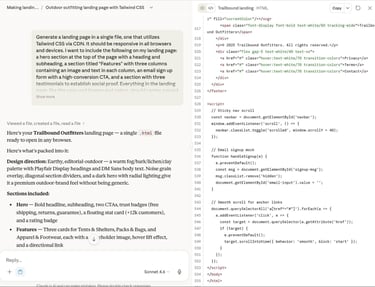
AI engines like Claude also provide a decent preview before you test it yourself in a local environment.

You don’t need to understand the code. All you have to do is copy it or save it into a file. And I’ll explain how to do that below.
Step 2: Preview, Test, and Refine
You’ll eventually get to upload that code to Bluehost to see the landing page online. Right now, though, all you want to do is test the code in a local environment. This way, you can test everything from how buttons work to what the images look like long before anyone else has a chance to see it live.
Here’s how I like to preview my landing pages:
- Open your favorite plain text editor. Options like TextEdit or Notepad work well. Just be sure to put TextEdit in text mode if you’re using that one.
- Copy the code from Claude or ChatGPT.
- Paste it into a new plain text document.
- Save that file in a memorable spot. Maybe in your /documents folder or a folder you made just for this project. Name it index.html. Do not name it anything else. In this instance, the name matters, because Bluehost will look for a file named index.html as the main source.
- Locate the file on your computer. Double-click the file so that it opens up in your default web browser. This should show the landing page fully rendered in your browser.

And that’s how you bring up your landing page in a local environment to test it out. What you currently see is exactly what users would see if you made no changes.

And here’s a preview of the entire page. Not bad, right?

Note: Usually, you’d also save a CSS file alongside your HTML file to help with styling. But that’s why we used the Tailwind CSS CDN approach. Tailwind CSS uses a quick line of code in your HTML that launches an entire styling framework from the internet, eliminating the need for a separate CSS file.
Now comes the testing and refining part. Look at your landing page to figure out what you like and what you want changed. Perhaps the hero background looks too dark, or maybe one of the sections is too cramped. This is where we turn back to Claude or ChatGPT to make tweaks.
It’s as simple as reporting to the AI what you see and how you want it modified. Just try to get all of your requests in one prompt so the AI makes one clean update. Here’s an example:
“My hero image background needs to be lighter. It’s too dark. Change it to a light gray instead of black.“
“I don’t need a main menu. Remove the menu with Gear, Reviews, Explore links.“
“Remove the Shop Now button in the top right-hand corner.”
“Make the ‘Explore the Collection’ button the main focus. I don’t need the ‘See The Gear’ button, just a larger ‘Explore the Collection’ button.”
“Can you make the CTA button a shade of green instead of orange?“

Once the AI returns updated code, you’ll walk through the same process again, the process of copying that code and pasting it into that original index.html file. Except, instead of making a new file, this time you’ll just save over the previous code.

Our updates look great, but it all depends on what you see for your own project.
If you notice another issue, like a color or placement you don’t like, go back and complete the process again. Send Claude or ChatGPT your adjustments, copy the new code, and save it in your index.html file. To reassess, click the new index.html file to view it in a browser. Repeat as many times as needed.
Step 3: Prepare Your Bluehost Hosting Environment
To host your landing page, you’ll want to sign up for a Bluehost account. After you’ve paid for an account, go to Websites > Add Website > Empty Environment to begin setting up the ideal environment for your landing page.

Add a Site Title, then click Continue.

On the next step, use a temporary domain and click Continue. You can always add a real domain later.
Bluehost will now make a website database so you can save files.
On the Websites page, find the site you just made and click File Manager.

It should open the public_html file, which contains everything that goes public on the internet for your website. Just make sure you’ve chosen the right website folder within the public_html file. Bluehost gives these folders generic names, like website_123456, so look for the folder that’s empty (except for a folder named cgi-bin).

Step 4: Upload the Landing Page and Verify It’s Live
Now it’s time to upload your landing page index.html file inside the Bluehost File Manager.
To do so, click Upload in the File Manager.

Walk through uploading your index.html file from wherever you saved it on your computer.

Refresh the File Manager page to see your index.html file uploaded in the right folder.

Navigate back to the Websites page in Bluehost. Click the domain link to your landing page website.

This opens up your new website just like you saw it in the local environment. Except this time, it’s being hosted on a real domain name and live on the internet.

Step 5: Add Images Folder
You’ll also want to add an /images folder to hold all your images. To do that, make sure you’re still in the website’s public_html, then click the + Folder button.

Name the new folder “images.” Click Create New Folder.

You should see an /images folder in there now.

I encourage you to use your own original images or pull from sites like Unsplash and Pixabay with proper attribution. Save whatever photo you want to use somewhere on your computer. Go to the Bluehost File Manager and open your new /images folder.
Click the Upload button to proceed.

Walk through the upload process by picking the image you want from your computer.

After that, you’ll see the image saved within your /images folder. Note its saved file name (the one you chose — mine is hiker.jpg) for later.

Jump back to your landing page’s main website folder. Right-click the index.html file. Select Edit.

Click Edit for the pop-up window, too.

Every image inside your landing page has a different placeholder URL from the AI-generated code. You must replace these manually to see your own photos.
My hero banner image, for instance, has its own source code and an image alt tag. I found it by searching for part of the image alt tag (hiker on mountain ridge) created by Claude AI. Yours will probably be different, so check the alt tag on your live website to locate each image.

Before the alt tag (alt=), you’ll see an src= tag. The placeholder image is between its quotation marks. You’ll want to delete this entire URL. For instance, Claude gave me a placehold.co URL that I can remove. But leave the quotation marks.

Inside the quotation marks, type in images/[yourimage].jpg, but replace the name of your image. In my case, it’s images/hiker.jpg.

Click Save Changes, then Close.

Now you can go back to your live URL to see the image hosted on the landing page.

If you’re still having issues with images showing up, be sure to set all image permissions to 644. You can do this by right-clicking the image in File Manager, choosing Change Permissions, and only checking Read and Write for User, while only checking off Read for Group and World. That should show a 644 permission in the window.
Step 6: Connect a Domain Name
Bluehost already provides a temporary subdomain for you to launch your website and make it public to anyone online. But that’s mainly just for sharing with stakeholders and testing out your website in a live environment.
Note: For a real landing page, one that you intend on linking to Google Ads and showing to potential customers, you’ll want a professional domain name.
You have several ways to add a domain in Bluehost. Either way, you start by going to Websites in the Bluehost dashboard. Find your website and click on either Connect Domain or Purchase Domain.

The Connect Domain option is for transferring a domain from another registrar or host. So, you already own the domain but need to get it onto the Bluehost platform. Bluehost helps you do that if you just type in your domain name and click Continue.

The Purchase Domain option allows you to search for a new domain name and buy it directly from Bluehost. You’ll use its search bar to see if your desired domain name is available. After purchasing, Bluehost lets you assign the domain name to any landing page of your choosing.

I understand that many businesses create thousands of landing pages for advertising purposes. If that’s the case, you’ll actually want to use sub-domains from your main domain and attach those sub-domains to each of your landing pages.
Troubleshoot Common Landing Page Errors
AI still makes mistakes. And there’s always the potential for human error while building landing pages, too. I’ve encountered a few common errors while making landing pages with Claude, so I wanted to share those errors, their causes, and how I fixed them.
| Error | Likely Cause | Fix |
|---|---|---|
| 403 Forbidden | Your file isn’t named exactly index.html, or you have the wrong file permissions. | Confirm your index.html file is spelled exactly right, and ensure there are no spaces or capital letters. Also, confirm your site permissions are set to 644. |
| Broken images | Your image path is incorrect or there’s an issue with the image’s permissions. | Make sure the folder for images is named “images” without any capital letters or spaces. Also, when referencing images in the index.html file, make sure your file paths look like this: /images/yourimage.jpg. They should all be lowercase, and you don’t need any other folders in there, just the images folder. |
| Your landing page looks tiny on a mobile device | Your code may be missing a viewport meta tag in the HTML. | Give the AI this prompt to request a change: “Please put a meta viewport tag in the head of my HTML file.” Be sure to reupload the index.html file to Bluehost when you’re done editing the file. |
| Your landing page is missing style | Your code is missing the Tailwind CDN script tag. | Prompt the AI to put the Tailwind CDN in your section. Edit the index.html file again and reupload it to Bluehost. |
Another big one is capitalization. Many coding languages are case-sensitive, with conventions like: camelCase (variables), PascalCase (classes), and snake_case (constants). One capitalized letter could throw off everything because the server thinks Hiker.jpg is a completely different file from hiker.jpg.
I can’t stress capitalization enough. Many issues are directly caused by capitalization, especially when it comes to folder names, images, and your index.html file.
Ways to Improve Your Landing Page with AI
Give yourself a well-deserved pat on the back. You’ve launched a live landing page!
But, how do you improve, optimize, and boost its conversions? After all, conversions are the main goal of a landing page: leads, sales, community building, and engagement.
Here are some ideas I turn to once I’m done developing my landing pages:
- A Thank You page: If your landing page has a form, it should reply to submissions with a “thank you” page. Ask your AI to make a thankyou.html page, something that confirms their submissions, and either gives them a gift or tells them what will happen next. Upload that file within the same folder as your index.html file. Tell your AI this to ensure it makes them work together.
- Add Google Analytics or a Meta Pixel: These complementary tools provide small bits of JavaScript code inside your landing pages to track how visitors interact with your website. Simply ask Claude or ChatGPT to “Make a Google Analytics (or Meta Pixel) tracking snippet for my landing page.” Then take that snippet and put it right before the tag in your index.html file. Ideally, you can ask your AI to insert it into the HTML for you.
- Consider making live edits without re-uploading. To make a quick change in your index.html file, Bluehost offers the option to right-click on the file, select Edit, then make changes in its built-in code editor. That’s a lot easier than uploading a new file every time.
You can also use AI to ask for other ways to improve your landing page. And, as always, it has the ability to implement those suggested features in your index.html file without you writing any code.
AI is Truly the Future for Landing Pages
What I love about making landing pages with AI is that it’s a controlled, repeatable process. You can always go back and do the exact same thing with AI to generate yet another landing page. Ideally, you’re able to reload each time to create hundreds or thousands of new landing pages for your business on demand.
Years ago, people made landing pages from scratch or with templates. You either needed to hire a dedicated developer or pump out landing pages yourself, often by regurgitating the same template with small modifications.
Now, I can be as speedy as a robot, yet as controlled as a human developer when making my landing pages. All it takes is Claude or ChatGPT, a Bluehost account, and some patience to learn how to build a landing page with AI and upload it to Bluehost. And remember, the AI is your collaborator.
Don’t settle for a design you don’t like. Go back to Claude or ChatGPT to ask for revisions, even if it takes a dozen times to get your perfect landing page. It’s still faster than the old school way.
If you enjoyed the read, don’t forget to give us a follow on social media and use our integrated smart search tool to answer any of your questions!